
 AOMEI Partition Assistant
Resolve Windows Disk Checking Error: Troubleshooting Volume Scan Problems
Encountering "Windows cannot run disk checking on this volume" and similar errors? Discover solutions for volume scan problems here.

By Irene / Updated on February 21, 2024


Windows Disk Checking Error, commonly encountered by users, can disrupt system functionality and lead to data loss. Understanding the causes and solutions is crucial for maintaining system integrity.
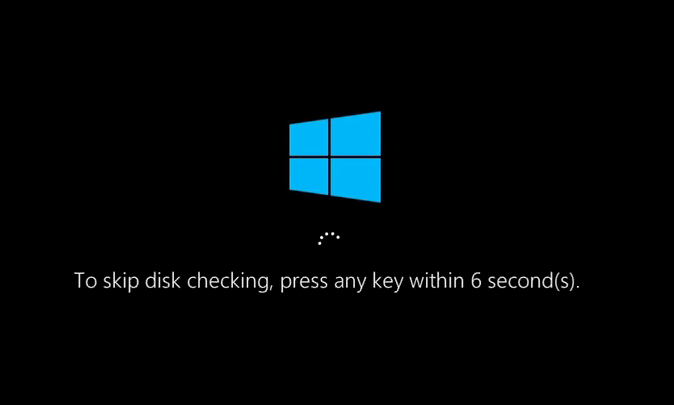
Understanding Volume Scan Problems
Volume scan problems manifest in various forms, affecting system performance and reliability. Identifying these issues is the first step towards resolution.
Types of Volume Scan Problems
Volume scan problems encompass issues like disk errors, corrupted files, and inaccessible drives, hampering overall system functionality.
Causes of Windows Disk Checking Error
Several factors contribute to Windows Disk Checking Error, ranging from hardware malfunctions to software inconsistencies.
Hardware Issues
Faulty hard drives, loose connections, and aging hardware components can trigger disk checking errors.
Software Glitches
Software conflicts, outdated drivers, and incompatible applications may lead to volume scan problems.
File System Corruption
File system corruption due to abrupt system shutdowns or malware attacks can prompt disk checking errors.
Troubleshooting Windows Disk Checking Error
Addressing Windows Disk Checking Error requires a systematic approach to diagnose and resolve underlying issues effectively.
Step-by-Step Solutions
Utilize built-in Windows utilities such as Check Disk (CHKDSK) to scan and repair disk errors efficiently.
Utilize built-in Windows utilities such as Check Disk (CHKDSK) to scan and repair disk errors efficiently. To initiate a disk check using CHKDSK, follow these steps:
-
Open Command Prompt: Press the Windows key, type "cmd", then right-click on Command Prompt and select "Run as administrator" to open it with administrative privileges.
-
Run CHKDSK: In the Command Prompt window, type the following command and press Enter:
bashCopy code
chkdsk /f
This command instructs CHKDSK to fix any errors it finds on the disk.
-
Select Drive: You will be prompted to schedule the disk check on the next system restart. Press Y on your keyboard and then press Enter.
-
Restart Your Computer: Restart your computer to allow CHKDSK to scan and repair the disk during the boot process.
-
Monitor Progress: During the restart, CHKDSK will begin scanning your disk for errors and repairing them as necessary. The process may take some time, depending on the size of your disk and the number of errors detected.
-
Review Results: Once CHKDSK completes the scan and repairs any errors, it will display a summary of the results. Review the report to ensure that the disk errors have been successfully resolved.
Command Prompt Solutions
Execute advanced commands in Command Prompt to initiate disk checks and repair corrupted sectors.
Updating Drivers
Ensure all device drivers are up to date to mitigate compatibility issues and prevent disk errors.
Disk Cleanup
Perform regular disk cleanup to remove temporary files and unnecessary clutter, optimizing disk space and performance.
Advanced Troubleshooting Techniques
In complex scenarios, resort to advanced troubleshooting methods to rectify persistent disk checking errors.
Using Third-Party Disk Repair Tools
Leverage reliable third-party disk repair tools to diagnose and fix intricate disk issues beyond native Windows utilities.
Repairing Corrupted System Files
Deploy system file checker tools to identify and repair corrupted system files, restoring system stability.
Preventive Measures to Avoid Disk Checking Errors
Implement proactive measures to minimize the occurrence of disk checking errors and sustain system health.
Regular Disk Maintenance
Schedule periodic disk scans and maintenance tasks to detect and address potential disk issues before they escalate.
Monitoring Disk Health
Utilize disk health monitoring tools to track disk performance metrics and preemptively address emerging issues.
Conclusion
Resolving Windows Disk Checking Error demands a comprehensive understanding of underlying causes and effective troubleshooting techniques. By adopting preventive measures and leveraging advanced solutions, users can mitigate volume scan problems and ensure uninterrupted system functionality.
FAQs:
- How do I run Check Disk (CHKDSK) in Windows?
- Open Command Prompt as administrator and type "chkdsk /f" followed by the drive letter you want to scan.
- Can outdated drivers cause disk checking errors?
- Yes, outdated drivers can lead to compatibility issues and contribute to disk checking errors.
- What should I do if CHKDSK gets stuck?
- If CHKDSK freezes or gets stuck, try restarting your computer and running CHKDSK again.
- Are there any free disk repair tools available?
- Yes, there are several free disk repair tools like EaseUS Partition Master and MiniTool Partition Wizard.
- How often should I perform disk cleanup?
- It's advisable to perform disk cleanup at least once a month to maintain optimal disk performance.
