
PartitionAssistant NTFS for Mac

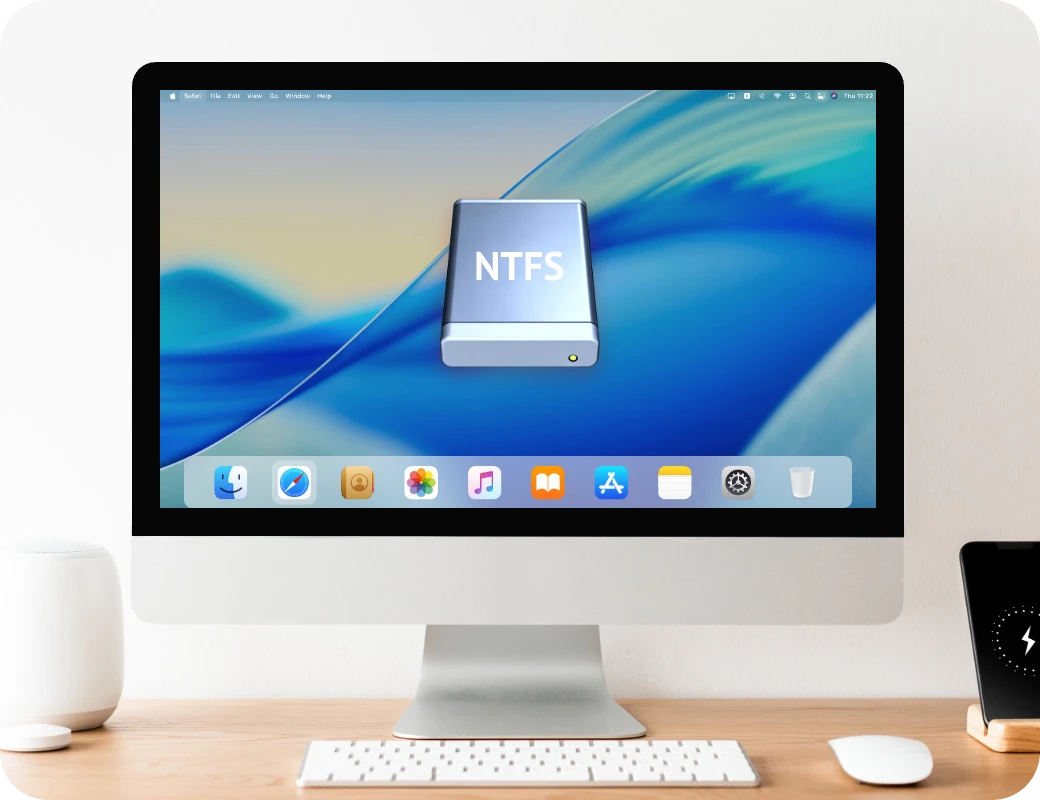
You connect an NTFS external drive to your Mac and soon realize that you can’t write, delete, or move any files. macOS only allows you to read them.
For students sharing school projects, professionals managing work files, or families transferring data via USB drives, this restriction can easily interrupt daily tasks and cause unnecessary frustration.
PartitionAssistant NTFS for Mac solves this problem by providing full read and write access. You can read, write, delete, rename, and move files and folders on NTFS drives just as freely as on your Mac’s internal storage.
Easily read, write, delete, rename, and move files on NTFS drives in macOS with smooth and reliable performance.
Easily access and open files stored on NTFS drives right from your Mac. With seamless Finder integration, you can browse documents, photos, videos, and more just like on native macOS storage.
Add, edit, or save files directly to your NTFS drives without restrictions. PartitionAssistant NTFS for Mac enables full write support, allowing you to work with your data smoothly just like on any Mac-formatted drive.
Easily delete unwanted files or rename existing ones on your NTFS drives directly from Finder. PartitionAssistant NTFS for Mac gives you full control to organize your data just the way you need.
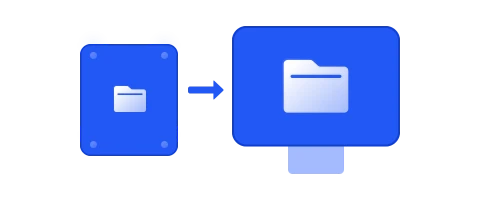
Transfer or rearrange files and folders between NTFS drives with simple drag and drop. Enjoy smooth, reliable file movement across devices without compatibility barriers.
From daily tasks to professional workflows, PartitionAssistant NTFS for Mac ensures seamless Mac NTFS access and covers all your needs.


Work on shared assignments or research files across Windows lab computers and MacBooks, using NTFS-formatted drives to exchange data seamlessly.
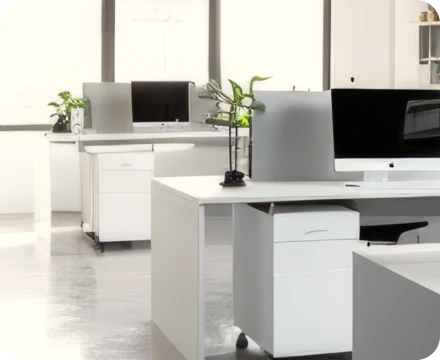

Easily share documents, reports, and presentations on NTFS USB drives or external HDD between colleagues who use both Windows PCs and Macs.


Exchange photos, videos, music, or backups with family members using Windows desktops and Macs through NTFS external drives.
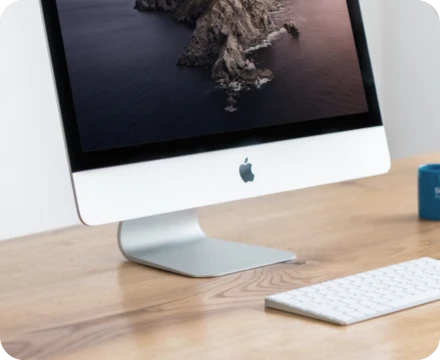

Restore Windows backups from NTFS disks, or migrate files from an old Windows computer to a new Mac quickly and efficiently.
No matter what device, NTFS version, macOS, or hardware you use, PartitionAssistant NTFS for Mac ensures smooth read & write experience.

SATA, PCIe, USB, or Thunderbolt

SanDisk, Kingston, Samsung, Seagate, Toshiba, Crucial

LaCie, SanDisk Professional, OWC, Fantom Drives, Sabrent

SD, CF, microSD


FAT32, and exFAT

Intel and Apple Silicon (M1/M2) based Macs

Tahoe/Sequoia/Sonoma/Ventura/Monterey

Mac mini / MacBook / MacBook Air / MacBook Pro / iMac / Mac Pro
Get quick answers to common questions first, then follow step-by-step guidance to install and use the software.
Install and Connect Drive
Install PartitionAssistant NTFS for Mac and connect your NTFS external hard drive or USB flash drive
into your Mac. It will be detected automatically.
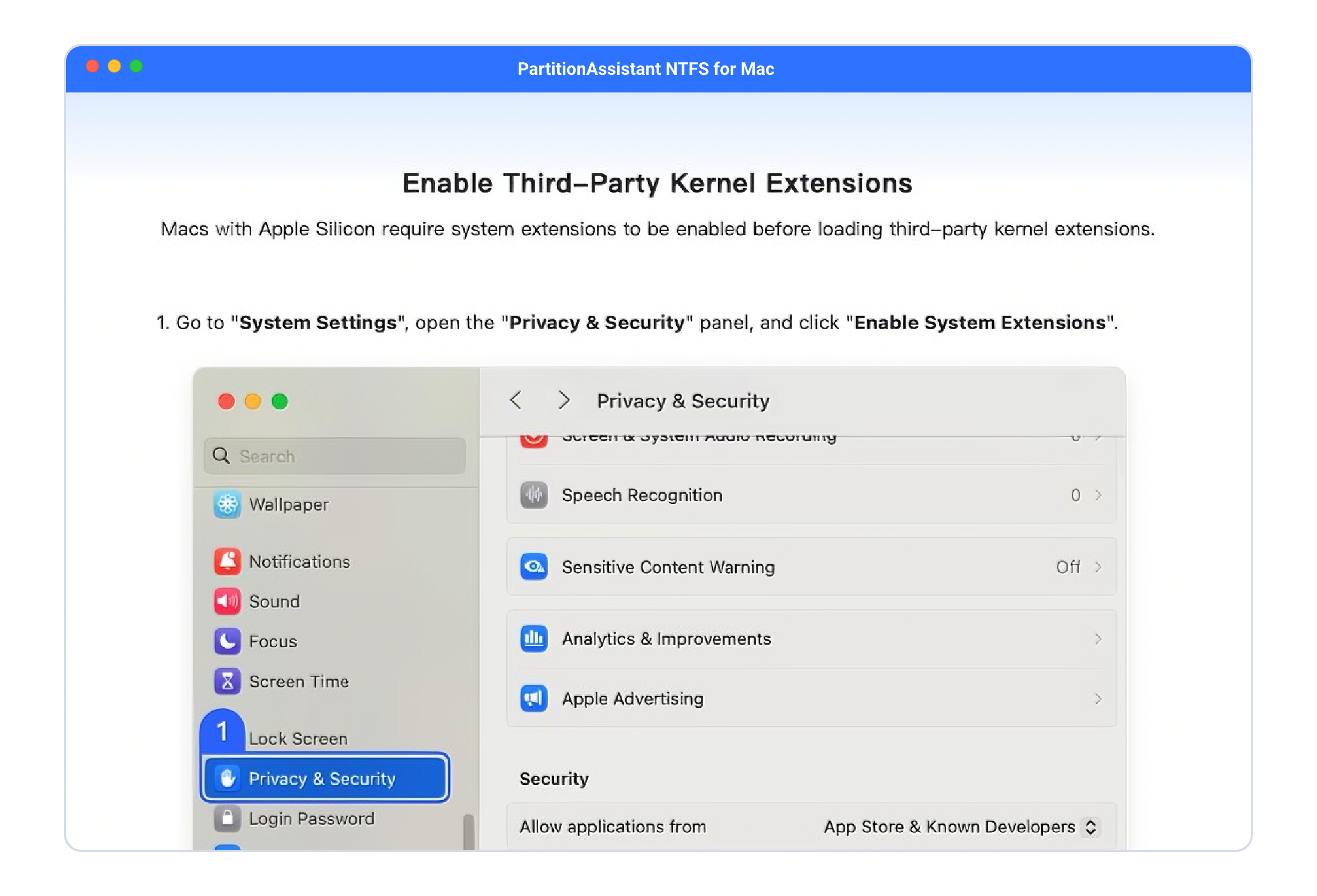
Enable System Extensions
When prompted, open System Settings, go to Privacy & Security, click Enable
System Extensions, and restart your Mac to authorize NTFS driver loading.
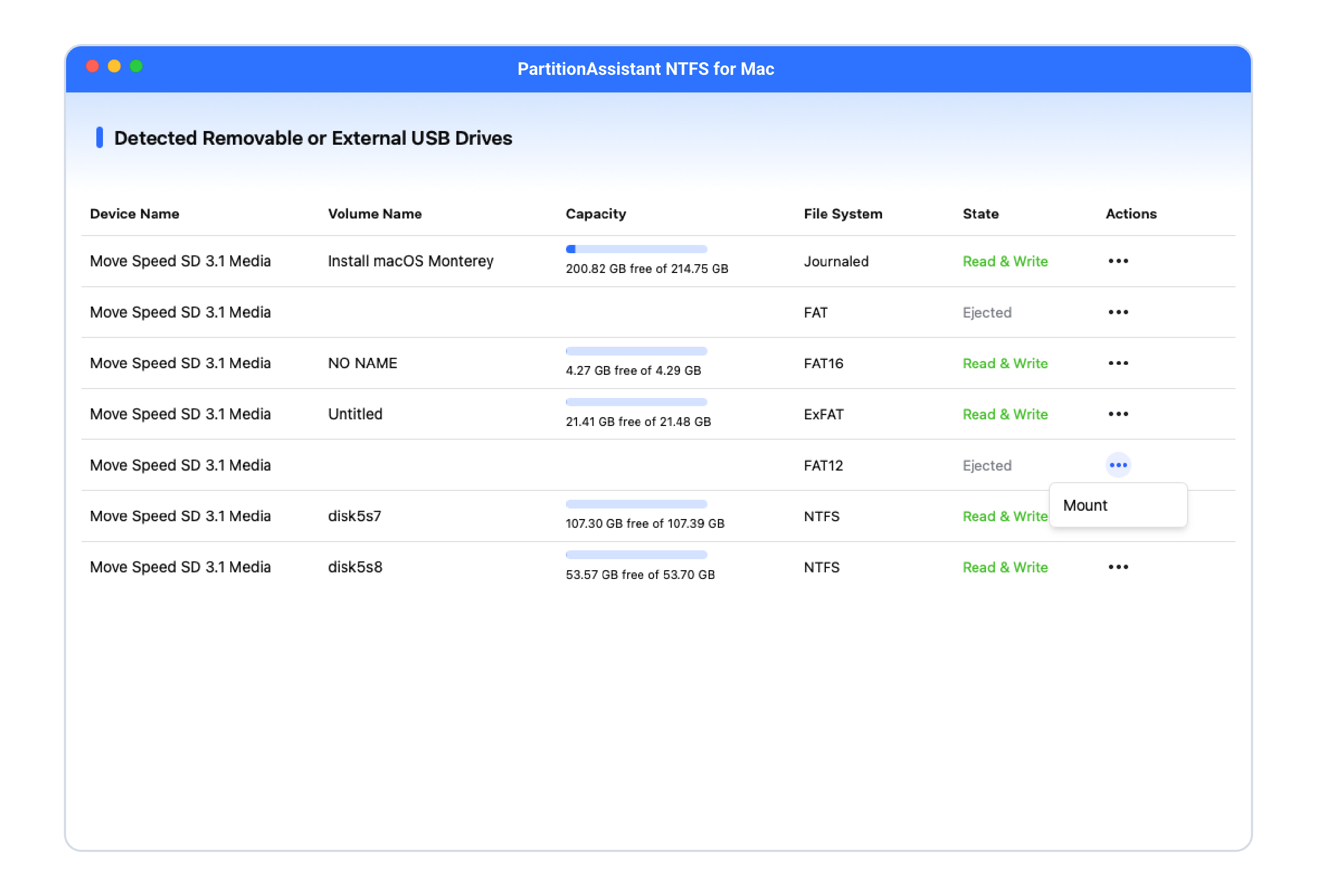
Activate the NTFS Volume
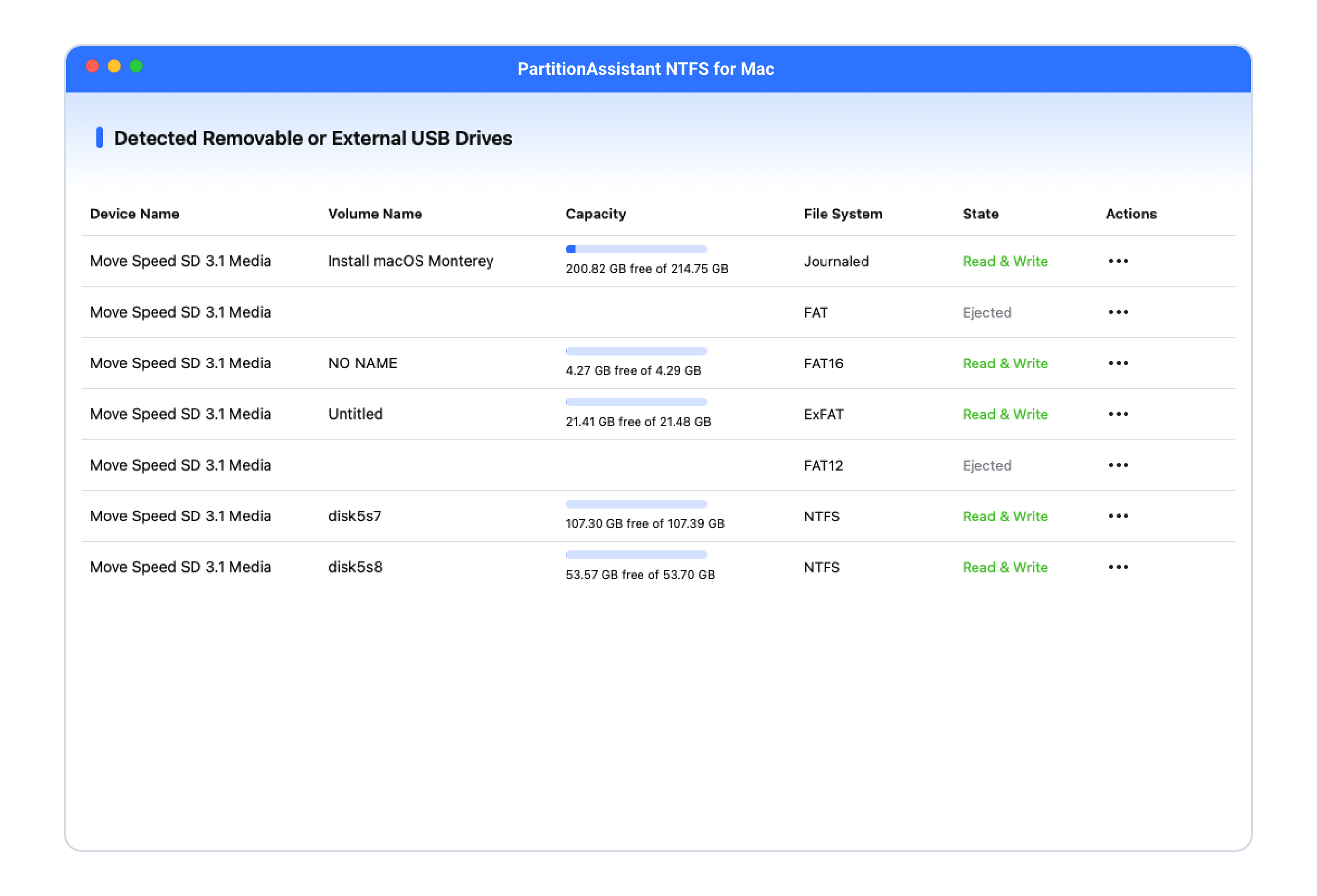
After restarting, return to the app, open the ••• actions menu next to the NTFS
drive,
and select Mount to activate the volume with full read/write access.

Our software is completely free to use with no hidden charges or restrictions. All essential NTFS read & write features are included, making it the most cost-effective choice for Mac users.

Designed with an intuitive and user-friendly interface, it requires no technical skills. Install it once, connect your NTFS drive, and manage files directly in Finder just like on a native Mac drive.

Enjoy ultra-fast NTFS read and write speeds on Mac. PartitionAssistant NTFS for Mac delivers data transfers and file operations at speeds that feel native to macOS.

“It has exactly the features I use daily: read, write, delete and move files. Clean interface, no clutter.”

“Our team frequently exchanges NTFS drives with Windows clients. Using PartitionAssistant NTFS for Mac has saved us hours every week — a simple but essential tool for cross-platform work.”
“Installed on my Mac and it worked straight away. No kernel panic or incompatibility — exactly what I needed.”

“I keep my project backups on a large NTFS external drive. With this software, I can finally open, edit, and manage those files on macOS without formatting. It’s a huge time-saver for my workflow.”

“I upgraded to macOS Tahoe and was worried about compatibility. To my surprise, everything worked smoothly with NTFS drives, no extra setup required.”

“As a new Mac user, I just wanted reliable NTFS write access. This app does exactly that, no confusing settings, no distractions.”
 PartitionAssistant NTFS for Mac
Full NTFS control — read, write, delete, rename, and move files effortlessly.