
 PartitionAssistant NTFS for Mac
Fixed: Seagate Unlock Drive for Mac Not Working
Have you ever encountered the Seagate Unlock Drive for Mac not working issue? If yes, read this article to know the reasons and learn how to fix it in five powerful and effective ways.

By Hedy / Updated on March 19, 2026


If you’ve ever plugged in a Seagate external drive and been greeted with a locked volume, you already know how crucial the Unlock Drive for Mac utility is. This small app sits inside the drive itself and acts like a digital key. Once you launch it and enter your password, it decrypts the storage and gives you full access to your files.
Think of it like a vault. Your data isn’t gone—it’s just sealed behind encryption. The unlock tool simply opens that vault. Without it, your Mac sees the drive, but you can’t interact with the actual data stored inside. That’s why when the tool fails, it feels like everything is suddenly inaccessible.
The catch? This system relies heavily on compatibility with macOS and proper permissions. If either breaks—even slightly—the unlock process can fail. And when it does, it often looks like your drive is completely unusable, even though your data is still safe.
Why Seagate unlock drive for Mac not working?
If “Unlock Drive for Mac” (Seagate) is not working, it’s usually caused by compatibility, driver, or permission issues—not the drive itself. Here are the most common reasons
1. Outdated unlock application: The built-in “Unlock Drive for Mac” app stored on the Seagate drive is often outdated and no longer maintained, so it may fail to launch or function properly on newer systems.
2. macOS compatibility limitations: Newer versions of macOS introduce stricter security and software requirements, which can prevent older Seagate unlock utilities from running.
3. Deprecation of legacy software: Seagate has gradually replaced the old unlock tool with newer software (like Toolkit), making the original unlock app unreliable or unsupported.
4. Blocked system extensions: macOS security features (such as System Integrity Protection and extension approval requirements) may prevent the unlock software from loading necessary components.
5. Corrupted or damaged app files: The unlock application stored on the drive can become corrupted, incomplete, or flagged as “damaged”, preventing it from opening.
6. Driver or background service dependency: The unlocking process depends on specific drivers or background services, which may be missing, incompatible, or not loaded.
How to fix Seagate unlock drive for Mac not working
Here’s a detailed step-by-step guide on how to fix a Seagate unlock drive that’s not working on Mac:
Fix 1. Enable System Extensions on macOS
System extensions are required for Seagate security software to function properly on macOS. If disabled, the unlock feature may fail, preventing access to your external drive and encrypted data.
Step 1. Click the Apple menu > System Settings (or System Preferences).
Step 2. Go to Privacy & Security.
Step 3. Scroll down to find Security settings.
Step 4. Look for a message about blocked system software.
Step 5. Click Allow next to the Seagate extension.
Step 6. Restart your Mac.
Step 7. Reconnect the Seagate drive and try unlocking again.
Fix 2. Mount the drive via Disk Utility
Sometimes, the Seagate drive is detected but not mounted automatically. Manually mounting it through Disk Utility can restore access and allow the unlock process to proceed correctly.
Step 1. Open Disk Utility (Applications > Utilities).
Step 2. Locate your Seagate drive in the sidebar.
Step 3. Select the locked or unmounted volume.
Step 4. Click the Mount button at the top.
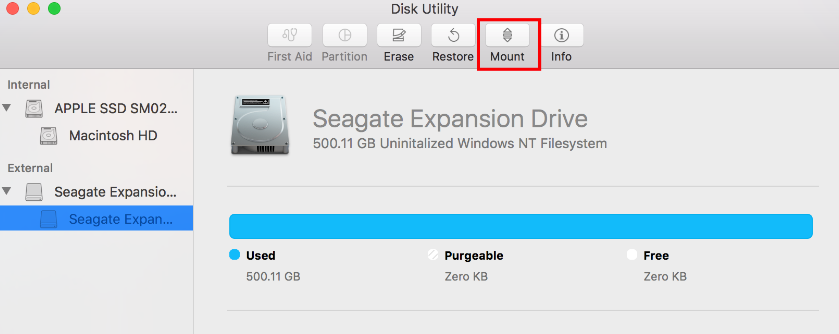
Step 5. Enter the password if prompted.
Step 6. Check if the drive appears on the desktop.
Step 7. Retry accessing the drive normally.
Fix 3. Repair the drive using First Aid
File system errors or minor corruption can prevent the Seagate unlock tool from working. Running First Aid helps detect and fix disk issues that may block proper drive access.
Step 1. Launch Disk Utility.
Step 2. Select the Seagate drive from the list.
Step 3. Click First Aid at the top.
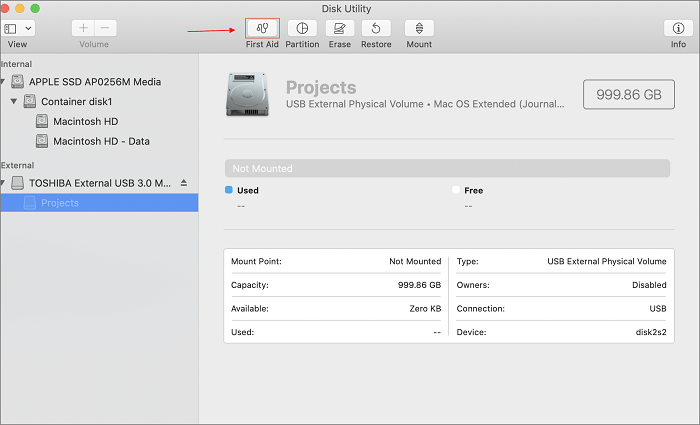
Step 4. Confirm by clicking Run.
Step 5. Wait for the repair process to complete.
Step 6. Review any reported issues.
Step 7. Try unlocking the drive again after completion.
Fix 4. Reformat the drive
If the drive remains inaccessible, reformatting may resolve deep corruption or compatibility issues. Note that this process erases all data, so backup is necessary if possible.
Step 1. Open Disk Utility.
Step 2. Select the Seagate drive.
Step 3. Click Erase.
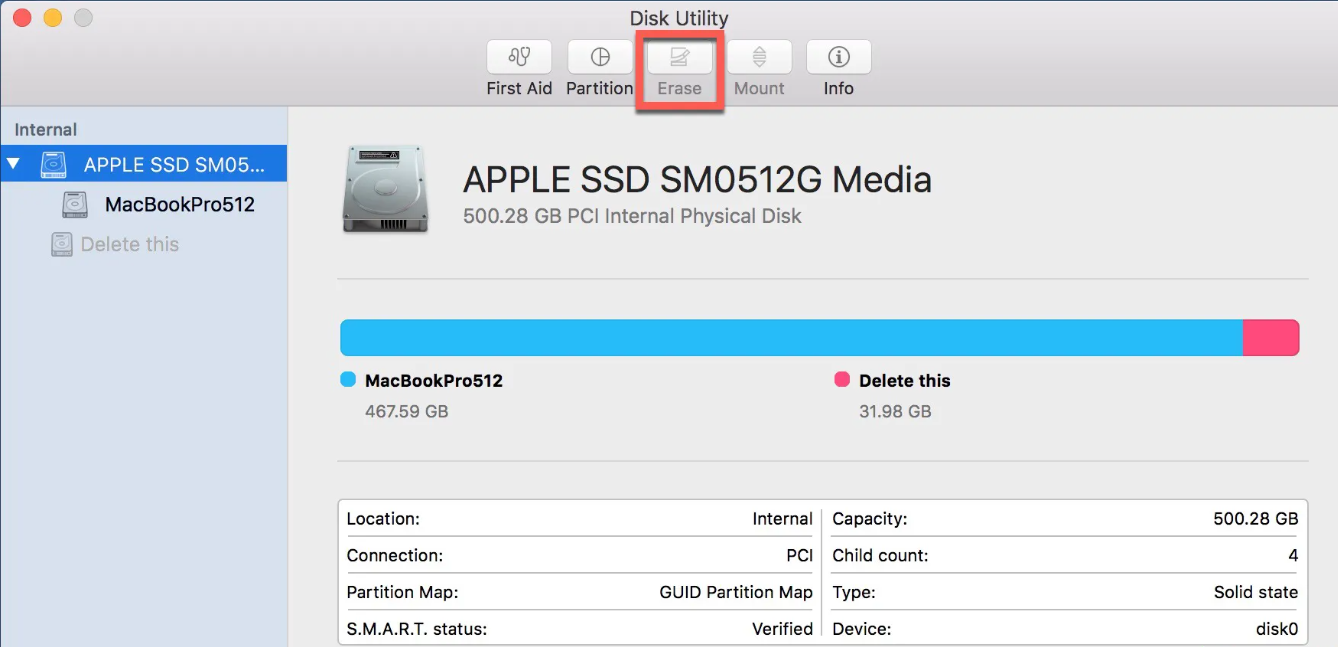
Step 4. Choose a format (e.g., exFAT for cross-platform use).
Step 5. Assign a new name to the drive.
Step 6. Click Erase to confirm.
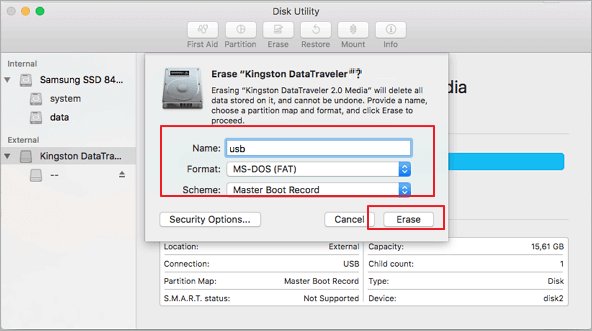
Step 7. Wait for completion and reconnect the drive.
Fix 5. Make Seagate drive compatible on Mac
Compatibility issues between Windows-formatted drives and macOS can cause unlock failures. Ensuring the drive uses a Mac-friendly file system improves accessibility and long-term performance.
PartitionAssistant NTFS for Mac is a specialized utility designed to enable full read and write access to NTFS drives on macOS. By default, macOS can only read NTFS drives but cannot write to them, which limits usability for external disks like Seagate drives.
Most Seagate external drives are formatted in NTFS, the native Windows file system. This causes a common issue: you can open files on Mac, but you cannot edit, copy, delete, or save new files. This happens because macOS lacks native NTFS write support.
Instead of reformatting your Seagate drive (which deletes data), PartitionAssistant NTFS for Mac works as a driver-based solution:
🔸 Full NTFS read & write support: It allows your Mac to treat NTFS drives like native disks—edit, transfer, and delete files freely.
🔸 No need to reformat: You can keep your Seagate drive in NTFS format and still use it on both Windows and Mac.
🔸 Wide device compatibility: It supports external HDDs/SSDs (including Seagate), USB drives, SD cards, and Thunderbolt storage
🔸 Broad system support: It works across multiple macOS versions and NTFS formats, ensuring stable performance.
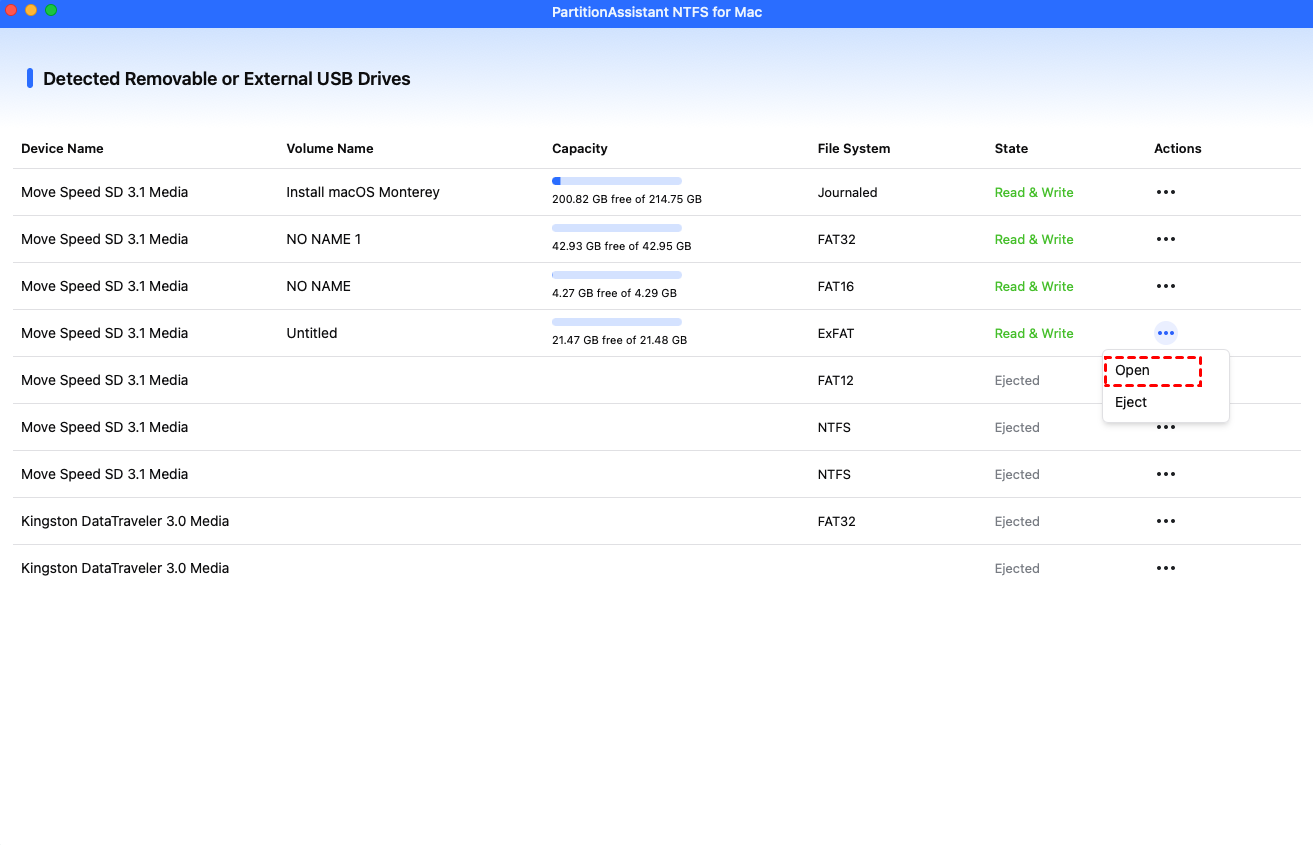
Step 1. Run PartitionAssistant NTFS for Mac and connect your read-only Seagate drive.
Step 2. The connected, removable, and external drives will be mounted and listed.

Step 3. Select the drive you want to operate and click "Open".
Step 4. Now you can copy files on your Mac and click "Paste Item" to copy the files to the Seagate drive.
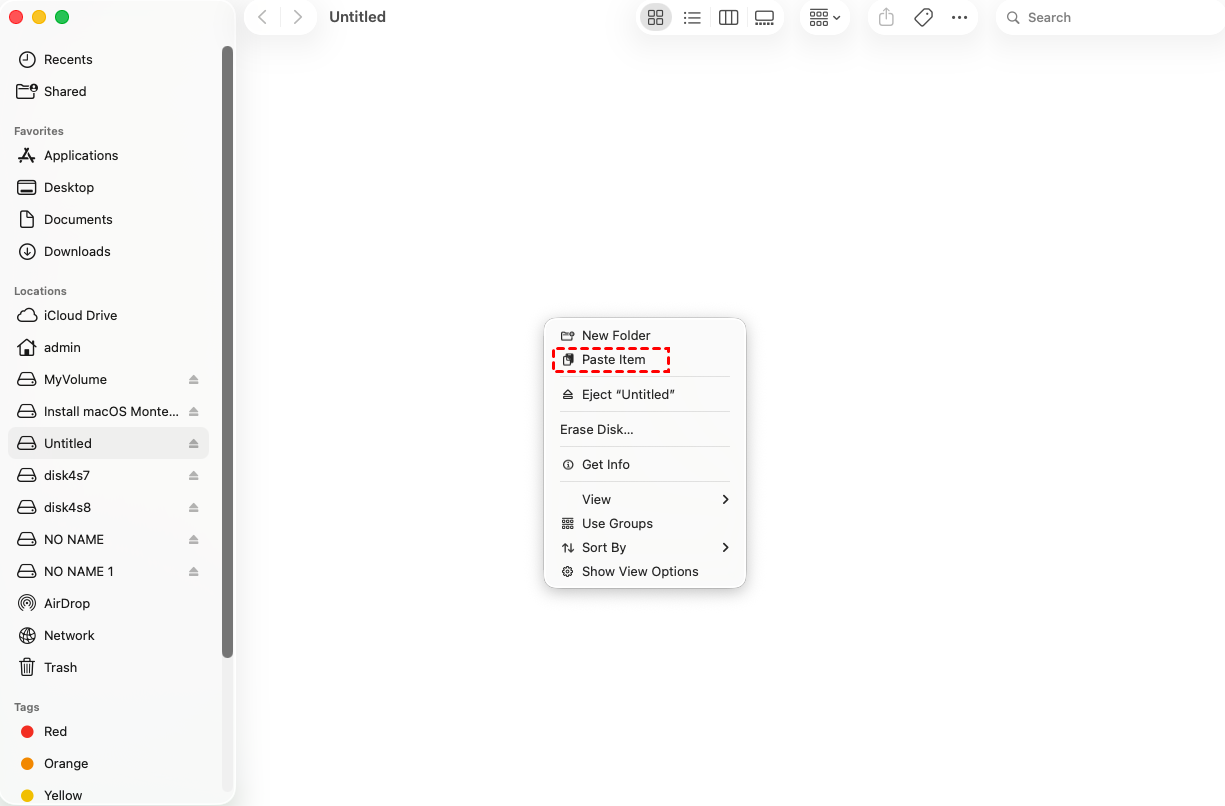
Step 5. You can also copy, delete, and rename files on the Seagate drive.

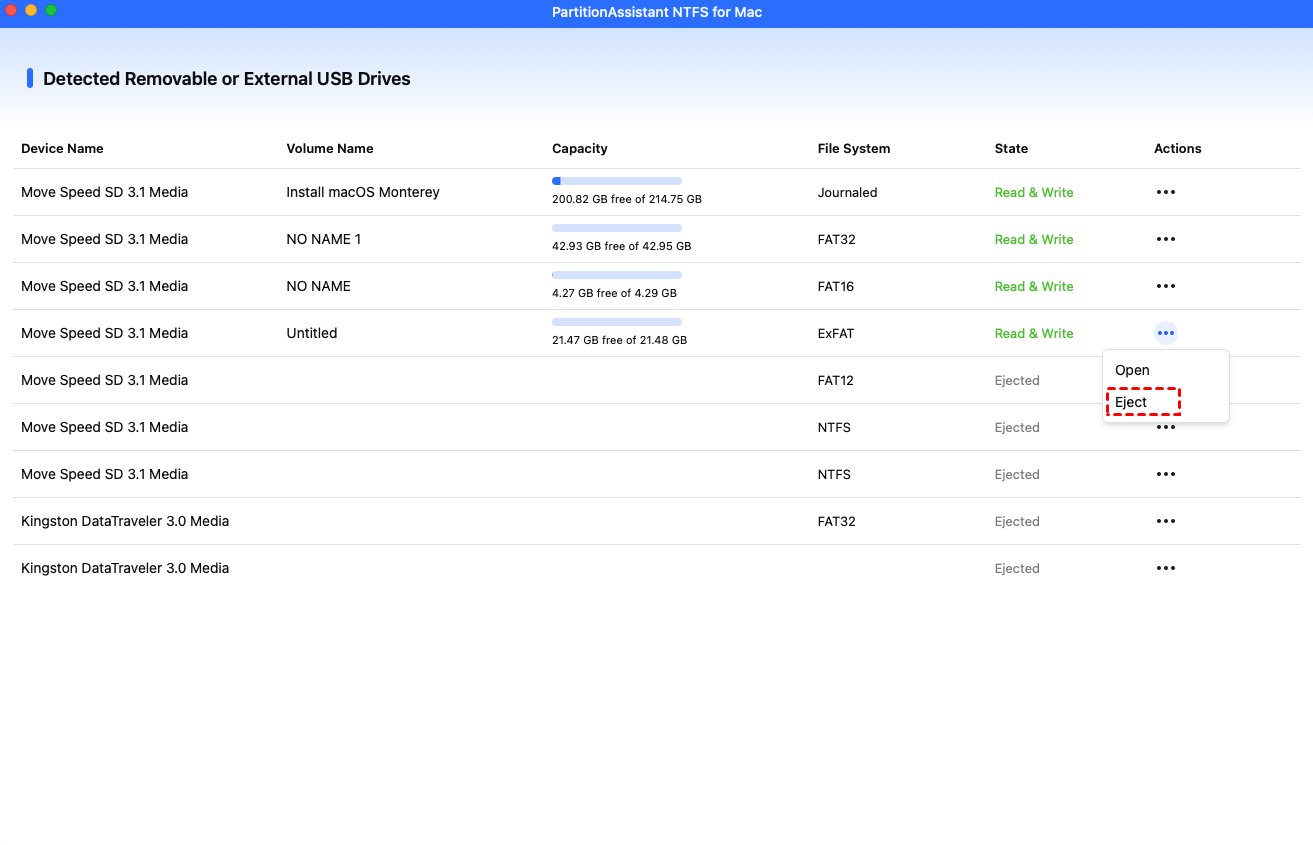
Step 6. After all operations are complete, please click "Eject" to disconnect the Seagate drive from your Mac.
FAQs
📢 Why won’t my Seagate Unlock Drive app open on Mac?
Your Seagate Unlock Drive app may not open on Mac due to macOS security settings blocking system extensions, outdated software, or compatibility issues with the current macOS version.
📢 Is my Seagate drive broken if it won’t unlock?
A Seagate drive not unlocking doesn’t always mean it’s broken; it could be a software, encryption, or compatibility issue preventing access.
📢 Can I access my data without the unlock app?
Accessing data without the unlock app is difficult; encrypted drives require proper authentication. Without it, macOS may only recognize the drive but not allow file access.
📢 What happens if I enter the wrong password too many times?
Entering the wrong password too many times can temporarily lock the drive or trigger security protocols, potentially requiring a reset or admin intervention to regain access.
📢 Should I reformat my Seagate drive to fix this issue?
Reformatting the Seagate drive can fix unlocking issues but will erase all data; only do this if you’ve backed up your files or cannot recover them otherwise.
Conclusion
In short, when the Seagate Unlock Drive for Mac fails, the issue is usually software-related rather than hardware damage. By adjusting macOS security settings, repairing the disk, or ensuring compatibility, you can often regain access without losing data. If problems persist, using tools like PartitionAssistant NTFS for Mac or reformatting as a last resort can restore full functionality and keep your drive usable across systems.
