
Configure Security Policy in macOS Recovery Mode
macOS can only read NTFS partitions by default, not write directly to them. To write data to an NTFS partition on macOS, you need to use a third-party NTFS driver. These drivers are kernel extensions (Kexts), so macOS needs to reduce its system security policies to allow loading kernel extensions from identified developers.
Step 1: Enter Recovery Mode
1. Completely shut down your Mac.
2. Press and hold the power button on your Mac until the Startup Options screen appears (you'll see the "Options" gear icon and available startup disks). Click the "Options" gear icon, then click "Continue".
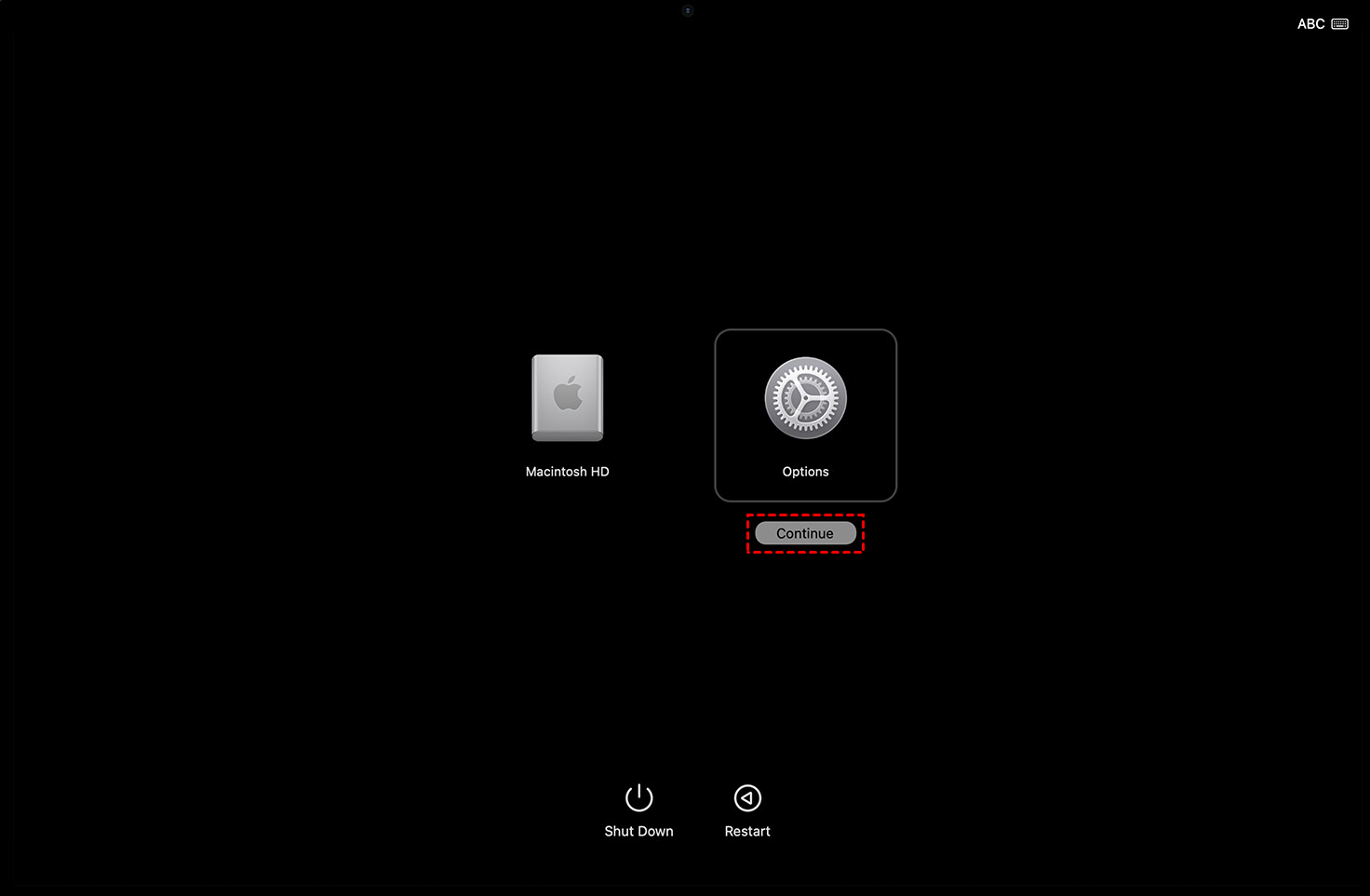
3. This will boot into macOS Recovery Mode.
Step 2: Open the Security Utility
1. In the top menu bar of Recovery Mode, click "Utilities" and select "Startup Security Utility" from the drop-down menu.
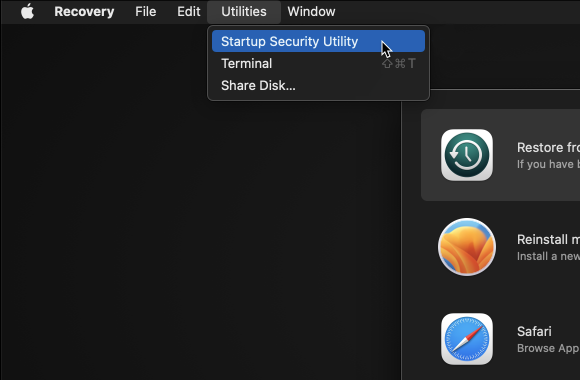
2. You may be prompted to select an administrator account and enter a password.
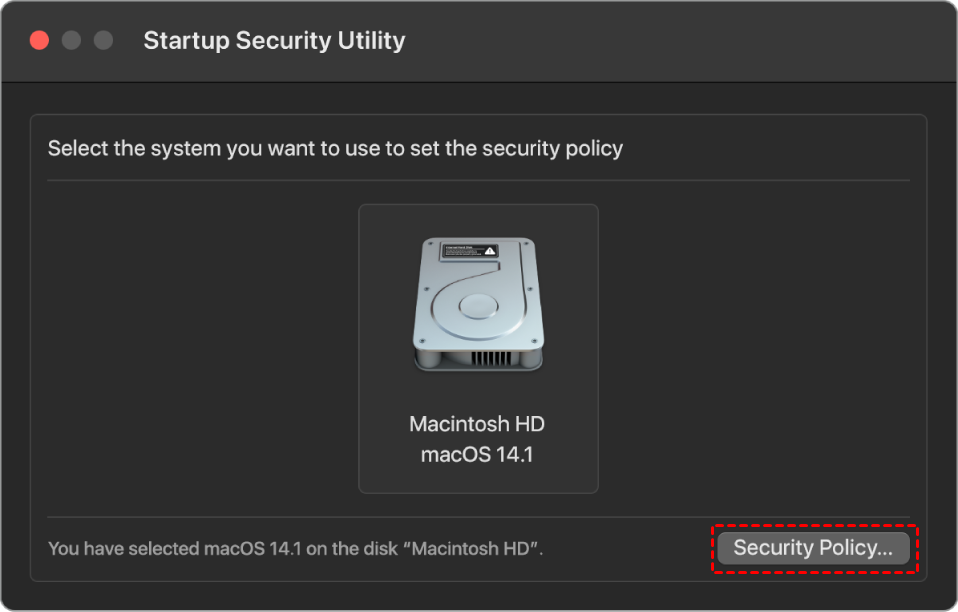
3. The "Startup Security Utility" window will then open. You will see the security policy settings for your current startup disk (e.g., "Macintosh HD").
Step 3: Configure Security Policy
1. In the "Startup Security Utility", select "Security Policy".
2. You will see two options:
• Full Security
• Reduced Security
Below the "Reduced Security" option, you will see two checkboxes:
✓ Allow user management of kernel extensions from identified developers
✓ Allow remote management of kernel extensions and automatic software updates
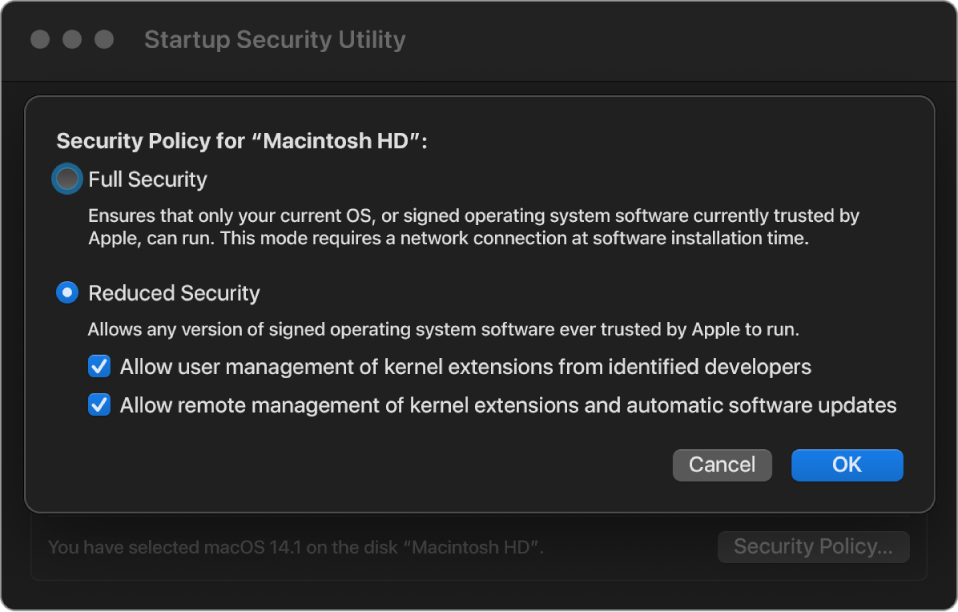
For maximum flexibility (e.g., installing certain third-party drivers or software), ensure that at least the first option is checked. The second option is typically related to enterprise management, regular users can choose it as needed.
Step 4: Save and Exit
1. Click the "OK" button in the lower right corner of the window to save your changes.
2. Close the "Startup Security Utility" window.
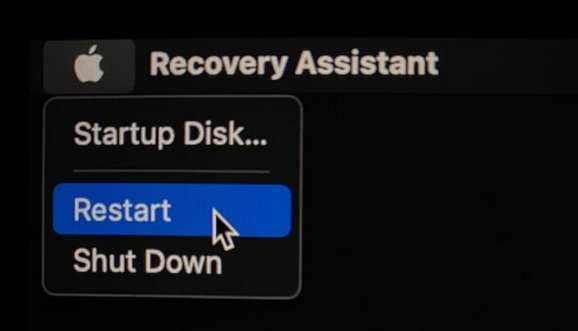
3. In the main window of Recovery Mode, click the Apple icon in the upper left corner of the screen and select "Restart".
Step 5: Configure Privacy & Security
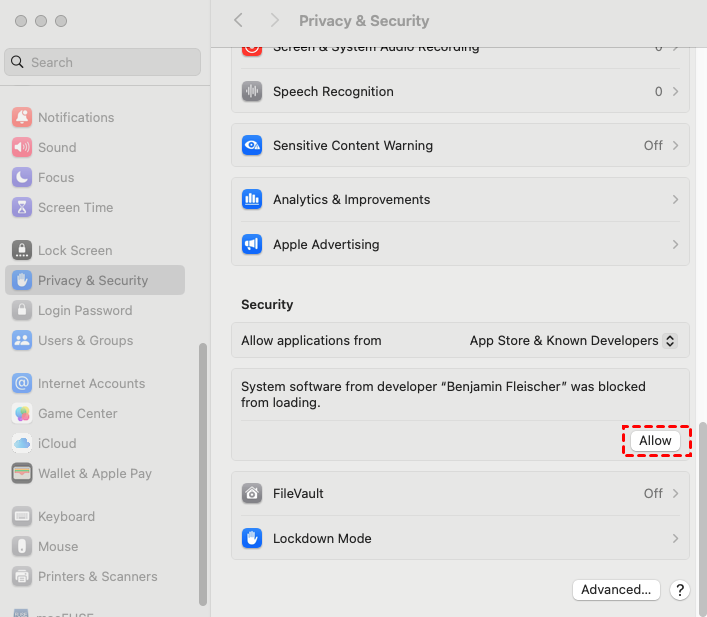
1. Open System Settings, select "Privacy & Security", click "Allow" in "Security", and follow the system's on-screen instructions to restart the system.
2. After that, you can boot into macOS, run the Partition Assistant NTFS for Mac software to mount the NTFS partition, and then write data to it.