
 AOMEI Partition Assistant
How to Know PC Password Using CMD and Use It to Reset It?
Many users wonder how to know PC password using CMD without losing their data. You can use the net user command to see it or use a tool to directly reset the password even if you forget it. This article explains both methods.

By Irene / Updated on January 30, 2026


🌟Quick summary:
Many users search for how to know a PC password using CMD after forgetting their Windows login credentials. Due to Windows encryption and security mechanisms, passwords and PINs cannot be viewed directly. However, CMD and third-party tools still offer reliable ways to reset or regain access quickly.
| Situation | Available solution | Key notes |
|---|---|---|
| Logged into Windows | Use Command Prompt (Admin) with net user | Set a new local account password if you remember it |
| Locked out of Windows | Use the Utilman trick via Recovery Mode | Requires professional command-line operations and system files |
| Locked out and prefer an easier way | Use AOMEI Partition Assistant | Reset or remove passwords via a bootable USB without data loss |
While you cannot read the old Windows password, you can reset it efficiently. The following content explains how to change a Windows local account password using CMD in different scenarios, and introduces a simpler graphical solution for users who want a safer and more user-friendly approach.
Scenario: How to know PC password using CMD?
“Is it possible to see the user password or pin on Windows 10 using CMD commands? How can I do that?”
That is a question from Quora. CMD allows users with administrative privileges to make changes to the system, including password management. This is particularly useful for individuals who have forgotten their password. But unfortunately, it is not possible to know PC password or PIN on Windows OS using CMD commands as these are protected by encryption.
Although it is hard to answer how to know PC password by CMD, still you can directly change it with Command lines. Today, we will share the methods to use CMD for how to change password effortlessly.
2 available cases for using CMD to change the password
In this section, we will guide you through the step-by-step process of changing password with CMD. However, it is crucial to note that this approach exclusively applies to local accounts within the Windows operating system and is not applicable to Microsoft account logins.
For Microsoft account password changes, it is better to visit Microsoft's online account management page.
Case 1. Changing the password via the Command Line after login
To change the password of another Windows user using the command line, you'll need administrative privileges. If you're unable to make any changes due to a forgotten administrator password, you can follow these steps to regain access:
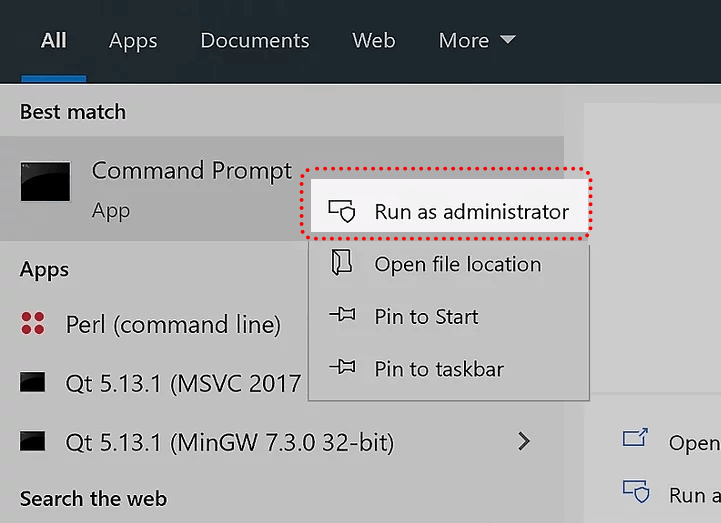
Step 1. Open an administrator Command Prompt window by typing "cmd" in the Start menu, then right-clicking the Command Prompt entry and selecting "Run as administrator".
Step 2. Alternatively, you can use PowerShell or the Windows Terminal by right-clicking the Start button or pressing Win + X.
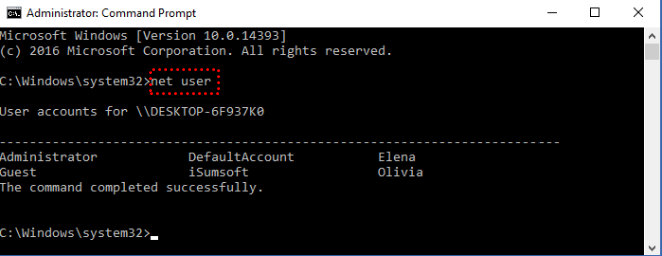
Step 3. Type the command "net user" and press Enter to display all users on your system. Note the account name you want to change the password for.
Step 4. Change the password using the "net user" command: Replace USERNAME and NEWPASS with the actual username and new password for the account. If the username has multiple words, enclose it in quotes. Example: "net user username new password."
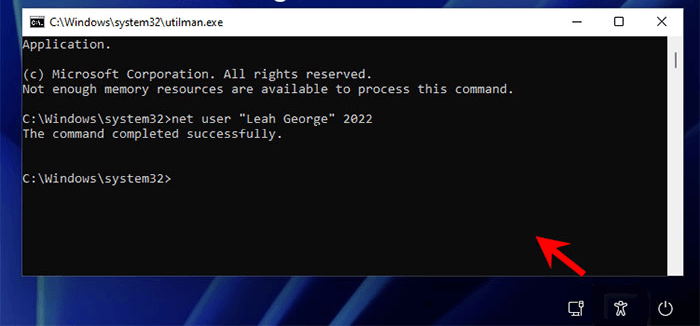
Step 5. Once you execute this command, you will receive a message confirming its successful completion. You can now log into the account using the new password, just as if you had changed it through the graphical interface.
- ★ Note:
- If you encounter an "Access denied" message, make sure that you have started the Command Prompt or other command line window as an Administrator. Standard users do not have permission to use the command line to change passwords for other accounts. If you receive an error stating that the username was not found, verify that you entered it correctly.
Case 2. Changing Windows password from the command line when out of Windows
When you're unable to access the system, you can access CMD through the Troubleshoot option during boot or by using a Windows installation media.
Step 1. On the Windows login interface, press "Shift" and click "Restart" simultaneously. This will initiate the Windows recovery mode. Select "Troubleshoot."
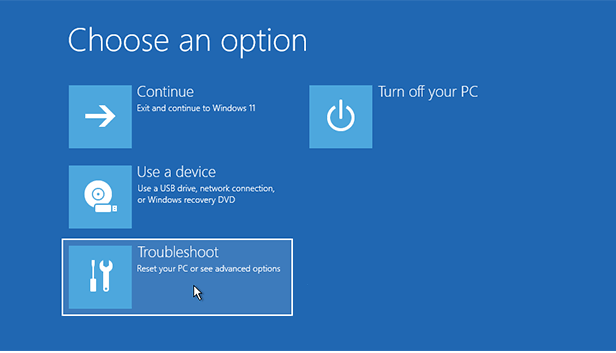
Step 2. Within the Advanced options window, choose "Advanced options" and then "Command Prompt".
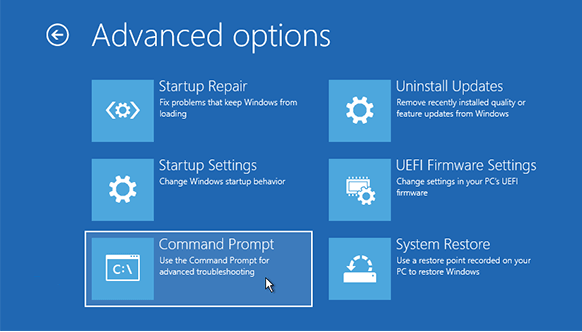
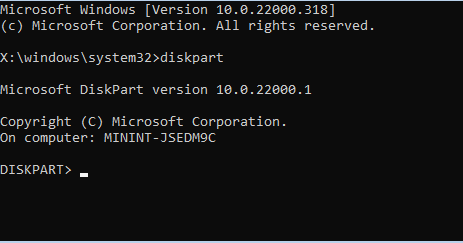
Step 3. In the CMD interface, enter "diskpart" and press "Enter".
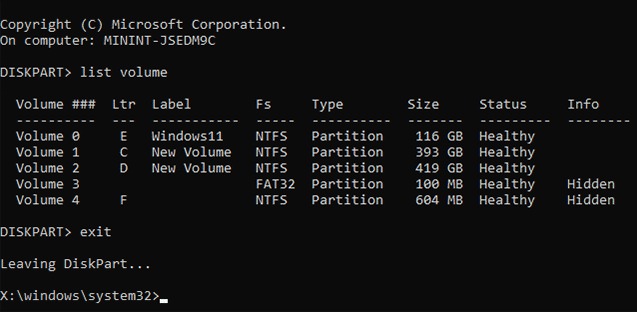
Step 4. Type "list volume" and press "Enter" to view all volumes. Remember the drive letter assigned to the system drive. Exit the Diskpart utility by entering "exit" and pressing "Enter".
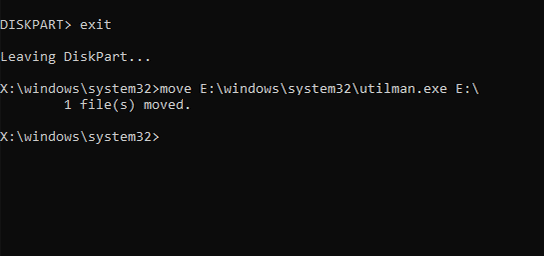
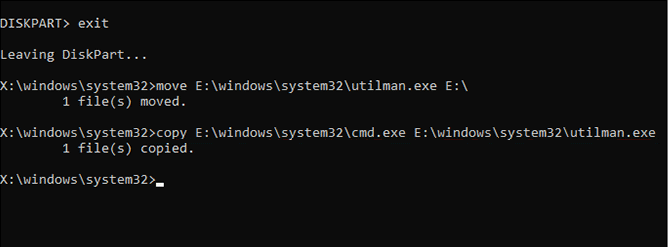
Step 5. In the CMD interface, enter "move E:\windows\system32\utilman.exe E:" to move the utilman.exe file to the root directory of the system drive.
Step 6. Next, input "copy E:\windows\system32\cmd.exe E:\windows\system32\utilman.exe" and press "Enter" to copy the cmd.exe file to the specified path.
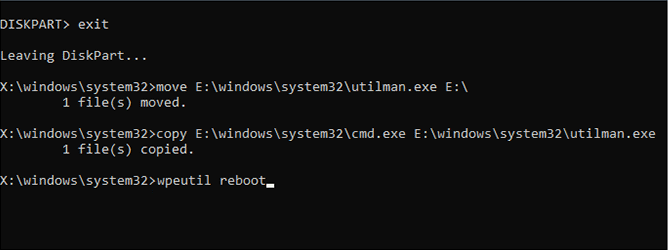
Step 7. Enter "wpeutil reboot" and press "Enter".
Step 8. Type the command net user [USERNAME] [NEW_PASSWORD] and press Enter.
Step 9. Finally, exit this tool by typing "exit" and pressing "Enter" allowing you to log in with the new password.
An easier way to change password on Windows PC
However, the CMD change password method is not so friendly for non-technical users. Mistakes can easily occur when typing commands, leading to unintended consequences or system instability. If you hope to change or reset the Windows PC password, here is a much easier method.
AOMEI Partition Assistant is a multifunctional and robust computer management tool. It boasts a user-friendly interface with a step-by-step wizard, making it accessible for users of all skill levels.
It provides a feature “Reset Windows Password”. You can easily reset or change forgotten passwords through an intuitive graphical interface by simply creating a bootable USB.
 AOMEI Partition Assistant
The Best Windows Disk Partition Manager and PC Optimizer
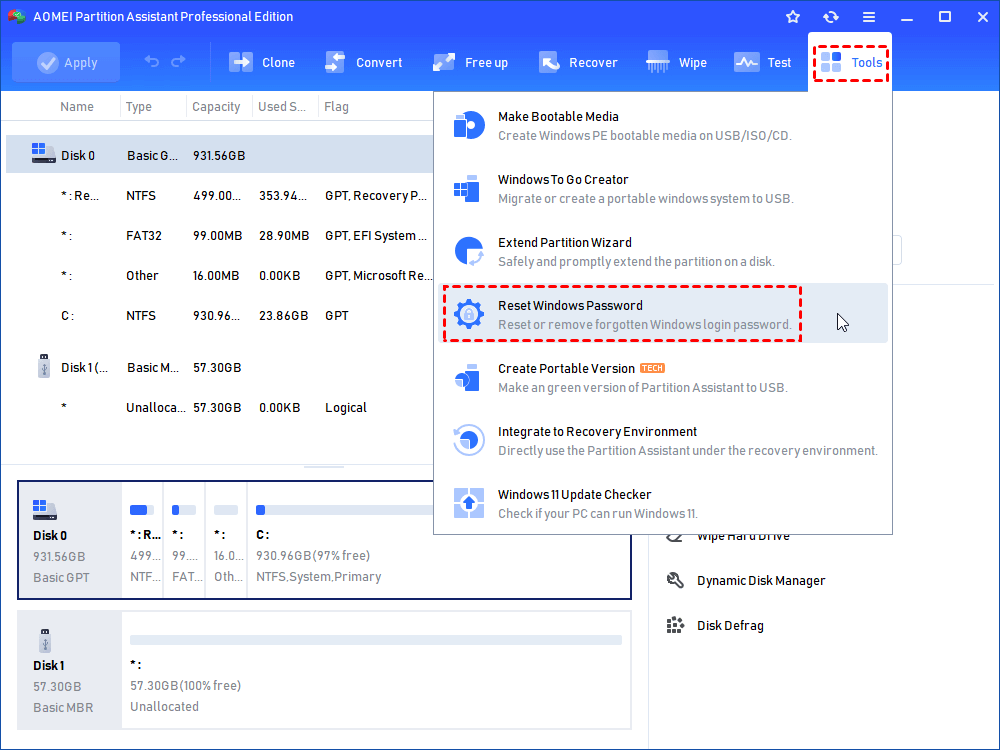
Step 1. Insert a USB drive into your computer, download and launch this convenient tool, and then select "Tools" and "Reset Windows Password".
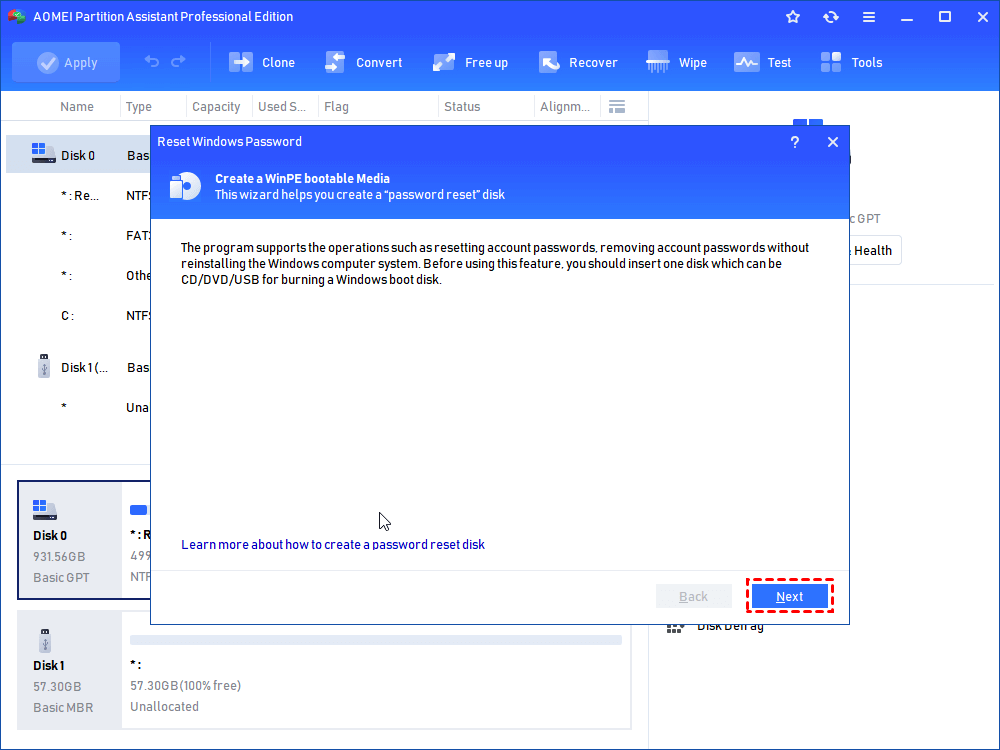
Step 2. A window will appear, prompting you to create a bootable USB. Simply click "Next".
Step 3. Choose the option labeled "General USB Flash Disk" and click "Proceed". Please note that formatting the target USB will result in the deletion of all data, so it's advisable to back up any important files beforehand.
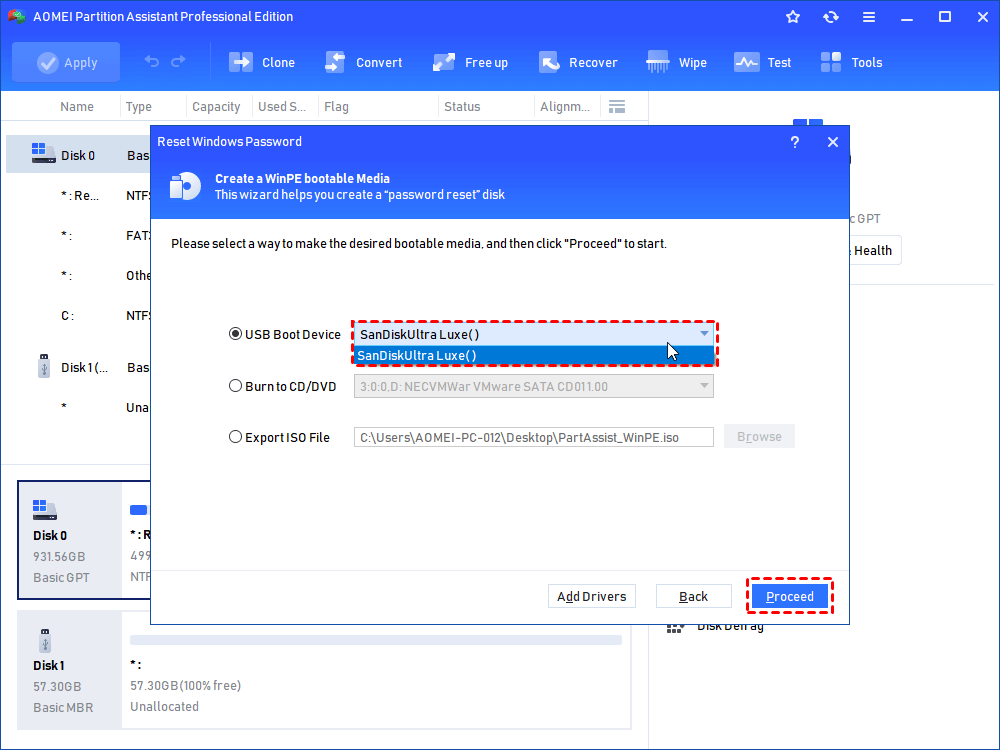
Step 4. Carefully read the displayed notice and click "Yes".
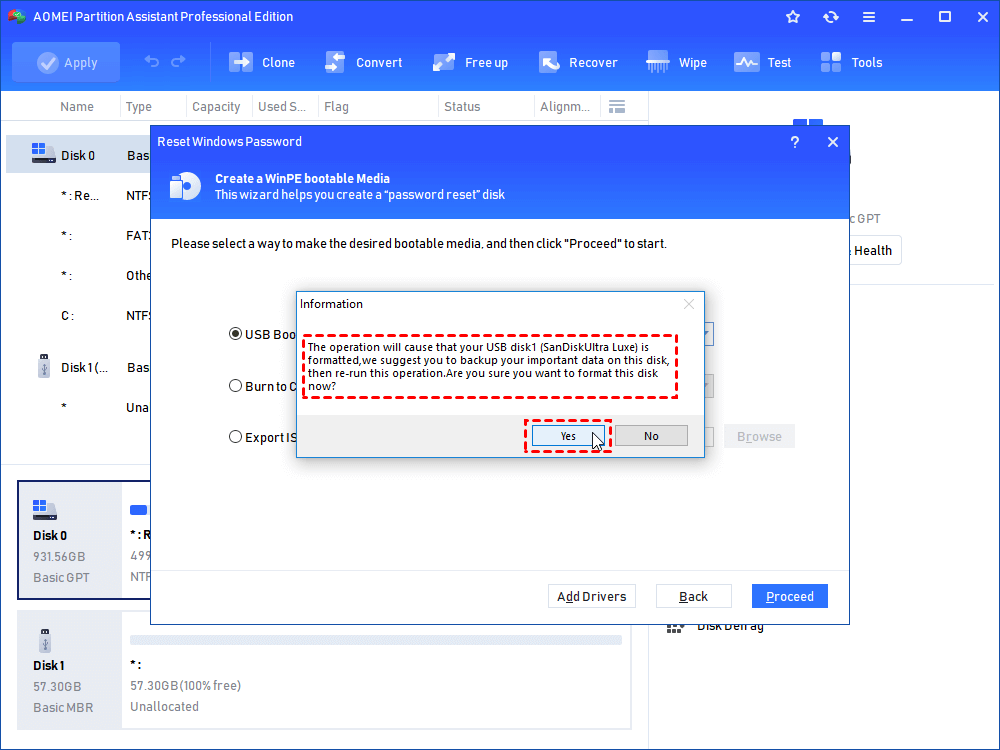
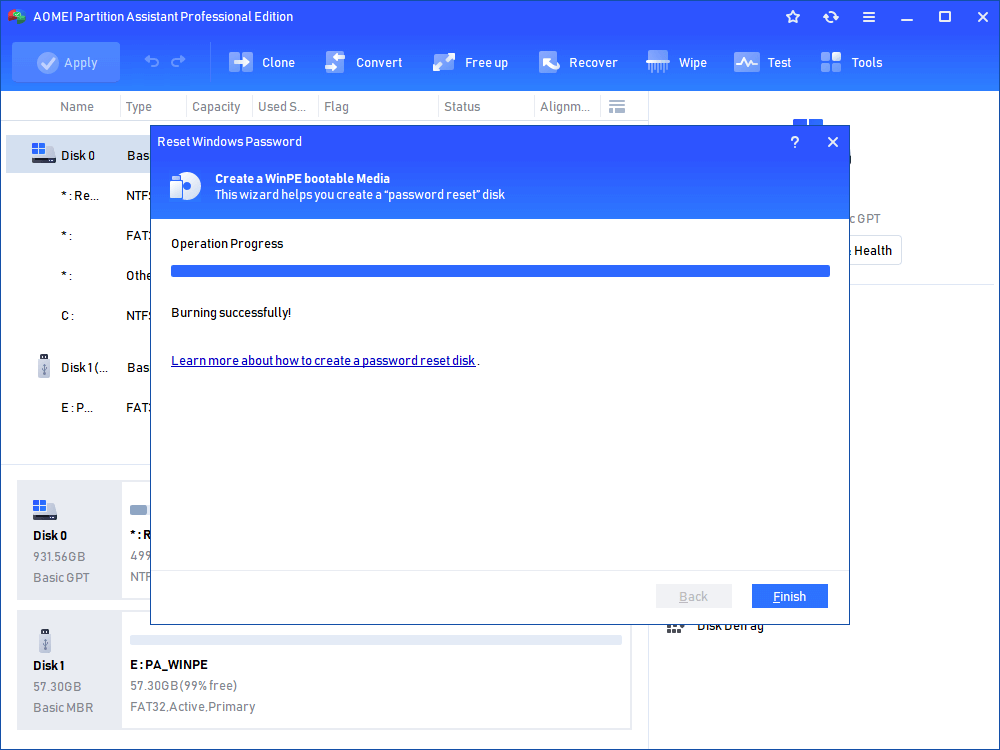
Step 5. Exercise patience as the tool generates the password reset USB. Once the operation is complete, click "Finish".
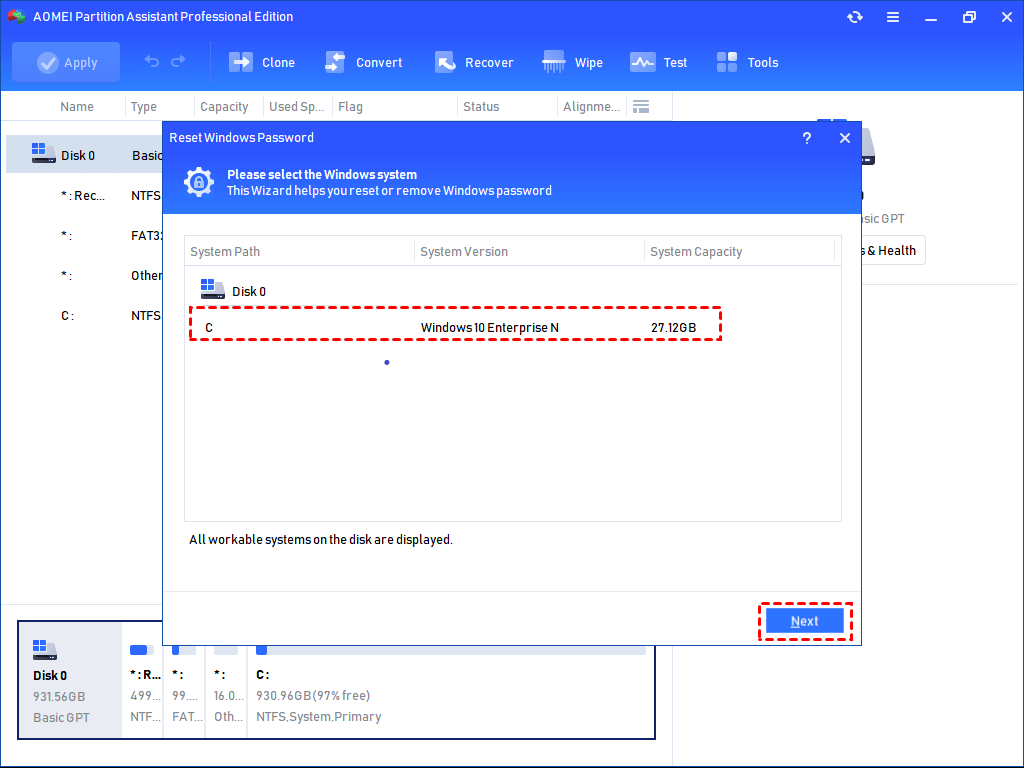
Step 6. Power off your computer and restart it. You will be prompted to change the boot drive. Boot the PC using the created USB, select the Windows system, and click "Next".
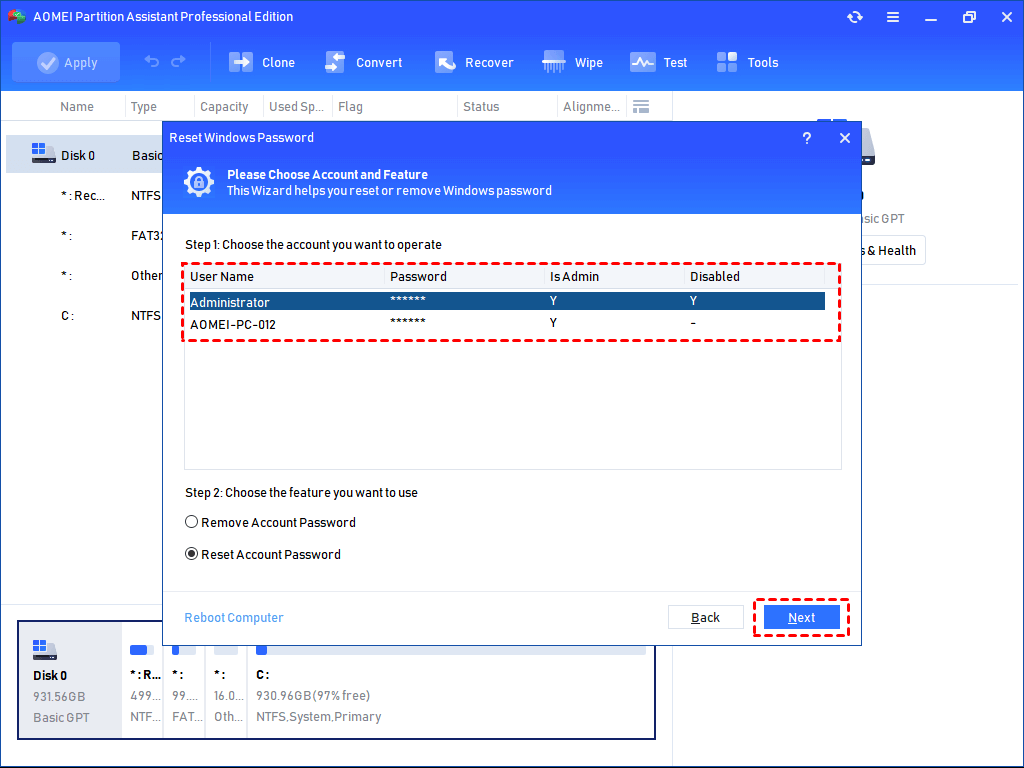
Step 7. A list of all accounts on the PC will be visible. Choose the desired account, and then select either "Remove Account Password" or "Reset Account Password". Proceed by clicking "Next".
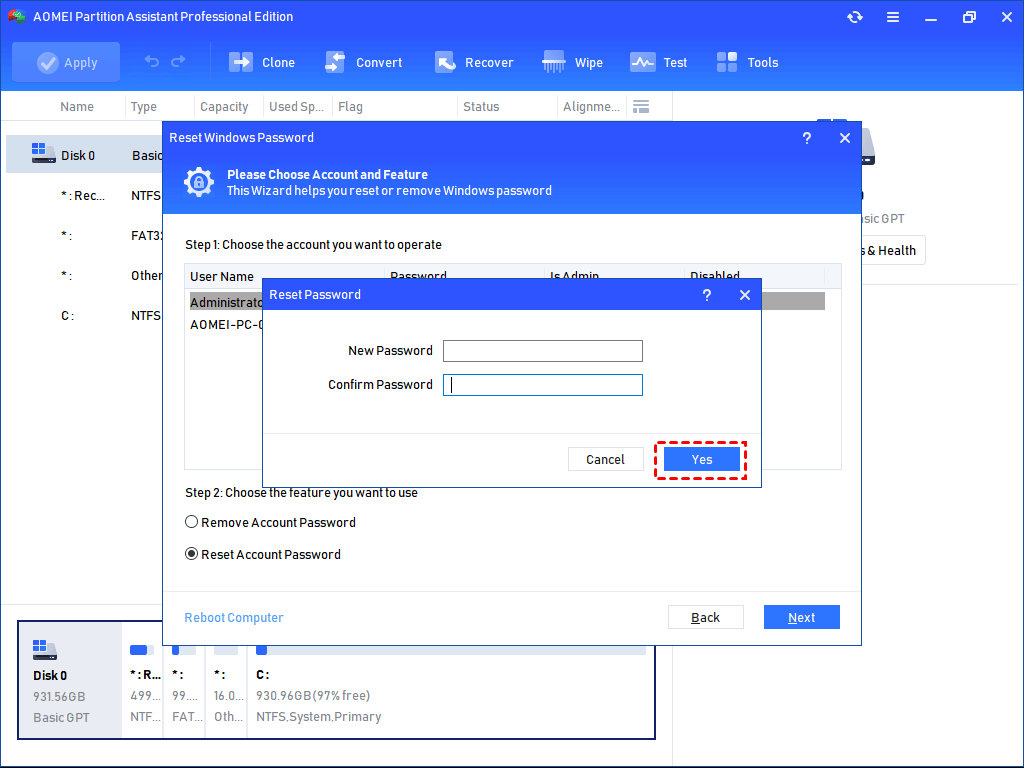
Step 8. If you opt for "Reset Account Password", you will be able to set a new password. Click "Yes" to confirm. If you choose "Remove Account Password", follow the subsequent instructions to remove the password.
To sum up
In conclusion, while it is not possible to learn how to know PC password using cmd, there are methods available to change the password using CMD.
However, for non-technical users or those who prefer a simpler approach, an alternative method is to use AOMEI Partition Assistant. This comprehensive computer management tool can also be used to move installed programs to another drive, migrate OS to SSD for computer performance enhancement, and convert between MBR/GPT. Windows Server users can turn to the Server Edition to enjoy this versatile tool.
FAQs
🗨️ How to find Windows password in CMD?
You cannot find or view a Windows password in CMD. Windows encrypts passwords, so they cannot be displayed. CMD can only be used to reset the password.
🗨️ How to find PC admin password?
It is not possible to find or see the administrator password. You can only change or reset it using CMD with administrative access or a recovery method.
🗨️ How do I find my PC username and password?
CMD can show usernames by running the net user command, but it cannot reveal any account passwords.
🗨️ How to unlock password using CMD?
You can unlock access by resetting the password using the net user command if logged in, or by accessing CMD through Recovery Mode when locked out.
🗨️ How to unlock PC if forgot password?
If you forgot the password, you can reset it using CMD in Recovery Mode with the Utilman method, or use a bootable tool like AOMEI Partition Assistant to regain access without data loss.
