
 AOMEI Partition Assistant
Where Can I Change My Windows Password That I’ve Forgot?
If you ask “where can I change my Windows password that I’ve forgot? this guide covers how to change a forgotten password on Windows 10 for both local and Microsoft accounts. Find easy-to-follow steps for resetting a forgotten Windows password, including a simple tool-based solution for guaranteed access.

By Lucas / Updated on July 28, 2025


It’s a moment of digital dread we’ve all faced: you sit down at your computer, ready to work or browse, and your mind goes blank. The Windows password you’ve typed a thousand times has vanished. This frustrating experience can lock you out of your own digital life, but don't panic. The key question on your mind is, where can I change my Windows password that I've forgotten? The answer, fortunately, is that you have several options.
Regaining access to your system is entirely possible, and this guide is designed to walk you through the most effective methods.
Where Can I Change My Windows Password That I've Forgot? Understanding Your Options
Before diving into the "how," it's crucial to understand the "where." The place you go to reset a forgotten Windows password is determined by your account type.
Microsoft Account: If you log into Windows using an email address (like one from Outlook, Hotmail, or even Gmail), you have a Microsoft account. The password for this account is managed online through Microsoft's servers. This means you'll need another device with internet access to reset it.
Local Account: If you log in with just a username and don't use an email, you have a local account. This password is stored only on your specific computer. Resetting it requires using tools and features directly on the locked PC, which can be more complex if you haven't set up recovery options beforehand.
Knowing which account you use is the first step in choosing the right path forward from the solutions detailed below.
How to Change a Forgotten Password on Windows
This section provides several step-by-step methods for regaining access to your computer. We will explore four distinct approaches, each tailored to different scenarios you might encounter when you need to change a forgotten password on Windows 10 or other versions.
▶ Method 1. Change Password with Security Questions
This is often the quickest method for users with a local account, provided you've set it up in advance. If you add security questions when you created your account (a feature available in Windows 10 version 1803 and later), you can use them to get back in directly from the login screen.
Step 1. On the Windows login screen, enter an incorrect password to trigger the next option. Click on the "Reset password" link that appears below the password field.

Step 2. The system will now prompt you with the security questions you previously set up. Carefully type the correct answers for each question.
Step 3. Once you’ve successfully answered the questions, Windows will allow you to set a new password. Enter your new password, confirm it, and you'll be able to log in immediately.
This method is incredibly convenient, but its biggest drawback is that many users skip setting up security questions or forget the answers they provided. If you can't see the "Reset password" link, it means this feature was not configured on your account.
▶ Method 2. Reset Password via Windows Installation Disk
This is a more technical method for local accounts that involves using the Command Prompt. It doesn't require any prior setup like security questions, but it does demand a Windows installation disk (or USB) and some comfort with command-line instructions. By booting from an installation disk, you can access system tools before Windows fully loads, allowing you to execute commands that will let you reset the password.
Step 1. Insert your Windows 10 installation DVD or USB drive into the locked computer. Restart the PC and boot from the installation media. You may need to press a key like F2, F12, or DEL during startup to enter the BIOS/UEFI menu and change the boot order.
Step 2. On the Windows Setup screen, press Shift + F10 to open a Command Prompt window.
Step 3. In the Command Prompt, you need to replace the Utility Manager on the login screen with the Command Prompt.
Step 4. Type “copy c:\windows\system32\sethc.exe c:\” and “copy c:\windows\system32\cmd.exe c:\windows\system32\sethc.exe”, then press “Enter”. Turn out the installation disk, and perform the“wpeutil reboot” command to reboot your PC.
Step 5. When you see the login interface, press “Shift” 5 times. The CMD will appear again, then input “net user cocosenor *” and press “Enter”, you’ll be asked to type a password for the user, press “Enter” to set the password
Step 6. Once the commands are executed, remove the installation disk and restart your computer by typing wpeutil reboot.
▶ Method 3. Run Microsoft Account Recovery
If you use a Microsoft account to log into Windows, this is the standard and most straightforward recovery process. Because your password is tied to your online account, you must use another internet-connected device, like a smartphone or another computer, to reset it. This process relies on the recovery email address or phone number you associated with your Microsoft account for identity verification.
Step 1. On a separate device, open a web browser and navigate to the official Microsoft account recovery page: https://account.live.com/password/reset.
Step 2. Enter the email address, phone number, or Skype ID associated with your Microsoft account and click "Next."
Step 3. Microsoft will ask you to verify your identity. Choose to have a security code sent to your alternate email address or phone number.
Step 4. Check your email or text messages for the code, enter it on the recovery page, and click "Next."
Step 5. You will now be prompted to create a new password for your account. Choose a strong, memorable password.
Return to your locked computer. Ensure it is connected to the internet, then use your newly created password to log in.
▶ Method 4. Change Password Using a Password Reset Disk
What if the methods above don't work? Perhaps you have a local account but never set up security questions, don't have an installation disk, or find the command-line method too intimidating. This is where a professional and reliable Windows computer management tool like AOMEI Partition Assistant Professional shines. It offers a definitive answer to how to change a forgotten password on Windows 10.
AOMEI Partition Assistant Professional is a comprehensive disk and partition management software suite trusted by millions worldwide. Beyond its capabilities in resizing, merging, and cloning partitions, it includes a powerful feature called "Reset Windows Password."
This function allows you to create a bootable password reset USB drive on any working PC. You can then use this USB on your locked computer to remove or reset the password for any local user account, making it a universal and foolproof solution. It bypasses the need for any prior setup and is far more user-friendly than manual command-line methods.
 100% Secure
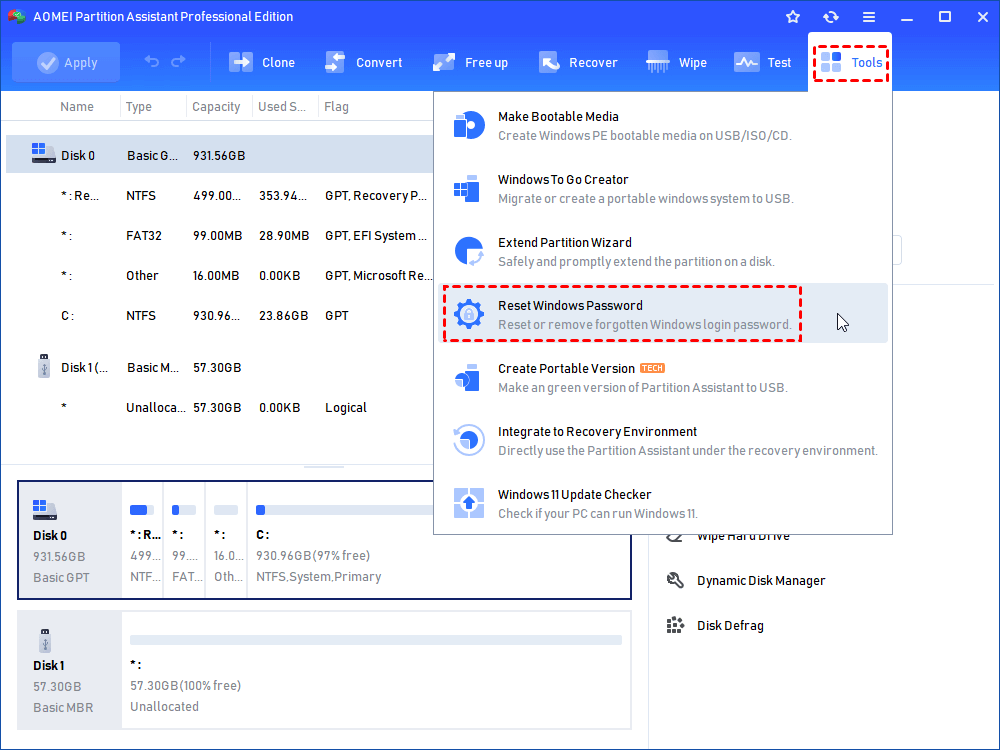
Step 1. Connect a USB with another PC that can work normally, then download and open this tool, select "Tools"> “Reset Windows Password”.
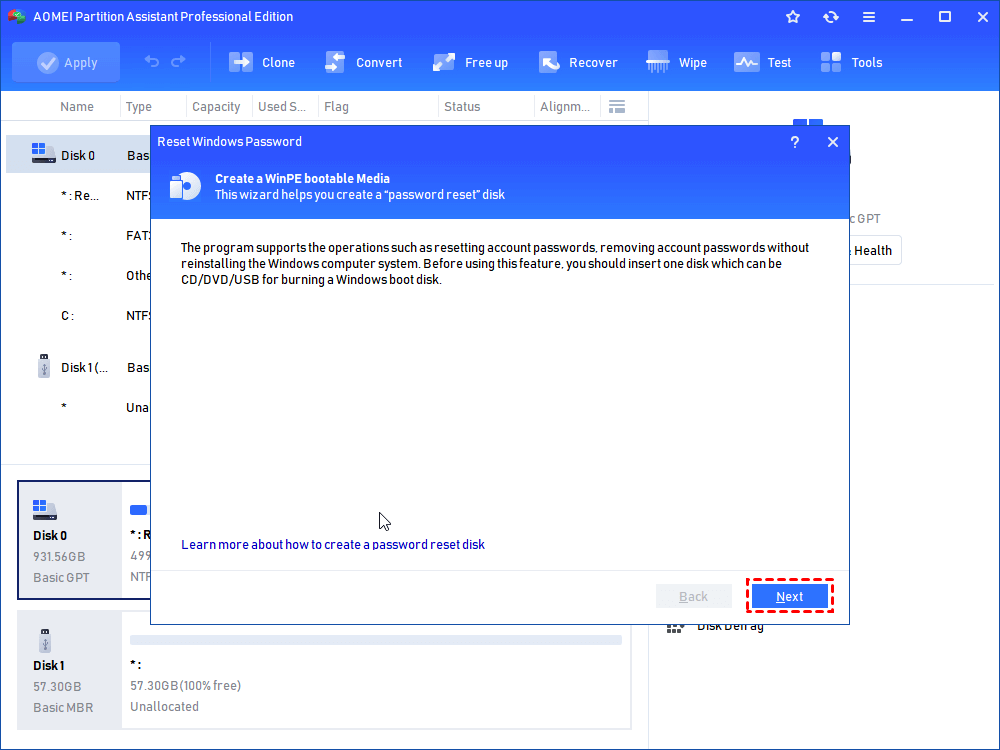
Step 2. You’ll be mentioned to create a bootable USB, click “Next”.
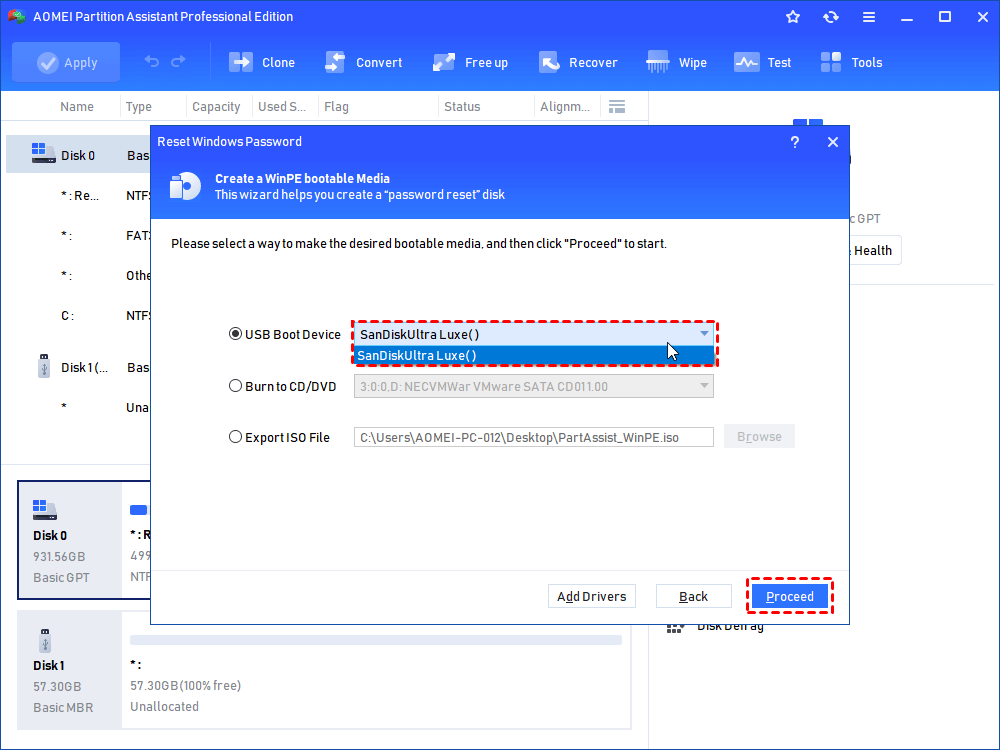
Step 3. In the new window, select the USB boot device and click “Proceed”.
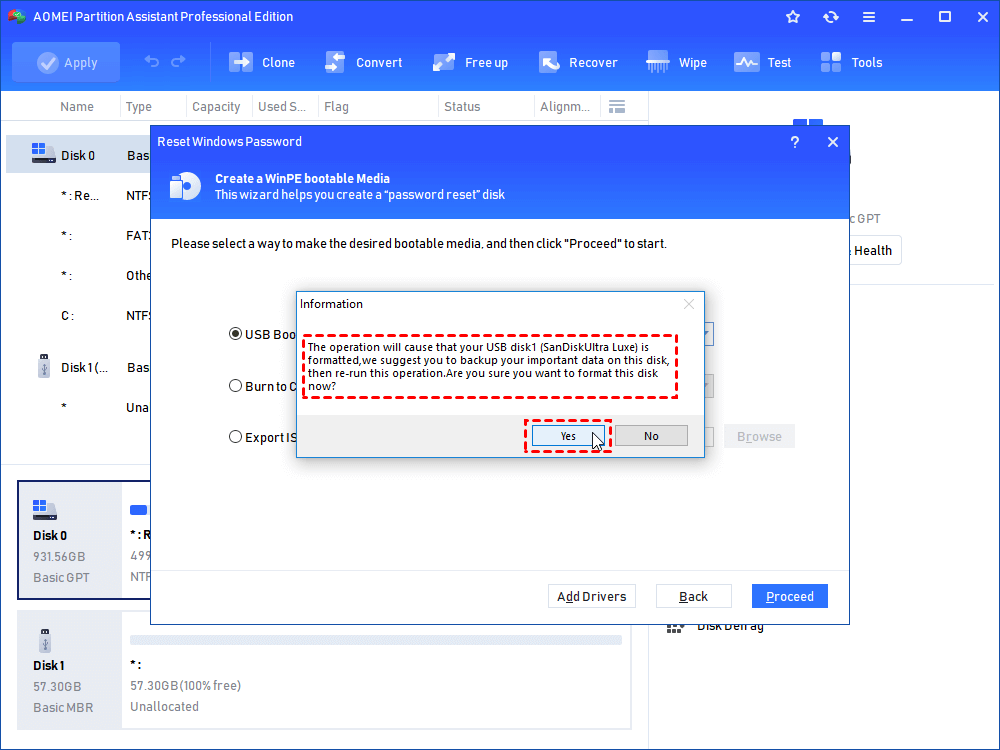
Step 4. Carefully read the words about creating bootable USB, then click “Yes”.
Step 5. Wait for a while, it will take some minutes to create the password reset USB, then click “Finish”.
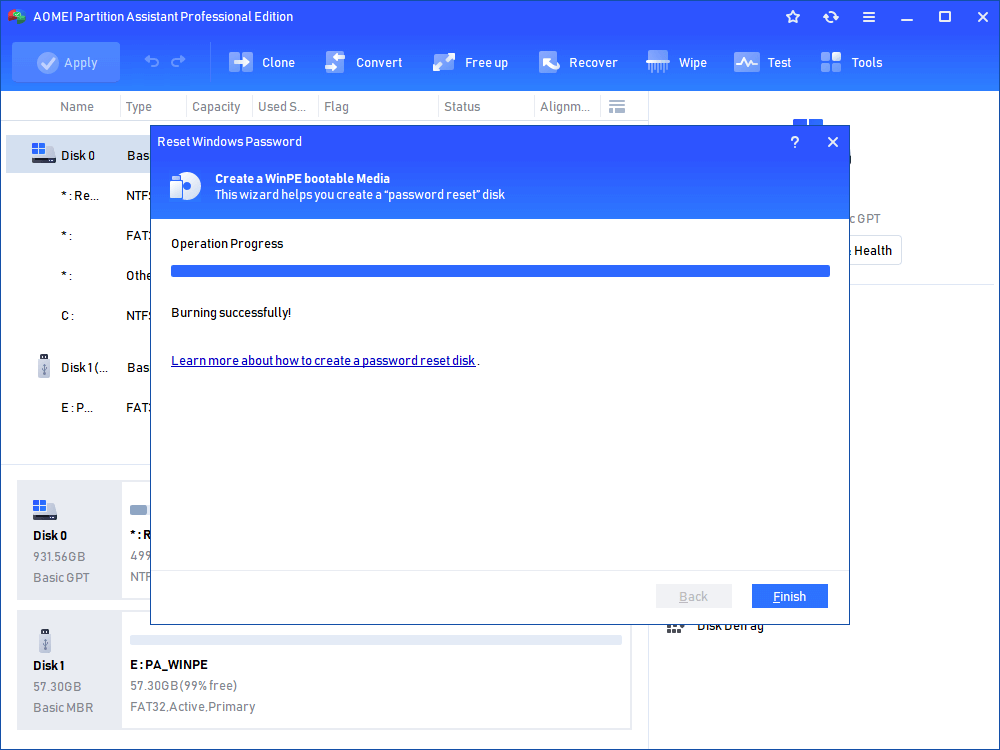
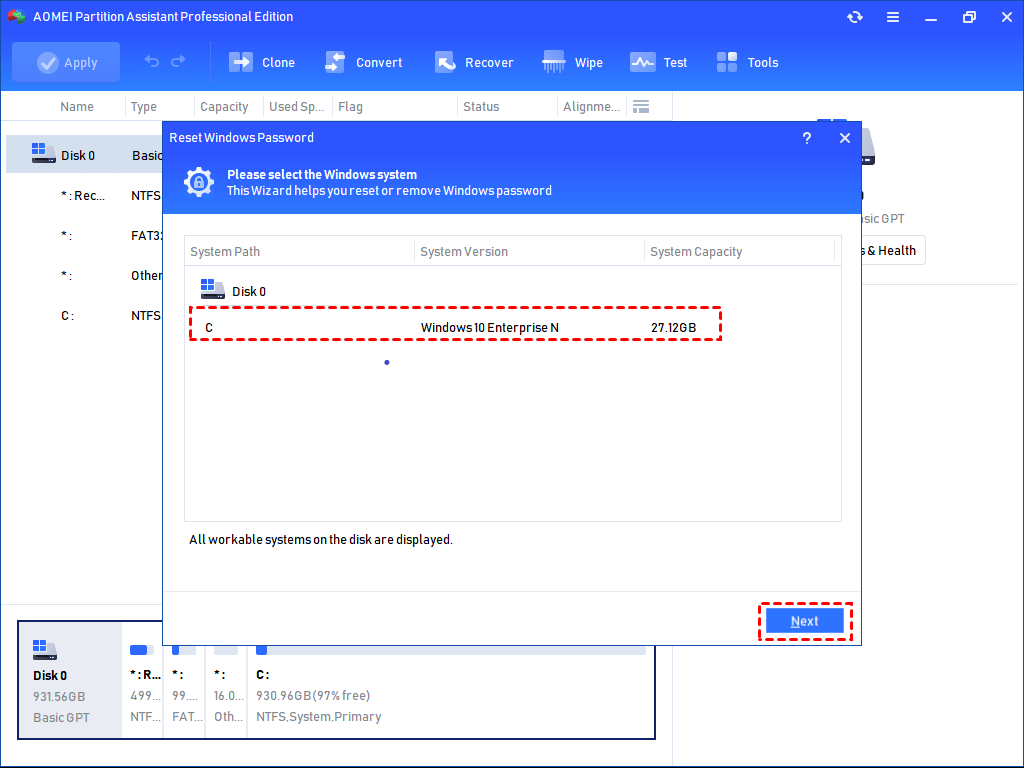
Step 6. Take out the USB of the current PC, insert it into the locked laptop, then restart it. You’ll change the boot drive, boot the PC from the created USB, then choose the OS and click “Next”.
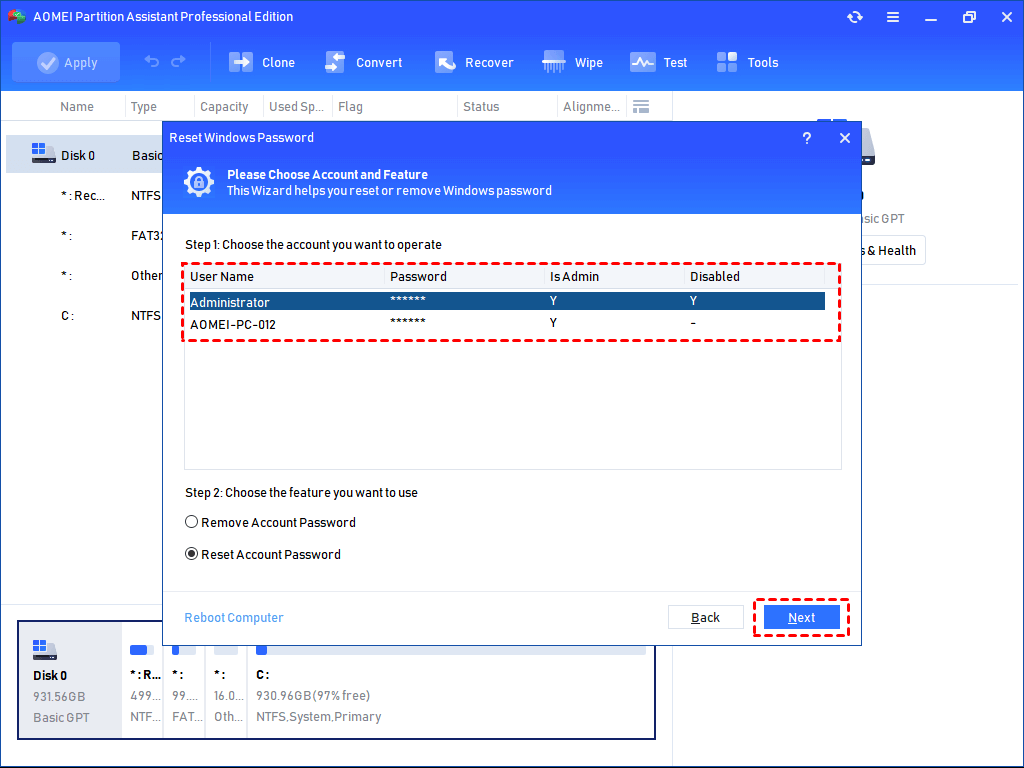
Step 7. All accounts on your PC will be displayed, choose one and tick “Remove Account Password” or “Reset Account Password”, then click “Next”.
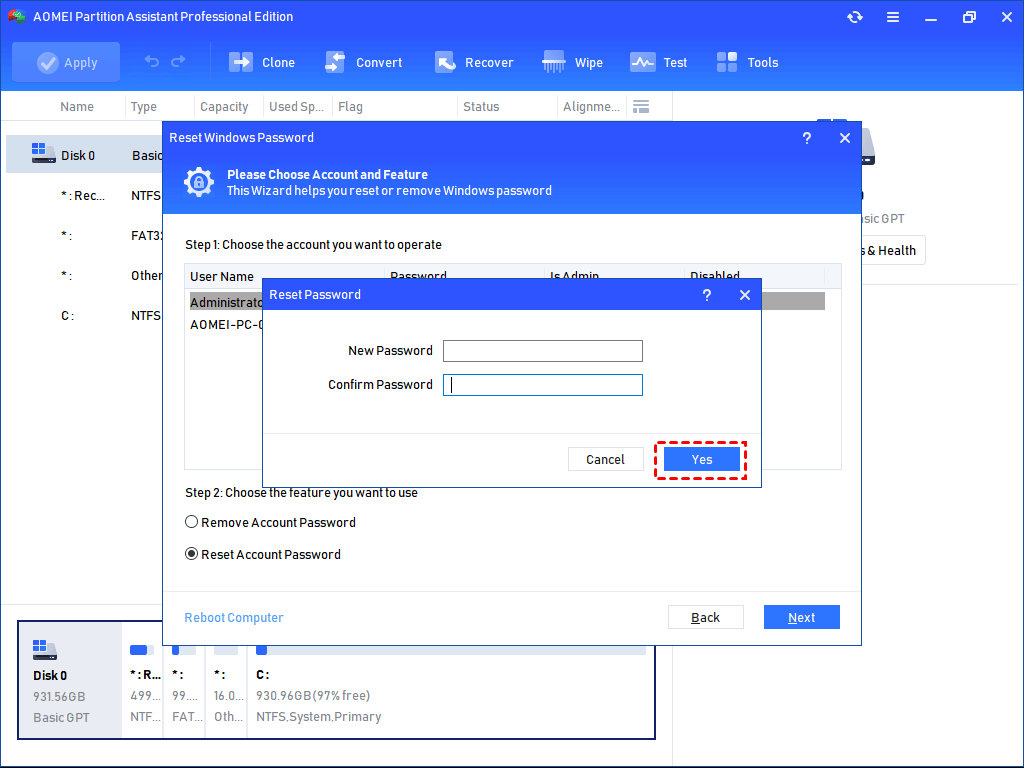
Step 8. Choose “Reset Account Password”, you can set the new password and click “Yes”.
Ending
To summarize, being locked out of your Windows computer because of a forgotten password can be a major roadblock, but it is a solvable one. We have explored several answers to the question, "where can I change my Windows password that I've forgot?"
However, for a versatile, simple, and highly effective solution that works in nearly every scenario without prior setup, creating a password reset disk with a tool like AOMEI Partition Assistant Professional is the superior choice. It eliminates complexity and provides a reliable way of resetting a forgotten Windows password, ensuring you regain access to your valuable data and system without any hassle. And also, it has many helpful features like disk cloning, clean junk files, boot repair, etc.
