
 AOMEI Partition Assistant
Fixed: BCD Strings MUI load failure C:\windows\System32\bootstr.dll in Windows 10
If you encounter BFSVC Error: BCD Strings MUI load failure C:\windows\System32\bootstr.dll and unable to boot into Windows 10, please follow our guide to rebuild corrupted BCD files and fix the issue.

By Irene / Updated on November 4, 2024


Case: The BFSVC Error: BCD Strings MUI load failure C:\windows\System32\bootstr.dll
After some days of noticing my ASUS Laptop running slow, I decided to do a System Restore in an attempt to speed it up and remove any recent programs/features I have installed. However, when I went back to check on my laptop, the system restore failed and it ended up being completely broken. I'm tempted to reinstall Windows 10, but I have files that I would like to keep intact instead of having to write them all again (various word document notes) or find them again (VGM collection). At the moment, I am unable to boot into Windows 10. I have learned that the latest Microsoft Recovery Discs may have issues of their own (repair tools not properly working) and reverting to older versions may fix this, but I don't know how to get the older versions. So, I have tried the following...
- /FixMBR completes successfully. However, I am unsure if it actually did anything.
- /FixBoot returns Access Denied. I tried following this reference, but then I get bottlenecked by another error...
BFSVC Error: BCD Strings MUI load failure C:\windows\System32\bootstr.dll (2)
BFSVC Error: Failed to initialize global state. Status = [c0000001]
I have been unable to progress further on this front.
- Question from Microsoft Community
Actually, this situation is not rare. If you recently installed new software, updated drivers, or made system changes, these could disrupt the boot process, causing essential files related to the boot process such as the Boot Configuration Data (BCD) files may be corrupted, missing, or deleted. Besides, an unexpected shutdown or power failure can cause file corruption, including BCD files. Sometime, a sudden infection can damage system files and settings. All of these are possible reasons that lead to BFSVC Error: BCD Strings MUI load failure C:\windows\System32\bootstr.dll. In the next part, we will share you how to repair boot BCD in Windows 10 and 11.
 Related article:
 How to repair boot BCD in Windows 10 and 11?
It sounds quite complicated to fix the issue with the BFSVC Error: BCD Strings MUI load failure at C:\windows\System32\bootstr.dll, doesn’t it? Actually, it is quite easy if you choose AOMEI Partition Assistant, which can run automatic repair for your problematic device, including Windows 11, 10, 8/8.1, and 7.
Its Boot Repair feature helps with boot problems from various situations, and also supports repairing corrupted boot sector from viruses or malware. With just a few clicks, you can quickly create a bootable repair USB using our powerful Boot Repair program and run an automatic repair. If you need a fast way to fix Windows computer boot issues or unable to boot into Windows, AOMEI Partition Assistant is a reliable option.
 AOMEI Partition Assistant
The Best Windows Disk Partition Manager and PC Optimizer
Case 1: Repair a running PC
Step 1. Install and launch AOMEI Partition Assistant. In the Main Tab, please click the "Recover" tab and select "Boot Repair".

Step 2. The Boot Repair tool will pop up. Please click "Next" to start the system’s boot entries scan process.

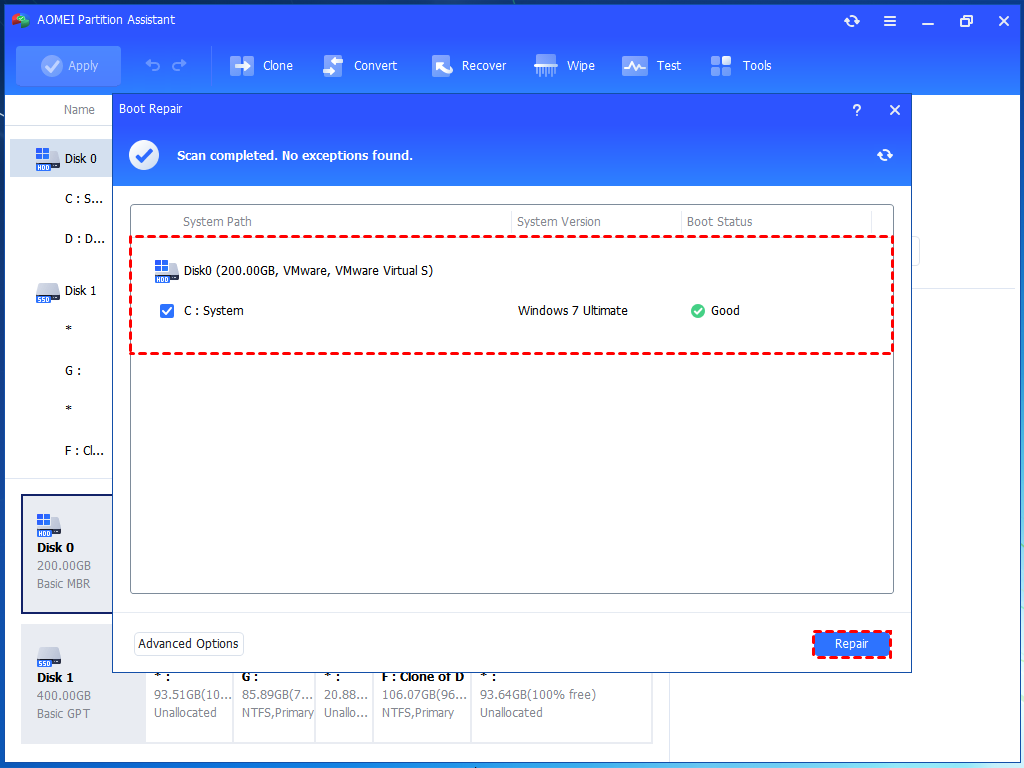
Step 3. After the process is completed, it will display the scan result: system paths, system versions, and boot status. And, all repairable boot entries will be available to select.

Advanced Settings: Select a location to store the repaired boot entry.
Repair to the current disk: The system will boot from the current disk and ensure the boot files are complete and functioning properly. (By default)
Repair to another disk: This operation will repair the boot entry or create a new system boot entry to ensure the system can boot from the disk you select.

Step 4. Select one/multiple repairable boot entries you want to repair and click the "Repair" button to start the boot repair.

Step 5. Wait for the repair process to finish. Once it is finished, you can check the repair result. If it succeeds, you will get a "Repair Successfully" result.

Case 2: Repair Boot for PC that is unable to Boot
If your computer cannot boot, please create a Windows Server 2019 bootable USB first.
Step 1. Prepare a blank USB and connect it to a working PC that has installed AOMEI Partition Assistant, click "Recover" >"Boot Repair" and then click the "create a bootable disk" option to create a WinPE "Boot Repair" disk.

Step 2. Boot the PC that cannot boot into WinPE. It will automatically load the Boot Repair tool and start the boot entries scan process. All boot entries will be displayed.

Step 3. Select the repairable boot entries you want to repair and click the "Repair" button to start the repair.
Step 4. Once the repair is repaired successfully, you can remove the bootable disk and boot the PC from the original system drive.

Conclusion
AOMEI Partition Assistant can be practical and helpful for fixing the BFSVC Error: BCD Strings MUI load failure C:\windows\System32\bootstr.dll, or help you out of situation where you are unable to boot into Windows 10 or 11. Any issues related to BCD files like BCD Not Found in Windows 10, recreate BCD on Windows 10, or accidentally deleted boot.bcd file, etc., can be easily fixed with this powerful tool.
