
 AOMEI Partition Assistant
[Fixed] Stuck on Getting Windows Ready Dont Turn Off Your Computer
Is your PC stuck on “Getting Windows ready don’t turn off your computer”? This guide shows proven solutions to repair startup errors and restore normal Windows performance easily.

By Irene / Updated on August 20, 2025


Reddit: Getting Windows ready don’t turn off your computer for 30+ minutes
This morning I boot up my computer, but it shows red screen with “Getting Windows ready don’t turn off your computer” message. It’s been like this for 30+ minutes. Any idea what I should do?
- Question from www.reddit.com
Many Windows users, including those on Windows 10, 11, and even 8, often face problems with their computers. One common issue is the system getting stuck on the red or blue screen that says “Getting Windows ready. Don’t turn off your computer.” This usually happens when turning on, shutting down, restarting the PC, or during Windows updates and installations.
Sometimes, the process may take a very long time, even several hours, which can be frustrating. In some cases, the computer may enter a loop and keep showing the same message without any progress.
If you are dealing with this error, don’t worry. In the following sections, we will share practical methods to fix the “Getting Windows ready stuck” problem on Windows 11, 10, 8, or even 7, so your PC can run normally again.
How to fix PC stuck on Getting Windows Ready stuck with blue or red screen?
Fix 1. Repair BCD files
When the BCD file is corrupted, Windows cannot find the right startup files. This stops the system from completing the process and causes the “Getting Windows Ready, Don’t turn off your computer” stuck error with a blue or red screen. In short, Windows is stuck waiting for instructions that don’t exist.
To fix the Getting Windows Ready stuck error, a simple solution is to use AOMEI Partition Assistant. Its Boot Repair feature can rebuild corrupted MBR or BCD files in just a few clicks. By creating a bootable USB on another computer, you can start your problem PC and repair boot files easily. This tool is faster and safer than command lines and also offers extra functions like disk cloning, partition recovery, and OS migration, making it the best way to get Windows running normally again.
 AOMEI Partition Assistant
The Best Windows Disk Partition Manager and PC Optimizer
Step 1. Install and launch AOMEI Partition Assistant on a working PC, click "Recovr"-"Boot Repair" and then click the "make a bootable USB" option to create a WinPE "Boot Repair" disk.

Step 2. Boot the PC that cannot boot into WinPE. It will automatically load the Boot Repair tool and start the boot entries scan process. All boot entries will be displayed.

Step 3. Select the repairable boot entries you want to repair and click the "Repair" button to start the repair.
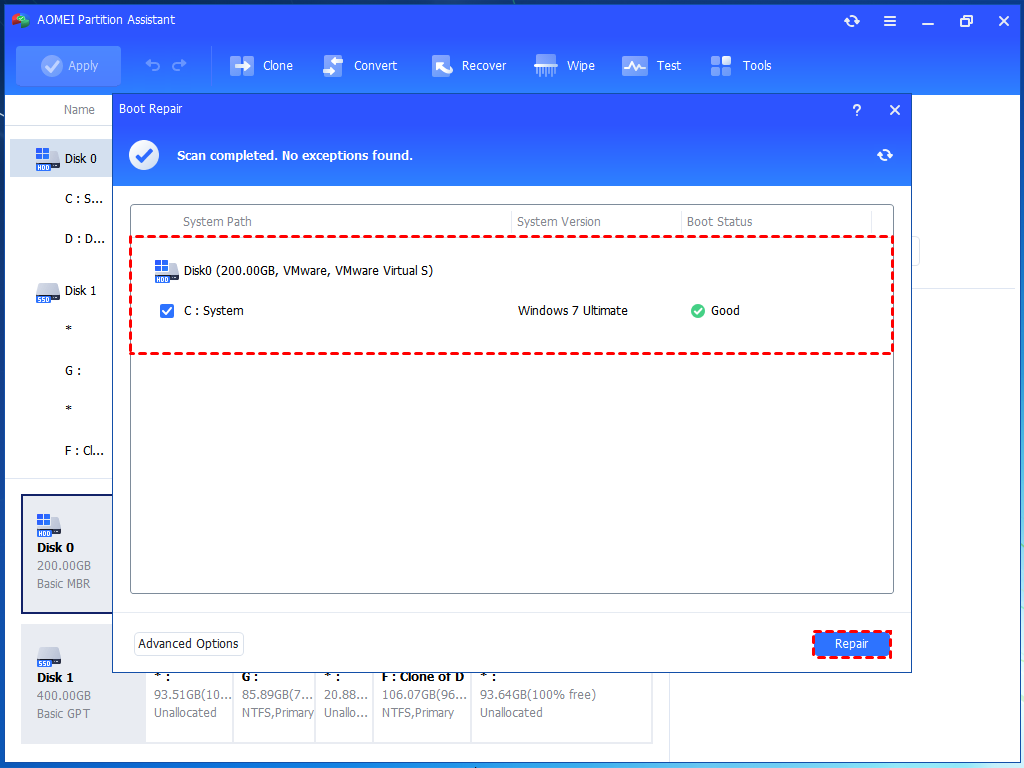
Step 4. Once the repair is repaired successfully, you can remove the bootable disk and boot the PC from the original system drive.

Fix 2. Boot your PC into Safe Mode to fix the issue
Safe Mode is a useful troubleshooting method in Windows. It starts the system with only the essential files and drivers, which helps you check whether the problem comes from software, drivers, or other settings. By using Safe Mode, you can safely diagnose and fix red or blue screen error and stuck on Getting Windows ready in Windows without interference from unnecessary programs or processes.
Step 1. Press Win + I to open Windows Settings and click Update & Security.
Step 2. Click Recovery on the left. Under the Advanced startup tab, click the Restart now button.
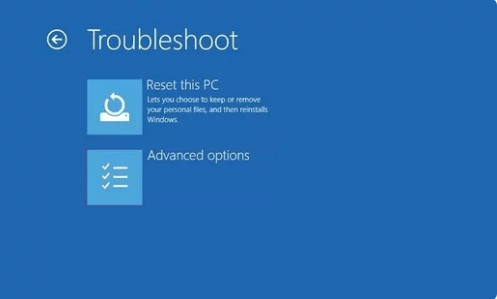
Step 3. Your PC will reboot into the winRE (Windows Recovery Environment). When you see Choose an option screen, click Troubleshoot > Advanced options.
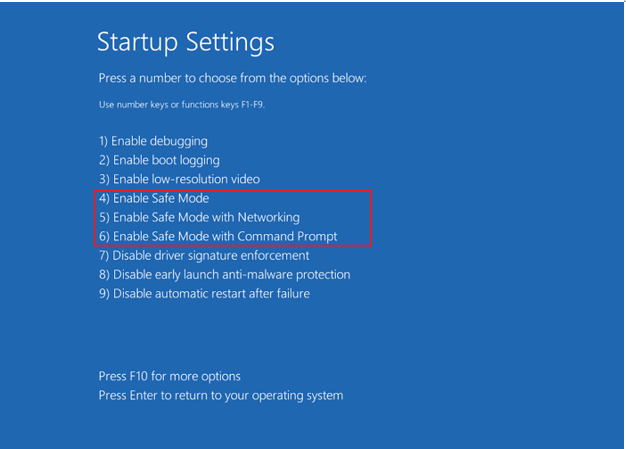
Step 4. Under the Startup Settings tab, click Restart first. After that, you can press F4/F5/F6 to start your PC in Safe Mode.
Fix 3. Perform System Restore via Windows Recovery Environment
If your computer is completely unresponsive or you can’t access Safe Mode, you can still restore it to an earlier state using the Windows Recovery Environment (WinRE). Follow the steps below to perform a system restore through Windows Recovery Environment.
Step 1. Create a bootable drive and insert it into your failed PC. Restart your computer and enter the BIOS by pressing the appropriate key.
AOMEI Partition AssistantThe Best Windows Disk Partition Manager and PC Optimizer
Step 2. Change the boot order to set the disk as the primary boot device, then press F10 to save and exit. Once the PC restarts, click Next to proceed.
Step 3. Click Repair your computer > Troubleshoot > Advanced options > System Restore.

Step 4. Then follow the instructions to restore your computer to an earlier date. When the repair is finished, click "Shutdown" and see whether the system restore can perform normally.
Fix 4. Update the BIOS/UEFI of your device
BIOS/UEFI is the built-in software on a computer’s motherboard, and problems with it can sometimes cause the blue or red screen of death with Getting Windows ready don’t turn off your computer error message. If this happens, you can restart your PC through the Advanced Startup options and then check your motherboard manufacturer’s website. There, you can download the latest BIOS/UEFI update file to fix the issue and improve system stability.
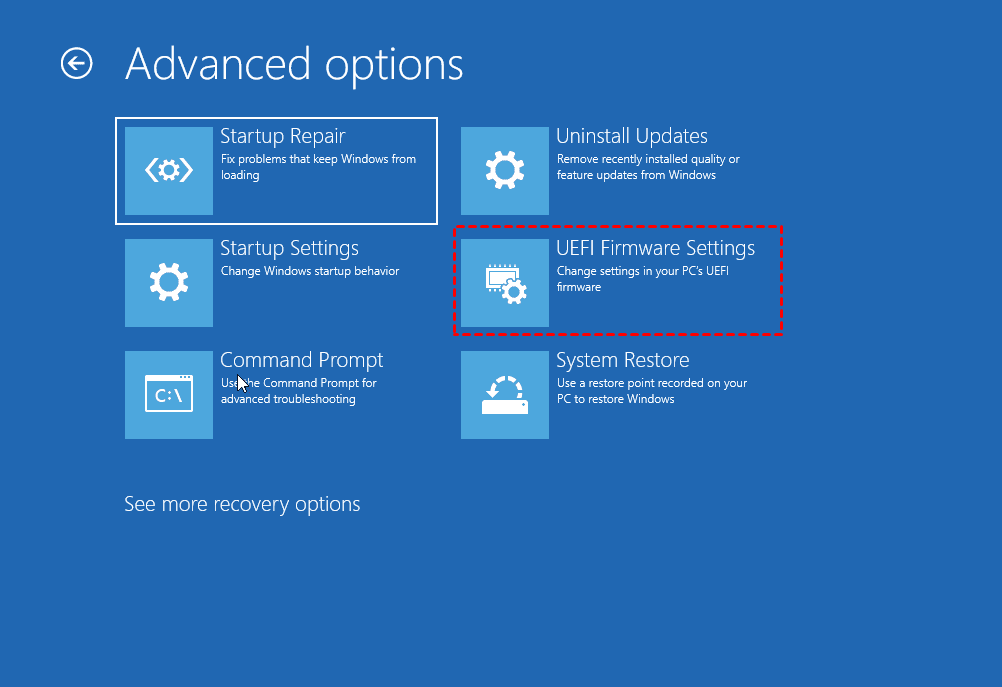
Step 1. Get into winRE as Fix 1 shows, after clicking Troubleshoot > Advanced options. Select the UEFI Firmware Settings option and hit Restart to boot into BIOS.
Step 2. After entering BIOS, choose the BIOS update file from your USB drive and wait patiently for the BIOS updates process.
Bonus tip: How to recover lost data after fixing Windows stuck on Getting Windows Ready
Windows can get stuck on the “Getting Windows Ready” screen for many reasons, and this problem can sometimes lead to data loss. If your PC enters a boot loop and normal fixes don’t work, you may worry about losing important files.
Even after a system crash, you can still recover lost data. Tools like AOMEI Partition Assistant can scan your drive and restore deleted or missing files, including documents, photos, videos, and more. It works with hard drives, USB drives, and SD cards, and supports common file systems such as NTFS, FAT32, and exFAT, helping you safely get your data back after fixing Windows.
AOMEI Partition AssistantThe Best Windows Disk Partition Manager and PC Optimizer
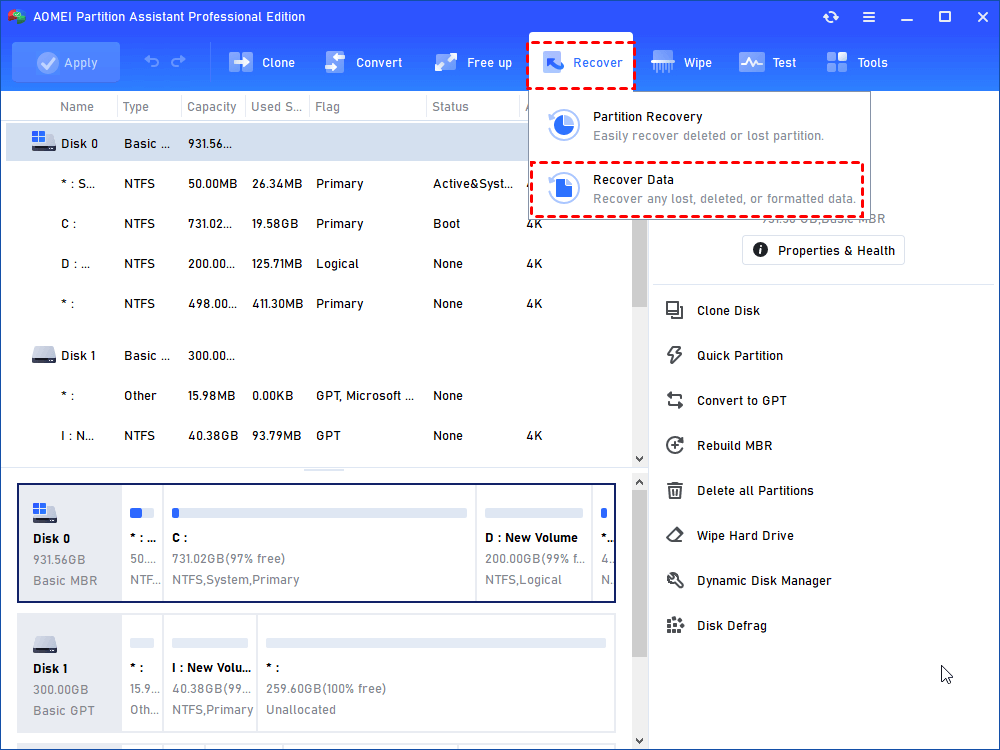
Step 1. Install and launch AOMEI Partition Assistant Professional. Click on "Recover" from the top menu, then select "Recover Data".
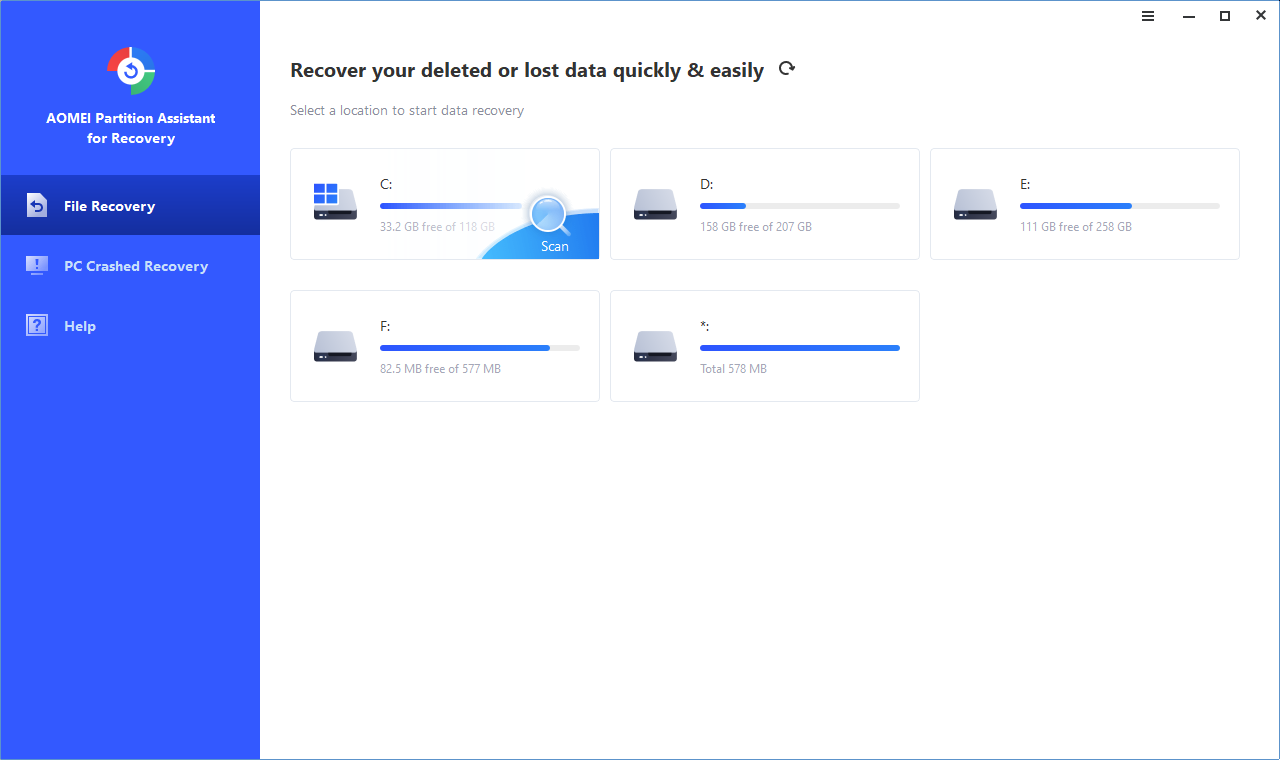
Step 2. Choose the USB drive that contains the lost files and click "Start Scan".
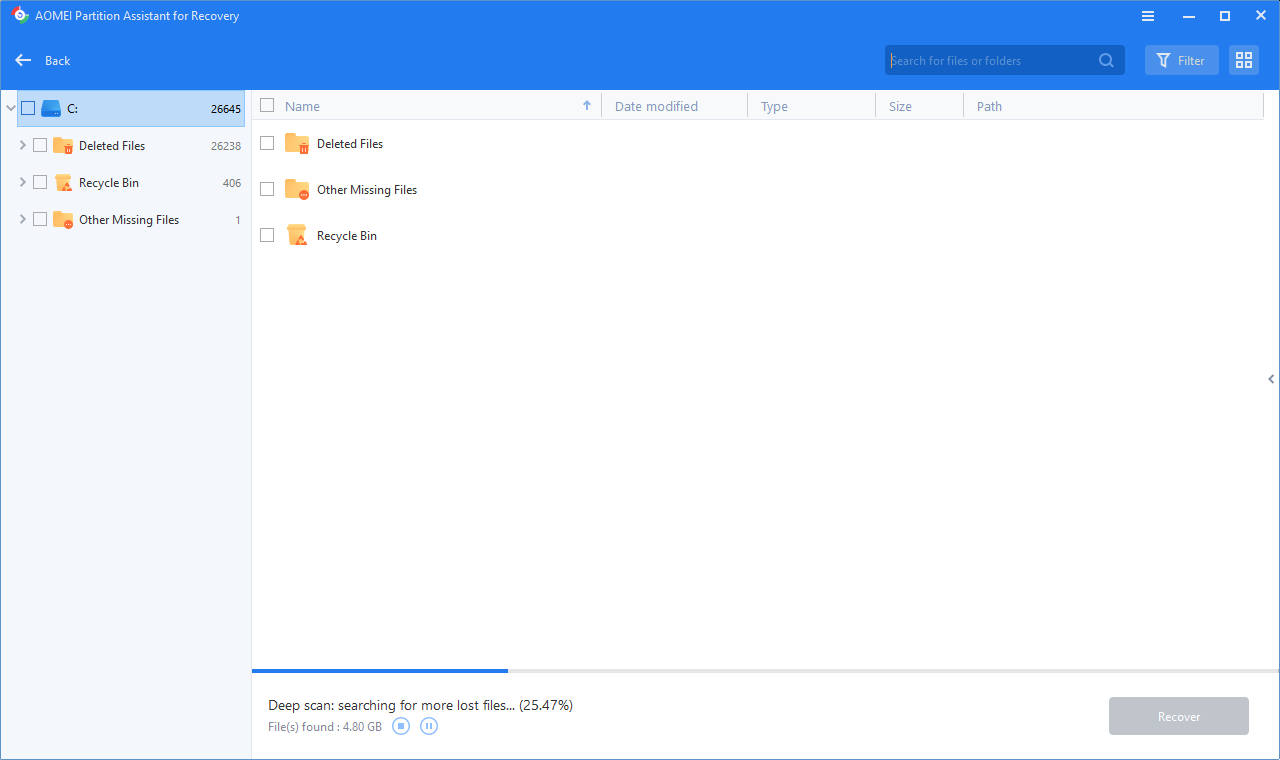
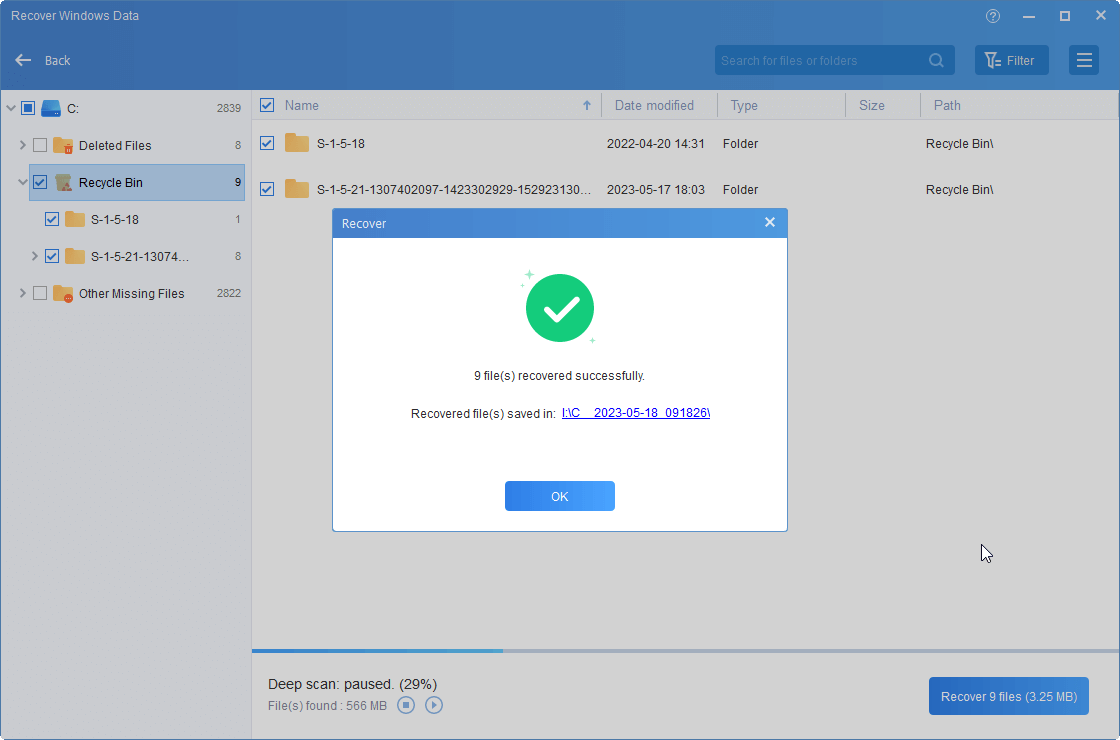
Step 3. After the scanning process is complete, a list of all deleted files will be displayed. Tick the checkboxes next to the lost files you want to recover, then click "Recover".
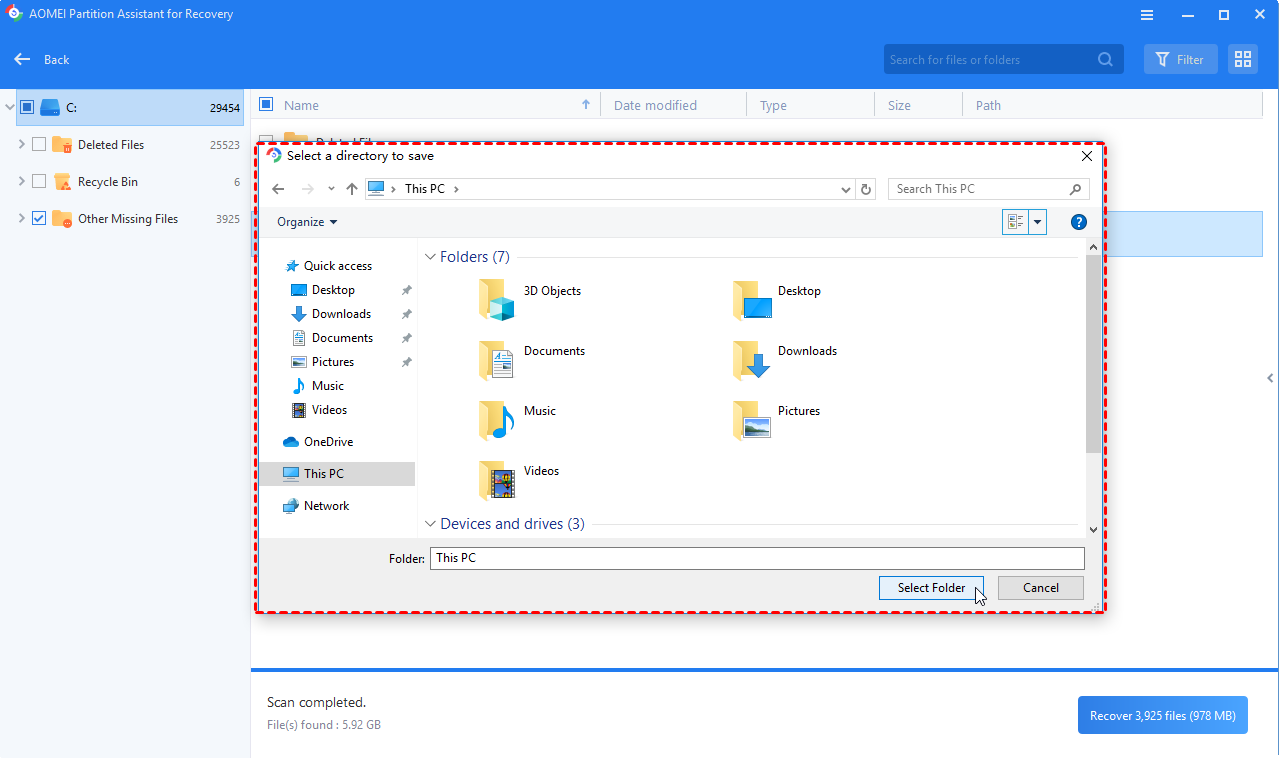
Step 4. Select a destination path to save the recovered files.
Step 5. Once the recovery process is finished, navigate to the chosen path to locate and access your recovered files.
Conclusion
Getting stuck on the “Getting Windows Ready, Don’t turn off your computer” screen can be stressful, whether it shows a blue or red screen. Thankfully, solutions like repairing BCD files, using Safe Mode, performing a system restore, or updating BIOS/UEFI can help bring your PC back to normal. And if you lose important files during the process, tools like AOMEI Partition Assistant make it easy to recover your data safely. With the right fixes, you can solve the error and keep your Windows system running smoothly.
You can download AOMEI Partition Assistant today to quickly fix the “Getting Windows Ready” stuck error and recover your lost files with ease.
