
 AOMEI Partition Assistant
How to Fix Bootbcd Error Windows 10 without Disk
If you are wondering how to fix Bootbcd error Windows 10 without disk, you can refer to this post to get six effective solutions to make it.

By Hedy / Updated on January 16, 2026


Boot errors are the digital equivalent of a locked door. You press the power button, expecting Windows 10 to load, but instead you’re greeted by a cold, technical message about BCD. No desktop. No files. Just frustration.
The good news? You don’t need a Windows installation disk to fix a Boot BCD error. Windows 10 already carries the tools you need—you just need to know where to find them and how to use them.
Let’s walk through it step by step, calmly and clearly.
How to fix Bootbcd error Windows 10 without disk
A Boot BCD error prevents Windows 10 from starting correctly, often displaying messages like “Boot Configuration Data is missing or corrupted”. Fortunately, you can resolve this issue using built-in recovery options without needing a Windows installation disk.
Method 1. Use automatic Startup Repair
Automatic Startup Repair is a built-in Windows recovery feature designed to detect and fix common boot-related issues automatically. It scans system files, boot settings, and startup components, making it an ideal first step when dealing with BCD-related errors.
Step 1. Turn on your PC and interrupt the boot process twice to enter Windows Recovery Environment (WinRE).
Step 2. Select Advanced options > Troubleshoot.
Step 3. Click Startup Repair.
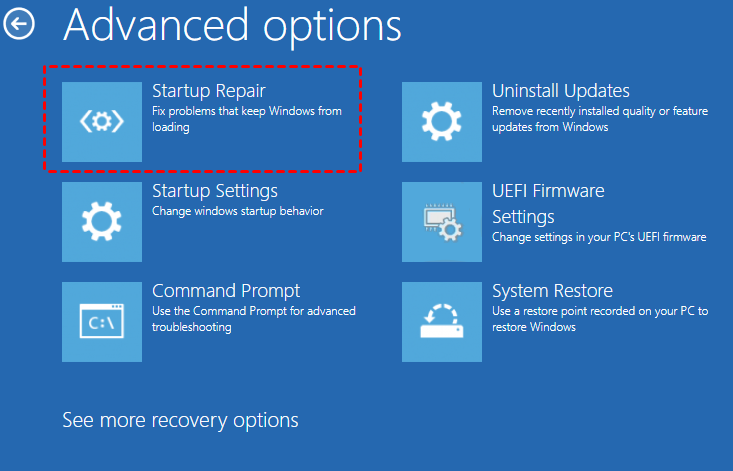
Step 4. Choose your Windows account and enter the password if prompted.
Step 5. Wait while Windows diagnoses and repairs boot issues.
Restart the computer and check if Windows boots normally.
Method 2. Rebuild BCD using Command Prompt
Rebuilding the Boot Configuration Data manually allows you to recreate corrupted or missing boot entries. This method is effective when Startup Repair fails and gives you direct control over repairing the boot structure using built-in Windows commands.
Step 1. Enter WinRE and select Advanced options > Troubleshoot.
Step 2. Click Command Prompt.
Step 3. Type the following commands one by one and press Enter after each:
bootrec /fixmbr
bootrec /fixboot
bootrec /scanos
bootrec /rebuildbcd
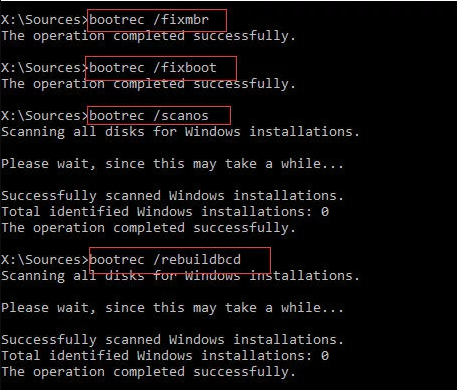
Step 4. If prompted, type Y to add Windows to the boot list.
Step 5. Close Command Prompt and restart your PC.
Method 3. Set the correct active partition
If the system partition is not marked as active, Windows may fail to locate essential boot files, resulting in a BCD error. Correcting the active partition ensures the system loads the proper boot information during startup.
Step 1. Open Command Prompt from WinRE.
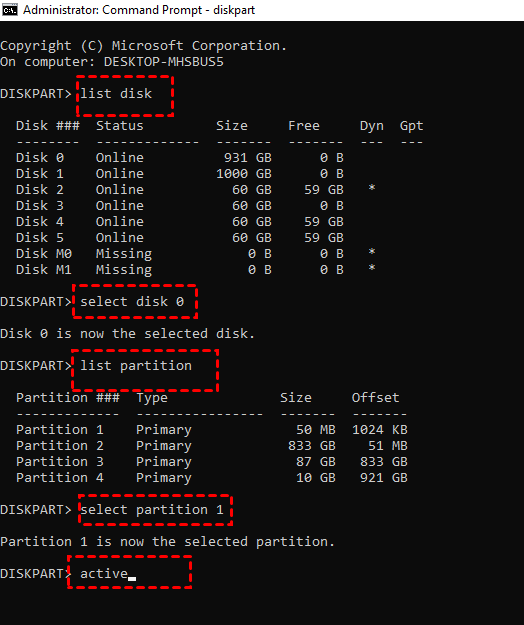
Step 2. Type diskpart and press Enter.
Step 3. Type list disk, then select disk 0.
Step 4. Type list partition and identify the system partition.
Step 5. Type select partition X (replace X with the correct number).
Step 6. Type active and press Enter.
Step 7. Exit DiskPart and restart your computer.
Method 4. Check disk and system files
File system corruption or damaged system files can interfere with the boot process and trigger BCD errors. Running disk and system file checks helps repair logical errors and restore missing or corrupted Windows components.
Step 1. Launch Command Prompt from Advanced options.
Step 2. Run the disk check command:
chkdsk C: /f /r

Step 3. After completion, run the system file checker:
sfc /scannow

Step 4. Wait for the scans to finish.
Step 5. Restart your PC and test the boot process.
Method 5. Restore Windows using System Restore
System Restore rolls your computer back to an earlier working state without affecting personal files. If the BCD error appeared after a recent update or system change, this method can quickly reverse the issue.
Step 1. Enter WinRE and select Advanced options > Troubleshoot.
Step 2. Click System Restore.
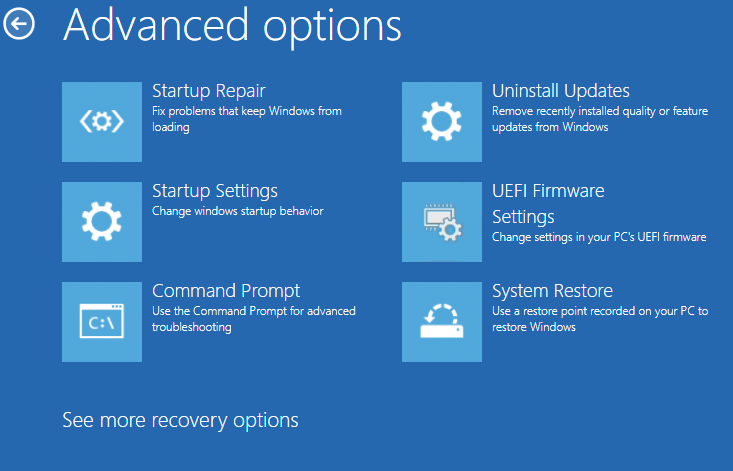
Step 3. Choose a restore point created before the boot error occurred.
Step 4. Confirm your selection and start the restore process.
Step 5. Restart the computer once the process is complete.
Method 6. Boot repair with third-party tools
Third-party boot repair tools offer user-friendly interfaces and automated solutions for fixing BCD errors. These tools are especially helpful for beginners who prefer a guided approach without using complex command-line operations.
Here, AOMEI Partition Assistant is highly recommended. It is a reliable disk management and system repair tool designed to fix common Windows boot problems with minimal effort. Its Boot Repair feature helps diagnose and repair startup issues caused by damaged BCD files, corrupted boot records, or incorrect system partitions.
With an easy-to-use interface, it allows users to create bootable media, access an unbootable PC, and repair boot errors safely without reinstalling Windows or risking data loss.
Step 1. Install AOMEI Partition Assistant on a working computer and connect a USB drive with sufficient storage.
Step 2. Launch the software and, under the Recover section, select the Boot Repair.

Step 3. Click Create a bootable disk to generate a WinPE Boot Repair USB drive.

Step 4. Insert the newly created USB drive into the non-booting computer. Enter the BIOS settings and adjust the boot order to start from the USB. The system will automatically load the Boot Repair tool and scan existing boot entries.

Step 5. After the scan completes, review the results, including system paths, system versions, and boot status. Select the boot entries that can be repaired and click Repair.
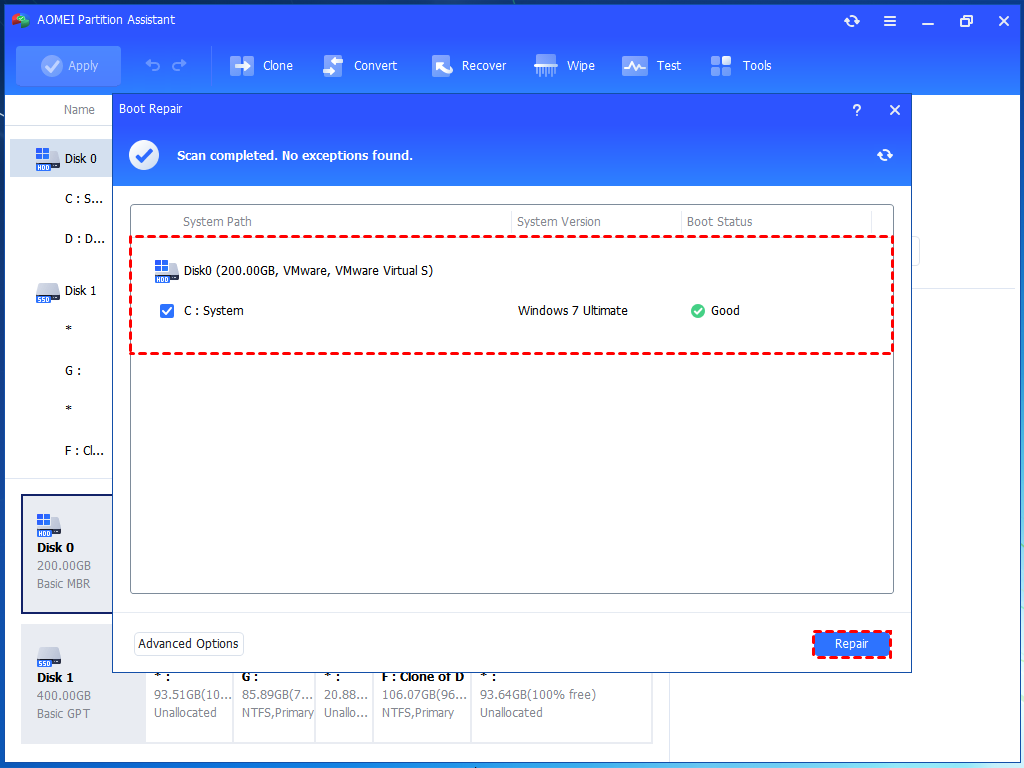
Step 6. Wait for the repair process to finish. Once complete, remove the USB drive and restart the PC using the original system drive.

Why Bootbcd errorhappens in Windows 10?
A Boot BCD (Boot Configuration Data) error occurs when Windows cannot locate or read the information required to start the operating system. This data tells your computer where Windows is installed and how it should load. When the BCD becomes unavailable or damaged, the boot process fails.
Here are the most common reasons why a Boot BCD error happens:
1. Corrupted or missing BCD file: Sudden power failures, forced shutdowns, or system crashes can corrupt the BCD file or delete it entirely, preventing Windows from booting properly.
2. Disk errors or bad sectors: Hard drive or SSD issues—such as bad sectors or file system corruption—can damage boot-related files, including the BCD.
3. Improper Windows updates: Interrupted or failed Windows updates may overwrite or misconfigure boot files, leading to BCD-related errors.
4. Malware or virus attacks: Some malware targets system and boot files, modifying or corrupting the BCD to disrupt startup.
5. Incorrect BIOS/UEFI settings: Changes to boot mode (Legacy vs. UEFI), Secure Boot settings, or boot order can cause Windows to lose access to the correct BCD.
6. Disk partition changes: Resizing, deleting, or formatting system partitions—especially the EFI or System Reserved partition—can break the BCD link.
FAQs
🔸 Can I fix a BCD error without losing data?
Yes. Rebuilding or repairing BCD usually doesn’t affect personal files if done correctly using Startup Repair or Command Prompt tools.
🔸 Why does Startup Repair sometimes fail?
Startup Repair may fail due to severe disk corruption, missing system files, incorrect BIOS settings, or hardware issues like a failing hard drive.
🔸 Is Command Prompt safe for beginners?
It can be safe if you follow reliable instructions carefully. However, incorrect commands may cause system issues, so caution is essential.
🔸 Does resetting Windows fix BCD errors?
Yes, resetting Windows can fix BCD errors, but it may remove installed apps and settings, making it a last-resort solution.
🔸 How long does rebuilding BCD take?
Rebuilding the BCD typically takes 5–10 minutes, depending on system speed and the extent of boot-related issues.
Conclusion
Boot BCD errors may look intimidating, but they’re rarely the end of your system. With Windows 10’s built-in recovery tools—and reliable third-party options—you can restore startup functionality without reinstalling or losing data. Work through the methods patiently, start simple, and your PC should be back up and running smoothly in no time.
