
 AOMEI Partition Assistant
[SOLVED] Would Corrupted Windows Cause PC to Be Stuck in BIOS?
Fix your Windows PC stuck in the BIOS loop. Our 2025 guide solves the "new pc stuck in BIOS" error. Discover easy solutions, including how to repair Windows boot records and get your computer running again.

By Lucas / Updated on August 21, 2025


It’s a scenario that can stump even tech-savvy users: you turn on your computer, and instead of the familiar Windows loading screen, you’re greeted by the BIOS or UEFI setup utility. No matter how many times you restart, your PC is stuck in the BIOS, preventing you from accessing your files and applications. This frustrating loop can happen to anyone, whether you have a brand-new machine or a trusted old one.
This guide will walk you through why this happens and provide clear, actionable solutions to get your computer back on track.
Would corrupted Windows cause a PC to be stuck in BIOS?
This section directly addresses a common question about the link between your operating system's health and this specific startup problem.
Yes, absolutely. A corrupted Windows installation is one of the most frequent culprits when a PC is stuck in BIOS. Think of the boot process as a relay race. The BIOS (Basic Input/Output System) or the more modern UEFI (Unified Extensible Firmware Interface) is the first runner. Its job is to perform a quick hardware check (called a POST, or Power-On Self-Test) and then pass the baton to the operating system on your hard drive or SSD.
If the Windows boot files—like the Master Boot Record (MBR) or Boot Configuration Data (BCD) are corrupted or missing, the handoff fails. The BIOS/UEFI has nowhere to go, so it defaults back to the only environment it knows: its own setup screen. This is why a perfectly functional computer, even a new PC stuck in BIOS, can suddenly refuse to load Windows.
How to Fix a PC Stuck in BIOS
Now that you understand the "why," let's move on to the "how." We'll explore several methods to resolve the issue when your Windows 10 is stuck in BIOS, starting with the simplest checks and progressing to more powerful software-based repairs.
Before diving into advanced solutions, let's cover some preliminary checks that can sometimes solve the problem in minutes:
Check the Boot Order: Enter your BIOS and find the "Boot" or "Boot Priority" menu. Ensure that your primary hard drive or SSD (usually labeled as "Windows Boot Manager") is set as the first boot device.
Unplug Unnecessary Peripherals: A faulty USB drive, external hard drive, or even a keyboard can sometimes interfere with the boot process. Disconnect everything except your monitor and essential peripherals and try restarting.
Check Physical Connections: If you're comfortable doing so, open your PC case and ensure the SATA and power cables for your storage drives are securely connected.
If these basic steps don't help, it's time to move on to software-based solutions.
Solution 1. Perform a System Restore
This method attempts to revert your computer's system files and settings to a time when it was working correctly, without affecting your personal files. To perform a System Restore when you can't boot into Windows, you'll need a Windows installation media (a bootable USB or DVD).
Step 1. Boot from Installation Media: Insert your Windows installation USB/DVD and restart your PC. You may need to press a key (like F12, F2, or Del) during startup to enter the boot menu and select the installation media.
Step 2. Access Repair Options: On the initial Windows Setup screen, choose your language and click "Next." Then, instead of "Install now," click on "Repair your computer" in the bottom-left corner.
Step 3. Navigate to System Restore: You'll be taken to the Advanced Startup Options menu. Go to Troubleshoot > Advanced options > System Restore.

Step 4. Choose a Restore Point: The System Restore wizard will open. Select a restore point dated before you started experiencing the problem and follow the on-screen instructions to begin the process. Once complete, your PC will restart.
Solution 2. Repair Windows Boot with a Powerful Tool
If System Restore doesn't work or you don't have a restore point, the issue is likely with the core boot files. This is where a dedicated tool can save the day.
For tackling complex boot issues when your Windows is stuck in BIOS, AOMEI Partition Assistant Professional consistently stands out. It's a comprehensive disk management toolkit that simplifies what can be a very technical process into a few clicks. Its "Rebuild MBR" feature is specifically designed to fix the exact bootloader corruption that causes a PC to get stuck in the BIOS.
 100% Secure
Step 1. Prepare a blank USB and connect it to a working PC that has installed AOMEI Partition Assistant, click "Recover" >"Boot Repair" and then click the "create a bootable disk" option to create a WinPE "Boot Repair" disk.

Step 2. Boot the PC that cannot boot into WinPE. It will automatically load the Boot Repair tool and start the boot entries scan process. All boot entries will be displayed.

Step 3. Select the repairable boot entries you want to repair and click the "Repair" button to start the repair.
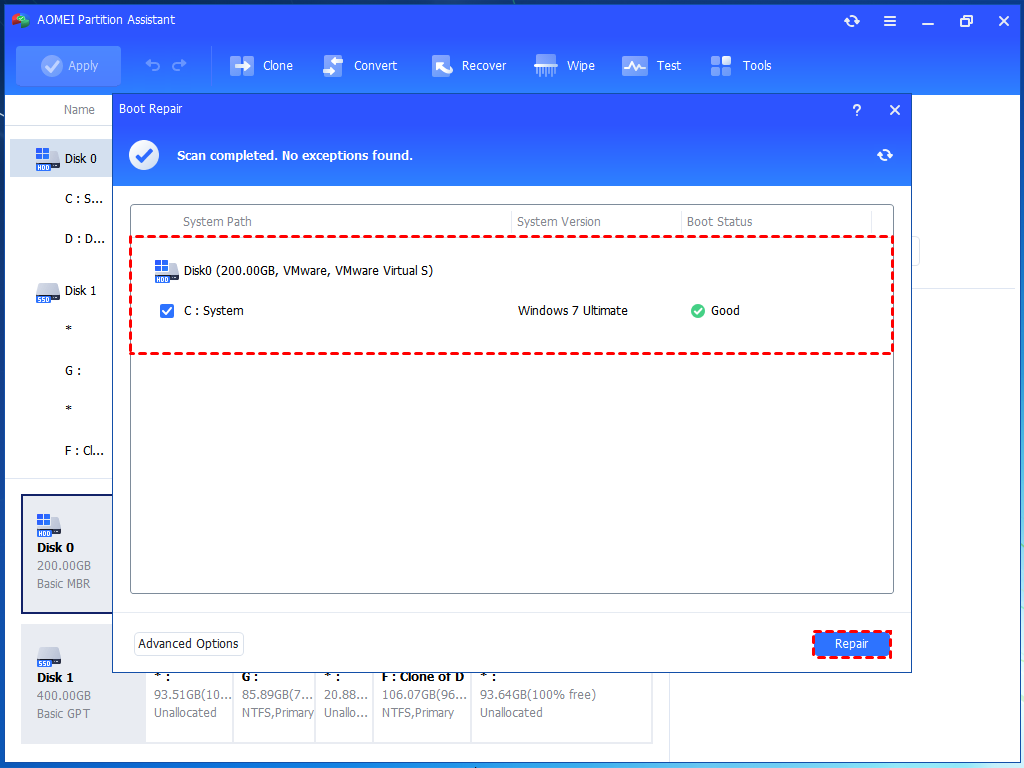
Step 4. Once the repair is successful, you can remove the bootable disk and boot the PC from the original system drive.

Once the process is complete, remove the USB drive and restart your computer. In most cases, this will repair the corrupted boot files, and Windows will load normally. Beyond boot repair, AOMEI Partition Assistant also offers other handy functions like migrating your OS to a new SSD, recovering lost partitions, and checking disks for errors.
Solution 3. Reinstall Windows
This should be your last resort, as it will erase all data on your primary partition. Use this method if the above solutions fail and you are ready for a fresh start. You will need the same Windows installation media used in Solution 1.
Step 1. Boot from Installation Media: Start your PC from the Windows installation USB or DVD.
Step 2. Begin Installation: On the Windows Setup screen, select your language preferences and click "Next," then click "Install now."
Step 3. Enter Product Key: Enter your Windows product key when prompted, or select "I don't have a product key" if you have a digital license linked to your hardware.
Step 4. Choose Custom Installation: When asked which type of installation you want, it is crucial to select "Custom: Install Windows only (advanced)." This allows for a clean installation.
Step 5. Select Partition: You'll see a list of drives and partitions. Select the primary partition where Windows was previously installed (it's often the largest one labeled "Primary") and click "Next." Windows will format the partition and begin installing a fresh copy. Your PC will restart several times during this process.
To Sum Up
Facing a PC stuck in BIOS can be alarming, but it's rarely a sign of total hardware failure. More often than not, the root cause is a software glitch related to corrupted Windows boot files. By systematically working through the solutions in this guide—from simple hardware checks to performing a System Restore, using a powerful tool like AOMEI Partition Assistant to repair the MBR, or reinstalling Windows as a final step—you can effectively troubleshoot and solve the problem.
