Can I use 2 partitions on 4TB MBR HDD?
"I am facing such a problem. I used 4TB capacity on the MBR, but in fact, the capacity I can use is only 2TB. Now, I want to keep the MBR partition mode unchanged, but also want to use up the other 2TB capacity and create a new partition with the unallocated space. So, if I want to use the 4TB capacity on the MBR of two partitions, is there any way to help me achieve this goal?"
You need to convert MBR to GPT
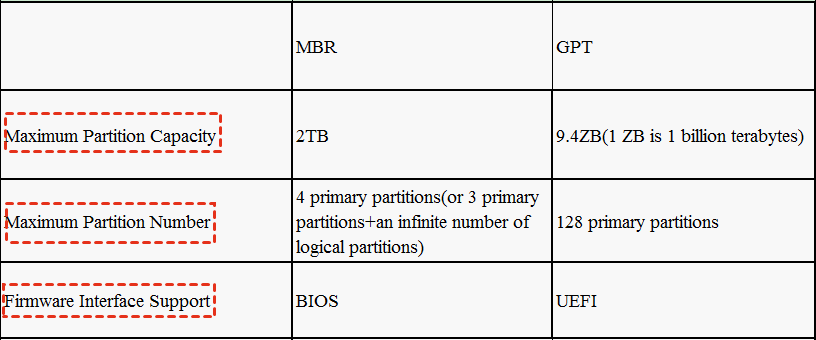
If you want to do that, you can only convert the MBR partition mode to GPT. Because MBR only supports a maximum partition size of 2TB, and only four primary partitions can be created, while GPT disks can support the creation of more partitions with larger capacity without practical limitations.
So, what exactly are MBR and GPT? MBR (Master Boot Record) and GPT (GUID Partition Table) are two commonly used partition tables in Windows systems. The partition table is a table used to describe the partitions on the hard drive or SSD and help the drive locate files so that the operating system can read the data on the drive.
Generally, GPT is more recent than MBR partition table and has more advantages than MBR drives. GPT disks are more resilient to errors and have higher security. GPT disks store boot information at the beginning and end of the disk head. If the boot data is lost in some unexpected circumstances, the disk can more easily recover the boot data.
How to convert MBR to GPT on Windows 10/8/7?
You have two options to convert MBR to GPT. One is a Windows built-in tool, and the other is a third-party conversion software. The following will introduce you to the first one.
Way 1.Convert 4TB drive to GPT with Diskpart (data loss)
There is a built-in tool called Diskpart, which can convert 4TB hard drive to GPT with several lines of command. Here are the detailed steps.
Tips. this method needs to clean your disk before converting, so if it is not a new hard drive or has important data on it, you have to back up the disk beforehand.
Step 1. Press “WIN+R”, type “CMD” and press Enter to open the command prompt. Then, input "diskpart" and hit Enter.
Step 2. Type the following commands, remember to press Enter after you input each one.
List disk
Select disk n (n means the drive letter, replace it with your 4TB drive letter)
Clean (clear all partitions on the selected disk)
Convert GPT
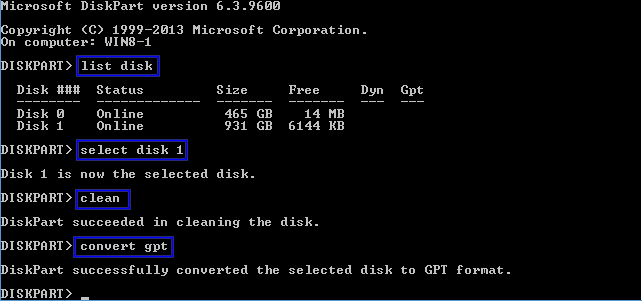
When the “DiskPart successfully converted the selected disk to GPT format” shows on the screen, type “exit” and press “Enter” to leave the program. At this time, your partition mode has been converted from MBR to GPT and the capacity has been expanded from 2TB to 4TB.
Way 2.Convert 4TB drive to GPT via software(data safe)
Diskpart Command Line is an effective way to convert MBR to GPT, but it has an obvious disadvantage: you have to delete all existing partitions and data on the drive. Moreover, these command lines may be difficult to remember in a short time for computer beginners. And it is easy to input the wrong disk number and lose important files.
So, you can turn to reliable and powerful partitioning software since you already have contents on the 4TB hard drive and don’t want to lose everything on it. For this task, AOMEI Partition Assistant Standard is highly recommended. This free partition manager is compatible with Windows 10/8/7, allowing you to convert 4TB MBR disk to GPT without losing data/deleting partitions. It has a user-friendly interface, download it to have a try.
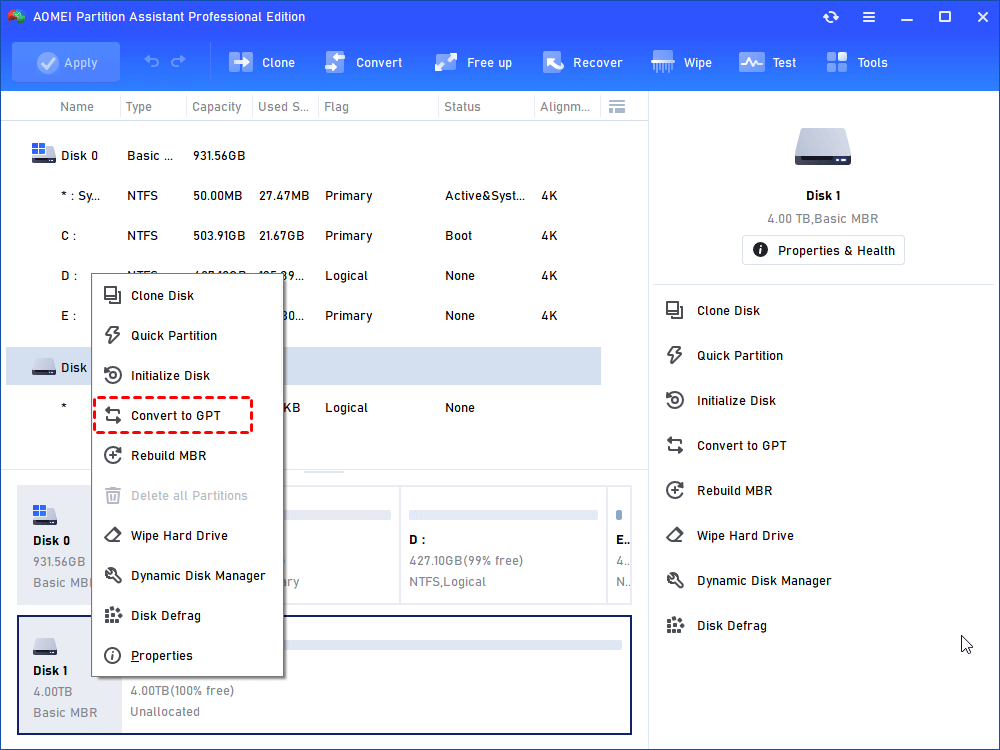
Step 1. Install and launch Partition Assistant Standard. Right-click the hard drive you want to convert and select Convert to GPT Disk.
Step 2. Click OK in the pop-up window to confirm the operation. Now you will find the partitioning scheme has turned into GPT. Don’t forget to click Apply to execute this task.
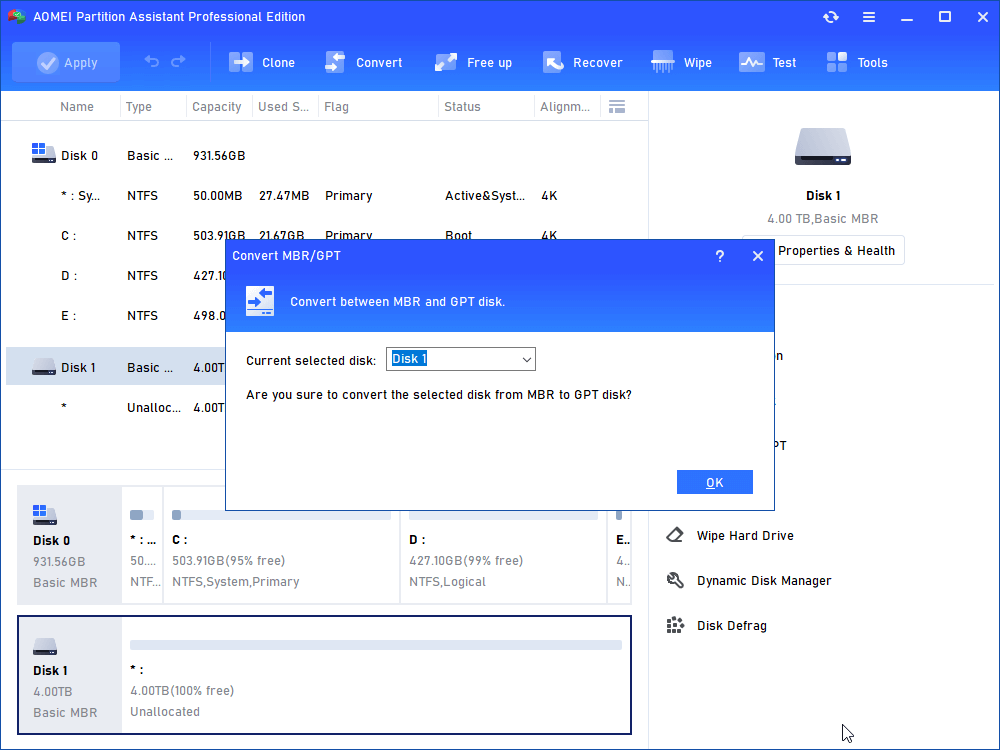
Step 3. Click Apply after your confirmation.
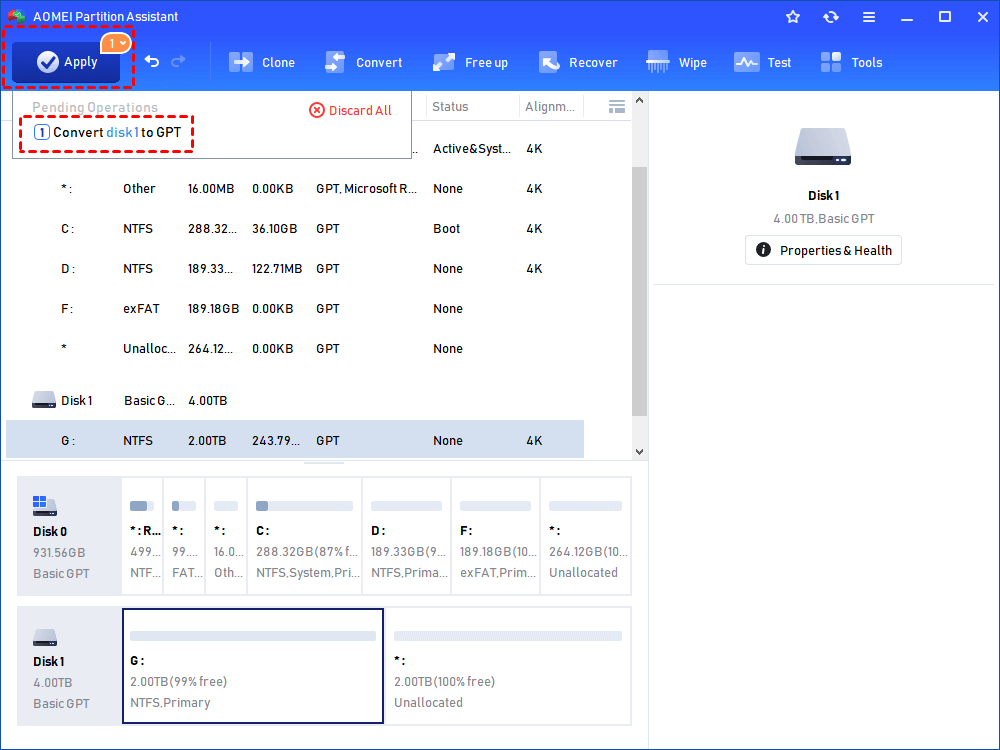
PS: AOMEI Partition Assistant Standard can only convert your data disk from MBR to GPT. If you want to convert the MBR with the system to GPT, it is recommended that you use the Professional edition. In addition, the Pro edition can also help you convert MBR above 4TB to GPT.
Sum up
Now, I believe you have understood how to convert MBR mode to GPT mode. And after conversion, you can allocate the unallocated space. on the 4 TB hard drive to other primary partitions, or use it to create new volumes. Both tools are very good, but using AOMEI Partition Assistant, you may have more possibilities.