
 AOMEI Partition Assistant
[Full Guide] How to Add Domain User To Local Admin in Windows 10?
This guide explains how to add or make a domain user a local admin in Windows 10. Follow simple steps to grant domain users admin rights for better control and management.

By Irene / Updated on October 17, 2025


User case: How to add domain user to local admin in Windows 10?
How to add a domain user to Administrators group in Windows 10 I just reinstalled my work computer to Windows 10, created a local account, connected to our VPN, joined our domain and logged in with my domain account, no problems so far. Since the local account is automatically in Admin group, I'd like to add my domain account there as well so that I can install work software and run things as admin without need to provide an admin password every time I do so.
But when I try to add the domain account to admins, it doesn't allow me to add someone from other domain. When I go to my domain account and try it there, it finds my domain account, but tells me that I don't have persmission to do that. And if I run control panel as admin with my local account, them I'm back where I started. Why can't I add a domain account to Admin group from my local account?
- Question from superuser.com
This is a common situation for Windows users working in domain environments. Many encounter similar problems when trying to give their domain accounts local administrator rights. If you want to make a domain user a local admin in Windows 10 but fail, here are the main reasons.
1. Local and domain accounts are separate: Local accounts cannot manage or verify domain users without domain authentication, even if they have admin rights.
2. Windows 10 Home doesn’t support domain features: The Home edition cannot join Active Directory domains, and it lacks the Local Users and Groups (lusrmgr.msc) management tool. This situation is the same as Windows Home BitLocker not supported.
3. VPN connection isn’t a real domain join: Connecting to a VPN only gives network access. It doesn’t make your computer part of the domain or enable domain-level permissions.
How to add domain user to local admin in Windows 10?
Fix 1. Use a handy tool
Adding a domain user to the local Administrators group can be tricky, especially on Windows 10 Home, which lacks certain management tools. While Group Policy and Computer Management are limited, AOMEI Partition Assistant offers an easy alternative.
With its Users and Groups feature, you can quickly add domain or local users to the Administrators group, manage account types, and set permissions through a simple, safe interface. This tool works even when lusrmgr.msc is unavailable, making user management fast and reliable.
 AOMEI Partition Assistant
The Best Windows Disk Partition Manager and PC Optimizer
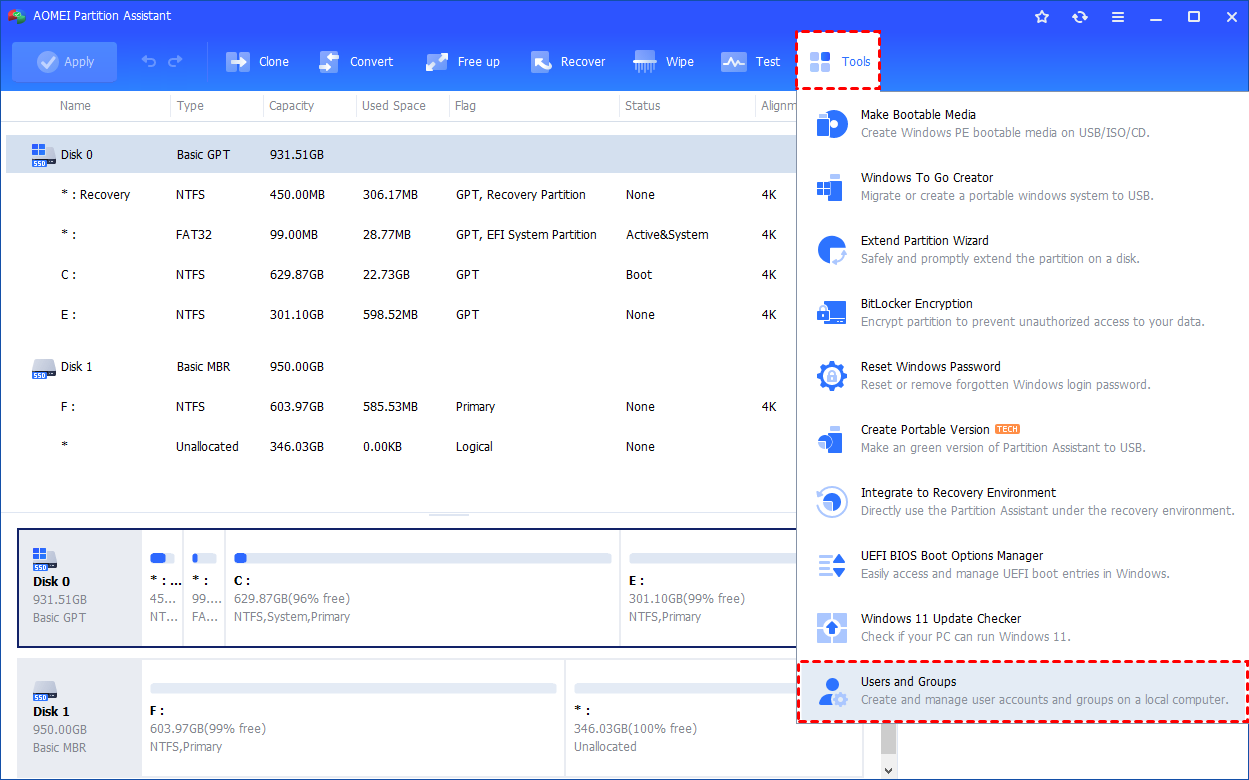
Step 1. Install and launch AOMEI Partition Assistant. Click the "Tools" main tab and select "Users and Groups".
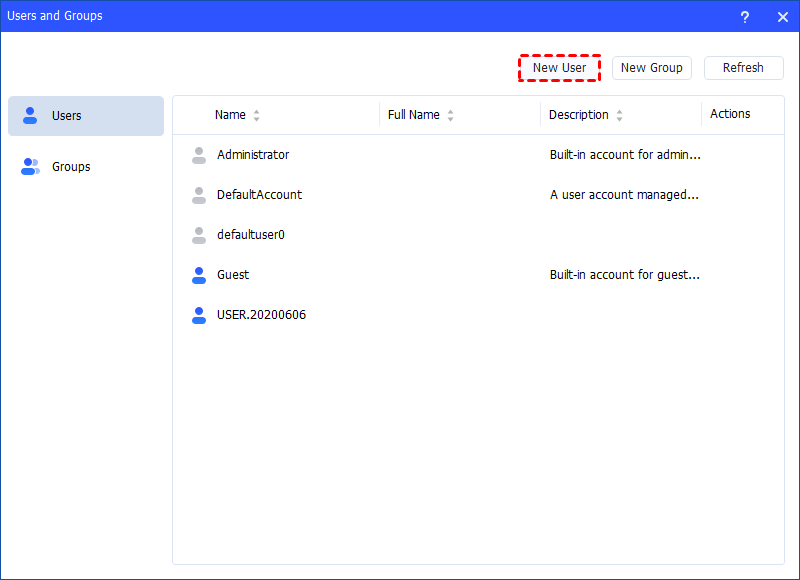
Step 2. Click the "Users" tab and then click the "New User" button to create a new user account. You can also click the "Refresh" button to refresh the user list.
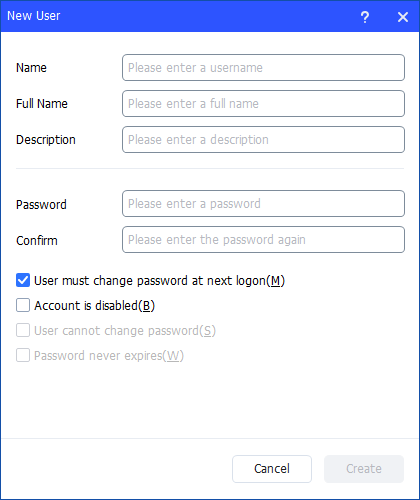
Step 3. Then, type the appropriate information in the dialog box. You can enter the name and description and set a password for the new user. And, you can select or clear the check boxes for: User must change password at next logon, Account is disabled, User cannot change password, Password never expires.
Step 4. After all is set, click "Create" to create the new user.
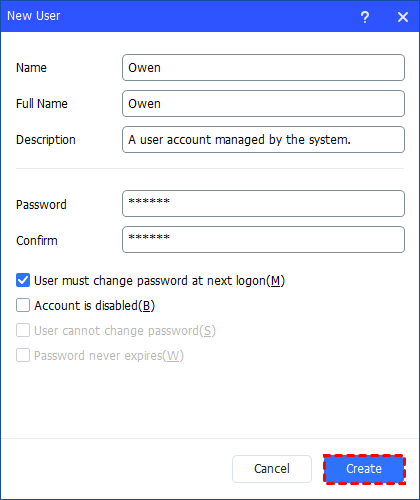
Step 5. Finally, you can see the user is created successfully in Windows Local Users and Groups. And, you can also easily manage the new user account.
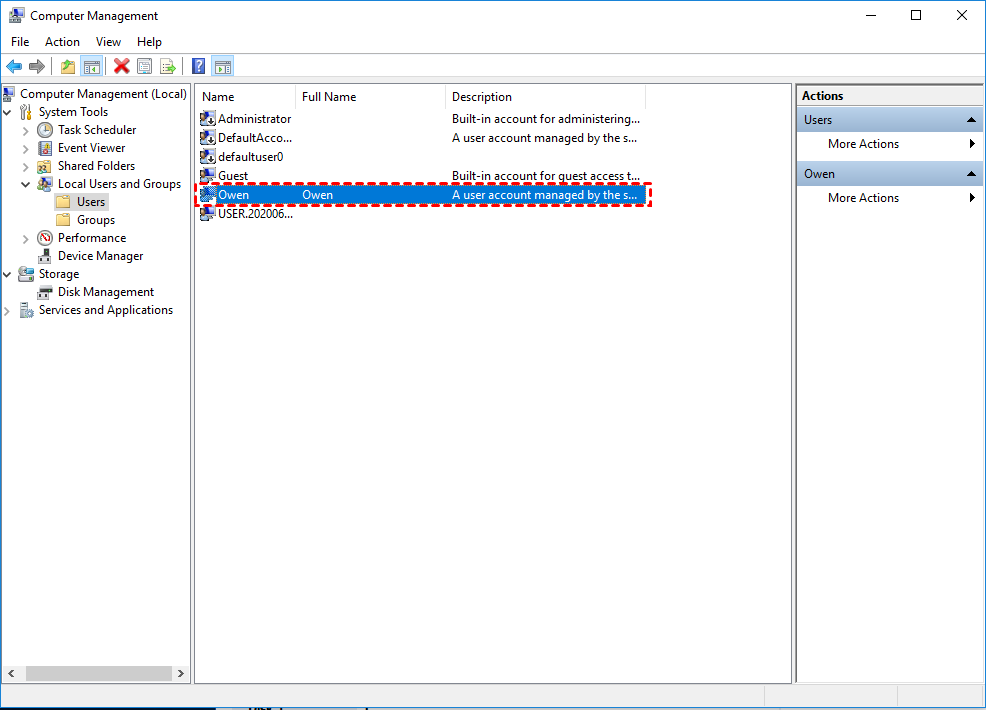
Fix 2. Use the Run command
Step 1. Press Win + R → type lusrmgr.msc → Enter.
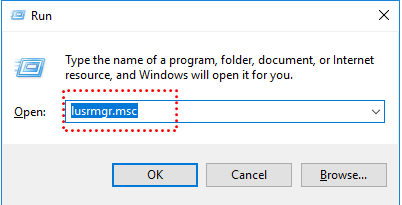
Step 2. If it opens, the issue may be with Computer Management view, not the service itself.
Step 3. If it doesn’t open → likely Windows Home edition.
Fix 3. Use PowerShell or Command Prompt
Even if Local Users and Groups is missing, you can manage users via command line:
1. PowerShell example:
# Get-LocalUser (list all users)
# New-LocalUser "NewUser" -Password (ConvertTo-SecureString "Password123" -AsPlainText -Force)(create a new user)
#Add-LocalGroupMember -Group "Administrators" -Member "NewUser"(add user to Administrators group)
2. Command Prompt example:
# net user (list all users)
# net user NewUser Password123 /add (add new user)
# net localgroup Administrators NewUser /add (add user to Administrators group)
Fix 4. Using Computer Management
Step 1. Right-click the Start button and select Computer Management.
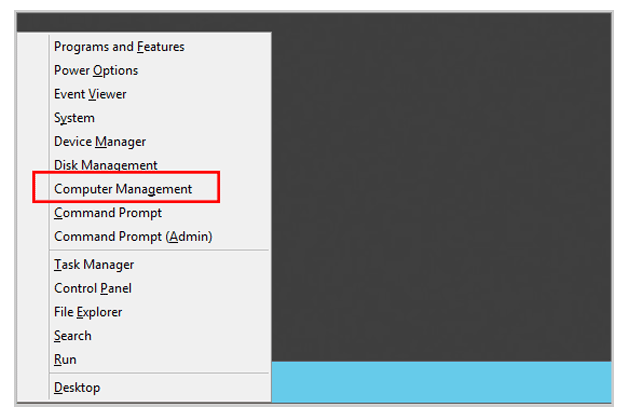
Step 2. In the left panel, expand System Tools.
Step 3. You will find Local Users and Groups listed there.
Conclusion
especially on Windows 10 Home or when using local accounts. The main reasons include the separation of local and domain accounts, lack of domain support in Home editions, and the fact that a VPN connection does not make your PC domain-joined.
For an easy and reliable solution, tools like AOMEI Partition Assistant allow you to manage users and groups, add domain accounts to the Administrators group, and set permissions even when built-in Windows tools are limited or unavailable. Using these methods ensures your domain account has proper admin access without complex configurations or restrictions. You can also use this software to extend drive space, improve system performance, upgrade disk without reinstalling, or fix boot issues like Windows cannot find the recovery environment issue.
AOMEI Partition AssistantThe Best Windows Disk Partition Manager and PC Optimizer
