
 PartitionAssistant Recovery


[Fixed] Adobe Error Code: 4 Installation Failed
This tutorial will guide you to fix Adobe Error Code: 4 installation failed. By using 4 solutions, you will easily fix the issue and successfully install Adobe apps.

Par Irene / Mis à jour le July 14, 2025


Why does Adobe Error Code 4: Installation Failed appear?
If you're trying to install Adobe software like Photoshop and see “Error Code: 4 Installation Failed,” you might wonder what went wrong. This error usually means something on your computer is stopping the installation from finishing successfully. After checking user reports and system behavior, several common causes have been identified. Here is a simple table to explain the main reasons behind this error:
| Possible Cause | Explanation |
|---|---|
| Not enough disk space | Your drive doesn’t have the free space needed to install Adobe software. |
| Corrupted installer | The Adobe installation file is damaged or incomplete. |
| Old or leftover installation files | Files from a previous Adobe install may interfere with the new one. |
| Conflicts with other running programs | Other applications might be blocking the installation process. |
| Interference from antivirus or security software | Some security tools may mistakenly block Adobe installation. |
| Missing or insufficient permissions | The installer may not have admin rights to complete the installation. |
After knowing what can cause Adobe Error Code 4, let’s move on to the practical part: how to fix it based on the reason affecting your system.
How to fix Adobe Error Code: 4 installation failed
To fix Adobe apps installation failed like Photoshop, Acrobat, and so on, you will have 4 choices. These will help you easily solve the problem.
Fix 1. Extend drive space
If you want to install Adobe apps without problems, your computer needs to have at least 10 to 15 GB of free space. When there isn’t enough space on your hard drive, the installation might fail and show the “Error Code 4” message. If the error is caused by insufficient disk space, you can fix it by adding more space to the drive where you’re trying to install Adobe software—usually the C: drive. One way to do this is by taking unused space from another drive, like D:, and moving it to C:.
Although Windows has a built-in tool called Disk Management, it can be hard to use for beginners and doesn’t always work. A better option is using AOMEI Partition Assistant, a user-friendly partition tool that lets you extend your drive space easily. Even if you have no technical skills, AOMEI’s simple design and step-by-step process make it easy to follow and reliable to use.
 AOMEI Partition Assistant
The Best Windows Disk Partition Manager and PC Optimizer
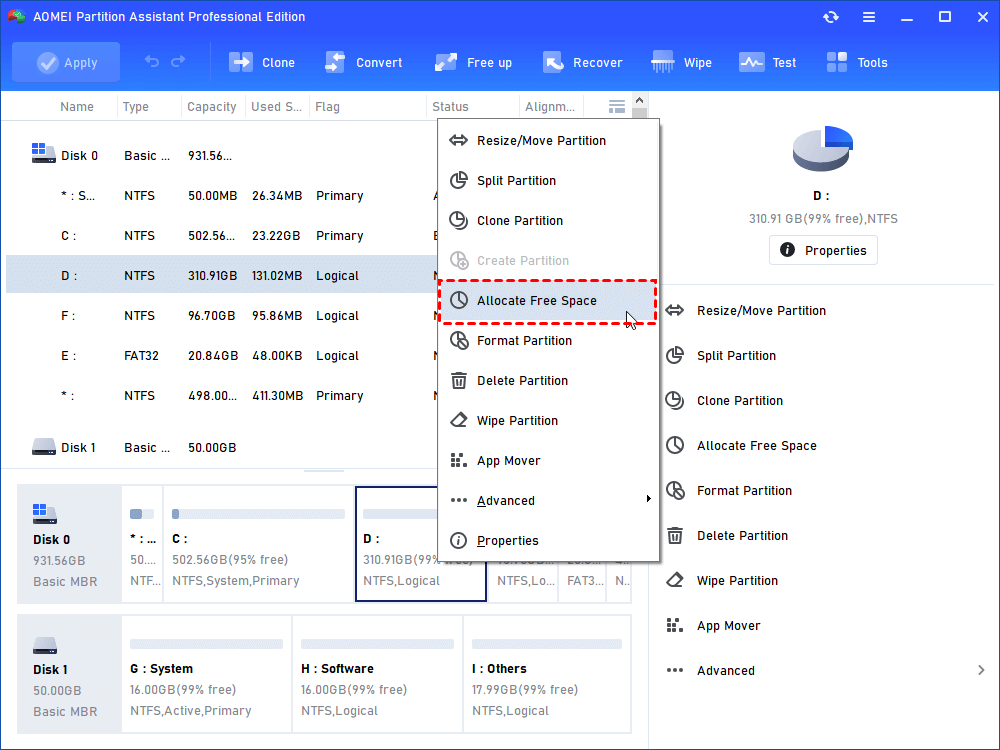
Step 1. Right click partition D and select Allocate Free Space.
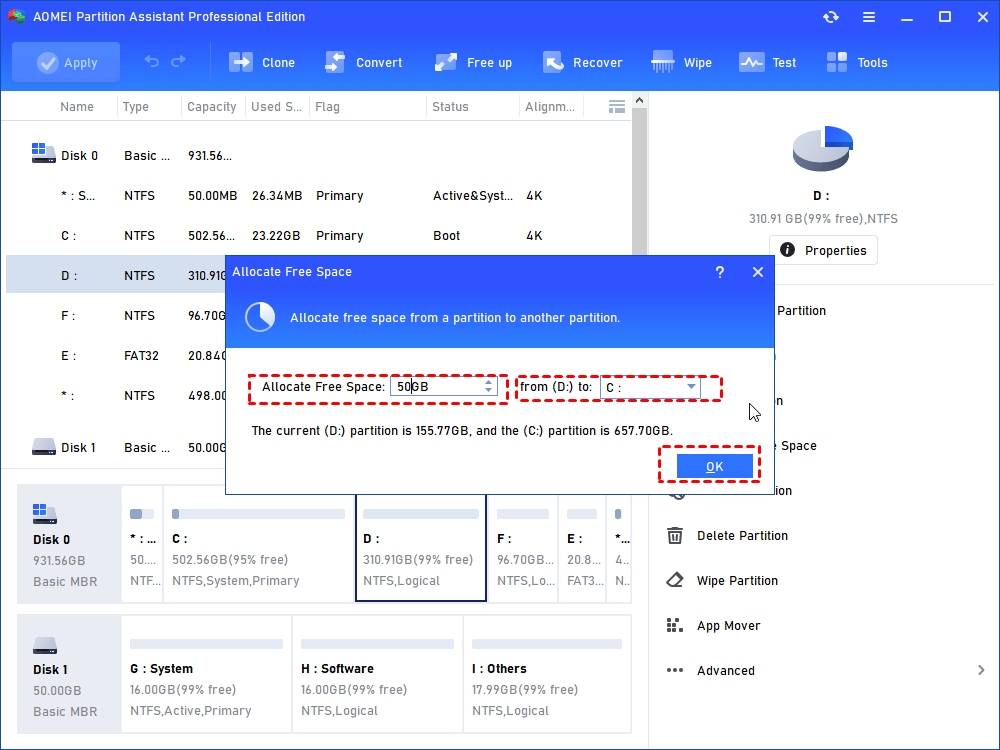
Step 2. Set how much space you want to allocate form partition D and choose C partition as a target partition.
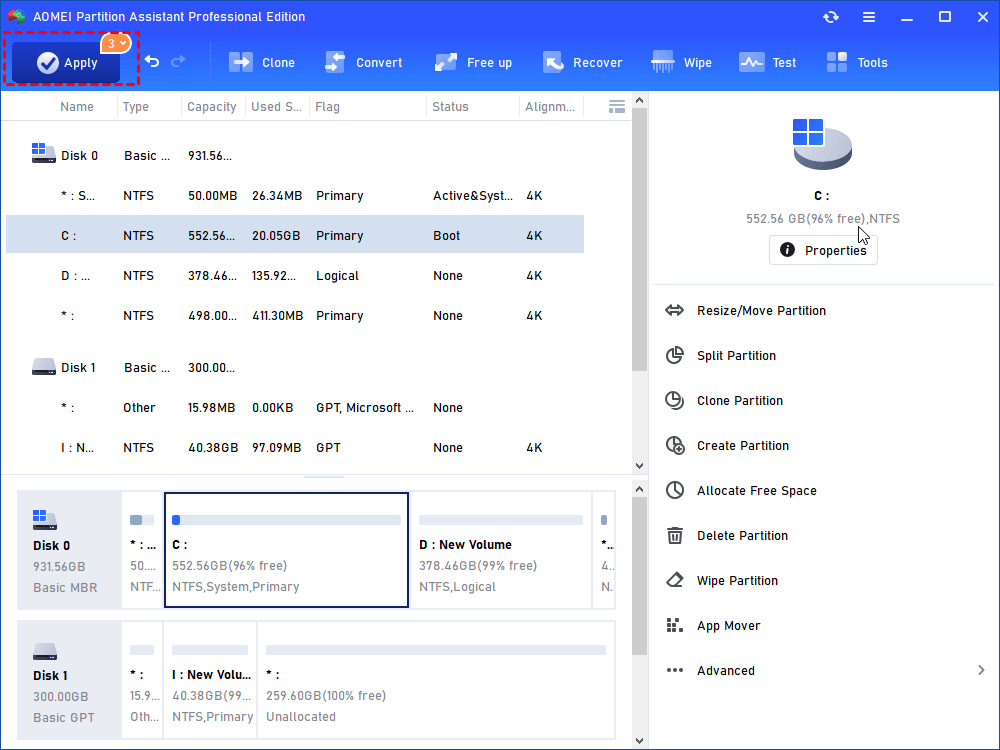
Step 3. Preview the result after allocation. If that’s what you want, just click "Apply" on upper left to carry out the operation.
Notes:
1. If it looks not like what you want, or you want C drive to be larger, you can click Discard behind Apply and do the operations above once more.
2. You can also complete the “increase c drive space from d drive” task using Extend Partition feature of this software.
Fix 2. Run Adobe apps as Administrator
Adobe Error Code 4 can happen if the installer doesn’t have enough permission to run properly. To solve this, you can try running the installer as an administrator. Follow these steps to do it:
Step 1. Press Win and E on your keyboard at the same time to open File Explorer.
Step 2. Go to the folder where you saved the Adobe Photoshop installer file.
Step 3. Right-click on the installer file and choose Run as administrator.
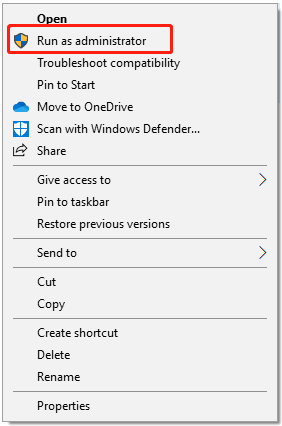
Step 4. Follow the instructions on the screen to complete the installation. Then check if the error is fixed.
Running the installer with admin rights often helps when the problem is caused by permission issues.
Fix 3. Try a clean boot
A clean boot helps your computer start with only the essential system services and drivers. This disables third-party apps and non-critical startup items, which can sometimes cause software installation issues. You can perform a clean boot to see if something on your system is blocking Adobe Photoshop from installing. Follow these steps:
Step 1. Press Win and R to open the Run window. Type msconfig and click OK. In the System Configuration window, go to the Services tab.
Step 2. Check the box for Hide all Microsoft services, then click Disable all and click Apply. Switch to the Startup tab and click Open Task Manager.
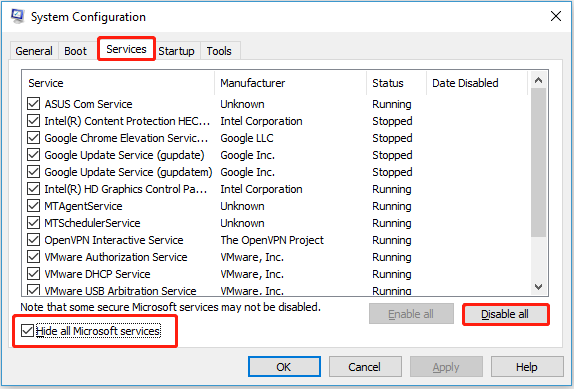
Step 3. In Task Manager, right-click on the programs you think might be causing problems and choose Disable. Close Task Manager, then click OK in the System Configuration window.
Step 4. Restart your computer. It will now start in a clean boot state.
After restarting, try installing Adobe Photoshop again. If the error does not appear, it means one of the disabled programs was likely causing the problem. You can turn them back on one by one to find the troublemaker. Once you identify it, consider uninstalling or disabling it permanently.
Fix 4. Re-download the Adobe installer
Sometimes the installer fails because the download was broken or incomplete. This can happen if your internet connection was unstable, the download was interrupted, or the installer file is outdated or damaged. If the previous methods didn’t fix Photoshop Error Code 4, try downloading the installer again.
For better results, you can choose the offline installer. It reduces the chance of errors during installation. To do this, go to the Adobe Download and Installation page. There, you can find different versions of Adobe apps. Scroll through the list, select the version you need, and follow the instructions to download and install it properly.
Conclusion
This tutorial shares comprehensive information about Adobe Error Code 4: installation failed. It usually appears when something on your computer prevents the installation from completing. It can be caused by low disk space, permission issues, software conflicts, or a broken installer.
Luckily, this error can often be fixed by using simple methods like freeing up drive space by AOMEI Partition Assistant, running the installer as an administrator, doing a clean boot, or re-downloading the installer. By following the solutions in this guide step by step, you should be able to complete the installation and get your Adobe software running smoothly.
AOMEI Partition AssistantThe Best Windows Disk Partition Manager and PC Optimizer
