
 AOMEI Partition Assistant
[Fixed] Alienware Disk 0 Unallocated Space Create Partition Install Windows
This passage will share how to fix Alienware Disk 0 Unallocated Space Create Partition Install Windows. With this guide, you can easily fix the issue to install Windows.

By Irene / Updated on July 31, 2025


About Alienware Disk 0 Unallocated Space Create Partition Install Windows error
When installing Windows on an Alienware computer, you might come across a screen that shows “Disk 0 Unallocated Space.” This means the hard drive is currently empty and has no partitions set up. A partition is like a section of the hard drive where data, including the operating system, can be stored. Without any partition, Windows has no place to install itself, so it shows the disk as unallocated space.
This situation usually happens when the computer is brand new and the hard drive has never been used before. It can also occur if you’ve just deleted all the old partitions during a clean installation or if the hard drive was recently wiped. In some cases, users manually remove all partitions to fix errors or to clear old data, which leads to the disk becoming unallocated.
Sometimes, even after you see the unallocated space, you might get a message saying, “Windows can’t be installed on this disk.” This usually means the disk format is not compatible with your system’s boot mode. For example, your PC might be set to boot in UEFI mode, but the disk is using the older MBR partition style instead of GPT. To fix this, you can convert the disk to GPT or MBR depending on your BIOS settings will usually solve the issue.
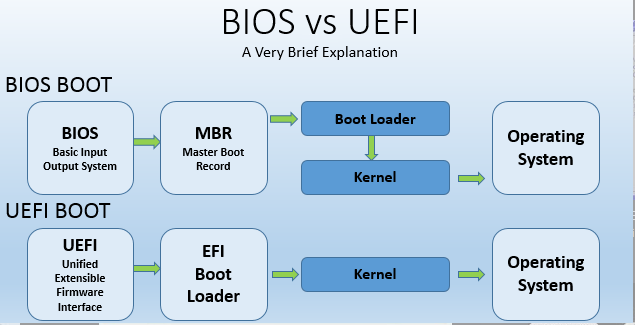
Once the disk is clean and set up in the right format, you can return to the setup screen, create a new partition on the unallocated space, and continue installing Windows without problems. This is a common and expected step when dealing with a new or reset drive, especially on custom-built or high-performance machines like Alienware PCs.
How to fix Disk 0 Unallocate Space issue in Alienware?
Fix 1. Create a new partition
If there is no partition on the disk, it will appear as unallocated space. A partition works like a container that tells the operating system where and how to store data. Without a partition, Windows does not know how to organize the disk or where to place important system files.
When you create a new partition, Windows sets up the file system it needs, usually NTFS, and gets that part of the disk ready to store the operating system and other files. It also creates small system partitions that help with starting up the computer and handling recovery. Creating a partition is an essential step to turn unallocated space into usable storage so that Windows can be installed properly.
AOMEI Partition Assistant is a powerful tool for managing hard drive partitions. With this software, you can easily create, resize, split, copy, and perform other operations on partitions. It even offers convert GPT and MBR options to help you fix Alienware Disk 0 Unallocated Space Create Partition Install Windows error.
 AOMEI Partition Assistant
The Best Windows Disk Partition Manager and PC Optimizer
Step 1. Install and run AOMEI Partition Assistant. In the main interface, right-click the unallocated space on it and choose “Create Partition”.

Step 2. In the pop-up window, click "Advanced" to specify the information for the new partition, including partition size, partition label, drive letter, file system (we suggest NTFS), and partition type (logical or primary). You can also specify the size of the new partition by dragging both edges.
Note: If the drive letter of the partition is set as “None”, you’ll not be able to see it in Windows File Explorer.
Step 3. You can preview the newly created partition in Pending Operations. Then, click “Apply” > “Proceed” to perform it.
Tips: If there is no unallocated space, you can first shrink a partition with the feature "Resize Partition" to get unallocated space. Or, you can use the paid feature "Split Partition" to split an existing partition into more partitions.
Fix 2. Convert MBR and GPT
If you plan to install Windows, your system must be using UEFI. This means that if your current system disk uses the MBR partition style, you’ll need to convert it to GPT before switching from Legacy BIOS to UEFI mode, or vice versa. It also suppots converting GPT to MBR without losing data as well. To do this safely without losing your data, a reliable option is AOMEI Partition Assistant.
This software is a full-featured disk and partition management tool. Its “Convert to GPT Disk” function lets you convert an MBR disk to GPT securely, making it easier to switch the boot mode to UEFI. In addition to that, it offers other useful features, such as moving the operating system, transferring installed programs without reinstalling, and more.
AOMEI Partition AssistantThe Best Windows Disk Partition Manager and PC Optimizer
Step 1. Install and launch AOMEI Partition Assistant. Right-click the system disk and choose “Convert to GPT”.
Step 2. Click “OK” to confirm your operation.
Step 3. Click on “Apply” to commit the pending operation.
And then the computer will finish the operation in WinPreOS mode.
After successfully converting MBR to GPT, you can change BIOS to UEFI.
Step 1. Start your computer and press the functional key (generally, it is F1, F2, F3, F10, or F12, ESC) to enter the firmware interface when you see the first screen. The functional key is different from computer to computer.
Step 2. Under the BOOT tab, choose the UEFI/BIOS Boot Mode, and change the Legacy to UEFI. Then save and exit the firmware interface.
When all is done, you can upgrade your Windows 10 to Windows 11.
Conclusion
The “Disk 0 Unallocated Space” issue on Alienware computers usually appears during Windows installation when the hard drive has no partitions. This often happens on new or recently wiped systems. To install Windows, you must first create a partition, which allows the system to store and manage files properly. In some cases, converting the disk from MBR to GPT is also necessary to match your system's boot mode. Tools like AOMEI Partition Assistant can help you create partitions and safely convert disk formats without data loss, making the installation process smooth and successful.
