
 AOMEI Partition Assistant
Solved: Cannot Delete the Active System Partition Windows 11/10
When trying to delete the active system partition, you may encounter errors. There are several possible reasons why you cannot delete the active system partition, but there are also solutions to fix it.

By Hedy / Updated on August 22, 2025


Why cannot delete the active system partition?
You cannot delete the active system partition because it is essential for your computer’s startup process. The active system partition usually contains the boot files (such as Boot Configuration Data, bootmgr, or NTLDR) that tell Windows how to start. If this partition is deleted, your operating system will not be able to boot, since the computer won’t know where to load Windows from.
Additionally, Windows places restrictions to prevent accidental deletion of the active system partition while the OS is running. Even tools like Disk Management will not allow you to delete it for safety reasons.
If you really need to remove or replace the active system partition (for example, when migrating Windows to a new disk), you must first:
✎ Make another partition active and transfer the boot files to it.
✎ Ensure the new partition is set as the boot partition.
✎ Then delete or repurpose the old partition using advanced tools or during a clean installation.
How to fix “cannot delete the active system partition” issue
Windows normally blocks the removal of active system partitions, yet certain circumstances still require their deletion:
When a computer runs a single operating system and you plan to install a new one, the existing system must be wiped first.
When two operating systems share the same PC and one is no longer needed, you may choose to delete its partition. Removing the active system partition in this case not only eliminates the unused system but also frees up valuable disk space, turning it into unallocated space.
Case 1: Delete system volume in single operating system
In the first scenario, three possible methods can help resolve the issue:
Solution 1. Use AOMEI Partition Assistant
Solution 2. Execute commands through Diskpart
Solution 3. Use a Windows installation disk
Each approach provides a way to remove the active system partition. Let’s explore the steps for each method in detail.
Solution 1. Use AOMEI Partition Assistant
To remove a system partition when only one operating system exists, you must first enter the WinPE environment by creating bootable media. A highly effective choice is AOMEI Partition Assistant, a user-friendly yet powerful disk and partition management tool. Below is the step-by-step process to resolve the error “Windows cannot delete the active system partition on this disk”.
Guide 1. Create Bootable Media
Prepare a bootable USB, CD, or DVD that allows you to access the system outside of Windows.
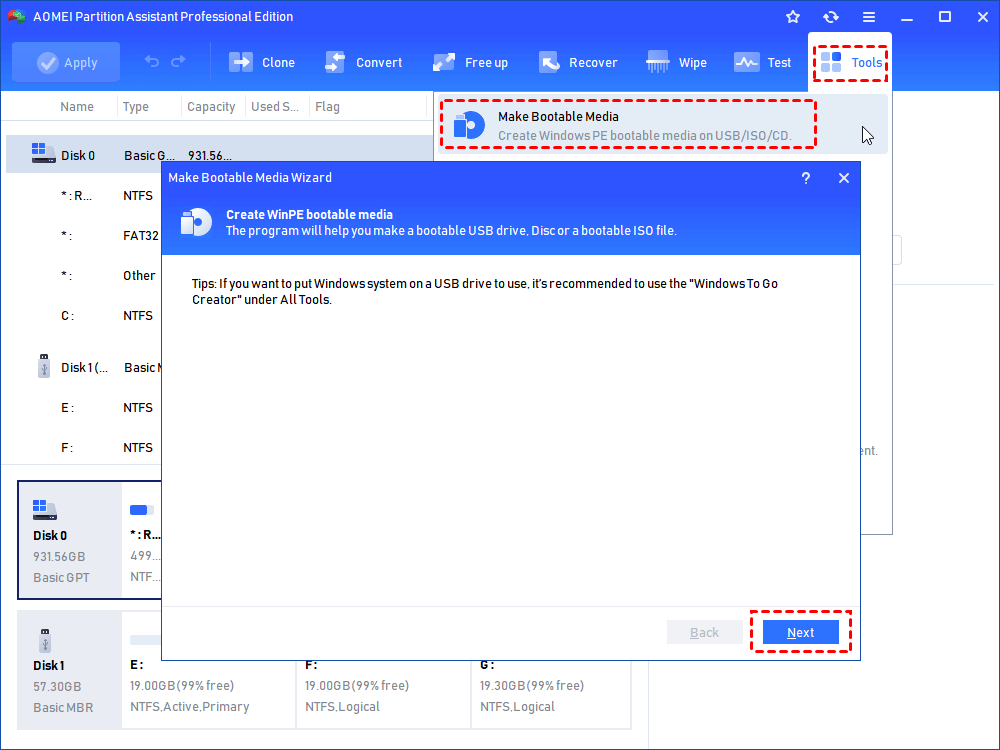
Step 1. Connect the USB drive to a working Windows computer, install and run AOMEI Partition Assistant. Click “Make Bootable Media” and hit on “Next” to proceed.
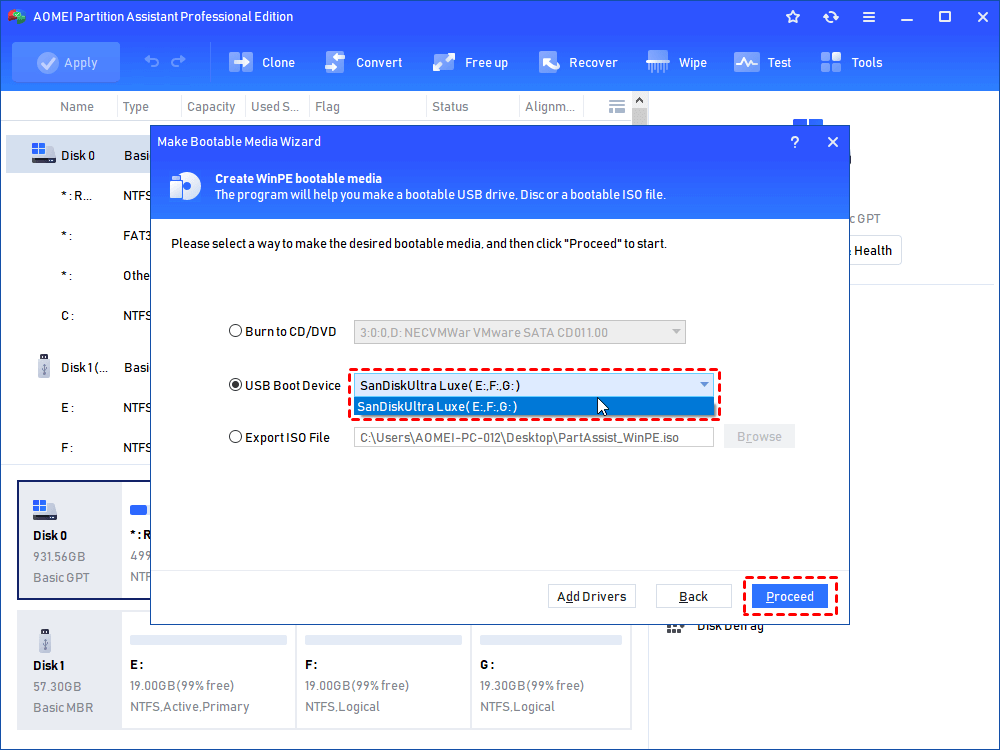
Step 2. Choose the right USB drive under “USB Boot Device” and click “Proceed”.
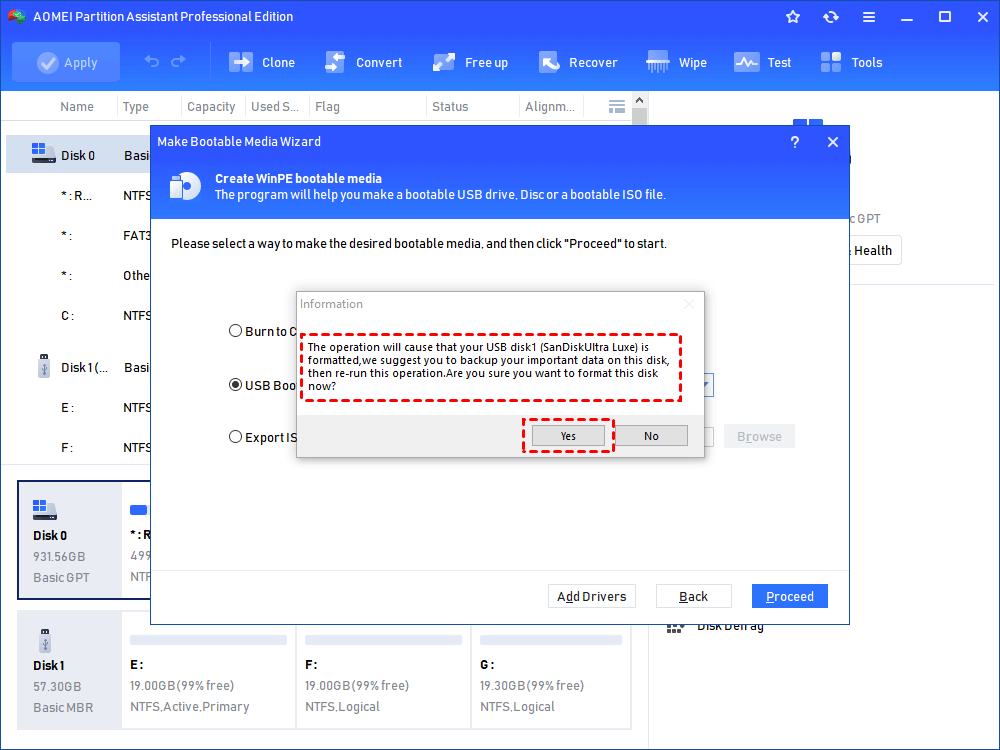
Step 3. Then you will be told the USB will be formatted, please back up important data. If you have done that, click “Yes”.
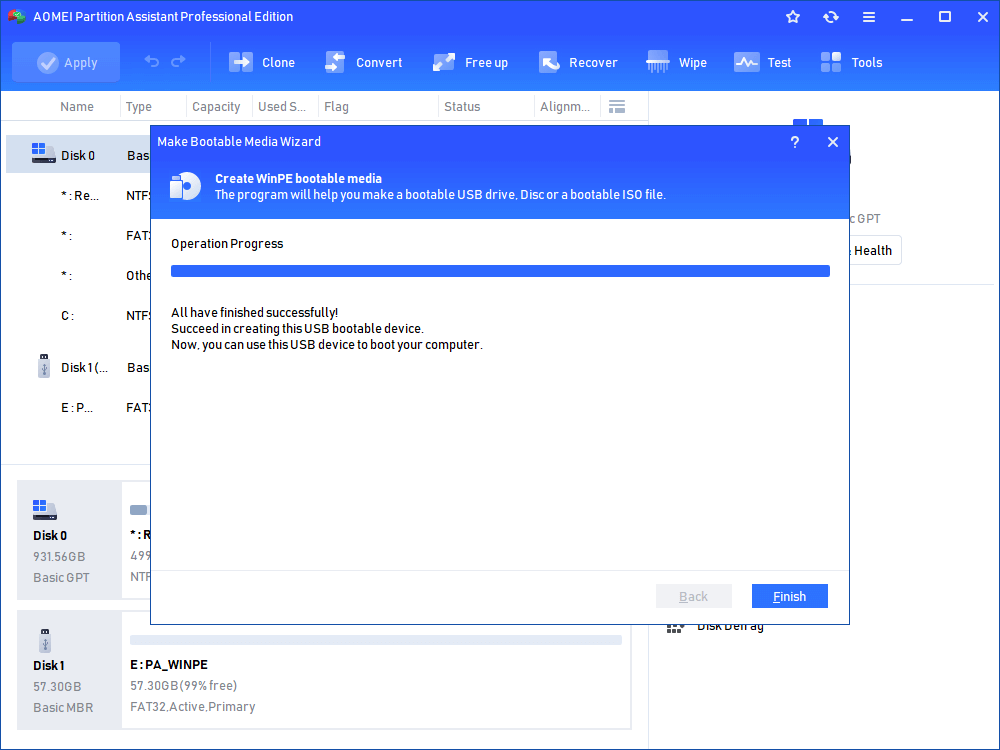
Step 4. Then wait for the process to be completed.
Guide 2. Boot from the USB drive
Step 1. Restart the computer and press F2, F8, or Delete (depending on the device) to open the BIOS menu.
Step 2. Set the system to boot from the prepared USB drive.
Guide 3. Delete the partition
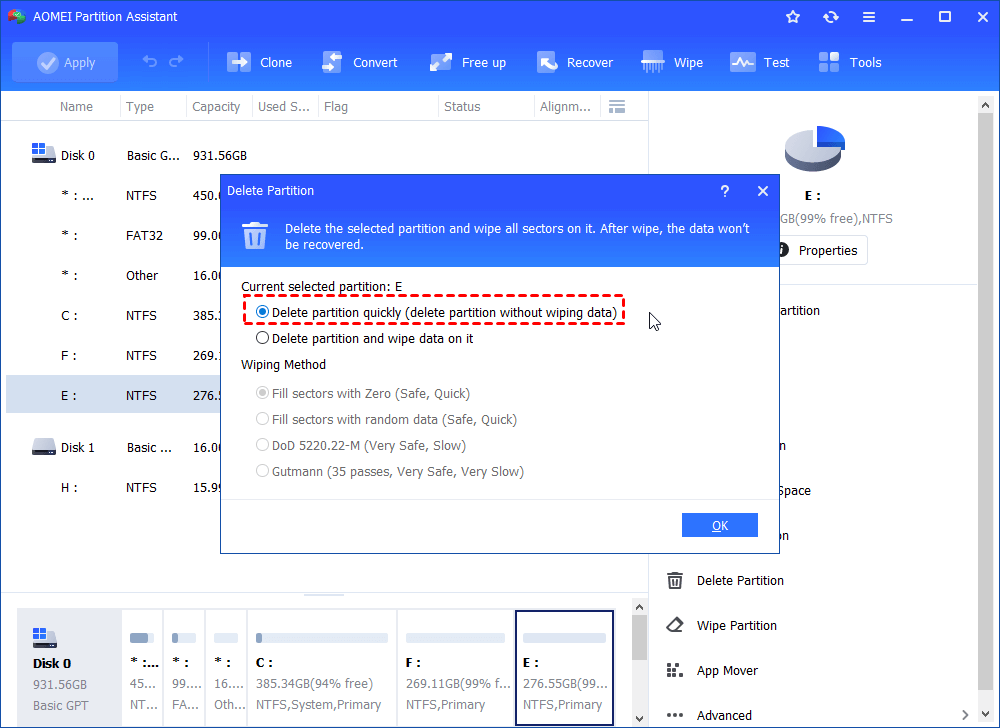
Step 1. Once inside AOMEI Partition Assistant, right-click the active system partition and choose "Delete Partition" from the extended menu.

Step 2. In the small pop-up window, we recommend you to choose "Delete partition quickly (delete partition without wiping data)" and click "OK".
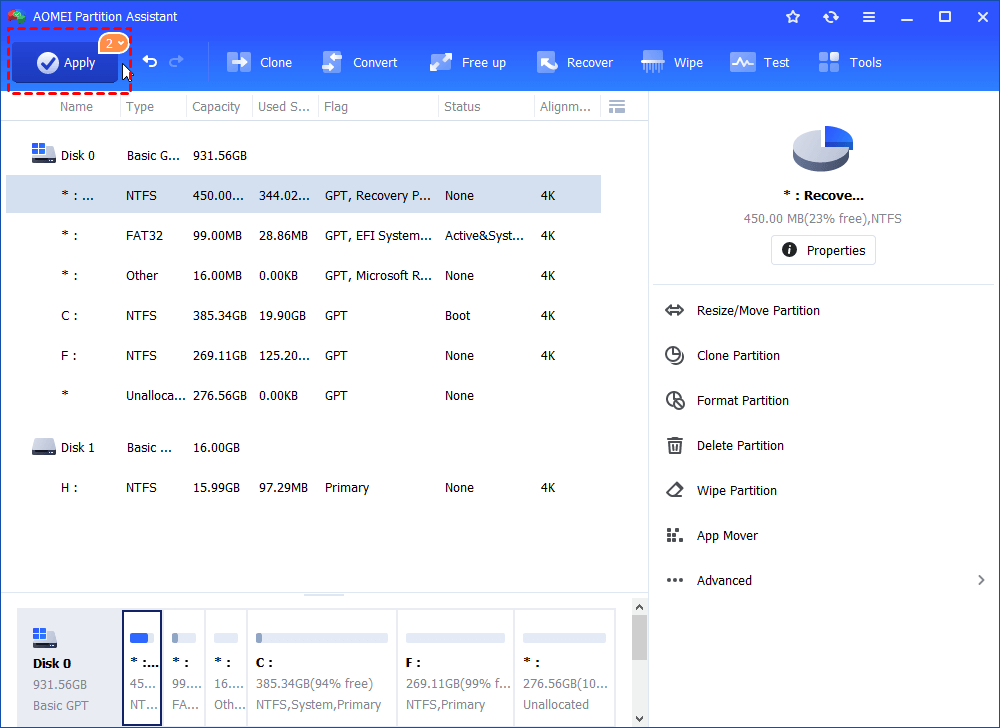
Step 3. Go back to the main interface, click "Apply" and "Proceed" to commit the operation.
✍ Important: This action erases all partitions on the system disk, including the operating system itself. Be sure to create a full backup of critical files before moving forward.
Solution 2. Execute commands through Diskpart
Another approach is to use the Diskpart command, which can sometimes successfully remove the active system partition. Follow these steps carefully:
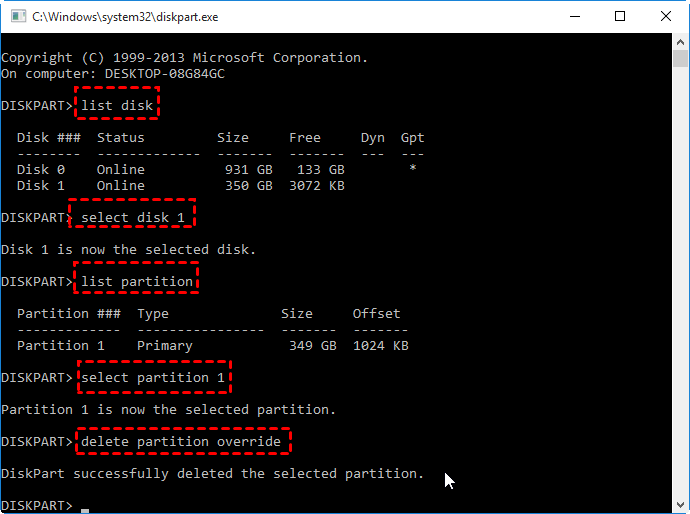
Step 1. Open the Command Prompt and run it with administrator privileges.
Step 2. Enter diskpart and press Enter.
Step 3. Type list disk to display all available disks.
Step 4. Use select disk 1 to choose the disk containing the active system partition (replace “1” with the correct disk number).
Step 5. Enter list partition to view detailed information about partitions and their status.
Step 6. Run select partition 1 to highlight the target system partition.
Step 7. Finally, type delete partition override to remove the selected partition.
Solution 3. Use a Windows installation disk
If the system partition cannot be removed directly, the Windows installation disc provides an alternative method. The process is straightforward:
Step 1. Insert the Windows installation disc into the computer.
Step 2. Select the preferred language, time format, and keyboard input method.
Step 3. Click “Install Now”.
Step 4. Review and accept the license agreement, then choose Next.
Step 5. Select the Custom (Advanced) installation option.
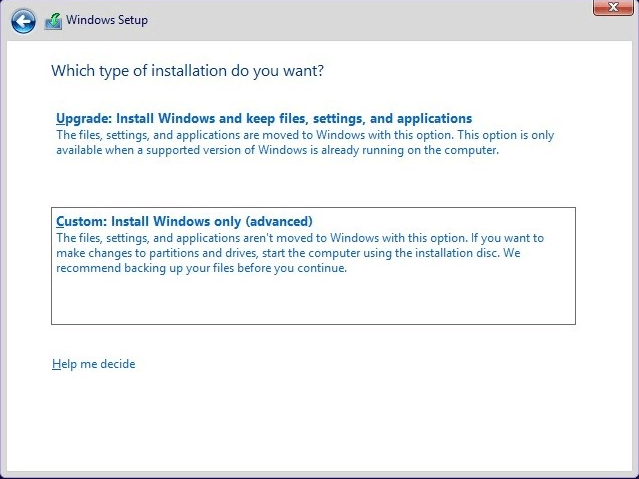
Step 6. Highlight the system partition and click Delete.
After completing these steps, the system partition will be erased, allowing you to proceed with installing a fresh copy of Windows.
Case 2: Remove active system partition in dual system
In the second case, two possible scenarios may occur:
Situation 1. Two operating systems are installed on separate hard drives.
Situation 2. Two operating systems share the same hard drive.
Each situation requires a different approach. Below are the detailed solutions to resolve the issue “Windows cannot delete the active system partition on this disk”.
Situation 1. Two operating systems are installed on separate hard drives.
When two operating systems are installed on separate hard drives—for example, one on partition C of disk 0 and another on partition F of disk 1—a third-party tool is required to remove the unwanted system partition. In this case, downloading and using AOMEI Partition Assistant is recommended to safely delete the partition without complications.
Situation 2. Two operating systems share the same hard drive.
When two operating systems are installed on the same hard drive, the issue is often linked to how partitions are structured. There are typically two situations:
1. With a System Reserved Partition
A system reserved partition usually appears at the beginning of the disk. In this setup, the boot files for both operating systems are stored in that reserved space, which is set to active by default. If you need to remove it, follow the specific instructions for deleting a system reserved partition.
2. Without a System Reserved Partition
If no system reserved partition exists but two systems are still present, you’ll need to mark the partition containing the system you want to keep as active. The process involves deleting the unnecessary partition and then setting the correct one to active.
Guide 1. Delete the partition with AOMEI Partition Assistant
Step 1. Install and run the software. In the main interface, right-click the unwanted system partition, and choose "Delete Partition" from the extended menu.
Step 2. In the small pop-up window, we recommend you to choose "Delete partition quickly (delete partition without wiping data)" and click "OK".
Step 3. Go back to the main interface, click "Apply" and "Proceed" to commit the operation.
Guide 2. Set the Partition as Active
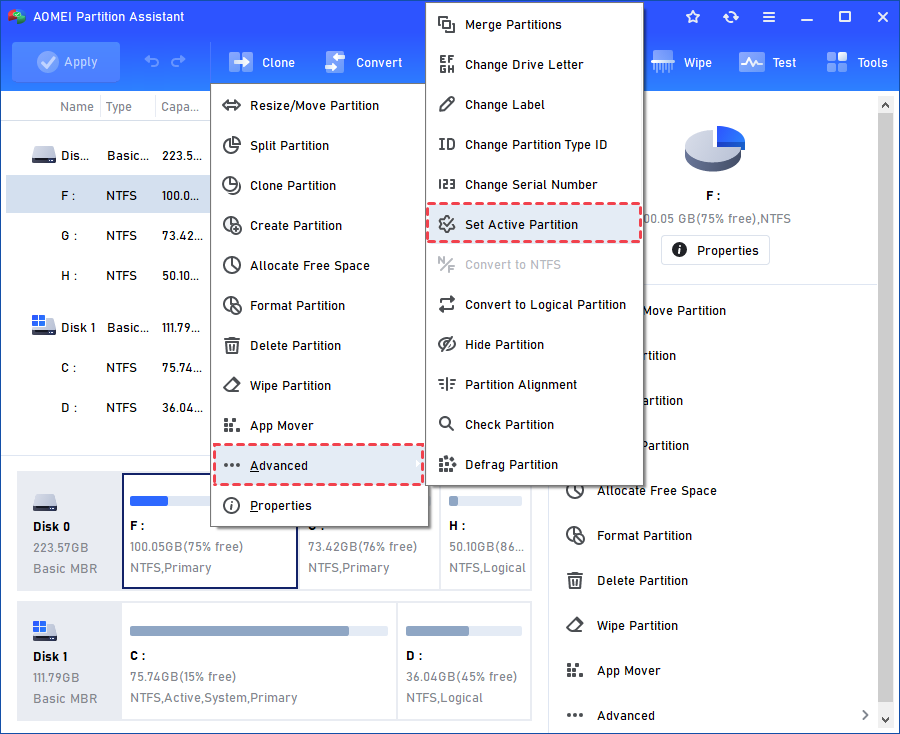
Step 1. Launch AOMEI Partition Assistant. Right-click on the partition you want to mark as active and select "Advanced" -> "Set Active Partition".
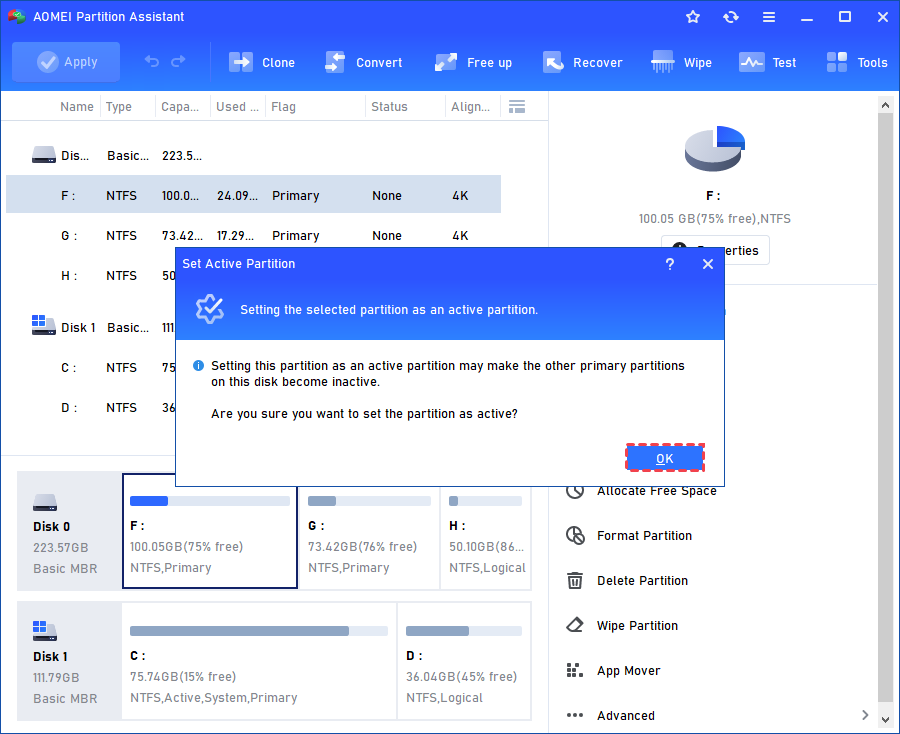
Step 2. A reminder will be presented in the main window. Click "OK".
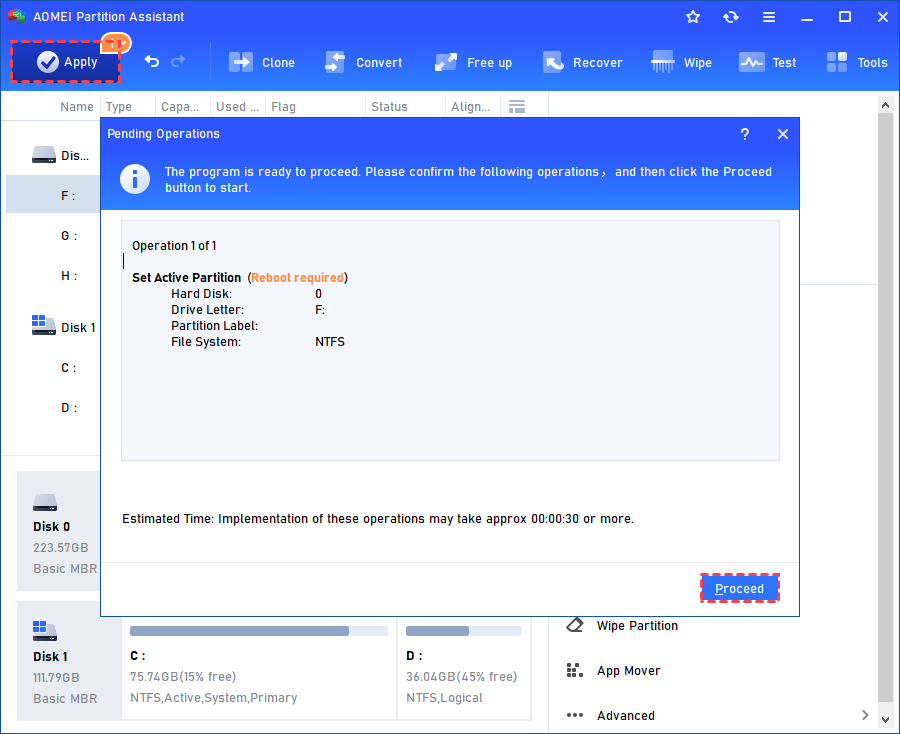
Step 3. Click "Apply" to open the pending operations as shown in the screenshot below. You will get a reboot warning. Click "Proceed" to start the operation.
Conclusion
This guide clarifies the reasons why Windows prevents deletion of the active system partition and provides step-by-step solutions to resolve the issue. AOMEI Partition Assistant stands out as the most effective tool, whether managing a single operating system or multiple ones. It allows you to create bootable media, delete partitions safely, and set the desired system partition as active, ensuring a smooth and secure process.
