
 AOMEI Partition Assistant
How to Check VHD for Corruption on Windows 10 and 11?
This article explains how to check VHD for corruption in Windows 10 and 11. Follow simple steps to verify VHD integrity, identify file errors, and keep your virtual disks healthy.

By Irene / Updated on October 24, 2025


Why does VHD get corrupted?
A VHD (Virtual Hard Disk) is a digital file that works like a physical hard drive inside a virtual machine. While it mimics a real disk, it is not immune to corruption. When a VHD becomes corrupted, all the data stored inside can become inaccessible, potentially causing serious issues like data loss or system errors.
Here are the main reasons VHD files can get corrupted:
-
Faulty storage hardware: Problems with your hard disk, such as physical damage or firmware errors, can cause VHD files to become unreadable.
-
Errors during file transfer or network issues: Interruptions while moving data, such as sudden disconnections or network problems, can damage the VHD.
-
Antivirus or encryption interference: Security software may sometimes block or disrupt virtual machine operations. To reduce risk, exclude virtual machine folders from antivirus scans or avoid installing antivirus programs inside the VM.
-
Virus infections: Malware or cyberattacks can compromise file integrity, including VHD files.
-
Abrupt shutdowns or system crashes: Turning off the computer unexpectedly or a VM crashing while active can corrupt the virtual disk.
-
Paused or malfunctioning virtual machines: Ignoring early signs of VM failure or leaving a VM paused for too long can lead to VHD damage.
-
Human errors: Mistakes like accidental deletion, improper disk management, registry changes, or forced shutdowns can also corrupt a VHD.
Corruption can be frustrating and sometimes severe enough to prevent recovery. However, specialized software or professional tools can often repair or recover VHD files if the damage is not too extensive.
How to check VHD for corruption?
A VHD (Virtual Hard Disk) can become corrupted due to storage issues, abrupt shutdowns, malware, or human errors. When this happens, the virtual disk may become unreadable, and accessing your data can be difficult. AOMEI Partition Assistant provides a simple way to check and repair corrupted VHD files without complicated commands. Follow the steps below to safely fix your VHD.
 AOMEI Partition Assistant
The Best Windows Disk Partition Manager and PC Optimizer
Part 1. Attach the VHD
Before you can repair a VHD, Windows and AOMEI Partition Assistant need to recognize the virtual disk as an actual drive. A VHD is essentially a single file that stores the entire contents of a virtual hard disk, including partitions, system files, and data. By default, Windows treats it just like a regular file, so disk management tools cannot interact with its internal structure.
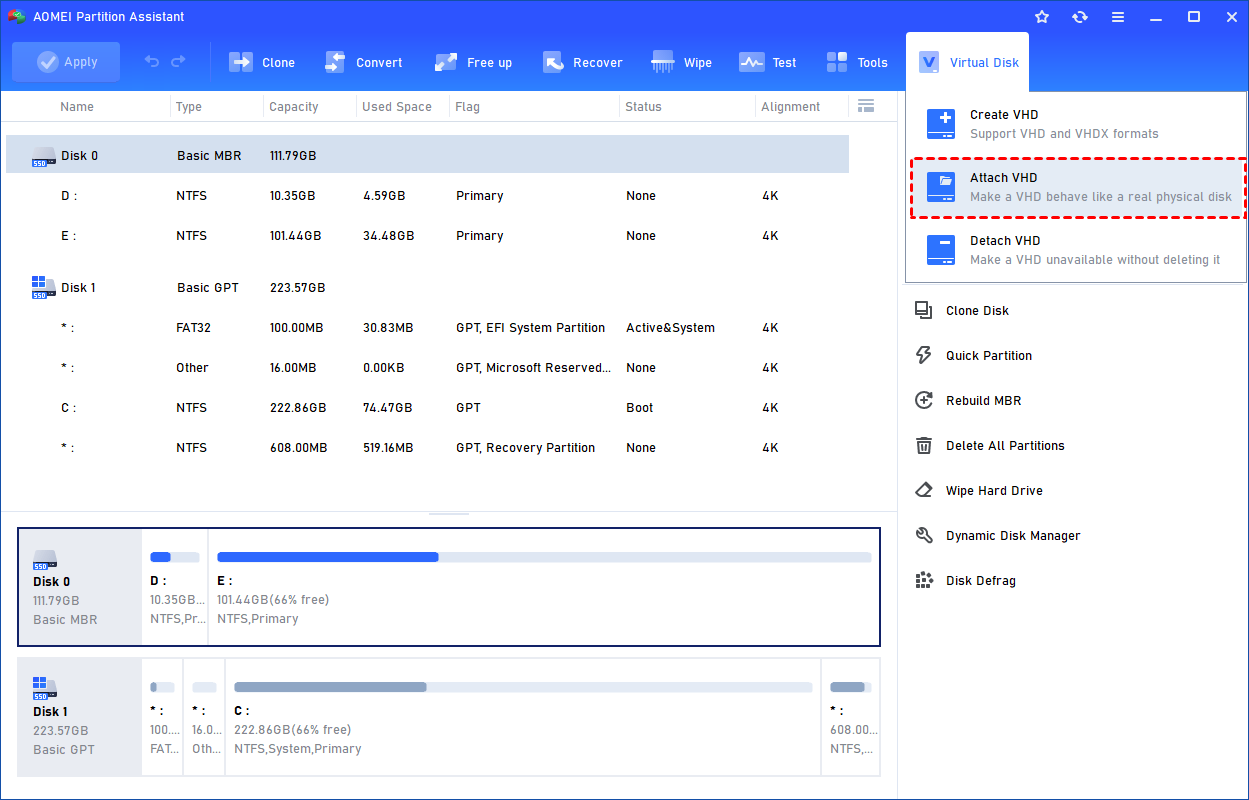
Step 1. Select the "Attach VHD" option after clicking the"Virtual Disk" tab.
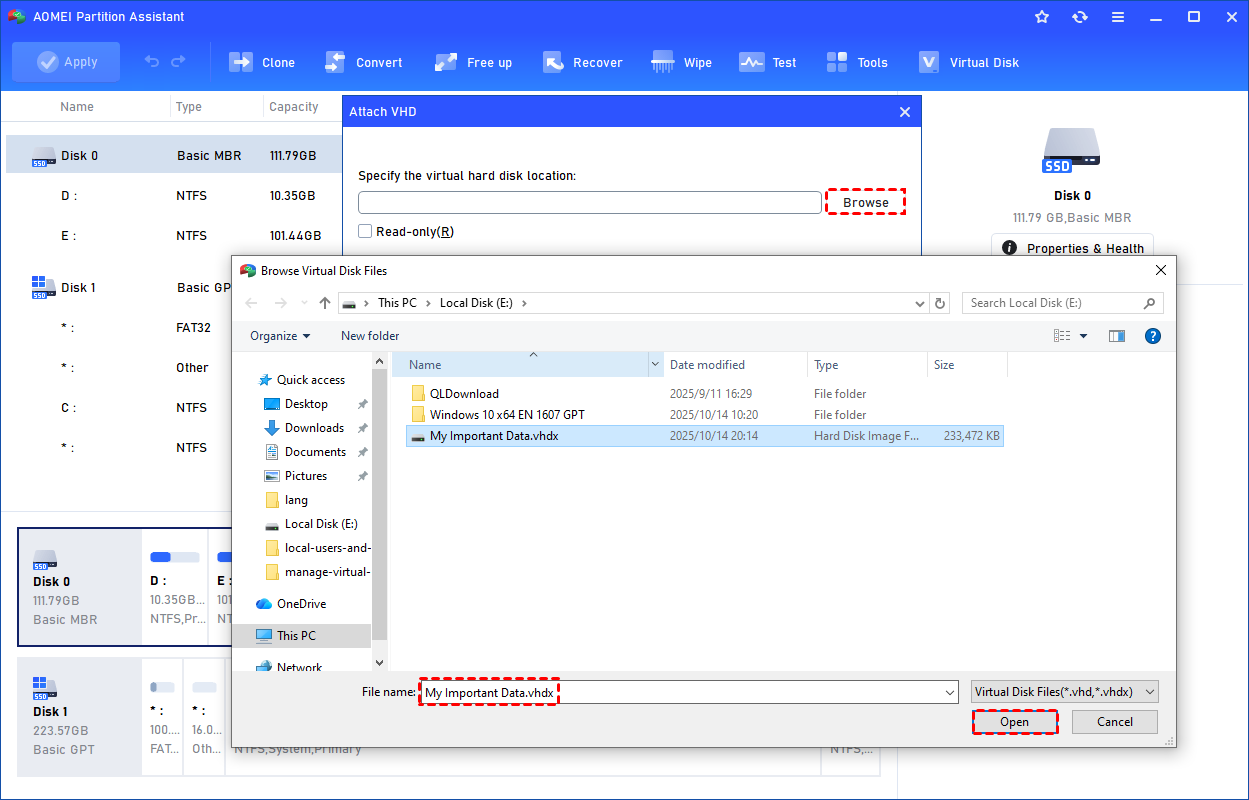
Step 2. Click "Browse" to locate the location where the .vhd or .vhdx file is saved. Select the .vhd or .vhdx file you want to attach and click "Open" to attach it.
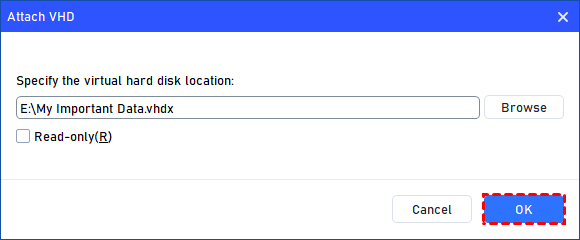
Step 3. Once the virtual file is selected, you can click "OK" to start attaching the VHD.
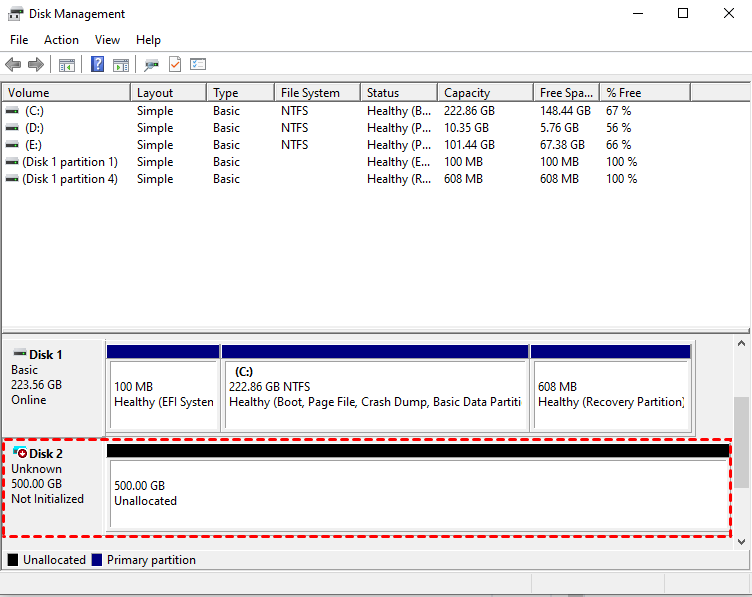
Step 4. Once the process is finished, you will see that the VHD is attached successfully.
Part 2. Check VHD for corruption
Option 1. Surface Test
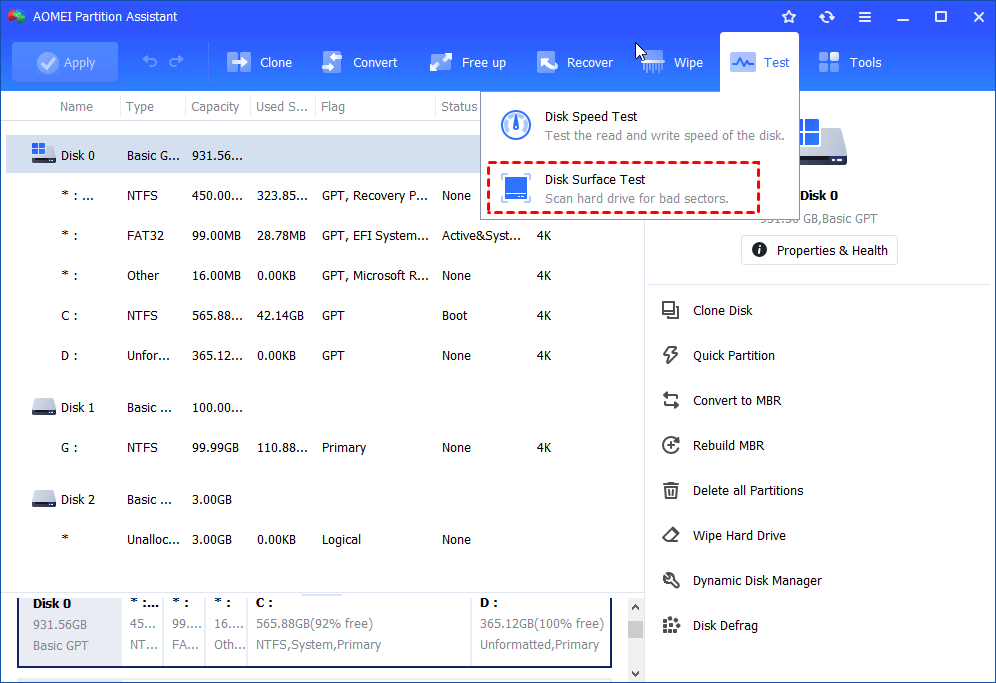
Step 1. Download AOMEI Partition Assistant and launch it. At the main interface, click the "Test" menu and select “Disk Surface Test” to run hard drive test in Windows.
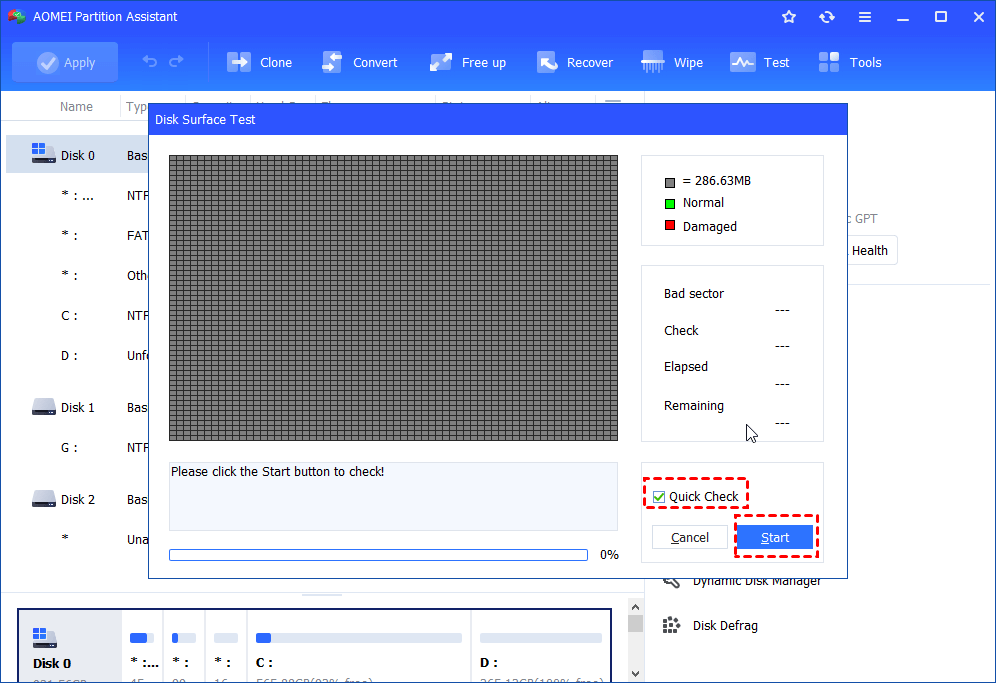
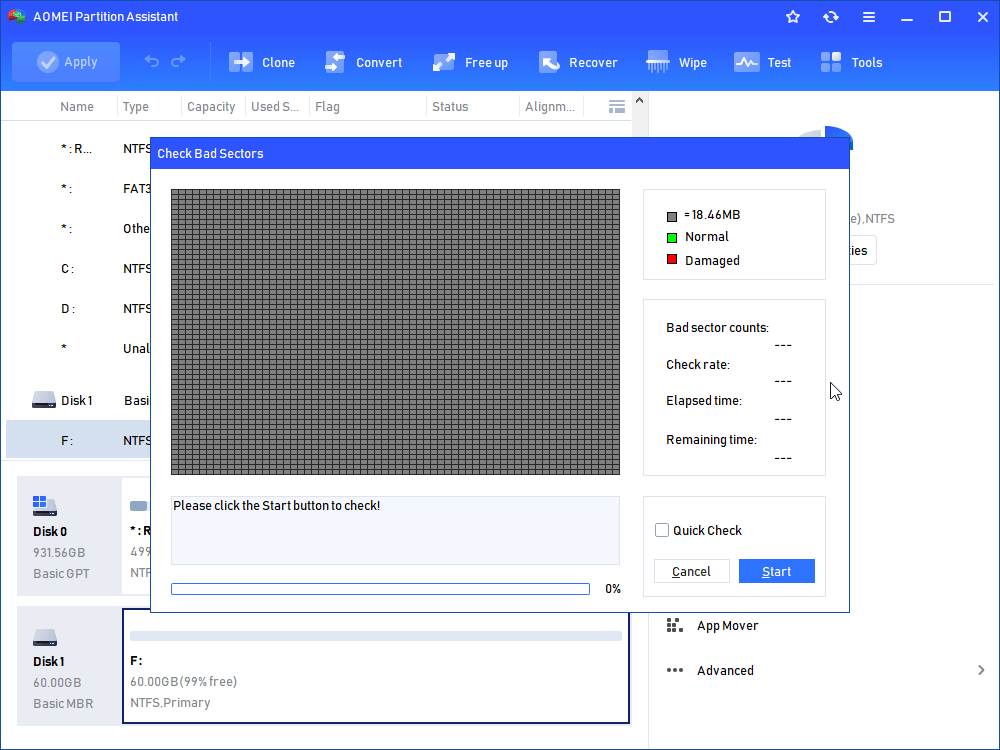
Step 2. Click Start to do the surface test. You may want to tick Quick Check to perform a fast test.
Option 2. Check Partition
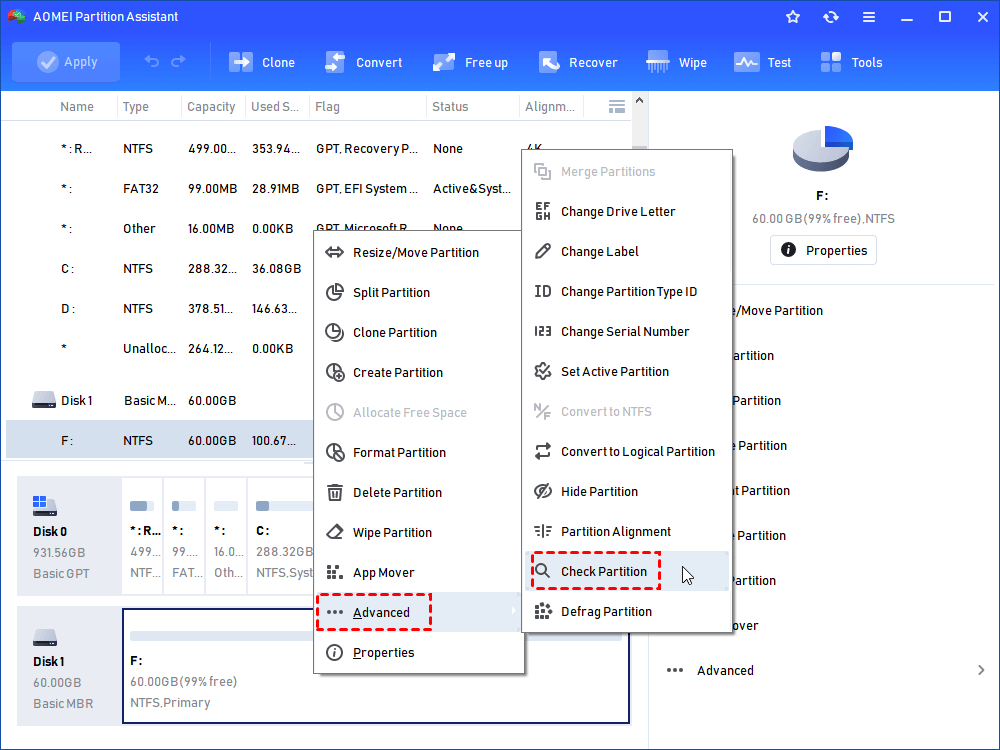
Step 1. Open this tool, right-click the partition that you want to check, select Advanced, then select “Check Partition”. This is a general method to test bad sectors on hard drive and repair them.
AOMEI Partition AssistantThe Best Windows Disk Partition Manager and PC Optimizer
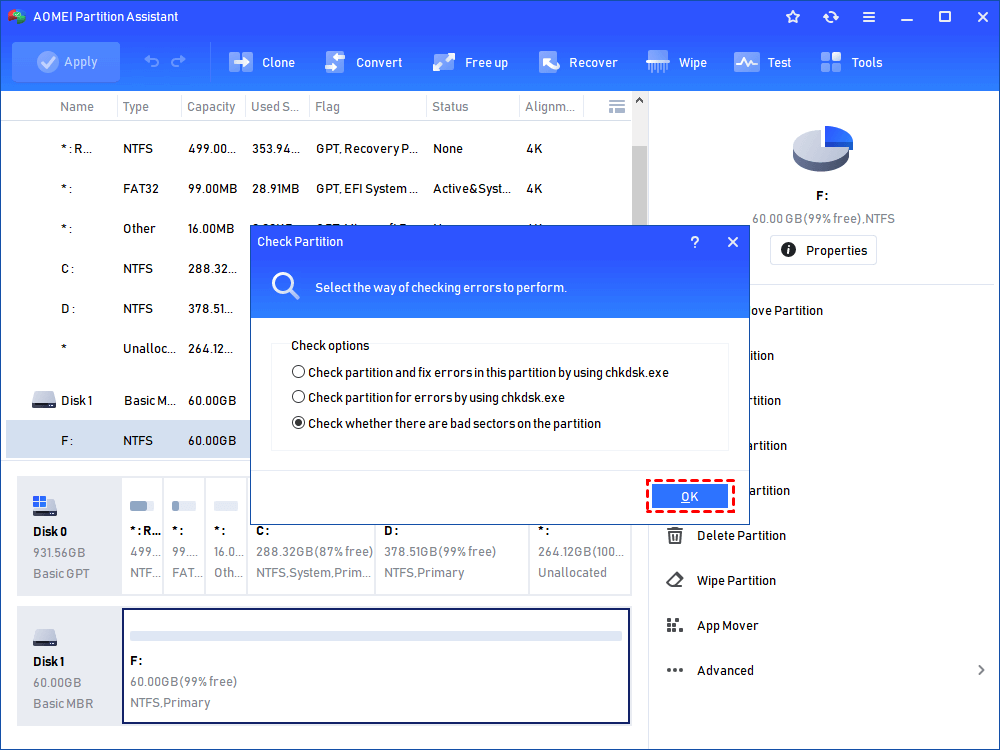
Step 2. Select the way of checking errors to perform. As you can see from the following screenshot, there are three choices, simply choose the last one “Check whether there is a bad sector on the partition”. And click OK to go to the next step.
Step 3. Click the Start button to check.
Option 3. Health check
Step 1. You can also click the attached VHD and choose Properties-->S.M.A.R.T Health to see detailed S.M.A.R.T information of this disk.
Once the tool detects that the disk health status of one hard drive is poor, a red exclamation mark will be displayed on the disk icon. You can also right-click on one hard drive and choose Properties-->Health(SMART) to see detailed S.M.A.R.T. information on this disk.
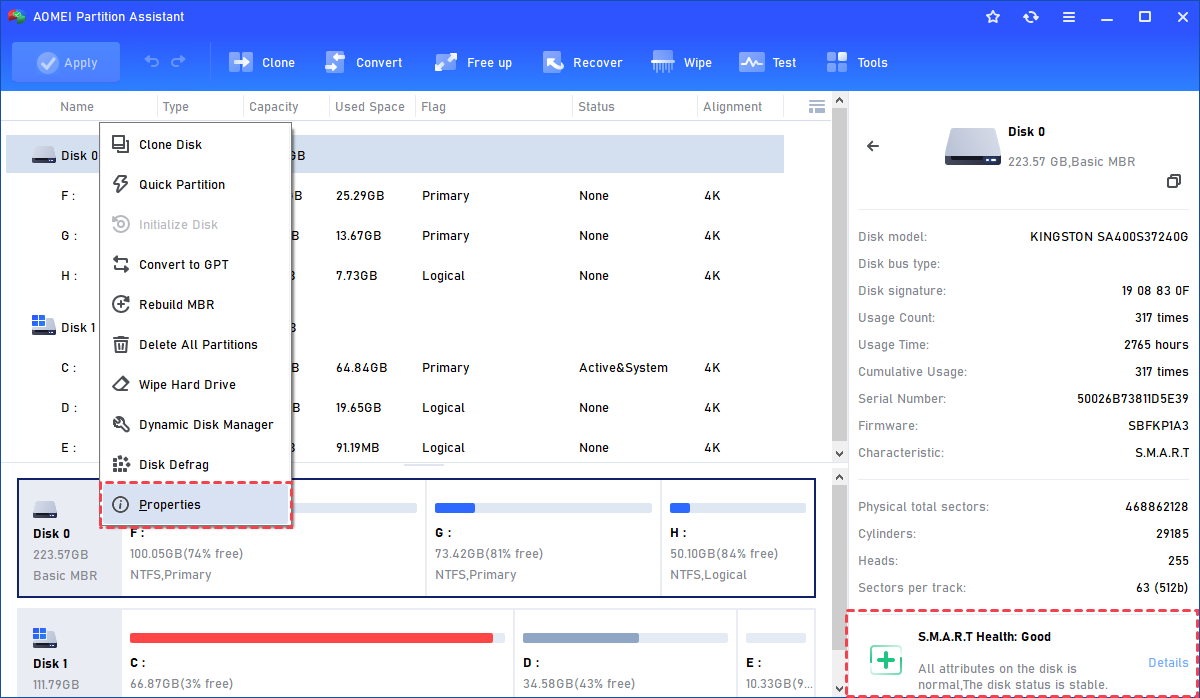
Step 2. There are 3 states of hard disk health.
• State one: Good
The disk is in good condition and can be used with confidence.
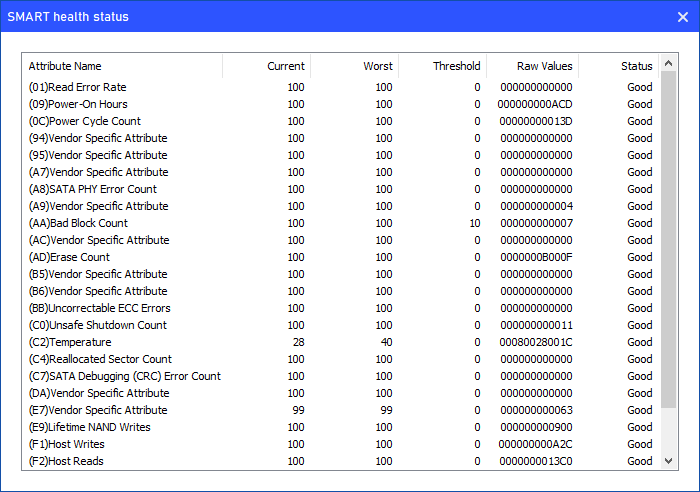
• State two: Caution
Except for the temperature, one or more attributes are close to the threshold. The disk still can be used normally, but it is recommended to back up the disk regularly.
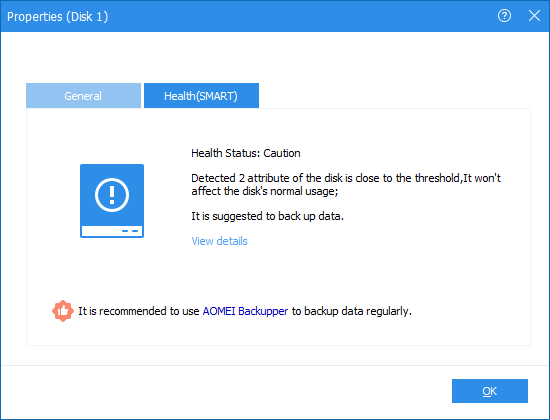
• State three: Bad
One or more attributes are equal to or less than the threshold. The disk may be damaged soon and cause data loss. It is recommended to clone this disk and replace the hard drive with a new one.
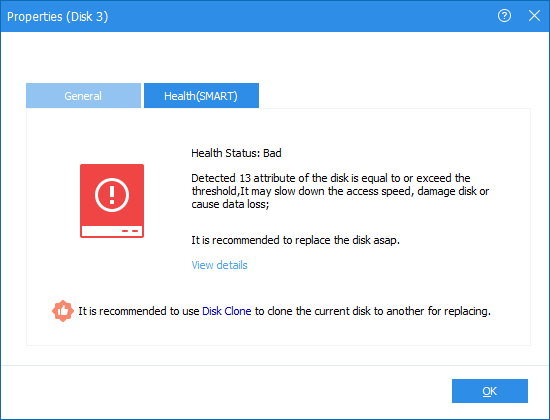
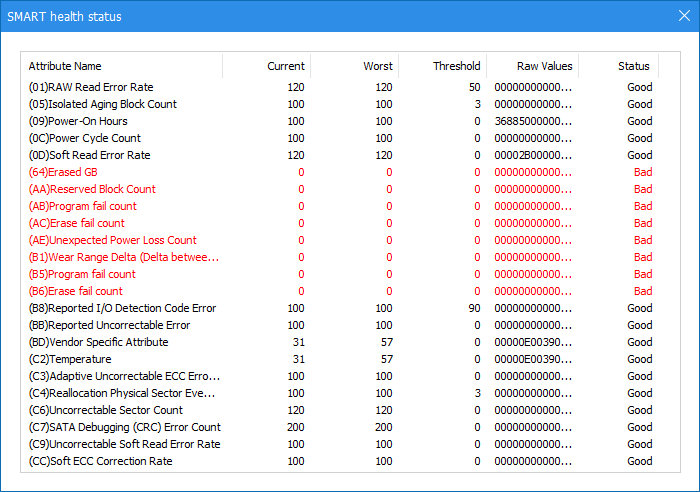
Click "View details" to see specific S.M.A.R.T. values, red text indicates that the value of the item is equal to or exceeds the threshold.
Option 4. Disk Speed Test
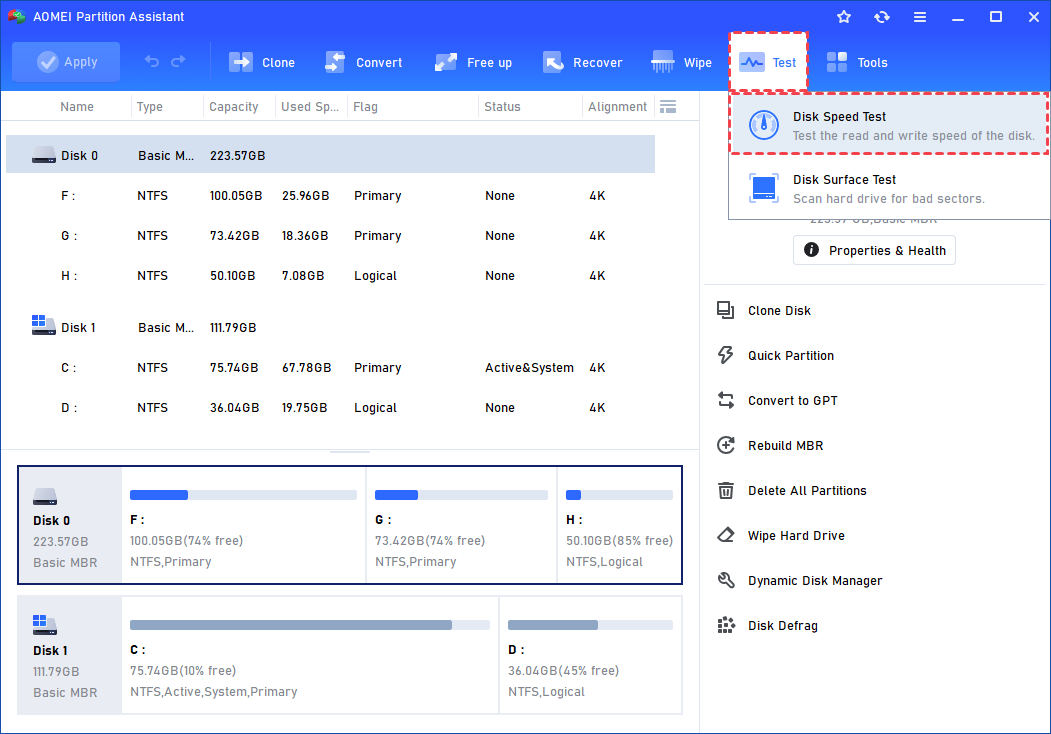
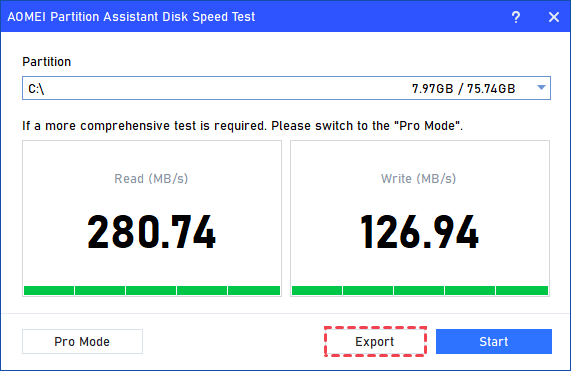
Step 1. Install and launch AOMEI Partition Assistant. Click the "Test" main tab and select the "Disk Speed Test" tool.
Step 2. The default mode is Simple Mode, click “Start” to run a simple speed test. Or click "Pro Mode" to get a more comprehensive test we introduced above.
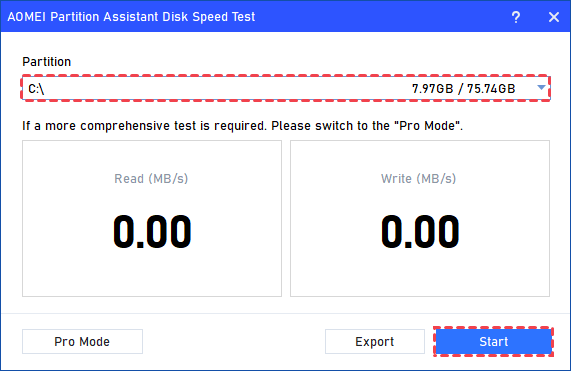
Step 3. After the test, you can click “Export” to see the test result.
▶ Tip: The above features are also available for external hard disks.
Conclusion
VHD files can become corrupted due to hardware issues, system crashes, malware, or human errors, making data inaccessible. To prevent loss, it is important to check VHD for corruption regularly. Tools like AOMEI Partition Assistant let you check VHD corruption, verify VHD integrity, and perform a VHD file corruption check safely. By attaching the VHD and using options such as Check Partition, Surface Test, Health Check, or Disk Speed Test, you can detect and fix errors effectively. Follow these steps to ensure your VHD is healthy and learn how to check VHD for errors easily.
AOMEI Partition AssistantThe Best Windows Disk Partition Manager and PC Optimizer
