
 AOMEI Partition Assistant
Everything You Need to Know About Disk to VHD Download and Physical-to-Virtual Conversion
Discover the handy disk to VHD converter download options. Our guide covers Microsoft Disk2vhd and professional cloning methods using AOMEI Partition Assistant.

By Lucas / Updated on January 19, 2026


It is a necessity for data preservation and system flexibility. Many IT professionals and home users look for a reliable disk to VHD download to create a virtual replica of their physical hard drives, enabling them to run their existing systems as virtual machines (VMs).
This process, known as Physical-to-Virtual (P2V) migration, allows you to back up your entire operating system, test new software in a sandbox environment, or maintain legacy applications without needing old hardware. In this guide, we will explore the best tools available for this task and provide a step-by-step walkthrough for a successful conversion.
Why Search for a Disk to VHD Converter Download?
The motivation behind seeking a disk to VHD converter download often stems from the need for hardware independence and disaster recovery. By converting a physical disk into a Virtual Hard Disk (VHD or VHDX), you essentially transform your hardware-bound OS into a portable file.
This conversion is vital for users who want to upgrade their PC but need to keep their old environment accessible. It is also a popular choice for developers who need to copy a specific disk environment for debugging. A virtualized disk can be easily moved between different computers and launched in hypervisors like Hyper-V, VMware, or VirtualBox, ensuring your data is never lost due to physical hardware failure.
Exploring the Microsoft Disk2vhd Utility for Windows Systems
One of the most common starting points for users is the official Microsoft utility. When you download disk to VHD from the Microsoft website, you are getting a lightweight, portable tool specifically designed to create VHD versions of online physical disks.
Disk2vhd is unique because it uses Windows Volume Snapshot capability to create consistent point-in-time snapshots of the volumes you want to include in a conversion. It is worth noting that if you are working with older hardware, you can still find a disk to VHD 32-bit download within the system suite, ensuring compatibility with legacy systems. While Disk2vhd is effective for basic creation, it lacks advanced partition management and optimization features, which is why many users eventually transition to more robust software.
Use AOMEI Partition Assistant as a Comprehensive P2V Solution
For users who require more than just a simple snapshot, AOMEI Partition Assistant offers a professional-grade alternative. This Windows computer management software is designed to handle complex disk operations with an intuitive interface, making it much more than a basic migration tool.
As a professional solution, AOMEI Partition Assistant excels in its "Virtual Disk" and "Clone Disk" capabilities. Instead of just creating a static file, it allows users to actively manage the lifecycle of their virtual storage.
The "Virtual Disk" function allows you to create a VHD, set it up, and mount it as if it were a local drive. Once the environment is prepared, "Clone Disk" feature allows you to clone your host disk directly into the VHD. A major advantage of this tool is its flexibility; during the cloning process, users can choose to create a new VHD on the fly or attach an existing VHD to serve as the destination.
 100% Secure
Part 1. Create a VHD in your PC
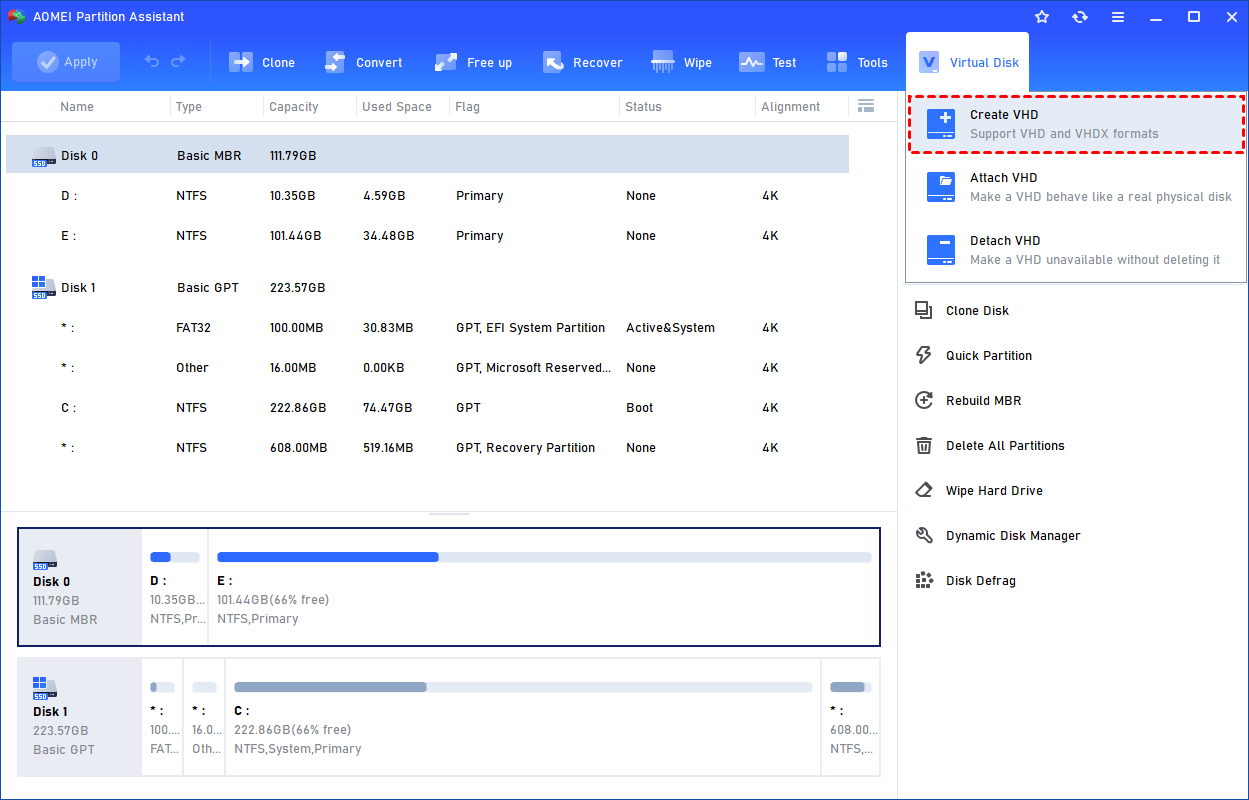
Step 1. Click the tab "Virtual Disk", you will see 3 options available for VHDs: create VHD, attach VHD, and detach VHD. Select the "Create VHD" option after clicking the "Virtual Disk" tab.
Step 2. You can specify the virtual disk location and size.
Optionally, you can click the "Advanced" option to set the virtual hard disk format and type. (By default, the VHDX format and the Dynamically expanding type are checked.)
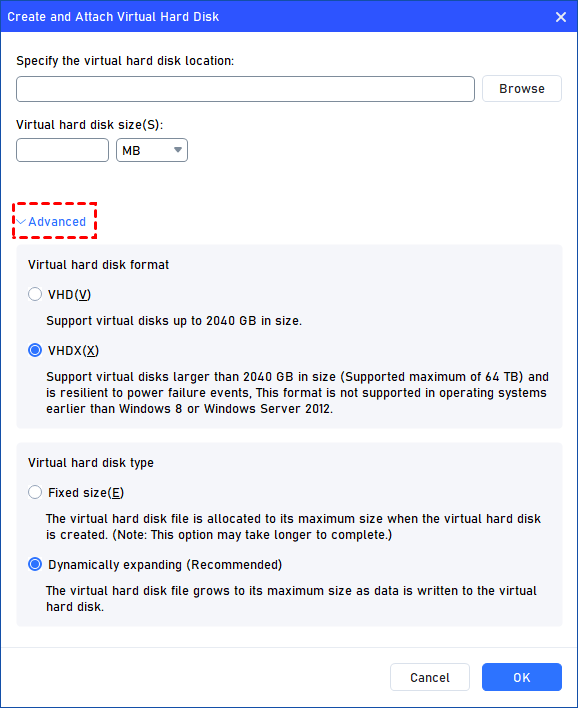
Virtual hard disk format: VHD and VHDX are supported.
For VHD, it supports virtual disks up to 2040GB in size.
For VHDX, it supports virtual disks larger than 2040GB in size. (Up to 64TB) This format is not supported in operating systems earlier than Windows 8 or Windows Server 2012.
Virtual hard disk format: Fixed size and Dynamically expanding are supported.
For fixed size, the virtual hard disk file will be allocated its maximum size when it is created. So it will take much longer to create.
For Dynamically expanding, the virtual hard disk file will grow to its maximum size as data is written to it. (Recommended)
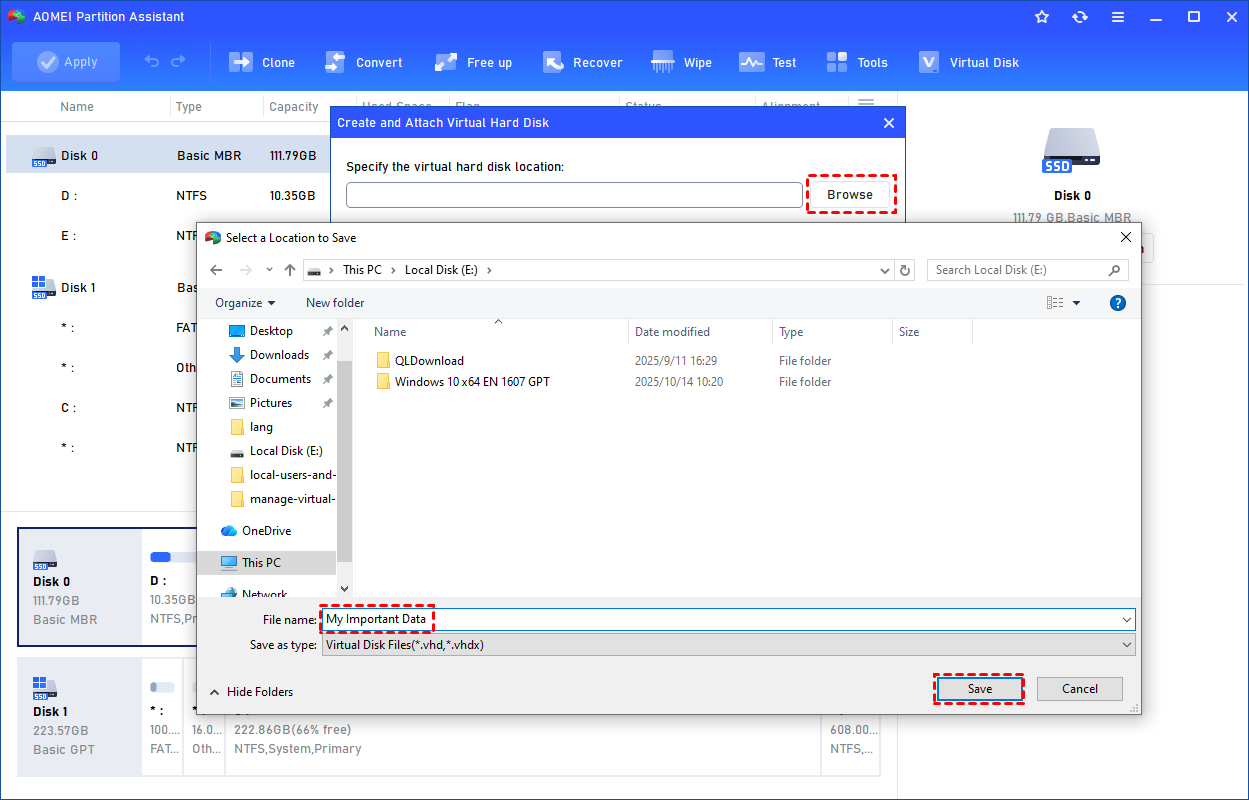
Click "Browse" to select a location to create the VHD. Please enter a file name for the virtual disk and click "Save".
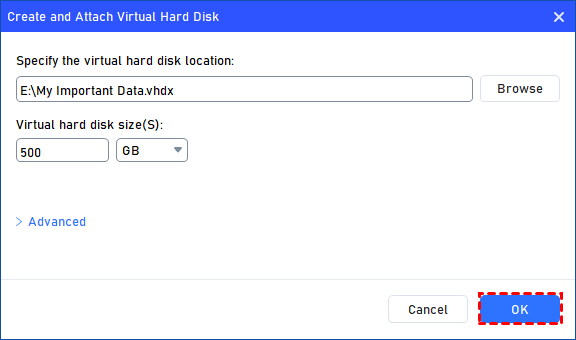
Step 3. Once the virtual disk location and size are set up, you can click "OK" to start creating the VHD.
Step 4. After the reload process is finished, you will see that the VHD has been created successfully. It will be attached automatically.
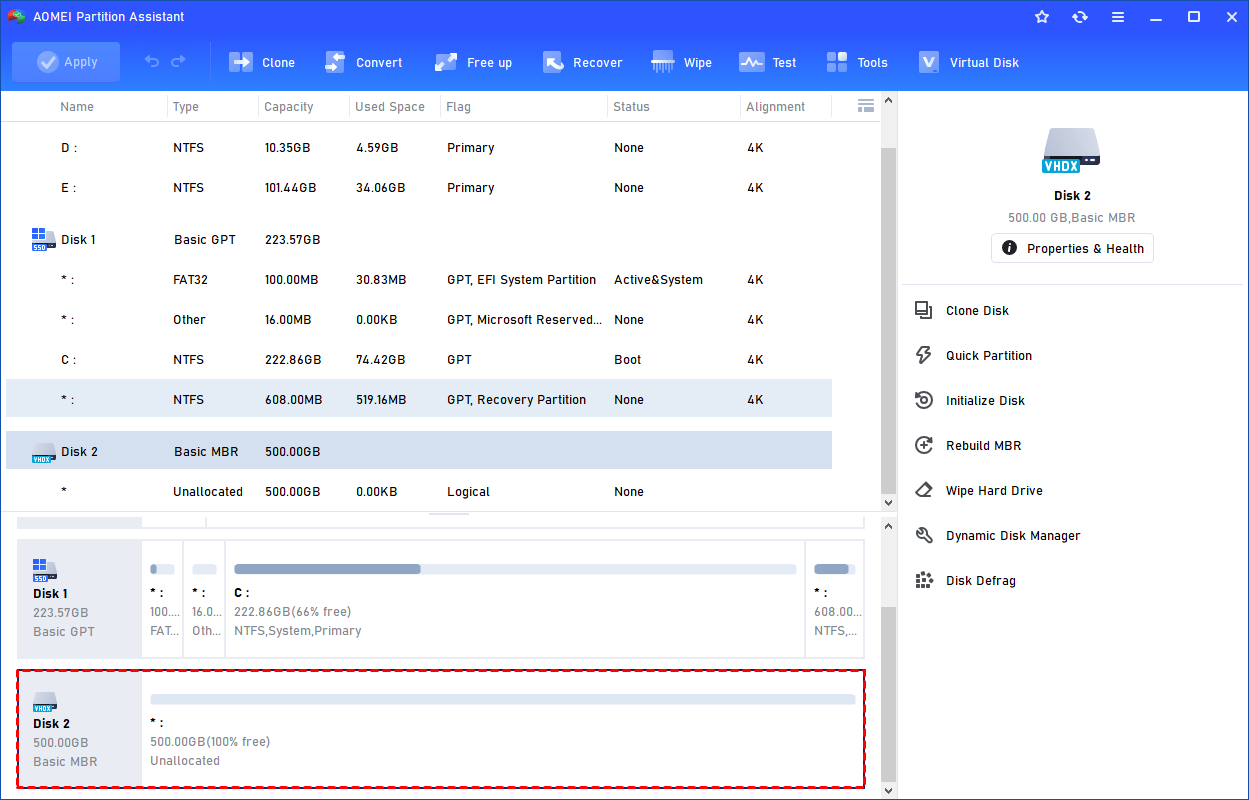
You can also view the VHD in Windows Disk Management.
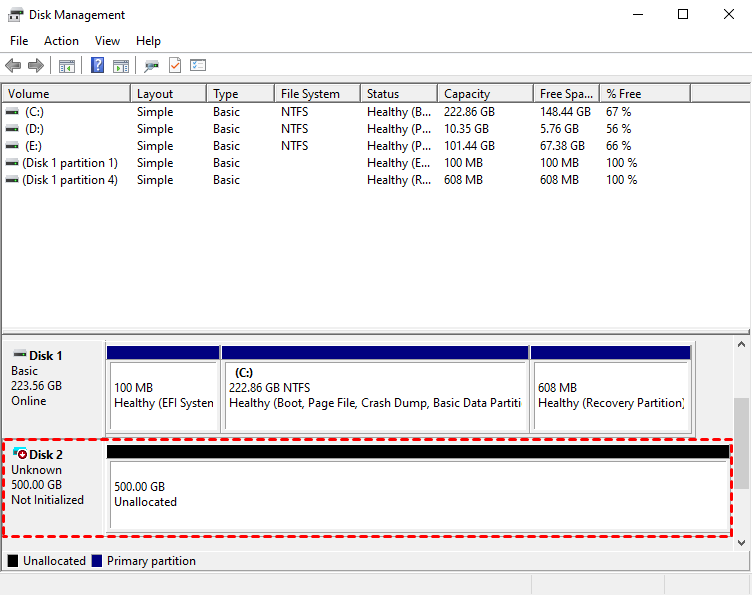
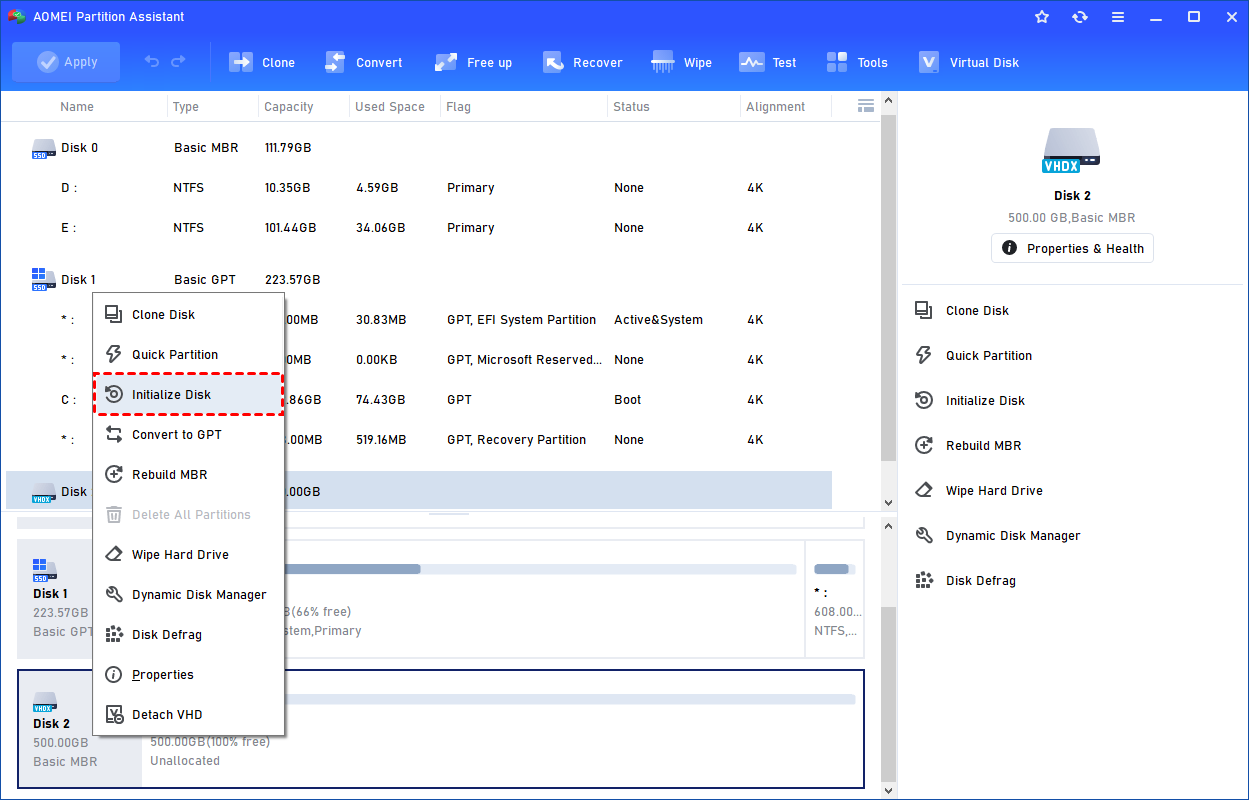
The created VHD will be uninitialized, so it is empty without any data or a file system. To make it useful, you need to initialize the disk, create a partition, and assign a drive letter.
You can initialize the drive in Partition Assistant.
Part 2. Clone the host disk to VHD
Before cloning a VHD to a physical disk, it must be attached so that Windows can treat it like a real drive. Once mounted, the VHD shows up in Disk Management with all its partitions and data available.
Step 1. Select the "Attach VHD" option after clicking the"Virtual Disk" tab.
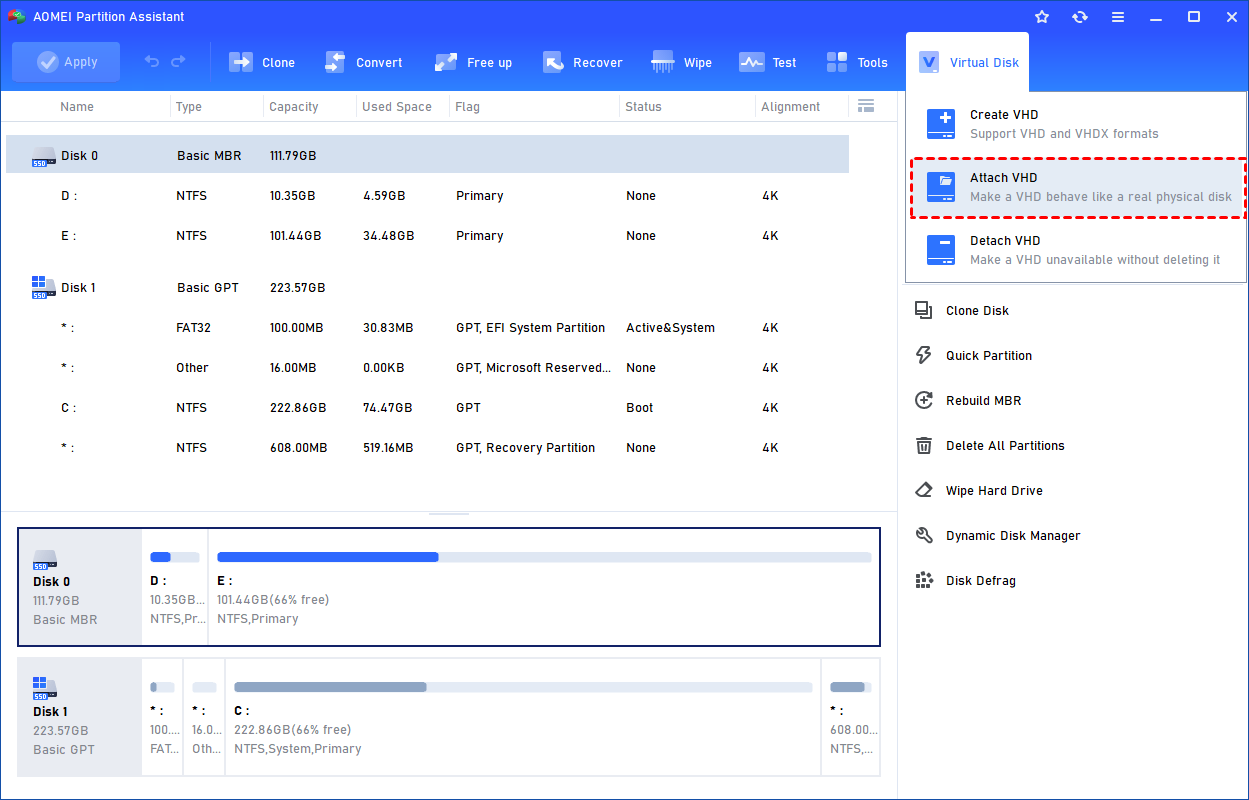
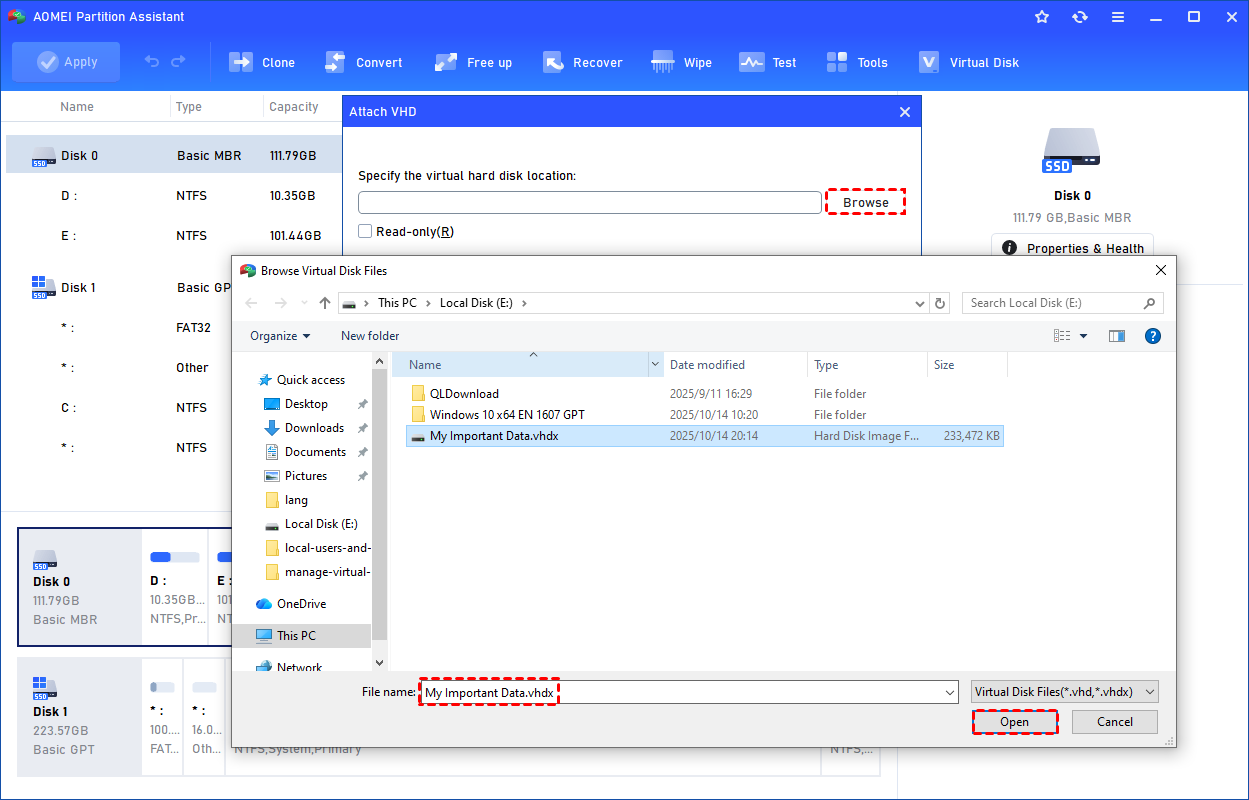
Step 2. Click "Browse" to locate the location where the .vhd or .vhdx file is saved. Select the .vhd or .vhdx file you want to attach and click "Open" to attach it.
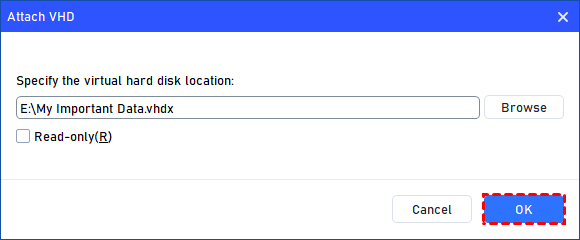
Step 3. Once the virtual file is selected, you can click "OK" to start attaching the VHD.
Step 4. Once the process is finished, you will see that the VHD is attached successfully. Now, click "Clone" in the main interface, and select "Clone Disk".

Step 5. Choose the host hard disk that you need to clone as the virtual disk and click "Next".

Step 6. Select another drive as the destination disk, and then click "Next".

Step 7. Then, you can check the source and destination disk in the next window or change to "Sector to Sector clone", and click the "Confirm" button to continue if there is no problem.

Here, you can also click the "Settings" button to adjust the partition size on the destination disk or tick "4k alignment" to improve the reading and writing speed of the SSD.

Step 8. You can preview the disk cloning operation by viewing the "Pending Operations". To commit the "Pending Operations", please click "Apply" and "Proceed".

Beyond P2V migration, AOMEI Partition Assistant Standard offers a suite of handy functions, including the ability to convert MBR to GPT without data loss and "App Mover" to transfer programs between drives to save space.
Ensuring Compatibility and Performance After Conversion
Once you have completed your disk to VHD download and migration, performance optimization is key. Virtual disks can sometimes experience "alignment" issues, which can slow down read/write speeds within a virtual machine.
Using a tool like AOMEI Partition Assistant, you can perform 4K alignment on the partitions within your VHD. This ensures that the virtualized operating system runs as fast as possible. Additionally, remember to keep your VHD files on an SSD rather than an HDD if you intend to run the virtual machine frequently, as the high IOPS of an SSD will make the virtualized experience feel much more like a native physical system.
Ending
Whether you are performing a simple backup or a complex system migration, having the right disk to VHD download is the foundation of a successful project. While native utilities like Disk2vhd offer a quick start, AOMEI Partition Assistant Standard provides the "Virtual Disk" and "Clone Disk" features necessary for a professional and flexible P2V transition. By following the steps outlined above, you can safely turn your physical hardware into a versatile virtual environment.
FAQs
1. What is the difference between VHD and VHDX?
VHD is the older format limited to 2TB, while VHDX is the modern format supporting up to 64TB and providing better protection against data corruption. Most modern disk to VHD converter download tools support both formats.
2. Can I use AOMEI Partition Assistant on a 32-bit system?
Yes, AOMEI Partition Assistant is compatible with both 32-bit and 64-bit versions of Windows 11, 10, 8, and 7. If you specifically need a disk to VHD 32 bit download capability, this software will meet your needs.
3. Will cloning my disk to VHD delete my original data?
No. The "Clone Disk" process in AOMEI Partition Assistant is a copy operation. Your physical host disk remains untouched while an identical replica is created within the VHD file.
4. Can I boot from the VHD I created?
Yes, once you have cloned your host disk to a VHD, you can use a hypervisor like Hyper-V to create a new virtual machine and attach your VHD as the primary boot disk.
5. Why should I use AOMEI instead of Disk2vhd?
While Disk2vhd is great for a simple snapshot, AOMEI Partition Assistant provides more control, allowing you to resize partitions during the clone, fix alignment issues, and manage the virtual disk partitions after the creation is complete.
