
 AOMEI Partition Assistant
How Do I Get More Disk Space
Running out of storage on your PC or laptop? This article provides step-by-step instructions on how to get more disk space using Windows tools and AOMEI Partition Assistant. Free up space and speed up your computer today.

By Lucas / Updated on October 22, 2025


Is your computer running at a snail's pace? Do you frequently encounter "low disk space" warnings? If so, you're not alone. Over time, our computers accumulate a vast amount of data, from essential documents and applications to temporary files and forgotten downloads. This digital clutter can significantly impact your PC's performance, leading to frustrating slowdowns and error messages. But don't worry, there are several effective ways to reclaim your valuable disk space and breathe new life into your machine.
This comprehensive guide will walk you through why having sufficient disk space is crucial and, most importantly, provide you with a variety of methods for how to get more disk space on your PC or laptop. We'll explore built-in Windows utilities and introduce a powerful third-party tool to help you efficiently manage your storage.
Why Do I Need More Disk Space?
Before diving into the solutions, it's essential to understand why maintaining adequate free disk space is so important. Think of your hard drive as a filing cabinet. When it's nearly full, finding and accessing specific files becomes a cumbersome process. Similarly, an almost full hard drive can lead to a myriad of performance issues.
Here's a breakdown of why you need that extra breathing room on your disk:
System Performance: Your operating system and applications constantly create temporary files to function correctly. When disk space is low, there's less room for these temporary files, which can cause programs to crash or your entire system to slow down.
Software Updates: Important updates for your Windows operating system and other software require a significant amount of free space to download and install. Without enough space, you could miss out on crucial security patches and new features.
Virtual Memory: Your computer uses a portion of your hard drive as "virtual memory" or a "paging file" when your RAM (Random Access Memory) is full. If your hard drive is packed, it limits the effectiveness of this virtual memory, further degrading performance.
File Organization and Defragmentation: For traditional HDDs, having free space is vital for defragmentation, a process that organizes scattered data for faster access. While less of a concern for modern SSDs, having some free space, often recommended to be around 15-25% still contributes to optimal performance.
How Do I Get More Disk Space on PC/Laptop?
Fortunately, there are several methods to free up disk space on your Windows computer, ranging from simple, built-in tools to more advanced partition management software. This section will guide you through the most effective techniques.
Utilizing Some Windows' Built-in Solutions
Windows offers a suite of tools designed to help you identify and remove unnecessary files. These are excellent starting points for anyone wondering how to get more disk space on their PC.
1. Run Disk Cleanup
This classic Windows utility is a powerful tool for removing temporary files, system files, and other non-essential data.
Step 1. Type "Disk Cleanup" in the Windows search bar and select the app.
Step 2. Choose the drive you want to clean (typically the C: drive) and click "OK."
Step 3. The tool will scan your drive for files you can safely delete.
Step 4. For a more thorough cleaning, click on "Clean up system files." This will allow you to remove files like old Windows update files.
5. Select the file types you want to delete and click "OK."

2. Enable Storage Sense
Storage Sense is a more modern and automated feature in Windows 10 and 11 that can automatically free up space for you.
Step 1. To configure Storage Sense: Go to Settings > System > Storage. Toggle on "Storage Sense."
Step 2. Click on "Configure Storage Sense or run it now" to customize its settings. You can set it to run automatically when you're low on disk space and choose how often to delete files in your Recycle Bin and Downloads folder.
3. Uninstall Unnecessary Programs
Over time, you've likely installed applications you no longer use. Removing these can free up a significant amount of space.
Step 1. To uninstall programs: Go to Settings > Apps > Apps & features.
Step 2. Sort the list of applications by size to easily identify the largest ones.
Step 3. Select an application you don't need and click "Uninstall."
4. Move Files to an External Drive or Cloud Storage
If you have large personal files like photos, videos, and documents that you don't need to access constantly, consider moving them to an external hard drive, USB flash drive, or a cloud storage service like OneDrive or Google Drive. This is a simple yet effective way to get more disk space on a laptop or PC.
Leveraging a Third-Party Tool: AOMEI Partition Assistant Professional
While the built-in Windows tools are helpful, sometimes you need a more powerful and versatile solution to manage your disk space effectively. This is where a dedicated partition management tool like AOMEI Partition Assistant Professional comes in.
AOMEI Partition Assistant Professional is a comprehensive disk and partition management software for Windows users. It offers a user-friendly interface and a wide array of features that surpass those of standard Windows tools. For anyone serious about optimizing their disk space, this tool is an invaluable asset.
 100% Secure
1. Merge partition
One of the most common scenarios for running out of space is a full C: drive, which is where your operating system and most programs are installed. AOMEI Partition Assistant Professional offers several ways to address this, even if there isn't unallocated space right next to your C: drive.
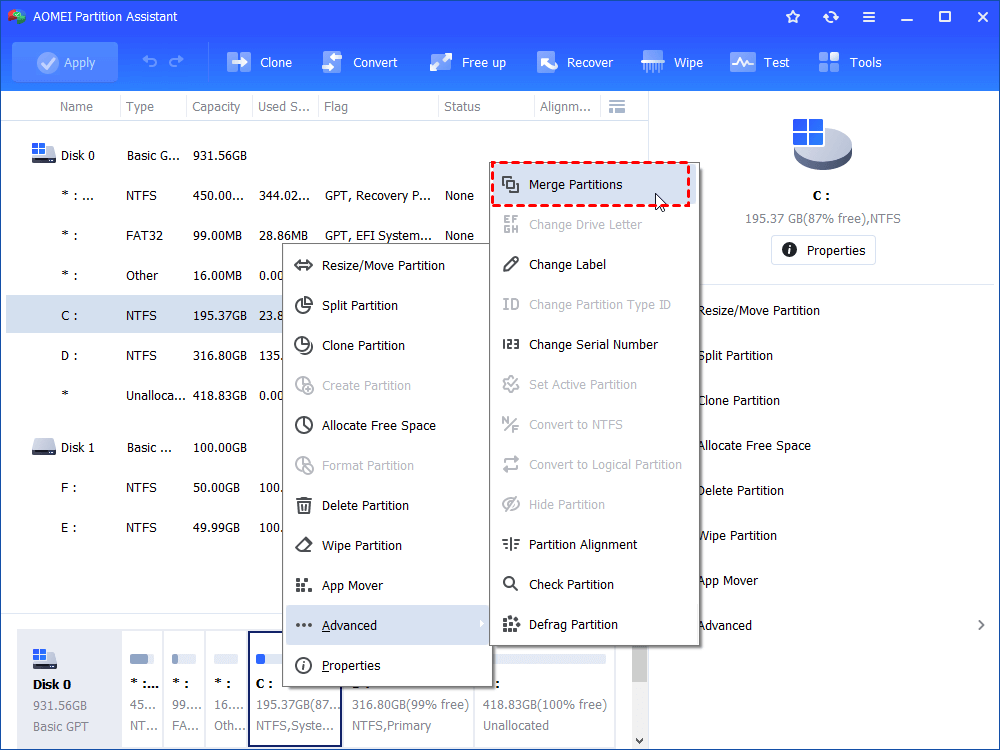
1. Install and run it. Right click the partition you need to merge (e.g. Partition D) and choose Advanced > Merge Partitions.
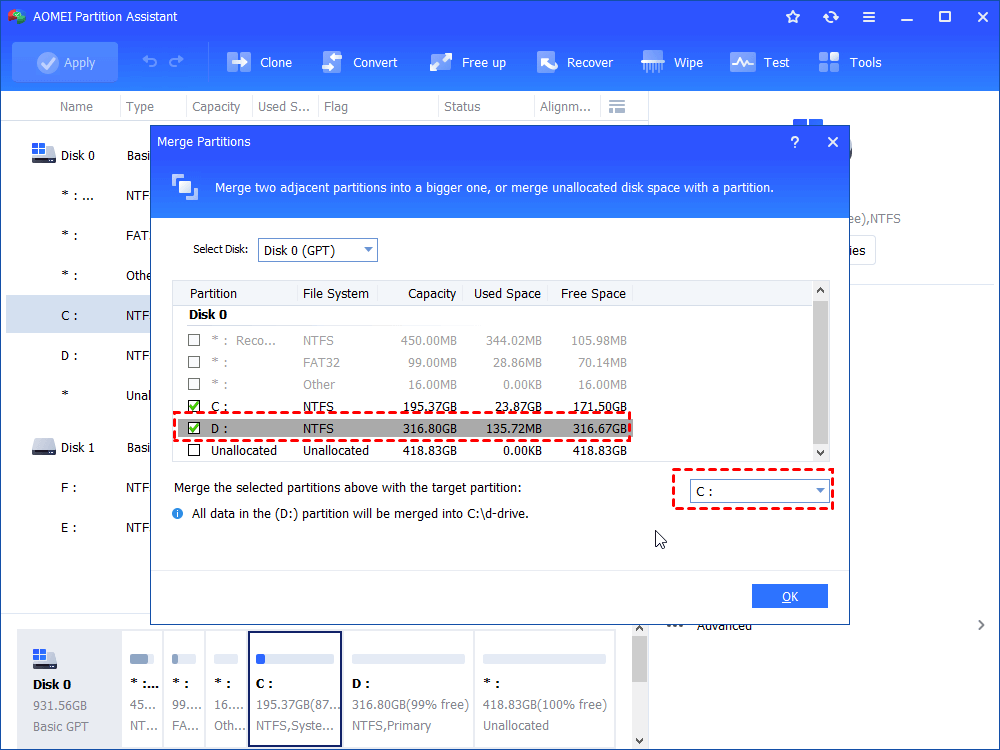
2. Choose the partition that you need to be merged (eg. Partition E) and click OK.
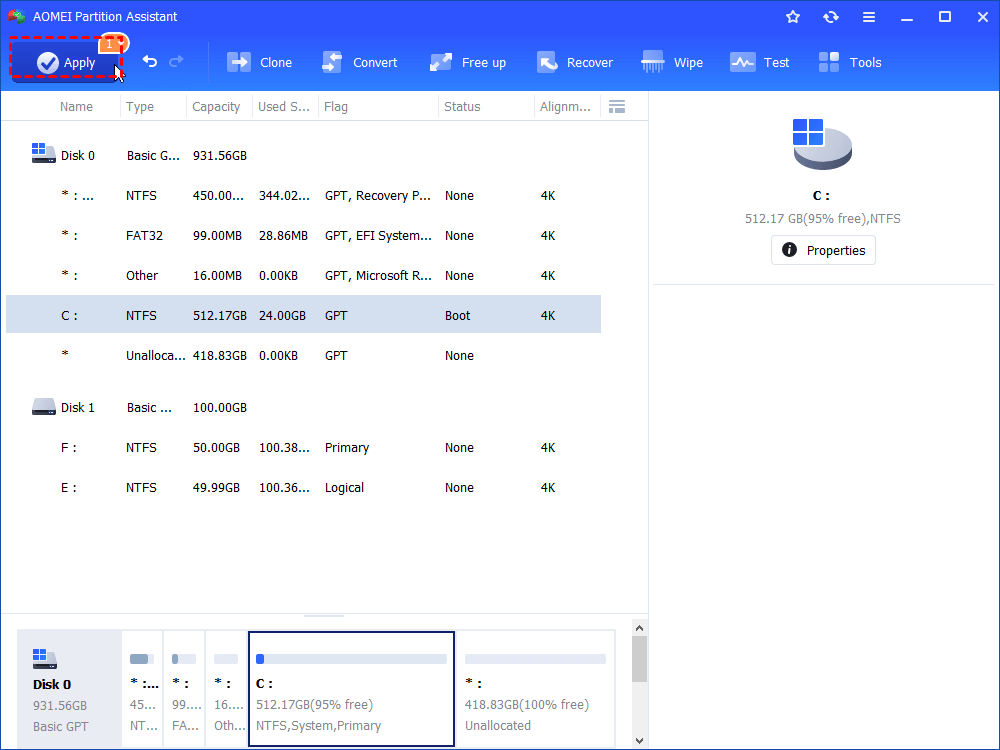
3. In the main interface, after confirming operation, click Apply and Proceed to commit it.
- ★Tips:
- Only 2 partitions can be merged at one time, and the two partitions must be adjacent, but merge two or more parts of unallocated space into a partition is available and no matter the unallocated is next to the partition you want to merge or not.
- You can merge data partition into system boot drive, but you cannot merge system boot drive into data partition.
- If you want to combine two partitions in Windows Server, you can try the AOMEI Partition Assistant Server.
2. Allocate Free Space
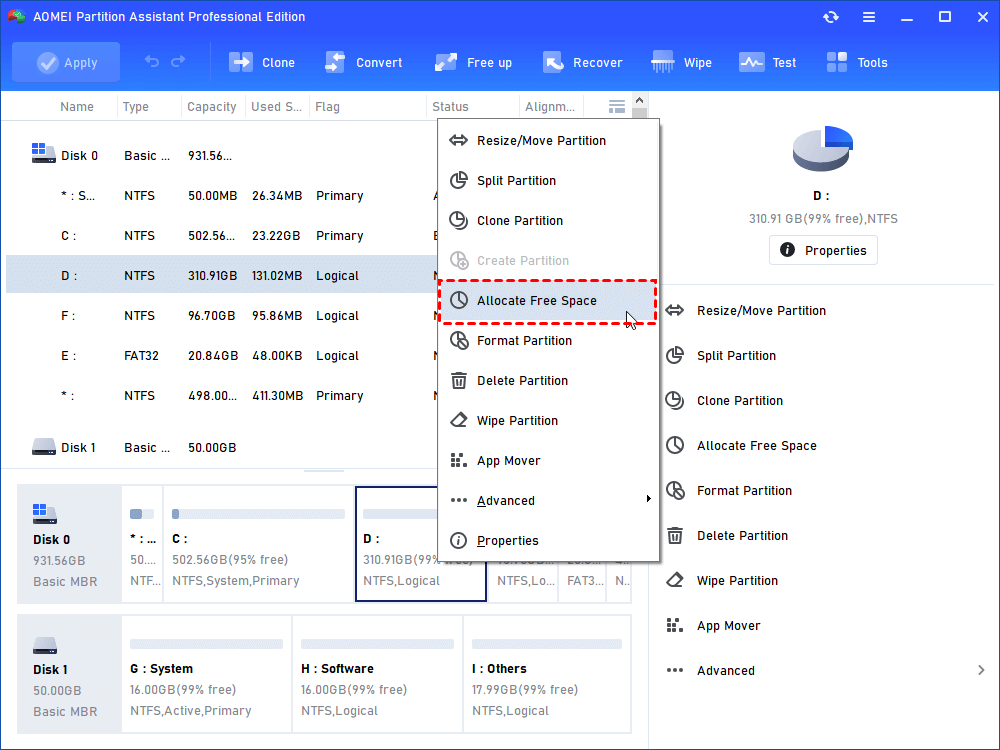
1. Install and launch AOMEI Partition Assistant Professional, right-click on a partition that has enough space and select “Allocate Free Space” in the dropdown menu.
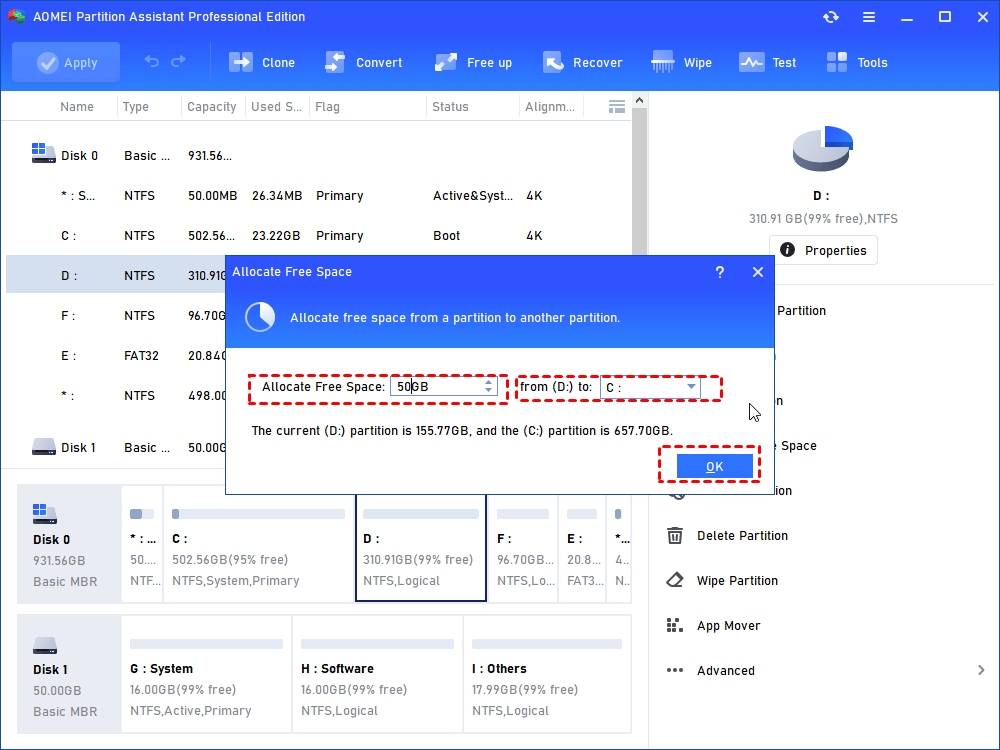
2. In the next window, preset the size of the free space you want to allocate and the target partition you want to allocate the free space to. When done, click on “OK”
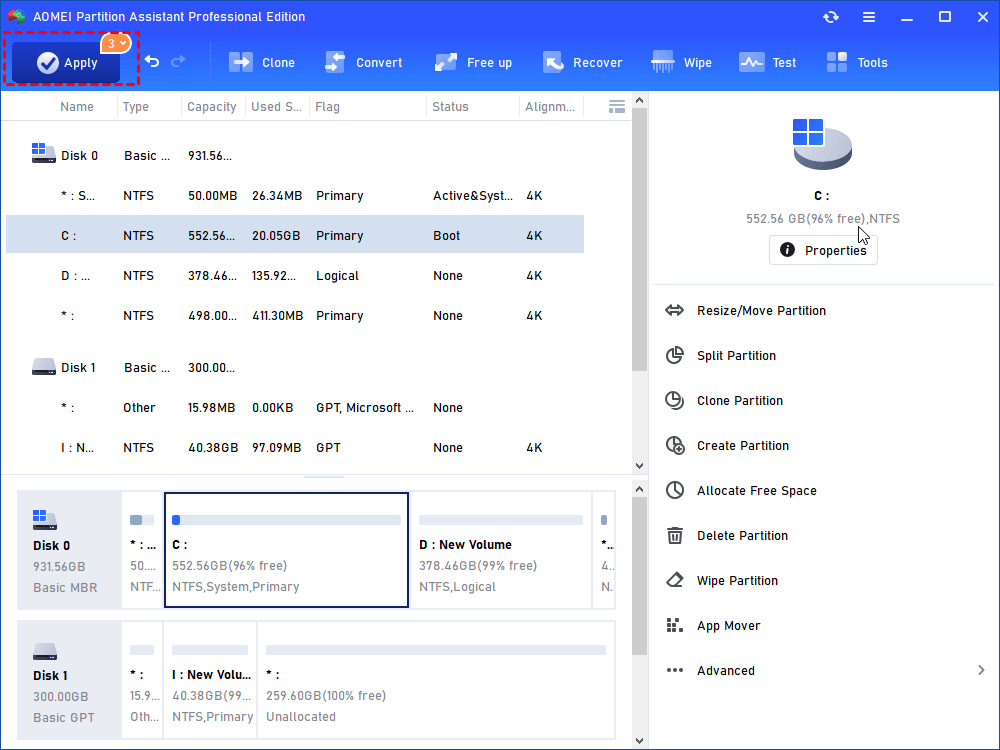
3. After returning to the home interface, hit “Apply” on the upper left and then hit “Proceed” to start the space allocation.
3. App Mover
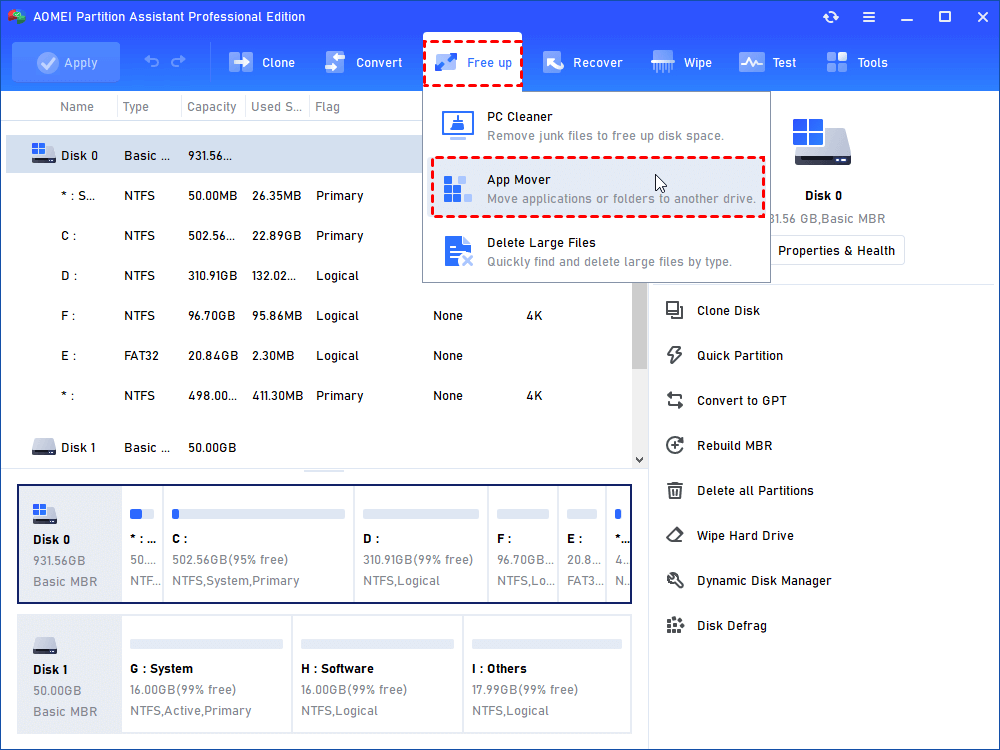
Step 1. Enter "App Mover" function. Click “Free up”, then select the “App Mover” feature.
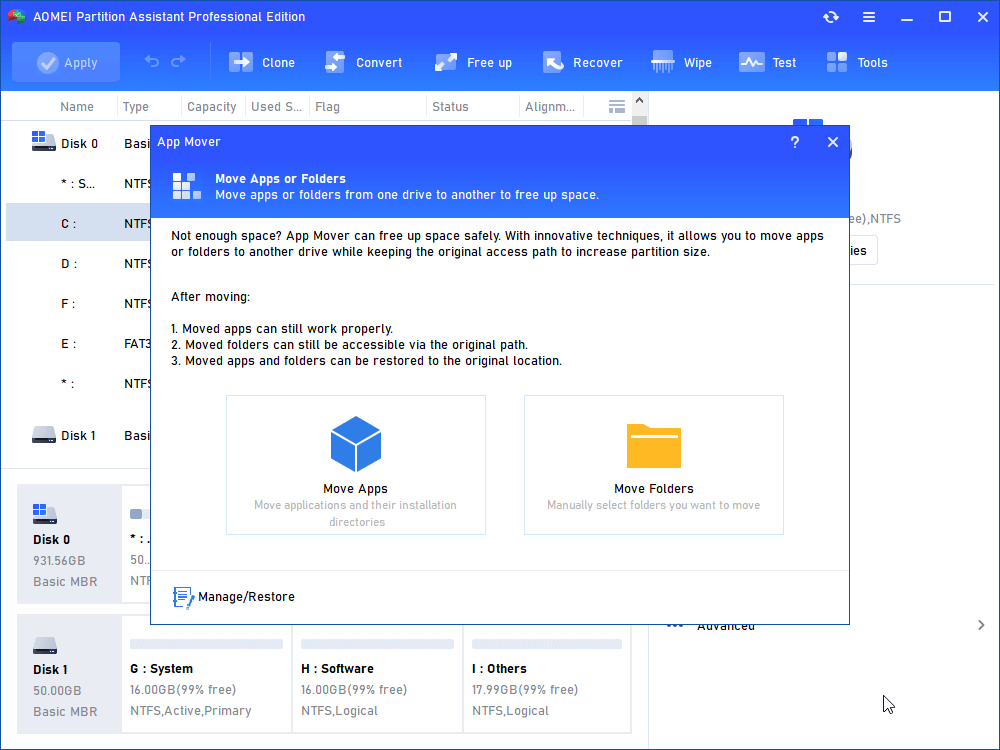
Step 2. Confirm move subject. In the new window, click “App Mover”. If you want to move folders, you can choose "Move Folders".
Step 3. In the new window, you will see all partitions, and the number and size of installed programs on every partition will also be displayed. Select one partition where the target programs are stored and click "Next".
Step 4. Choose the applications you want to move and select the target location, then click "Move".
Step 5. In the pop-up window, you need to confirm forcibly closing running applications when moving starts. Click "OK" to begin the process.
Warning: To ensure the apps run properly during the move, please don't move or delete files by yourself in the source and target directories. Just leave it all to the software.
To Sum Up
Running out of disk space can be a major headache, leading to a sluggish and frustrating computing experience. However, as this article has shown, there are numerous ways to combat this issue. By regularly using Windows' built-in tools like Disk Cleanup and Storage Sense, you can keep your system free of unnecessary clutter.
For more advanced control and to easily reallocate disk space, a powerful tool like AOMEI Partition Assistant Professional is an excellent choice. Its intuitive interface and comprehensive feature set make it easy for anyone to manage their partitions and optimize their disk usage.
