
 AOMEI Partition Assistant
How Long Do Gaming Laptops Last? | Full Guide
How long do gaming laptops last varies based on several influencing factors. This guide breaks down what affects its lifespan and shares insights on keeping performance smooth and responsive over time.

By Hedy / Updated on March 2, 2026


Modern gaming laptops have evolved dramatically in recent years. Today’s models deliver processing and graphics capabilities that once belonged exclusively to desktop machines, often paired with premium displays featuring high refresh rates for smoother visuals.
However, this surge in performance has come with higher price tags, raising a key concern for many buyers: what is the true lifespan of a gaming laptop?
The answer depends on how you define “lasting”. There are two important perspectives to consider. The first is hardware durability—how long the physical components continue functioning before failure occurs. The second is performance relevance—how long the device remains capable of handling modern games and applications before it begins to feel outdated.
Explore the insights ahead to discover the typical lifespan of a gaming laptop, the factors that influence its longevity, and practical ways to extend its usability for as long as possible.
How long do gaming laptops last?
Gaming laptops typically last 3 to 6 years, depending on how they’re used, maintained, and built. However, lifespan can mean two different things: how long the laptop physically works, and how long it can run modern games smoothly.
Here’s a clearer breakdown:
1. Hardware lifespan (4–6 years)
Most gaming laptops are built with stronger components than regular laptops. If properly maintained, the CPU, GPU, and motherboard can function well for 4–6 years. High-end models may last even longer.
2. Gaming performance lifespan (3–5 years)
Gaming demands increase every year. After about 3–5 years, newer AAA titles may require settings to be lowered (medium or low instead of ultra). The laptop still works—but may not handle the latest games at high performance.
3. Battery lifespan (2–4 years)
Laptop batteries naturally degrade over time. After 2–4 years, you may notice shorter battery life. Heavy gaming while plugged in helps preserve battery health.
4. Cooling & wear factors
Gaming laptops generate significant heat. Poor cooling, dust buildup, and thermal stress can shorten lifespan. Regular cleaning and good airflow can extend longevity.
5. Build quality matters
Premium gaming laptops generally last longer than budget models because they use better cooling systems, higher-quality components, stronger chassis materials.
How to make a gaming laptop last longer
Making a gaming laptop last longer isn’t just about luck — it’s about smart habits. Gaming machines run hotter, work harder, and wear out faster than normal laptops. With proper care, though, you can easily extend its lifespan by years.
Way 1. Control the heat
Heat is one of the biggest enemies of gaming laptops. High temperatures can slowly damage internal components like the CPU, GPU, and motherboard, reducing performance and shortening hardware lifespan over time if not managed properly.
Step 1. Always use your laptop on a hard, flat surface to maintain airflow.
Step 2. Avoid placing it on beds, couches, or laps during gaming.
Step 3. Use a cooling pad to improve ventilation.
Step 4. Adjust in-game settings to reduce GPU strain when unnecessary.
Step 5. Monitor temperatures using built-in or third-party tools.
Way 2. Clean it regularly
Dust buildup inside your gaming laptop can block airflow and trap heat, forcing fans to work harder. Over time, this leads to overheating, loud fan noise, and possible long-term hardware degradation.
Step 1. Turn off and unplug your laptop before cleaning.
Step 2. Use compressed air to blow dust from vents.
Step 3. Clean keyboard and exterior surfaces gently.
Step 4. Check cooling vents every few weeks.
Step 5. Perform deep internal cleaning every 6–12 months if possible.
Way 3. Avoid full battery drains
Frequently draining your battery to 0% puts stress on lithium-ion cells and accelerates wear. Maintaining healthier charging habits helps preserve battery capacity and overall device longevity.
Step 1. Keep battery levels between 20% and 80%.
Step 2. Avoid constant deep discharges.
Step 3. Unplug once fully charged during light use.
Step 4. Enable battery health or conservation modes if available.
Step 5. Don’t leave the laptop plugged in 24/7 unnecessarily.
Way 4. Reduce unnecessary load
Running too many background programs consumes system resources and forces hardware to work harder than necessary. This leads to more heat, wear, and long-term performance decline.
Step 1. Close unused applications before gaming.
Step 2. Disable unnecessary startup programs.
Step 3. Turn off background syncing apps.
Step 4. Use performance mode only when needed.
Step 5. Lower graphics settings for less demanding tasks.
Way 5. Keep storage healthy
Storage health affects system speed and stability. A cluttered or failing drive can slow down your laptop and increase strain on other components.
Step 1. Delete unnecessary files regularly.
Step 2. Keep at least 20% free disk space.
Step 3. Use disk cleanup tools periodically.
Step 4. Avoid storing large unused game files.
Step 5. Monitor storage health using system tools.
Way 6. Update drivers
Outdated drivers can cause instability, overheating, and inefficient hardware performance. Keeping drivers up to date ensures smooth communication between software and hardware.
Step 1. Press Windows + X and choose Device Manager.
Step 2. Expand the Disk Drives section.
Step 3. Right-click on your Local D drive and select Update Driver.
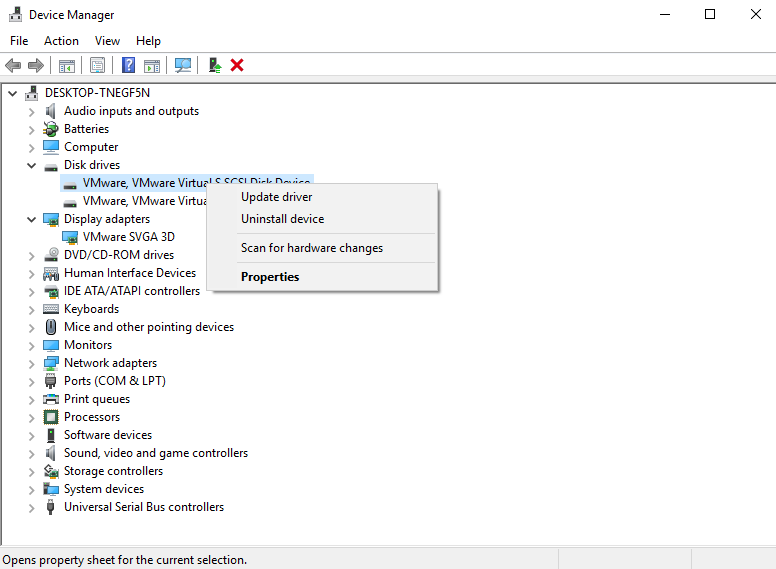
Step 4. Choose Search automatically for updated driver software.
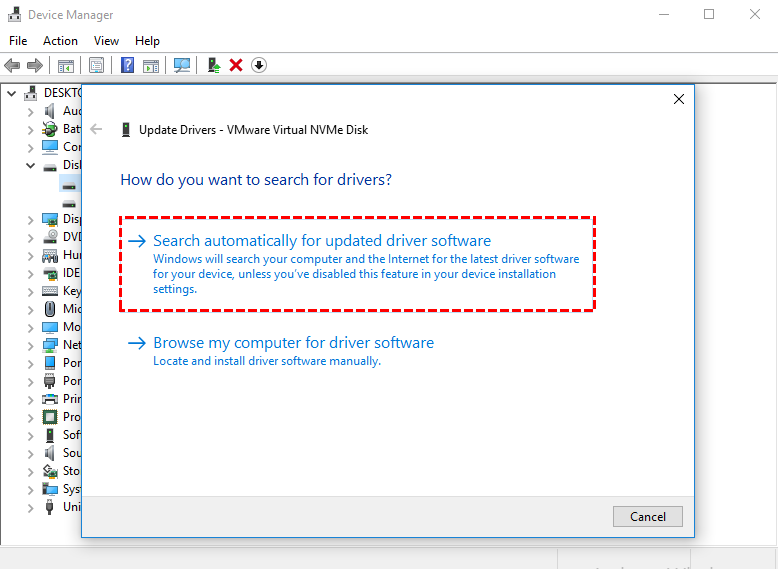
Step 5. Follow the on-screen instructions to install the latest drivers.
Way 7. Upgrade HDD to SSD
If your gaming laptop is starting to feel slow, overheat more often, or struggle with newer titles, upgrading from an HDD to an SSD is one of the smartest ways to extend its lifespan. And this is where AOMEI Partition Assistant becomes extremely useful.
Instead of replacing your entire laptop, this powerful disk management tool allows you to upgrade your storage safely and efficiently — giving your machine a second life. Many users hesitate to upgrade because reinstalling Windows, games, and drivers sounds like a nightmare.
AOMEI Partition Assistant removes that headache with its Disk Clone feature. It allows you to:
✔ Transfer everything from HDD to SSD
✔ Keep Windows, games, and settings intact
✔ Avoid reinstalling the operating system
✔ Upgrade without data loss
Step 1. Install and launch AOMEI Partition Assistant, click "Clone" in the main interface, and select "Clone Disk".

Step 2. Choose the hard disk that you need to clone as the source disk and click "Next".

Step 3. Select the destination disk to store the data on the source disk, and then click "Next".

Step 4. Then, you can check the source and destination disk in the next window or change to "Sector to Sector clone", and click the "Confirm" button to continue if there is no problem.

Here, you can also click the "Settings" button to adjust the partition size on the destination disk or tick "4k alignment" to optimize performance of SSD.

Step 5. After returning to the main interface, check the pending operation and click "Apply" and "Proceed" to commit the operation.

FAQs
✦ Can a gaming laptop last 10 years?
Yes, physically it can last 10 years with good care, but performance will likely feel outdated after 5–7 years as newer games demand more powerful hardware.
✦ Do gaming laptops wear out faster than desktops?
Generally yes. Gaming laptops run hotter and have limited cooling, which accelerates component stress compared to desktops with better airflow and thermal management.
✦ Does gaming every day reduce lifespan?
Daily gaming can reduce lifespan if it causes consistent high temperatures. Heat and sustained load are the main factors that gradually degrade internal components.
✦ Can upgrading RAM extend gaming laptop life?
Yes. Adding more RAM can improve performance and responsiveness, helping the laptop stay usable for longer, especially in newer games and multitasking.
✦ What usually fails first in a gaming laptop?
The battery typically degrades first, followed by cooling fans. Over time, thermal paste dries out, which can also lead to overheating issues.
Conclusion
In the end, a gaming laptop’s lifespan isn’t fixed — it’s shaped by how well you maintain and upgrade it. With proper cooling, smart usage habits, and timely improvements like upgrading from HDD to SSD using tools such as AOMEI Partition Assistant, you can extend both performance relevance and hardware durability, ensuring your machine stays powerful, efficient, and game-ready for many more years.
