
 AOMEI Partition Assistant
[Explained] How Long Does It Take to Wipe a Disk?
How long does it take to wipe a disk? This article examines the key factors that influence the process and outlines different methods to help make disk wiping faster and more efficient.

By Hedy / Updated on January 14, 2026


How long does it take to wipe a disk?
The time it takes to wipe a disk depends on several factors, including the drive type, disk size, wiping method, and hardware speed.
For a quick wipe, which only removes file system references, it usually takes a few seconds to several minutes, regardless of disk size.
A full wipe that overwrites data once typically takes 1–3 hours for a 1TB HDD. Larger drives take proportionally longer. On SSDs, a full overwrite is faster but still limited by write speed, often 30 minutes to 2 hours for 1TB.
For secure wipes using multiple overwrite passes (DoD or similar standards), the process can take several hours to more than a day, especially on large HDDs.
Drive health, interface (SATA vs. NVMe), and system performance also affect the total time.
How to speed up disk wiping safely
Disk wiping can be time-consuming, especially on large or aging drives. However, using the right preparation and method can significantly reduce wiping time while keeping the process safe and reliable.
Part 1. Check disk health before wiping
Before starting any disk wipe, always check the health of the drive. A disk with bad sectors, file system errors, or hardware issues can significantly slow down the wiping process or even cause it to fail.
You can use built-in tools or third-party disk management software to scan for errors and monitor SMART status. If problems are detected, fixing them first—or backing up data and replacing the drive—will ensure the wipe runs faster and more smoothly.
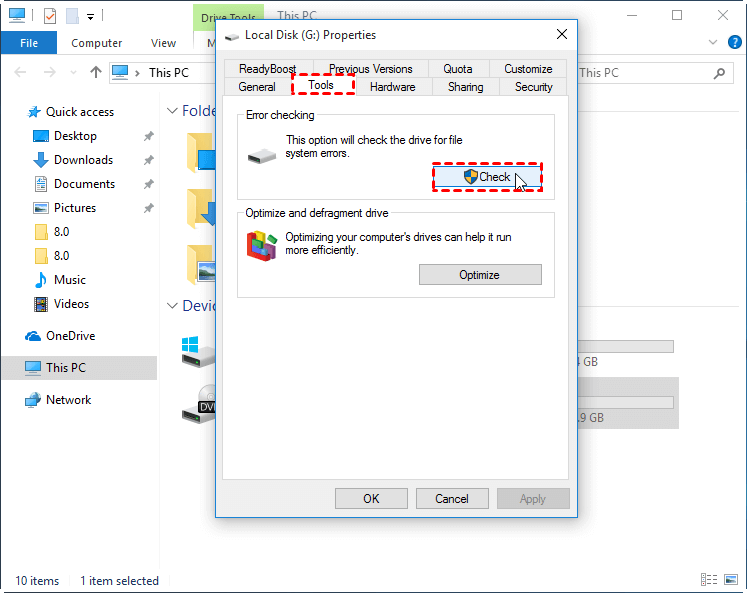
Step 1. Open "This PC" and right-click on the target drive, then click "Properties".
Step 2. In the pop-up window, click "Tools" and "Check" in turn. Choose "Automatically fix file system errors" or "Scan for and attempt recovery of bad sectors", then click "Start".
Part 2. Close background programs
Background programs consume system resources such as CPU, RAM, and disk I/O. When these resources are shared, disk wiping becomes slower.
✍ Before wiping a disk:
◆ Close unnecessary applications and browser tabs
◆ Pause antivirus scans, backups, and cloud sync tools
◆ Disable heavy startup or background processes temporarily
◆ Freeing up CPU, memory, and disk bandwidth allows the wiping process to run more efficiently and finish sooner.
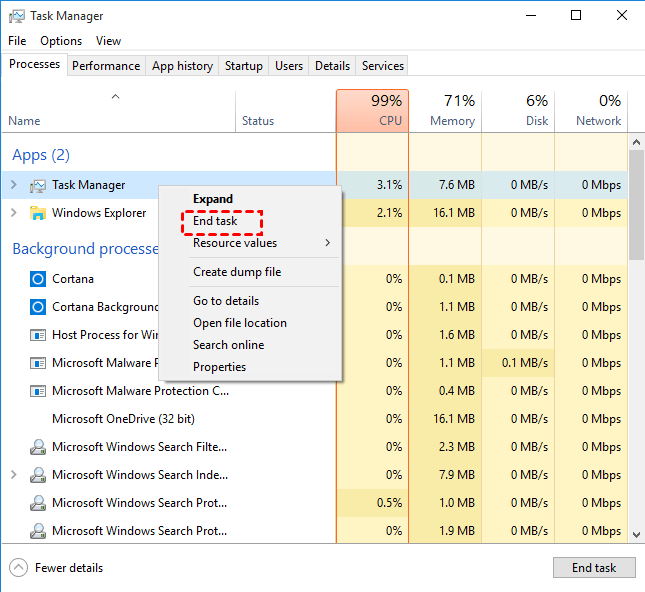
Step 1. Right-click the taskbar and choose "Task Manager" to open it.
Step 2. Under the Processes tab, you can see which program is biting your memory. Right-click the apps you want to close and select "End task".
This ensures the wiping tool gets maximum access to system resources.
Part 3. Choose the right wiping tool
Not all disk wiping tools are created equal. Some focus on military-grade security with multiple overwrite passes, while others are optimized for speed with fewer passes.
If you’re wiping a disk for personal reuse or resale, a single-pass overwrite or built-in secure erase feature is usually enough and much faster. Reserve multi-pass methods for highly sensitive data where compliance is required.
Tool 1. Use Diskpart
DiskPart is a built-in Windows utility that can erase a hard drive using simple command-line instructions. Two commands are commonly used: clean and clean all. The clean all command performs a secure erase by overwriting every sector, which significantly increases the time required—roughly one hour for every 320 GB of disk space.
The clean command, by contrast, works much faster. It removes partition information and marks existing data as deleted without overwriting the disk, making it suitable when speed is more important than deep data sanitization.
Step 1. Press Windows + R to open the Run dialog.
Step 2. Type diskpart and press Enter.
Step 3. In the DiskPart window, enter the following commands one by one, pressing Enter after each:
list disk
select disk # (replace # with the number of the target disk)
clean or clean all
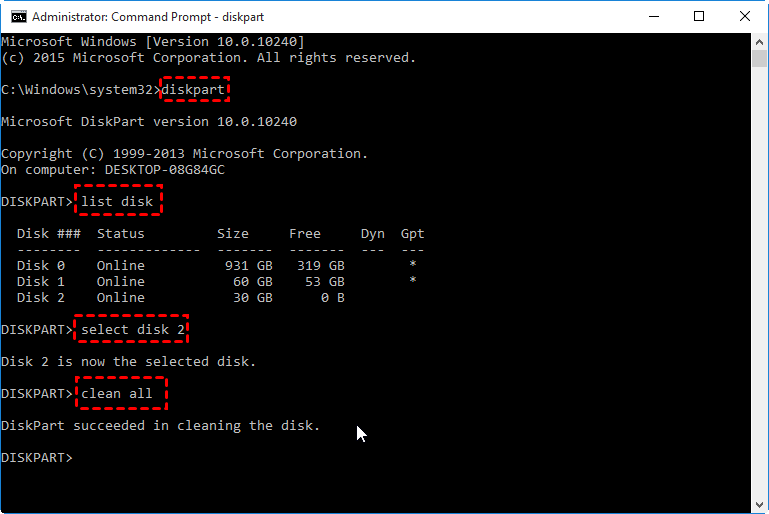
Allow the process to complete. The disk will be wiped according to the selected command.
Tool 2. Use AOMEI Partition Assistant
AOMEI Partition Assistant is a full-featured Windows partition management tool designed to handle complex disk tasks with ease. It supports a wide range of operations, including creating, formatting, resizing, merging, splitting, copying, deleting, wiping, and recovering partitions.
The software works with nearly all storage types, such as HDDs, SSDs, SSHDs, dynamic disks, USB flash drives, SD cards, and hardware RAID arrays. Its versatility allows it to serve multiple roles—from disk optimization and system migration to USB formatting, SSD cloning, data recovery, and overall PC performance improvement.
Using AOMEI Partition Assistant, you can securely wipe a hard drive through a clear, guided process.
Step 1. Run AOMEI Partition Assistant, click the "Wipe" main tab and select the "Wipe Hard Drive" option.

Step 2. Select the disk you want to wipe and click "OK" to continue.
Step 3. Select a wiping method to wipe the selected hard drive and click "OK". By default, the wiping method is Fill in 0.
Step 4. Return to the main user interface, check the pending operation, and click “Apply” > "Proceed".
FAQs
🚩 Can I use my computer while a disk is wiping?
Yes, but performance may slow significantly. For system disks, it’s safer to avoid use to prevent errors or interruptions.
🚩 Is one-pass wiping enough for personal data?
Yes. One-pass wiping is generally sufficient for personal use and prevents standard recovery methods from retrieving deleted data.
🚩 Why does my disk wipe seem stuck?
Large disks, bad sectors, or slow hardware can cause long pauses. The process is usually still running—check disk activity before stopping it.
🚩 Does disk wiping remove viruses?
Yes. Disk wiping erases all data, including malware. However, it doesn’t protect against future infections after reinstalling the system.
🚩 Is disk wiping better than deleting files?
Yes. Deleting only removes file references, while disk wiping permanently overwrites data, making recovery nearly impossible.
Conclusion
Disk wiping time varies widely based on drive type, size, hardware performance, and the wiping method used. While quick wipes finish in minutes, full and multi-pass wipes can take hours or longer. By checking disk health, closing background programs, and choosing the right tool and method, you can significantly reduce wiping time while maintaining data security and reliability.
