
 AOMEI Partition Assistant
[Full Guide] How To Add Partition 1 TB To 500 GB SSD Drive?
This guide explains how to add partition 1TB to 500GB, clone large HDD to small SSD, and manage partitions. It offers clear steps and tools to partition a hard drive safely.

By Irene / Updated on August 21, 2025


Can I add/split/clone/partition a disk from 1TB to 500GB?
Yes, you can. Many users face the need to split, resize, or even move data from a 1TB hard drive to a smaller 500GB SSD. The good news is that this is possible.
Normally, Windows Disk Management allows basic operations like shrinking, creating, or deleting partitions. However, when it comes to more advanced tasks such as cloning a large HDD to a smaller SSD, reallocating free space, or merging partitions without losing data, you will need a professional disk management tool.
This is where AOMEI Partition Assistant becomes very useful. It is a reliable and user-friendly program that works on Windows 11, 10, 8, and 7. Its Clone Disk Quickly feature lets you copy only the used data instead of the entire disk, making it possible to clone from 1TB to 500GB or even smaller drives. At the same time, it can align SSD partitions during the process to ensure better performance and faster speed.
Apart from cloning, AOMEI Partition Assistant also helps with adding, splitting, and resizing partitions. For example, if one partition is running out of space while another has plenty, you can directly allocate free space from one partition to another without deleting or formatting. This saves time and keeps your data safe. Whether you want to add partitions, split them for better file organization, clone a 1TB HDD to a 500GB SSD, or simply reallocate space, AOMEI Partition Assistant makes the process simple and effective.
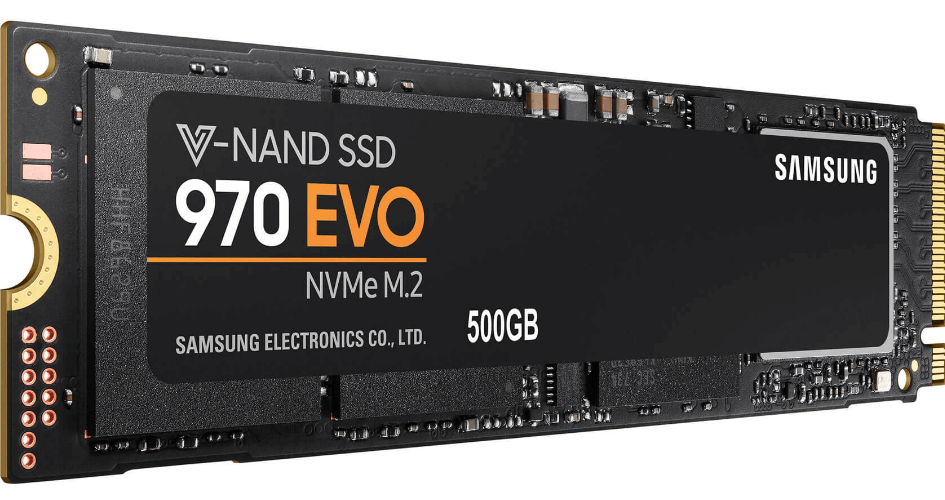
Case 1. How to add 1TB to 500GB paritition?
If you want to expand a 500GB partition by adding space from a 1TB drive, AOMEI Partition Assistant is one of the best tools to use. It is a powerful Windows disk management program that makes partition resizing and merging much easier than the default Windows Disk Management.
With this software, you are not limited to shrinking or deleting partitions before extending another one. Instead, you can directly allocate free space from one partition to another. This means if your 1TB drive has extra space, you can move part of it to the 500GB partition without losing any data. The whole process is simple, quick, and safe, making it an ideal solution when your 500GB partition runs out of space.
 AOMEI Partition Assistant
The Best Windows Disk Partition Manager and PC Optimizer
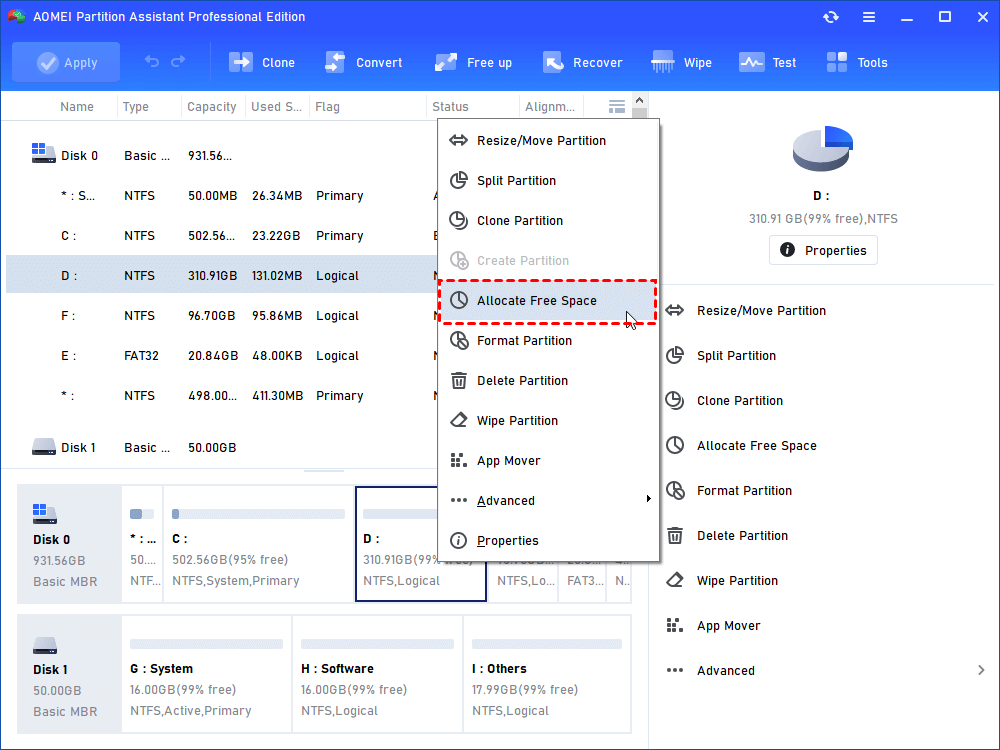
Step 1. Install and open AOMEI Partition Assistant. Right-click the D drive or other drive with extra space and choose "Allocate Free Space".
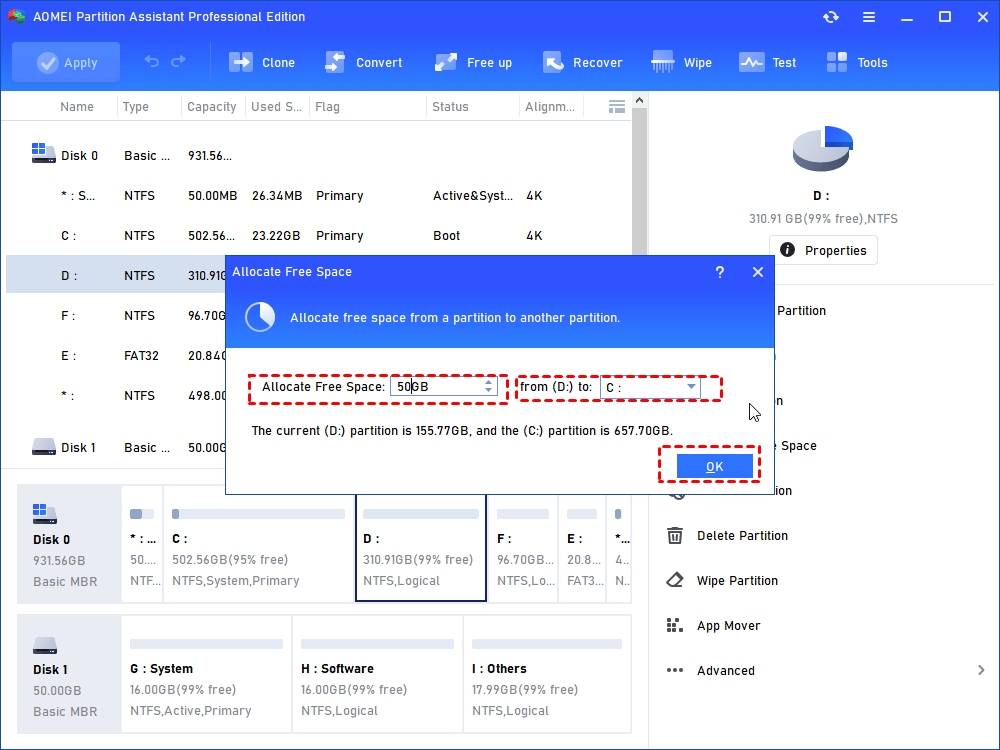
Step 2. In the new window, you can specify the space size and target partition. If it’s C drive, you need to select C drive from the given list, and click “OK”.
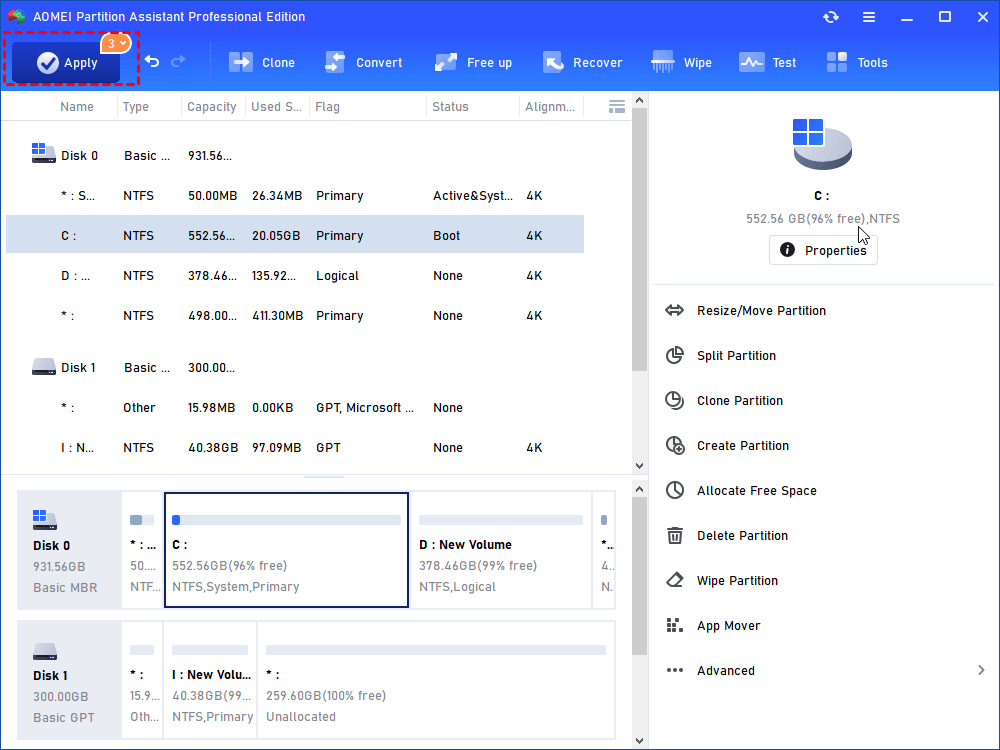
Step 3. Now, you can preview that the C drive has been extended. Then, click Apply to save the changes.
Case 2. How to clone 1TB HDD to 500GB SSD?
Cloning a 1TB hard drive to a 500GB SSD is possible if you use the right tool. The key point is that the data on the source disk must be smaller than the target SSD capacity. To do this safely and easily, we recommend using AOMEI Partition Assistant, a reliable disk cloning software.
This program offers two cloning methods: Clone Disk Quickly and Sector-by-Sector Clone.
🔶 When cloning to a smaller SSD, such as from 1TB to 500GB, you can use the quick clone method. This only copies the used space, skipping unused areas, which makes the process faster and ensures it fits on the smaller drive.
With AOMEI Partition Assistant, you can easily transfer your system, programs, and files without reinstalling Windows. It is a safe and efficient way to upgrade from a large HDD to a small SSD.
AOMEI Partition AssistantThe Best Windows Disk Partition Manager and PC Optimizer
Step 1. Install and launch AOMEI Partition Assistant, click "Clone" in the main interface, and select "Clone Disk".

Step 2. Choose the hard disk that you need to clone as the source disk and click "Next".

Step 3. Select another drive as the destination disk, and then click "Next".

Step 4. Then, you can check the source and destination disk in the next window or change to "Sector to Sector clone", and click the "Confirm" button to continue if there is no problem.

Here, you can also click the "Settings" button to adjust the partition size on the destination disk or tick "4k alignment" to improve the reading and writing speed of the SSD.

Step 6. You can preview the disk cloning operation by viewing the "Pending Operations". To commit the "Pending Operations", please click "Apply" and "Proceed".

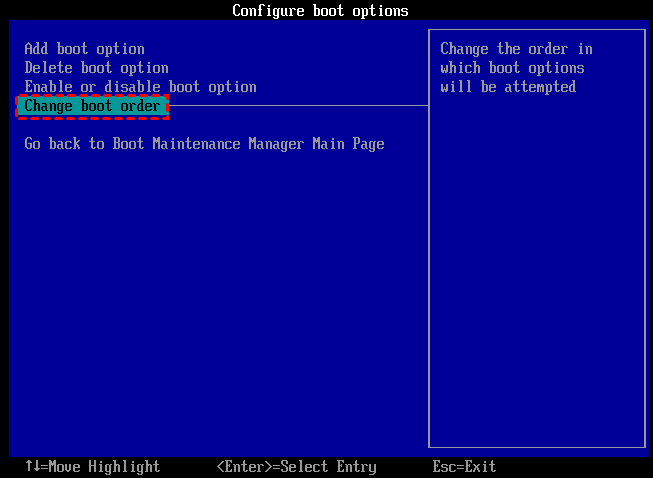
After that, if you clone system disk from HDD to SSD, you need to change boot drive to run Windows from the SSD.
Case 3. How to partition a 1TB hard drive to 500GB
If you want to divide a 1TB hard drive into smaller parts, such as 500GB, you can use AOMEI Partition Assistant. It is an easy-to-use partition manager that helps you organize disk space more efficiently.
The software provides two main ways to create a new partition:
🌟 Splitting an existing partition: If all your space is already taken by a large partition, you can split it into smaller ones. For example, you can divide a 1TB partition into two 500GB partitions.
Both methods are simple and safe, allowing you to set up partitions without losing data. You just need to select the option that best fits your situation.
AOMEI Partition AssistantThe Best Windows Disk Partition Manager and PC Optimizer
If your target disk is a total new disk, we suggest you directly use the "Quick Partition" feature to customize all requirements.
Option 1. Create partition via unallocated space
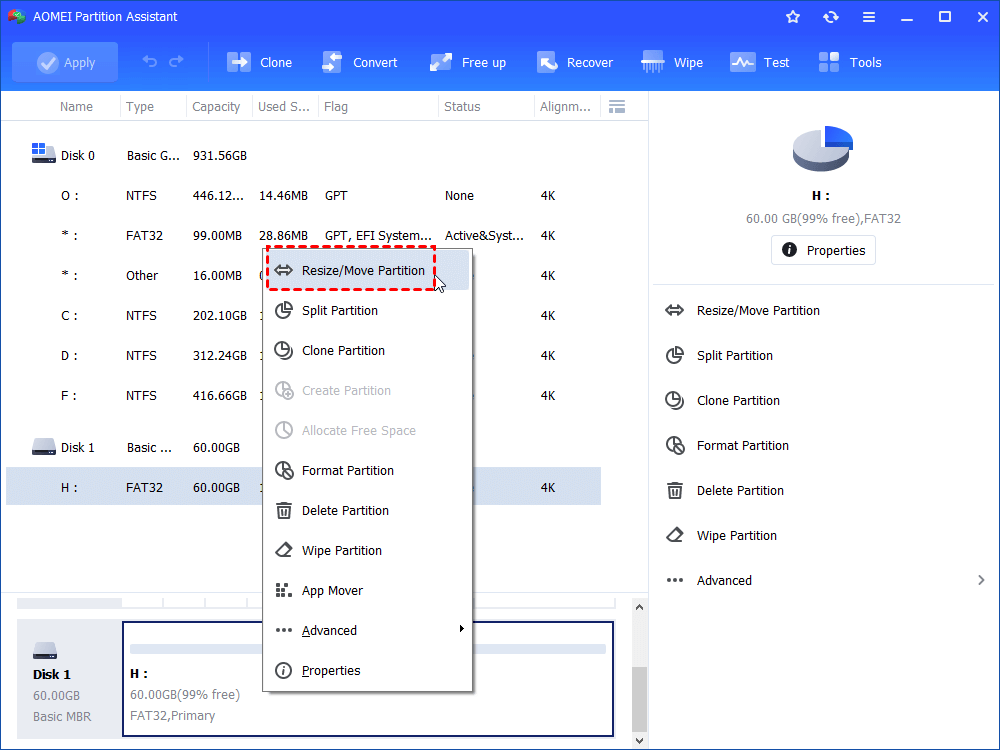
Step 1. Install and launch AOMEI Partition Assistant. Select the hard drive in your Windows 10/11 system that you want to partition (here is Disk 1). Right click on a drive (here is D: partition) and then choose "Resize/Move Partition" (If there is an unallocated disk space on hard drive, you can start from Step3).
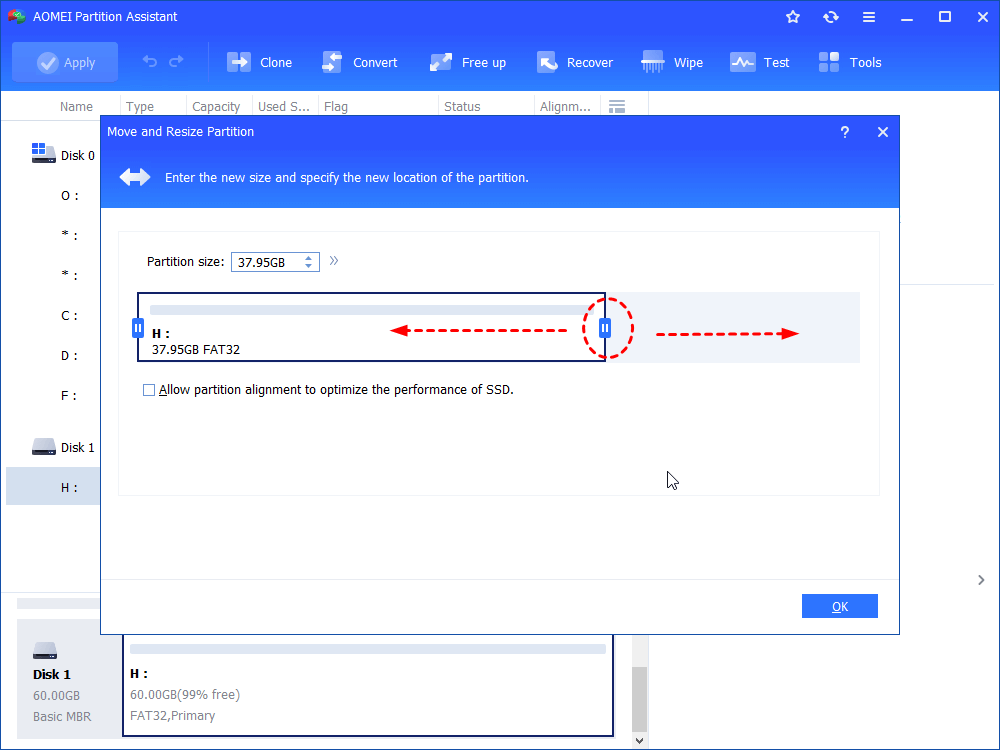
Step 2. Drag the slider bar leftwards to decide the size of unallocated space, and then click "OK".
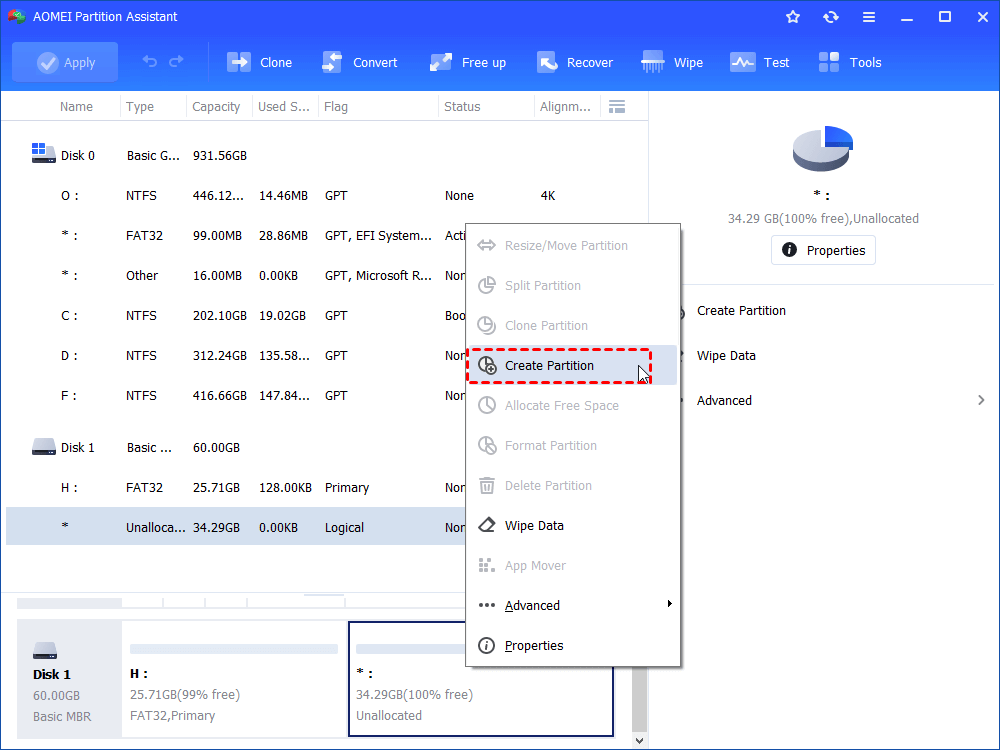
Step 3. After Step2, you will see there is an unallocated space behind D partition. Then, right click on the unallocated space and choose "Create Partition".
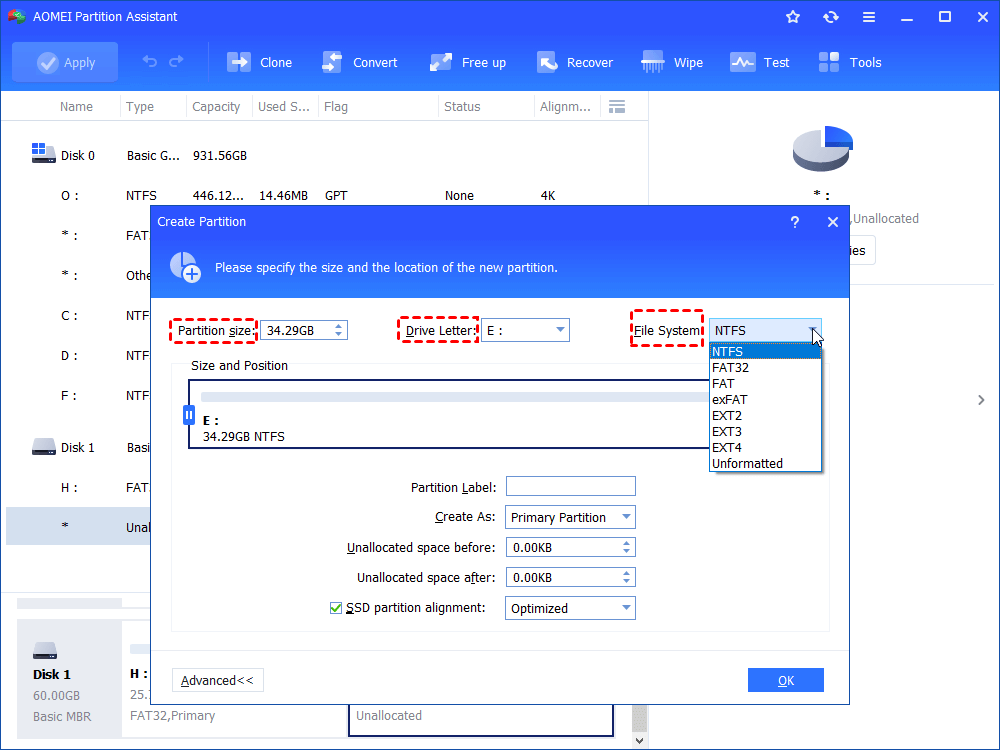
Step 4. You can drag the slider bar to decide the size, change drive letter and file system. Besides, you also can click "Advanced>>" to set other property. Click "OK" to continue.
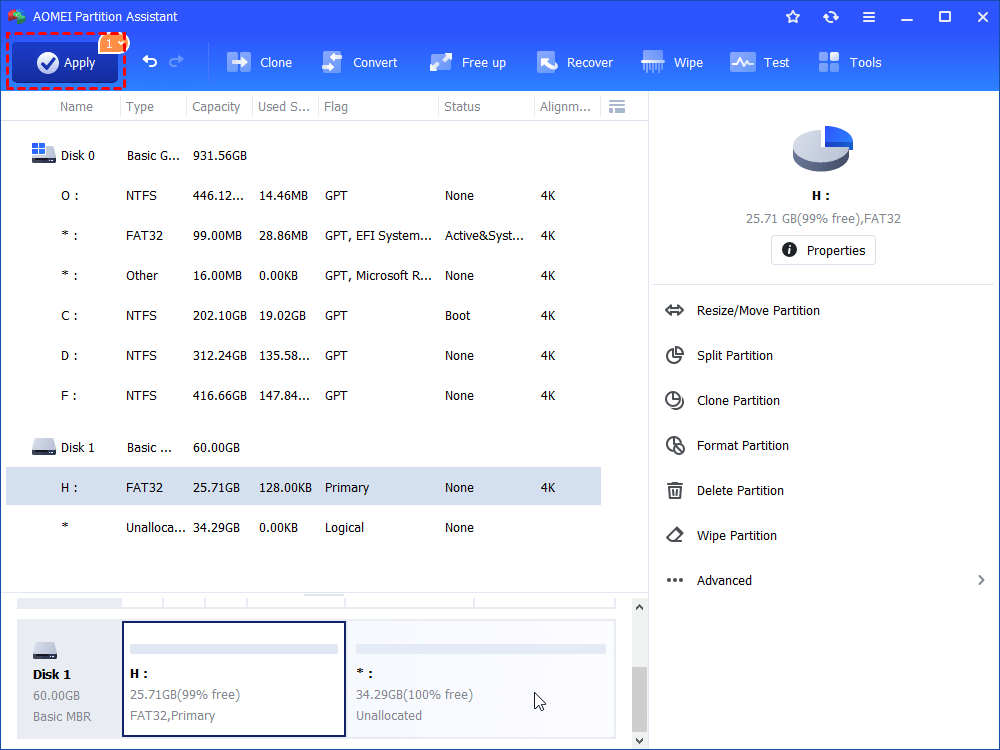
Step 5. You will preview there is a new drive (F: partition) on the hard drive. If you want to operate, please click "Apply".
Option 2. Create a partition by splitting a large partition
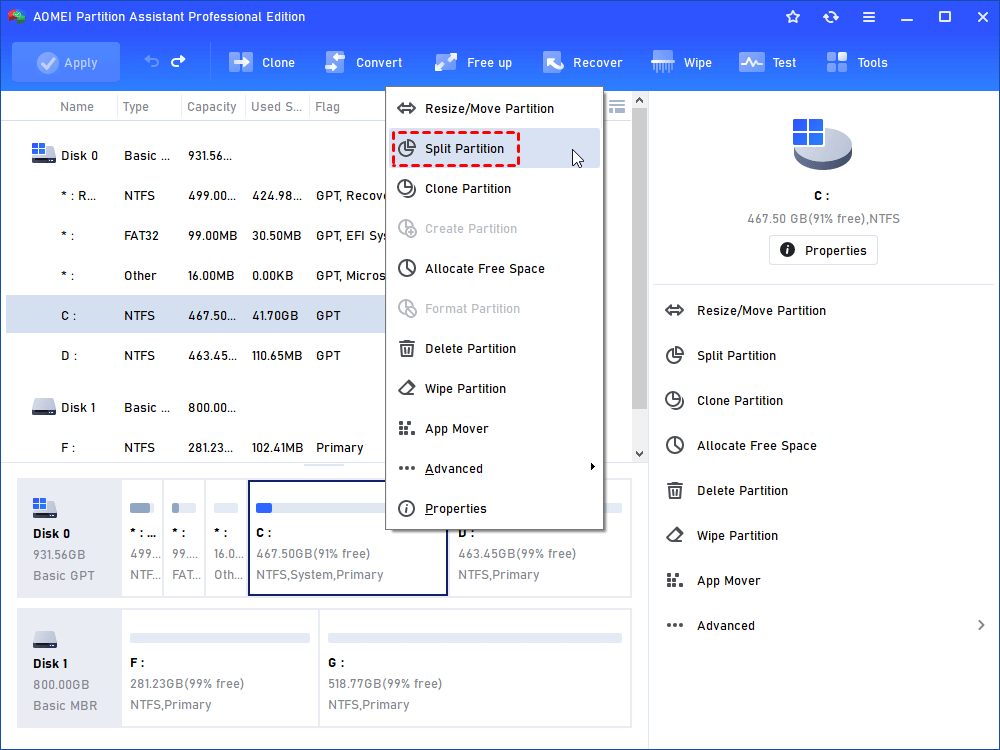
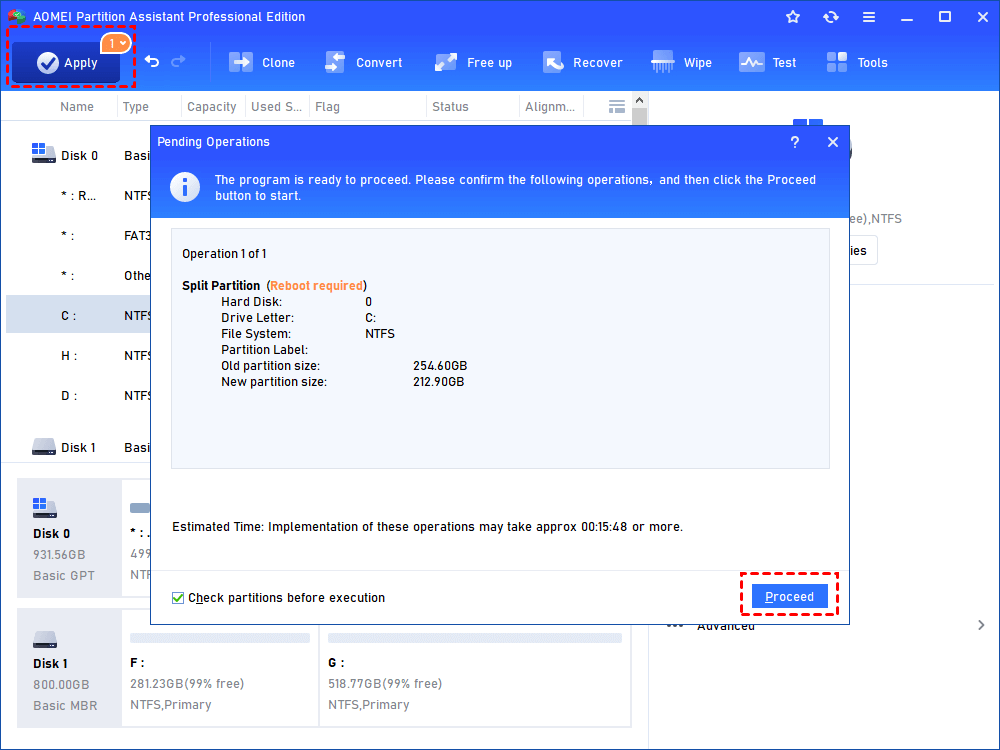
Step 1. Install and run AOMEI Partition Assistant. Right-click the C partition and select “Split Partition”.
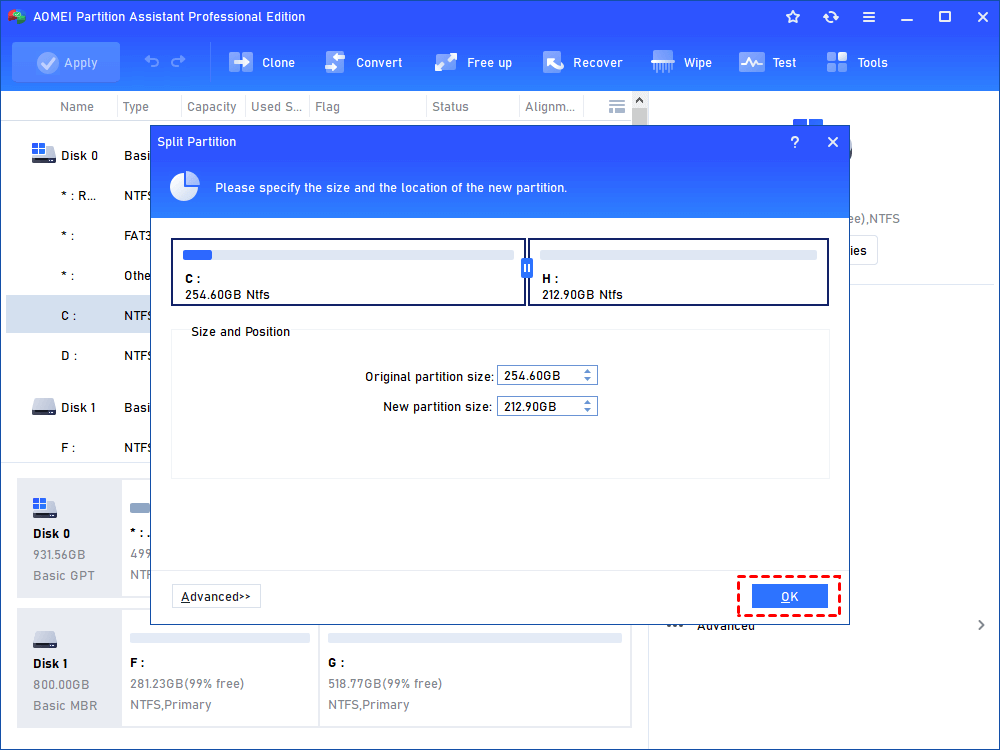
Step 2. In this window, you can specify the size and location of the new partition, and click “OK”.
Step 3. Back to the main interface, click “Apply” and “Proceed” to commit the pending operation.
Conclusion
Managing disk space between a 1TB hard drive and a 500GB partition or SSD is completely possible with the right tool. Whether you want to add space, split partitions, or clone a large HDD to a smaller SSD, AOMEI Partition Assistant provides an easy and safe solution. Its flexible features let you resize, clone, or partition without data loss, making disk management more efficient. With just a few clicks, you can upgrade, optimize, and organize your drives smoothly. This reliable software also has the Server edition for Windows Server users.
