
 AOMEI Partition Assistant
3 Ways: How to Erase A Windows 7 Computer
Selling your PC? Discover how to erase a Windows 7 computer securely. Our step-by-step guide covers how to erase Windows 7 completely, ensuring your files are permanently unrecoverable.

By Lucas / Updated on August 15, 2025


Are you planning to sell, donate, or recycle an old computer running Windows 7? Or perhaps you're looking for a fresh start to boost its performance. Whatever your reason, simply deleting files isn't enough. Deleted data can often be recovered with basic tools, leaving your personal information vulnerable.
This guide will walk you through several proven methods on how to erase a Windows 7 computer, ensuring your data is gone for good. We'll cover everything from a simple factory reset to using professional disk-wiping software, so you can choose the method that best fits your needs and technical comfort level.
How to Erase a Windows 7 Computer
This section provides three distinct solutions for completely wiping your Windows 7 machine. We will explore a built-in reset function, a more advanced command-line method, and a powerful third-party tool for maximum security and ease of use.
Solution 1. Erase Windows 7 via Factory Reset
A factory reset is often the simplest way to erase your computer. This process reverts the system to the state it was in when it left the manufacturer, removing your files, installed programs, and customized settings.
This method is suitable if you're passing the computer on to a family member or want a clean slate for yourself. However, be aware that the data isn't always securely overwritten, meaning it could potentially be recovered by determined individuals. Before you begin, always back up any important files you want to keep to an external drive or cloud storage.
Via Start Menu
Click Start -> Control Panel -> Backup and Restore. Look for an option like "Recover system settings or your computer" and then "Advanced recovery methods." You may see an option to "Return your computer to factory condition."

Via Boot Menu
Many manufacturers (like Dell, HP, and Acer) have a hidden recovery partition. To access it, you typically need to restart the computer and press a specific key repeatedly as it boots up. Common keys include F8, F9, F11, or Alt + F10. Look for an on-screen prompt during startup.
Step 1. Follow the Wizard: Once you're in the recovery environment, a wizard will guide you through the process. You'll be asked to confirm that you want to erase all data and restore the system.
Step 2. Begin the Reset: Confirm your choice. The computer will then begin the process of erasing the drive and reinstalling the original version of Windows 7. This can take anywhere from 30 minutes to a few hours.
Step 3. Complete Setup: Once finished, the computer will restart as if it were brand new, prompting you to go through the initial Windows setup process.
Solution 2. Erase Windows 7 System from CMD via Bootable USB/CD
For a more thorough and secure wipe than a standard factory reset, you can use the Command Prompt. This method shows you how to erase C drive Windows 7 by using the diskpart utility from a Windows installation disk. It involves overwriting the data with zeros, making it much harder to recover.
This technique is for intermediate to advanced users who are comfortable with command-line interfaces. You will need a Windows 7 installation USB or CD to boot from.
Stage 1. Create Bootable Media
If you don't have one, create a Windows 7 bootable USB drive or DVD using the official Windows 7 USB/DVD Download Tool from Microsoft.
Step 1. Connect USB Drive
Step 2. Launch Tool and Select ISO
Step 3. Choose USB device
Step 4. Begin Copying the ISO file
Step 5. Confirm completion.
Stage 2. Boot from Media
Insert the USB or CD into your computer. Restart it and enter the BIOS/UEFI setup (usually by pressing F2, F12, or Del during startup). Change the boot order to prioritize the USB drive or CD/DVD drive. Save and exit.
Stage 3. Run Command Prompt
Your computer will now boot from the installation media. When you see the "Windows Setup" screen, do not click "Install now." Instead, press Shift + F10 on your keyboard to open the Command Prompt.
Step 1. In the black command window, type diskpart and press Enter.
Step 2. Type list disk and press Enter. This will show all the disks connected to your computer. Identify the disk you want to erase by its size. It's usually "Disk 0".
Step 3. Type select disk X (replace X with the number of the disk you want to erase, e.g., select disk 0) and press Enter. Be absolutely sure you've selected the correct disk, as this step is irreversible.
Step 4. To securely wipe the disk, type clean all and press Enter. This command writes zeros to every sector of the disk, completely erasing all data. This process can take a long time, depending on the size of your hard drive. (If you're just in a hurry and don't need the security, you can use the clean command, which is much faster but less secure.)
Step 5. Exit: Once the process is complete, type exit twice to close both Diskpart and the Command Prompt. You can now shut down the computer or proceed to install a fresh operating system.
Solution 3. Wipe Windows 7 System via a Professional Disk Wipe Tool
If the command-line method seems too complex or you need the highest level of data security, using a professional disk wipe tool is your best option. These tools offer user-friendly interfaces and advanced wiping algorithms that meet government and military standards, making data recovery virtually impossible. This is the recommended solution for anyone looking to erase a Windows 7 computer before selling it.
One of the most powerful and trusted tools for this job is AOMEI Partition Assistant Professional. It’s a comprehensive disk management software that simplifies complex tasks. Beyond just wiping drives, it allows you to resize partitions, migrate your OS to a new SSD, clone disks, and much more. Its "Wipe Hard Drive" feature provides multiple levels of security, including the DoD 5220.22-M standard, ensuring your sensitive data is permanently destroyed.
 100% Secure
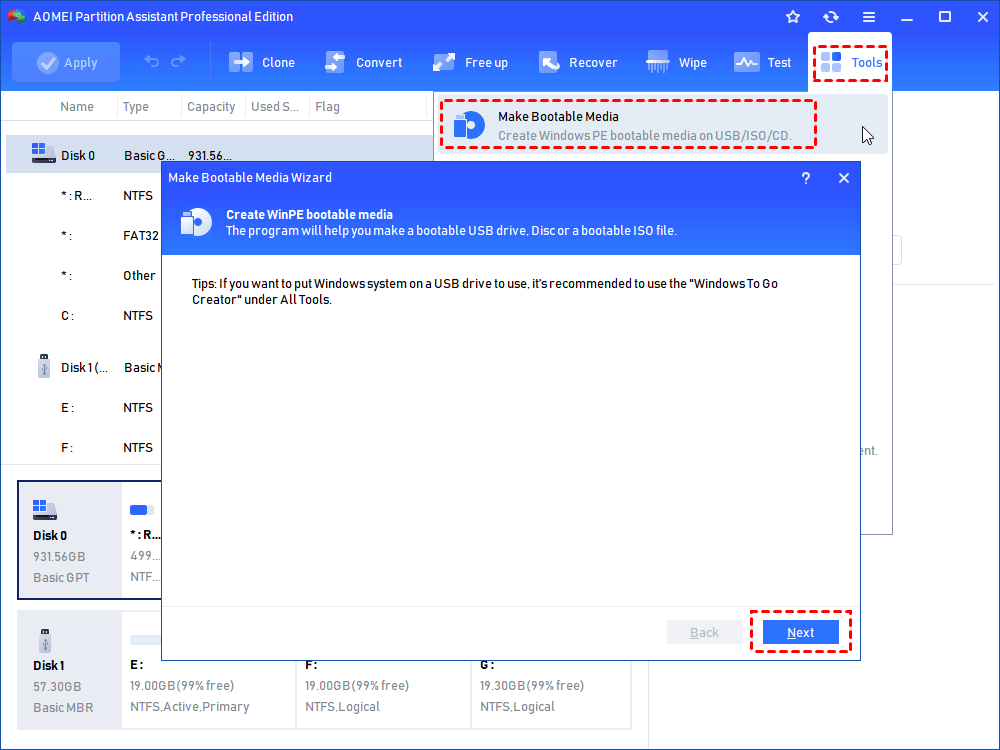
Step 1. Plug an empty USB drive to your computer and use AOMEI Partition Assistant to create a bootable USB. Insert the bootable USB drive just created into your Windows 7 PC, restart it and enter BIOS to change boot order, and boot your computer from the USB drive. It contains the preinstalled AOMEI Partition Assistant. Once login, you will see the software running. (If your computer can boot into Windows as normal, skip this step.)
Step 2. Click the "Wipe" main tab and select "Wipe Hard Disk" option. (You can also right-click the Disk you want to wipe and select the "Wipe Hard Drive" option.)

Step 3. Select the disk you want to wipe and click "OK" to continue.

Step 4. Select a wiping method to wipe the selected hard drive and click "OK". By default, the wiping method is Fill in 0.
Step 5. Return to the main user interface, check the pending operation, and click “Apply” > "Proceed".
Tip: If your Windows 7 is using SSD, you can choose SSD Secure Erase function.
To sum up
When it comes to erasing a Windows 7 computer, you have several options, each with its benefits. A factory reset is quick and easy for non-sensitive situations. Using the Command Prompt offers a more secure, built-in solution for tech-savvy users. However, for the ultimate peace of mind, ease of use, and guaranteed data destruction, a dedicated tool like AOMEI Partition Assistant Professional is the superior choice.
