
 AOMEI Partition Assistant
How to Move Empty Partition to C Drive Windows 10
Struggling to extend your C: drive? Find out how to move a partition back to the C: drive in Windows 10, even if the space isn't adjacent. Our step-by-step guide shows you how to solve this with ease.

By Lucas / Updated on May 6, 2026


One of the most common frustrations for Windows users is the dreaded "Low Disk Space" warning on the C: drive. This critical partition houses your operating system, applications, and many temporary files, and when it gets full, your PC's performance can slow to a crawl. If you have an empty partition or unallocated space elsewhere on your hard drive, the logical solution is to merge it with your C: drive. However, this process isn't always as straightforward as it seems.
This guide will walk you through the correct way to think about and execute this task. We'll explore why you might be having trouble and provide clear, step-by-step instructions on how to move an empty partition to the C: drive in Windows 10, using both the built-in Windows tool and a more powerful, flexible third-party software.
Can I Move an Empty Partition to C Drive in Windows 10?
First, it's important to clarify the terminology. You don't technically "move" one partition into another. Instead, the process involves deleting the empty partition to turn it into "unallocated space" and then extending the C: drive to occupy that newly freed-up space. This is a crucial distinction because it explains why the built-in Windows tools can be so restrictive.
The primary challenge most users face is the location of the space. Windows' native Disk Management tool has a significant limitation: it can only extend a partition into unallocated space that is directly adjacent to and to the right of the target partition. If there's another partition (like a recovery partition) between your C: drive and the unallocated space, the "Extend Volume" option will be grayed out and unusable.
So, while the answer is yes, you can add that space to your C: drive, the method you use will depend on your specific disk layout.
How to Move an Empty Partition to C Drive in Windows 10
This section will cover the two main methods for reclaiming that space for your system drive. We'll start with the limited Windows tool and then introduce a much more capable solution.
1. Using Windows Disk Management (With Limitations)
If your empty partition is located immediately to the right of your C: drive, you're in luck. You can use the built-in Disk Management tool to get the job done.
Here’s how to do it:
Step 1. Open Disk Management: Right-click the Start button and select "Disk Management" from the menu.
Step 2. Delete the Empty Partition: In the Disk Management window, locate the empty partition you want to merge. Right-click on it and select "Delete Volume." This will convert the partition into unallocated space. Warning: Ensure this partition is completely empty, as this action will erase all data on it.

Step 3. Extend the C: Drive: Now, right-click on your C: drive, and the "Extend Volume" option should be available. Select it to open the Extend Volume Wizard.
Step 4. Complete the Wizard: Follow the on-screen prompts to add the unallocated space to your C: drive.
If the "Extend Volume" option is grayed out, it's because the unallocated space is not contiguous to your C: drive, and you'll need to use a more advanced tool.
2. Flexible Solution: AOMEI Partition Assistant Professional
When Disk Management falls short, a specialized partition management software like AOMEI Partition Assistant Professional becomes essential. This powerful tool is designed to handle complex disk operations with ease and, most importantly, it overcomes the adjacency limitation of the Windows tool.
AOMEI Partition Assistant Professional is a comprehensive disk and partition manager for Windows that allows users to resize, move, merge, and split partitions without data loss. Its user-friendly interface makes it accessible for beginners while offering advanced features for tech-savvy users. For our task, its "Merge Partitions" feature is the perfect tool to directly move unallocated space to the C: drive, regardless of its position on the disk.
 100% Secure
One of the most common scenarios for running out of space is a full C: drive, which is where your operating system and most programs are installed. AOMEI Partition Assistant Professional offers several ways to address this, even if there isn't unallocated space right next to your C: drive.
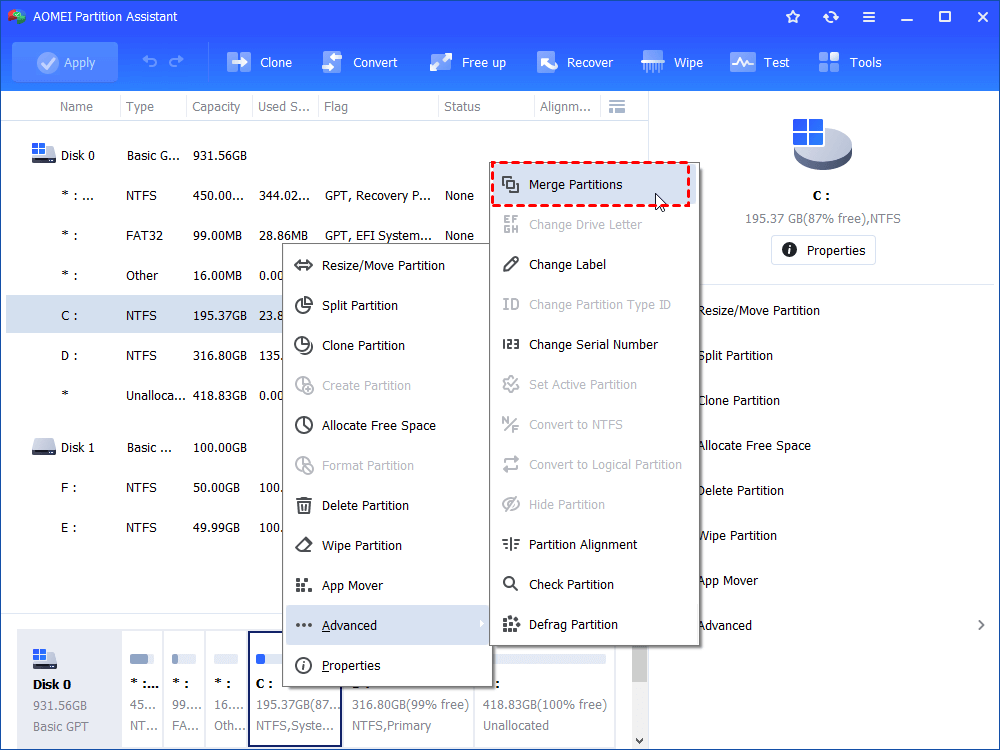
1. Install and run it. Right click the partition you need to merge (e.g. Partition D) and choose Advanced > Merge Partitions.
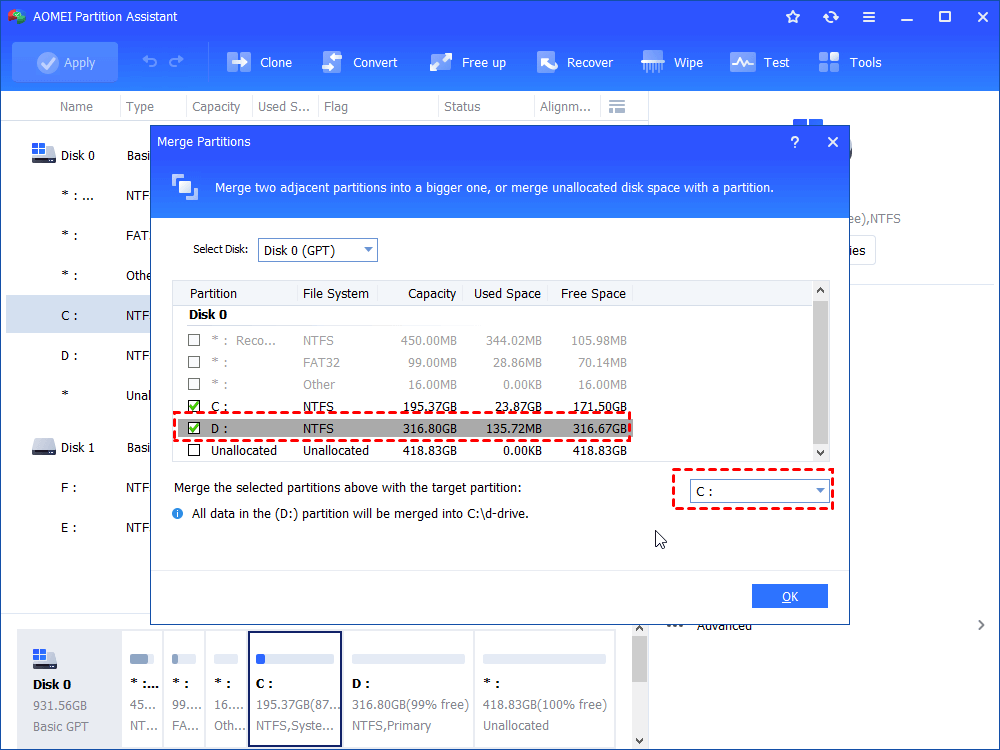
2. Choose the partition that you need to be merged (eg. Partition E) and click OK.
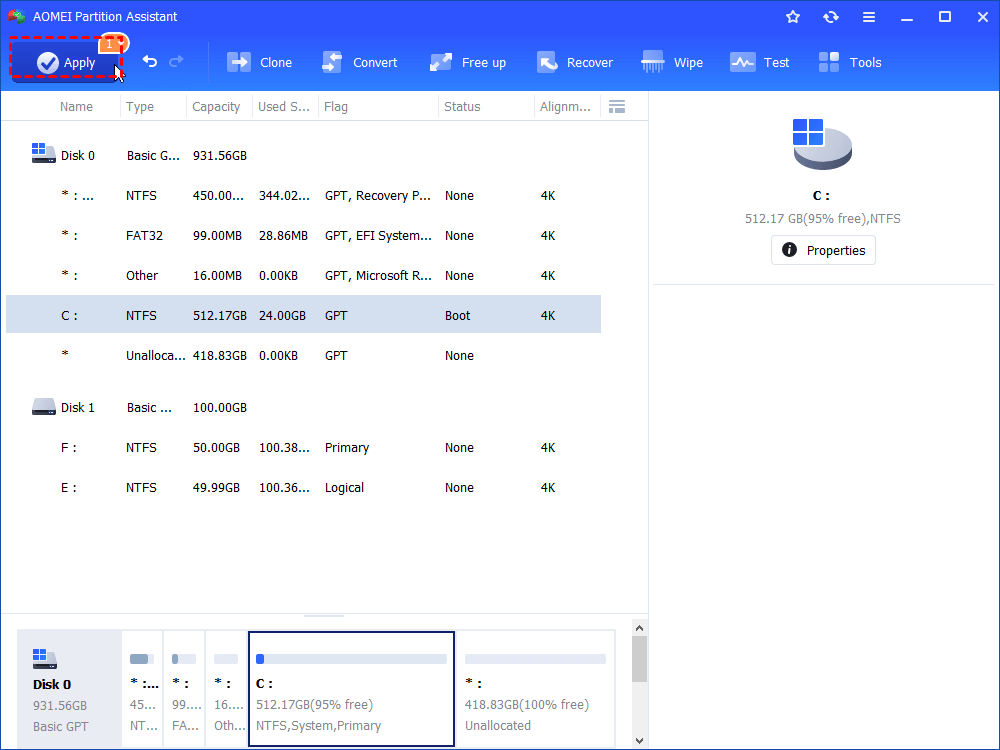
3. In the main interface, after confirming operation, click Apply and Proceed to commit it.
- ★Tips:
- Only 2 partitions can be merged at one time, and the two partitions must be adjacent, but merge two or more parts of unallocated space into a partition (like moving unallocated space to C drive) is available and no matter the unallocated is next to the partition you want to merge or not.
- You can merge data partition into system boot drive, but you cannot merge system boot drive into data partition.
- If you want to combine two partitions in Windows Server, you can try the AOMEI Partition Assistant Server.
Other Handy Functions of AOMEI Partition Assistant Professional
Beyond merging partitions, this software is a complete disk management suite with many other valuable features:
OS Migration: Easily migrate your entire Windows installation to a new SSD or HDD without reinstalling anything.
App Mover: Move installed programs from your C: drive to another drive to free up space.
Disk Conversion: Convert disks between MBR and GPT partition styles without data loss, which is essential for upgrading to Windows 11.
Partition Recovery: Helps you recover lost or deleted partitions.
To Sum Up
Running out of space on your C: drive is a common problem that can severely impact your computer's performance. While it's possible to move an empty partition to the C: drive in Windows 10, the native Disk Management tool is often restrictive, only working when the free space is perfectly positioned. This limitation can be a significant roadblock for many users.
For a reliable and stress-free solution, a third-party tool like AOMEI Partition Assistant Professional is the recommended choice. It bypasses the adjacency rule, allowing you to merge non-adjacent unallocated space directly into your C: drive safely and efficiently. With its powerful and user-friendly features, you can take full control of your disk space and keep your system running smoothly.
