
 AOMEI Partition Assistant
How To Reset Computer When PC Cannot Boot in Windows 11 and 10?
Read to learn how to reset computer when PC cannot boot. Or you can follow this guide to directly fix boot issues. If you want to recover lost data after factory reset, you can also read this tutorial.

By Irene / Updated on June 23, 2025


Why do you need to reset computer when PC cannot boot
When a computer fails to boot, it's often due to temporary system file corruption, incomplete updates, driver conflicts, or unstable configurations stored in volatile memory or caches that load during startup; performing a reset (or restart) forcibly clears these transient states, terminates all active processes, and reloads the operating system from scratch, effectively purging erroneous data or hung operations that blocked the initial boot sequence.
This process bypasses corrupted runtime environments by reinitializing hardware and reloading core software components, allowing the system to reconstruct a clean boot state—unless the underlying cause is permanent hardware failure or deep filesystem damage, a reset often resolves transient software glitches by starting fresh.
How to reset computer when PC cannot boot
If your Windows PC cannot boot, resetting it to factory settings might be a bit hard, but it can be done. You can do this with a bootable USB flash drive. Follow these steps:
Step 1. Start your PC and then, when you see the startup logo, hold down the power button until the screen becomes black.
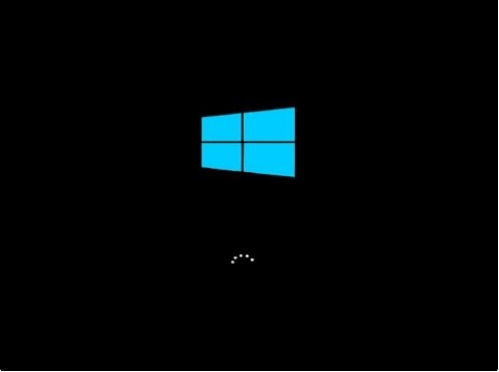
Step 2. Press the power button to turn on the PC, then wait a few seconds. When you see the logo, press and hold the power button again until the screen turns off.
Step 3. Wait a few seconds, then press the power button again to turn on the PC. This time, let it fully start, and the screen should show up.
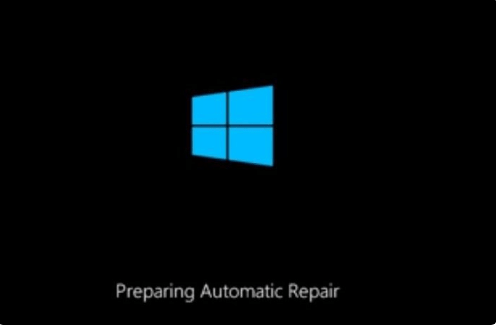
Step 4. Once WinRE environment starts, select "Advanced options".
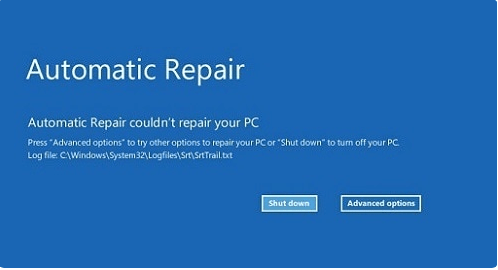
Step 5. Now, you’ll go into WinRE. Select "Troubleshoot".
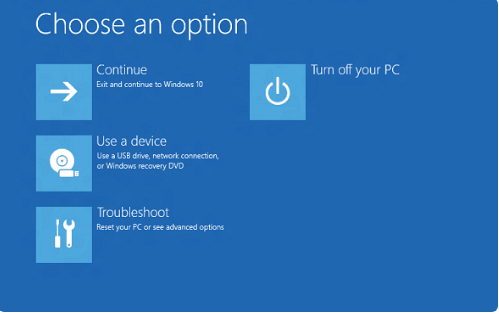
Step 6. Here, you’re going to troubleshoot the problem. Click on "Reset this PC" to get Windows 10 restored.
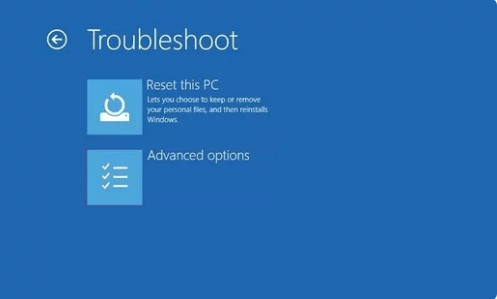
Step 7. You’re able to choose to keep your data or remove everything.

Step 8. Click "Keep my files" to remove apps and settings but keep your personal files. If you have backed up your files and want a fresh start, click on "Remove everything".
How to fix boot issues without a factory reset?
If your PC has trouble starting, like getting stuck in a boot loop or always going into Recovery Mode, you don’t always need to do a factory reset. A better way is to use a tool like AOMEI Partition Assistant. Just create a bootable USB drive on another working computer, then use it to start your problem PC.
AOMEI Partition Assistant has a Boot Repair feature that helps fix startup problems easily. It lets you enter a special repair mode (WinPE environment) and can rebuild a damaged MBR (Master Boot Record), which is often the reason for boot errors.
This tool is much easier and faster than typing commands yourself. It also comes with other helpful features like fixing partition errors, managing disks, and even cloning your system. With its simple design, both beginners and experts can use it without trouble.
 AOMEI Partition Assistant
The Best Windows Disk Partition Manager and PC Optimizer
Step 1. Install and launch AOMEI Partition Assistant on a working PC, click "Recovr"-"Boot Repair" and then click the "create a bootable disk" option to create a WinPE "Boot Repair" disk.

Step 2. Boot the PC that cannot boot into WinPE. It will automatically load the Boot Repair tool and start the boot entries scan process. All boot entries will be displayed.

Step 3. Select the repairable boot entries you want to repair and click the "Repair" button to start the repair.
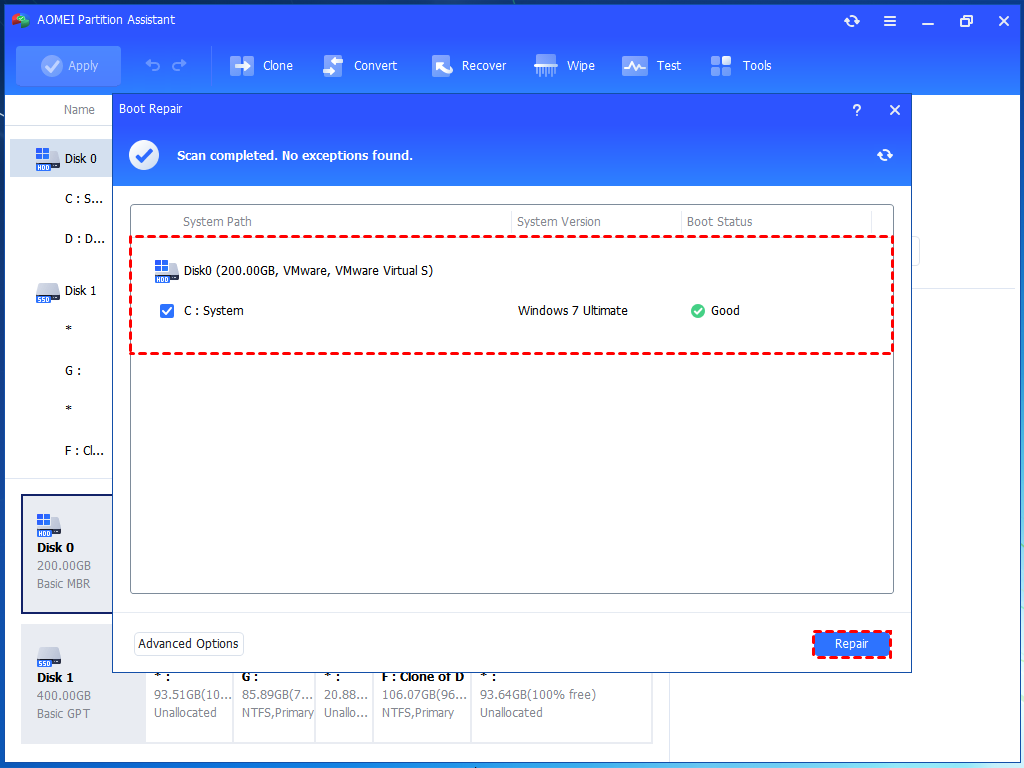
Step 4. Once the repair is repaired successfully, you can remove the bootable disk and boot the PC from the original system drive.

Further reading: How to recover data after the factory reset
If you lost files after a factory reset, you can still recover them. If you don’t have a backup, use AOMEI Partition Assistant. It scans your drive to find and restore deleted or lost files, including documents, photos, videos, and more. It works on hard drives, USB drives, and SD cards, and supports file systems like NTFS, FAT32, and exFAT.
AOMEI Partition AssistantThe Best Windows Disk Partition Manager and PC Optimizer
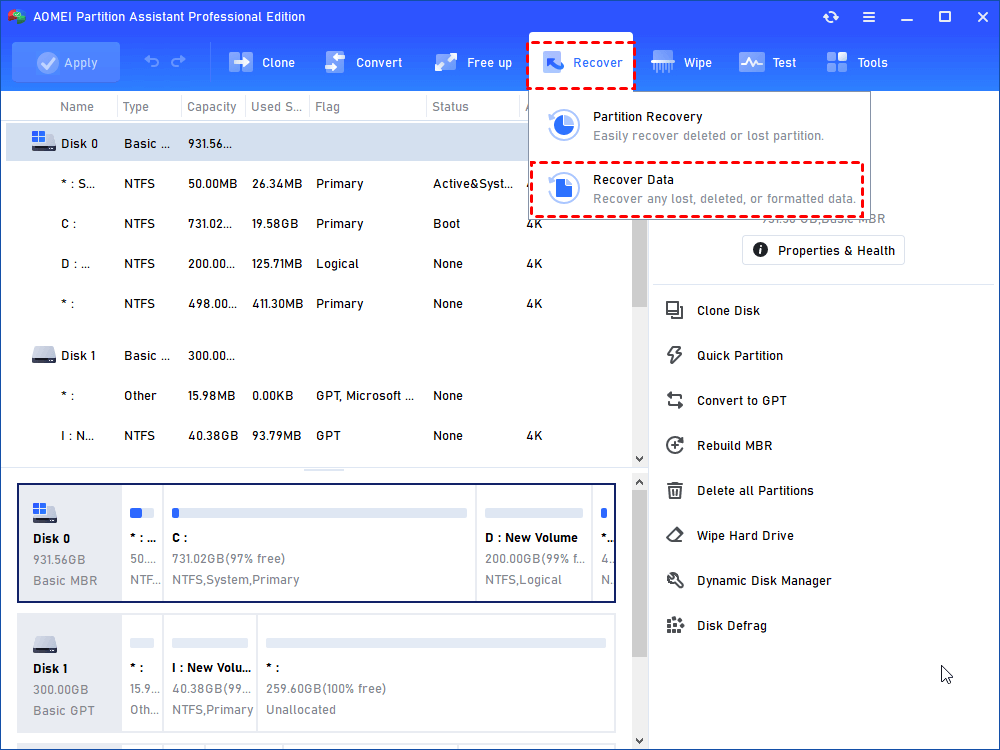
Step 1. Install and launch AOMEI Partition Assistant Professional. Click on "Recover" from the top menu, then select "Recover Data".
Step 2. Choose the USB drive that contains the lost files and click "Start Scan".
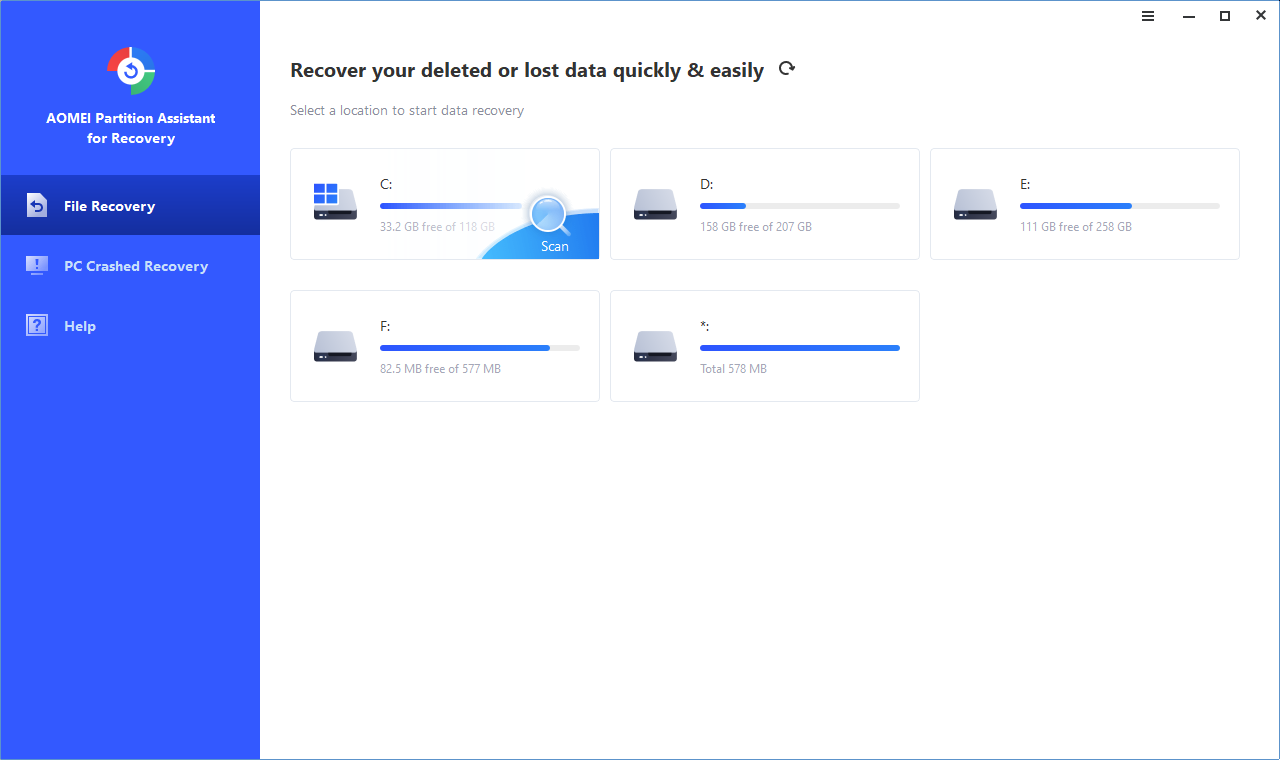
Step 3. After the scanning process is complete, a list of all deleted files will be displayed. Tick the checkboxes next to the lost files you want to recover, then click "Recover".
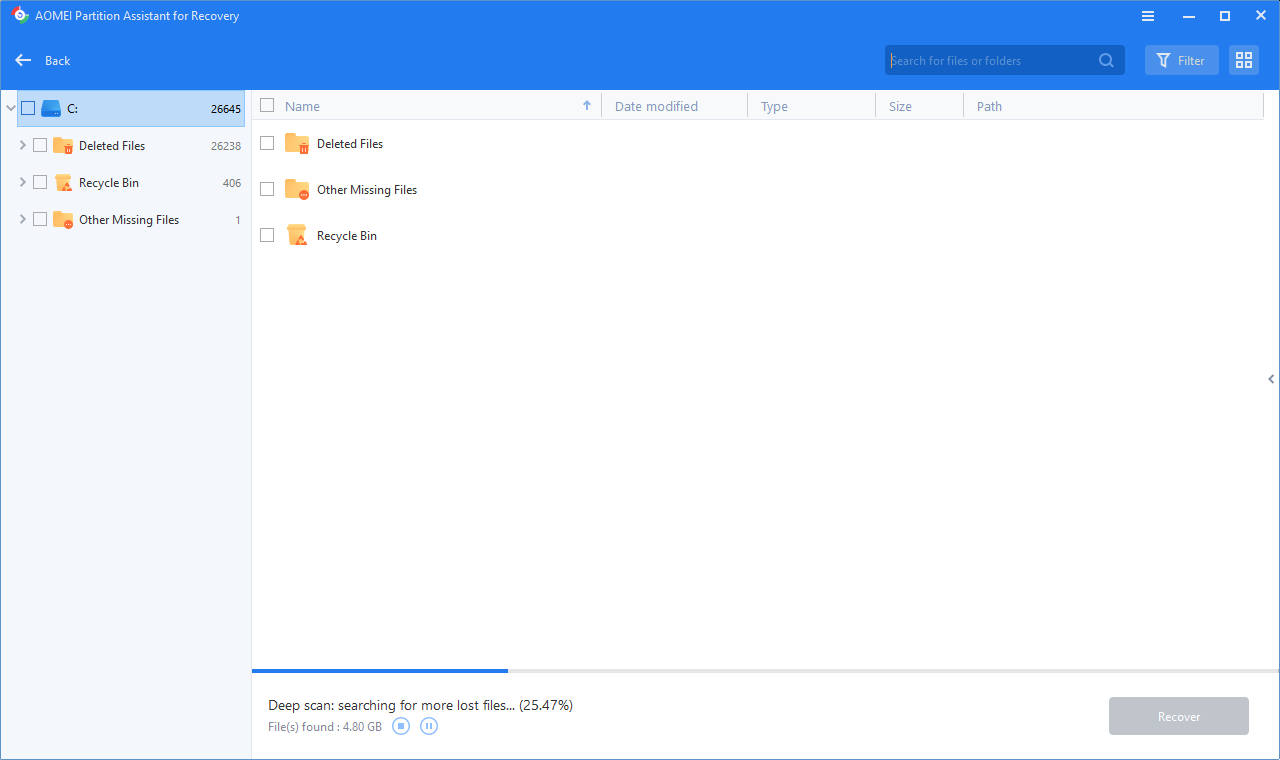
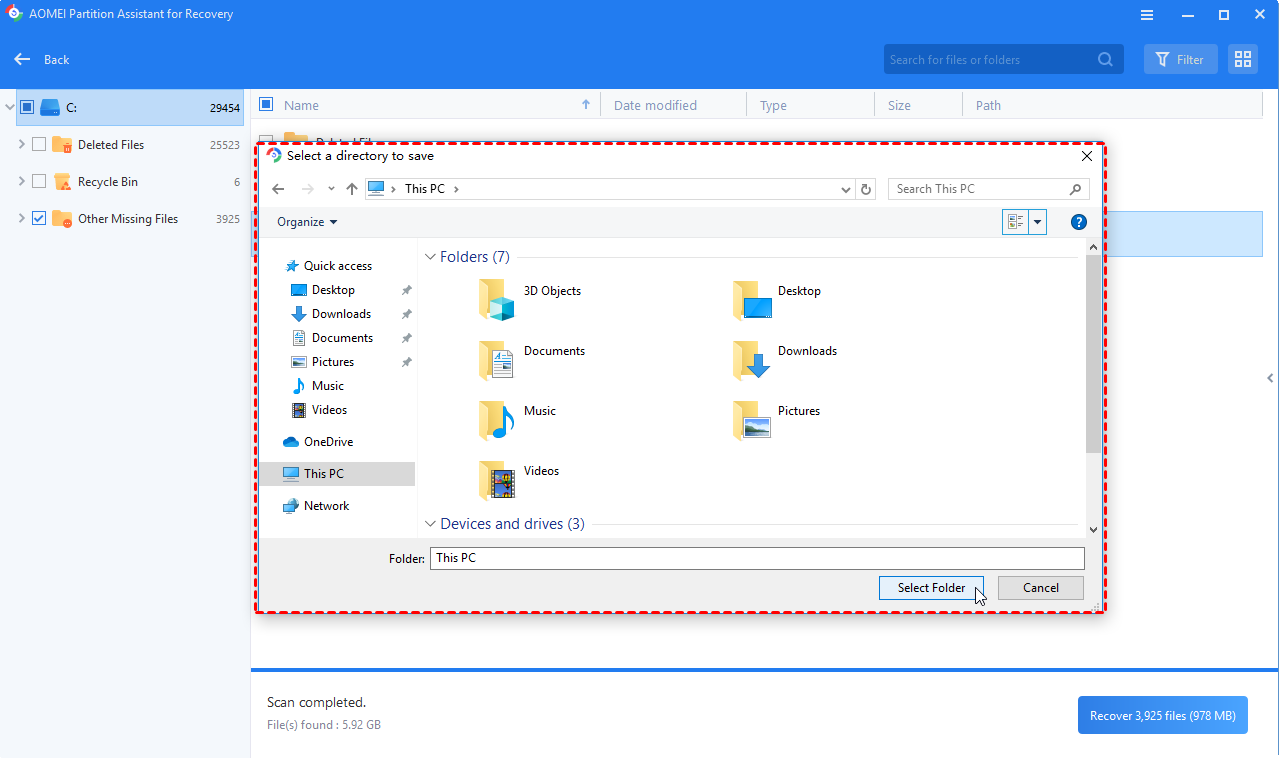
Step 4. Select a destination path to save the recovered files.
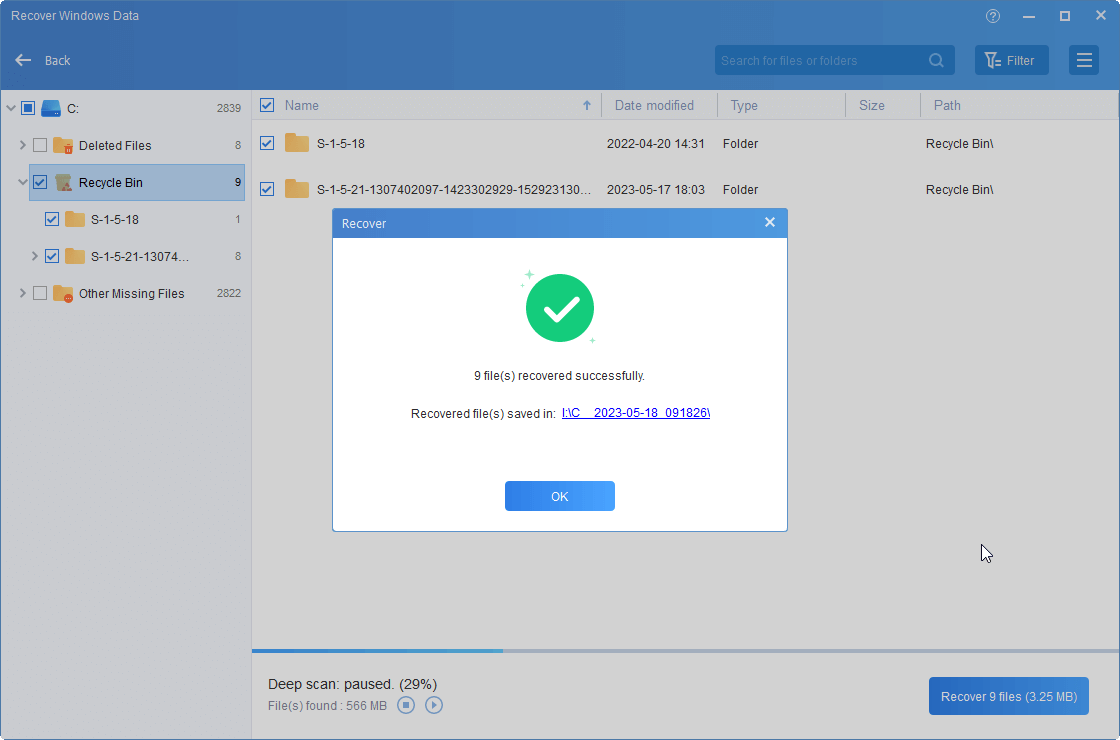
Step 5. Once the recovery process is finished, navigate to the chosen path to locate and access your recovered files.
Conclusion
This article guide on how to reset computer when PC cannot boot. When your PC refuses to boot, performing a reset is often a quick and effective way to clear temporary glitches and restore system functionality. If that doesn't work, tools like AOMEI Partition Assistant offer advanced solutions for repairing boot issues and recovering lost data—without needing a full factory reset. With the right steps, most startup problems can be fixed, helping you get back to work without losing your files.
