
 AOMEI Partition Assistant
Is Windows 11 Free for Windows 10 Upgrading?
Learn is Windows 11 free, how the free upgrade from Windows 10 works, what requirements apply, and whether your files and settings stay safe when moving from Windows 10 to Windows 11.

By Irene / Updated on November 18, 2025


Is Windows 11 free for Windows 10 users?
Windows 11 is free to upgrade if your PC is running Windows 10 and meets the minimum system requirements. You can get the upgrade through Windows Update. If your Windows 10 license is not eligible, or if you are building a new PC, you may need to buy a new Windows 11 license. The official price is about $139 for Windows 11 Home, but cheaper options may be available through sellers or discounts.
1. Free and low-cost options
Free upgrade from Windows 10: If your PC runs the latest Windows 10 version and meets the hardware requirements, you can upgrade to Windows 11 for free through Windows Update.
Trade-in programs: Some stores offer discounts, such as a $50 coupon, when you trade in an old Windows 10 device for a new Windows 11 PC.
Educational discounts: Students and educators may get Windows 11 at a lower price through special school programs.
Third-party sellers: You can buy Windows 11 licenses from trusted retailers at lower prices, but make sure the source is legitimate.
2. Full retail price
New PCs: Most new computers already include Windows 11. If you build your own PC, you must buy a separate license.
New license purchase: The standard price is around $139 for Windows 11 Home and $200 for Windows 11 Pro.
3. Other things to consider
Internet fees: The upgrade is a large download, so metered internet plans may charge extra.
Volume licensing: If you use a volume license for Windows 10, check your agreement to see whether Windows 11 is included at no extra cost.
How to get Windows 11 free upgrade from Windows 10?
Cleaning install Windows brings many benefits. It removes malware and unnecessary registry files, and it gives you a faster startup because there are fewer startup programs. Microsoft prepares a Media Creation Tool for users, you can download it from its official web. Here we only list some necessary tips you need to know the most, don’t forget to read “Before you begin” carefully. This part has two sections about the creation of the installation media and the process of installing Windows 11. Below, you will learn the simplest way to download and clean install Windows 11.
Before the upgrade
If your current boot disk uses the MBR partition style, you must convert it to GPT before moving on. If your disk is already GPT, you can skip this part and go straight to Part 2.
To change from MBR to GPT safely, it is better to use a professional conversion tool rather than the Windows Command Prompt, which erases all partitions and can lead to data loss. For a secure and easy conversion, you can use AOMEI Partition Assistant. Its “MBR to GPT Converter” lets you change your boot or data disk from MBR to GPT, or from GPT to MBR, without deleting any files. You can download the demo version and try a simulation before applying the changes.
By the way, please make sure there is enough space for the system installation, or the process will fail.
 AOMEI Partition Assistant
The Best Windows Disk Partition Manager and PC Optimizer
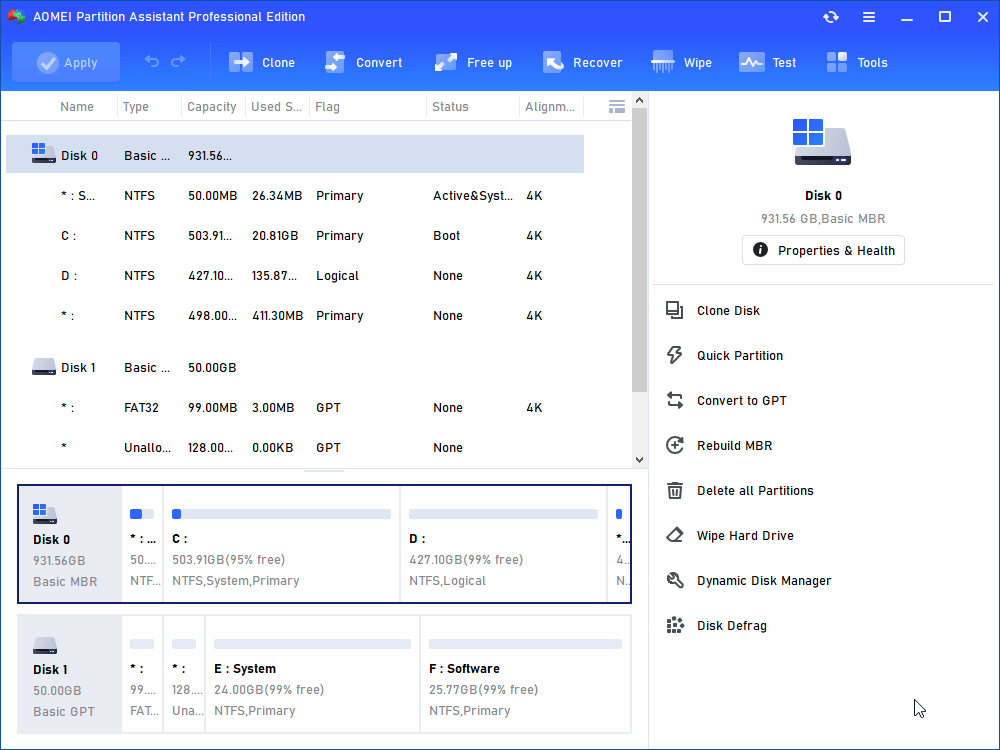
Step 1. Install and launch AOMEI Partition Assistant. Right-click the target MBR boot hard drive and select "Convert to GPT".
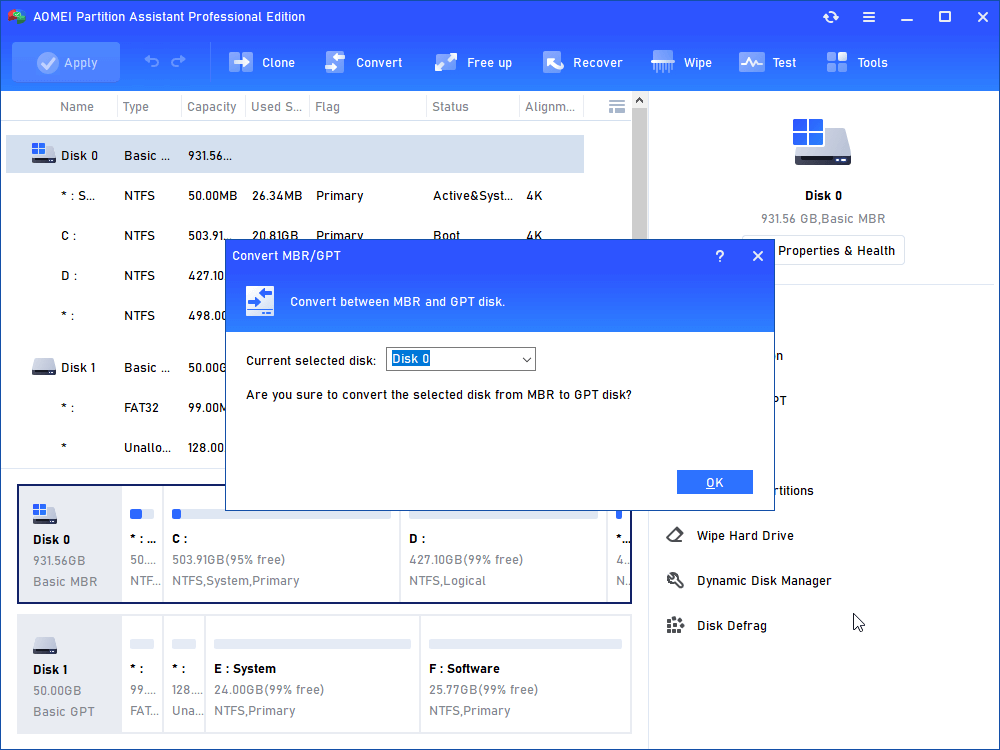
Step 2. Click "OK" to confirm your operation.
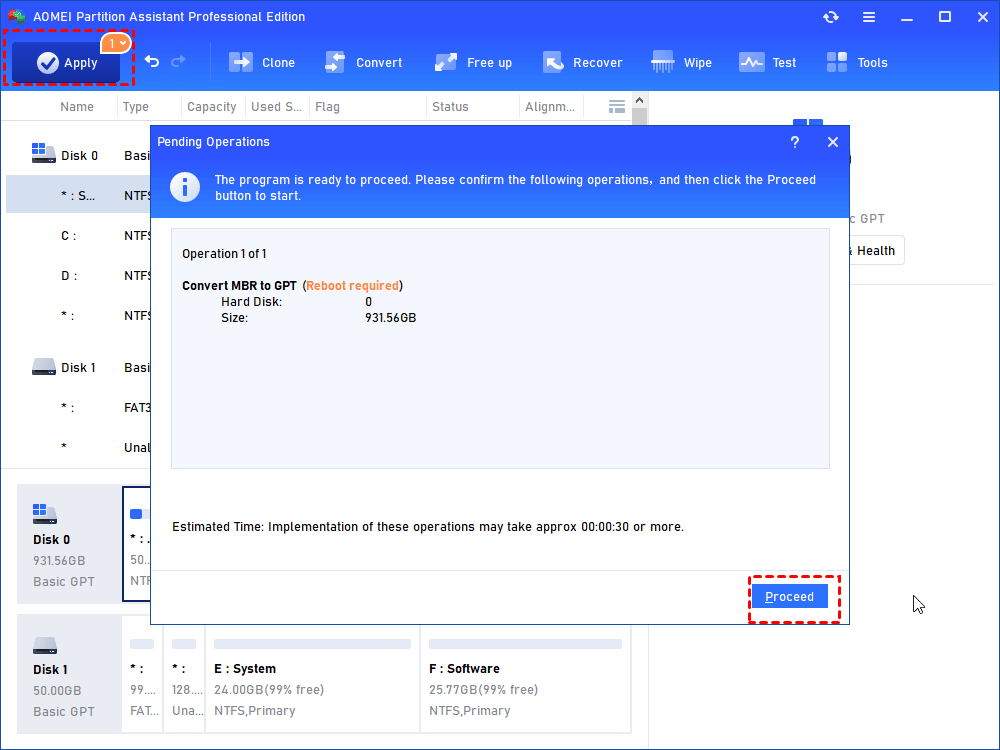
Step 3. Click "Apply" to commit the conversion.
Section 1. Create Windows 11 installation media
Tips:
1. Steady Internet connection
2. Sufficient data storage available on the computer
3. A USB or a DVD at least 8GB. If you have some files on it, please make a backup because all data will be erased during the process.
Step 1. Download the Media Creation Tool
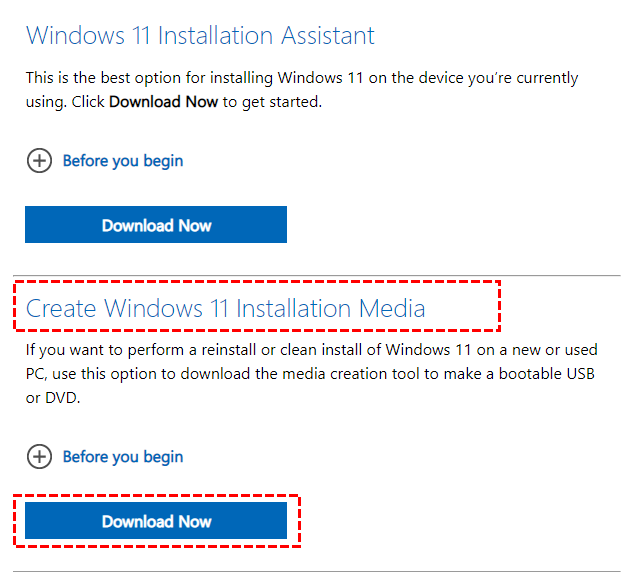
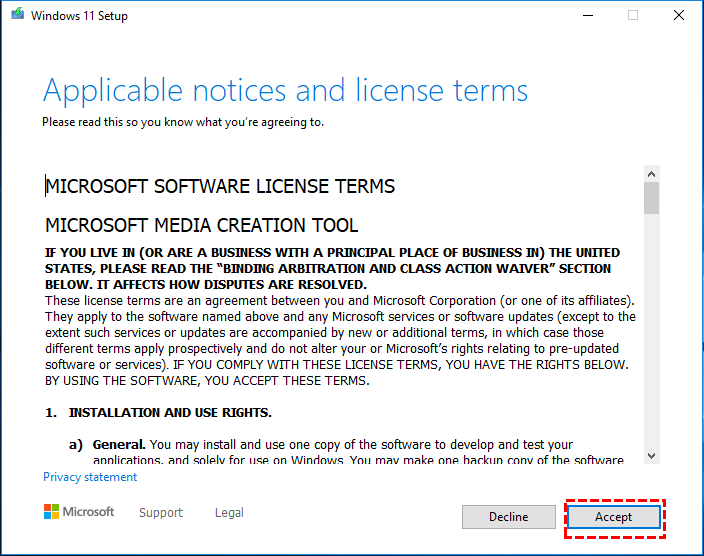
Step 2. When the download is finished, click the exe. file to open it. In the new Window, select “Accept” after you make sure you agree to the license terms.
Step 3. Select “Create installation media for another PC”, and click “Next”.
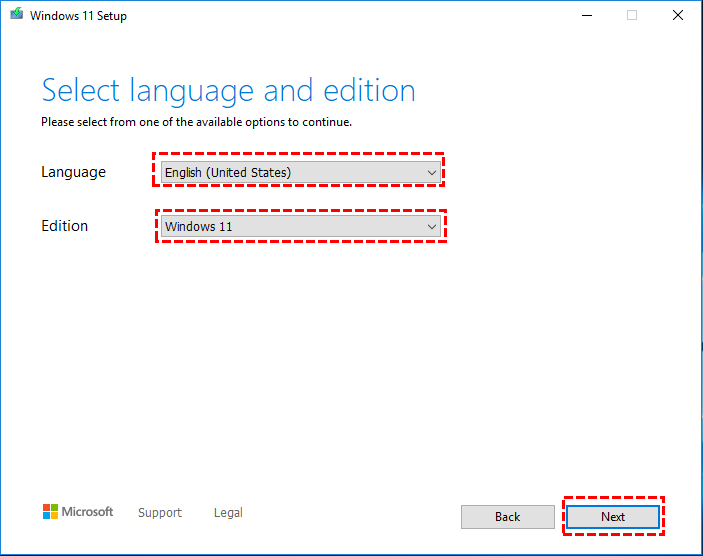
Step 4. Select language, edition, and click “Next”.
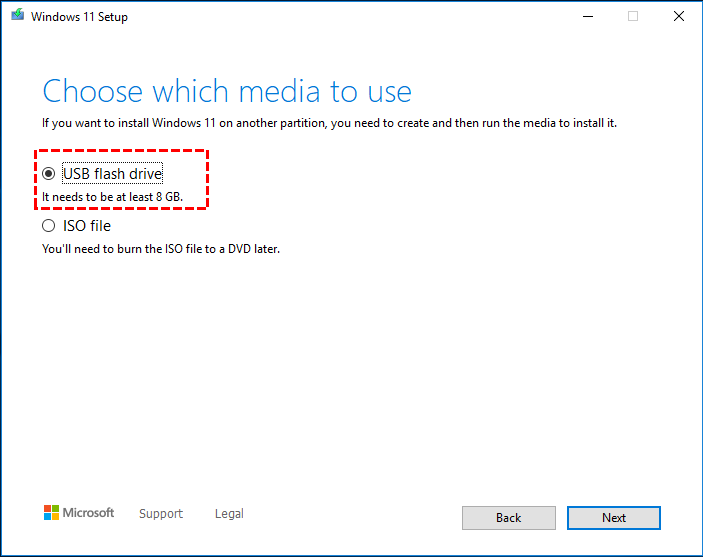
Step 5. Choose the media you wish to use: USB flash drive or ISO file (for DVD users) and select the USB, then wait for the downloading.
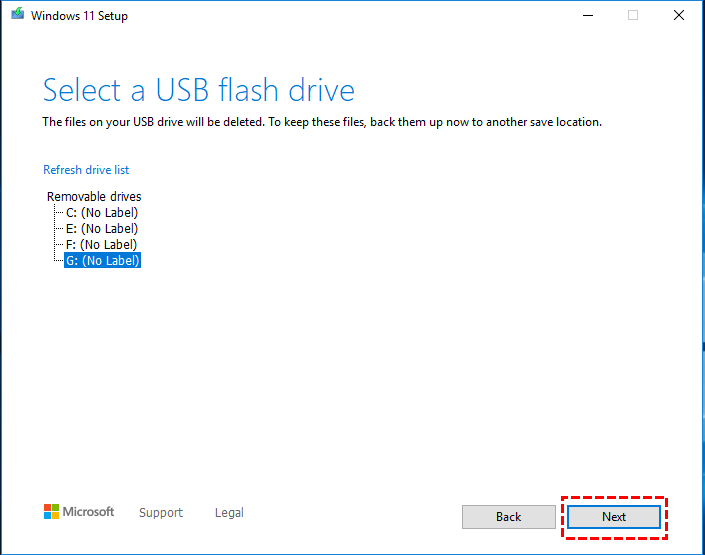
Then, a Windows 11 installation USB is created, let’s install Windows 11 via this installation media.
Section 2. Install Windows 11 from installation media
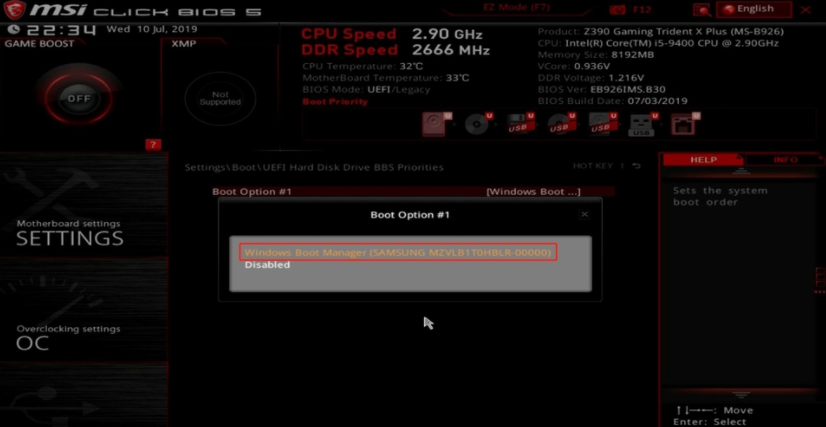
Step 1. Plug the installation media in the device you wish to install Windows 11, and turn it on, enter BIOS to change the boot order, choose a USB drive as the boot drive.
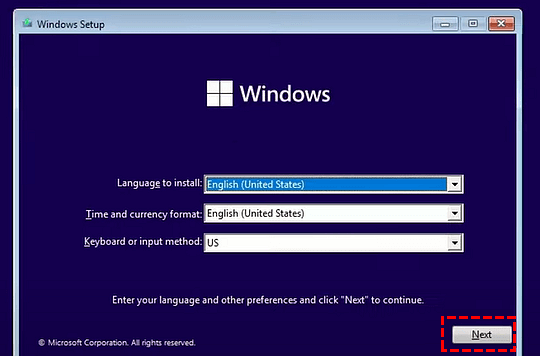
Then, you will see the “Windows Setup” window on the screen, please set them up and click “Next”.
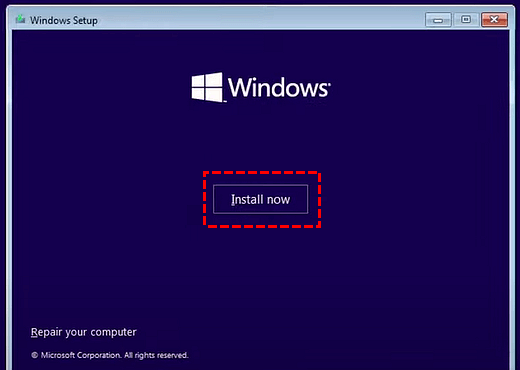
Step 3. Click “Install now”.
Step 4. Choose “I don’t have a product key”.
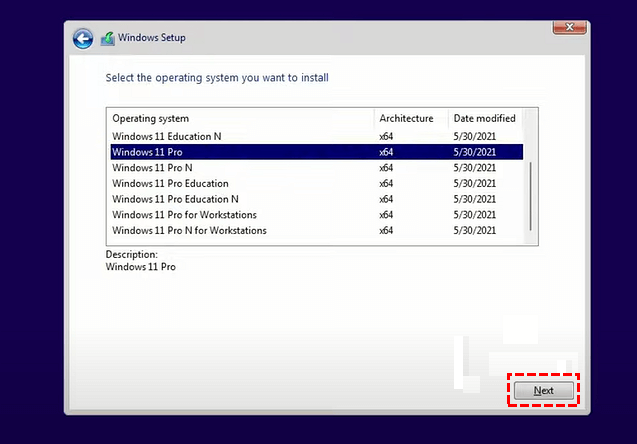
Step 5. Choose an OS edition you wish to install and click “Next”.
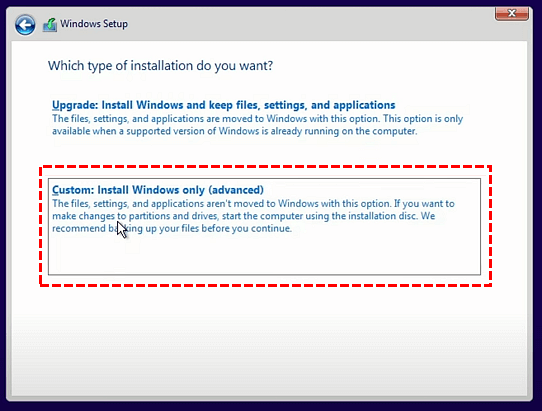
Step 6. Accept the License Term and click “Next”, click “Custom: Install Windows only (advanced)” in the next window.
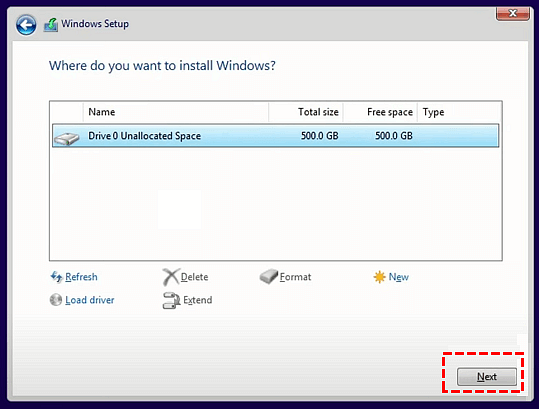
Step 7. Choose the target disk you wish to install Windows 11 OS, then click “Next”.
Step 8. Please wait for the process and your PC will reboot.
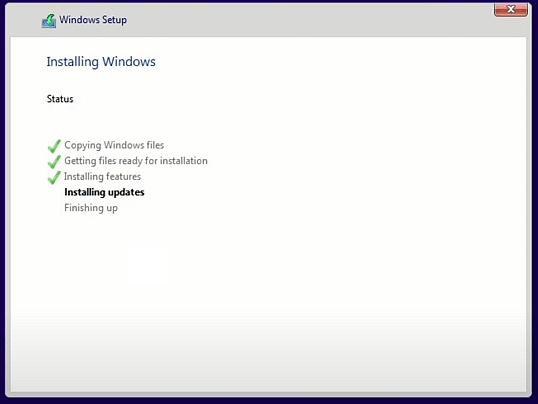
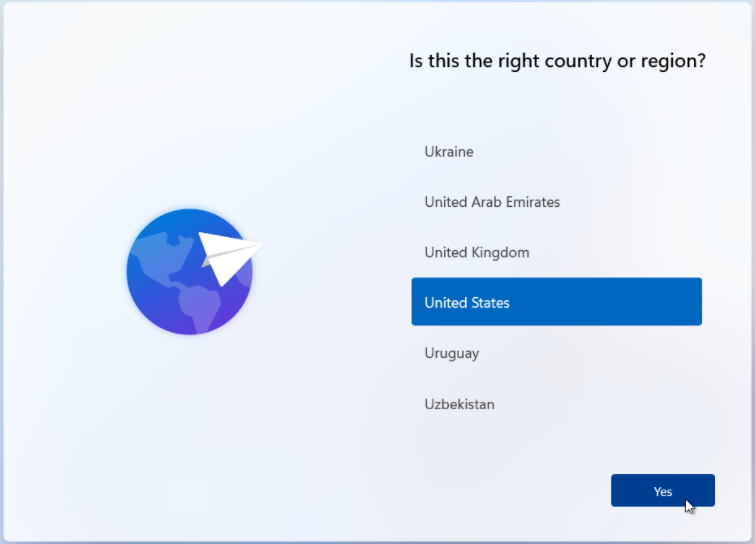
Your computer might reboot a few times, it’s normal. Then you can set your Windows 11 and enjoy it.
Conclusion
Is Windows 11 free for Windows 10 uerse. Yes, it is. Upgrading to Windows 11 is simple if your device meets the requirements, and many users can get it for free through Windows Update. You can also choose low-cost options or buy a new license if needed. Whether you upgrade directly or perform a clean install, following the right steps helps ensure a smooth and safe upgrade like converting MBR to GPT with AOMEI Partition Assistant. Once everything is set up, you can start enjoying Windows 11 and its new features. You can also use this multifunctional tool for further maintainence like clearing junk files, recovering lost data, or fix boot issues.
AOMEI Partition AssistantThe Best Windows Disk Partition Manager and PC Optimizer
