
 AOMEI Partition Assistant
[Quick Fix] No Option To Update To Windows 11
Many users face the problem of not seeing the option to update to Windows 11. This guide explains why you can’t upgrade and shows simple solutions to enable the update.

By Irene / Updated on September 2, 2025


Why is there no option to update to Windows 11?
Windows 11 was officially released on October 5, 2021, but Microsoft does not make it available to all users at the same time. If you don’t see the option to update in Windows Update, it usually means your device is not fully ready yet. But why can't I upgrade to Windows 11?
Sometimes, the update may not appear because of temporary file issues, problems with the Windows Update service, or not being in the correct Windows Insider channel. In other cases, your PC may not meet the minimum requirements for Windows 11, such as TPM, CPU, or enough free disk space.
To check, you can use the PC Health Check app to confirm if your computer is compatible. If your hardware meets the requirements but the update still doesn’t show, you may need to update drivers, BIOS, free up storage, disconnect extra devices, or run the Windows Update troubleshooter.
How to check whether you can upgrade to Windows 11?
If you find no option to upgrade to Windows 11, you can follow the following steps to check your devices.
Step 1. Download the PC Health Check application from the Microsoft website and install it.
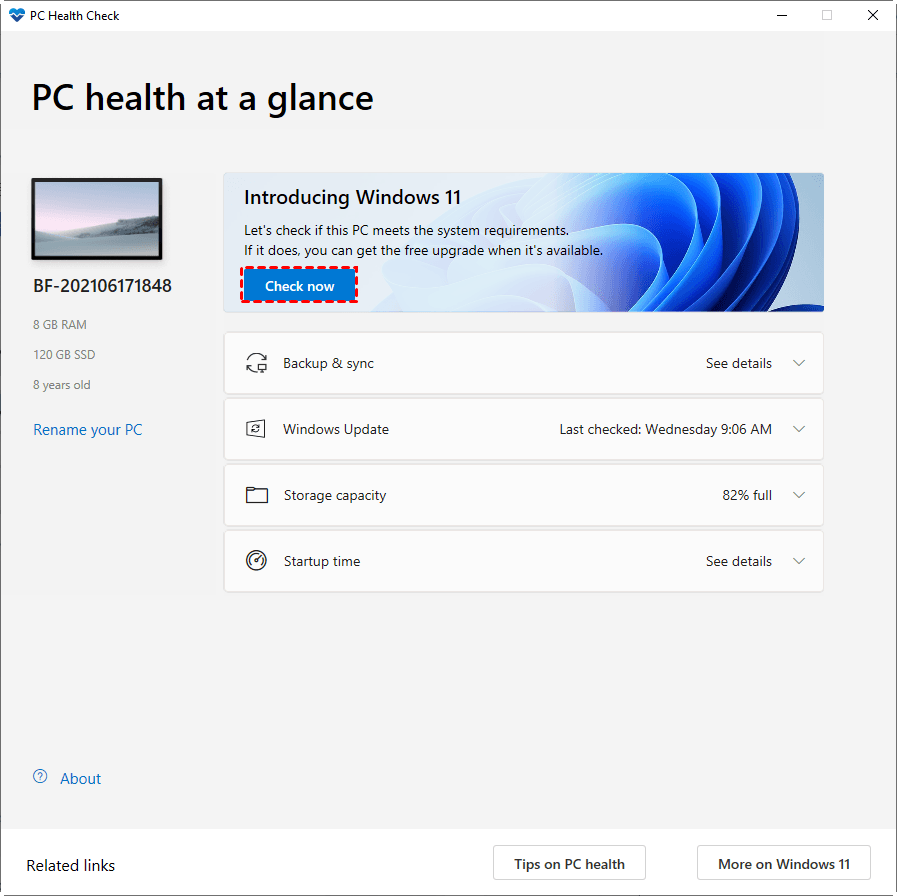
Step 2. Start the application and click “Check now” to check your computer's compatibility with Windows 11.
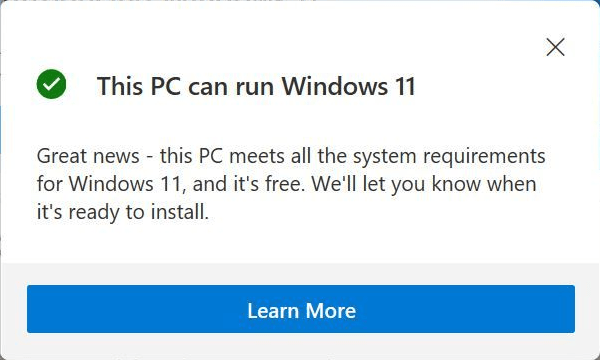
Step 3. If your computer has passed the Windows 11 compatibility check, you will receive the following prompt: This computer can run Windows 11.
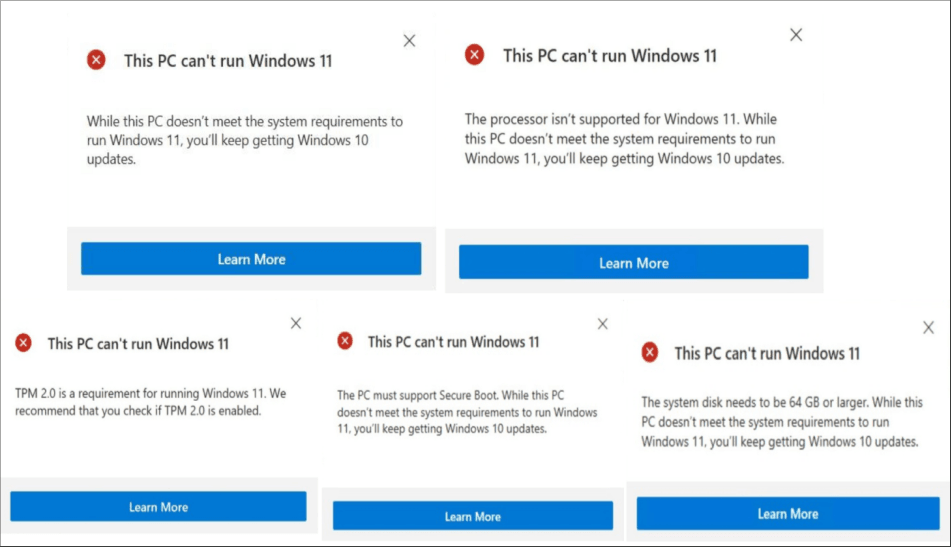
Step 4. If your computer fails the Windows 11 compatibility check, the following prompt may appear that Windows 11 cannot be run:
• This PC doesn’t meet the system requirements to run Windows 11. • The processor does not support Windows 11. • TPM2.0 is a requirement for running Windows 11. • The PC must support a secure boot. • The system disk needs to be 64GB or larger.
With this Windows 11 compatibility check tool, you can detect whether your computer is compatible with Windows 11 or not. However, if you encounter Windows update says No windows 11 but PC Health Check says Yes issue, you can use the handy Windows 11 compatibility checker as an alternative.
How to fix Windows 11 update not showing?
Upgrading to Windows 11 requires UEFI instead of the traditional BIOS because UEFI makes hardware initialization and booting faster and more efficient. However, UEFI only works with GPT partitions. This means that if your system drive is still using MBR, you’ll need to convert it to GPT and then switch your firmware settings from Legacy BIOS to UEFI mode.
While there are different ways to convert MBR to GPT, doing it manually can sometimes lead to data loss that caused by deleting partitions with command prompt, corruption, or compatibility issues if mistakes are made. To avoid these risks, you can use AOMEI Partition Assistant, which offers a safe “Convert MBR to GPT” feature. With its simple interface and step-by-step guidance, even beginners can complete the conversion easily without losing any data.
 AOMEI Partition Assistant
The Best Windows Disk Partition Manager and PC Optimizer
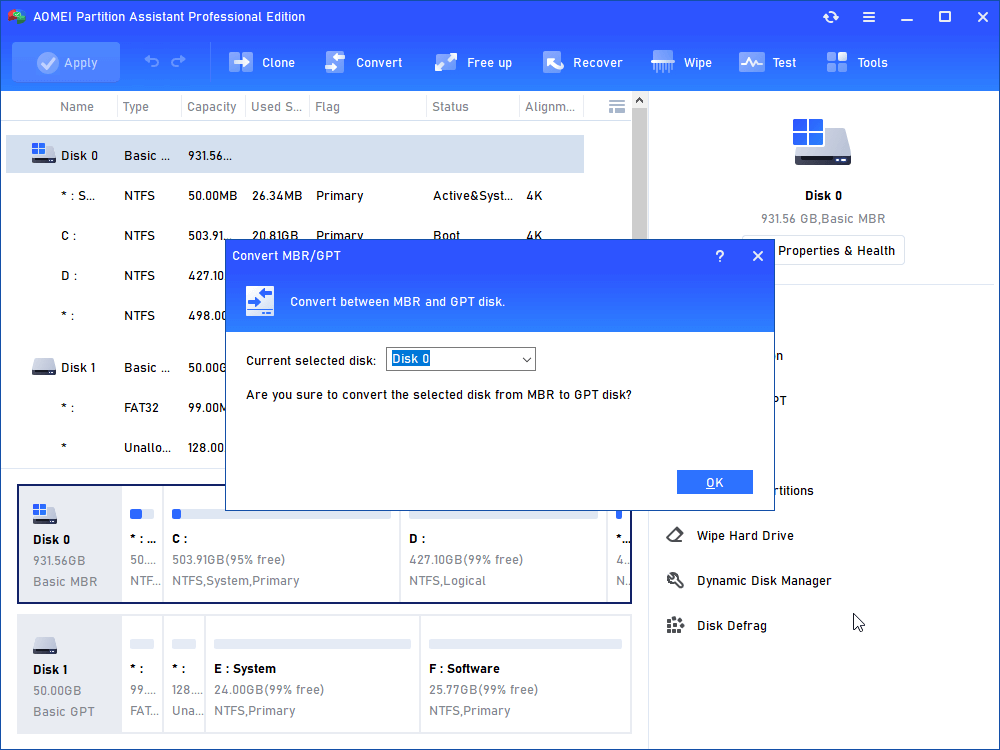
Step 1. Install and open AOMEI Partition Assistant, right-click the MBR disk you want to convert, and select "Convert to GPT".
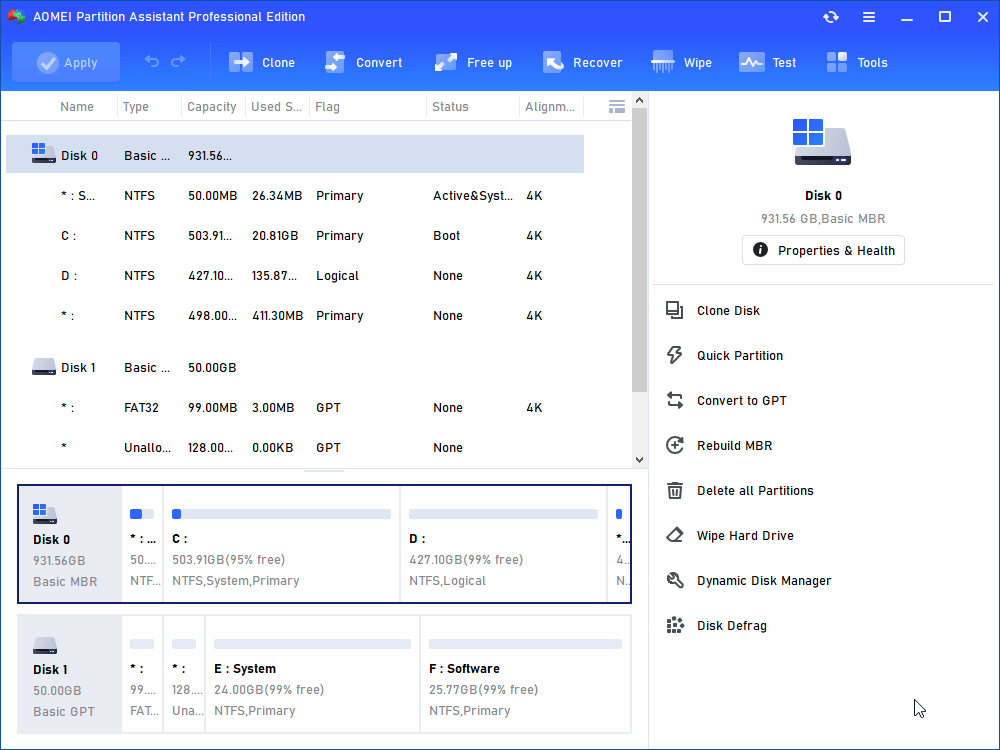
Step 2. In the pop-out window, you will be asked "Are you sure to convert the selected disk from MBR to GPT disk", click "OK" > "Yes" to continue.
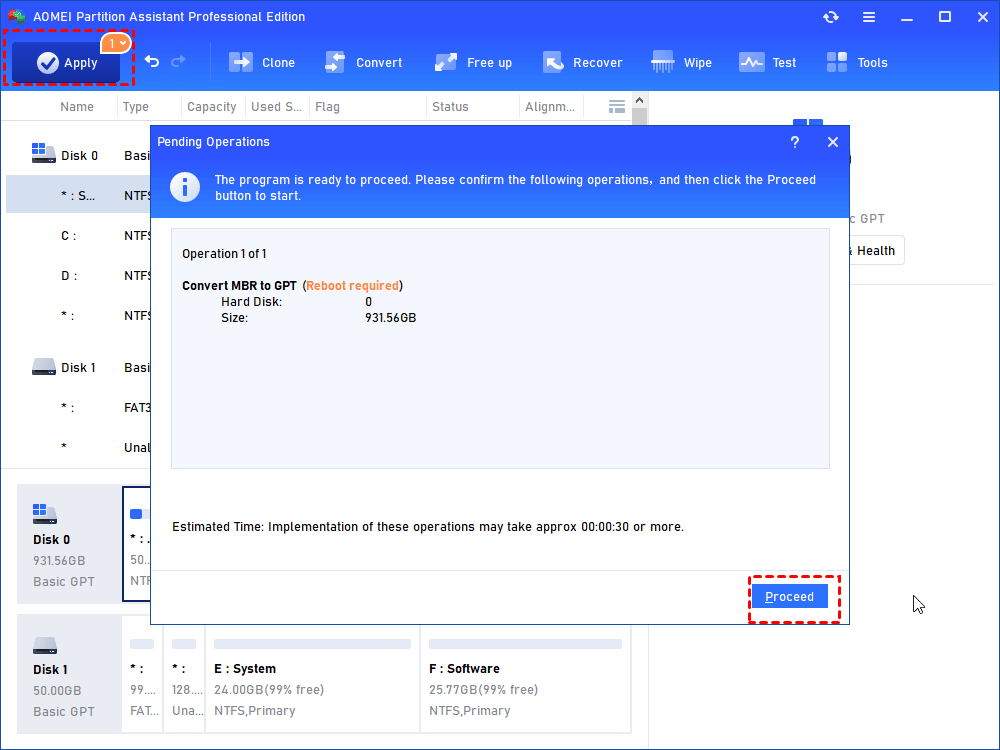
Step 3. After a while, you will back to the main console, click "Apply" and you will find your disk style has been changed into GPT.
As we mentioned above, the last task is to change Legacy BIOS to UEFI to make partition style and boot mode compatible. Let's have a closer look.
Step 1. When restarting the computer, enter BIOS Setup menu.
Step 2. In the BIOS window, click Boot tab, then change Legacy to UEFI.
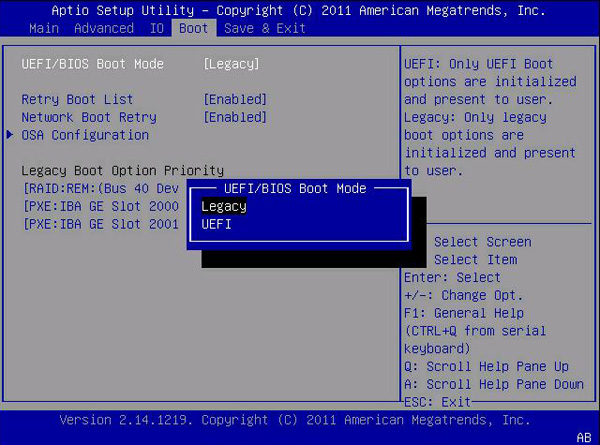
Step 3. Finally, save the setting and exit.
Now, you can go to "Settings" > "Update & Security" > "Check for Updates" and follow the prompts to upgrade to Windows 11. By the way, you can create a Windows 11 to go USB to enjoy Windows 11 on another device anytime and anywhere.
Conclusion
If you find no option to update to Windows 11, it usually means your PC isn’t ready or doesn’t meet the requirements. By checking compatibility with the PC Health Check tool, converting MBR to GPT with AOMEI Partition Assistant, and switching to UEFI, you can fix most issues. With the right steps, you’ll be able to upgrade smoothly and enjoy all the new features of Windows 11.
AOMEI Partition AssistantThe Best Windows Disk Partition Manager and PC Optimizer
