
 AOMEI Partition Assistant
How to Fix KB5030211 Fails to Install in Windows 10?
Why Windows 10 KB5030211 fails to install? This passage will explore the reason with sharing X methods to fix the issue.

By Irene / Updated on July 28, 2025


Why Windows 10 KB5030211 fails to install?
If you’re trying to install the KB5030211 update on Windows 10 and it keeps failing, you’re not alone. Many users face this problem, and it can be annoying when you don’t know what’s wrong. Updates are supposed to improve your system, but when they won’t install, it can slow down your workflow and leave your computer unprotected.
Before we move on to the solutions, let’s take a moment to understand what might be causing the problem. Below is a simple table showing some common reasons why the KB5030211 update might fail:
| Possible Cause | Explanation |
|---|---|
| Corrupted System Files | Damaged or missing system files can stop updates from installing properly. |
| Low Disk Space | If your computer doesn’t have enough free space, the update may not complete. |
| Antivirus Interference | Some antivirus or third-party programs can block the update process. |
| Network Problems | A weak or unstable internet connection can interrupt the download or install. |
| Compatibility Issues | Some hardware or settings may not be fully compatible with the update. |
Each of these problems can prevent the update from going through. The good news is that they can all be fixed. In the next section, we’ll introduce several easy methods to solve the issue and help your update smoothly.
How to fix KB5030211 not installing in Windows 10
Fix 1. Extend drive space
When Windows updates like KB5030211 are installed, they need space to download files, unpack them, and set everything up. If your hard drive is almost full, the update won’t have room to complete all these steps. As a result, the installation may fail or stop halfway. To fix this, you need to ensure sufficient disk space in the targeted drive.
One of the easiest ways to solve low disk space problems is by using disk management software. These tools help you make better use of the free space on your drive without needing to delete files or reformat your disk.
Among these tools, AOMEI Partition Assistant stands out. It works on Windows 11, 10, 8, and 7, and offers many features to help you expand your C drive when space runs low. One of its quickest options is called "1-Click Adjust Space", which lets you resize partitions by simply dragging sliders. This feature makes it simple to rearrange space between partitions and adjust your disk layout in just a few steps, and no technical skills needed.
 AOMEI Partition Assistant
The Best Windows Disk Partition Manager and PC Optimizer
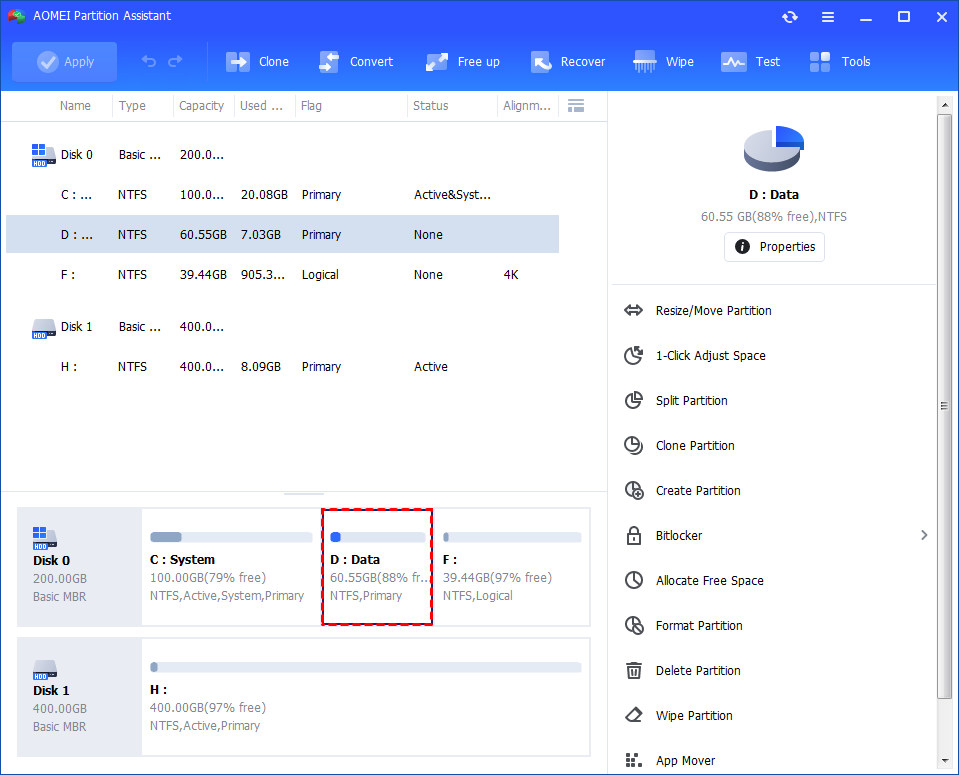
Step 1. Install and launch AOMEI Partition Assistant. Right-click a partition (here is D: partition) you want to adjust space and select "1-Click Adjust Space".
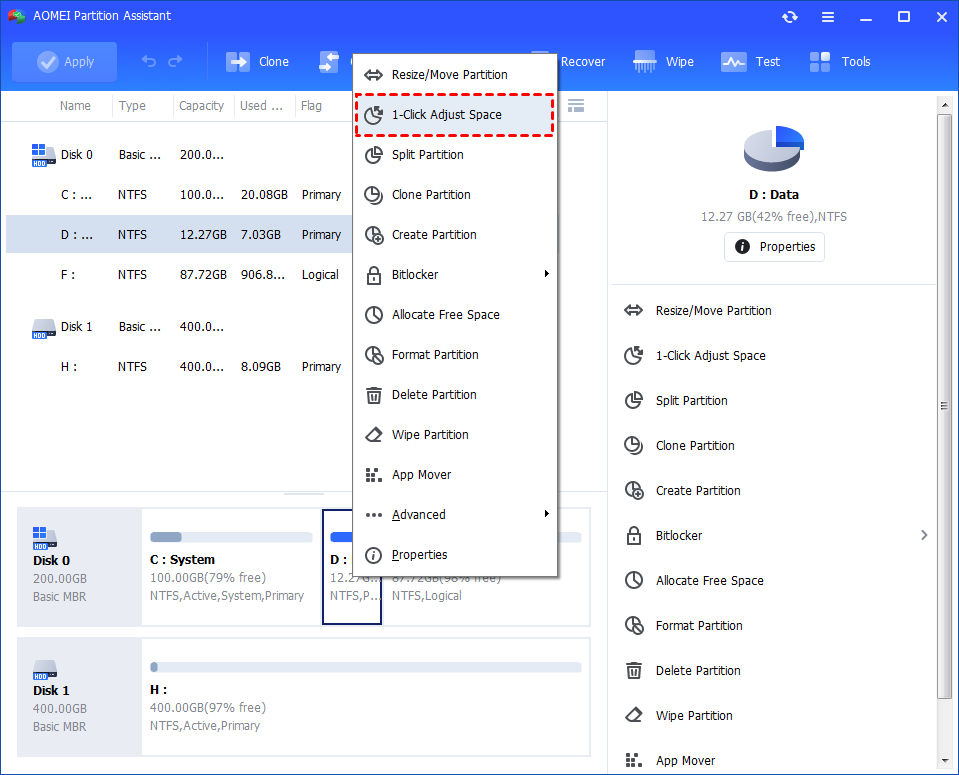
Note: It cannot select unallocated space to adjust because the feature is just for partition space adjustment. If there is unallocated space and you want to use it to expand a partition, you can use the feature "Merge Partition".
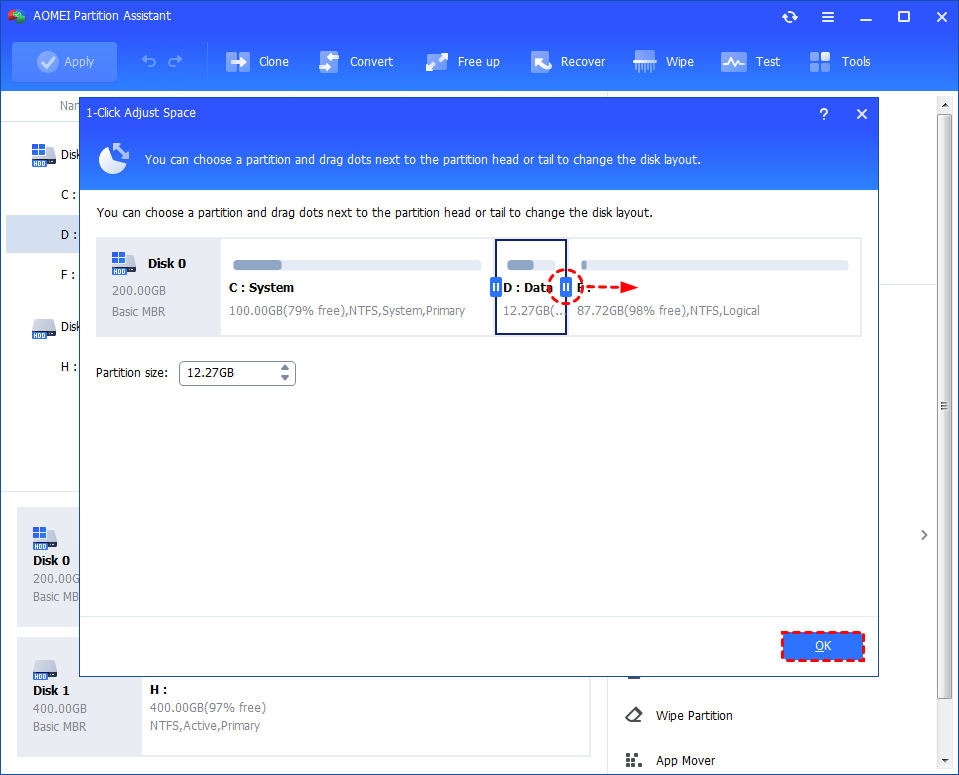
Step 2. If you want to use the space on F: to expand D: you can simply drag the dot near the partition F: head backward to shrink the partition F: and enlarge the partition D: simultaneously. Then click "OK".
You can simultaneously drag the dot near the partition C: tail forward to shrink the partition C: so the D: will also be enlarged with the space of C: at the same time. In this case, you can adjust all partition space (C:, D:, and F:) on the disk.
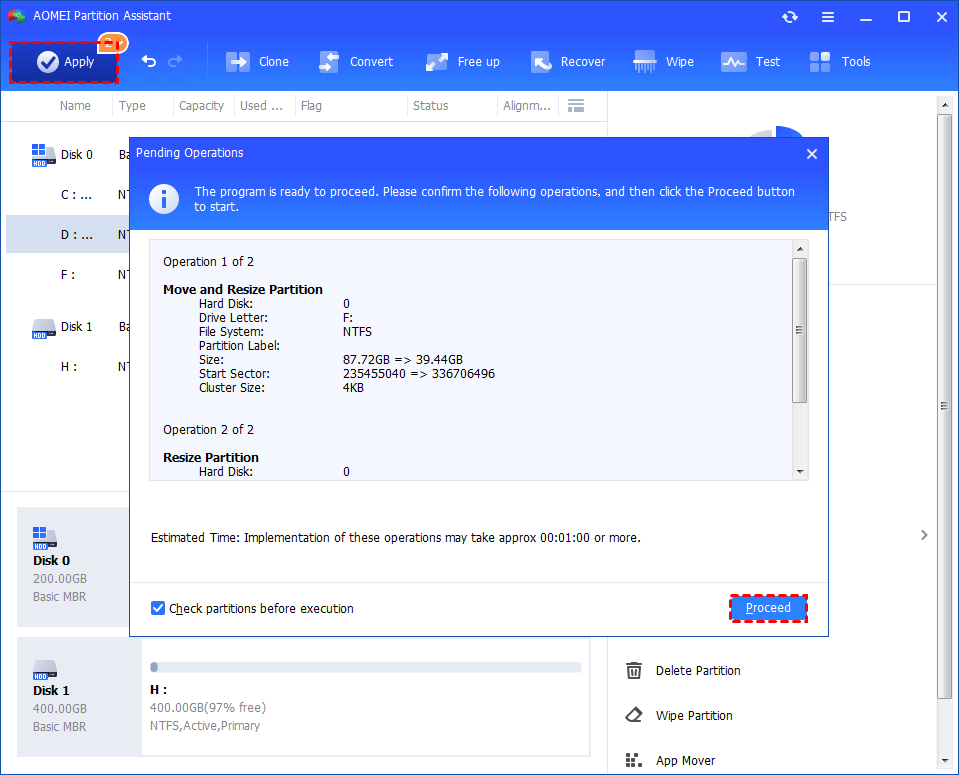
Step 3. You can preview the operation by viewing the "Pending Operations". To commit the "Pending Operations", please click "Apply" and "Proceed".
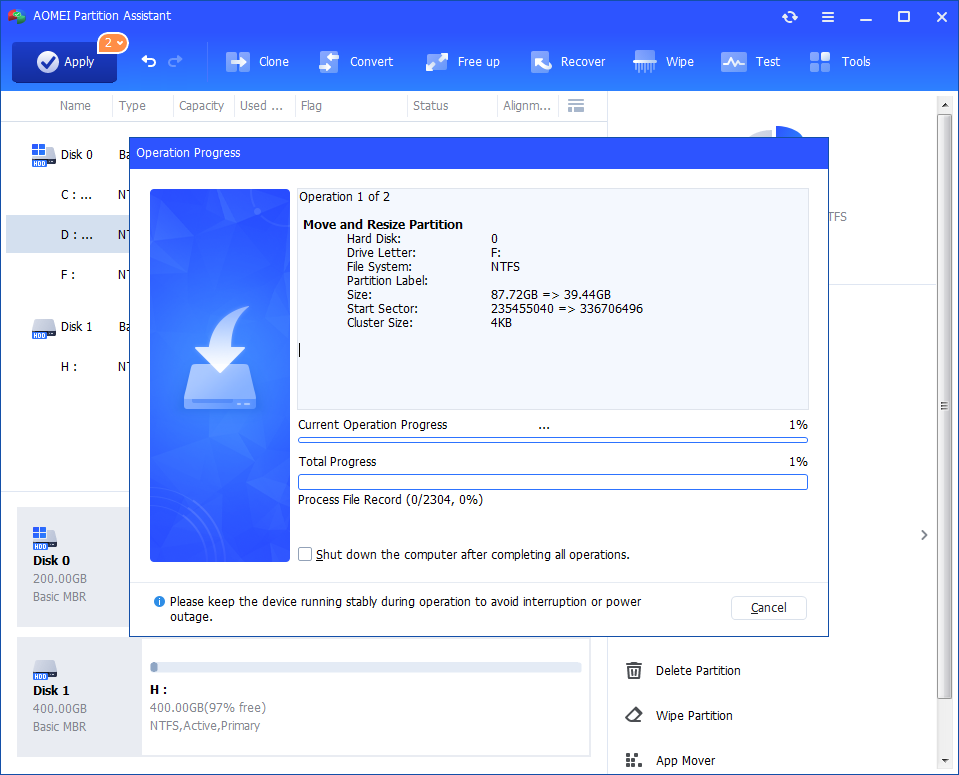
Step 4. The process will start and you can check the progress. It might take time to finish the operation.
Step 5. Wait for the operation to be finished. After it is completed successfully, you will find D: is enlarged and both D: and F: are adjusted.
Fix 2. Run Windows Troubleshooter
You can also try to use Windows Update Troubleshooter. This is a built-in tool that helps find and fix common problems that stop updates from working properly, which is often linked to update failures like KB5030211.
The troubleshooter scans your system and automatically fixes issues that may prevent updates from downloading or installing.
If your computer can still start normally, just go to Settings > Update & Security > Troubleshoot > Windows Update and run the tool from there. But if your PC won’t boot, you may need to boot into Safe Mode first to access the troubleshooter.
Step 1. Open Settings by pressing the Windows key + I. Navigate to System > Troubleshoot. Click on Additional Troubleshooters.
Step 2. Find Windows Update in the list and click the Run button next to it. Follow the on-screen instructions. The troubleshooter will scan for problems and attempt to fix them.

Once complete, restart your computer and try running Windows Update again to see if the KB5030211 Windows update 10 error is gone.
Fix 3. Enable Windows Update Services
Windows updates may fail if the required services are not running. To make sure everything is set correctly, follow these steps to enable the Windows Update service and BITS (Background Intelligent Transfer Service).
Step 1. Press Windows + R on your keyboard to open the Run dialog box. Type services.msc and press Enter to open the Services window.
Step 2. Scroll down and double-click on Windows Update from the list. In the Properties window, set Startup type to Automatic.
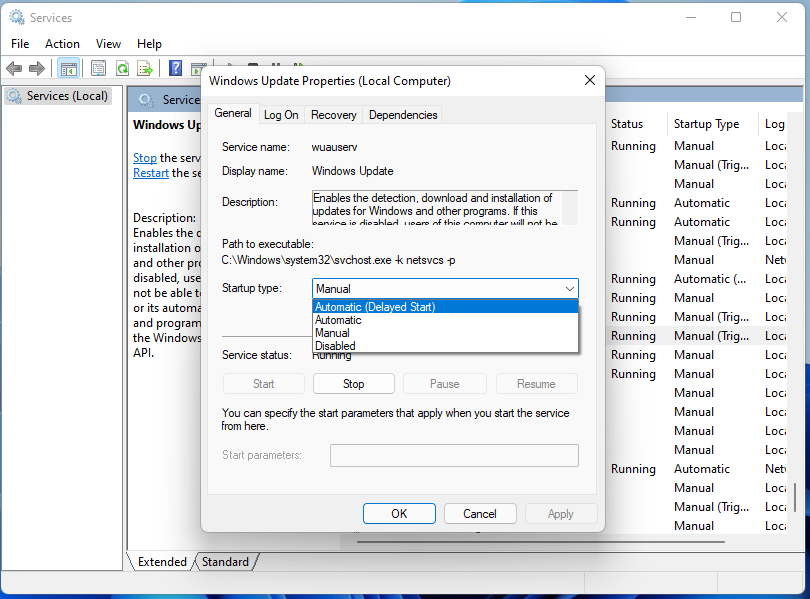
Step 3. If the Service status says Stopped, click the Start button to enable it. Click Apply, then OK to save the changes.
Step 4. Go back to the Services window, and repeat Steps 2 to 6 for Background Intelligent Transfer Service (BITS).
Once these services are running, try installing the KB5030211 update again.
Conclusion
If the KB5030211 update fails to install on your Windows 10 system, it’s likely due to common issues like low disk space, system file corruption, or disabled update services. Fortunately, these problems can be fixed using tools like AOMEI Partition Assistant, the Windows Update Troubleshooter, or by enabling key update services. By following the steps outlined above, you can resolve the issue and keep your system up to date and secure.
AOMEI Partition AssistantThe Best Windows Disk Partition Manager and PC Optimizer
