
 AOMEI Partition Assistant
[Fixed] We Couldn't Update The System Reserved Partition Windows 11
The error message “We couldn’t update system reserved partition” in Windows 11, especially in the 24H2 build generally means insufficient system drive space. This passage will share the solution for you.

By Irene / Updated on July 22, 2025


About We couldn’t update system reserved partition error message
When trying to update Windows 11 builds like 22H2 to 24H2 or upgrade your system like moving from Windows 7 or 8.1 to Windows 10, or from Windows 10 to 11, you might see an error that says: "We couldn’t update the system reserved partition." This message means the upgrade has failed, and you can’t continue until the issue is fixed.
So, what causes this error? Based on research and user reports, there are two main reasons:
🔷 There’s a file system error in the system reserved partition.
Depending on the cause, there are two ways to fix it:
- If the partition is full, try to extend its size.
- If the file system is damaged, you need to repair it.
However, Windows doesn't make it easy to perform these changes manually. That’s why it’s better to use a reliable third-party tool like AOMEI Partition Assistant, which can help resize or fix the partition more easily.
How to fix We couldn't update the system reserved partition issue?
To remove the "We couldn't update the system reserved partition" error message, you can try the following 2 soluitions.
Fix 1. Ensure enough space for Windows updates
One of the main reasons for this error is that the system reserved partition doesn’t have enough free space to support the upgrade. So, the first step is to identify and check which partition is the system reserved one. Once confirmed, you need to extend its size to make room for the new system files.
A simple way to do this is by using AOMEI Partition Assistant, which offers a helpful tool called "1-Click Adjust Space." This feature allows you to easily extend, resize, or move partitions just by dragging the edges of the partition bar. It’s fast, easy, and doesn’t require technical skills.
Besides adjusting space, the program also helps manage partitions and even recover lost data. If you're running out of disk space or need to fix partition-related errors, AOMEI Partition Assistant is a practical and user-friendly solution you shouldn't overlook.
 AOMEI Partition Assistant
The Best Windows Disk Partition Manager and PC Optimizer
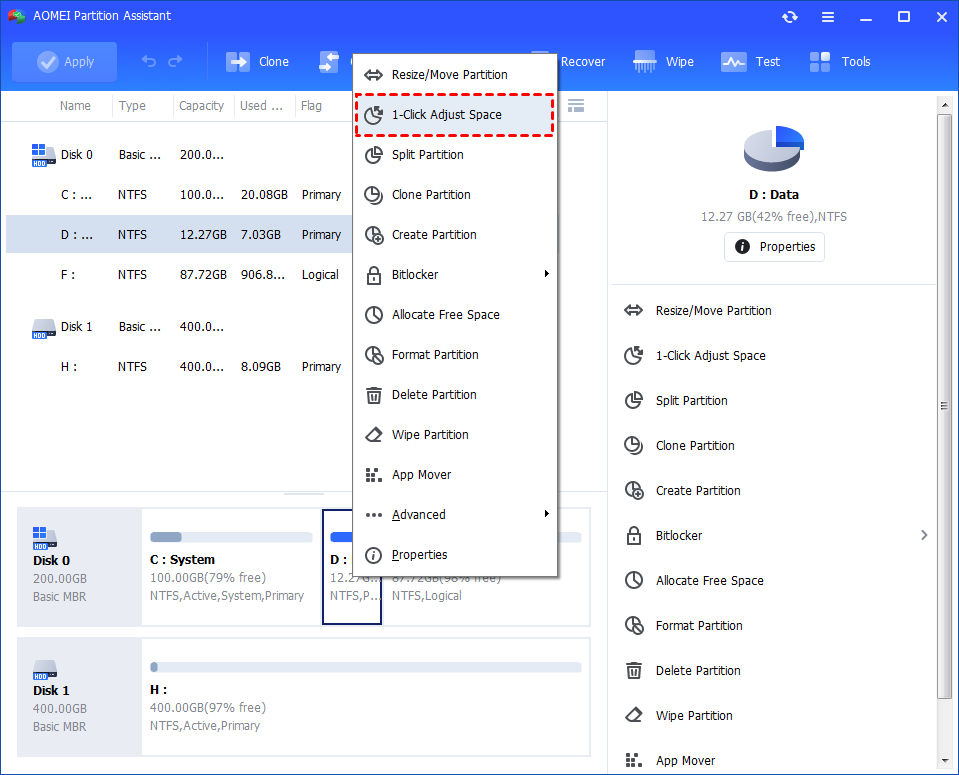
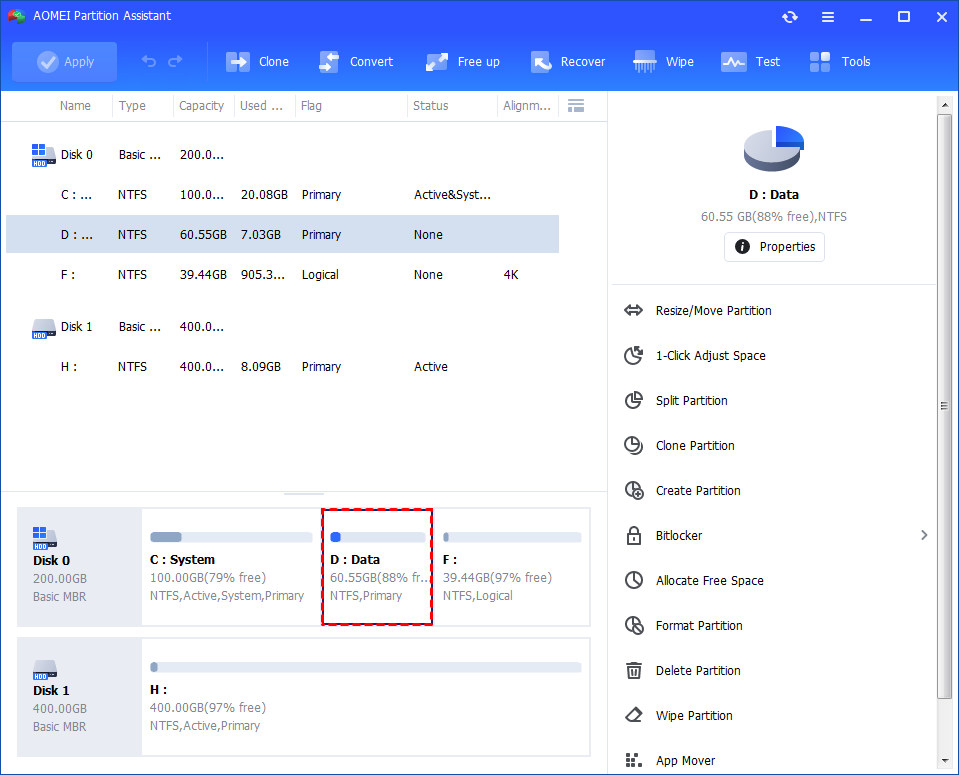
Step 1. Install and launch AOMEI Partition Assistant. Right-click a partition (here is D: partition) you want to adjust space and select "1-Click Adjust Space".
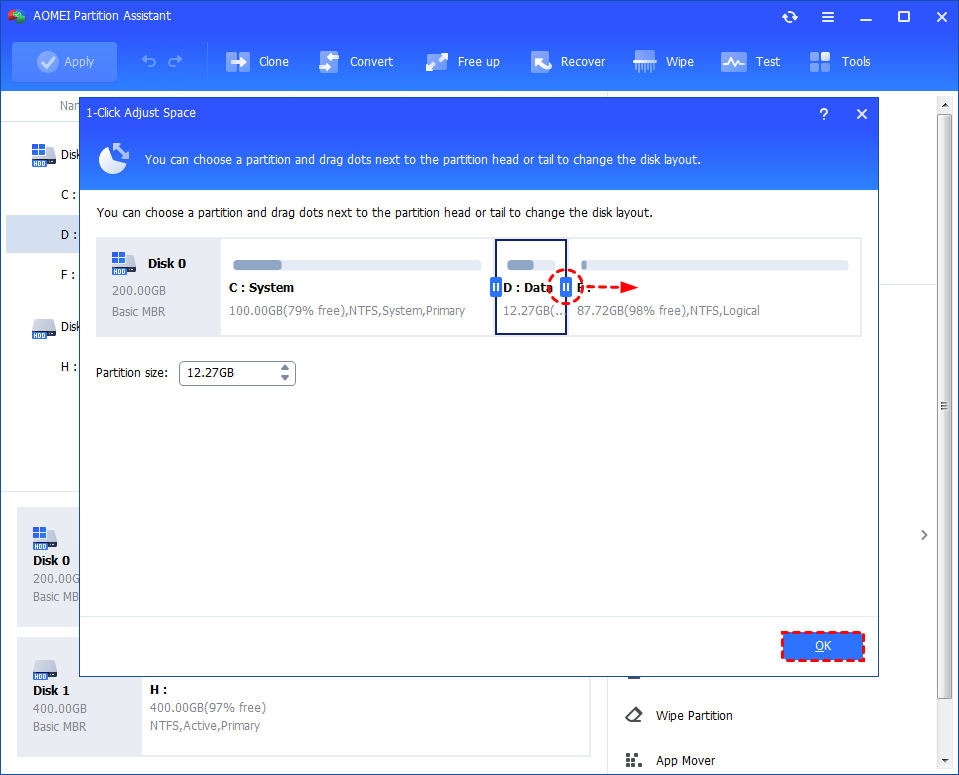
Step 2. If you want to use the space on F: to expand D:, you can simply drag the dot near the partition F: head backward to shrink the partition F: and enlarge the partition D: at the same time. Then click "OK".
Tips: You can simultaneously drag the dot near the partition C: tail forward to shrink the partition C: so the D: will also be enlarged with the space of C: at the same time. In this case, you can adjust all partition space (C:, D:, and F:) on the disk.
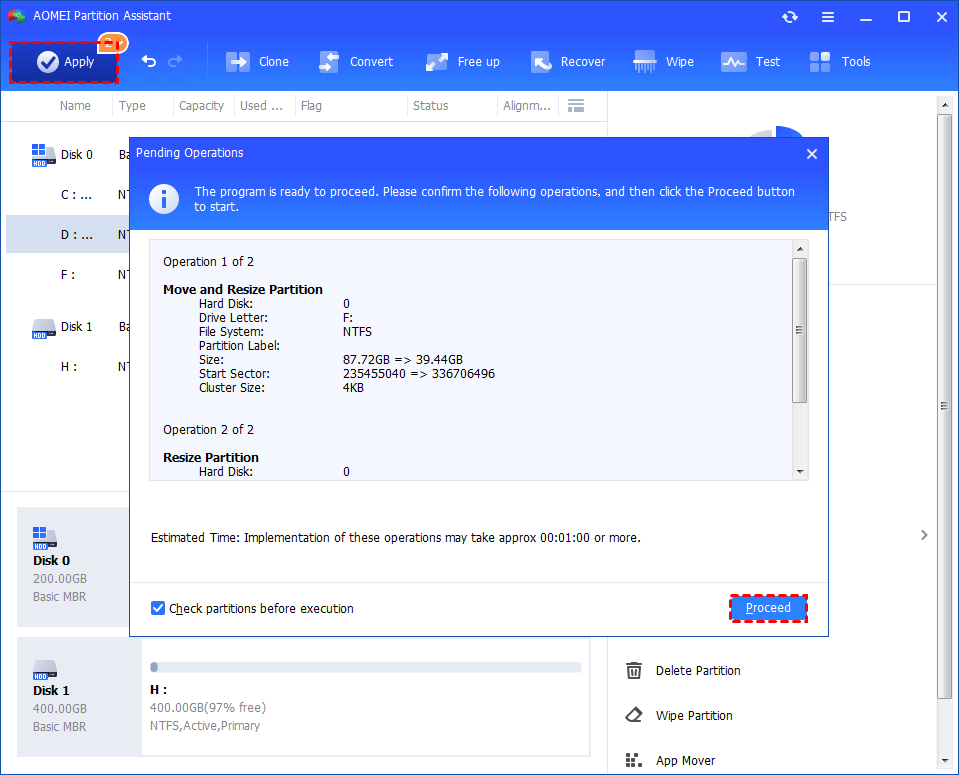
Step 3. You can preview the operation by viewing the "Pending Operations". To commit the "Pending Operations", please click "Apply" and "Proceed".
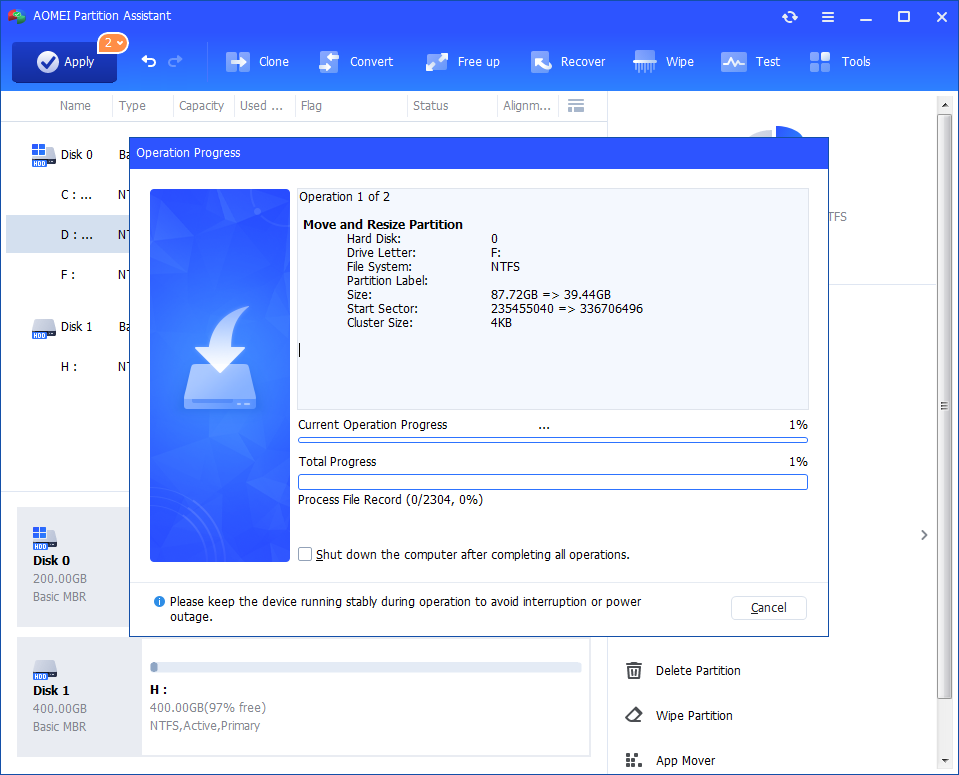
Step 4. The process will start and you can check the progress. It might take time to finish the operation.
Step 5. Wait for the operation to be finished. After it is completed successfully, you will find D: is enlarged and both D: and F: are adjusted.
Fix 2. Repair corrupted system reserved partition
The error "We couldn’t update the system reserved partition" might also be caused by internal problems or file system errors in the partition itself. In this case, repairing the partition can help fix the issue and allow the update to continue.
If you’re not comfortable using Windows' built-in disk management tools, don’t worry, AOMEI Partition Assistant makes the process much easier. It includes a simple tool to check and fix partition errors in just a few clicks.
With features like Check Partition, Surface Test, and Disk Health Check, this software helps you find and repair problems, including bad sectors, on your hard drive. It works with all major Windows versions, including Windows 11, 10, 8, and 7. Unlike the basic Windows tools, AOMEI provides a clear and user-friendly interface, making it easier for anyone to use. Just download it and follow the step-by-step guide to repair the system reserved partition quickly and safely.
AOMEI Partition AssistantThe Best Windows Disk Partition Manager and PC Optimizer
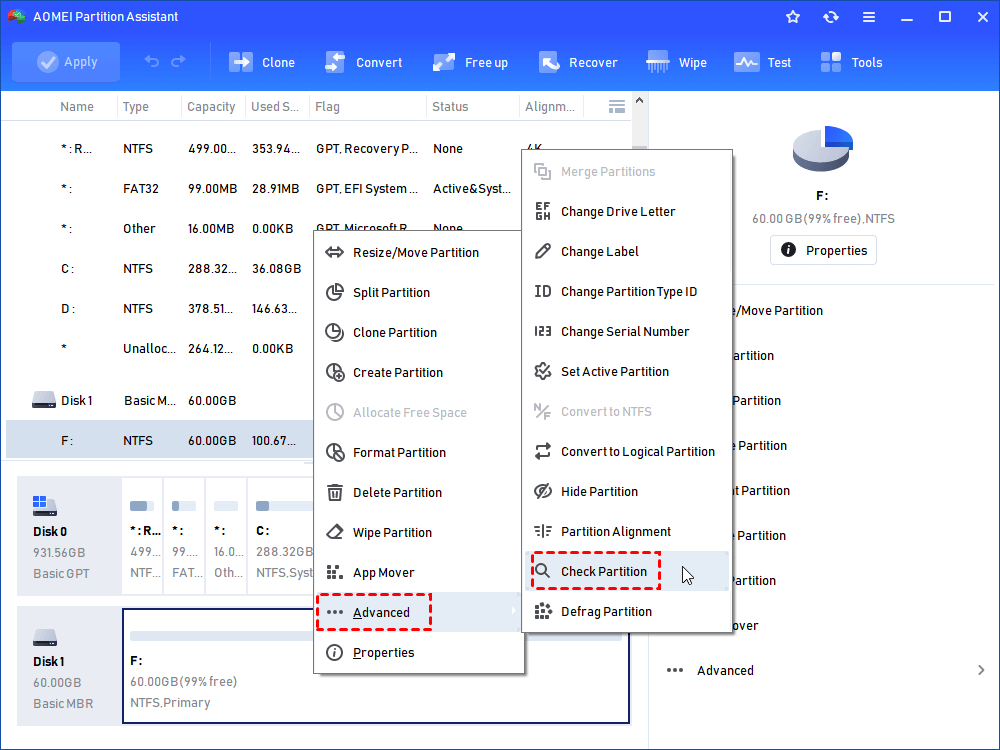
Step 1. Install and run AOMEI Partition Assistant. Right-click the partition you want to check and select “Advanced” > “Check Partition”.
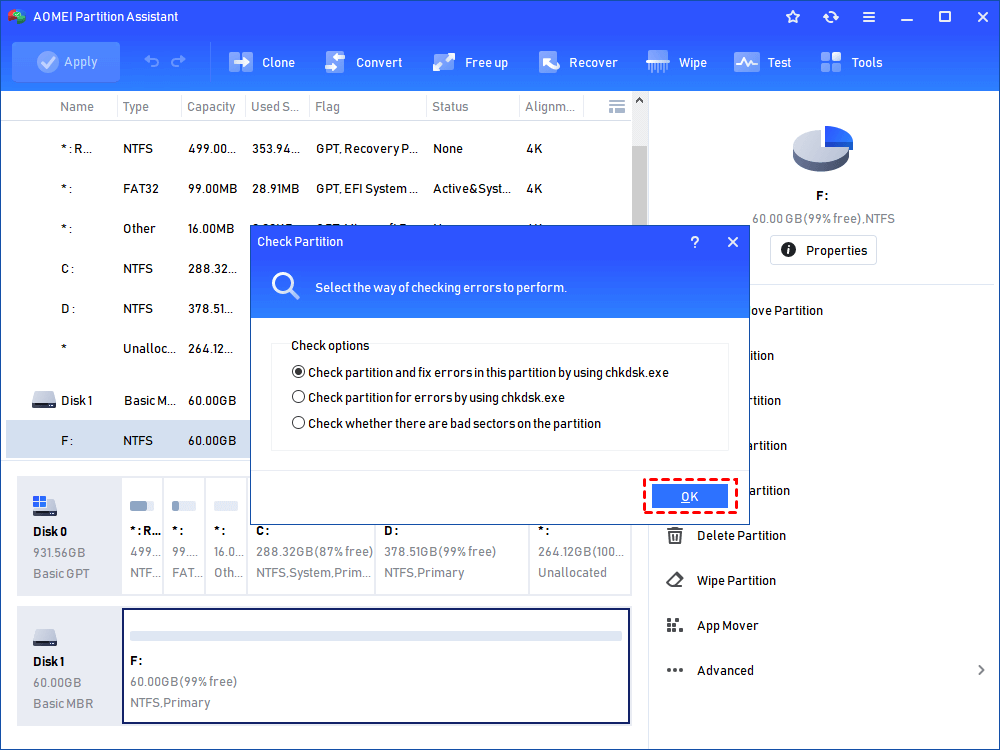
Step 2. In the pop-up window, select the way of checking errors to perform. There are three choices, and here we choose the first one “Check partition and fix errors in this …”. Then, click “OK” to continue.
Step 3. After that, you will see the window below. After the progress is completed, click “OK”.
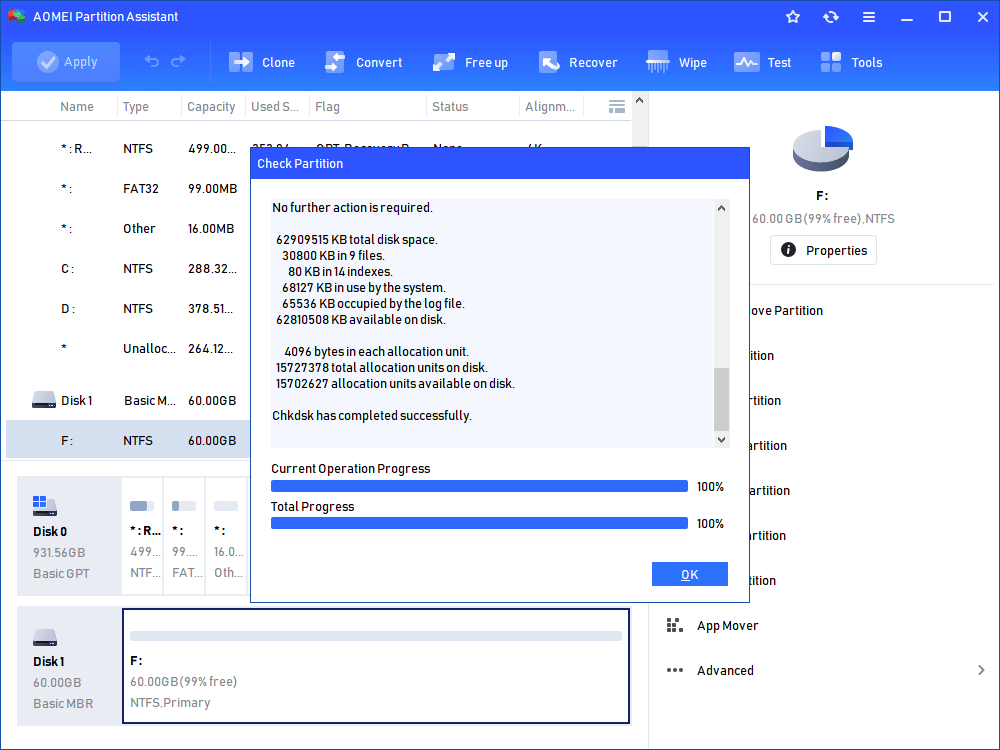
Thus, you have already successfully removed bad sectors from the hard disk permanently. If you need to execute more tasks on your hard drive, AOMEI Partition Assistant can meet all of your needs!
Conclusion
The error message "We couldn’t update the system reserved partition" can prevent your Windows upgrade from completing successfully. It usually happens due to a lack of free space or file system errors in the system reserved partition. To fix it, you can either extend the partition or repair it.
Using a tool like AOMEI Partition Assistant makes both tasks much easier. With features like 1-Click Adjust Space and Check Partition, you can quickly resolve the issue without complex steps. Whether you need to upgrade your system or fix disk problems, this user-friendly tool provides an effective and reliable solution.
AOMEI Partition AssistantThe Best Windows Disk Partition Manager and PC Optimizer
