
 AOMEI Partition Assistant
How to Remove Logical from MBR Partition [2 Ways]
There are various reasons for the need to remove logical from MBR partition. In this post, you will be given a full explanation to the removal and learn how to delete MBR partition in two safe and easy ways.

By Hedy / Updated on June 13, 2025


Can I remove logical from MBR partition?
In the MBR (Master Boot Record) partitioning scheme, a logical partition exists within an extended partition and cannot exist on its own. MBR supports only up to four primary partitions, but to overcome this limitation, one primary partition can be designated as an extended partition, which can then contain multiple logical partitions.
Because of this structure, a logical partition is inherently tied to the extended partition. You cannot simply "remove" a logical partition as if it were independent—it's nested inside the extended container. Deleting a logical partition does not remove the extended partition itself, and vice versa. Moreover, the logical partitions rely on the extended partition's metadata structure to function correctly.
Removing a logical partition means modifying the partition table inside the extended partition but doesn't affect the overall MBR table unless all logical and the extended partition are removed together. This dependency makes logical partitions less flexible compared to primary partitions when it comes to deletion or reconfiguration.
So, while it's technically possible to remove a logical partition, it must be understood within the context of the extended partition's structure. The logical partition is not a standalone entity in the MBR system.
How to remove logical from MBR partition
If you're dealing with an MBR (Master Boot Record) disk and want to remove a logical partition, here are two effective methods to do it safely:
Method 1. Using Disk Management
Windows includes a built-in tool called Disk Management that allows you to manage disk partitions. Here’s how to use it:
Step 1. Right-click the Start button and select Disk Management.
Step 2. Locate the logical partition under an extended partition.
Step 3. Right-click the logical partition and choose Delete Volume.
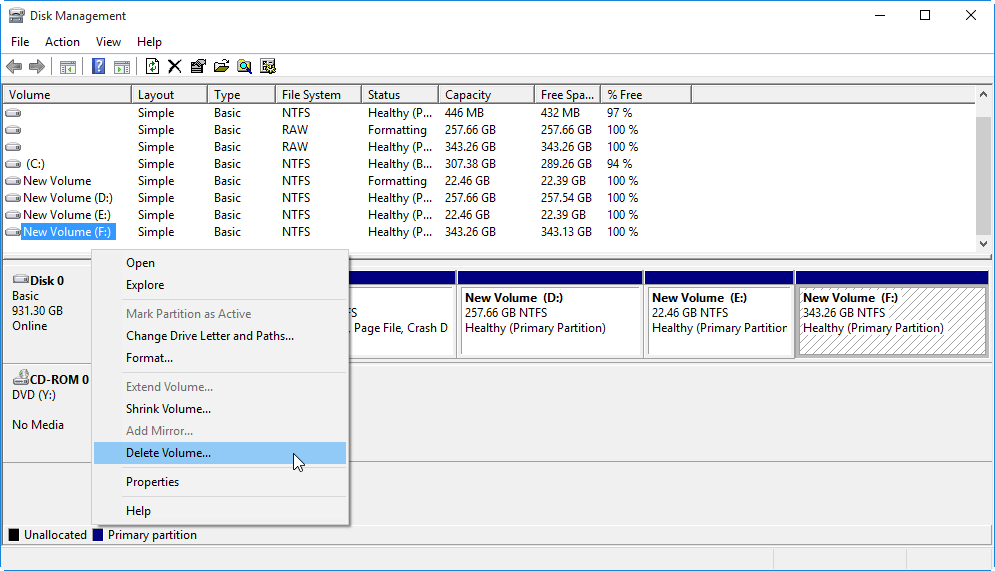
Step 4. Once deleted, you'll see free space appear. Right-click the free space and choose Delete Partition again to remove the extended partition if needed.
Deleting a partition will erase all data on it. Back up your important files first.
Method 2. Using AOMEI Partition Assistant
A more flexible and user-friendly option is to use AOMEI Partition Assistant, especially if Disk Management fails to delete partition or gives errors. AOMEI Partition Assistant provides a graphical interface that allows you to manage all types of partitions, including logical drives within extended partitions on MBR disks. With just a few clicks, you can delete a logical partition and even remove the extended partition afterward if needed.
✍ Key features for this task:
● Delete logical partition: Select and remove any logical drive without affecting surrounding partitions.
● Clean extended partition: After removing all logical drives, you can delete the extended partition to reclaim unallocated space.
● Data safety: Offers options like secure deletion and partition wiping if sensitive data is involved.
● Supports bootable media: If the partition is system-related or cannot be removed in Windows, you can create a bootable USB to operate in a WinPE environment.
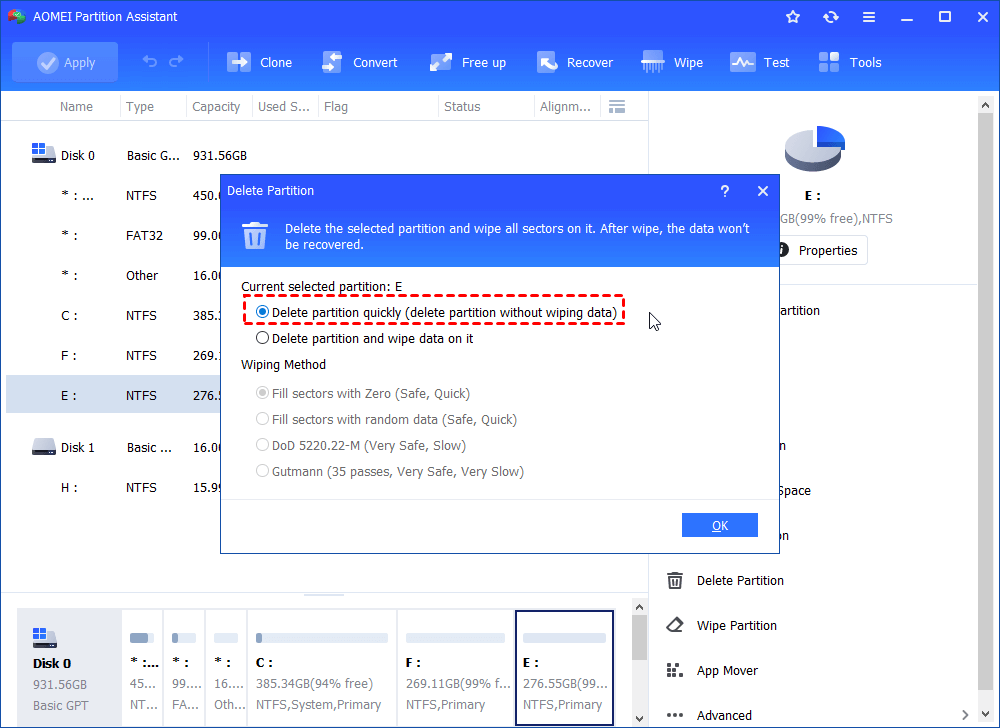
Step 1. Install and run the software. In the main interface, you can see all disks and partitions on your computer. Right-click the partition that you want to remove, and choose "Delete Partition".

Step 2. In the small pop-up window, we recommend you choose "Delete partition quickly (delete partition without wiping data)" and click "OK".
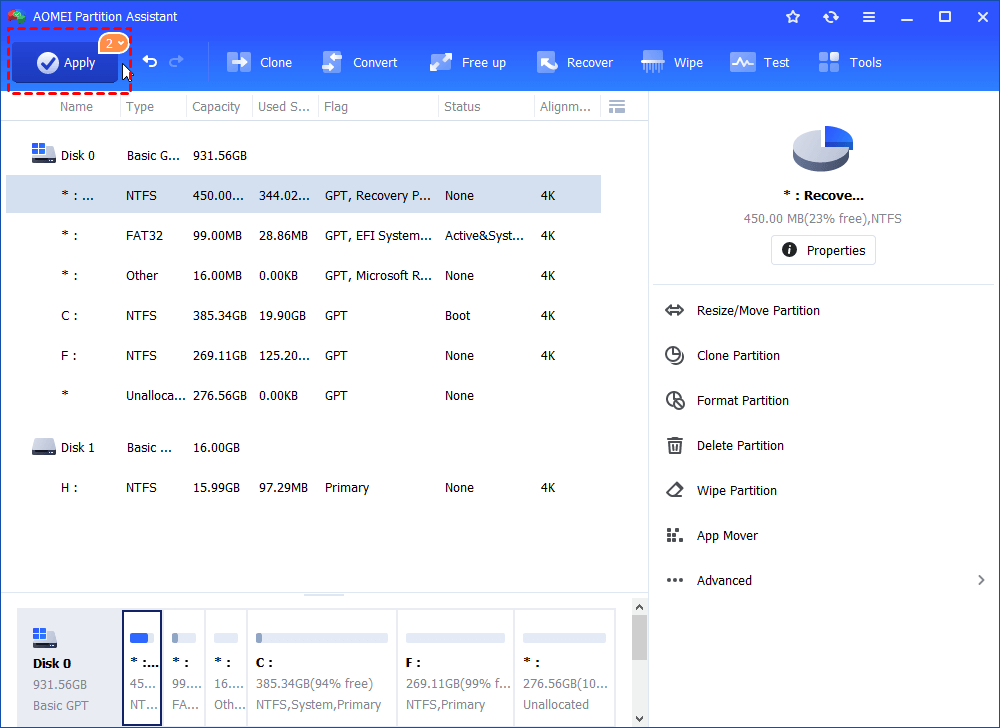
Step 3. Go back to the main interface; click "Apply" to commit the operation.
Conclusion
In MBR disks, logical partitions exist within an extended partition and cannot function independently. You can remove logical from MBR partition using Windows Disk Management or a more powerful tool like AOMEI Partition Assistant. AOMEI offers a safer, more user-friendly interface, supports advanced deletion options, and even allows operations via bootable media. Besides, it can also help you resize/move partitions, delete large files, transfer OS to SSD, and more.
