
 PartitionAssistant Recovery


Solved: System Volume Information High Disk Usage
What causes system volume information high disk usage? This article explains the most common reasons for it and learn how to fix it in 7 effective ways.

Par Hedy / Mis à jour le July 11, 2025


What causes system volume information high disk usage?
“System Volume Information” high disk usage on Windows typically means that background system services are actively writing or accessing restore data, indexing files, or managing disk-related features. Here's a detailed breakdown of the common causes:
1. System restore points: Windows regularly creates restore points to allow recovery in case of issues. These are stored in the System Volume Information folder and can consume significant disk space, especially on systems with frequent updates or changes.
2. Volume shadow copy service (VSS): This service creates shadow copies (snapshots) of files for backups and restore. It often causes spikes in disk usage, especially if it's not cleaned up regularly.
3. Windows search indexing: The Windows Indexing service may store index data in this folder. If the index is large or corrupted, it can lead to high disk usage.
4. File history and backup: If Windows Backup or File History is enabled, it may use this folder to store metadata and snapshots .This can result in steady or random disk usage spikes.
6. Antivirus scans: Some antivirus programs scan or monitor the System Volume Information folder aggressively, causing increased I/O.
7. Corrupted restore points or system files: Occasionally, corrupted system restore data or improper shutdowns can cause Windows to loop through restore point validation, spiking disk usage.
How to fix system volume information high disk usage on Windows
The System Volume Information folder is a hidden system folder used by Windows to store critical system data like System Restore points, Volume Shadow Copies, Indexing Service databases, and more. If it grows too large, it can consume significant disk space and affect performance.
Here’s how to fix or reduce high disk usage caused by this folder:
Fix 1. Check what’s taking space
First, identify what exactly is using space inside the System Volume Information folder.
Step 1. Press Windows + X > select Windows PowerShell (Admin) or Command Prompt (Admin).
Step 2. Type the following command:
vssadmin list shadowstorage
This will show you how much space is reserved and used for Volume Shadow Copies/System Restore.
Fix 2. Limit or delete system restore points
System Restore often consumes several GBs.
Step 1. Press Windows + S > search "Create a restore point" > open it.
Step 2. Under the System Protection tab, select the system drive > click Configure.
Step 3. Move the slider to reduce the Disk Space Usage.
Step 4. To delete all restore points, click Delete.
Fix 3. Disable System Restore
If you don’t use System Restore and want to free up all space:
Step 1. Go back to "System Protection" settings.
Step 2. Select your drive and click Configure.
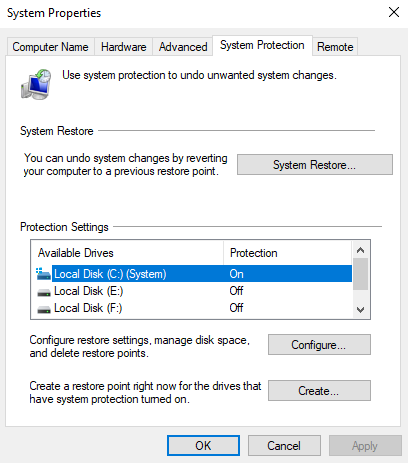
Step 3. Choose Disable system protection. Click Apply > OK.
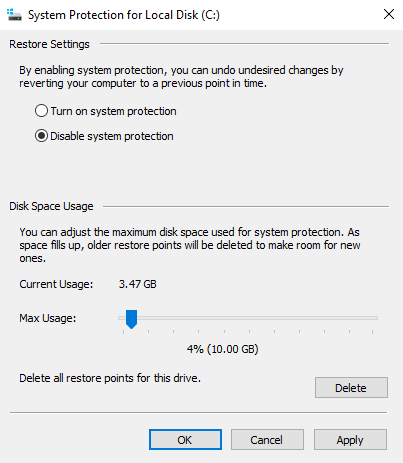
Note: Disabling this will remove all restore points. Do this only if you have backups or don’t need recovery options.
Fix 4. Disable Volume Shadow Copy Service
This service manages backup snapshots.
Step 1. Press Windows + R, type services.msc, and press Enter.
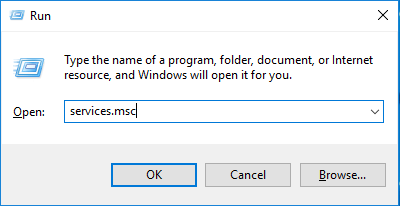
Step 2. Find Volume Shadow Copy.
Step 3. Right-click it > Properties > set Startup type to Manual or Disabled.
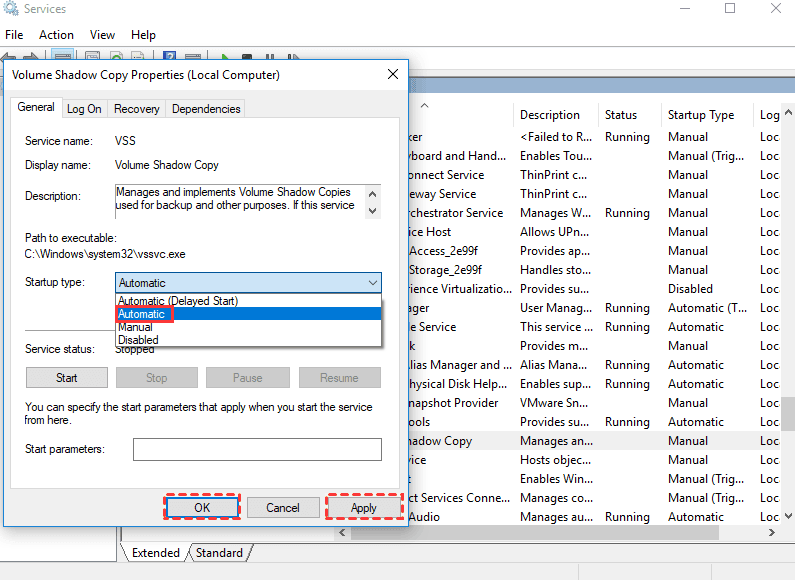
Step 4. Click Stop if the service is running.
Warning: This may interfere with some backup programs or restore tools.
Fix 5. Run Disk Cleanup
To remove restore points and other temporary data:
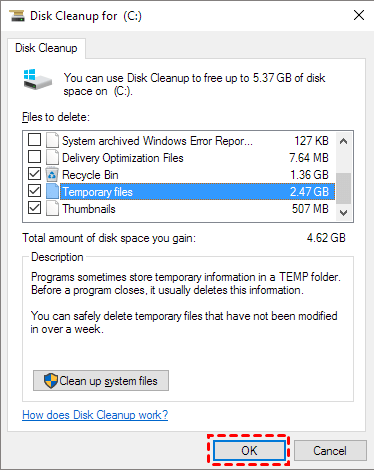
Step 1. Click Start, type “disk” in the search box, and select Disk Cleanup.
Step 2. In the Disk Cleanup, select the drive you want to clean up. Here is the C: drive. Click OK.
Step 3. After that, it will calculate how much space you will be able to free on the C: drive.
Step 4. And then, choose to delete files you do not need.
Fix 6. Use Storage Sense
Windows can automatically clean up unused system files.
Step 1. Press Windows + I to open Windows Settings.
Step 2. Go to System > Storage.
Step 3. Make sure Storage Sense is turned on.
.png)
Step 4. Click to open the settings and configure how often it runs and what types of files to delete.
Step 5. Click Run Storage Sense now to perform a disk cleanup.
Fix 7. Use third-party tools
If you're experiencing high disk usage on Windows caused by the "System Volume Information" folder, you're not alone. This system folder stores critical data like system restore points, indexing information, and shadow copies. Over time, it can consume a large amount of disk space, leading to performance issues. To manage and fix this, PartitionAssistant Cleanup offers an effective solution.
 PartitionAssistant Cleanup
Free Up Disk Space To Keep Your PC Running Smoothly and Efficiently
Option 1. PC cleaner
Step 1. Install and launch PartitionAssistant Cleanup. Click the "Clean Junk Files" tab.

Step 2. Click the "Scan Now" button to start the process of scanning junk files.

Step 3. After the scan process is finished. All system junk files (including recycle bin files, temporary files, log files, invalid shortcuts, and so on) and registry junk files (including DLL registry, system registry, and program registry) will be displayed.

You can also click the button behind to view the junk files details.

Step 4. And, you can click the button behind to locate the file.

By default, the program will select some junk files to clean up, for example, temporary files, log files, and so on. You can also manually check to select more or uncheck to deselect fewer listed junk files. Or, click "Select All" to select all junk files to clean up if you need to clean up all.
Step 5. After selecting junk files that are not needed anymore, you can click the "Clean Now"button to start the cleanup.

The process of the cleanup might take time, and the selected files will be cleaned up. After the process is finished, you will get a cleanup completed window displaying how many files you have cleaned and not yet cleaned.

Option 2. Delete Large Files
Step 1. Install and launch PartitionAssistant Cleanup. Click the "Delete Large Files" tab.
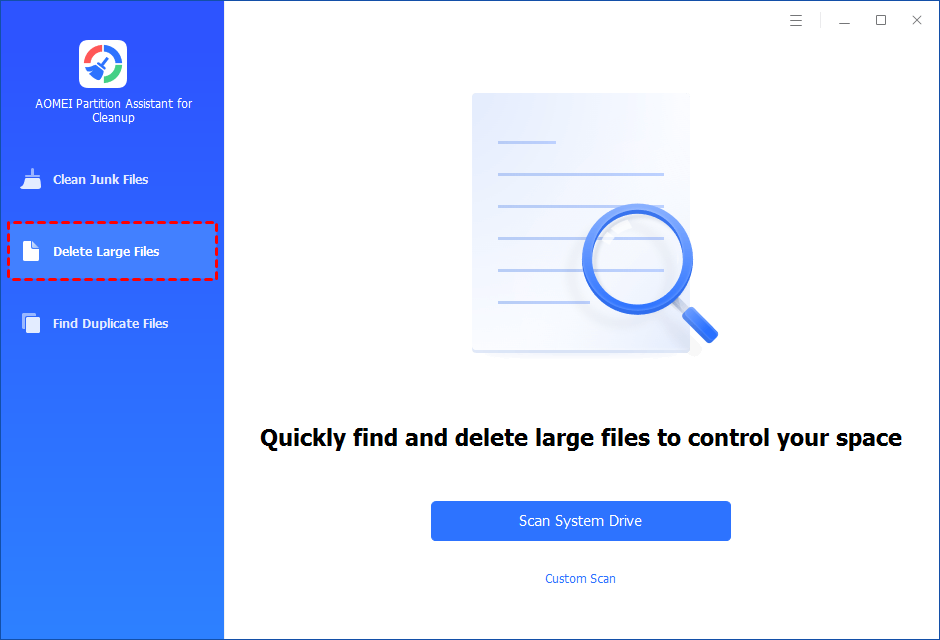
Step 2. You can either click "Scan System Drive" to start the scan of your system C: drive. Or, click "Custom Scan" to manually select paths to be scanned. (Here, we take the "Custom Scan" as an example.)
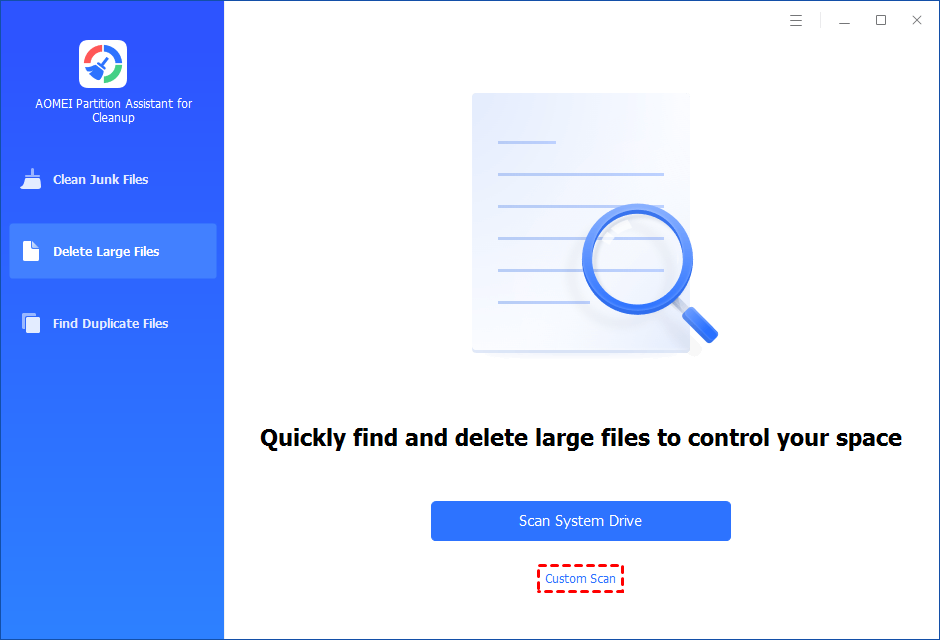
Step 3. After clicking "Custom Scan", all local and external drives on your PC and the common Desktop, Documents, and Downloads paths will be displayed. You can manually select paths to be scanned. Once necessary paths are added, you can click the "Scan Now" button to start the scan process.

The scan process might take time. After the scan is complete, all large files found will be listed.
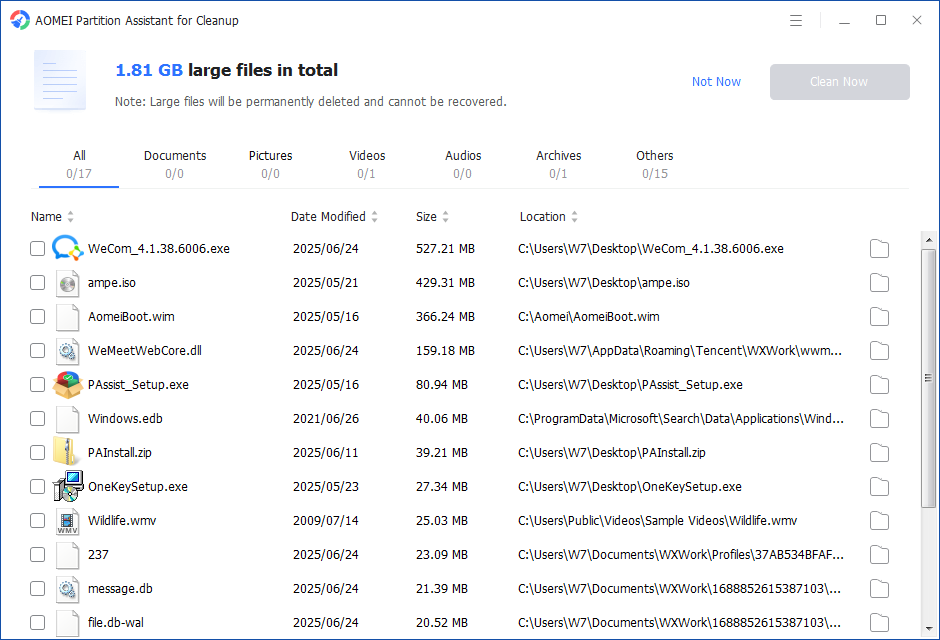
You can also check the large files and click the button behind to locate them.
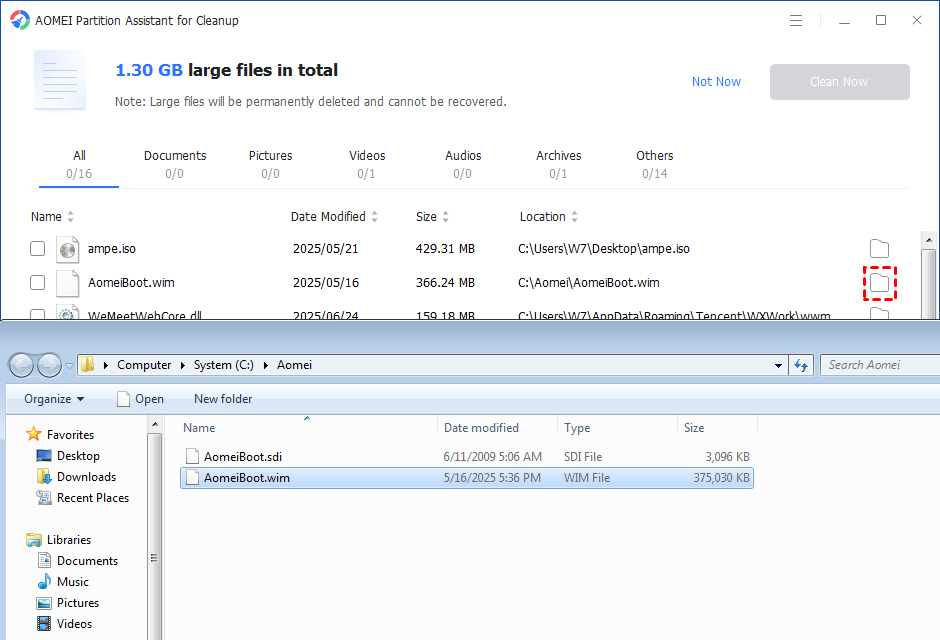
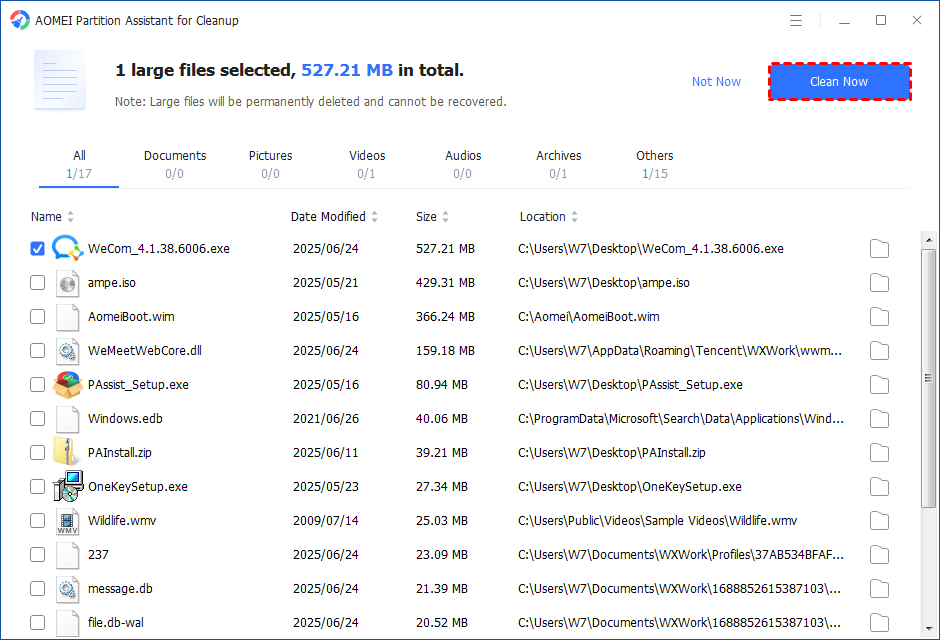
Step 4. Tick the files you want to delete, and then click the "Clean Now" button to start the deletion.
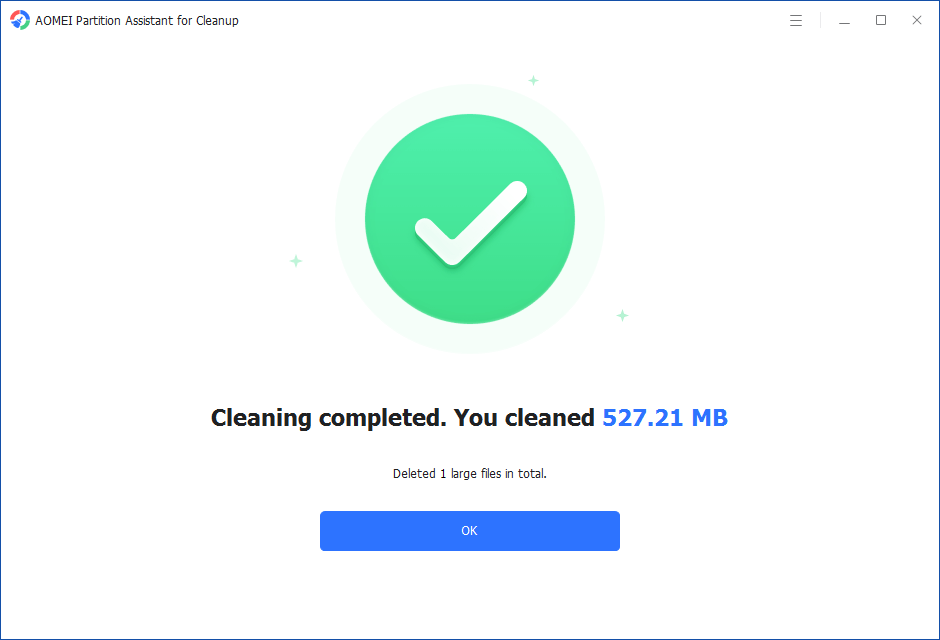
Step 5. The deletion might take time. After the process is finished, the selected files will be deleted, and you will get a cleaning completed window displaying how much data you deleted in total.
Conclusion
High disk usage from the “System Volume Information” folder on Windows is typically caused by system restore points, shadow copies, indexing, backups, or antivirus scans. While these features are vital for system recovery and performance, they can also consume excessive space over time. To fix this issue, you can limit or disable System Restore, stop related services, or run built-in cleanup tools. For a more advanced and user-friendly solution, try PartitionAssistant Cleanup, which helps identify space hogs, delete junk files, and optimize disk usage with ease.
