AOMEI Partition Assistant
Fixed: The Volume Can’t Be Extended Clusters Will Exceed
When trying to extend partition on Windows Server OS, it is possible for us to see error message "The volume can’t be extended clusters will exceed". Refer to this post to resolve this problem.

By Hedy / Updated on August 22, 2025


Windows Server is widely used to manage large volumes of data, and partition usage can increase rapidly over time. Often, users need to extend a server volume to accommodate growing storage needs. However, attempting to expand a partition using Windows Disk Management can trigger the following error:
“The volume cannot be extended because the number of clusters will exceed the maximum number of clusters supported by the file system.”
What does this error mean, and how can it be resolved to successfully extend a Windows Server partition? This guide explains the underlying causes of the issue and provides the most effective solutions to fix it.
Why the volume can't be extended clusters will exceed?
The error “The volume cannot be extended because the number of clusters will exceed the maximum” usually appears in Windows when you try to extend a partition using Disk Management or DiskPart.
This happens because:
✍ File system limitation: Every file system (like FAT32, NTFS, exFAT) has a maximum number of clusters it can manage. If extending the partition would require more clusters than allowed, Windows blocks the operation.
✍ Cluster size issue: When the partition was created, it was assigned a certain cluster size (e.g., 4 KB). If the partition grows too large for that cluster size, the system cannot handle more clusters.
✍ Partition size limit: For example:
➤ FAT32 has a maximum volume size of 2 TB with 512-byte sectors.
➤ NTFS supports much larger volumes, but if the cluster size is too small, the number of clusters may still exceed the limit.
How to fix the volume can’t be extended clusters will exceed
When Windows Disk Management cannot extend a server partition due to the cluster size limit, there are typically two ways to resolve the problem:
◈ Adjust the cluster size before extending the partition
◈ Use a partition manager to extend the volume directly
Let’s explore each method in detail. Make sure to review both options carefully before attempting to fix the error: “The volume cannot be extended because the number of clusters will exceed the maximum number of clusters supported by the file system”.
Part 1. Change cluster size before extend partition
When you try to extend a partition in Windows, sometimes the operation fails because the current cluster size is too small or too large for the new volume. In such cases, adjusting the cluster size can solve the problem. AOMEI Partition Assistant is a professional disk management tool that makes this process easy and safe.
With its Format Partition feature, you can easily adjust the cluster size of a drive. The software allows you to choose different cluster sizes (from 512 bytes to 64KB) during the formatting process. By doing this, you can optimize disk performance and prepare the partition for further expansion.
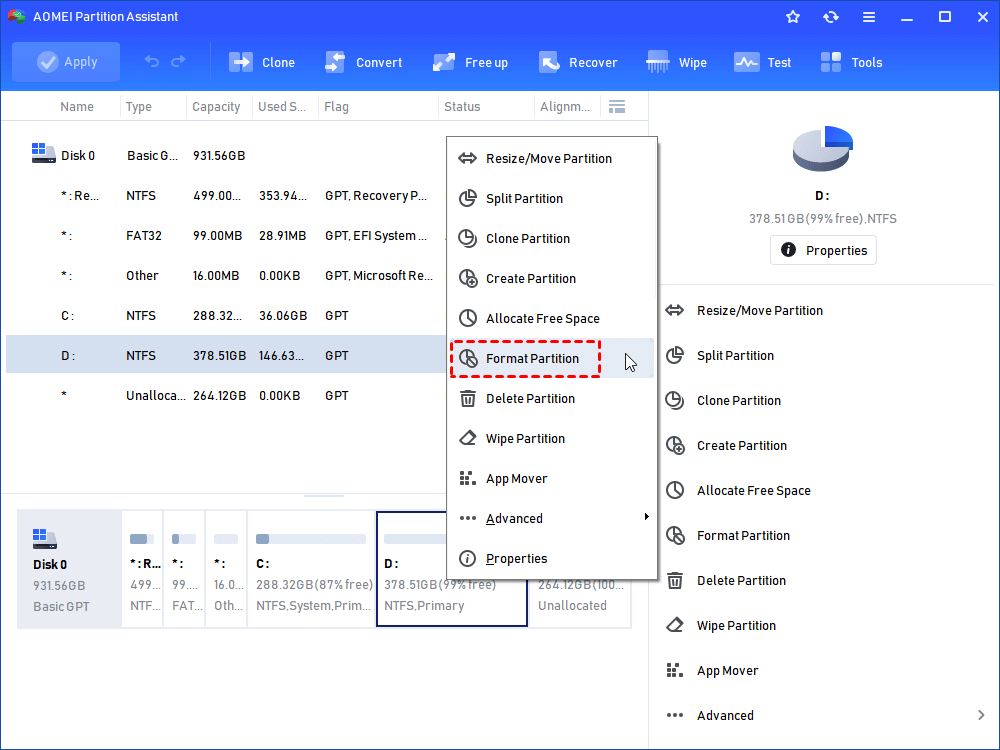
Step 1. Download AOMEI Partition Assistant, install and launch it. To change cluster size of a partition, right-click it, select Format Partition.
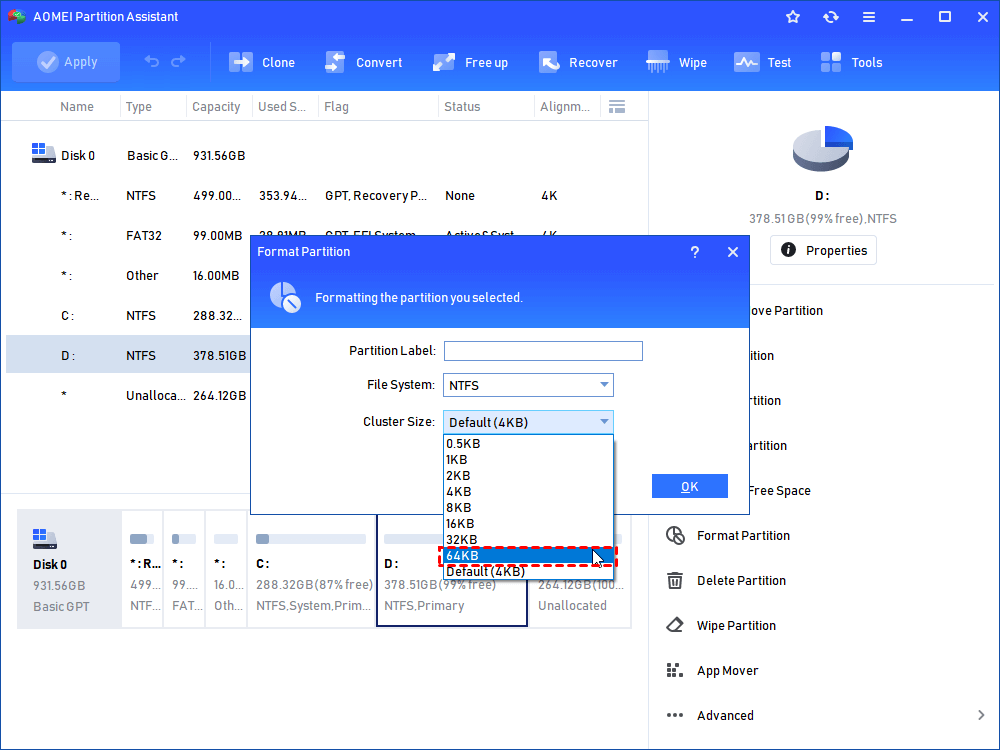
Step 2. In the format partition window, you can edit partition label, select file system, and change cluster size in the drop-down menu. Click OK. Here we change cluster size from 4k to 64k.
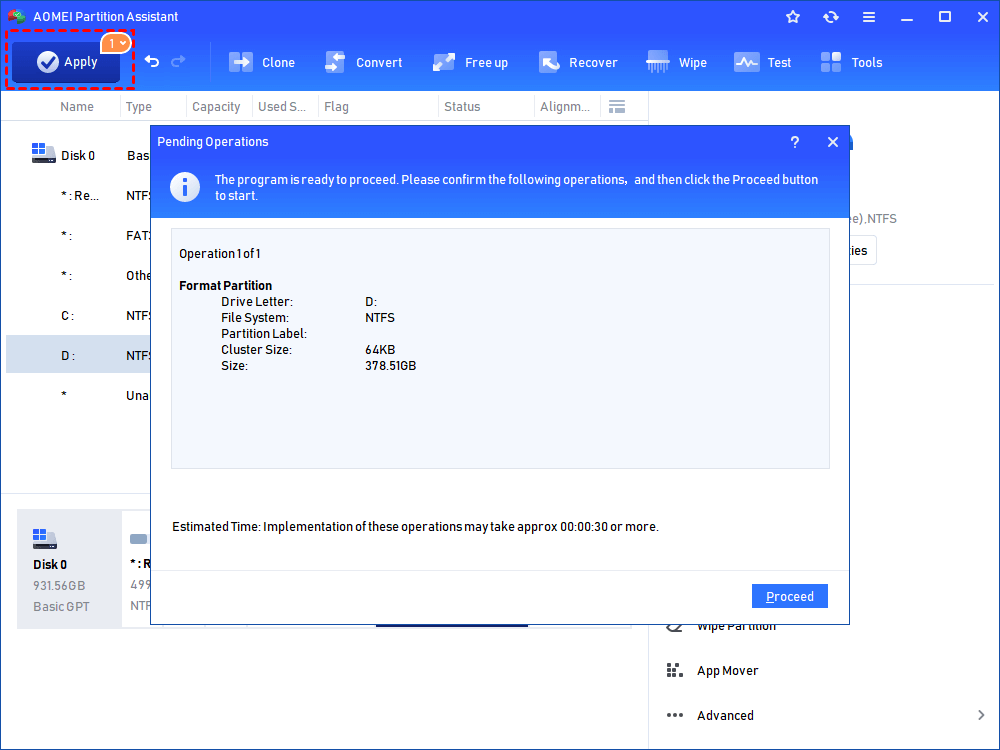
Step 3. Here you will go back to the main interface, click Apply to execute the whole operation.
Part 2. Extend partition directly with AOMEI Partition Assistant
In reality, there’s a simpler way to extend a Windows Server partition without adjusting the cluster size first. By using AOMEI Partition Assistant, you can expand the partition directly. That’s right—this tool allows you to increase the size of a server partition quickly and safely, streamlining the process without additional steps.
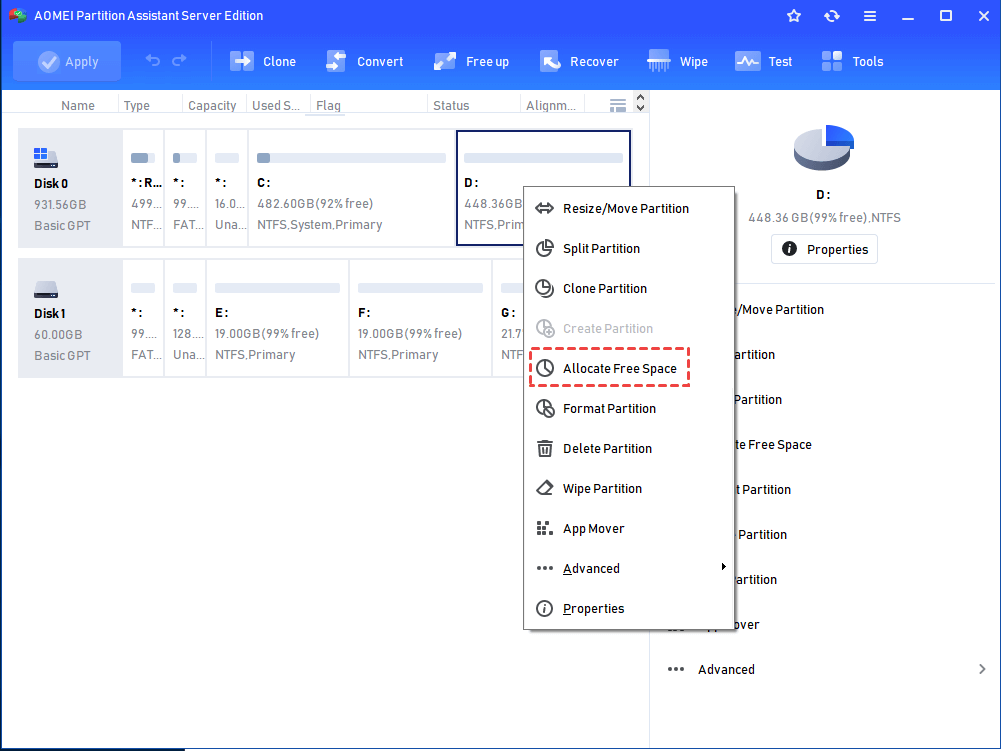
Step 1. Run the AOMEI product, select and right-click on the partition where you want to extract some free space and then, select “Allocate Free Space”.
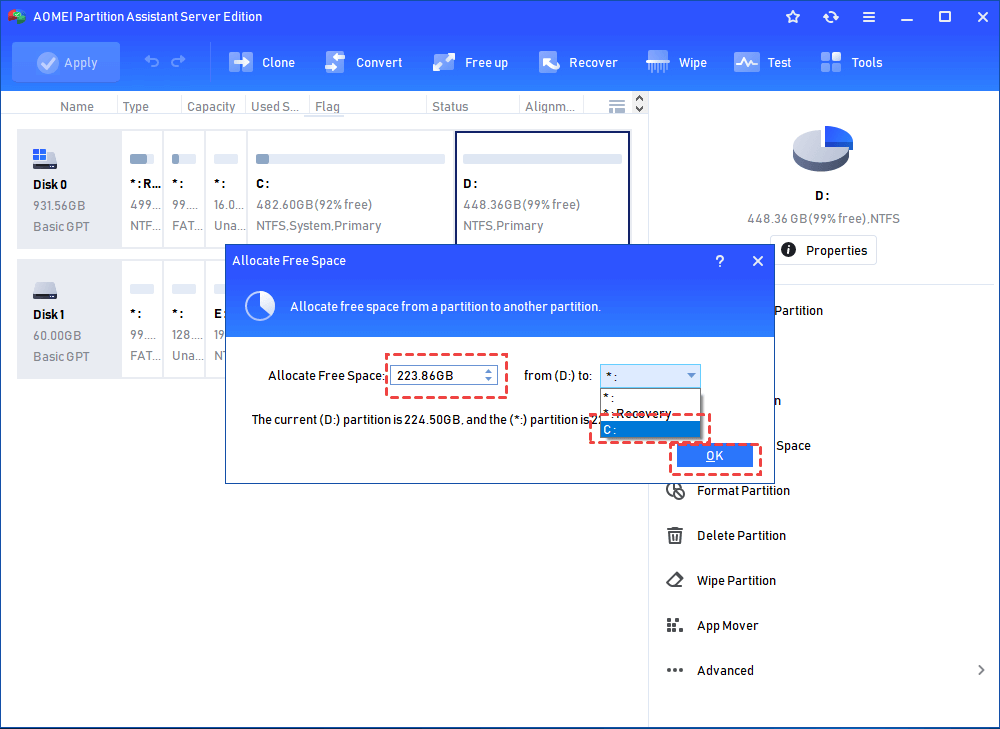
Step 2. In the “Allocate Free Space” window, preset how much storage you want to allocate and choose the destination drive to allocate the storage space to. After that, hit “OK”.
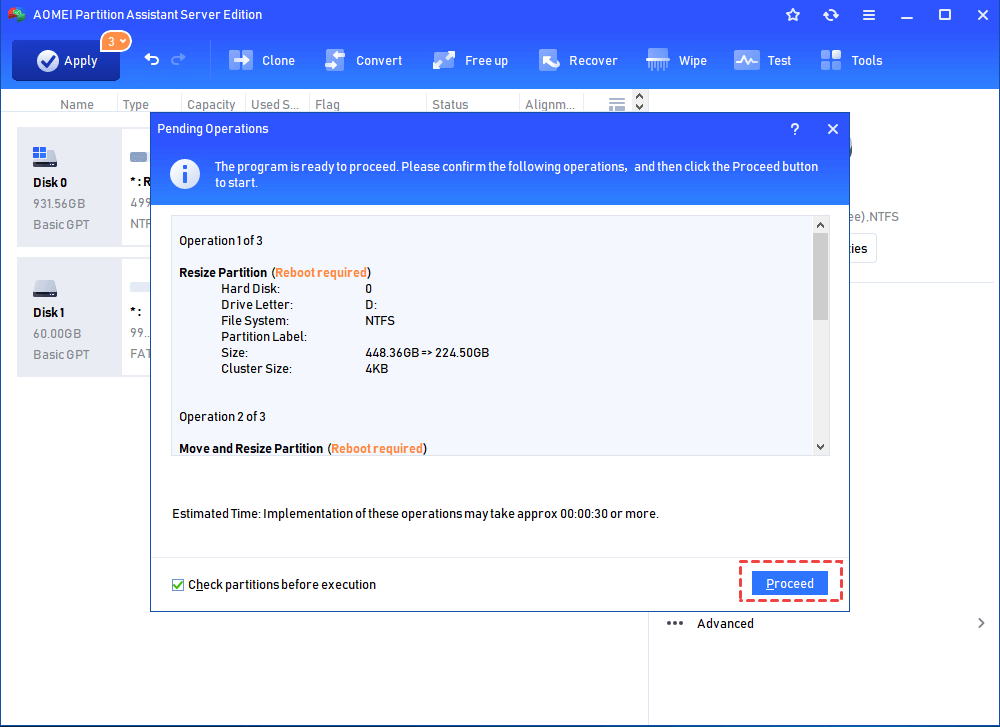
Step 3. Follow “Apply > Proceed” to commit the pending operation.
Conclusion
The methods outlined above provide effective solutions for the error: “The volume cannot be extended because the number of clusters will exceed the maximum clusters supported by the file system” when expanding a Windows Server partition. You can try these approaches yourself, and they should help you resolve the issue successfully.