
 AOMEI Partition Assistant
Solved Error: There Is No More Space for Virtual Disk
Troubleshooting the VMware error 'there is no more space for virtual disk'? Learn how to resolve space issues caused by snapshots and thin-provisioned disks with our step-by-step guide, featuring advanced solutions.

By Lucas / Updated on November 18, 2025


Virtual machines (VMs) are a cornerstone of modern IT, development, and even home lab environments. They provide a sandboxed space to run different operating systems and test software without risk. However, this flexibility depends on a critical resource: disk space. A sudden, show-stopping message, "Error: there is no more space for virtual disk," can bring your work to an immediate halt, leaving you unable to power on or use your VM.
This error is particularly common in platforms like VMware, where you might see variations like "there is no more space for virtual disk VMware" or a message referencing a specific .vmdk file. This guide will explain precisely what this error means and provide you with clear, effective solutions to fix it using both native system tools and an advanced disk management utility.
Error: There is no more space for virtual disk
When you encounter this error, it's a critical alert about storage capacity. This section will clarify the two primary reasons why this message appears.
The most common cause of this error is not that the virtual disk inside the VM is full, but rather that the physical host drive—the drive where your VM's files (like the .vmdk or .vhd file) are stored—has run out of space. This is especially true for "thin-provisioned" or "dynamically expanding" disks. These virtual disks start small and grow in size as you add data inside the VM. If the VM needs to expand its file, but the physical drive has no free space left, the hypervisor (like VMware or Hyper-V) will throw this error and prevent the VM from starting to protect data integrity.
Another major culprit, particularly in a "there is no more space for virtual disk VMware" scenario, is the accumulation of snapshots. Each snapshot you take creates a new delta disk file. Over time, these snapshots can grow very large, consuming all available space on your host datastore or hard drive and triggering the error.
How to fix "There is no more space for virtual disk"
Fixing this error involves creating more space on the physical host drive where your virtual machine resides. The right method depends on your setup, but the goal is always the same: free up or add storage.
Method 1: Using System Tools and Virtualization Platform Features
Before turning to specialized software, you can often resolve the issue using tools built into Windows and your virtualization platform. The most direct solution is to clean up the physical drive that stores your VM files.
Option 1: Run Disk Cleanup
On your host Windows machine, type "Disk Cleanup" in the Start menu and run it as an administrator. Select the drive where your VM is stored (e.g., C:). Check the boxes for temporary files, the recycle bin, and other unnecessary data, and let the tool remove them.

Option 2: Manually Delete Large Files
Look for large, unnecessary files on the host drive. Check your Downloads folder, old backups, or large media files that can be moved or deleted.
Option 3: Uninstall Unused Programs:
Remove any software from the host machine that you no longer need to reclaim space.
If you use snapshots, managing them is critical. Deleting old snapshots merges the changes into the parent disk file and frees up significant space.
Step 1. Open VMware Workstation, Player, or vSphere Client.
Step 2. Right-click on the affected virtual machine and select "Snapshot" > "Snapshot Manager."
Step 3. In the Snapshot Manager, you will see a tree of your existing snapshots.
Step 4. Select a snapshot you no longer need and click the "Delete" button. VMware will then begin the consolidation process. This can take a long time and should not be interrupted.
Step 5. Deleting all snapshots ("Delete All") will merge all changes into the primary VMDK disk file, reclaiming the maximum amount of space.
Method 2: Advanced Space Management with AOMEI Partition Assistant Professional
While the manual methods work, they can be time-consuming or insufficient if you don't have much to delete. For a more powerful and flexible solution, a dedicated tool like AOMEI Partition Assistant Professional is invaluable. This comprehensive disk management software provides advanced features that can solve the "no more space" problem at its root by intelligently reallocating and managing your host computer's disk space.
AOMEI Partition Assistant Professional stands out with its user-friendly interface and robust capabilities that go far beyond the standard Windows tools. It allows you to manipulate your disk partitions without data loss, which is perfect for resolving the error there is no more space for virtual disk.
 100% Secure
If your VM is on your C: drive, which also holds your OS and applications, the "App Mover" feature is a game-changer. It allows you to move installed programs from one drive to another, freeing up gigabytes of space.
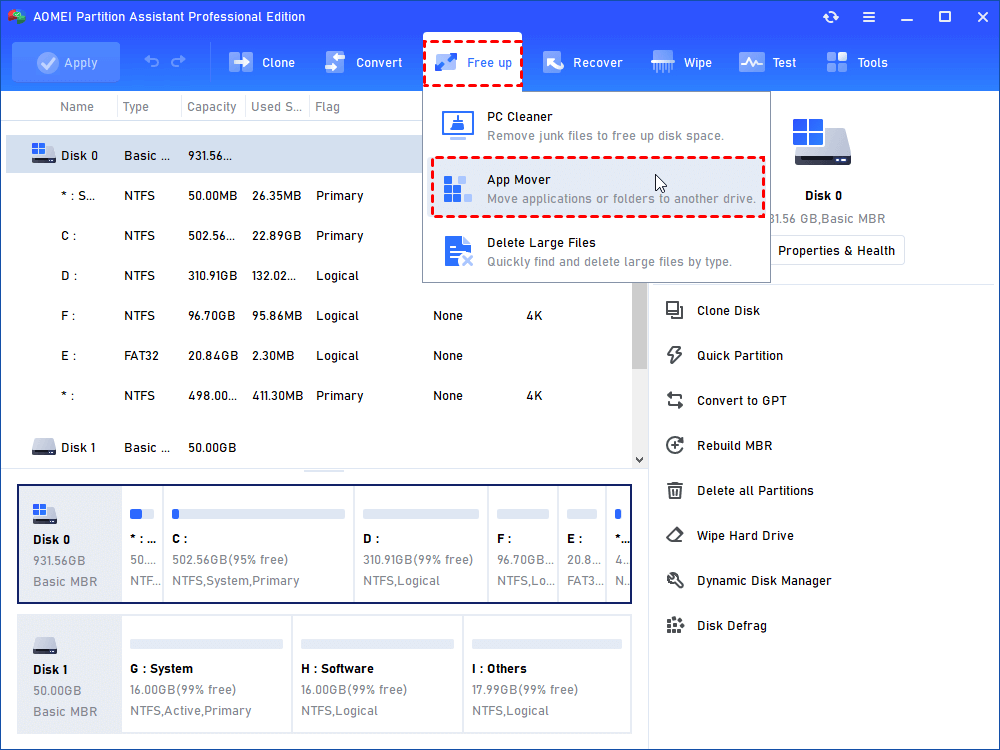
Step 1. Install and launch PA Professional, click “Tools” on the right, then select the “App Mover” under "Free up".
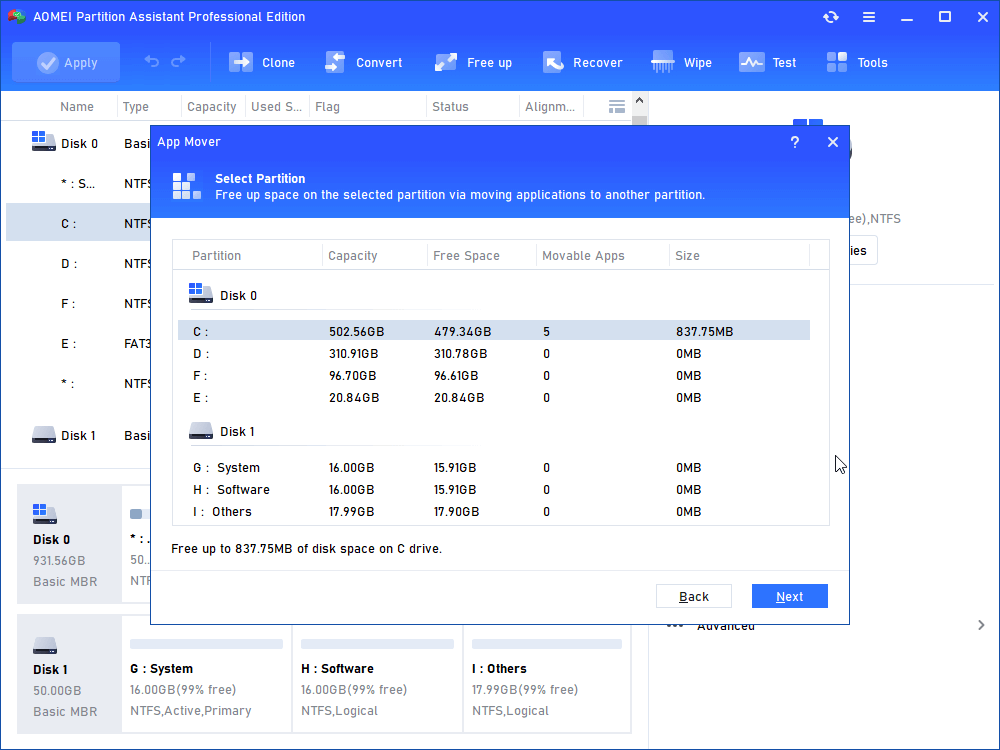
Step 2. Choose C drive and click "Next".
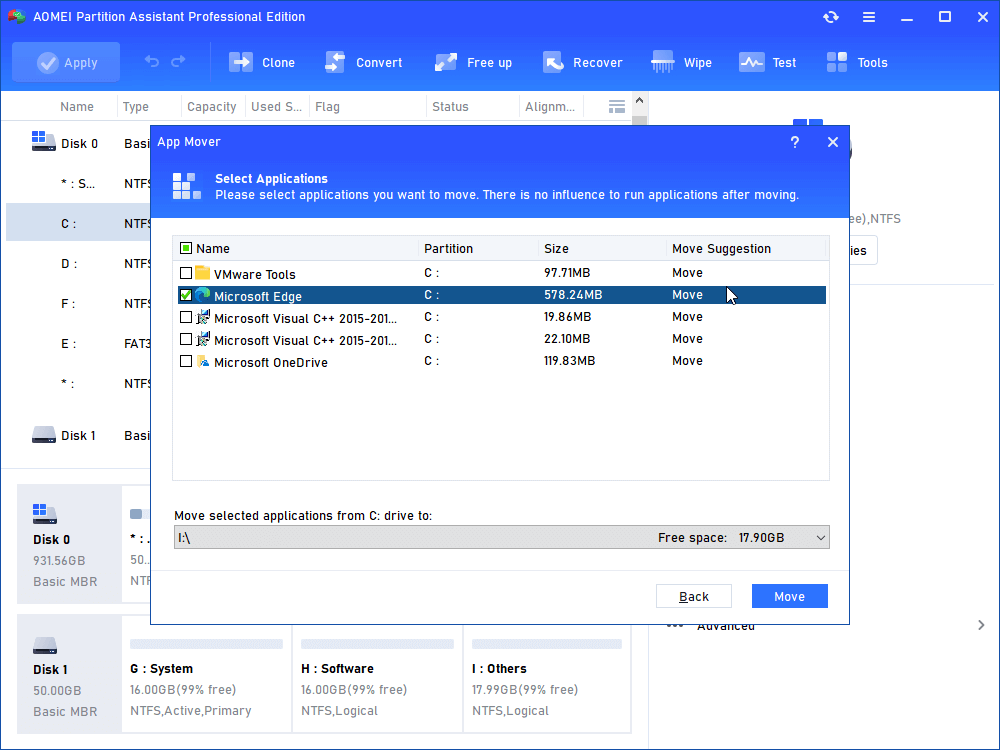
Step 3. Select apps you want to move, choose the destination path and click on "Move".
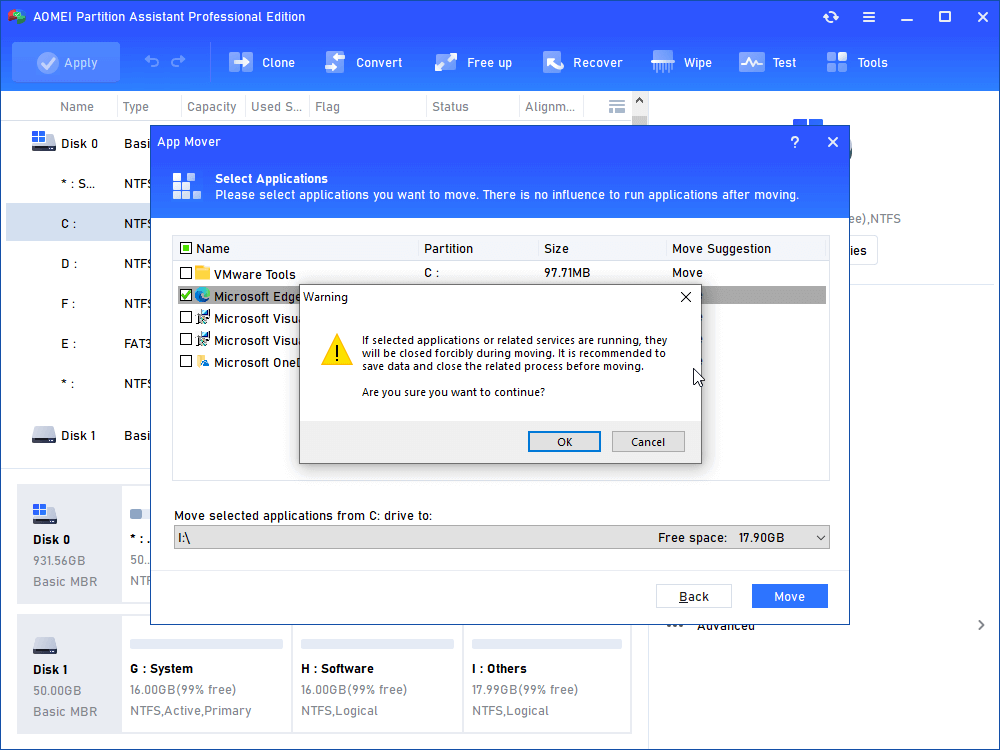
Step 4. Click "OK" on the pop-up window.
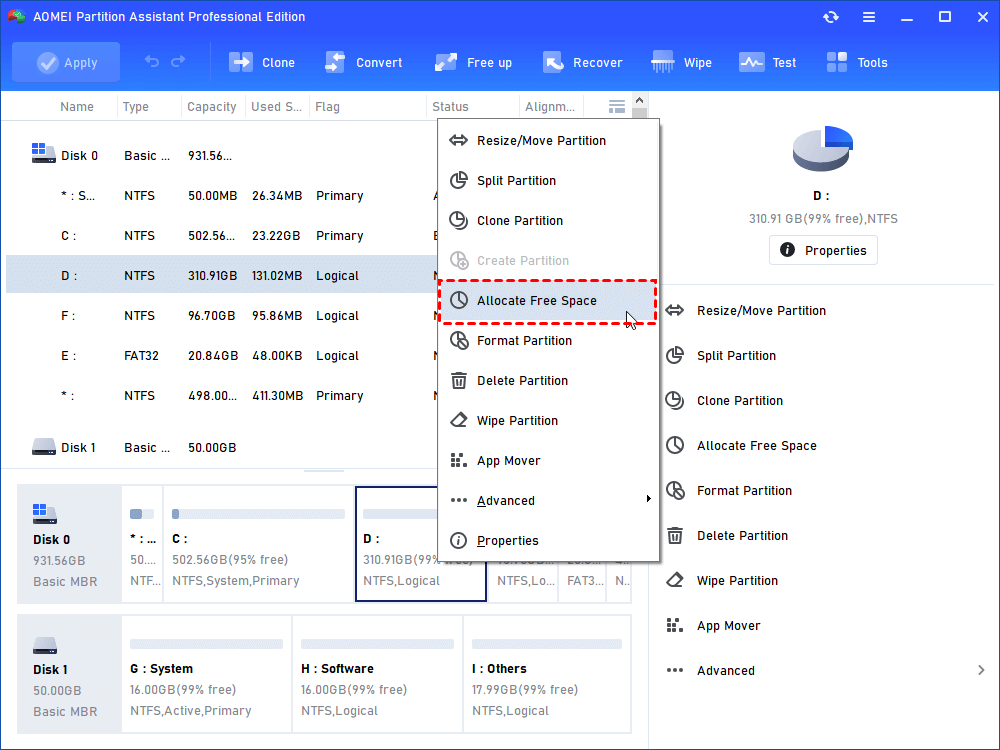
If you have another partition on the same physical disk with plenty of unused space, you can directly allocate it to the drive hosting your VM.
Step 1. Right click on a partition that has more free space and select "Allocate Free Space".
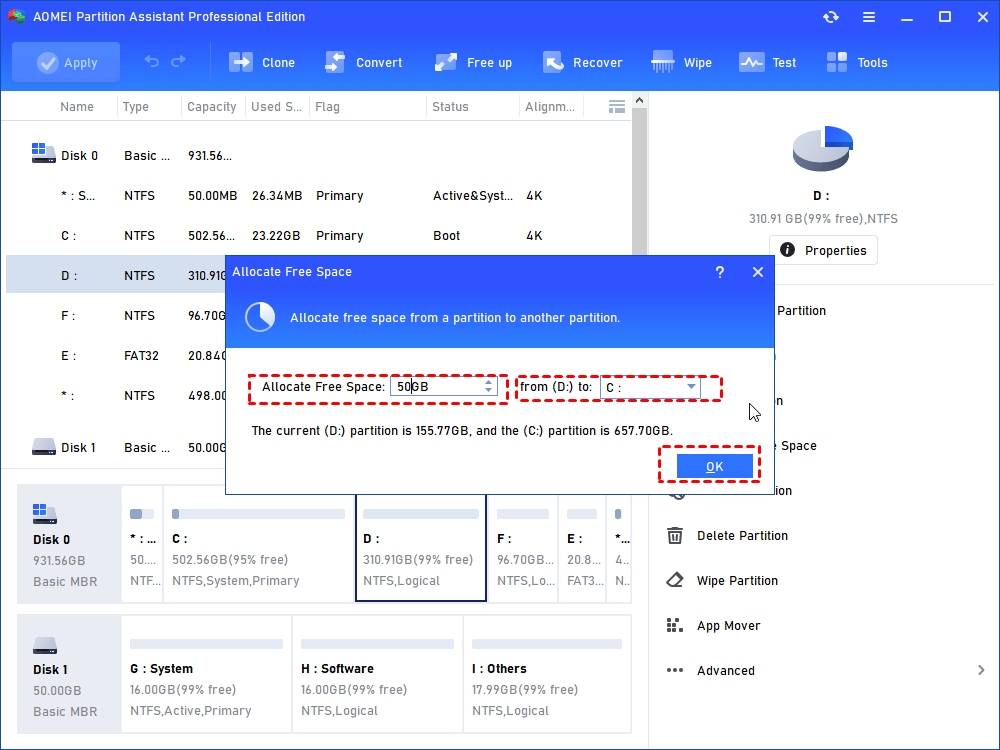
Step 2. In a pop-up window, set how much free space you want to transfer to C drive and click on "OK".
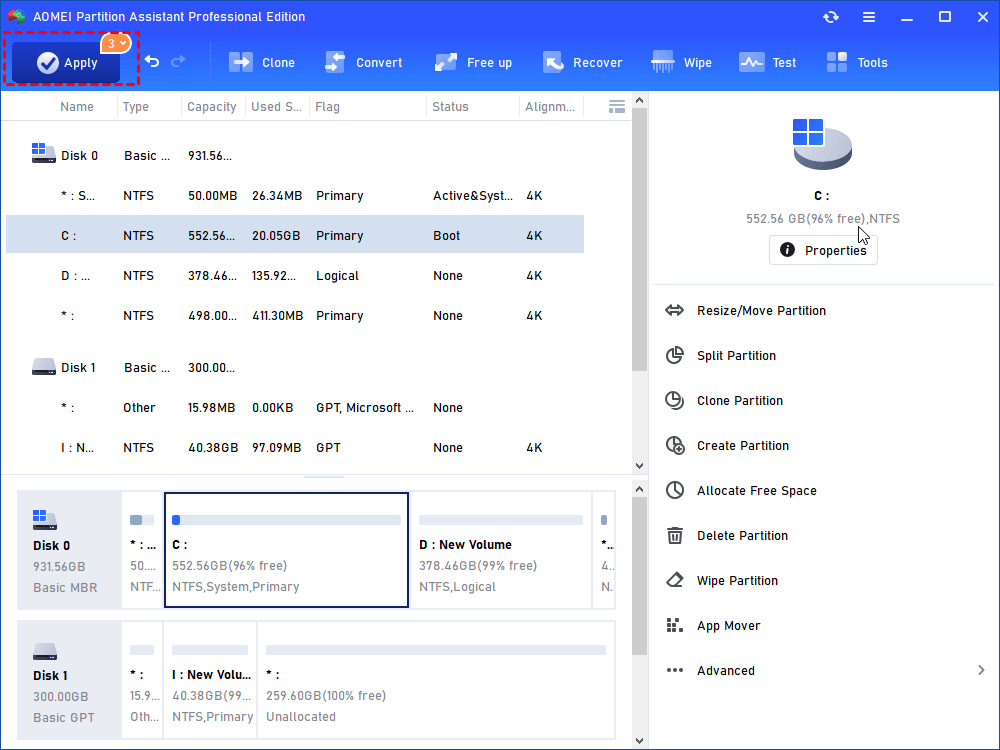
Step 3. The click "Apply" and "Proceed" to commit the pending operation.
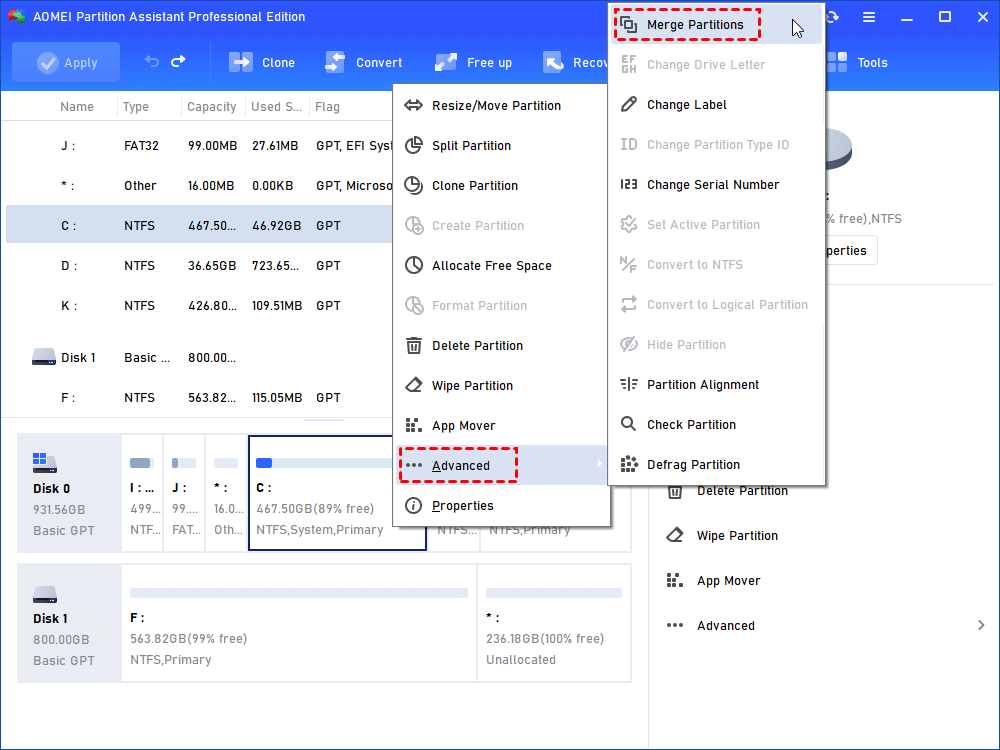
If there are already some unallocated space on the same disk, you can use the "Merge Partitions" to combine it to C drive that is full without any reasons.
Note: Besides the above functions of this tool, AOMEI Partition Assistant also supports deep junk files cleanup and duplicate files removal to help you reclaim disk space.
Beyond these solutions, AOMEI Partition Assistant Professional offers many other handy functions, including migrating your entire OS to a new SSD, cloning disks for backup, and converting between MBR and GPT partition styles.
To sum up
The error "there is no more space for virtual disk" is a critical but entirely fixable issue. It almost always points to a lack of space on the physical host drive, often exacerbated by large, thin-provisioned virtual disks or an accumulation of snapshots. You can resolve it by performing basic cleanup, deleting old snapshots, or taking a more advanced approach.
For users who need powerful, flexible control over their host storage, AOMEI Partition Assistant Professional provides intelligent tools like App Mover and Allocate Free Space to efficiently resolve the problem and prevent it from happening again.
