
 AOMEI Partition Assistant
Full Guide on How to Transfer PS5 Data to New SSD
If you’re looking to move your PS5 data to a new SSD, you’ve come to the right place. Keep reading to discover these benefits and follow the step-by-step guide to upgrade your PS5 SSD smoothly with a reliable cloning tool.

By Hedy / Updated on September 12, 2025


Can I replace PS5 with a new SSD and transfer data to it?
Installing a new SSD in a PS5 is entirely possible. The console comes equipped with an 825GB internal SSD, but after the system files are installed, only about 667GB is available for use. That might sound sufficient, but with modern PS5 titles often exceeding 100GB each, space runs out quickly.
At that point, transferring data to a new SSD becomes necessary. The upgrade process is simple and only requires a screwdriver to open the console and install an M.2 SSD. In most cases, the entire procedure takes no more than fifteen minutes.
M.2 SSD options for the PS5 range from 250GB up to 8TB, giving plenty of flexibility. Replacing the drive becomes especially important in two common scenarios:
▶ Running out of storage: With games consuming massive amounts of space, upgrading is the best solution when you can’t install new titles without deleting old ones.
▶ Sluggish performance: Low storage space can slow down game load times and affect overall performance. A larger SSD restores speed and smooth gameplay.
The following sections will explain how to back up and move your data seamlessly to a new SSD.
Why replace PS5 with a new SSD?
Switching to a new SSD on your PS5 brings clear advantages. Here are the key benefits of making the upgrade:
◉ Boosted system performance: A modern M.2 SSD delivers lightning-fast speeds—up to 7000 MB/s read and write—helping your PS5 run smoother and more efficiently.
◉ Expanded game library: With more storage available, you can install and keep a larger collection of games without constantly managing space.
◉ Easy game transfers between consoles: Because an M.2 SSD is removable, it allows effortless sharing of PS4 titles with your PS5, as both systems support the drive.
These benefits make upgrading your PS5 SSD a smart and worthwhile decision.
How to transfer PS5 data to new SSD
Upgrading the SSD on a PS5 is a straightforward process. Make sure you have the following items ready before transferring data to a new SSD:
▪ An M.2 NVMe SSD (capacity between 250GB and 8TB)
▪ A Phillips head screwdriver
▪ A PS5 console updated to the latest system version
▪ A clean, stable workspace such as a table
▪ Reliable cloning software, for example, AOMEI Partition Assistant
Once everything is prepared, you’re ready to move on to the installation process.
Option 1. Transfer data to new SSD directly on PS5
This method involves installing the M.2 SSD directly into the PS5’s expansion slot. To do so, carefully unscrew the console, place the new drive into the slot, and secure it back in place. Once installed, follow these steps to transfer your data:
Step 1. From the PS5 home screen, go to Game Library.
Step 2. Highlight the game data you wish to move.
Step 3. Press the Options button on your controller and select Move Games and Apps.
Step 4. Choose any additional games or apps to include, then select Move. The system will transfer the selected files to your new SSD, freeing valuable space on the internal drive.
Option 2. Transfer PS5 data to new SSD via a cloning tool
Manually transferring data to a new SSD through the PS5 console can be tedious, mainly because it requires disassembling the device before beginning the process. A simpler and more efficient solution is to use cloning software. AOMEI Partition Assistant makes moving PS5 data to a new SSD quick and hassle-free.
After downloading and installing the program on your PC, you can connect both the PS5 storage and the new SSD. The tool then performs a sector-by-sector clone, ensuring every bit of data is safely transferred. This approach is not only faster than the manual method but also more secure, reducing the risk of data loss.
✍ Key features of AOMEI Partition Assistant:
✦ High-speed data transfer and cloning
✦ Ability to copy only the used sectors of a drive
✦ Upgrade to a new SSD without data loss
✦ Clone HDDs or SSDs to another computer
✦ Transfer Windows OS to a new drive without reinstalling
Getting started is straightforward—simply install AOMEI Partition Assistant and initiate the cloning process to move your PS5 data to a new SSD with ease.
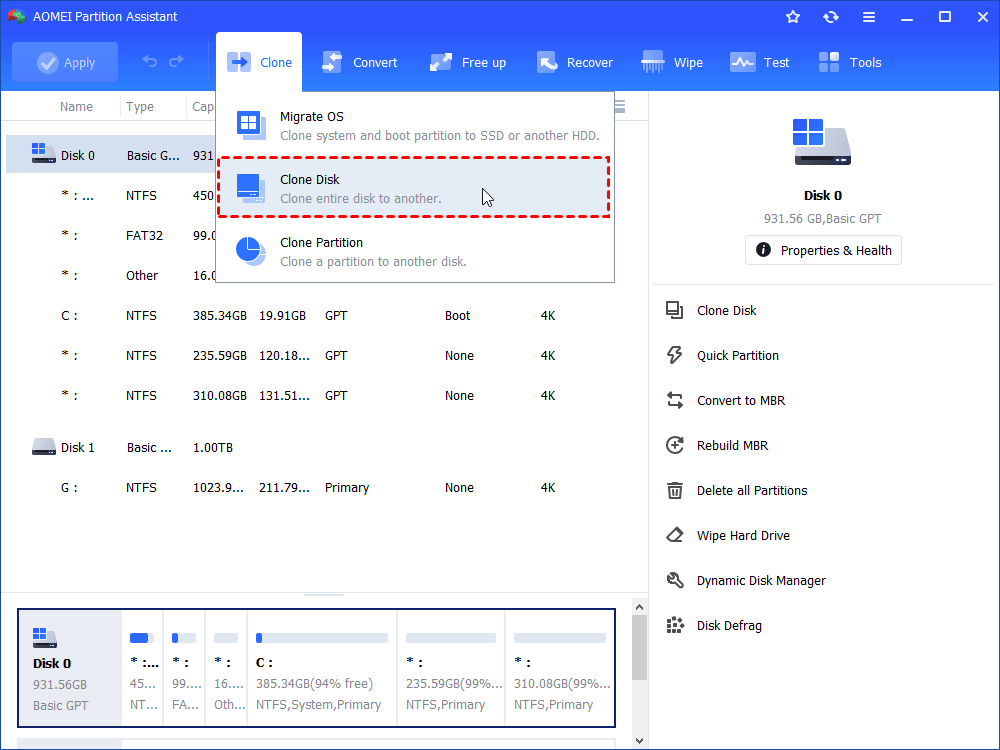
Step 1. Install and launch AOMEI Partition Assistant, click "Clone" in the main interface and select "Clone Disk".
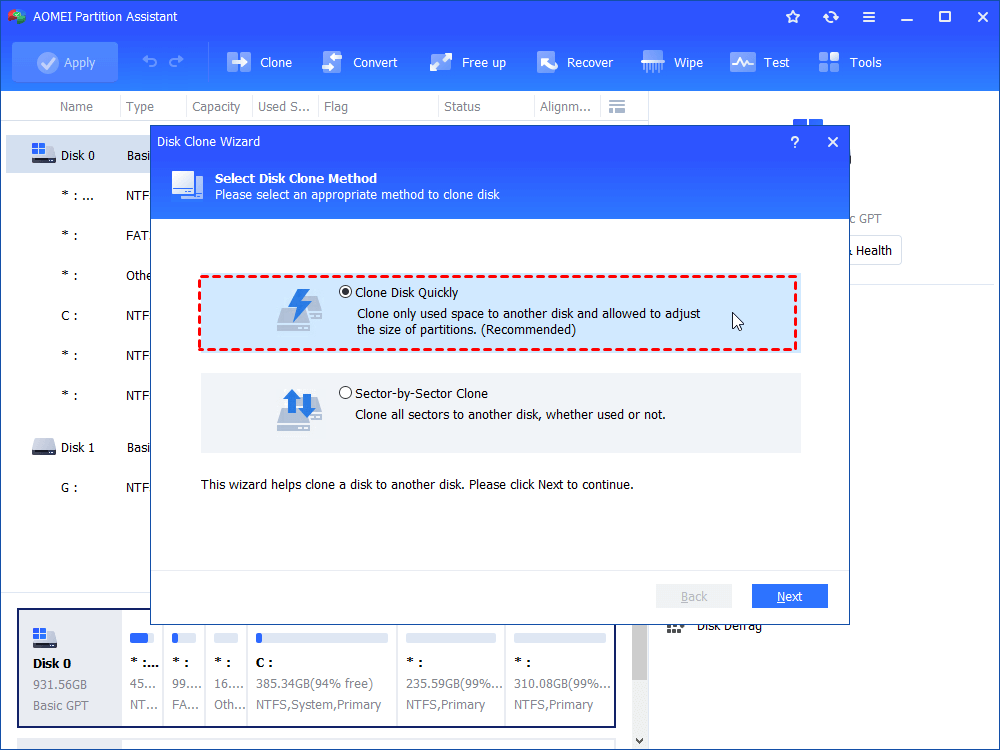
Step 2. Choose the hard disk that you need to clone as the source disk and click "Next".
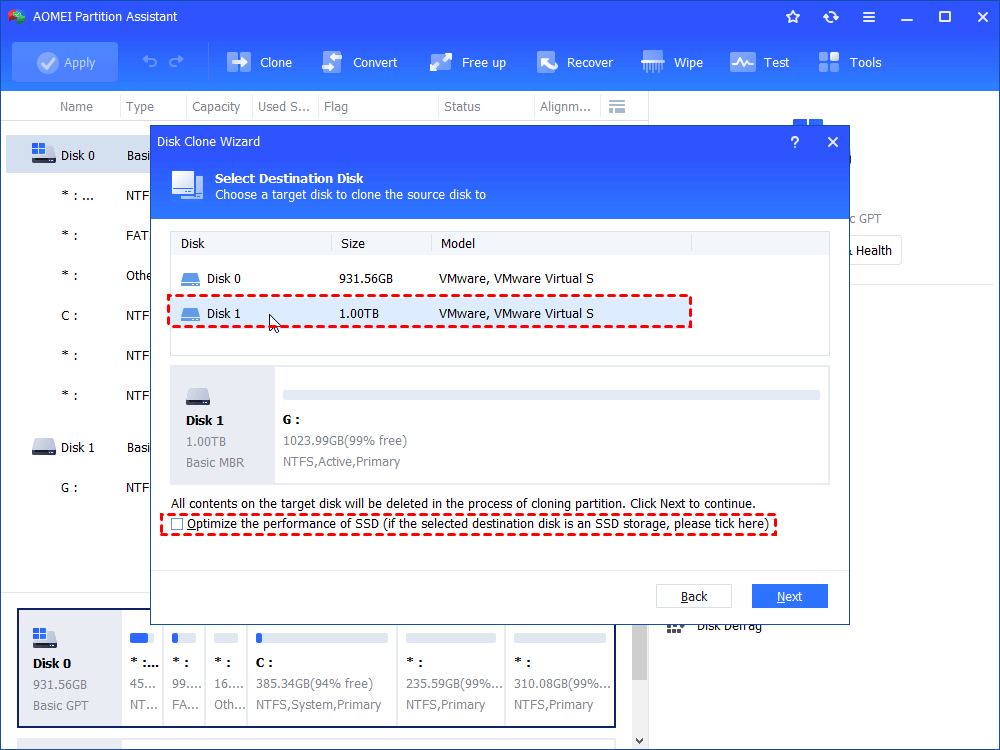
Step 3. Select the destination disk to store the data on the source disk, and then click "Next".
Step 4. Then, you can check the source and destination disk in the next window or change to “Sector to Sector clone”, and click the "Confirm" button to continue if there is no problem.
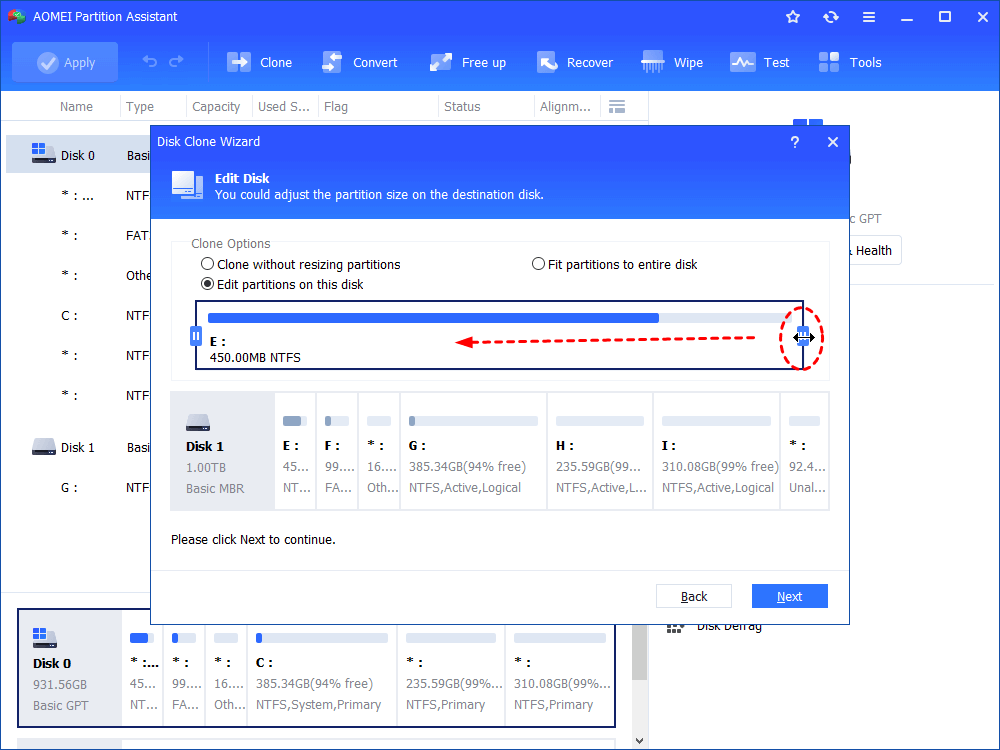
Here, you can also click the "Settings" button to adjust the partition size on the destination disk or tick "4k alignment" to improve the reading and writing speed of SSD if the target disk is an SSD drive.

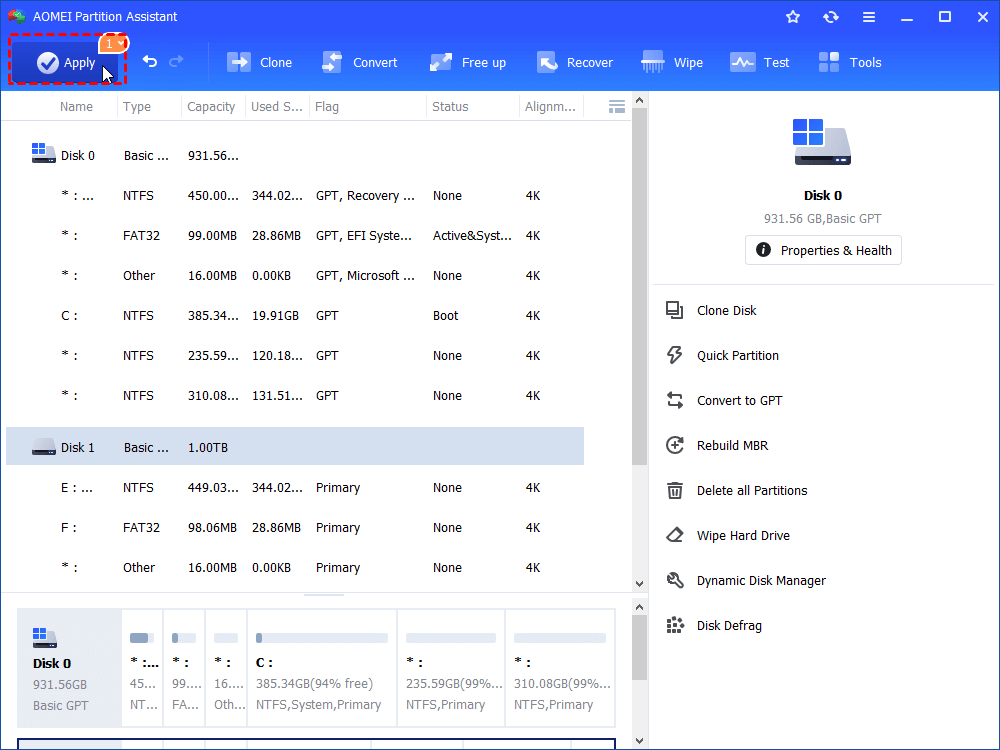
Step 5. At last, click "Apply" and "Proceed" in the main interface to start cloning the hard drive.
Conclusion
This guide has outlined the process of transferring PS5 data to a new SSD. Upgrading becomes essential when storage space is nearly full or system performance begins to lag. For the best results, an M.2 NVMe SSD is the recommended choice.
When it comes to moving data, a cloning tool provides the most efficient solution. The top option is AOMEI Partition Assistant, a reliable program designed to handle data migration quickly and securely. Download it today to seamlessly transfer your PS5 files to a new M.2 SSD and enjoy smoother gameplay with expanded storage.
