
 AOMEI Partition Assistant
7 Solutions: USB No Media Fix in Windows 7, 8, 10, 11
If you are looking for effective USB no media fixes to solve the no media USB problem, read this post, please. Here we provide 7 different solutions to helping fix USB no media issue.

By AOMEI / Updated on May 23, 2025


User case: USB shows no media in Disk Management
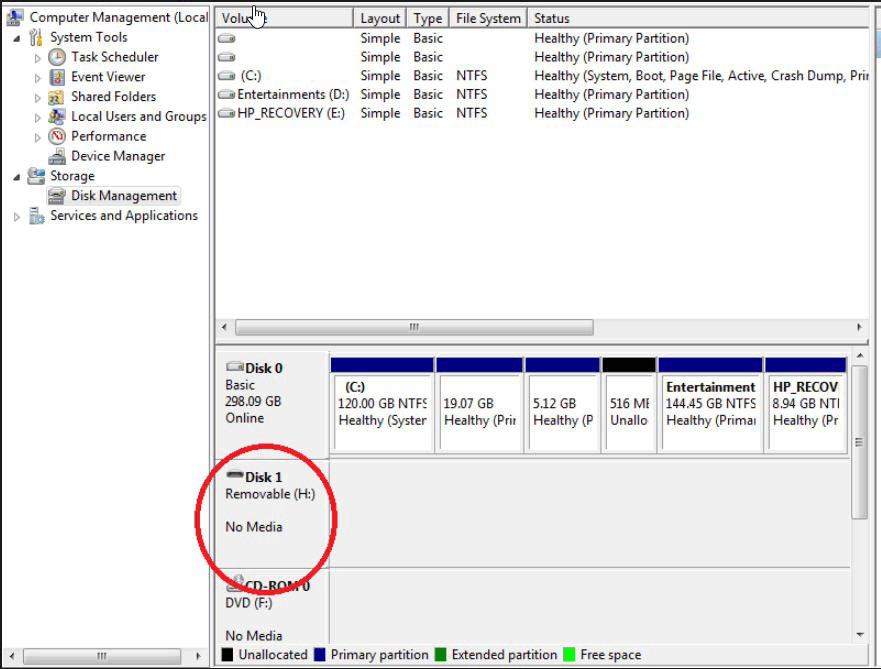
“I have just bought a 4GB Kingston USB pen drive. On inserting the drive, it goes through the usual process of recognizing the device and comes up with a pop-up saying that the device is installed and ready to use. The device appears in Windows Explorer as Removable Disk (H:).
However, When I click on the device a pop-up appears "Please insert a disk into device H:"In Properties Free Space and Used Space are all 0. In Disk Management shows H: but ‘No Media’ and no partition showing. Does anyone have any USB no media fix Windows 7/8/10?”
Possible causes for no media USB problem
When a USB drive shows “No Media” in Disk Management, it means the computer is not able to communicate with the drive as normal. It is an empty drive to the computer and you lose all access to the saved data inside the USB drive.
Below is a table that lists the common causes of the “No Media” USB issue, explained in simple terms:
| Cause | Explanation |
|---|---|
| Loose or bad connection | The USB plug might not be fully inserted or the port may be damaged. |
| Outdated or faulty USB driver | Your computer may not recognize the USB if the driver is missing or old. |
| Unsafe removal | Pulling out the USB drive without safely ejecting it can cause errors. |
| Virus infection | Malware can damage the USB’s data or prevent it from working. |
| Damaged MBR or PBR | Important startup parts of the USB drive may be broken, stopping it from working. |
| Low power supply | The USB port may not give enough power to run the USB drive. |
| Too many USB devices | Plugging in many devices at once can overload the USB ports. |
| Bad sectors | Physical damage to storage areas on the drive can make it unreadable. |
| Failing flash memory | If the memory chip inside the USB is corrupted, the system cannot detect the data. |
| Disabled in BIOS | The USB port might be turned off in your computer’s BIOS settings. |
Now that you know what could be causing the No Media issue on your USB drive, let’s move on to how you can fix it. In the next section, we’ll go through 7 practical solutions that may help you get your USB drive working again.
7 fixes for USB no media in Windows 7/8/10/11
After knowing what can generate this issue, you might be curious about how to fix no media USB problem in Windows 10, 8, 7. For your convenience, we gather some effective fixes. You can try them one by one until you resolve this problem.
First of all, try some quick fixes:
▸ Try another USB port to check if it is the dead port that causes USB no media error.
▸ Check whether the USB connection is tight enough.
▸ Run anti-virus software to clear possible virus or malware.
▸ Provide separate external power supply to the USB device.
If lucky enough, the USB issue will be fixed and much time or money can be saved. If not, relax and check out the solutions below now.
Solution 1. Update USB driver/Reinstall USB in Device Manager
If the USB device driver is outdated, the USB will also probably show no media. You can update it in Device Manager.
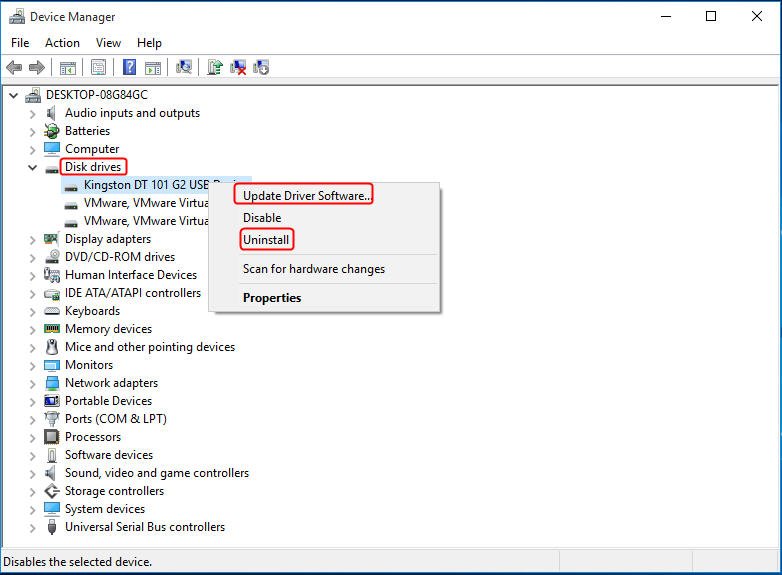
Step 1. Click the "Start" button, input "Device Manager" and hit "Enter", then select it from the result list.
Step 2. Expand "Disk driver" and locate the USB which shows no media in Disk Management. Right-click it and select "Update Driver Software" from the context menu.
If this does not make any difference, you can click "Uninstall" to uninstall the USB, remove it from your computer, then insert it back again to check whether the problem can be fixed.
Solution 2. Change USB driver properties in Disk Management
Some users report this method helps solve USB no media issues in their situations, so you can give it a try.
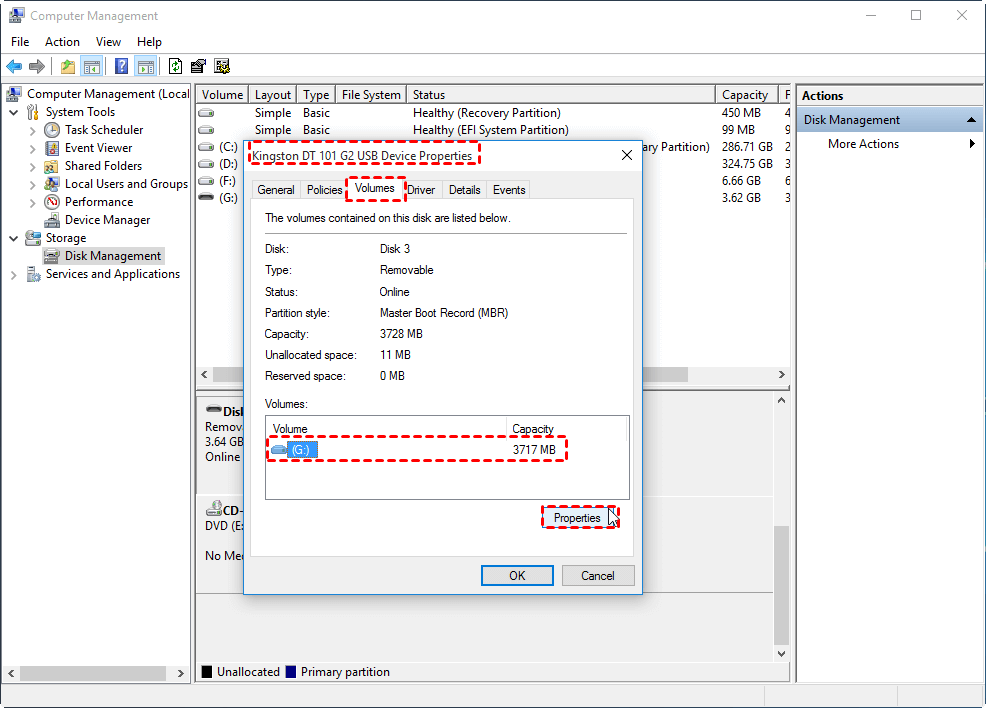
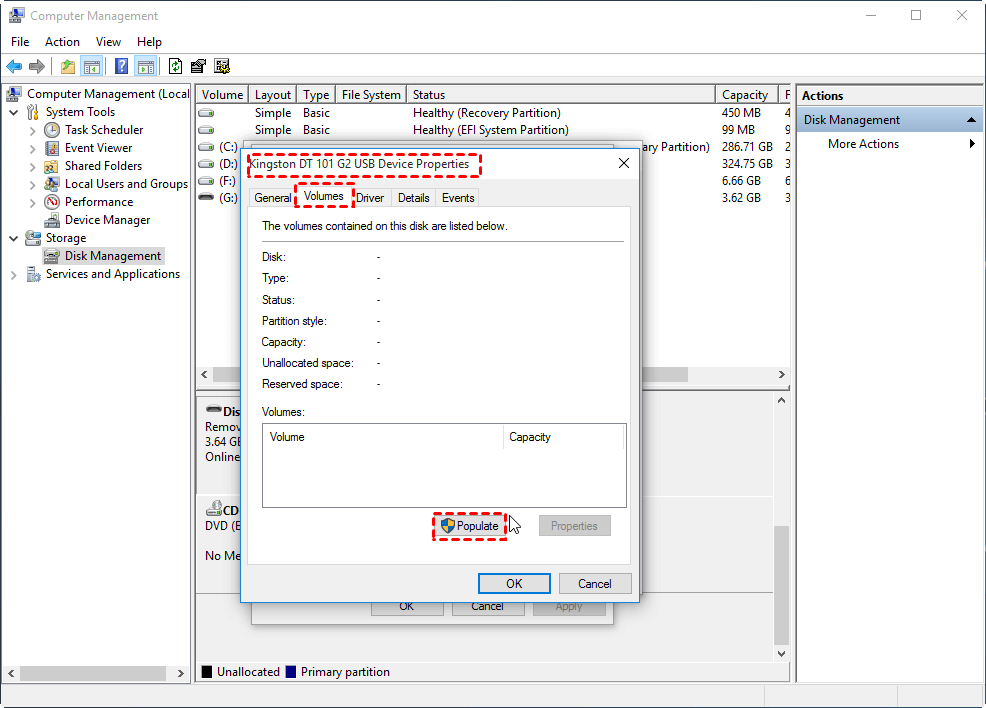
Step 1. In Disk Management, right-click the USB drive and select “Properties”. In the subsequent window, choose the “Volume” tab. Then click USB driver and “Properties”.
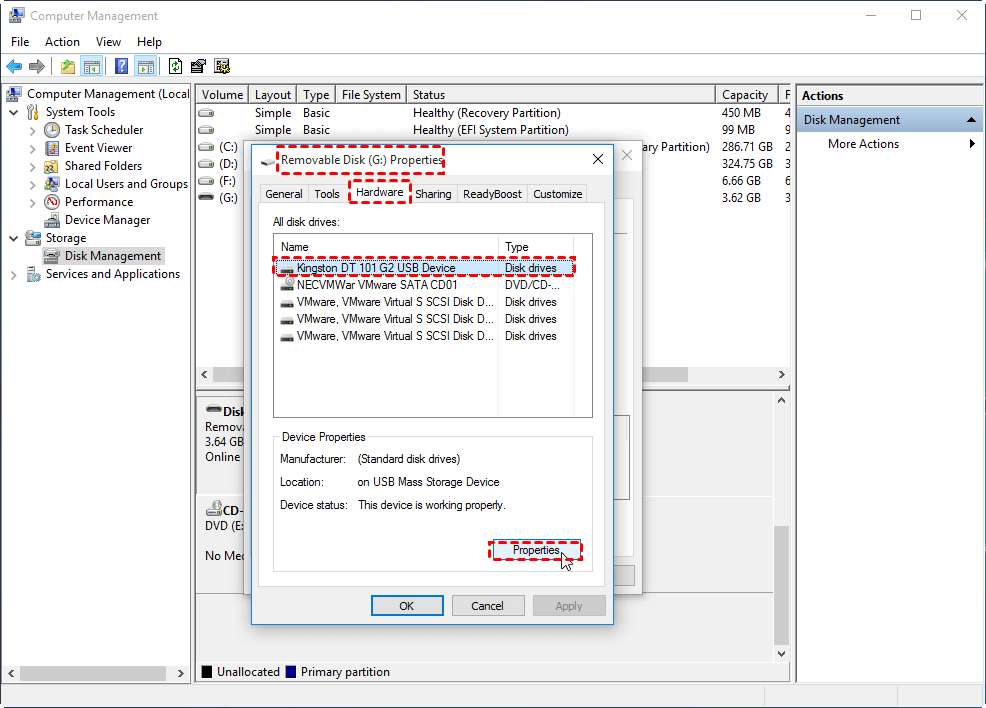
Step 2. In the following “Removable disk Properties” windows, go to “Hardware” tab, click the USB drive in the “All disk drives” list and then click “Properties”.
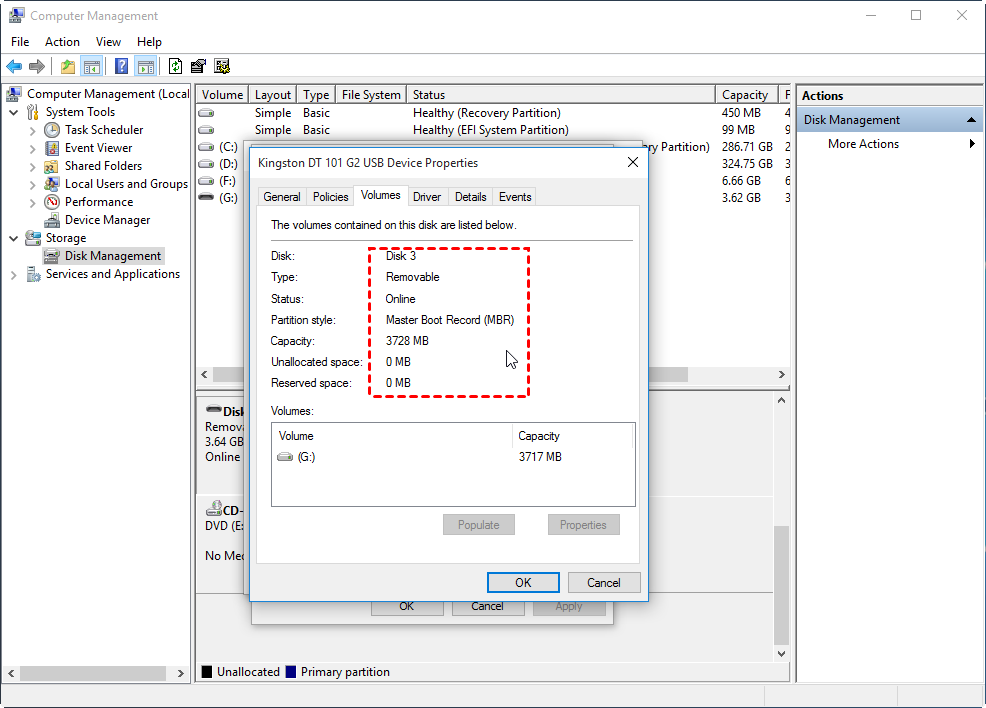
Step 3. In this window, click the “Volume” tab and then “Populate”. When all the volume information about Disk, Type, Status, Partition style…are filled, click “OK”.
Finally, you will see the information is shown. Now you can check if the USB no media problem is fixed.
Solution 3. Change Drive Letter and run CHKDSK to repair disk errors
Although the USB does not have any partition, you will still see a drive letter is assigned to the whole drive. Now you can try changing the drive letter and then running CHKDSK to repair hard drive errors.
Firstly, change drive letter of USB drive
Step 1. Press "Windows + R" simultaneously, input "diskmgmt.msc" and hit "Enter" to open Disk Management.
Step 2. Right-click on the USB and select "Change Drive Letter and Paths...".
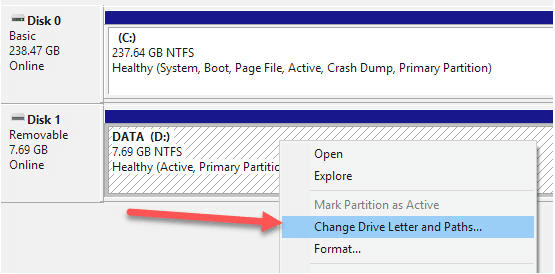
Step 3. In the pop-up window, click "Change" and assign a new drive letter to the partition.
Step 4. Click "OK" to confirm the operation.
Secondly, run CHKDSK to Repair USB Errors
Step 1. Click the "Search" box, type "cmd", right-click Command Prompt icon and select "Run as administrator".
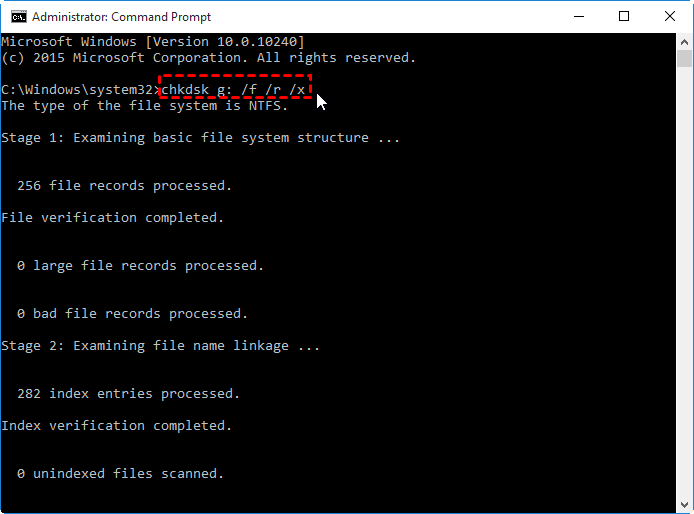
Step 2. In the Command Prompt window, type "chkdsk g: /f /r /x" and press "Enter", where the “g” stands for the drive letter of your USB.
Solution 4. Rebuild MBR for the USB drive
If it is the damaged MBR that causes USB showing No media in Disk Management, you can rebuild it using AOMEI Partition Assistant. This powerful disk manager freeware makes it easy for you to rebuild or repair MBR for external hard drives and USB drives. Just within a few clicks, all is done.
 AOMEI Partition Assistant
The Best Windows Disk Partition Manager and PC Optimizer
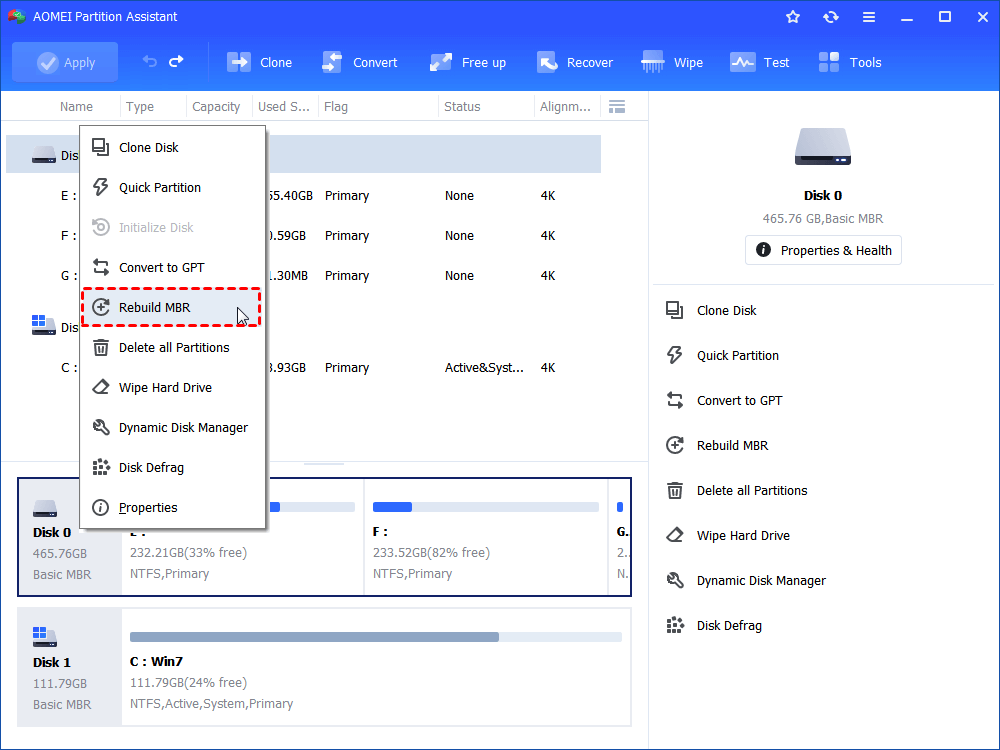
Step 1. Download, install and launch the freeware. Right-click the USB drive and select "Rebuild MBR".
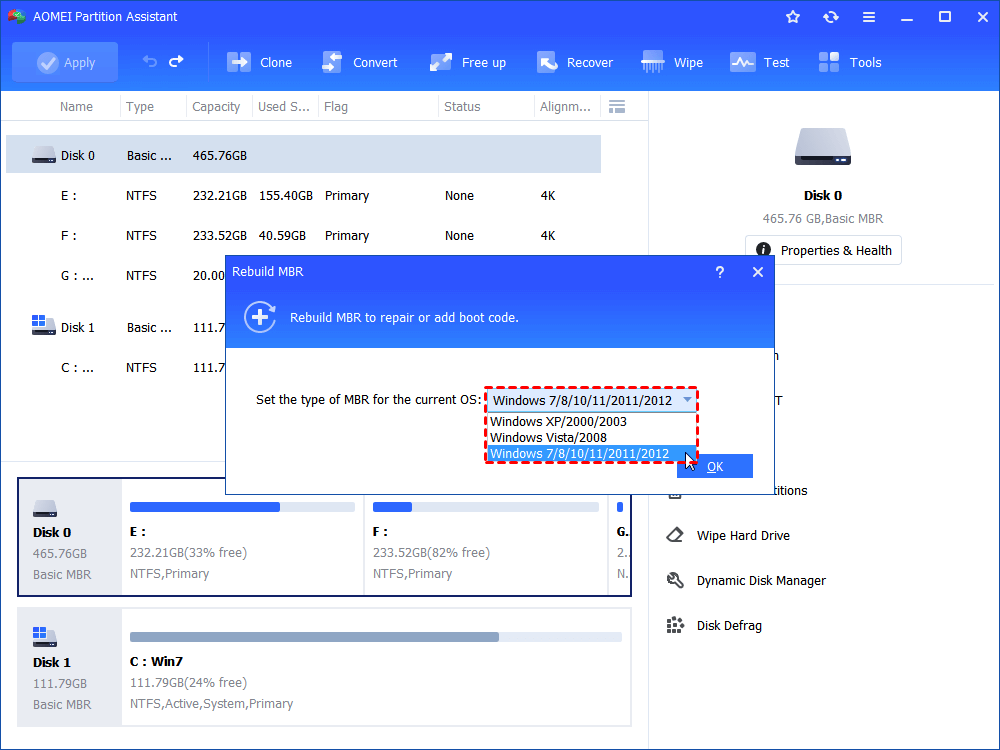
Step 2. Select the type of MBR for your current operating system.
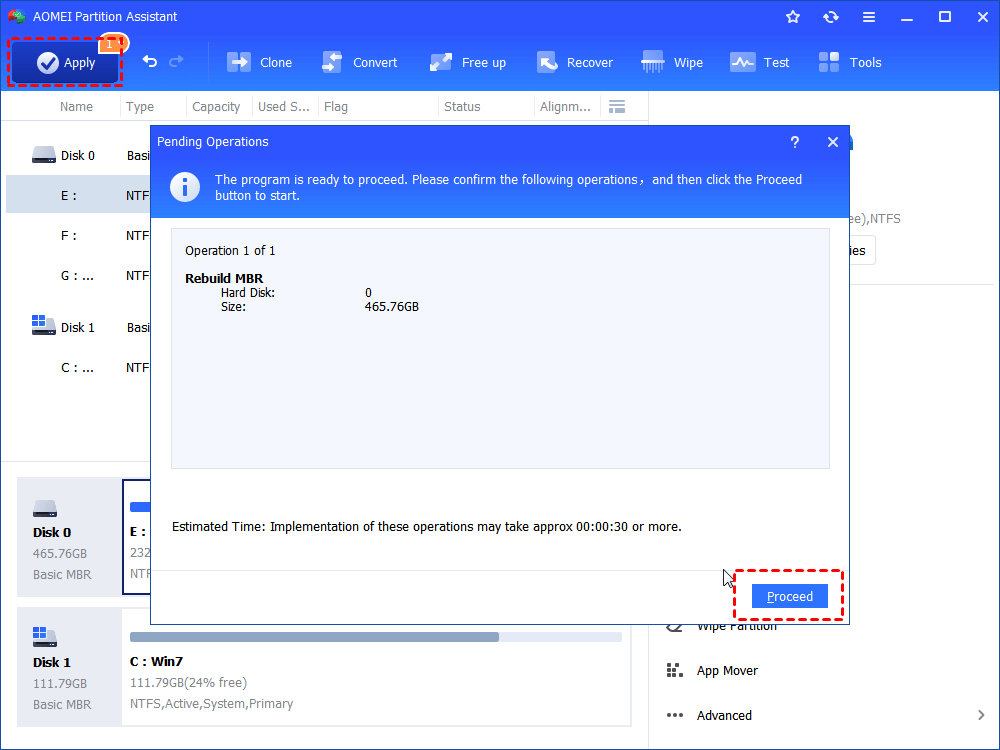
Step 3. Click "Apply"->"Proceed" to execute the pending operations.
Solution 5. Format the 0 media USB drive
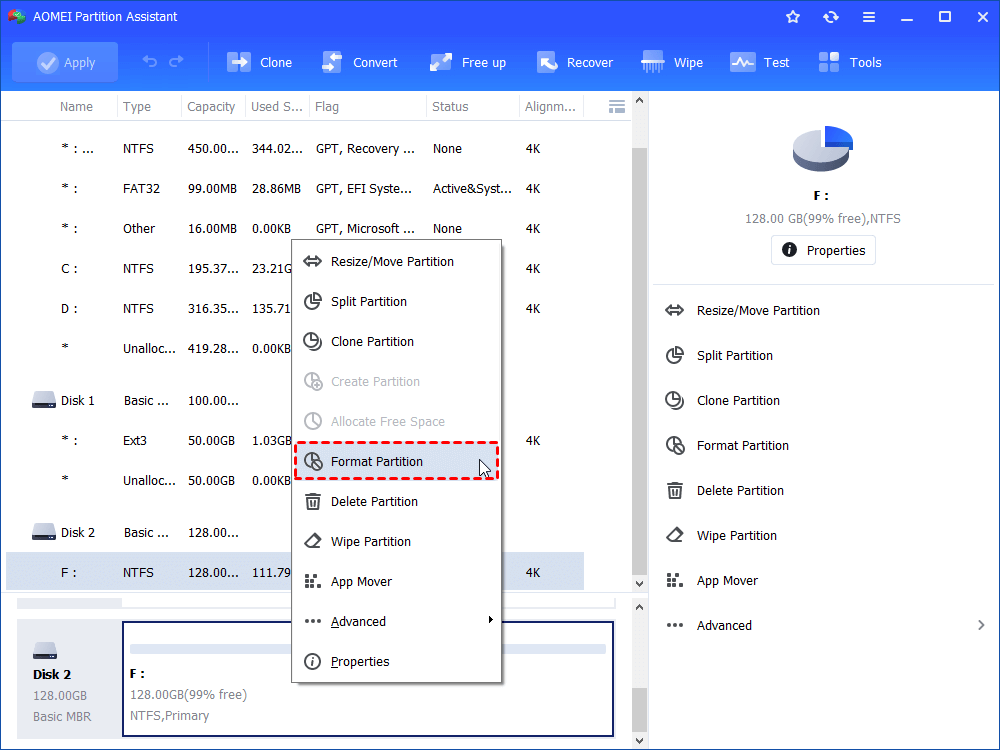
If the aforementioned USB no media fixes do not resolve your problem, you will have to format it. Formatting will clear all data on the drive. Hence, it is advised to recover data from the no media disk using data recovery software if possible and make a backup. You can also use AOMEI Partition Assistant to fulfill the formatting task.
Step 1. Launch AOMEI Partition Assistant, select the partition on the USB drive, click "Format Partition" from the menu.
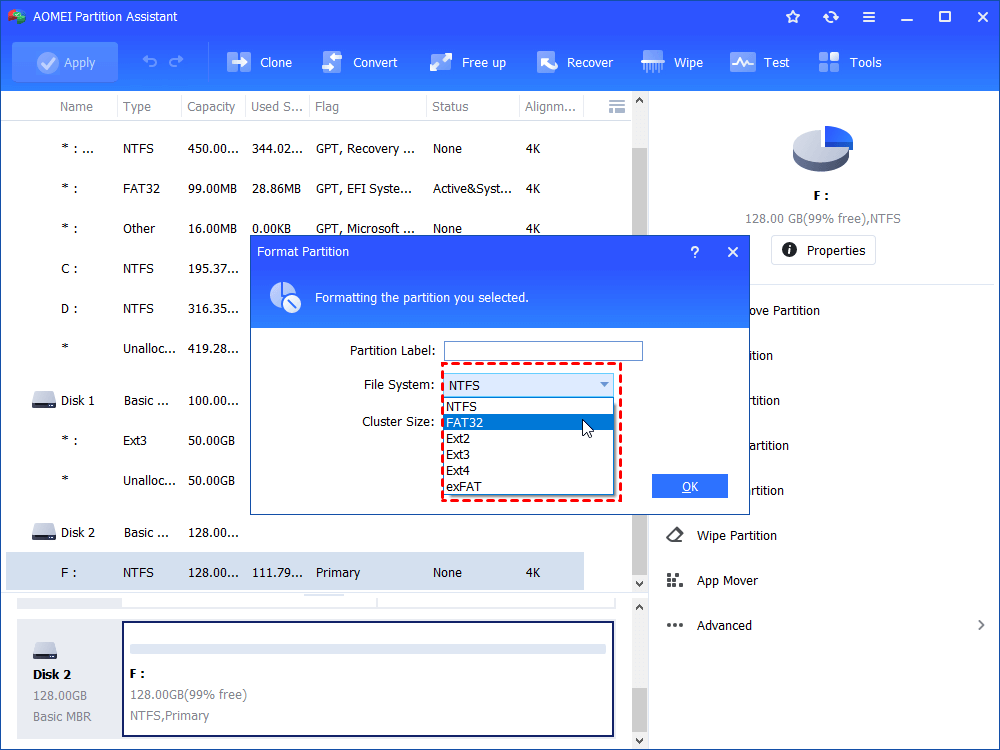
Step 2. In the pop-out windows, select a file system. Then click "OK" to continue.
Step 3. Click "Apply"->"Proceed" to execute the process.
Solution 6. Check whether the USB is failing
Usually, when the flash memory controller is unable to communicate with the NAND flash memory inside the drive, the USB will also show no media and no partition will be displayed in Disk Management.
AOMEI Partition AssistantThe Best Windows Disk Partition Manager and PC Optimizer
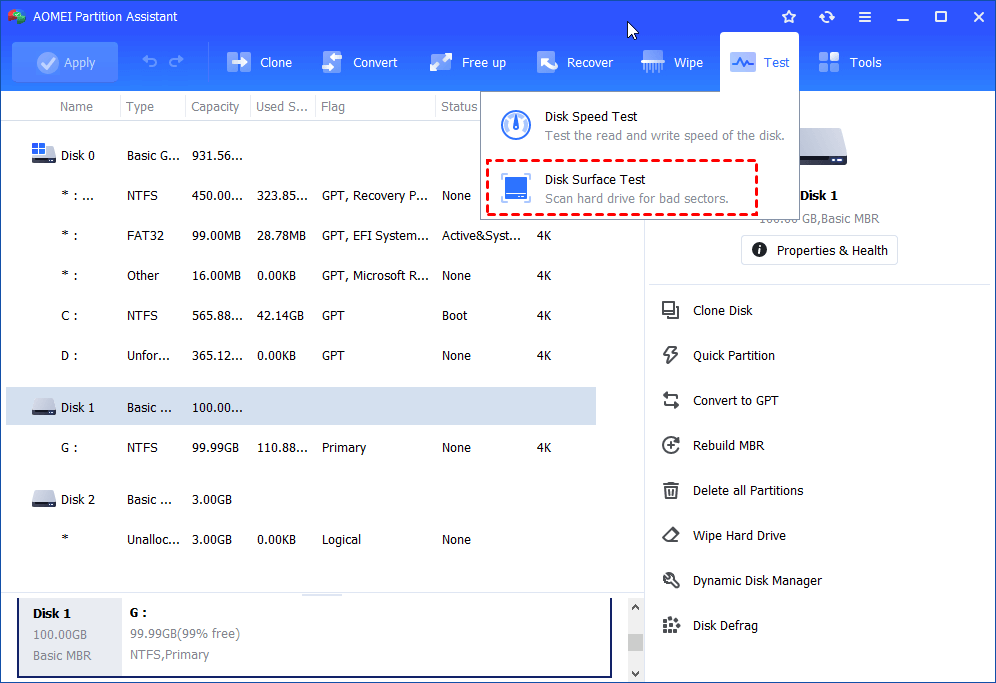
Therefore, you need to check if this USB drive is failing soon. AOMEI Partition Assistant can also help you with that. You just need to select the USB drive in the main interface of this software and then choose the "Disk Surface Test" from the top side "Test" option.
Solution 7. Enable USB device in BIOS
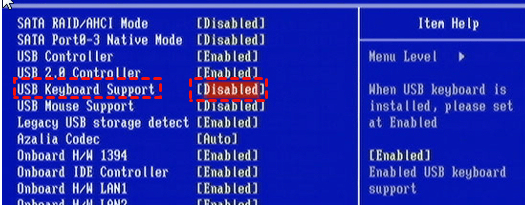
If the USB device is disabled in BIOS (basic input/output system), it might also show No Media in Disk Management, or sometimes the USB device not recognized error message will pop up. In this case, you can enable it in the BIOS to restore the USB port function.
First of all, restart your computer and enter BIOS. Find “USB Keyboard Support” in the motherboard, then change the state from disable to enable. Finally, press the F10 key is used to save the changes and exit the BIOS.
Summary
With this quick and technical USB no media fixes Windows 7/8/10/11, you will be able to tackle with no media USB problem easily. Obviously, AOMEI Partition Assistant is more versatile with offering several easy solutions. And you can enjoy more amazing functions like recovering lost partition or data, migrating OS to SSD drive, SSD 4k alignment, and more.
