
 PartitionAssistant Recovery


Why WD Blue SSD Is Slow & How to Fix It?
Wondering why your WD Blue SSD is slow or experiencing slow write speeds on Windows? This guide uncovers common causes behind the slowdown and offers practical solutions to restore your SSD's optimal performance.

Par Hedy / Mis à jour le July 11, 2025


Why WD Blue SSD is slow?
Western Digital Corporation, headquartered in San Jose, California, is a global leader in data storage solutions. Known primarily for manufacturing hard disk drives (HDDs), the company also produces solid-state drives (SSDs) and flash memory products. Among its wide product lineup are the color-coded drive series—Blue, Black, Red, Green, Purple, and Gold—each designed for different use cases.
The WD Blue SSD, encased in its signature blue shell, is available in 250GB, 500GB, and 1TB capacities. It’s designed for everyday computing needs and offers solid performance for casual users. With high data density, the drive minimizes head movement and reduces seek time, which can help boost overall transfer speeds.
However, many users have noticed a frustrating issue: the WD Blue SSD slows down over time. If left unresolved, the performance drop could lead to permanent damage and potential data loss. Understanding why this happens is key to preventing it.
1. Faulty or incompatible port/cable: Using outdated or malfunctioning SATA cables or connecting to an unsupported port can bottleneck speed and reduce SSD performance.
2. Excessive heat: SSDs can throttle performance if they exceed safe temperature limits. Prolonged overheating may lead to slower read/write speeds and long-term damage.
3. Low storage space: When your drive is nearly full, SSDs have less room to manage data efficiently. This can dramatically reduce write speeds as the drive struggles to allocate space.
4. SSD wear and tear: Over time, repeated write operations wear out NAND cells, leading to degraded performance. Older drivers are more susceptible to this issue.
5. Bad sectors: Corrupted or damaged sectors on the SSD can slow down data access and transfer speeds, affecting the drive’s reliability.
How to fix the WD Blue SSD is slow issue
Now that you understand what might be causing your WD Blue SSD to slow down, it’s time to take action. Below are several effective solutions to help restore your SSD’s speed and performance. Try them one at a time until you see noticeable improvement.
Fix 1. Check SSD ports and cables
The speed of your computer’s port plays a crucial role in how well your SSD performs. High-speed connections like USB-C, Thunderbolt, NVMe, or M.2 deliver optimal SSD performance. On the other hand, using outdated interfaces such as USB 2.0 will significantly throttle transfer speeds. Always verify port compatibility with your WD Blue SSD to avoid bottlenecks.
Equally important is the cable you use. Unreliable or low-bandwidth cables can cause instability and reduced performance. Choose quality cables from trusted brands to ensure a fast and steady connection.
Fix 2. Free up space on WD Blue SSD
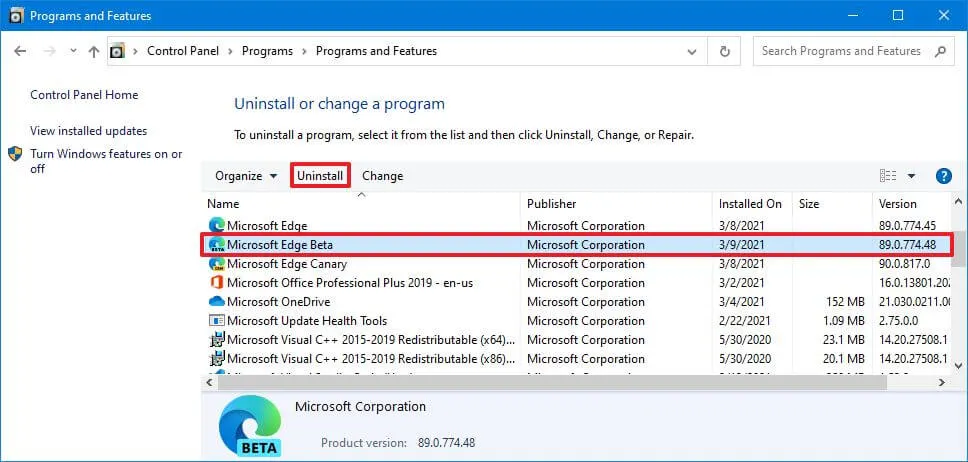
A sluggish WD Blue SSD may be the result of low available storage. When your drive is cluttered with unused or unnecessary programs, it can slow down write speeds and overall performance. Clearing out this digital clutter not only frees up valuable space but can also boost your SSD’s efficiency. Follow these steps to uninstall unwanted applications:
Step 1. Type Control Panel in the Windows search bar and hit Enter.
Step 2. In the Control Panel, click on Programs and Features.
Step 3. Browse through the list of installed programs.
Step 4. Right-click the application you no longer need and select Uninstall from the menu.
Fix 3. Check WD Blue SSD health
If your WD Blue SSD is experiencing slow write speeds, it could be due to underlying health issues, such as bad sectors or a corrupted file system. These problems can degrade performance over time. It's important to run a thorough health check on your SSD.
One effective tool for this task is AOMEI Partition Assistant. With its Check Partition and Surface Test functions, you can detect file system errors and scan for bad sectors that may be causing performance issues.
Beyond diagnostics, AOMEI Partition Assistant provides a wide range of disk management features. You can resize partition, clone drives, convert between MBR and GPT formats, migrate Windows 10 to an SSD, perform speed tests, and much more—all within one platform.
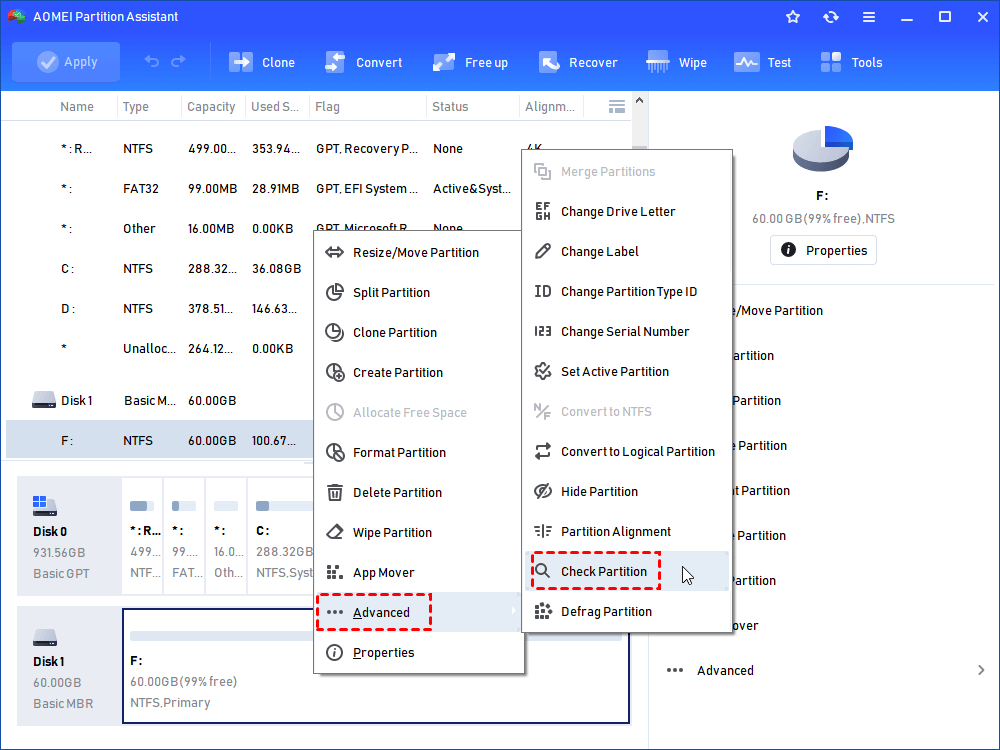
Step 1. In the main interface, right-click the target drive and then click "Check Partition".
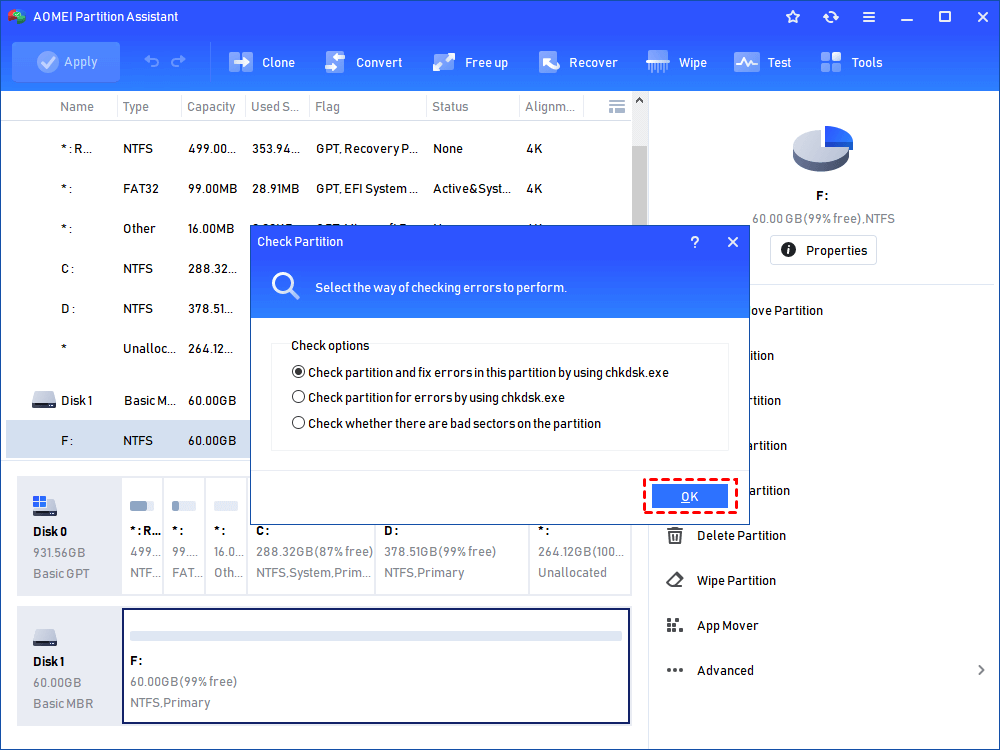
Step 2. Choose the "Check partition and fix errors in this partition by using chkdsk.exe" option, then click "OK".
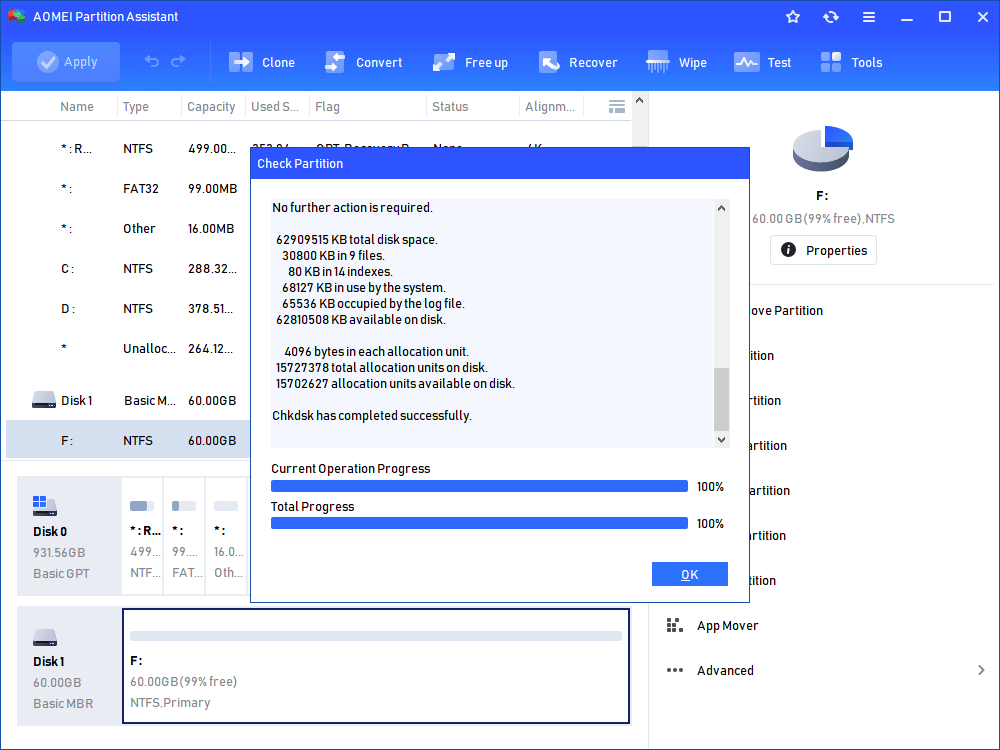
Step 3. Wait for a while and click "OK" when it's finished.
Fix 4. Align WD Blue SSD partitions
To maximize your WD Blue SSD's read and write speeds, ensuring proper 4K alignment is essential. If you notice sluggish performance, aligning the SSD might help. You can easily achieve this using the Align Partition feature in AOMEI Partition Assistant. Here's how to do it:
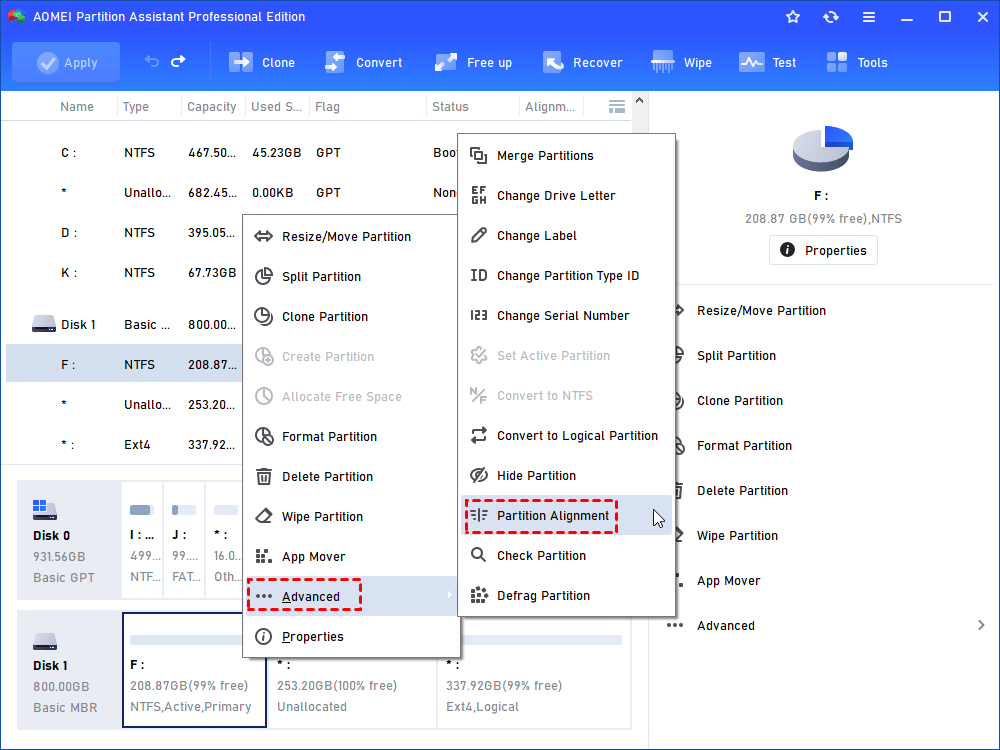
Step 1. Install and run AOMEI Partition Assistant. Right-click the partition you want to align and select Advanced > Partition Alignment.
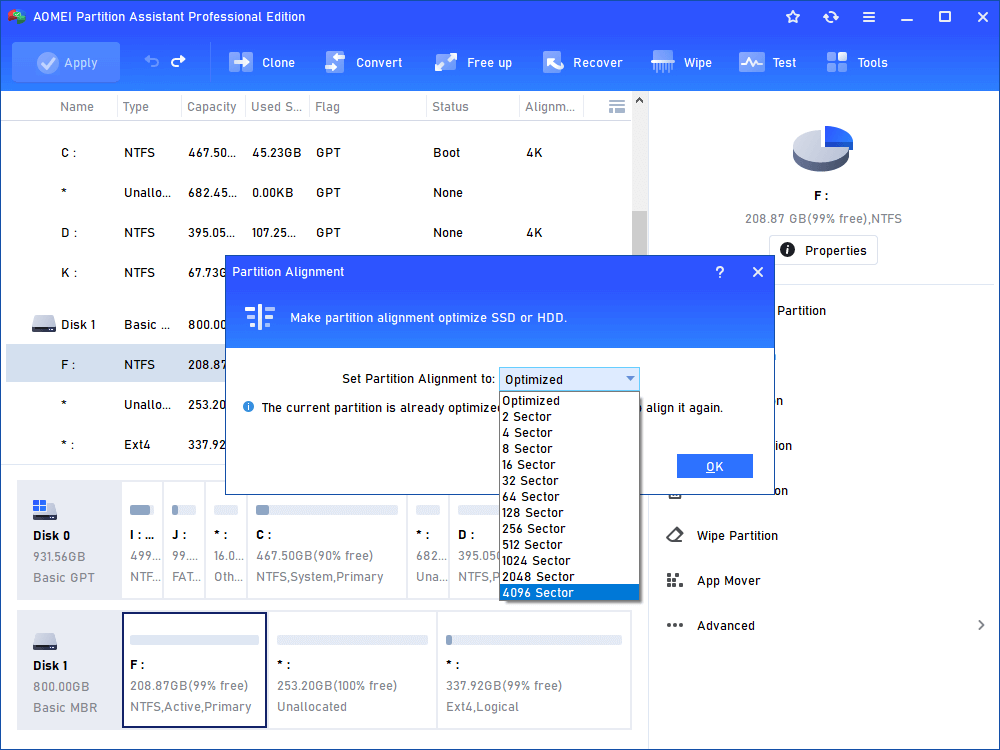
Step 2. In the pop-up window, select 4096 sectors from the given list and click OK.
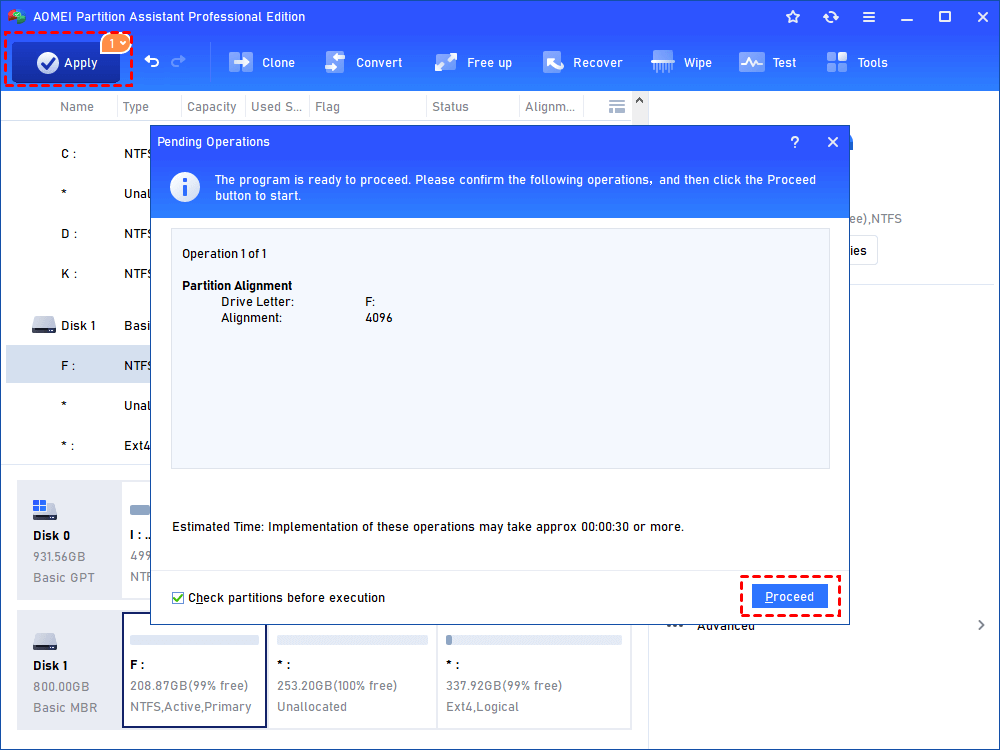
Step 3. Click Apply > Proceed to execute the operation.
Fix 5. Disable Hibernation
Hibernation mode is not ideal for SSDs, as it offers minimal benefits while potentially reducing performance. To resolve slow WD Blue SSD speeds, it’s recommended to disable hibernation on your PC. Follow these simple steps:
Step 1. Type cmd in the search bar and right-click on Command Prompt, selecting Run as Administrator.
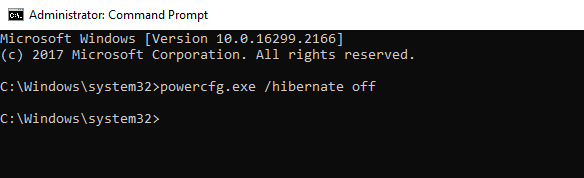
Step 2. In the elevated Command Prompt window, type powercfg.exe /hibernate off and press Enter.
Fix 6. Enable the write caching
Disk write caching helps improve file transfer speeds by temporarily storing data before writing it to the drive. Enabling this feature can enhance the performance of your SSD. Here’s how you can enable it:
Step 1. Right-click the Windows icon and select Device Manager.
Step 2. Expand the Disk drives section, right-click your WD Blue SSD, and choose Properties.
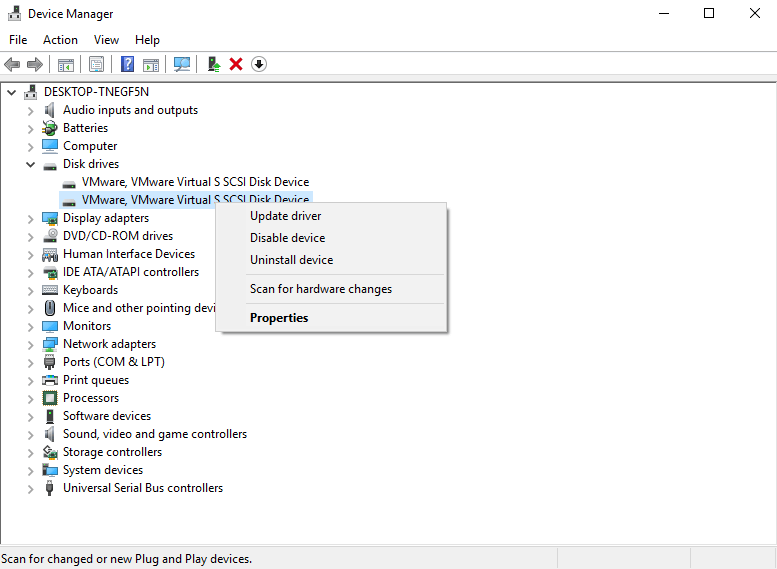
Step 3. Navigate to the Policies tab and check if Write caching on the device is enabled. If it’s not, tick the box and click OK to apply the changes.
Fix 7. Secure erase WD Blue SSD
If the previous solutions haven’t resolved the slow write speed issue with your WD Blue SSD, you might consider fully erasing the drive. Over time, as data accumulates, SSDs can experience performance degradation. Erasing the drive can help restore its speed, and it’s particularly effective if the SSD is infected with viruses or malware.
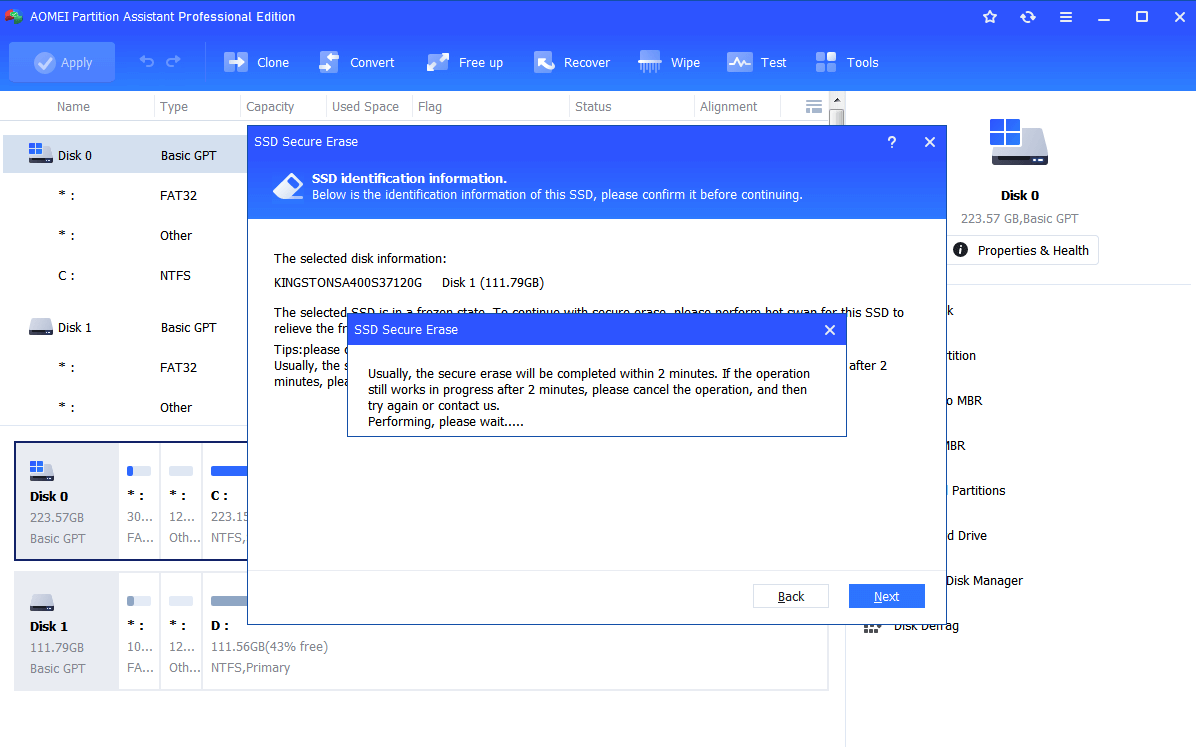
To securely erase the SSD, use the Secure Erase SSD feature in AOMEI Partition Assistant. This tool allows you to wipe all data on an SSD and reset it to factory performance, without damaging the drive or reducing its lifespan.
Step 1. Run AOMEI Partition Assistant Professional. Click “Wipe” on in the top toolbar, and choose “SSD Secure Erase”.
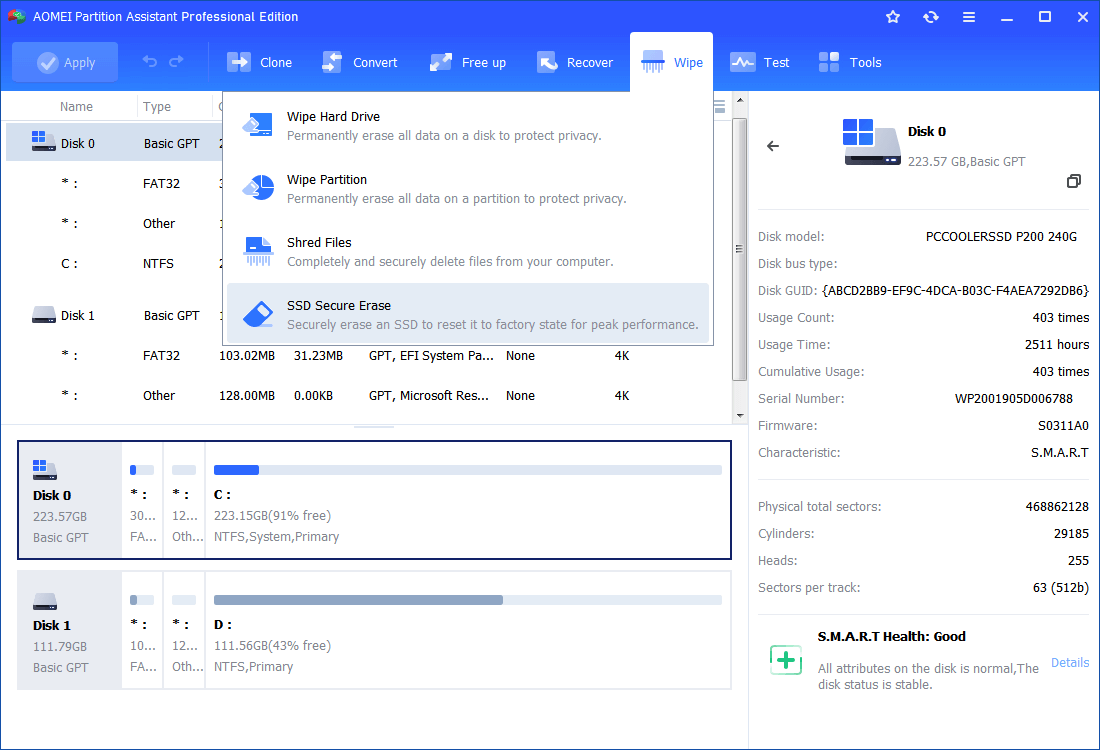
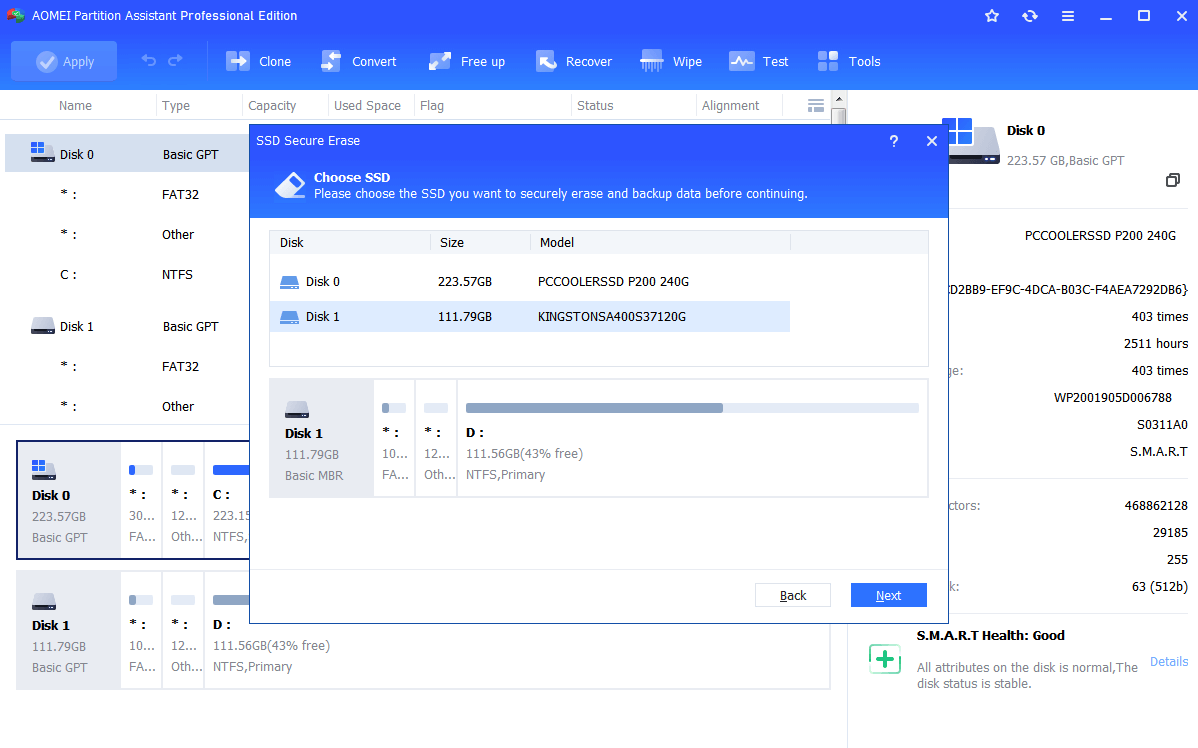
Step 2. Select the SSD you will securely wipe data from in this page.
Step 3. It prompts that the SSD is under a frozen state. Don’t worry. You can do a hot swap to release it.
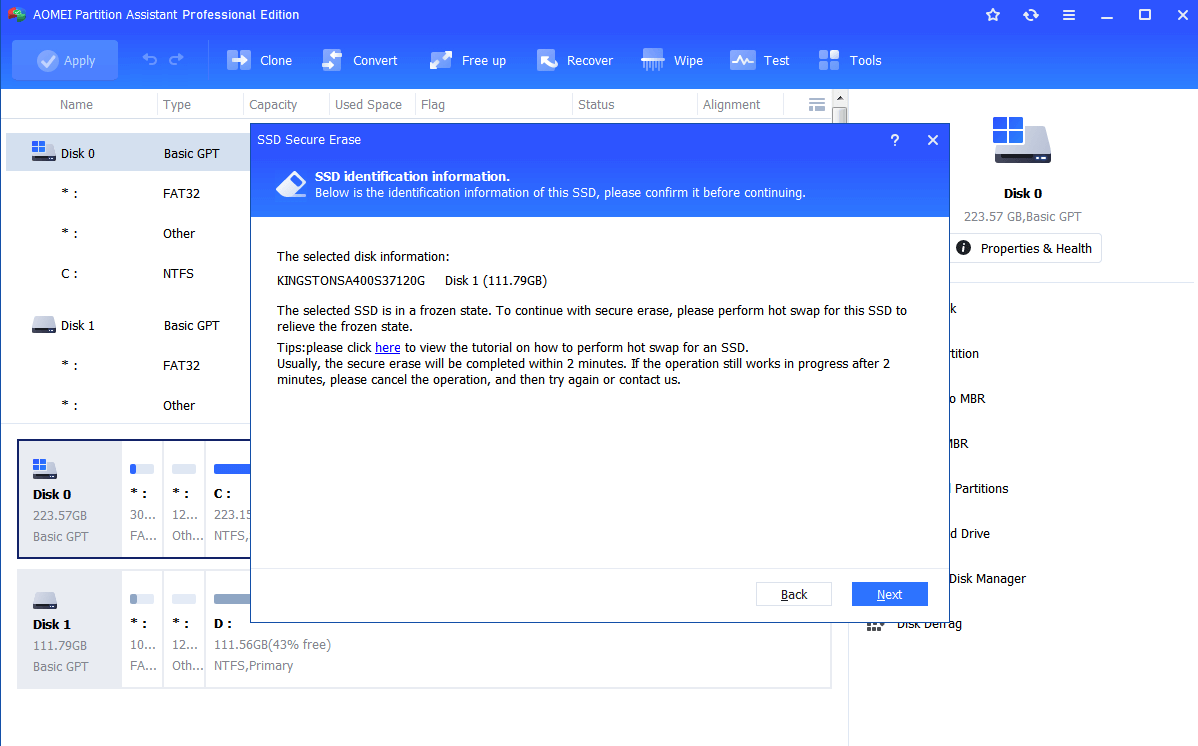
Step 4. Click “Next” to secure wipe SSD.
Conclusion
In conclusion, this article explores the potential causes behind slow performance on WD Blue SSDs and provides several practical solutions to address the issue. You can select the method that best fits your needs to improve performance. Additionally, it introduces a useful tool for performing SSD benchmarks.
