
 PartitionAssistant Recovery


What Are The Most Comprehensive File Systems Windows Uses?
This guide explains “what are the most comprehensive file system Windows uses” problem, how to change file system formats with and without data loss.

By Lucas / Updated on August 8, 2025


What Is File System?
File system is the silent architect behind every file you save, every application you install, and every operating system you run. It is a method and data structure that an operating system uses to control how data is stored and retrieved. Without a file system, information placed on a storage medium would be one large block of data with no way to tell where one piece of data ends and the next begins. It’s essentially the librarian of your digital world, organizing and indexing every piece of information.
Why Is File System Important?
The importance of a file system cannot be overstated. It provides the framework for:
Data Organization: It allows you to create, name, locate, and delete files, and organize them into directories (folders).
Efficient Access: It optimizes the way data is read from and written to a drive, improving PC performance.
Data Integrity: Modern file systems include mechanisms to prevent data corruption and ensure consistency, even in the event of unexpected shutdowns.
Security: Many file systems offer features like permissions and encryption to protect your data from unauthorized access.
What's The Relationship Between File System and Operating System?
The file system is an integral part of the operating system. When you install Windows operating systems, a specific file system is chosen for the installation drive, typically NTFS. The operating system relies on the file system to interact with the storage hardware. It translates your commands (like "open document.docx") into actions that the drive understands, locating the file and presenting its contents to you. Different operating systems often support different sets of file systems, though there can be overlap for compatibility.
How the Operating System Accesses the File System
When you interact with a file on your computer, the operating system uses the file system to:
Locate the file: It consults its internal tables (like the Master File Table in NTFS or File Allocation Table in FAT32) to find the physical location of the file's data on the disk.
Read/Write Data: It then instructs the hard drive controller to read data from or write data to those specific locations.
Manage Metadata: The file system also manages metadata – information about the file itself, such as its name, size, creation date, last modified date, and access permissions.
Types of File System Format
While many file systems exist, Windows primarily utilizes and interacts with a few key types: NTFS, FAT32, and exFAT.
Linux systems commonly use EXT2/3/4, which Windows can't natively read or write to without third-party tools.
File System Format: NTFS, FAT32, exFAT, or EXT2/3/4, Which Should I Use?
Understanding the characteristics of different file systems is crucial for choosing the right one for your needs. We'll compare the most common ones and discuss their ideal use cases.
NTFS (New Technology File System)
NTFS is the default and most robust file system for modern Windows operating systems. When you install Windows operating systems, especially Windows 7, 8, 10, or 11, the system drive is almost always formatted with NTFS.
Pros:
Security: Supports file and folder permissions, encryption (EFS), and disk quotas.
Reliability: Includes journaling, which helps recover data consistency after system crashes.
Large File/Volume Support: Supports extremely large files and partition sizes (up to 8 PB on modern Windows versions).
Compression: Built-in file compression to save disk space.
Self-healing: Can automatically detect and repair minor file system corruption in the background.
Cons:
Limited compatibility with older operating systems and non-Windows devices without special drivers.
FAT32 (File Allocation Table 32)
FAT32 is an older file system, a successor to FAT16, and offers broader compatibility.
Pros:
Broad Compatibility: Highly compatible with almost all operating systems (Windows, macOS, Linux, game consoles, smart TVs, etc.).
Simplicity: Simpler structure, which can be faster for small files on smaller drives.
Cons:
File Size Limit: Cannot store individual files larger than 4GB. This is a significant limitation for large media files or disk images.
Partition Size Limit: Limited to partitions up to 2TB (though practically, Windows often limits FAT32 formatting to 32GB without third-party tools).
No Security Features: Lacks advanced security features like permissions.
exFAT (Extended File Allocation Table)
exFAT is a compromise between NTFS and FAT32, designed for flash drives and external storage.
Pros:
Large File/Volume Support: No practical limits on file or partition size (similar to NTFS).
Good Compatibility: Supported by Windows, macOS, and many Linux distributions, making it ideal for cross-platform data exchange on portable devices.
Cons:
No Journaling: Lacks the journaling feature of NTFS, making it less resilient to data corruption during unexpected shutdowns.
No Security Features: Does not support file permissions or encryption like NTFS.
EXT2/3/4 (Extended File System)
These are the primary file systems used by Linux operating systems.
Pros:
Robustness (EXT4): EXT4 is highly robust with journaling and advanced features.
Performance (EXT4): Good performance for various workloads.
Cons:
No Native Windows Support: Windows cannot natively read or write to EXT2/3/4 partitions. You need third-party drivers or software to access them.
Not for Windows Installation: Cannot be used to install Windows operating systems.
When to Use the Right File System for Different Systems
For Windows System Drive: Always NTFS. This is the default and provides the best performance, security, and reliability for your operating system.
For External Hard Drives/SSDs primarily used with Windows: NTFS is generally the best choice for large storage devices that will mostly be used with Windows, especially if you need security features or plan to store very large files.
For USB Flash Drives/SD Cards for Cross-Platform Use (Windows, macOS, Linux, etc.): exFAT
exFAT is highly recommended if you need to store files larger than 4GB and require compatibility across different operating systems.
FAT32 can be used if you only deal with smaller files (under 4GB) and prioritize maximum compatibility with older devices.
For Drives exclusively for Linux: EXT4.
For Shared Storage (e.g., Network Attached Storage - NAS): The choice often depends on the NAS device's operating system and your specific needs. Many NAS devices support NTFS, FAT32, and exFAT, allowing flexibility.
Change File System Format Between NTFS, FAT32, exFAT, and EXT2/3/4
Sometimes, you may need to change file system format of a drive or partition, perhaps to overcome a file size limitation or to ensure compatibility with another device. There are several ways to achieve this, but it's crucial to understand that formatting a partition will erase all data on it. Always back up important data before proceeding.
Way 1. Format Drive to Change File System Between NTFS, FAT32, exFAT, and EXT2/3/4
Step 1. Go Star > All Programs > Accessories > Command Prompt.
Step 2. In the command prompt window, type: convert drive_letter: /fs:ntfs. For instance, if you want to convert E drive from FAT32 to NTFS, type: convert E: /fs:ntfs and press Enter.
Step 3. Follow to prompt to enter current volume label for your drive E. Press Enter, and the E drive will be formatted and changed to NTFS.

Way 2. Convert File System to NTFS/FAT32 with a Third-Party File System Conversion Tool
While formatting is effective, it always involves data loss. What if you need to change file system without losing your precious files? This is where professional third-party tools come in handy. They offer "convert" functions that can change the file system of a partition from one type to another (e.g., FAT32 to NTFS or NTFS to FAT32) without data loss, or provide more robust formatting options that Windows' built-in tools might lack (like formatting large partitions to FAT32).
One such highly regarded and professional software is AOMEI Partition Assistant Professional. This powerful and versatile disk management tool is designed to simplify complex disk operations, including partition resizing, merging, deleting, and, critically for our discussion, converting file systems without data loss.
 100% Secure
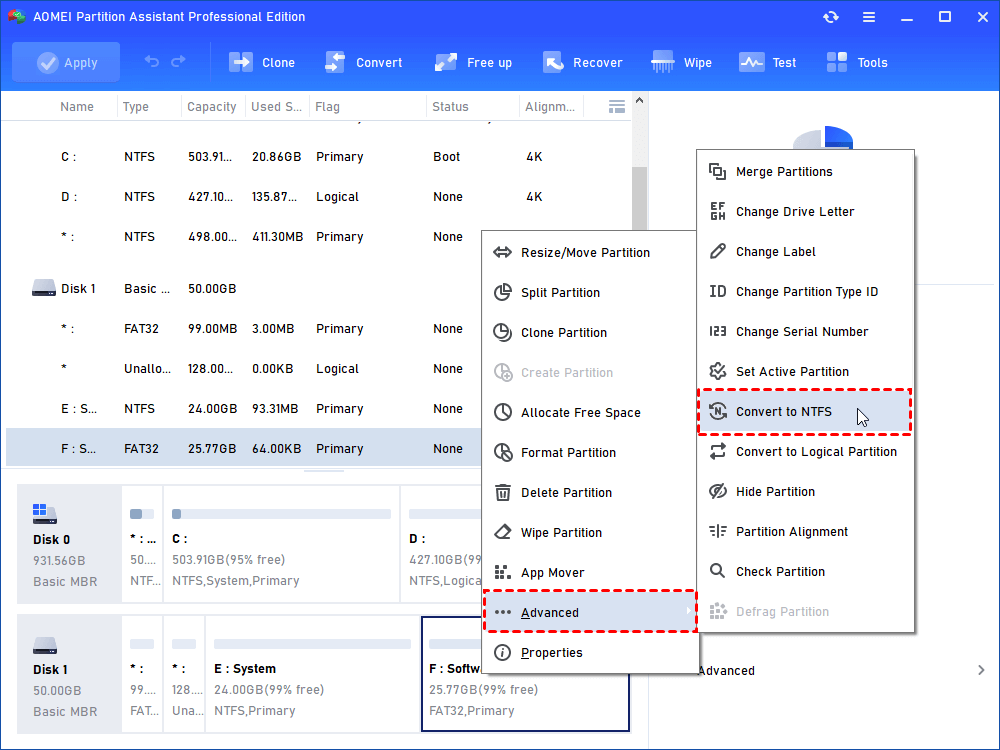
Step 1. Install and run AOMEI Partition Assistant Professional. Right-click the drive you need to convert. Select “Advanced”> “Convert to NTFS”.
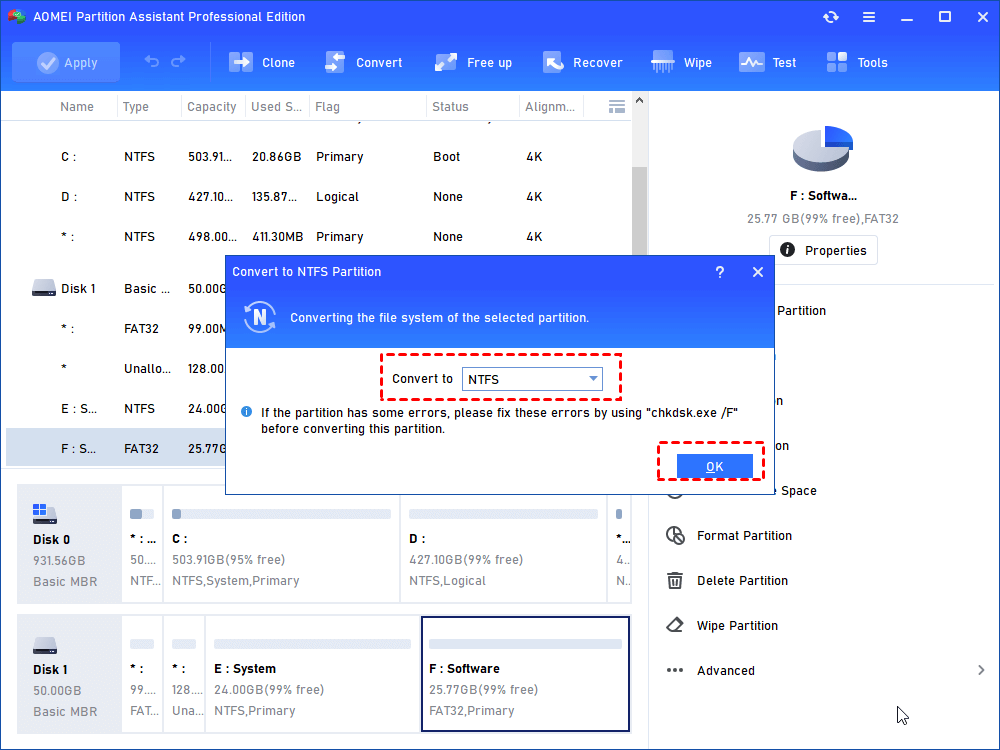
Step 2. In the pop-up window, NTFS is selected by default. Click “OK”.
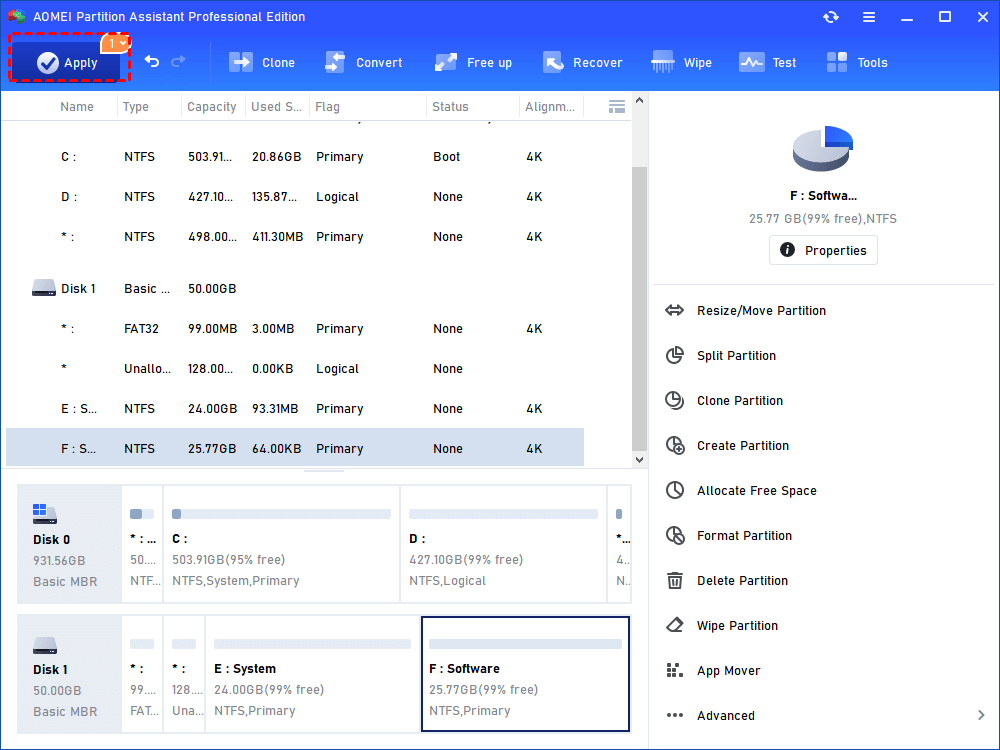
Step 3. Now the USB drive is with NTFS file system. Click “Apply” to execute it.
Using AOMEI Partition Assistant Professional ensures a safe and straightforward method to change file system formats without the risk of data loss associated with traditional formatting. It’s an invaluable tool for maintaining and optimizing your Windows computer's storage.
Further Tips: Advanced Troubleshooting Solutions Toward Complex File System Errors
Even with proper file system management, errors can occur. Here are some common file system errors you might encounter and brief tips for troubleshooting:
"File system error (-2147219196)" or similar codes: Often indicates corruption in the file system structure or an issue with a specific app trying to access files.
"The volume does not contain a recognized file system" or "RAW partition": This means Windows cannot identify the file system, often due to severe corruption or an unformatted drive.
Slow performance, frequent crashes, or unreadable files: These can be general symptoms of file system errors or bad sectors on the drive.
"Access Denied" errors when trying to open/modify files/folders: Could indicate permission issues (especially with NTFS) or file system corruption.
Ending
Understanding what are the most comprehensive file systems Windows uses is fundamental for efficient computer management. From which file system is used to install Windows operating systems (primarily NTFS) to the nuances of FAT32 and exFAT, each serves a distinct purpose.
Knowing when to change file system formats, whether through direct format partition methods or data-preserving conversion tools like AOMEI Partition Assistant Professional, empowers you to manage your storage effectively. By applying the knowledge and solutions provided in this article, you can ensure optimal performance, compatibility, and data integrity across your Windows devices and beyond.
 100% Secure
