
 AOMEI Partition Assistant
Solved: Why Is My Laptop Slow?
Find out why your laptop is working slow and how to speed it up. This comprehensive article provides step-by-step solutions, from cleaning your hard drive to migrating your OS to an SSD for ultimate performance.

By Lucas / Updated on November 28, 2025


There are few tech frustrations more universal than a slow computer. One day your laptop is a productivity powerhouse, and the next, it’s struggling to open a web browser. If you find yourself asking, "Why is my laptop so slow?" you're not alone. The slowdown can feel sudden and mysterious, grinding your workflow to a halt. This guide will explore the common culprits behind a sluggish laptop and provide actionable steps on how to speed it up, from simple system tweaks to powerful software solutions, restoring your device's performance.
Possible reason about--Why is my laptop slow?
Before you can fix the problem, it's important to understand the potential causes. A laptop's performance is a delicate balance of hardware and software working in harmony. When one or more components are strained, the entire system can suffer. Below are the most common reasons your laptop is running slowly.
Too Many Startup and Background Programs: Many applications are configured to run automatically at startup and continue running in the background. These processes consume valuable RAM and CPU power, even when you're not actively using them.
Full or Fragmented Hard Drive: Hard drives need a certain amount of free space to operate efficiently, ideally around 20% of their total capacity. When a traditional HDD gets full, it slows down significantly. Furthermore, data on an HDD can become fragmented over time, meaning parts of a single file are scattered across the disk, forcing the drive to work harder to access them.
Insufficient RAM: RAM is your laptop's short-term memory, used to handle active applications. If you have too many programs or browser tabs open at once, your system can run out of RAM, forcing it to use a much slower "virtual memory" on your hard drive, which causes a noticeable lag.
Malware or Viruses: Malicious software running secretly in the background can consume a massive amount of system resources, leading to a sudden and severe slowdown.
Outdated Operating System, Drivers, or Software: Running an outdated version of Windows or having old hardware drivers can lead to performance issues and compatibility problems.
Overheating: If your laptop’s cooling vents are blocked with dust, internal components can overheat. To prevent damage, the system will automatically slow down, or "throttle," its performance.
How to speed up my laptop
Now that you have a better understanding of why your laptop is slow, you can take targeted steps to address the issues. These solutions range from basic maintenance to more advanced optimizations that can significantly boost your laptop's speed and responsiveness.
Windows includes a suite of built-in utilities that can help you reclaim performance without needing to install anything extra.
1. Disable Unnecessary Startup Programs
You can control which applications launch when you turn on your computer through the Task Manager.
Step 1. Press Ctrl + Shift + Esc to open the Task Manager.
Step 2. Click on the "Startup" tab.
Step 3. You will see a list of programs and their "Startup impact" (High, Medium, Low).
Step 4. Right-click on any non-essential programs with a high impact and select "Disable."

2. Clean Up Your Hard Drive
Freeing up disk space is one of the most effective ways to speed up your laptop.
Step 1. Search for "Disk Cleanup" in the Start Menu and open it.
Step 2. Select your main drive (usually C:). The utility will scan for files you can safely delete, such as temporary files and items in the Recycle Bin.
Step 3. Check the boxes next to the files you want to remove and click "OK."
3. Defragment Your Hard Drive (HDD Only)
If your laptop has a traditional hard disk drive (HDD), defragmenting it can improve file access times. Note: Do not defragment a Solid-State Drive (SSD), as it is unnecessary and can reduce its lifespan.
Step 1. Search for "Defragment and Optimize Drives" in the Start Menu.
Step 2. Select your HDD and click "Optimize." Windows typically does this on a schedule, but a manual run can help.
Enhance Performance with a Third-Party Tool: AOMEI Partition Assistant Professional
While Windows tools are helpful, a dedicated disk management solution like AOMEI Partition Assistant Professional offers more advanced features to unlock your laptop's true potential. This powerful software is an all-in-one partition manager that provides a user-friendly interface for optimizing your hard drive and boosting system speed. It simplifies complex tasks, making them accessible even for users who are not tech-savvy.
One of the most impactful upgrades you can make for a slow laptop is switching from an HDD to an SSD. AOMEI Partition Assistant Professional makes this process seamless with its "Migrate OS to SSD" feature, which is a game-changer for improving laptop performance.
 100% Secure
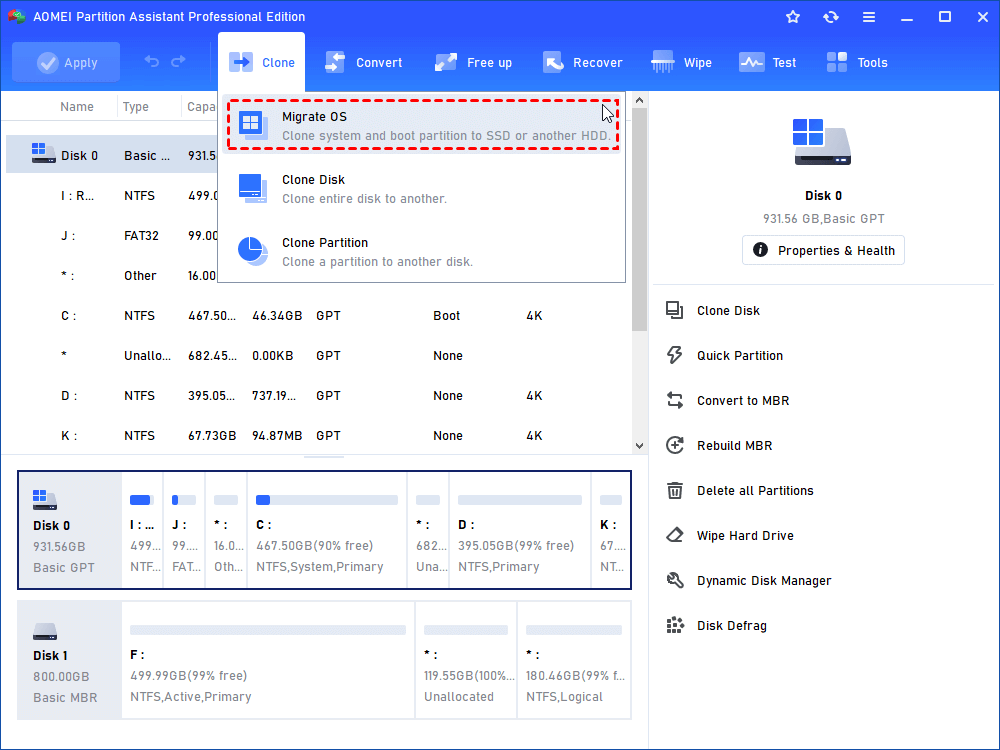
Step1. Install and launch AOMEI Partition Assistant. Click "Clone" > "Migrate OS".
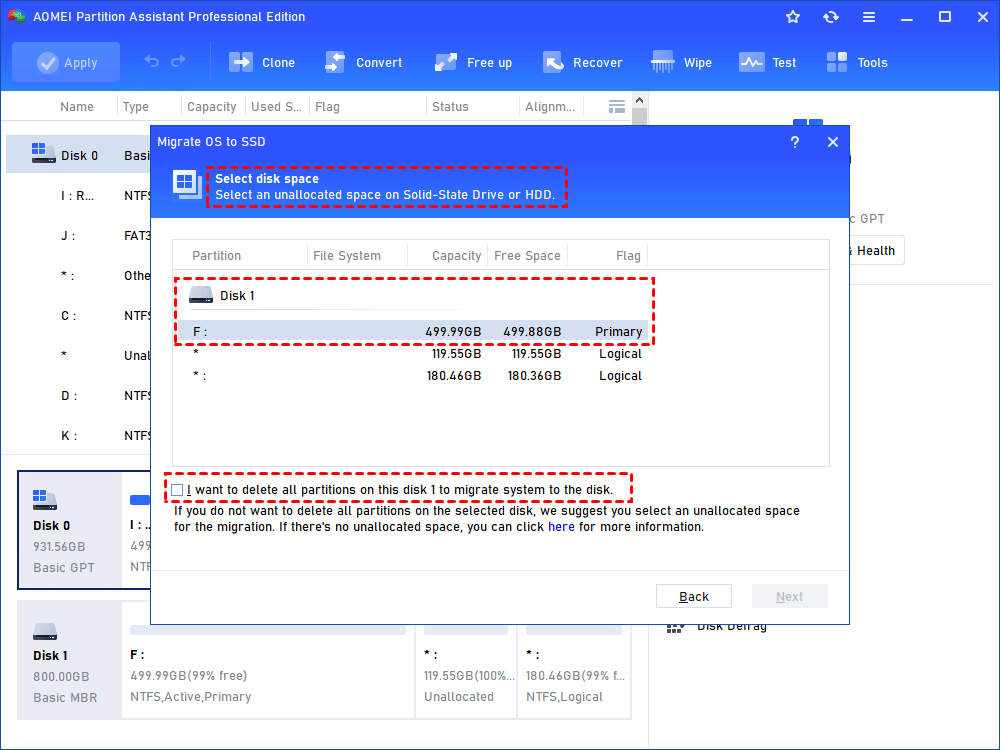
Step 2. Things become easy with this wizard. The left is to follow the wizard. Select my new SSD as the target drive.
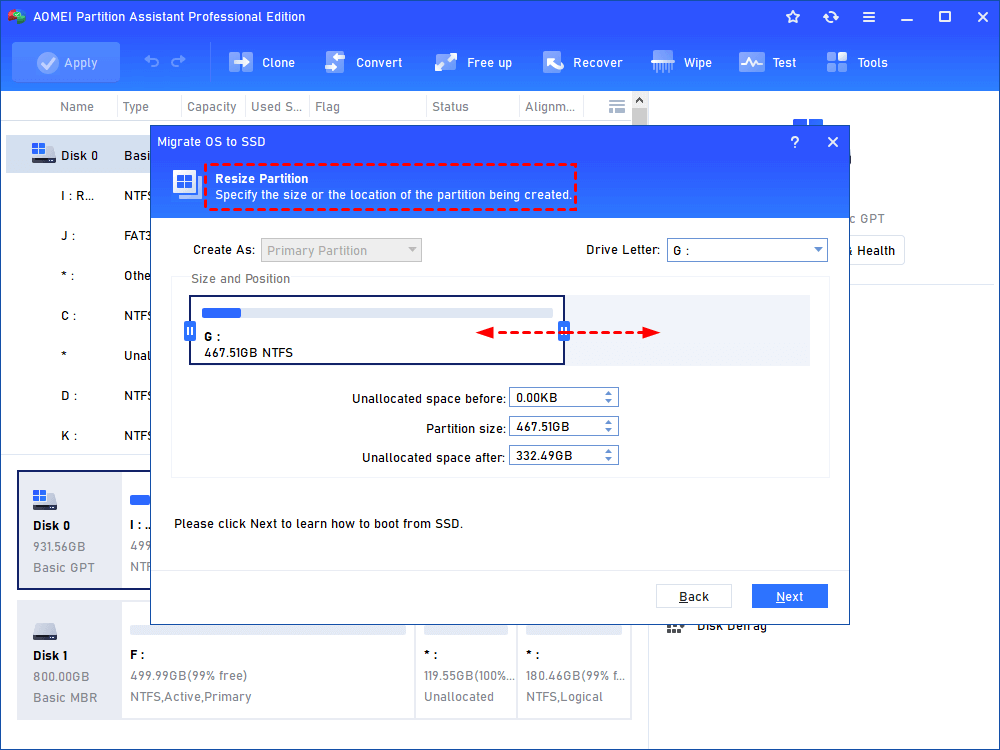
Step 3. It provides an option for me to adjust OS partition in my new SSD and a note to pay attention to. This is very thoughtful.
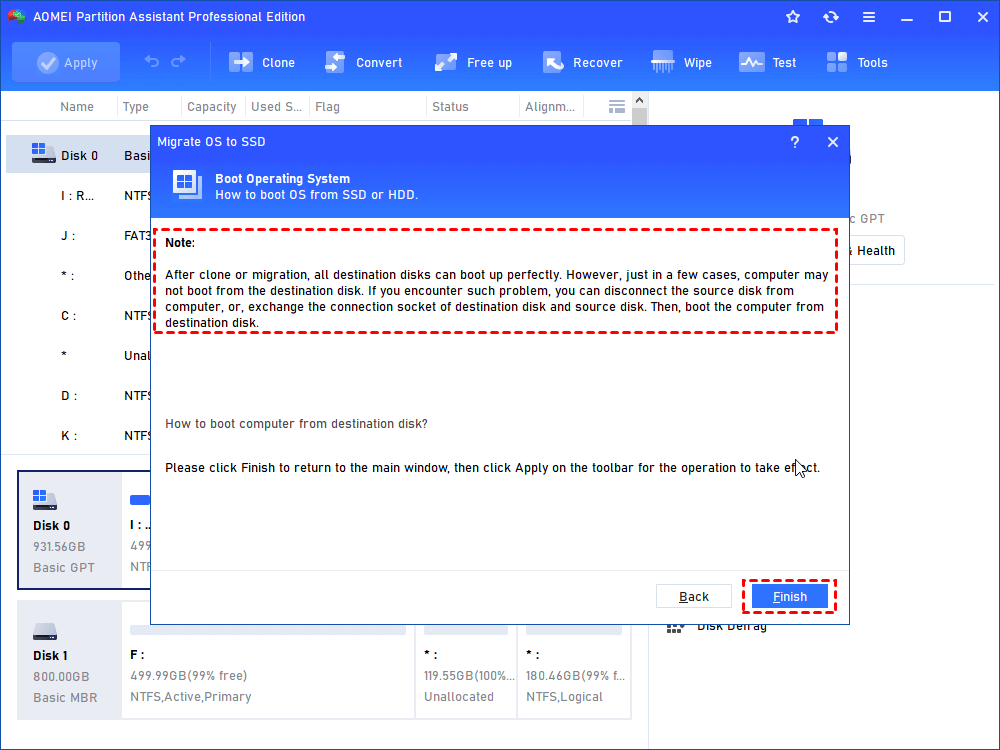
Step 4. Now I get a virtual result of migrating OS. This will come into reality only if I click "Apply". Then you can remove the old SSD and boot OS from the new SSD.

▶ Tip: If you need to, you can clone the whole disk from your old disk to your new disk. So you don't need to reinstall all programs.
After the migration is complete, you can swap your old HDD with the new SSD, and your laptop will boot up in a fraction of the time, with applications launching almost instantly.
Beyond OS migration, AOMEI Partition Assistant Professional offers other handy functions to improve performance, such as aligning SSD partitions for optimal speed, converting disks between MBR and GPT without data loss, and securely wiping old hard drives.
To sum up
A slow laptop can be a major source of frustration, but the problem is almost always solvable. By identifying the root cause—whether it’s a cluttered hard drive, too many background processes, or outdated hardware—you can take effective steps to restore its speed. For immediate improvements, using Windows' built-in tools to clean up your disk and manage startup programs is a great start.
However, for a truly transformative performance boost, upgrading to an SSD is the best solution, and a tool like AOMEI Partition Assistant Professional makes that transition effortless. By taking a proactive approach to maintenance, you can ensure your laptop runs smoothly for years to come.
