
 AOMEI Partition Assistant
What Should You Do When Windows 10 End of Support?
What to do when Windows 10 end of support? This article will share when is Windows 10 end of support and what should you do with the best practices to ensure Windows 10 run properly after 2025.

By Irene / Updated on July 2, 2025


What happens at Windows 10 end of support?
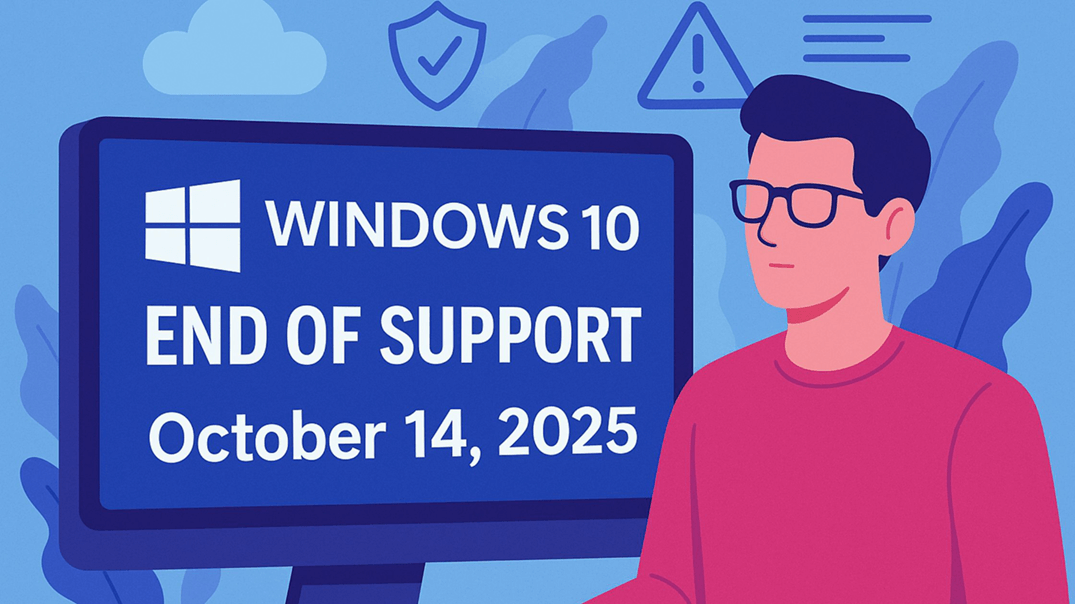
When Windows 10 reaches its end of support on October 14, 2025, Microsoft will stop providing security updates, bug fixes, and technical support. Although the system will still run after that date, it will become more vulnerable to malware, viruses, and cyberattacks, since new threats will no longer be patched. This poses serious risks, especially for users who handle sensitive data or for businesses that must meet compliance requirements. While your computer won’t lose features or stop working immediately, continuing to use Windows 10 without updates will gradually become less safe. To stay protected, the most reliable solution is to upgrade to Windows 11. However, if you prefer not to upgrade right away, one option is to turn on BitLocker as an added layer of protection.
BitLocker helps by encrypting your drive, so even if someone steals your computer or hard drive, they won’t be able to access your files without the correct password or recovery key. This encryption feature will keep working even after Windows 10 stops receiving updates, because it doesn’t depend on regular patches to secure your data. If you're interested in setting it up, you can follow the guide below.
How to turn on BitLocker on Windows 10?
If you’re using Windows 10 Pro, Enterprise, or Education editions, you can easily turn on BitLocker through the built-in Windows features to encrypt your system drive and protect your data from unauthorized access. However, if you're a Windows 10 Home user, things are different—BitLocker is not available in the Home edition by default. This means you’ll need to use third-party software to get similar encryption protection.
One reliable option is AOMEI Partition Assistant, a powerful and user-friendly partition manager. It includes a built-in BitLocker feature that works on all editions of Windows 10, including the Home version. You can download the demo version to try out how to enable BitLocker system drive encryption on your Windows 10 Home PC.
 AOMEI Partition Assistant
The Best Windows Disk Partition Manager and PC Optimizer
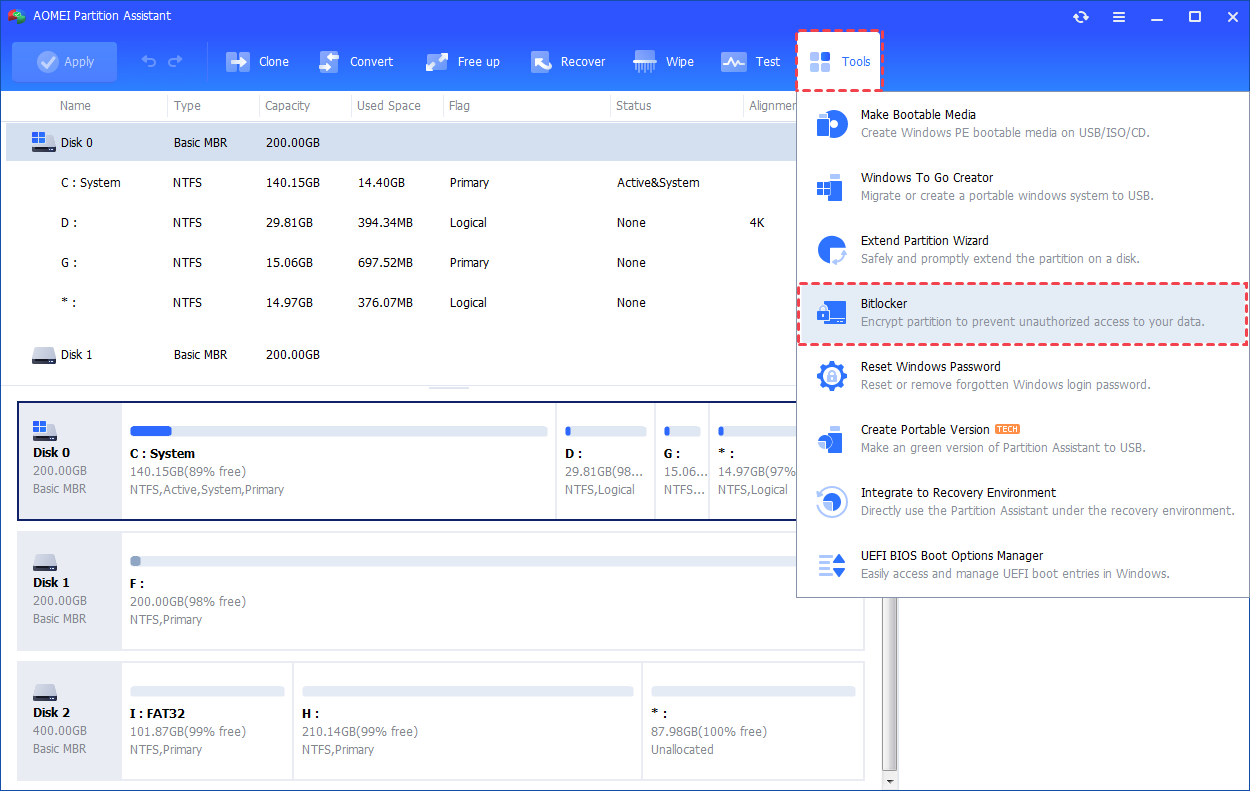
Step1. Install and launch AOMEI Partition Assistant. Click the "Tools" main tab and select "BitLocker".
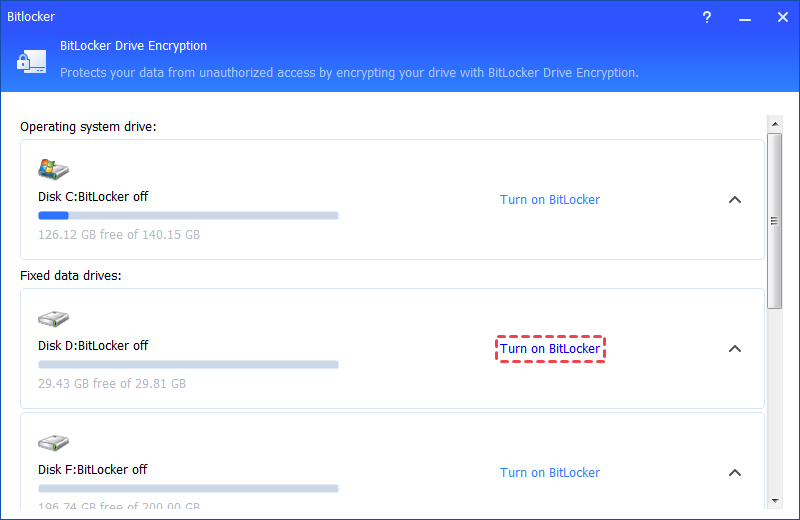
Step 2. All drives on the system will be displayed, including operating system drives, fixed data drives, and removable drives. Please find the system partition you would like to encrypt BitLocker and click the "Turn on BitLocker" option. (Here, we take the drive D: as an example.)
⚠️Notes: It only supports encrypting NTFS partitions. Other partition file systems, for example, FAT or FAT32 cannot be encrypted. To fix this, you can convert FAT32 to NTFS without losing data.
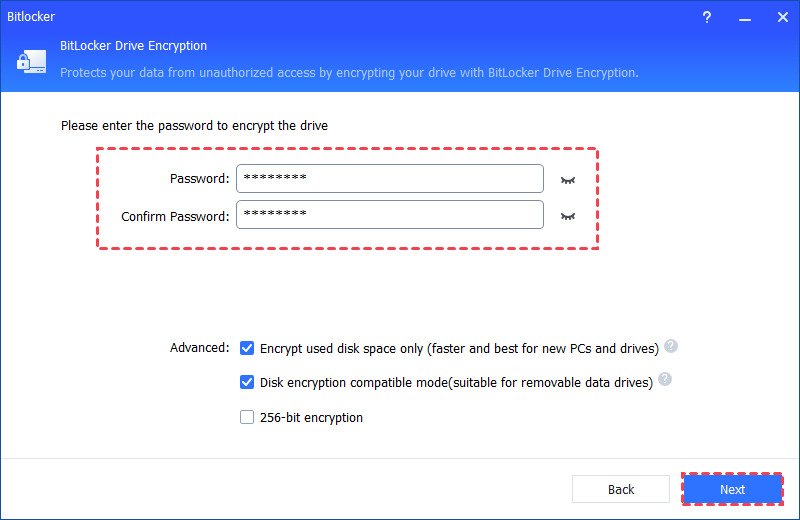
Step 3. Please set and confirm a password to encrypt the drive and click "Next".
Step 4. Select a way to back up your recovery key. You can either select "Save to a file" or "Print the recovery key".
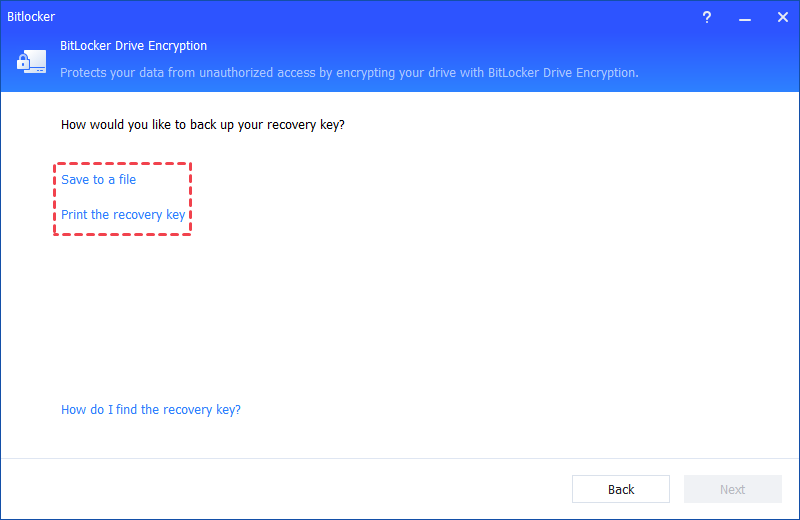
🌟Tips: Please do not save the recovery key in the encrypted drive path. For example, it is unable to encrypt D: and save the recovery key on the same D: drive.
Step 5. If you select "Save to a file", please choose a location on your PC to save the recovery key.
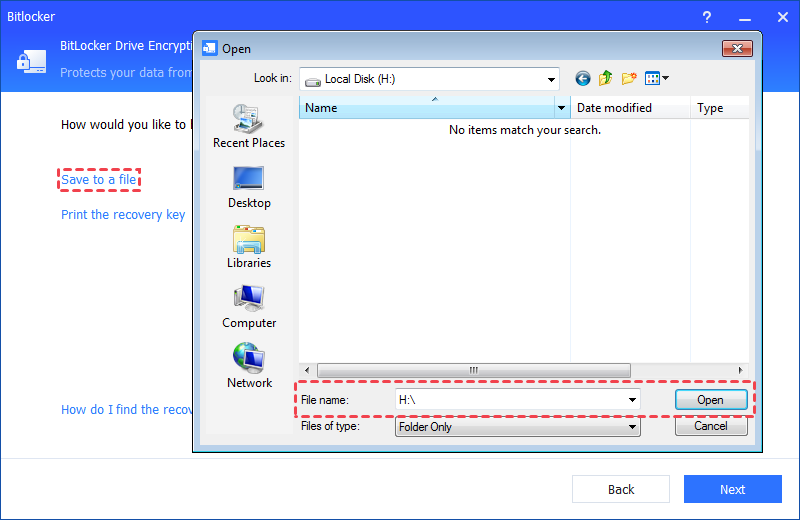
Then, please click the "Next" button to start the encryption process, then you will be required to restart your PC to enter into the Windows PE environment to BitLocker encrypt system drive. Please click "OK" to continue.
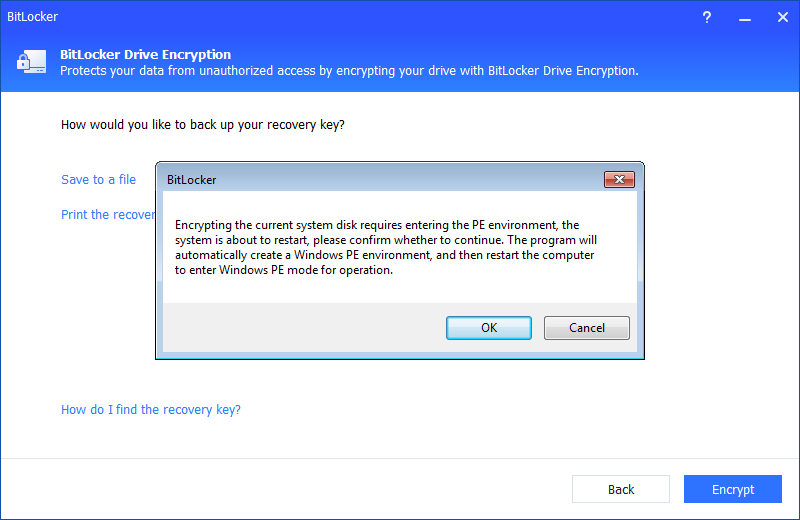
The program will automatically create a Windows PE environment on your PC.
Tips: AOMEI Partition Assistant will automatically detect whether your system has installed Windows AIK/ADK or not. If yes, it will start the Windows PE creation and then enter into WinPE to encrypt the drive. If not, please download and install Windows AIK/ADK first.
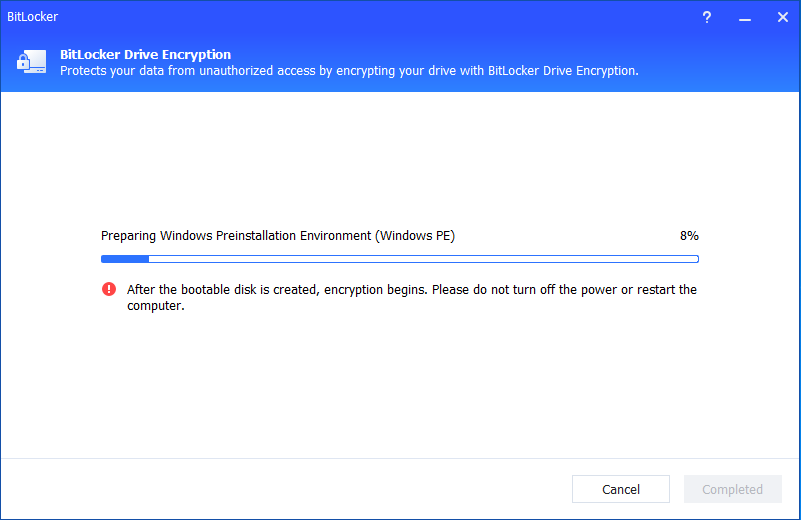
After it is created successfully, the PC will reboot into Windows PE mode to encrypt the drive. After the encryption is completed, you will get an encryption complete window and you can click "OK" to restart your PC.
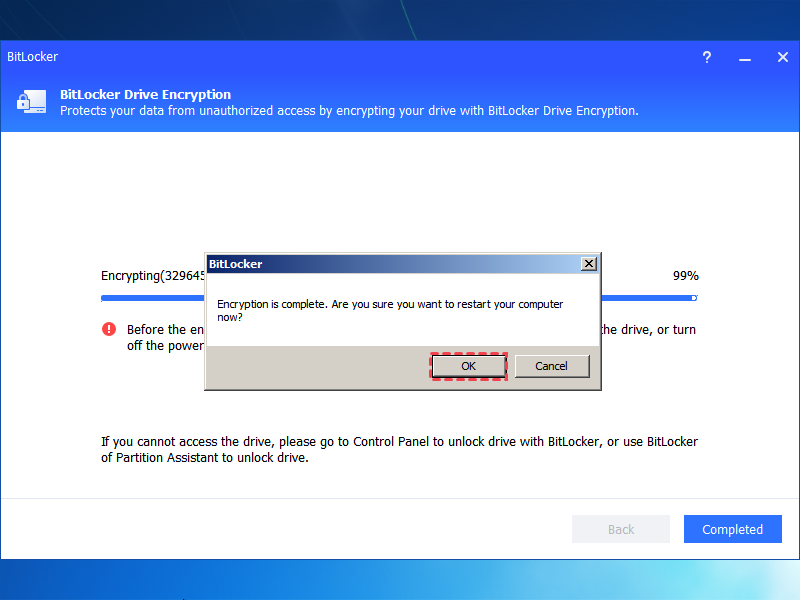
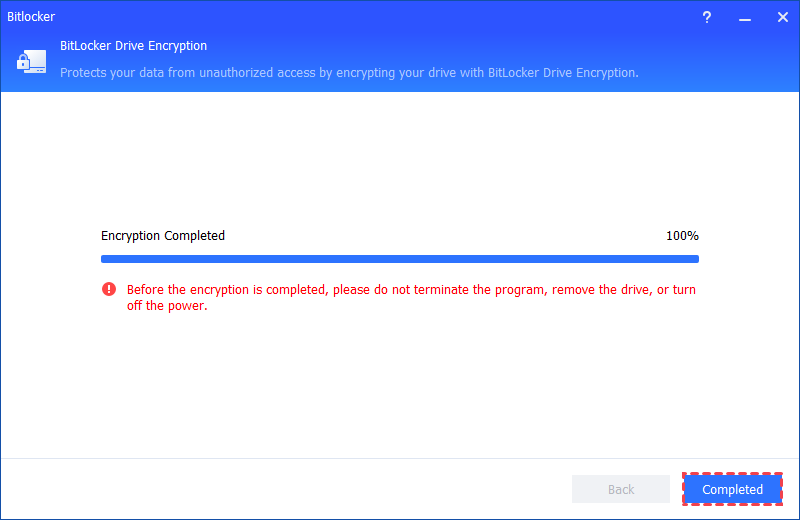
Step 5. The encryption process might take time to encrypt the drive. Before the process is finished, please do not terminate the program, remove the drive, or turn off the power. Once the encryption process is finished, please click "Completed". Finally, the system drive is BitLocker encrypted.
Enabling BitLocker on Windows 10 is a practical way to protect your data—it encrypts your drive and prevents unauthorized access if your device is lost or stolen. However, BitLocker cannot block system-level threats, such as malware or exploits that take advantage of unpatched security holes. So while BitLocker adds an extra layer of protection, it’s not a complete solution. For full, ongoing security—especially online—it’s strongly recommended to upgrade to Windows 11. The more details can be found in the related article: Can I Still Use Windows 10 After 2025.
Conclusion
It is a good idea to enable BitLocker before Windows 10 end of support. While BitLocker offers a valuable layer of data protection on Windows 10, it cannot prevent the growing risks that come with using an unsupported system. After October 14, 2025, Windows 10 will no longer receive security updates, making it increasingly unsafe over time. To ensure long-term security and system stability, upgrading Windows 10 to Windows 11 remains the best and most reliable choice.
AOMEI Partition AssistantThe Best Windows Disk Partition Manager and PC Optimizer
FAQs about end of support for Windows 10
1. Can I still use Windows 10 after October 14, 2025?
Yes, but it's risky. Microsoft will stop providing security updates and support, making the system more vulnerable to threats.
2. Is it possible to keep Windows 10 secure after support ends?
Yes. Businesses and individuals can buy Extended Security Updates (ESU), a paid option that provides critical patches for up to 3 more years.
3. What should I do if my PC can’t run Windows 11?
You can try installing Windows 11 by bypassing hardware requirements—though this may cause instability. Or you can create a Windows 11 to Go USB.
4. Will upgrading to Windows 11 delete my files?
Not if you use official upgrade tools. However, a clean installation will erase all data, so backing up is highly recommended.
5. Can I reinstall Windows 10 after support ends?
Yes. You can still install it using existing media or official ISO files, but it won’t receive updates, which makes it unsuitable for long-term use.
