
 AOMEI Partition Assistant
How Do I Do System Restore on Windows 10?
Asking "how do I system restore on Windows 10?" Get the answer here! This guide details how to roll back your PC to fix problems and offers a superior method for cloning your entire hard drive for total data protection.

By Lucas / Updated on October 13, 2025


Ever had a software update go wrong, a new driver crash your system, or your PC suddenly start running sluggishly for no apparent reason? These common frustrations can bring your productivity to a halt. Fortunately, Windows includes a built-in safety net called System Restore. If you've been asking yourself, "How do I do system restore on Windows 10," you've come to the right place. This comprehensive guide will walk you through everything you need to know, from enabling the feature to performing a restore, and even introduce a more powerful alternative for total data protection.
What Is System Restore?
This section will explain the core concept of System Restore, what it does, and just as importantly, what it doesn't do.
Think of System Restore as a time machine for your computer's essential settings. It's a feature in Microsoft Windows that allows you to revert your computer's state (including system files, installed applications, Windows Registry, and system settings) to that of a previous point in time. These "restore points" are generated automatically by Windows when you install a new app, driver, or update, and you can also create them manually.
When you run System Restore, it can fix problems that might be making your computer run slowly or stop responding. It's a fantastic first step for troubleshooting issues like:
1. System instability after a Windows Update.
2. Driver conflicts are causing hardware to malfunction.
3. Problems caused by a recently installed piece of software.
However, it's crucial to understand that System Restore is not a backup solution for your personal files. It will not affect your documents, photos, music, emails, or any other personal data. If a virus has deleted your photos, System Restore will not bring them back. It only affects system and program files.
How Do I Get System Restore on Windows 10 & 11?
Before you can use System Restore, you need to make sure it's turned on, as it's sometimes disabled by default. This part of the guide shows you exactly how to enable it.
If you're wondering, "how do I get system restore on Windows 10," the answer is that you already have it, but you may need to activate it for your main drive (usually the C: drive). It's a quick and easy process that provides a significant layer of protection for your PC's stability.
Step 1. Open the System Properties Window: In the Windows search bar, type Create a restore point and click on the corresponding result in the Control Panel. This will open the System Properties window directly to the System Protection tab.
Step 2. Select Your System Drive: In the "Protection Settings" section, you'll see a list of available drives. Select your main Windows drive (it will usually say "(System)" next to it).
Step 3. Configure Protection: Click the Configure... button.
Step 4. Turn On System Protection: In the new window, select the option Turn on system protection.

Allocate Disk Space: Use the slider under "Disk Space Usage" to allocate space for your restore points. A value between 5% and 10% of your drive space is generally recommended. This space will be used to store the restore points. When the space fills up, older points are automatically deleted to make room for new ones.
Apply Changes: Click Apply and then OK.
That's it! Windows will now automatically create restore points at key moments. You can also return to this screen and click the "Create..." button to make a manual restore point at any time, which is a great idea before making any significant changes to your system.
How Do I System Restore on Windows 10?
Now that the feature is enabled, let's cover the main question: how to actually perform the restore. This section provides the direct steps to revert your PC to a previous state.
If your PC is acting up, running the restore process is straightforward. Remember to close all open applications before you begin, as the process will require a system restart. Follow these steps to learn how to do i system restore on Windows 10.
Open System Restore: Once again, type Create a restore point in the Windows search bar and open it. From the System Protection tab, click the System Restore... button.
Start the Wizard: The System Restore wizard will open. Click Next.
Choose a Restore Point: You'll see a list of available restore points with the date, time, and a description of why they were created (e.g., "Install: Windows Update"). You can tick the box that says "Show more restore points" to see all available options.
Scan for Affected Programs: Select a restore point and click the Scan for affected programs button. This is a very useful feature that shows you which programs and drivers installed since that restore point will be removed, and which might be restored. Review this list carefully.
Confirm and Begin: Once you've chosen your restore point, click Next and then Finish. Windows will give you a final warning that the process cannot be interrupted once it begins. Confirm the action, and your PC will restart and begin the restoration process. This can take some time, so be patient.
How to Restore All Data on Your Windows PC
System Restore is great, but what if you need a more complete, foolproof solution? This section explores a powerful third-party tool for creating a full backup of your entire system, including personal files.
While System Restore is excellent for fixing software-related system issues, it has limitations. It can't help you if your hard drive fails, if a ransomware attack encrypts your personal files, or if Windows is so corrupted that it won't even boot. For these scenarios, you need a complete image of your disk, and that's where a dedicated disk management tool shines.
AOMEI Partition Assistant Professional: Your All-in-One Solution
AOMEI Partition Assistant Professional is a powerful and reliable disk and partition management software designed for Windows users. It goes far beyond Windows' built-in tools, offering a suite of features that give you full control over your hard drives. Instead of just restoring system settings, it allows you to clone your entire system disk, creating a perfect 1-to-1 copy that includes the operating system, all installed programs, games, and—most importantly—all of your personal data.
Cloning your disk is the ultimate backup. You can clone your main drive to a new SSD for a speed upgrade or to another hard drive as a ready-to-boot backup in case of a disaster. Here’s how simple it is with AOMEI Partition Assistant Professional.
 100% Secure
Prerequisite: Connect a new SSD or HDD to your computer that is large enough to hold all the data from your current system disk.
Step 1. Install and launch AOMEI Partition Assistant, click "Clone" in the main interface, and select "Clone Disk".

Step 2. Choose the hard disk that you need to clone as the source disk and click "Next".

Step 3. Select another drive as the destination disk, and then click "Next".

Step 4. Then, you can check the source and destination disk in the next window or change to "Sector to Sector clone", and click the "Confirm" button to continue if there is no problem.

Here, you can also click the "Settings" button to adjust the partition size on the destination disk or tick "4k alignment" to improve the reading and writing speed of the SSD.

Step 6. You can preview the disk cloning operation by viewing the "Pending Operations". To commit the "Pending Operations", please click "Apply" and "Proceed".

How to boot from the SSD drive after system clone?
After you have cloned Windows system to SSD drive successfully with either method, now you need to change the boot order in BIOS menu to boot Windows 11/10/8/7 from SSD.
1. Restart computer and constantly press F2 key (or other keys like Del, F8, F12) to access the BIOS menu.
2. Use the arrow key to select the Boot tab. System devices will appear in order of priority.
3. To give the cloned SSD a boot priority over other hard drives, move it to the first position in the list.
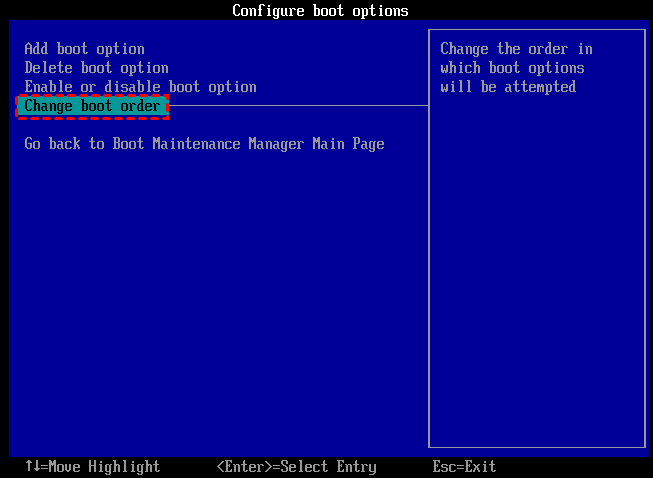
4. Save the changes and exit the BIOS setup utility. The computer will restart from the SSD successfully.
- Further tip:✎...
- If you are cloning Windows system drive or disk from MBR to GPT, or GPT to MBR disk, you will also need to change BIOS boot mode to UEFI, or UEFI to BIOS.
Summary
Navigating Windows issues can be daunting, but with the right tools, it's manageable. We've thoroughly answered the question, "how do I do system restore on Windows 10," showing you how to enable it and use it to fix common system glitches.
A comprehensive solution like AOMEI Partition Assistant Professional provides the power to create a full clone of your system disk. This not only serves as a complete backup of everything on your drive but also makes upgrading your hardware a seamless experience. By combining the convenience of Windows System Restore for minor issues and the robust power of AOMEI for major protection.
