
 PartitionAssistant Recovery


How to Fix Blue Screen Error Locale Id 16393 | 3 Ways
There are several methods to fix blue screen error locale id 16393. You will also learn to recover lost data due to the BSOD error.

By Irene / Updated on July 17, 2025


What Is Blue Screen Locale ID 16393?
The Blue Screen Locale ID 16393 is a common error that appears on Windows systems. When this happens, your computer shows a blue screen (also called the "Blue Screen of Death") and may crash suddenly. This error can interrupt your work and make it hard to use your PC normally.
The code Locale ID 16393 helps Windows identify certain system settings like language, time, and keyboard layout. However, when something goes wrong—such as system conflicts or software problems—it may trigger this blue screen error.
Several things can cause this error, including issues with system updates, corrupted registry files, faulty drivers, or problematic software installations. If you see this error, your system might not be able to boot normally, so it's best to boot into Safe Mode before trying to fix it. In the next section, we will share how to fix them.
Recover lost data before fixing BSOD Locale ID 16393
The Blue Screen error with Locale ID 16393 may lead to data loss, especially if no backup is available. In the past, recovering lost files was difficult or even impossible. Fortunately, with the help of tools like PartitionAssistant Recovery, it is now possible to retrieve lost data from a wide range of storage devices. It recovers deleted data from disk formatting, system crash, virus attack, and more. This tool lets users easily recover lost, deleted, or corrupted files on Windows 11/10/8/7 and all Windows Servers.
If your computer crashes due to this error, PartitionAssistant Recovery can be used to recover important files. To begin the process, you will need to prepare a blank pen drive and follow this guide to create a bootable USB.
Step 1. Download and install PartitionAssistant Recovery, and then choose the exact partition or disk where your files are located.

Step 2. Scan your disk to find the deleted files. It offers two modes, Quick Scan and Deep Scan:
- Quick Scan: Quickly searches for recently deleted files.
- Deep Scan: Thoroughly scans your storage device to find lost data from more complex loss situations.

Step 3. Upon scanning completion, all missing files will be displayed. Kindly choose the desired files and then click Recover.

Step 4. Specify a path for them and wait for the process to complete.

How to fix Blue Screen Error Locale Id 16393?
Fix 1. Disable Startup Applications and Restart Your Computer
Step 1. Click the Windows search icon or press the Windows key on your keyboard. Type msconfig in the search bar, then click on the app named System Configuration to open it.
Step 2. You can also press Ctrl + R to open the Run box. Type msconfig into the box and press Enter.
Step 3. In the System Configuration window, go to the Services tab. At the bottom left, check the box that says Hide all Microsoft services to avoid turning off essential system functions.
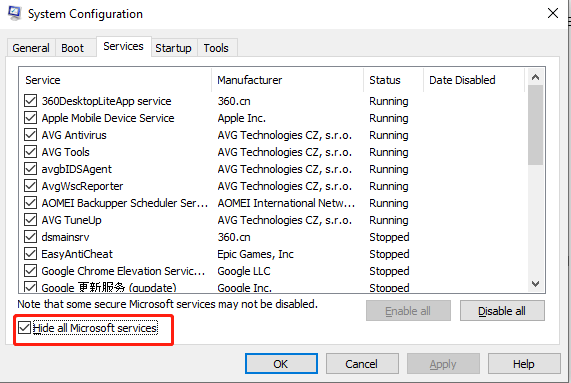
Step 4. After hiding Microsoft services, click Disable all to turn off all other non-Microsoft services. This helps ensure only necessary drivers and services run at startup.
Step 5. Go to the Startup tab and click Open Task Manager. Task Manager will open directly to the Startup tab.
Step 6. In Task Manager, select each listed startup item and click Disable in the bottom right corner.
Step 7. After disabling all startup items, close Task Manager and click OK in the System Configuration window. Then restart your computer.
If the blue screen error no longer appears after restart, one of the disabled apps or services was likely the cause. You can re-enable them one at a time to find the problem. If the issue remains, continue with the next solution.
Fix 2. Update the Driver
Problems are a common cause of the blue screen error with Locale ID 16393, especially on Windows 7 and Windows 10. If you also encounter a driver cannot load on this device ene.sys error, you can also try to update the driver to fix it. To fix this, you can update your drivers by following these steps:
Step 1. Right-click the Start menu and select Device Manager from the list.
Step 2. In Device Manager, find the category of the device you want to update. Double-click the category, then right-click the specific device and choose Update driver.
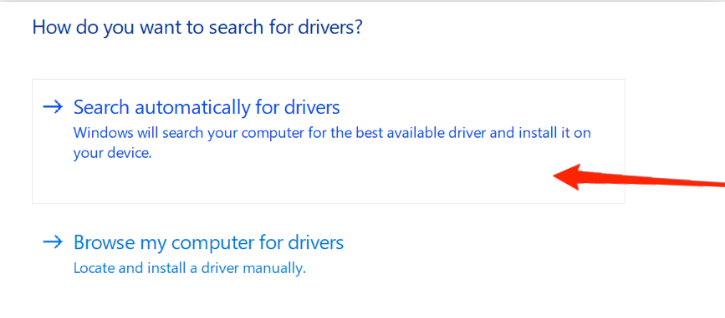
Step 3. On the next screen, select Search automatically for updated driver software. Windows will then search for the latest driver version and install it if available.
Fix 3. Perform a Clean Boot
A clean boot helps you start Windows with only essential programs and services, which can help identify the cause of the blue screen error with Locale ID 16393. This method can also help to fix the Windows 10 only boot if I select Windows Boot Manager from BIOS Boot options error.
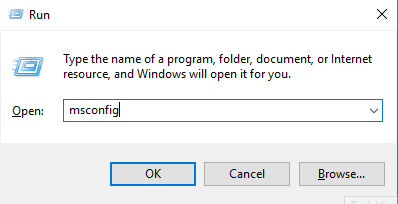
Step 1. Press Win + R on your keyboard to open the Run dialog box. Type msconfig and press Enter.
Step 2. In the System Configuration window, go to the Services tab. Check the box that says Hide all Microsoft services, then click Disable all.
Step 3. Switch to the Startup tab and click Open Task Manager.
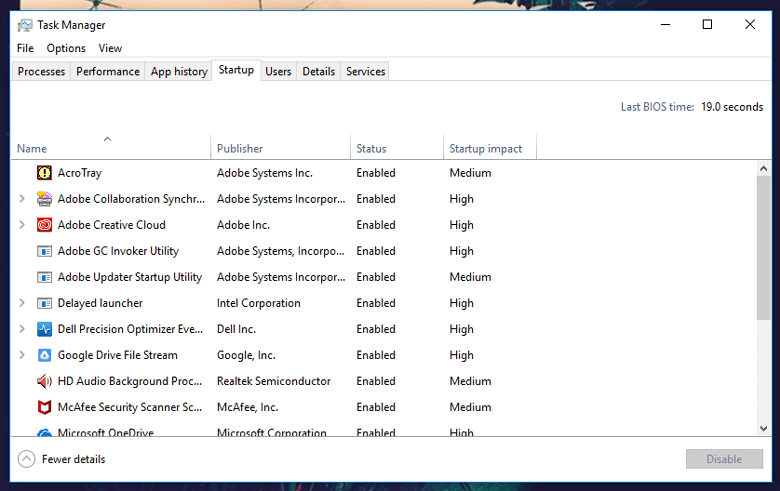
Step 4. In Task Manager, select each app listed under the Startup tab and click Disable. Repeat this for every app in the list.
Once all startup apps are disabled, restart your computer and see if the system boots normally. If it does, one of the disabled apps or services may have been causing the problem.
Conclusion
The Blue Screen Error Locale ID 16393 error can seriously affect your computer’s performance and may even result in data loss. Before attempting any fixes, it is important to recover your lost files using a reliable tool like PartitionAssistant Recovery. Once your data is safe, you can troubleshoot the error by disabling startup programs, updating drivers, or performing a clean boot. Following these steps can help restore system stability and prevent further crashes.
