
 PartitionAssistant Recovery


How to Fix Fallout 4 Won’t Start without Data Loss
Recently, many players have been frustrated by the "Fallout 4 won't start" issue. In this post, we'll share five proven methods to help you resolve the problem.

By Hedy / Updated on July 15, 2025


Why Fallout 4 won’t start?
Many Fallout 4 players have recently reported an issue where the game fails to launch. If you're facing this problem, you're not alone. We've gathered a few potential solutions to help you resolve the issue and get back to playing. Here’s a list of things you can try:
Here are some common reasons why Fallout 4 might not start:
☛ Corrupted game files: Missing or damaged files can prevent the game from launching properly.
☛ Outdated drivers: Graphics card or other system drivers being out of date can cause compatibility issues.
☛ Insufficient system requirements: If your hardware doesn’t meet the minimum or recommended specs, the game may fail to start.
☛ Faulty installation: An incomplete or corrupted installation of the game can result in launch issues.
☛ Missing or disabled services: Important system services required for the game may be turned off or missing.
☛ Incorrect game settings: Misconfigured settings, like the wrong resolution or incompatible graphics settings, might prevent the game from running.
☛ Windows updates: Missing or incomplete Windows updates can sometimes cause issues with game startups.
☛ Hardware issues: Problems with your hard drive, SSD, or other hardware could prevent the game from launching properly.
How to fix the Fallout 4 won’t start issue
Fix 1. Restart your game completely
Many players have resolved the “Fallout 4 won’t launch” issue simply by restarting the game. Here’s how you can do it:
Step 1. Press Ctrl + Shift + Esc to open the Task Manager.
Step 2. In the Processes tab, select all instances of Fallout 4 and the Steam client. Then, click End Task at the bottom.
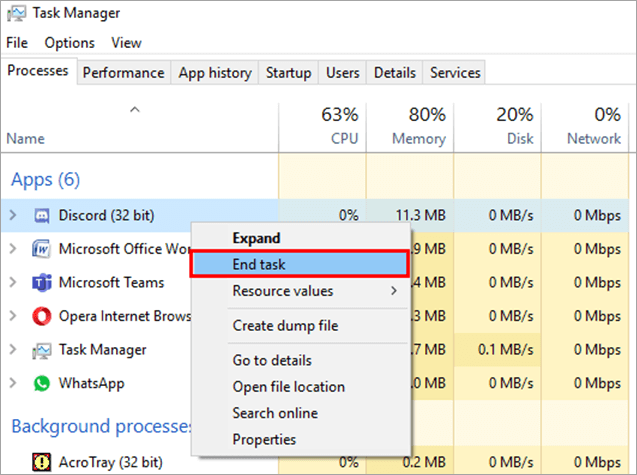
Once the processes are closed, try launching the game again to see if the issue is resolved. If not, don’t worry—there are more solutions to try.
Fix 2. Update your display driver
Outdated display drivers can often cause Fallout 4 to stop working. Here’s how to update your display drivers:
Step 1. Press Win + X to open the context menu and select Device Manager.
Step 2. In the Device Manager, expand Display adapters to locate the graphics driver you want to update.
Step 3. Right-click the driver and choose Update Driver Software from the menu.
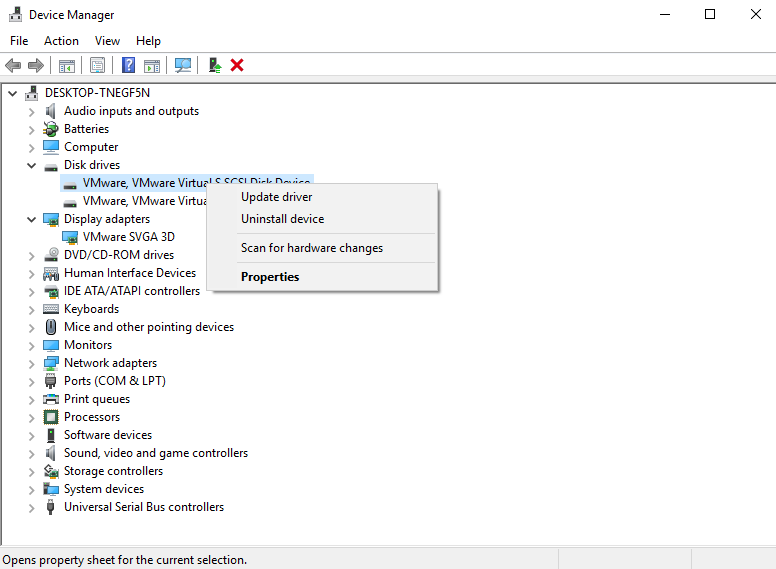
Step 4. Choose how you’d like to search for driver updates—either manually or automatically. Follow the on-screen instructions to complete the update.
After updating the driver, try launching the game again to see if the issue is resolved.
Fix 3. Run the game in compatibility mode
Step 1. Right-click the Steam shortcut and select Properties.
Step 2. In the Properties window, go to the Compatibility tab. Check the box labeled Run this program in compatibility mode, then click OK to apply the changes.
Now, try running Fallout 4 again to see if the issue is resolved.
Fix 4. Run the game in compatibility mode
If Fallout 4 is conflicting with your video settings, it may prevent the game from launching. You can try running the game in borderless windowed mode to resolve this.
Step 1. Open your Steam client, go to the Library tab, and right-click Fallout 4. Select Properties.
Step 2. In the pop-up window, navigate to the General tab and click Set Launch Options.
Step 3. In the Launch Options window, enter the following command: –window-mode-borderless, then click OK to save the changes.
Step 4. Restart your computer and launch Fallout 4 again to see if the issue is fixed.
Fix 5. Disable your antivirus program temporarily
Your Fallout 4 issue could be related to interference from antivirus software. To check if this is the cause, try temporarily disabling your antivirus and see if the problem persists. (Refer to your antivirus software's documentation for instructions on how to disable it.) If disabling the antivirus resolves the issue, consider reaching out to the software vendor for guidance or switch to an alternative antivirus solution.

Bonus reading: How to recover data from the Fallout 4 won’t start
If you’re struggling with Fallout 4 refusing to start, the problem might not just be the game itself—it could be tied to your hard drive or SSD. In such cases, PartitionAssistant Recovery becomes a practical tool. Sometimes, corrupted partitions, missing game files due to bad sectors, or unreadable drives can block your game from starting. This tool can help restore your lost or inaccessible game files.
Step 1. Install and launch PartitionAssistant Recovery. Choose the exact partition or disk where your data is lost and click Scan.

Step 2. Then, the recovery tool starts to scan and search. It will execute the “Quickly Scan" first to find your deleted data fast, and then execute the “Deep Scan" for searching for other lost data.

Step 3. Once the scan is completed, all deleted files, recycle bins, and other missing files will be displayed. Please select the file you would like to recover and then click "Recover".

Step 4. Then, select a folder path to save your recovered files.

Step 5. Wait patiently for this process of recovery to end.
Conclusion
If Fallout 4 won’t start, several issues might be responsible. Simple fixes like restarting the game, updating display drivers, running in compatibility mode, or disabling antivirus software can often resolve the problem. If deeper drive or file corruption is involved, tools like PartitionAssistant Recovery can help retrieve lost or damaged files that may be preventing the game from launching. With patience and step-by-step troubleshooting, you can restore Fallout 4 and return to your adventure.
