
 PartitionAssistant Recovery


[Data Recovery] How to Recover Deleted RW2 Files?
Need to recover deleted RW2 files? This guide will introduce how to recover lost files from your SD card or local PC with effective RW2 files recovery methods.

By Irene / Updated on August 8, 2025


Is it possible to recover lost RW2 files?
RW2 is a type of raw image file created by Panasonic digital cameras, such as the LUMIX AG-GH4 or LUMIX DMC-GX85. Unlike JPEG files, RW2 files are not compressed. They keep all the original data captured by the camera’s sensor. This means the image has more detail and gives you more room to edit, such as adjusting color, exposure, and contrast.
Because of this, RW2 files are popular among photographers who want high-quality images and flexible editing options. Programs like Adobe Photoshop and Lightroom can open and edit these files easily.
However, many people have reported losing their RW2 files by accident. This can be very frustrating, especially if the images are important or hard to replace. You might wonder if it is possible to perform RW2 file recovery.
The good news is: yes, in many cases, lost RW2 files can be recovered. Before we show you how to do that, it’s important to understand why these files get lost in the first place. In the next part, we’ll explain the common reasons why RW2 files get lost and how to prevent it from happening again. Then, we’ll share you step-by-step on how to recover them.
Why do RW2 files get lost?
Losing RW2 files can be upsetting, especially if they contain important or irreplaceable photos. To avoid future data loss, it’s helpful to understand why these files go missing. In most cases, the cause is something simple, but knowing the exact reason can make a big difference in both prevention and recovery. Here are some of the most common reasons why RW2 files get lost:
| Reason | Description |
|---|---|
| Accidental deletion | Files are mistakenly deleted while browsing or transferring. |
| Formatting the memory card | Formatting erases all data, including RW2 files. |
| Corrupted storage media | Damage or corruption in the SD card or drive may cause files to disappear. |
| Virus or malware attacks | Virus or malware can delete or damage your files. |
| Power failure during transfer | An unexpected shutdown can interrupt file transfer and lead to loss. |
| Physical damage | Dropping or damaging the storage device can cause file loss. |
| Software errors | Camera or computer errors may corrupt RW2 files. |
| Improper card removal | Removing the memory card without ejecting it safely can lead to loss. |
Knowing the reasons behind RW2 file loss can help you protect your photos in the future. You can reduce the risk by backing up your files often and using your storage devices properly. Next, let’s look at what you can do if your RW2 files are already lost. Here’s how to recover them step by step.
How to recover deleted RW2 files?
Fix 1. Use professional data recovery software
One of the most reliable ways to recover deleted RW2 files is by using professional recovery software. PartitionAssistant Recovery is a strong choice. It scans your storage device thoroughly and helps you find and restore lost RW2 images quickly and safely.
The software is beginner-friendly and doesn't require technical skills. You can recover files in just a few simple steps. It supports many file types, not just RW2 photos, and even lets you preview the files before recovering them.
Even if your RW2 images were never saved to your computer, this tool can still retrieve them from the camera’s SD card as long as they haven't been overwritten. Choosing a tool like PartitionAssistant Recovery reduces the risk of further data loss and improves your chances of successful recovery. You can try the free version first to check and preview your missing RW2 files.
Step 1. Install and launch PartitionAssistant Recovery. Choose the exact partition or disk where your data is lost and click Scan.

Step 2. Then, the recovery tool starts to scan and search. lt will execute the “Quickly Scan" first to find your deleted data fast, and then execute the “Deep Scan" for searching other lost data.

Step 3. Once the scan is completed, all deleted files, recycle bins and other missing files will be displayed. Please select the file you would like to recover and then click "Recover".

Step 4. Then, select a folder path to save your recovered files.

Step 5. Wait patiently for this process of recovery to end.
Fix 2. Restore files from Backup and Restore
Backup and Restore is available from Windows 7 through Windows 10. This tool lets you create a full system image and restore specific files when needed. During the recovery process, you’ll see a list of available files, so you can select exactly what you want to recover.
Let’s now look at how to restore files using this feature on Windows 10. The same steps also work for Windows 7 and Windows 8. If you’ve backed up your RW2 files regularly whether using File History, Backup and Restore, an external drive, or a cloud storage service like OneDrive, Google Drive, or Dropbox getting them back should be quick and simple.
Step 1. Go to Control Panel > System and Security > Backup and Restore (Windows 7).

Step 2. Click Restore my files.

Step 3. Click Browse for files > Select photos you want > Next.

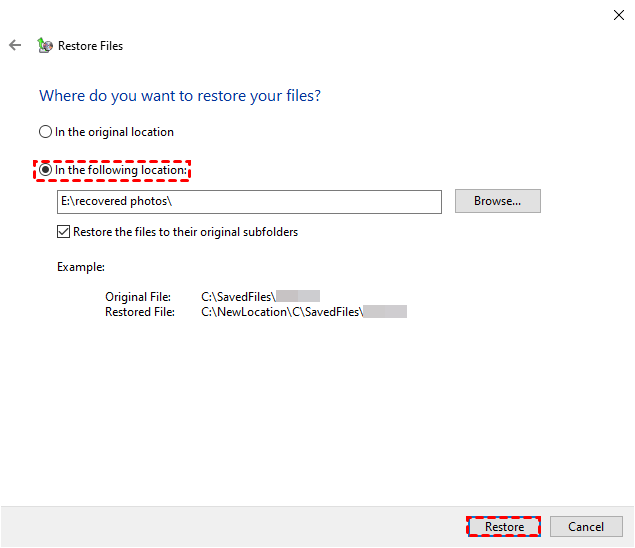
Step 4. Specify the destination to save your recovered photos and click Restore.
Fix 3. Use Windows File Recovery
Microsoft offers a helpful tool called Windows File Recovery that allows you to recover deleted photos or files even if you do not have a backup. It works with various storage devices such as SSDs, HDDs, SD cards, and USB drives. The tool also supports different file systems, including NTFS, exFAT, and FAT.
To use this tool, your computer needs to be running Windows 10 version 20H1 (Build 19041) or later. If your system meets this requirement, you can follow a few simple steps to recover your lost RW2 files and restore them to their original location.
Step 1. Download Windows File Recovery from the Microsoft Store and install it with administrative privileges.
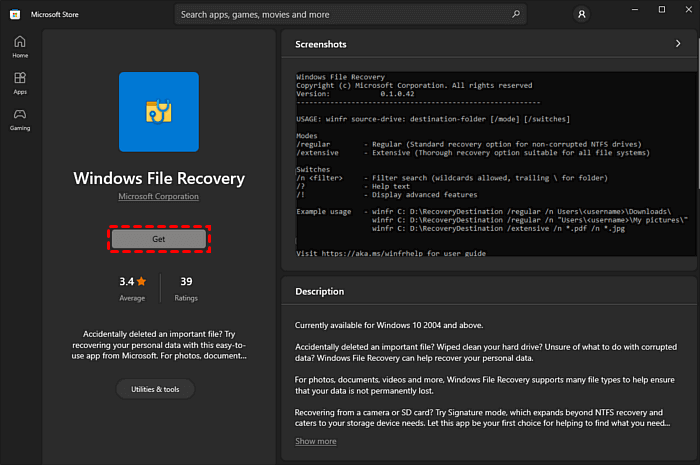
• Please type the command: winfr source-drive: destination-drive: [/mode] [/switches]
• Two scanning modes can be chosen: Default and Extensive. You can select according to your specific situation.
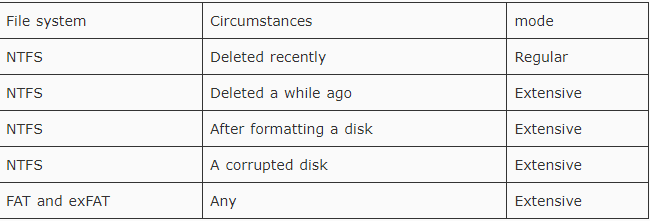
The Extensive mode can be further classified as two modes, Signature and Segment:
• Signature mode: You can recover all lost files under the file system using file headers.
• Segment mode: You can restore lost files with file record staging specifically for NTFS file system.
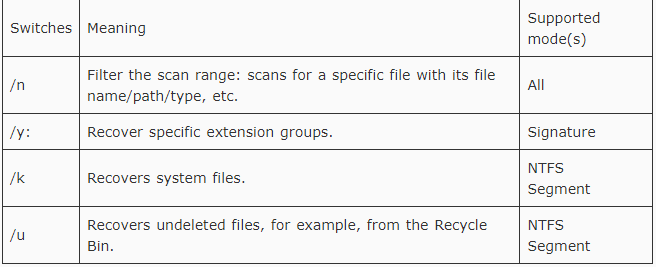
• Here are some switches you can use to customize the recovery task.
• Kindly please be careful when entering commands. Incorrect commands can result in serious data loss.
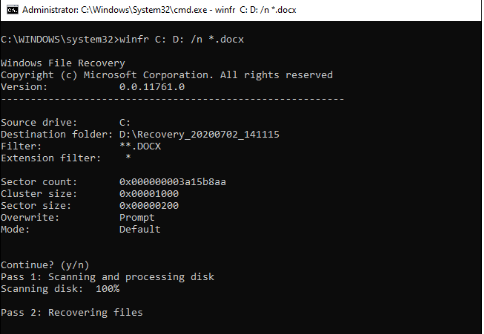
Step 2. Select the Default mode and input the command "winfr C: D: /n *.docx" to search for all DOCX files on the C drive and copy them to the D drive. Press "Y" to proceed. Please remember to replace "C:" with the source drive and "D:" with the destination drive as per your requirements.
Conclusion
Recovering deleted or lost RW2 files is possible with the right tools and methods. Whether you use professional recovery software like PartitionAssistant Recovery, built-in Windows features, or cloud backups, there are several ways to get your photos back. It is always a good idea to back up your data regularly and handle your storage devices with care. This helps prevent data loss and makes recovery much easier if something goes wrong.
