
 PartitionAssistant Recovery


How to Fix Video Card Error Code Issues [Full Guide]
After getting a comprehensive learning of video card error code, you will be introduced five effective methods to fix this issue effortlessly. A data recovery tool is also covered on this page.

By Hedy / Updated on June 23, 2025


Overview of video card error code
A video card error code refers to a numeric or alphanumeric code that signals a problem with your computer’s graphics card (GPU). These errors may appear during startup (BIOS/POST beeps), within Windows (Device Manager), or while running demanding applications like games or design software.
✍ Common causes of video card error codes
• Overheating of the GPU
• Driver issues, outdated or incompatible
• Hardware failure (defective or loose graphics card)
• Insufficient power supply
• Conflict with software or system updates
• Faulty VRAM or GPU chip
✍ Where video card error codes appear?
• Device Manager (Windows): Shows errors like Code 43 ("Windows has stopped this device because it has reported problems.")
• BIOS beep codes: Series of beeps indicating GPU failure if there's no display output
• Event viewer or crash logs: Software or system logs may record GPU-related errors
• On-screen messages: e.g., “Display driver stopped responding and has recovered”
✍ Examples of specific error codes
• Error code 43: The most common Windows error for GPU issues, usually driver- or hardware-related
• POST beep codes: Vary by motherboard but often point to no GPU detected
• DirectX/Driver errors: In games or creative apps, messages like “DXGI_ERROR_DEVICE_HUNG” can point to GPU faults
5 effective solutions to video card error code
When your computer displays a video card error code, it typically points to problems with your GPU hardware, drivers, or system settings. To resolve the issue and restore proper graphics functionality, you can try a series of troubleshooting steps. Below are five practical solutions to help you diagnose and fix the problem efficiently.
Solution 1. Reinstall or update GPU drivers
Outdated or corrupt graphics drivers are one of the most common causes of video card error codes. Ensuring your drivers are up to date can often resolve display issues and improve overall system performance. Here's how to proceed:
Step 1. Press Win + X and select Device Manager.
Step 2. Expand the Display adapters section, right-click your graphics card and select Uninstall device.
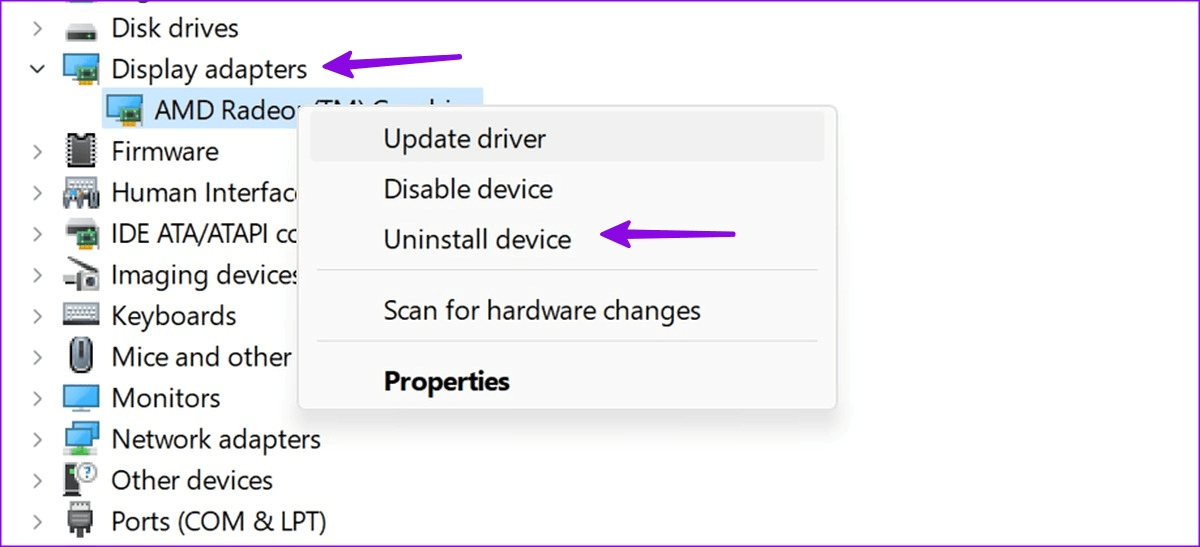
Step 4. Restart your computer.
Step 5. Go to the official GPU manufacturer’s website (NVIDIA, AMD, or Intel).
Step 6. Download and install the latest compatible driver.
Solution 2. Reseat or clean the graphics card
Loose or dusty connections between the GPU and motherboard can also lead to error codes. Reseating or cleaning the graphics card helps ensure a proper connection and can fix hardware recognition issues. Follow these steps:
Step 1. Shut down your computer completely and unplug all cables.
Step 2. Open the computer case using a screwdriver.
Step 3. Gently remove the graphics card from its PCIe slot.
Step 4. Use compressed air to blow dust off the card and the slot.
Step 5. Reinsert the GPU firmly back into the slot.
Step 6. Close the case and reconnect all cables before restarting.
Solution 3. Check PSU and cooling
Power supply issues or overheating can lead to unstable GPU performance and trigger error codes. Ensuring your PSU is adequate and your system stays cool is crucial for preventing hardware failures. Here’s what to do:
Step 1. Confirm that your PSU provides sufficient wattage for your GPU model.
Step 2. Inspect power cables for secure connections to the GPU.
Step 3. Monitor system temperatures using tools like HWMonitor or MSI Afterburner.
Step 4. Ensure all fans are working properly.
Step 5. Clean out dust from fans, vents, and heatsinks.
Solution 4. Update BIOS/firmware
Sometimes, outdated BIOS or firmware can cause compatibility problems between your motherboard and GPU, resulting in error codes. Updating your BIOS may improve hardware communication and resolve conflicts. Proceed with care:
Step 1. Visit your motherboard manufacturer's official website.
Step 2. Locate the support section for your model and download the latest BIOS.
Step 3. Follow the included instructions for flashing the BIOS (usually via USB).
Step 4. Ensure the power supply remains stable during the process.
Step 5. Reboot your system after the update completes.
Solution 5. Replace the graphics card if hardware failure is confirmed
If none of the above solutions resolve the issue, it's possible that your graphics card has suffered physical damage or internal component failure. At this point, replacement is often the only viable solution. Here's what you should do:
Step 1. Test the GPU in another working system to confirm the issue.
Step 2. If the error persists, verify your warranty status.
Step 3. Contact the manufacturer or retailer for support if under warranty.
Step 4. Consider purchasing a new GPU that meets your system's specifications.
Bonus tip: How to recover lost data from the video card error code
If you've lost data due to a video card error code, such as system crashes, blue screens, or failed boots, there’s still hope. One powerful tool that can help you recover lost data is PartitionAssistant Recovery.
✍ Key features for recovery:
☛ Partition recovery wizard: Restore deleted or lost partitions caused by a system crash or hardware failure.
☛ Data recovery tool: Recover deleted files, formatted partitions, or files lost due to corruption.
☛ Support for NTFS/FAT32/EXT file systems: Ensures compatibility with most Windows storage environments.
☛ Bootable media creation: If your system won’t start due to a video card error, you can create a bootable USB to launch AOMEI and perform recovery outside the OS.
Step 1. Install and launch PartitionAssistant Recovery. Choose the exact partition or disk where your data lost and click Scan.

Step 2. Then, the recovery tool starts to scan and search. It will execute the “Quickly Scan" first for finding your deleted data fast, and then execute the “Deep Scan" for searching for other lost data.

Step 3. Once the scan is completed, all deleted files, recycle bins and other missing files will be displayed. Please select the file you would like to recover and then click "Recover".

Step 4. Then, select a folder path to save your recovered files.

Step 5. Wait patiently for this process of recovering ends.
Conclusion
Video card error codes signal issues ranging from driver corruption and GPU overheating to hardware failure. These errors can appear during startup, in Windows Device Manager, or while using graphic-intensive software. Fortunately, you can fix many of these problems by updating drivers, reseating the GPU, checking power and cooling, or updating the BIOS. If all else fails, replacing the graphics card may be necessary. For data loss caused by GPU-related crashes, PartitionAssistant Recovery can help restore lost files even if your system won’t boot properly.
