
 PartitionAssistant Recovery


How to Fix Windows 10 System Restore Points Gone and Missing
If you find Windows 10 system restore points gone and missing, don’t worry. In this post, you will know why it happens and how to fix it with five effective methods.

By Hedy / Updated on September 5, 2025


Why Windows 10 system restore points gone and missing?
There are several reasons why your Windows 10 system restore points might be missing or gone:
1. Storage space issues: If your system drive (usually C:) is running low on space, Windows might automatically delete old restore points to free up space for new ones. By default, Windows allocates a certain percentage of disk space for system restore, and when this limit is reached, older restore points are removed to accommodate newer ones.
2. System settings: System restore points might be disabled unintentionally. If system restore is turned off or set to not create restore points, you won't have any saved restore points to fall back on.
3. Windows updates or upgrades: Major updates, such as Windows 10 feature updates, can remove or reset your restore points. When a major update happens, Windows often creates a new restore point but might delete older ones during the process.
4. Corruption of system files: Sometimes, system files that manage restore points can become corrupted, leading to missing or deleted restore points. In such cases, system restore might stop functioning correctly.
5. Third-party programs or software conflicts: Certain third-party cleanup or optimization software might delete restore points as part of their system cleaning process. Some software can interfere with Windows' ability to create or retain restore points.
6. Disk cleanup tool: If you run the built-in Disk Cleanup tool and select the option to remove "System Restore and Shadow Copies," it will delete all restore points from the system. This action is irreversible unless you have a backup or a different restore point available.
How to fix Windows 10 system restore points gone and missing
Fix 1. Check and remove suspicious viruses, programs
Viruses are notorious for erasing restore points, which can prevent you from reverting your computer to a previous state. To fix this, follow these steps:
Step 1. Use your antivirus software to scan for and remove any suspicious viruses or malware from your computer.
Step 2. Once the threats are removed, create a new system restore point to ensure you can recover your system in case of future issues.
Step 3. Additionally, if you use McAfee Quick Clean for regular disk cleanup and optimization, be cautious. It has an option called "System Restore Point Cleaner" that, if enabled, will automatically clear your restore points without notifying you. Make sure this option is turned off to avoid losing your restore points.
Fix 2. Disable System Restore and then enable it
If your restore point is missing even though System Restore is functioning correctly, here's a trick to fix it.
The System Restore creates backup files that are stored in a folder called System Volume Information. If this folder becomes corrupted, new restore points won’t be saved properly. To resolve this, you need to delete this folder by temporarily disabling and then re-enabling System Restore.
Step 1. Right-click on This PC/Computer and select Properties, then click on System Protection.
Step 2. In the System Protection tab, click the Configure button.
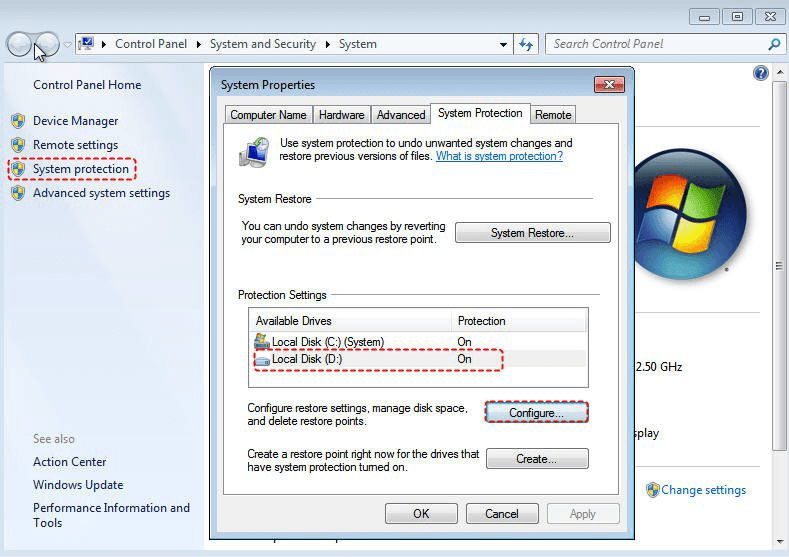
Step 3. Under Restore Settings, select Turn off system protection and apply the changes.
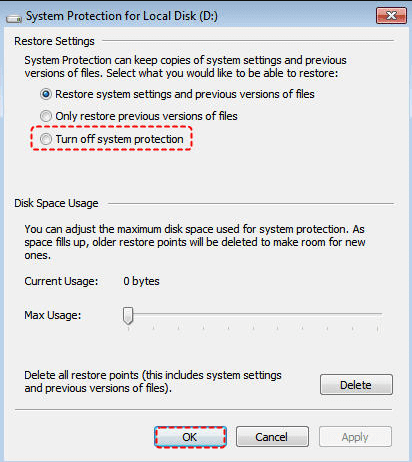
Step 4. Restart your computer, then go back to the same settings path to turn System Protection back on.
Step 5. Try creating a restore point again and see if it remains after restarting the computer.
This should help fix the issue of missing restore points and allow the backup routine to continue as normal.
Fix 3. Adjust disk space usage
In the System Protection settings, you can allocate disk space for backup files. System Restore requires a specific amount of disk space, and if the size of older restore points exceeds the set limit, they will automatically be deleted to make room for new ones. This disk usage setting might be the reason your restore points seem to disappear.
The optimal disk space allocation for keeping restore points is about 5% of the backup drive's total capacity. For example, if you allocate 5%, it will typically allow around 5GB for system protection, which is enough to store several restore points.
Step 1. Follow the procedure from Fix #2 to open the System Protection settings.
Step 2. Click Configure. Under Disk Space Usage, adjust the Max Usage slider to 5% (or higher if needed).
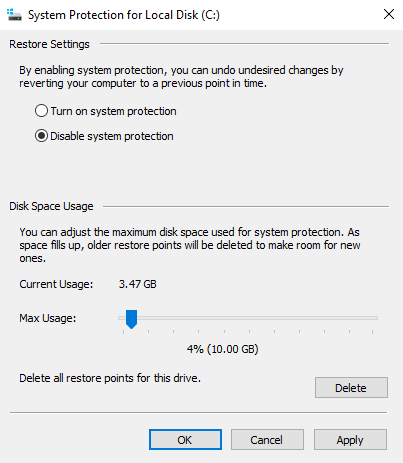
Step 3. Apply the changes.
This should help ensure that enough space is reserved for System Restore to maintain multiple restore points.
Fix 4. Repair corrupted system files
Corruption issues on the system disk where System Restore backups are stored can also lead to the deletion of restore points. To fix this, you can run two commands to address the problem:
Step 1. Open Command Prompt as Administrator.
Step 2. Type the following command:
chkdsk C: /f /r

Step 3. Press Enter and allow the system to check and repair any disk errors. You may need to restart your computer for the process to complete.
Step 4. After running CHKDSK, type the following command in Command Prompt:
sfc /scannow

Step 5. Press Enter to begin scanning for corrupted or missing system files. This tool will replace any problematic files automatically.
These steps should help fix disk corruption and restore your ability to create and maintain restore points.
Fix 5. Restore system points in safe mode
If all the previous fixes fail, Safe Mode might offer a way to create a system restore point, and it may also display the missing restore points. Here’s how you can try it:
Step 1. Restart your computer and repeatedly press F8 until it boots into the Advanced Boot Options menu.
Step 2. From the options, select Safe Mode with Command Prompt and press Enter.
Step 3. Once the command prompt appears, type rstrui.exe and press Enter.
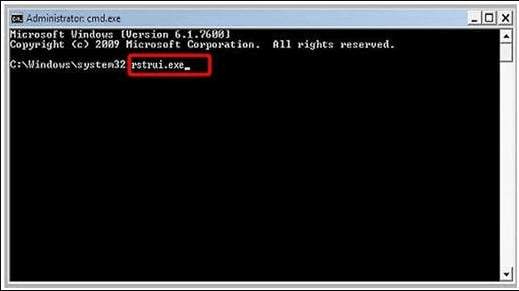
Step 4. Follow the on-screen instructions to restore your system by selecting an available restore point from the list.
Step 5. Booting into Safe Mode can sometimes bypass issues preventing restore points from being visible or saved, offering a good chance to resolve the problem.
Fix 6. Recover system files with a data recovery tool
When Windows 10 system restore points suddenly go missing, it can leave users without an easy way to roll back their system to a stable state. In such cases, specialized recovery software becomes essential.
PartitionAssistant Recovery is a reliable tool that enables you to scan and restore lost system files related to restore points, ensuring your PC remains protected. It supports deep scanning, file filtering, and selective recovery, making it a practical solution for retrieving missing system restore point files and regaining control over your system stability.
Step 1. Install and launch PartitionAssistant Recovery. Choose the exact partition or disk where your data is lost and click Scan.

Step 2. Then, the recovery tool starts to scan and search. It will execute the “Quickly Scan" first for finding your deleted data fast, and then execute the “Deep Scan" for searching for other lost data.

Step 3. Once the scan is completed, all deleted files, recycle bins, and other missing files will be displayed. Please select the file you would like to recover and then click "Recover".

Step 4. Then, select a folder path to save your recovered files.

Step 5. Wait patiently for this process of recovery to end.
Conclusion
Windows 10 restore points may disappear due to low disk space, disabled settings, system updates, file corruption, or third-party interference. To fix this, check for malware, re-enable System Restore, adjust disk usage, repair system files, or use Safe Mode. If restore points remain missing, tools like PartitionAssistant Recovery can help restore system stability.
