


Clean Up System Files Not Showing? How to Make it Reappear?
Why is clean up system files not showing? How to Make it Reappear? You can know the reasons and solutions in this post. A powerful alternative disk cleaning tool is also covered.

By Hedy / Updated on July 23, 2025


Why is clean up system files not showing?
If the "Clean up system files" option is not showing in Disk Cleanup on Windows, it could be due to a few reasons. Here's a breakdown of the most common causes and how to fix them:
1. You opened the basic Disk Cleanup: When you run Disk Cleanup normally, it first opens in basic mode, which doesn’t always show the "Clean up system files" button.
2. You're using a non-admin account: Standard user accounts may not have permission to clean system files.
3. System files are already cleared: If system files were recently cleaned up (e.g., after a Windows update), there may be nothing left to clean, so the option might not appear.
4. Corrupted system files: Corruption in system tools or settings can prevent Disk Cleanup from working properly.
5 fixes to make “clean up system files” reappear
If the “Clean up system files” option is missing from Disk Cleanup, here are five effective solutions to bring it back:
Solution 1. Run Disk Cleanup as administrator
First and foremost, one of the most common reasons the “Clean up system files” button is missing is that the Disk Cleanup utility wasn’t launched with administrative privileges.
Step 1. Press Windows + S, type Disk Cleanup, and right-click it.
Step 2. Select Run as administrator.
Step 3. Choose the drive you want to clean, usually C: drive.
Step 4. After the scan, check if the “Clean up system files” button is now visible.
Solution 2. Use Windows Search instead of shortcut
If the issue persists, try accessing Disk Cleanup through Windows Search instead of using a pinned shortcut or desktop icon, which may be outdated or corrupted.
Step 1. Click the Start button or press Windows + S.
Step 2. Type Disk Cleanup, and click the top result.
Step 3. Right-click and select Run as administrator again for best results.
Solution 3. Use CMD to launch Cleanup
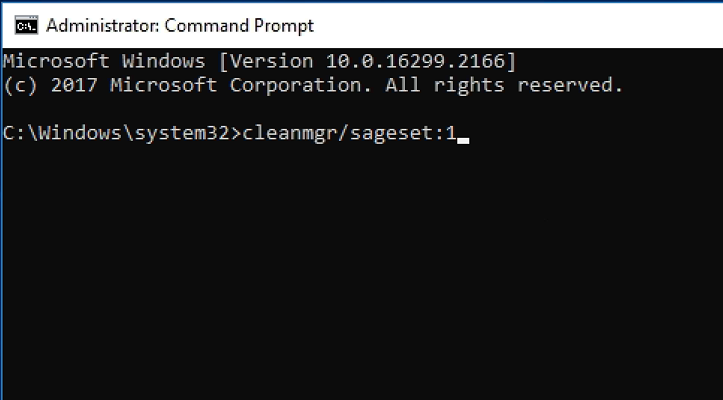
Moving on, another effective workaround is to launch Disk Cleanup using Command Prompt, especially if graphical methods fail.
Step 1. Press Windows + R, type cmd, and press Ctrl + Shift + Enter to run it as administrator.
Step 2. In the Command Prompt window, type the following and hit Enter:
cleanmgr /sageset:1
cleanmgr /sagerun:1
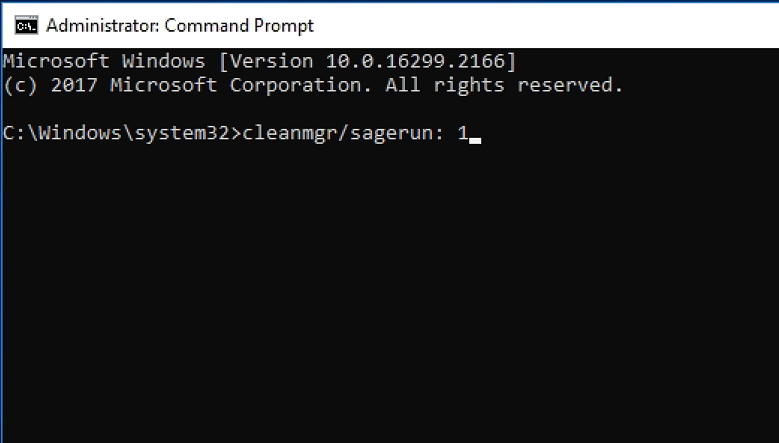
This will launch Disk Cleanup with advanced system file options.
Solution 4. Run Windows Update
Besides command-line fixes, outdated system components could be responsible for the missing option. In such cases, running Windows Update might help restore system tools to their default functionality.
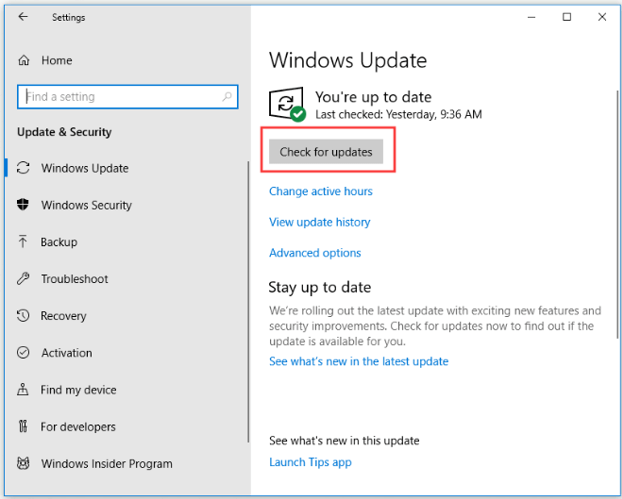
Step 1. Go to Settings > Update & Security > Windows Update.
Step 2. Click Check for updates and install any available ones.
Step 3. Restart your PC afterward.
Solution 5. Use SFC and DISM to repair files
Finally, if none of the above steps bring back the missing option, it may be due to corrupted system files. Fortunately, Windows offers built-in repair tools like SFC (System File Checker) and DISM (Deployment Image Servicing and Management).
Step 1. Open Command Prompt as administrator.
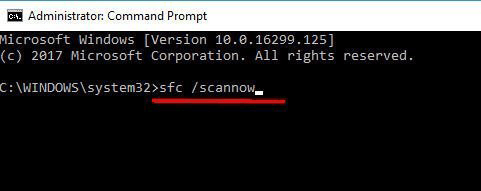
Step 2. First, type and run:
sfc /scannow
Step 3. After it completes, run the following commands one by one:
DISM /Online /Cleanup-Image /CheckHealth
DISM /Online /Cleanup-Image /ScanHealth
DISM /Online /Cleanup-Image /RestoreHealth

A powerful alternative way to clean up system files - PartitionAssistant Cleanup
If you're looking for an efficient and hassle-free method to clean up system files, PartitionAssistant Cleanup offers a powerful alternative to the traditional Disk Cleanup tool in Windows. With its user-friendly interface and advanced features, it simplifies the process of freeing up disk space and optimizing system performance.
The Cleanup feature in AOMEI Partition Assistant allows users to thoroughly remove junk files, system cache, temporary files, Windows update leftovers, and other unnecessary system data that can accumulate over time. This not only helps reclaim valuable disk space but also contributes to a faster, more stable system.
Compared to Windows' built-in utilities, PartitionAssistant Cleanup offers greater control, deeper scanning, and more flexibility. Whether you're a beginner or an advanced user, this tool provides a seamless cleanup experience with just a few clicks.
 PartitionAssistant Cleanup
Free Up Disk Space To Keep Your PC Running Smoothly and Efficiently
Step 1. Install and launch PartitionAssistant Cleanup. Click the "Clean Junk Files" tab.

Step 2. Click the "Scan Now" button to start the process of scanning junk files.

Step 3. After the scan process is finished. All system junk files (including recycle bin files, temporary files, log files, invalid shortcuts, and so on) and registry junk files (including DLL registry, system registry, and program registry) will be displayed.

You can also click the button behind to view the junk files details.

Step 4. And, you can click the button behind to locate the file.

By default, the program will select some junk files to clean up, for example, temporary files, log files, and so on. You can also manually check to select more or uncheck to deselect fewer listed junk files. Or, click "Select All" to select all junk files to clean up if you need to clean up all.
Step 5. After selecting junk files that are not needed anymore, you can click the "Clean Now"button to start the cleanup.

The process of the cleanup might take time, and the selected files will be cleaned up. After the process is finished, you will get a cleanup completed window displaying how many files you have cleaned and not yet cleaned.

Conclusion
If “Clean up system files” not showingin Disk Cleanup, it could be due to using a standard account, outdated shortcuts, or corrupted system files. Try running Disk Cleanup as administrator, using CMD, updating Windows, or repairing system files. For a smarter, deeper cleanup, PartitionAssistant Cleanup offers a powerful, user-friendly alternative that helps reclaim disk space and optimize performance with ease.
