
 PartitionAssistant Cleanup


Best Windows Duplicate Video File Finder
If you need a duplicate video file finder to search and remove big redundant video files, you can check this page to learn how to safely and easily delete duplicate files on PC.

By Lucas / Updated on July 11, 2025


Why do duplicate video files pile up on your PC?
Duplicate video files can quickly accumulate on your PC, hogging valuable storage space. These redundant files are often unintentionally created through various means. First, let's delve into why duplicate video files appear on your PC and where they typically hide on your hard disk.
▶ Why do duplicate video files occur?
Duplicate video files can be attributed to several factors:
Multiple downloads: Sometimes, you may unknowingly download the same video more than once, especially when using different browsers or download managers.
File transfers: When you move video files between devices, duplicates can emerge if you're not meticulous in organizing and managing your data.
Incomplete downloads: Interrupted downloads can leave behind partial video files that get duplicated when you attempt to download the same content again.
▶ Where are duplicate video files stored?
Just like normal files, duplicate video files won’t be stored in a signed location. They can spread on your drive. But, usually, these files tend to hide in various corners of your hard disk:
Download folders: Duplicates often linger in your download folders, especially if you frequently download videos from the internet.
Media libraries: Video libraries in media players or editing software can also harbor duplicates, as you may inadvertently import the same video multiple times.
Backup drives: If you back up your videos to external drives, duplicates can accumulate there as well, consuming precious backup space.
▶ The menace of duplicate video files
Duplicate video files may seem harmless, but they can pose several issues:
Wasted storage space: Redundant video files can take up significant storage space, leaving you with less room for new content or important data.
Performance degradation: A cluttered hard disk with numerous duplicates can slow down your PC's performance, leading to lag and sluggishness.
Difficulty in organizing: Managing large collections of duplicate videos can be time-consuming and confusing, making it challenging to find the content you want.
Thus, to keep your computer in a nice status, we suggest you clean your duplicate files and video files regularly to minimize the menace of these files.
How to search and remove duplicate video files via Windows File Explorer
Windows File Explorer provides a built-in tool that allows you to search for and remove duplicate video files with ease.
Step 1. Press Windows + E on your keyboard to open File Explorer. Go to the directory or drive where you suspect duplicate video files may be stored.
Step 2. In the top-right corner, you'll find a search bar. Type the following command and press Enter: ext:mp4 OR ext:mov OR ext:avi OR ext:mkv
This command tells Windows to search for video files with common extensions.
Step 3. After the search is complete, click on the "Size" column header to sort the files by size. This will help you identify duplicates that are often the same size.
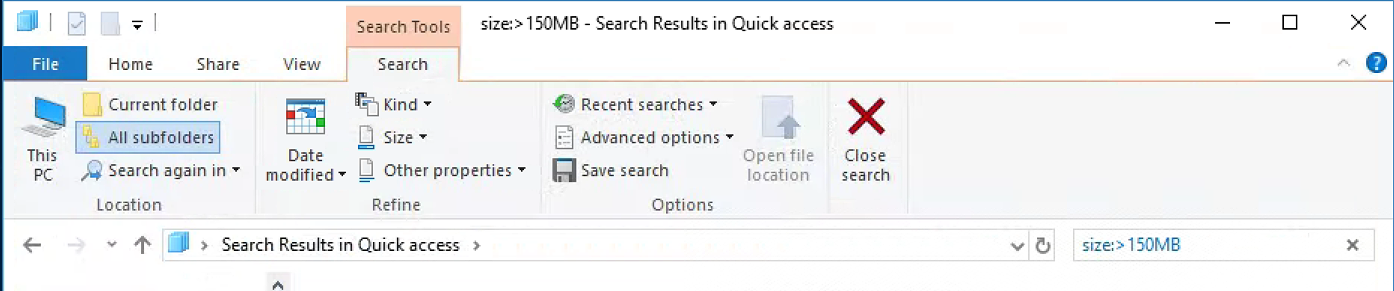
Step 4. Carefully review the search results and select duplicate files by holding down Ctrl and clicking on each one. Once selected, right-click and choose "Delete" to remove them.
Indeed, Windows File Explorer can find and remove duplicate video files, but, the process will perform extremely slowly. The task will take up many resources on your computer but you’re not allowed to pause if you have to give priority to other important jobs. What’s more, the search process is often interrupted during PC usage.
A better duplicate video file finder for Windows PC
Due to the many inconveniences of using File Explorer to check and remove duplicate video files, PartitionAssistant Cleanup offers a more comprehensive and efficient solution for duplicate video removal.
It is a robust software tool designed to manage and optimize your disks and drives. The "Find Duplicate Files" function can effortlessly locate and remove duplicate video files, offering a hassle-free experience. Whether you're a casual user or an IT professional, this tool is your ultimate companion for maintaining the health and performance of your PC.
 PartitionAssistant Cleanup
Free Up Disk Space To Keep Your PC Running Smoothly and Efficiently
Step 1. Initiate Find Duplicate Files. Install and launch PartitionAssistant Cleanup. Click the "Find Duplicate Files" tab.
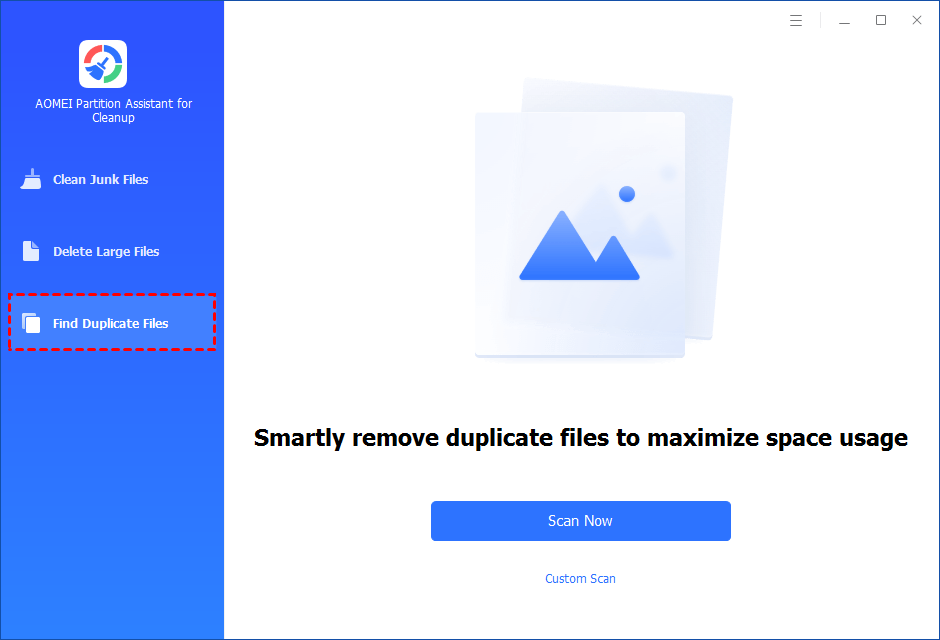
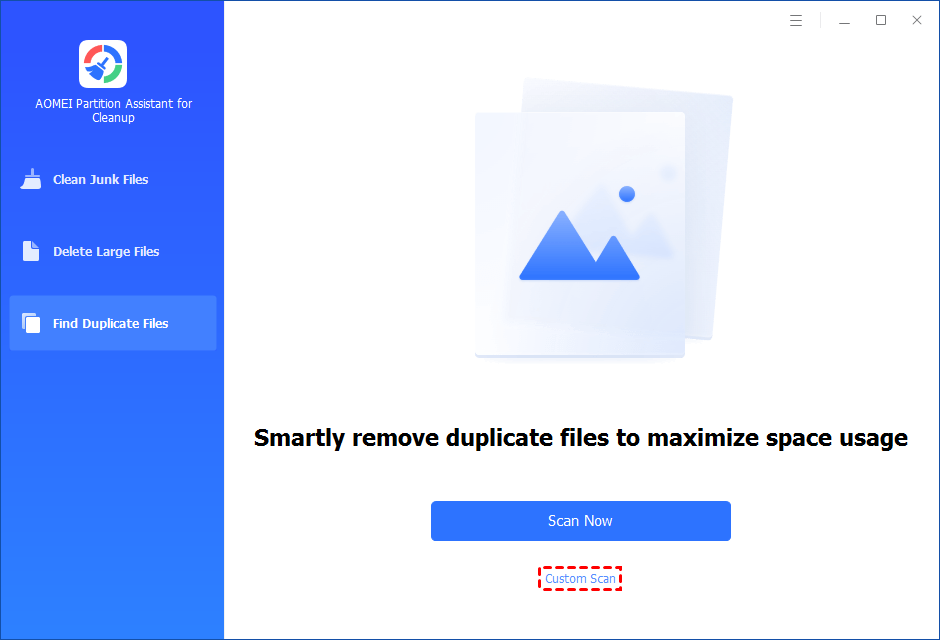
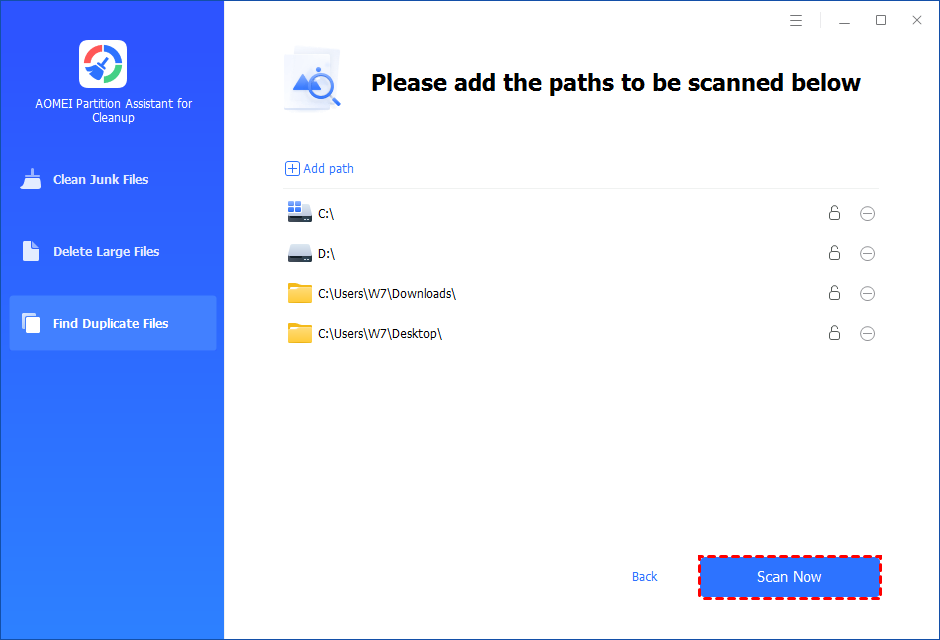
Step 2. Select a path to scan duplicate files. You can either click "Scan Now" to start the scan of your system C: drive. Or, click "Custom Scan" to manually select paths to be scanned. (Here, we take the "Custom Scan" as an example.)
Step 3. After clicking "Custom Scan", all local and external drives on your PC will be displayed. You can also click the "Add Path" button, and then a browse folder window will pop up. So you can add more paths on this PC, like Desktop, Downloads, and other folder paths.
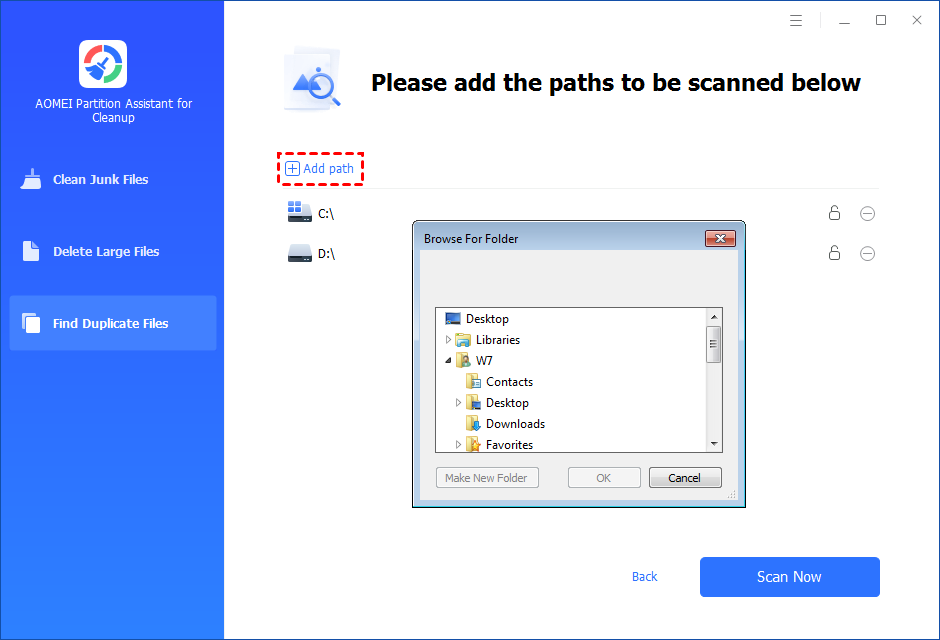
Step 4. Once necessary paths are added, you can click the "Scan Now" button to start the scan process.
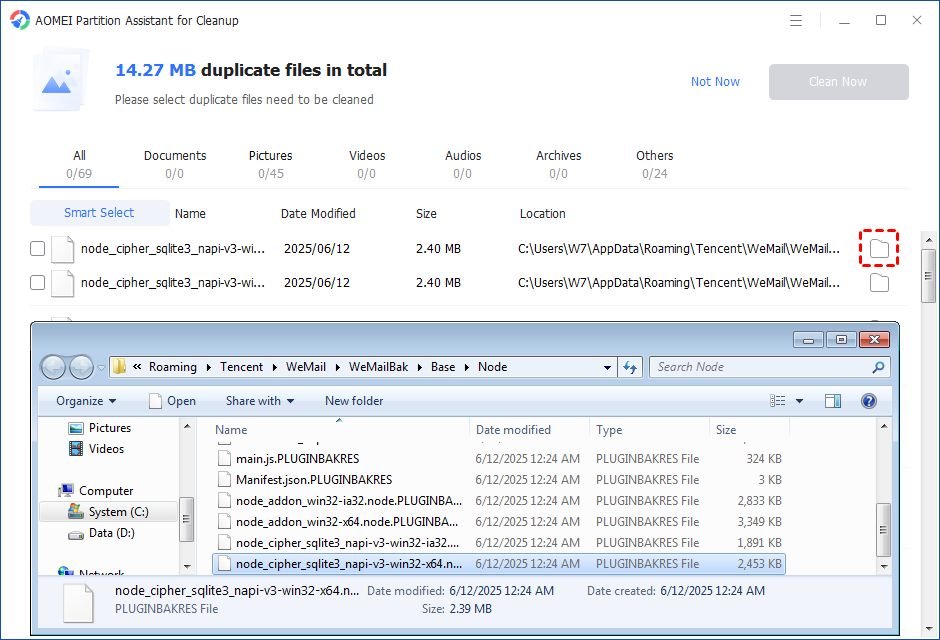
Step 5. The scan process might take time. After the scan is complete, all duplicate files will be listed. You can click the button behind to locate them.
Step 6. Select duplicate files to start deletion. You can either manually select duplicate files, or click the "Smart Select" button to automatically select unnecessary duplicate files to delete.
Tips: If the "Smart Select" is ticked, only the oldest duplicate file will be unticked. It means that all duplicate files except the oldest one will be ticked to delete. (The oldest file means the file that was created first. This file will not be deleted. All other duplicate files are considered copies of the oldest file. )
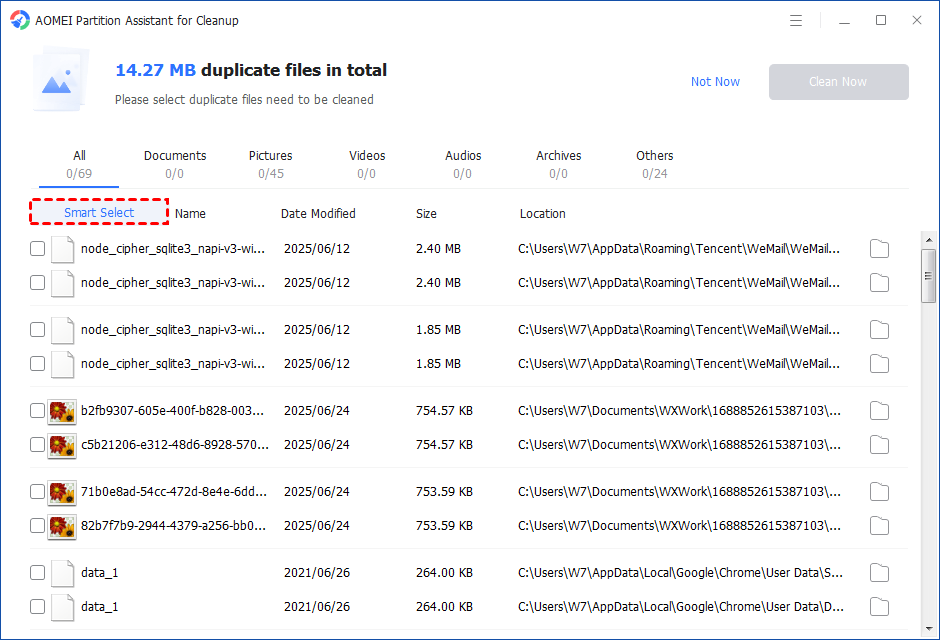
If you manually select all copies of duplicate files, you will get a pop-up warning window to keep at least one copy of the duplicate files. If you indeed want to delete all copies of duplicate files, you can click "OK" so all copies of duplicate files will be selected to delete.

After unnecessary duplicate files are selected, please click the "Clean Now" button to start the deletion.

Step 7. Delete successfully. The deletion might take time. After the process is finished, the selected files will be deleted, and you will get a cleaning completed window displaying how much data you deleted in total.

Conclusion
Duplicate video files may clutter your PC, but with the right tools and techniques, you can efficiently locate and remove them. Windows File Explorer provides a basic built-in solution, while as a better duplicate video file finder, PartitionAssistant Cleanup offers a more comprehensive and user-friendly approach, allowing you to reclaim valuable storage space and improve your PC's performance effortlessly.
FAQs about duplicate video file finder
● Why do duplicate video files appear on my PC?
Duplicate video files can accumulate on your PC due to various reasons, such as multiple downloads of the same video, incomplete downloads, file transfers, and accidental duplications. These duplicates often hide in different locations on your hard disk.
● How can I find duplicate videos on Windows 10?
You can use Windows File Explorer to find and delete duplicate video files. Via searching names or sizes, File Explorer will scan your drive or the location you've chosen.
● Does Windows 10 have a duplicate Finder?
Windows 10 lacks an in-built duplicate file finder, using a third-party tool to locate duplicate files will save you time and irritation while reclaiming valuable disk space.
