
 PartitionAssistant Cleanup


How Can I Delete Duplicate Files in a Folder?
Some users may want to know “How can I delete duplicate files in a folder” when they find large duplicate files take up too much space on the disk. If you also want to clean redundant files, then this page will offer you some help.

By Lucas / Updated on July 11, 2025


Duplicate files can clutter your computer and consume valuable disk space, making it essential to remove them periodically. These files are duplicates of files that already exist on your device. You may have duplicate files of images, movies, audios, archives, documents, and so on.
The easiest approach to deal with such files is to locate and delete them from your computer. So, in this article, we will explore 3 methods to help you delete duplicate files in a folder on Windows.
How to use Windows 10 tools to delete duplicate files
Your Windows 10 PC comes equipped with native utilities designed to efficiently eliminate duplicate files. Given that these duplicate files consume unnecessary storage space, it is advisable to utilize these built-in tools for locating and eradicating them. Doing so not only frees up space but also contributes to the long-term performance optimization of your computer.
The primary built-in utilities at your disposal for removing duplicate files on Windows 10 include File Explorer and Windows PowerShell. The following instructions outline how to employ each of these tools effectively.
Tool 1. File Explorer
To get started using File Explorer on your Windows 10 machine, follow these steps:
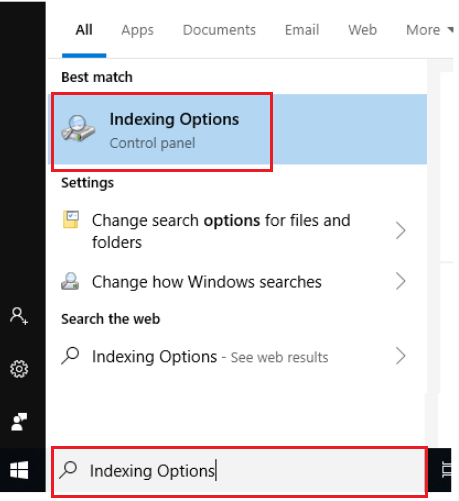
Step 1. Press the "Start" button and enter "indexing options." Then, select the app from the search results.
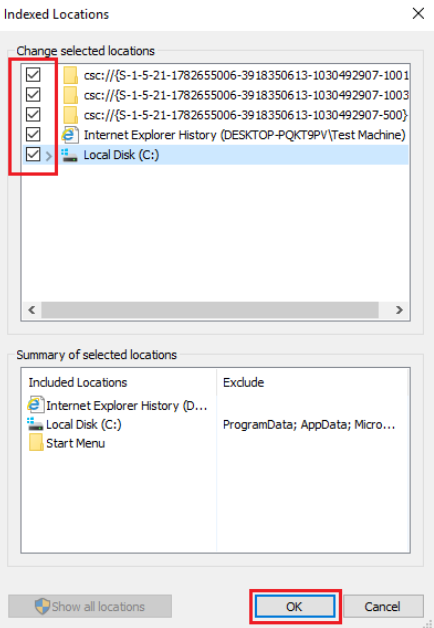
Step 2. Click on the “Modify” button. On the next window that opens, click on “Show all locations.”

Step 3. Check all the boxes and click “OK.”
Step 4. Start “File Explorer” by pressing the “Windows” key + “E.” Now, access your Windows user profile by going to This PC > Local Disk (C:) > Users.
Step 5. Apply the following changes to sort your files:
• Click the “View” menu and tap on the “Preview pane.” This gives you a preview of all the files you want to select.
• Navigate to the “Layout” section and select “Details."
• On the “Current View” section, click “Group by.” Next, select “Name” and check “Ascending.”
• Check for duplicate files on the File Explorer Window by typing the extensions you want to delete on the “Search” tab.
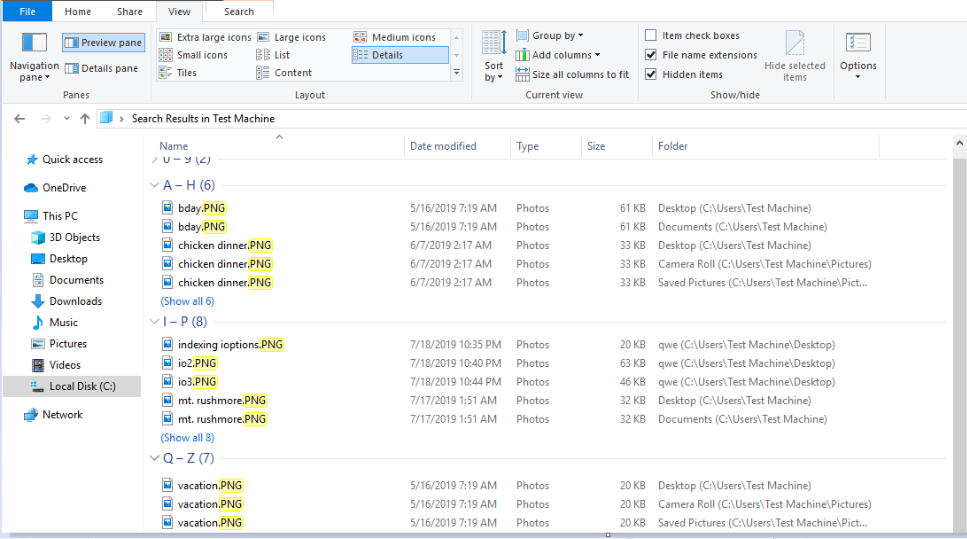
Watch out for the file names, dates modified, and sizes. If you find a duplicate, click on it and hit the “Delete” button.
Here, you can check file formats for searching.

Tool 2. PowerShell
Step 1. On the lower-left corner, right-click on the Windows icon, and then select Windows PowerShell (Admin). A pop-up confirmation window will appear. Click Yes to proceed.
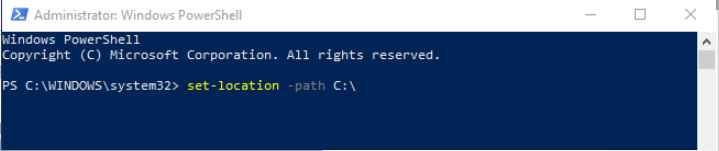
Step 2. Enter this script: set-location –path C:\ in the Windows PowerShell window.
Step 3. Enter the script for the list of all duplicates and their location:
ls "(directory you want to search)" -recurse | get-filehash | group -property hash | where { $_.count -gt 1 } | % { $_.group } | Out-File -FilePath "(location where you want to export the result)"

In (directory you want to search), enter the folder location of your User Account.
In (location where you want to export the result), enter the folder location you want the result to be exported or saved (e.g. Documents or Desktop).

Step 4. Open the folder location you have exported or saved.
Step 5. Check for each location in the text file, and then delete the duplicate files.
Also, you can run commands to automatically remove duplicate files. You can paste the command below to delete the duplicates automatically. Ensure you replace the “search folder” with your actual folder name.
ls "(search folder)" -recurse | get-filehash | group -property hash | where { $_.count -gt 1 } | % { $_.group | select -skip 1 } | del

How can I delete duplicate files in a folder? [easier way]
You can use Windows built-in tools to delete duplicate files in a folder but the operations are not convenient, especially to use commands to remove files. In this case, using third-party software to remove duplicate files on Windows is a great alternative to the built-in tools.
If you're looking for a more efficient and feature-rich solution to manage duplicate files, PartitionAssistant Cleanup is an excellent choice.
Duplicate File Finder: AOMEI Partition Assistant Professional comes with a built-in Duplicate File Finder that quickly identifies and removes duplicate files in your selected folder or drive, saving you valuable time and disk space.
Delete Large Files: Scan big-size files on your disk and list them for you to manage them.
Clean Junk Files: Get rid of accumulated files on your disks and drives to keep your PC in a nice state and maintain fast read/write speed.
User-Friendly Interface: AOMEI's intuitive interface ensures that users of all technical levels can navigate the software effortlessly.
 PartitionAssistant Cleanup
Free Up Disk Space To Keep Your PC Running Smoothly and Efficiently
Step 1. Initiate Find Duplicate Files. Install and launch PartitionAssistant Cleanup. Click the "Find Duplicate Files" tab.
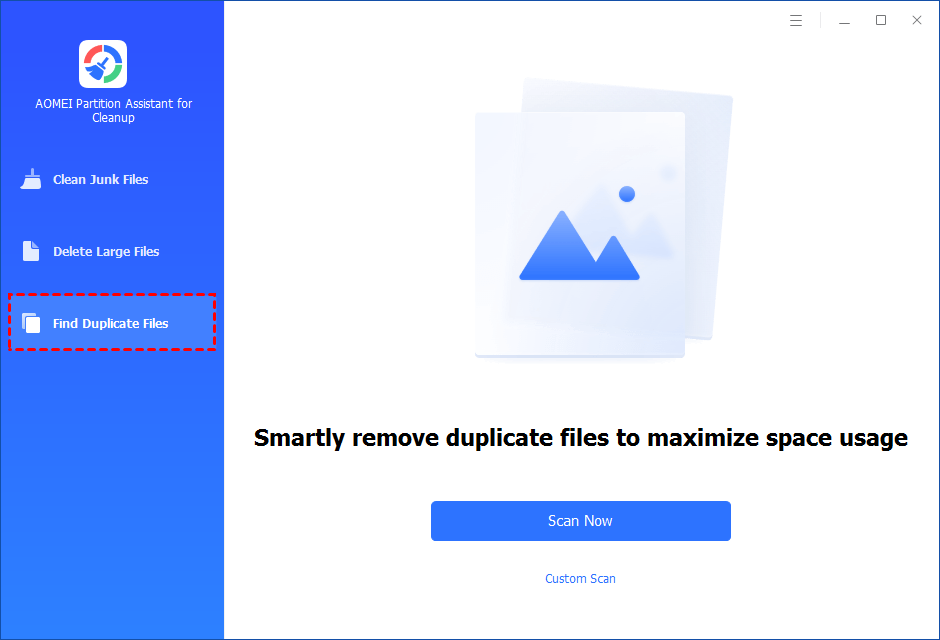
Step 2. Select a path to scan duplicate files. You can either click "Scan Now" to start the scan of your system C: drive. Or, click "Custom Scan" to manually select paths to be scanned. (Here, we take the "Custom Scan" as an example.)
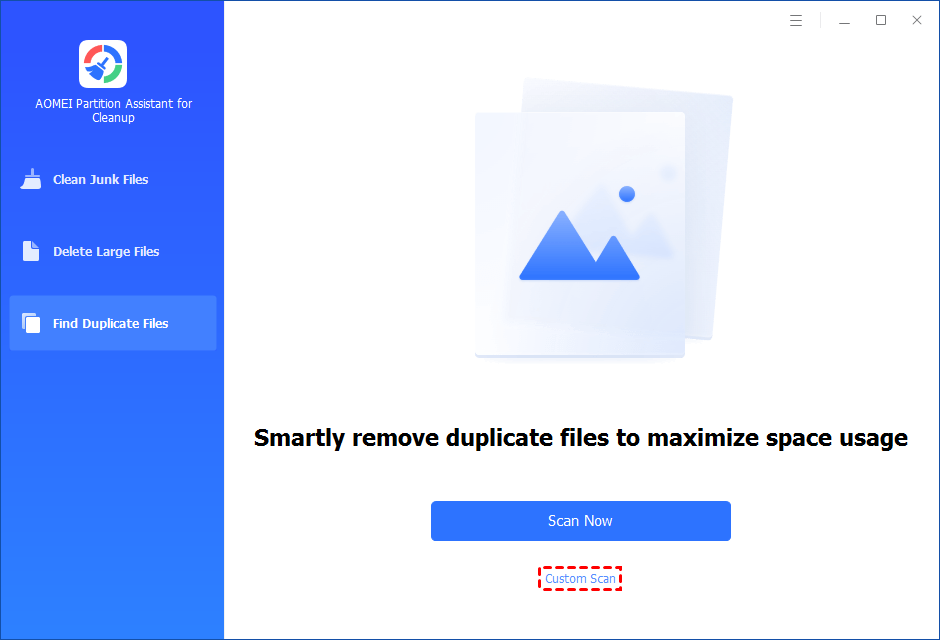
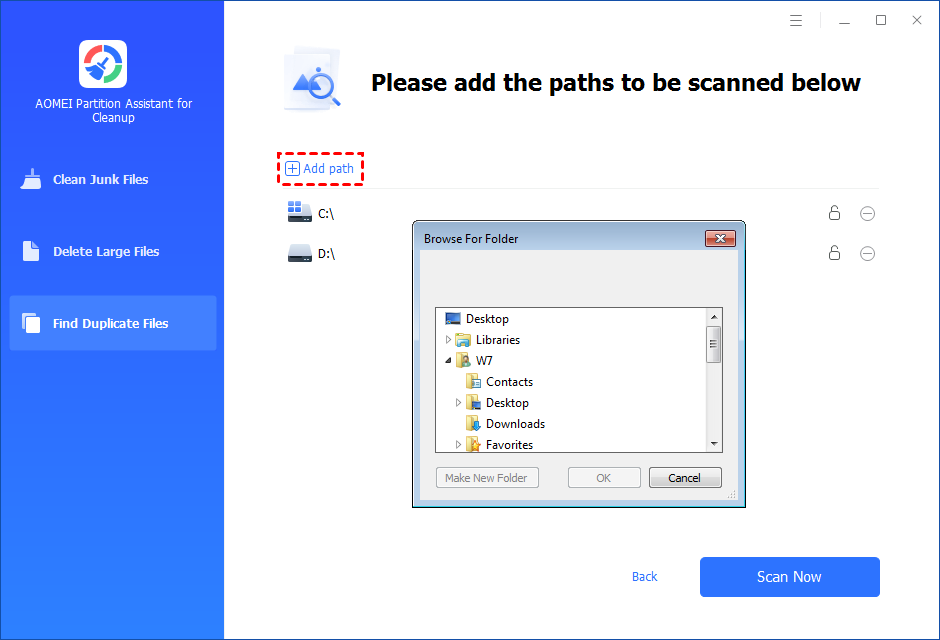
Step 3. After clicking "Custom Scan", all local and external drives on your PC will be displayed. You can also click the "Add Path" button, and then a browse folder window will pop up. So you can add more paths on this PC, like Desktop, Downloads, and other folder paths.
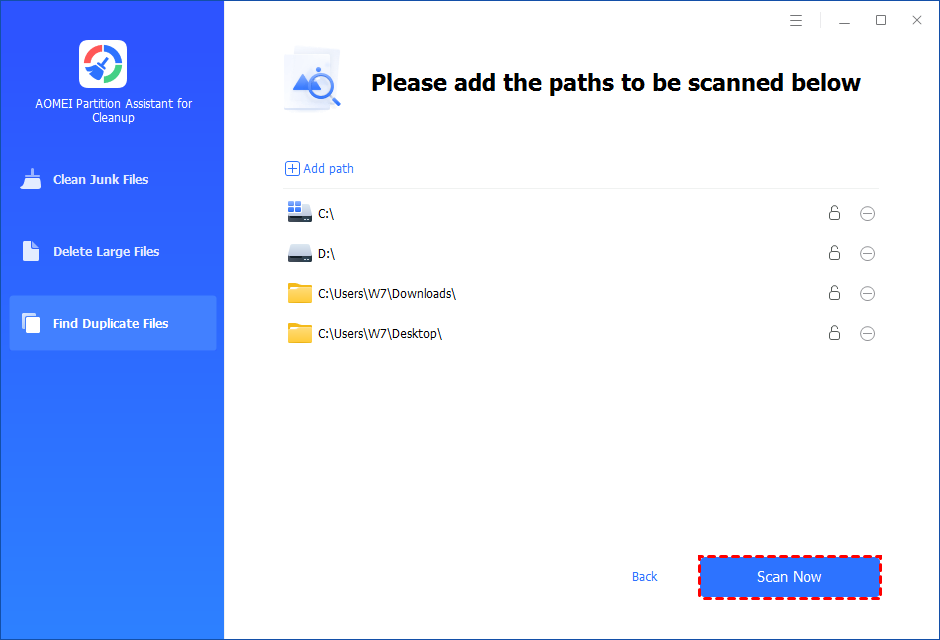
Step 4. Once necessary paths are added, you can click the "Scan Now" button to start the scan process.
Step 5. The scan process might take time. After the scan is complete, all duplicate files will be listed. You can click the button behind to locate them.
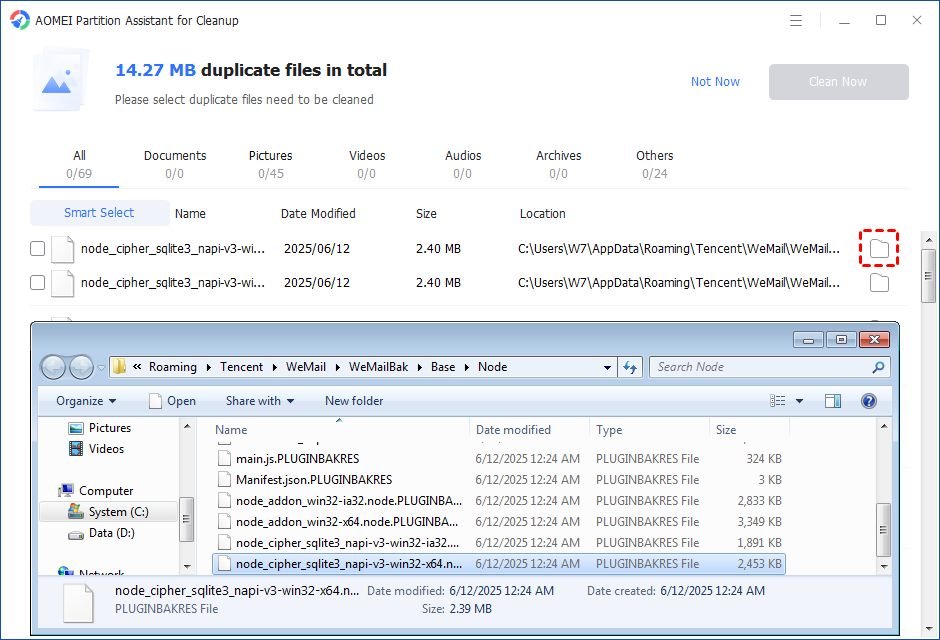
Step 6. Select duplicate files to start deletion. You can either manually select duplicate files, or click the "Smart Select" button to automatically select unnecessary duplicate files to delete.
Tips: If the "Smart Select" is ticked, only the oldest duplicate file will be unticked. It means that all duplicate files except the oldest one will be ticked to delete. (The oldest file means the file that was created first. This file will not be deleted. All other duplicate files are considered copies of the oldest file. )
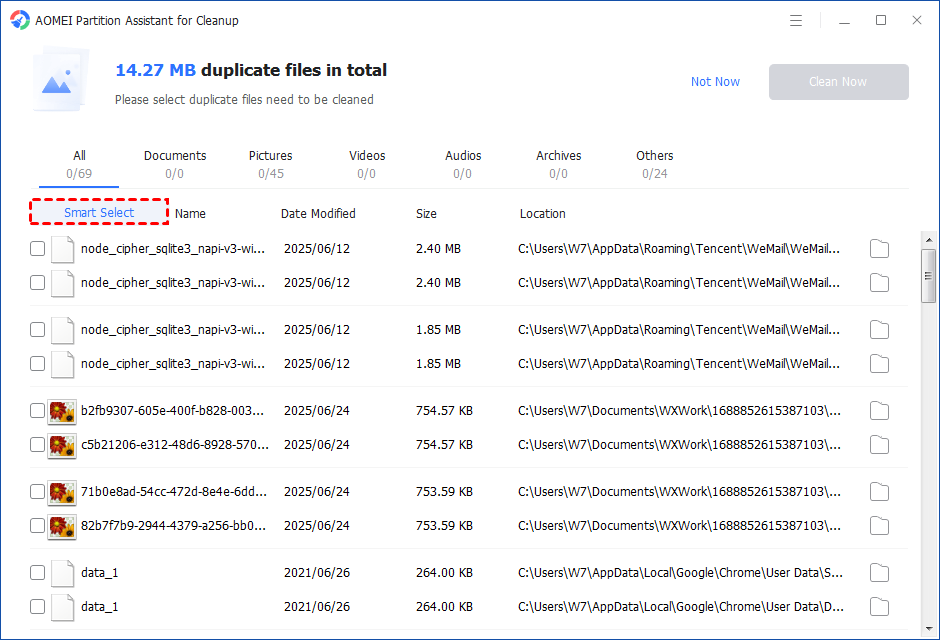
If you manually select all copies of duplicate files, you will get a pop-up warning window to keep at least one copy of the duplicate files. If you indeed want to delete all copies of duplicate files, you can click "OK" so all copies of duplicate files will be selected to delete.

After unnecessary duplicate files are selected, please click the "Clean Now" button to start the deletion.

Step 7. Delete successfully. The deletion might take time. After the process is finished, the selected files will be deleted, and you will get a cleaning completed window displaying how much data you deleted in total.

Final lines
How can I delete duplicate files in a folder? In this article, we explored three methods to delete duplicate files in a folder on Windows 10 to help you solve this problem. Windows File Explorer and PowerShell offer built-in solutions that can help you manually identify and remove duplicates.
However, for a more efficient and user-friendly experience, consider using PartitionAssistant Cleanup. Its powerful features and intuitive interface make it a valuable addition to your toolkit for managing disk space and keeping your computer organized. Choose the method that suits your needs best and enjoy a clutter-free computing experience.
