


How To Delete Massive Files in Windows 10 to Free Up Space?
How to delete massive files in Windows 10 at once? Follow this guide to delete many files and easily free up space for your PC.

By Irene / Updated on July 21, 2025


When your computer runs out of space, Windows will keep showing low disk space messages. At the same time, your PC may slow down and take longer to open files, run programs, or start up. To free up space, the easiest and most effective way is to delete files you no longer need. But over time, your computer can collect massive files, including junk files, large files, duplicate files, and other unnecessary data. So how can you quickly find and delete many of these files at once? This article will share simple and complete solutions for you.
How to find and delete massive files in Windows 10 to free up space?
About how to delete massive files in Windows 10, there are 4 practical ans simple methods.
Fix 1. Delete junk files
Finding and deleting large files in Windows 10 can be troublesome if you only use the built-in tools. They often require you to configure different settings, and they might miss some hidden junk files on your computer.
To make things easier, you can try PartitionAssistant Cleanup. It works with all versions of Windows, including Windows 10. This tool can quickly scan your PC, find big or useless files like junk and cache at once, and let you remove them in just a few clicks. It’s a simple way to free up space and help your computer run more smoothly.
 PartitionAssistant Cleanup
The Best Windows Disk Partition Manager and PC Optimizer
Step 1. Install and launch PartitionAssistant Cleanup. Click the "Clean Junk Files" tab.

Step 2. Click the "Scan Now" button to start the process of scanning junk files.

Step 3. After the scan process is finished. All system junk files (including recycle bin files, temporary files, log files, invalid shortcuts, and so on) and registry junk files (including DLL registry, system registry, and program registry) will be displayed.

Step 4. You can also click the button behind to view the junk files details.

Step 5. And, you can click the button behind to locate the file.

Step 6. By default, the program will select some junk files to clean up, for example, temporary files, log files, and so on. You can also manually check to select more or uncheck to deselect fewer listed junk files. Or, click "Select All" to select all junk files to clean up if you need to clean up all.
After selecting junk files that are not needed anymore, you can click the "Clean Now"button to start the cleanup.

Step 7. The process of the cleanup might take time, and the selected files will be cleaned up. After the process is finished, you will get a cleanup completed window displaying how many files you have cleaned and not yet cleaned.

Fix 2. Delete massive large files in Windows 10
The "Delete Large Files" feature of PartitionAssistant Cleanup also makes it easy to scan any disk or folder for big files. Once the scan is complete, it shows all files larger than 16MB along with their details. You just need to select the files you want to remove and click "Delete" to get rid of them completely. This saves you the trouble of finding large files one by one. The tool also automatically flags important system or boot-related files, so be sure to review them carefully before deleting anything.
PartitionAssistant CleanupThe Best Windows Disk Partition Manager and PC Optimizer
Step 1. Install and launch PartitionAssistant Cleanup. Click the "Delete Large Files" tab.
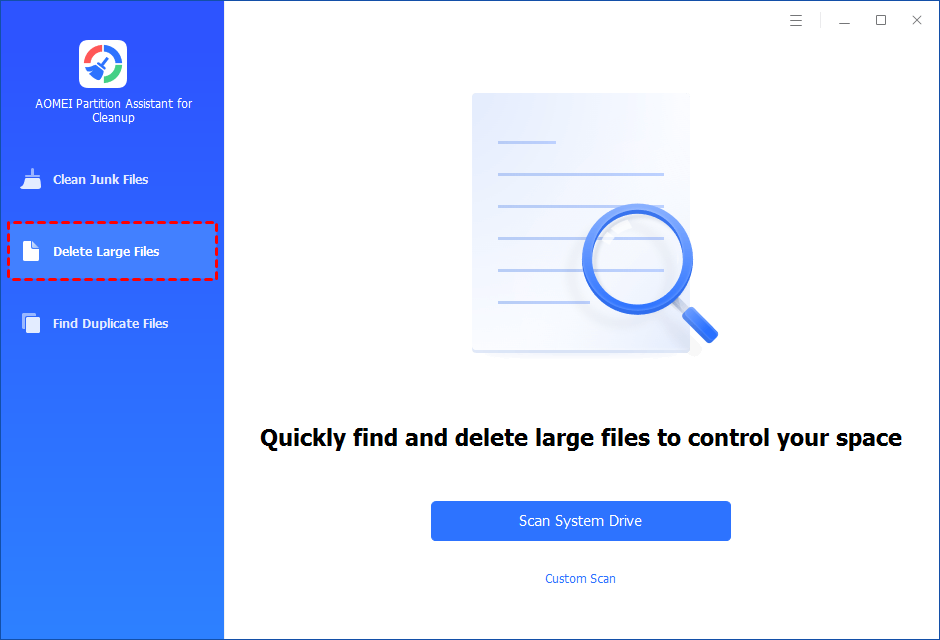
Step 2. You can either click "Scan System Drive" to start the scan of your system C: drive. Or, click "Custom Scan" to manually select paths to be scanned. (Here, we take the "Custom Scan" as an example.)
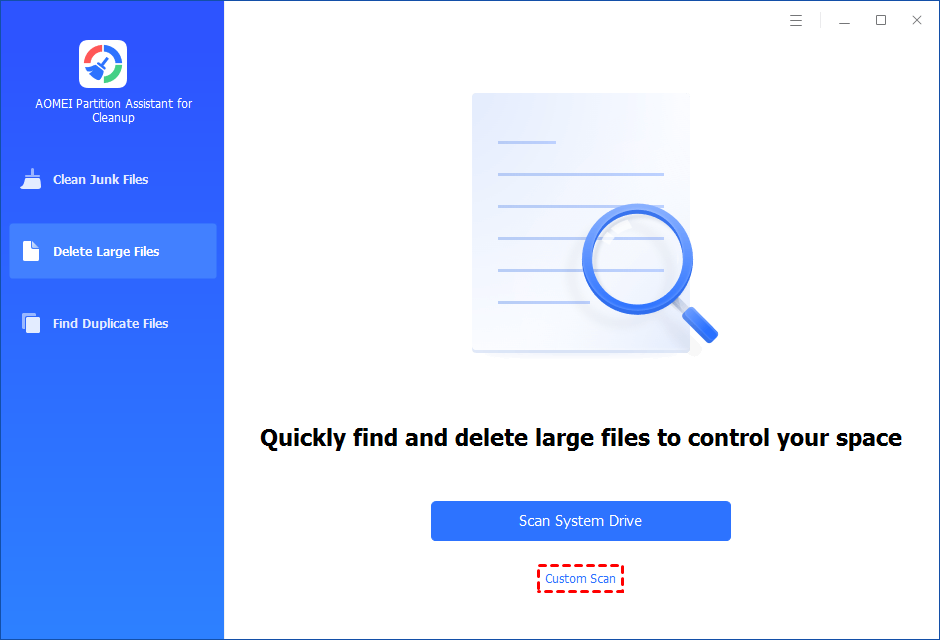
Step 3. After clicking "Custom Scan", all local and external drives on your PC and the common Desktop, Documents, and Downloads paths will be displayed. You can manually select paths to be scanned. Once necessary paths are added, you can click the "Scan Now" button to start the scan process.

The scan process might take time. After the scan is complete, all large files found will be listed.
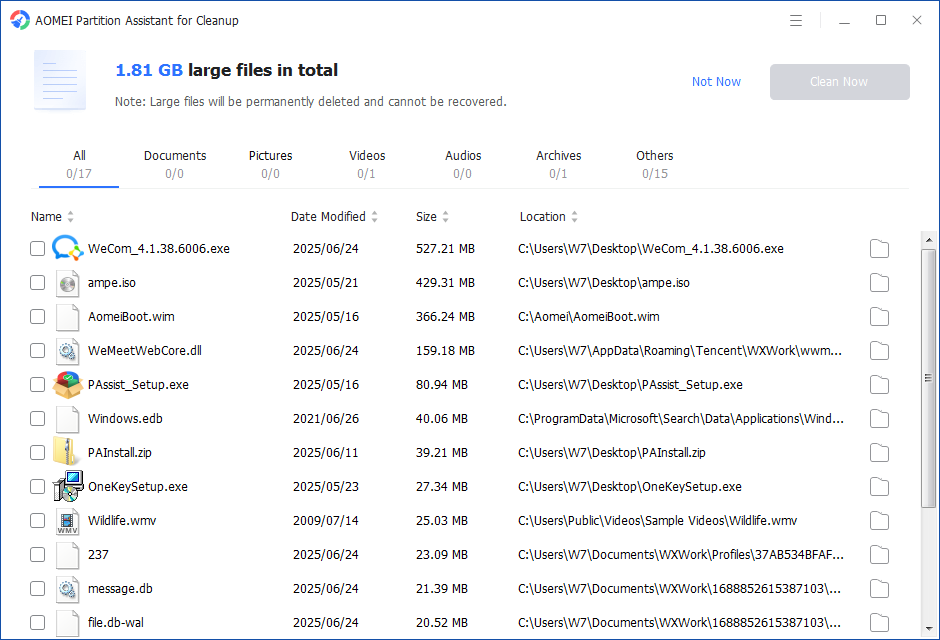
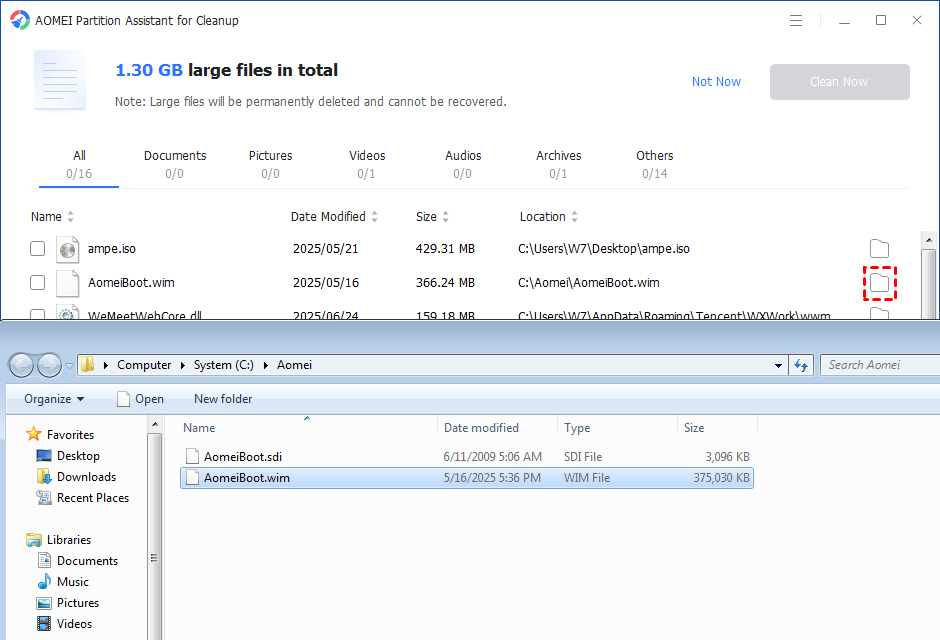
You can also check the large files and click the button behind to locate them.
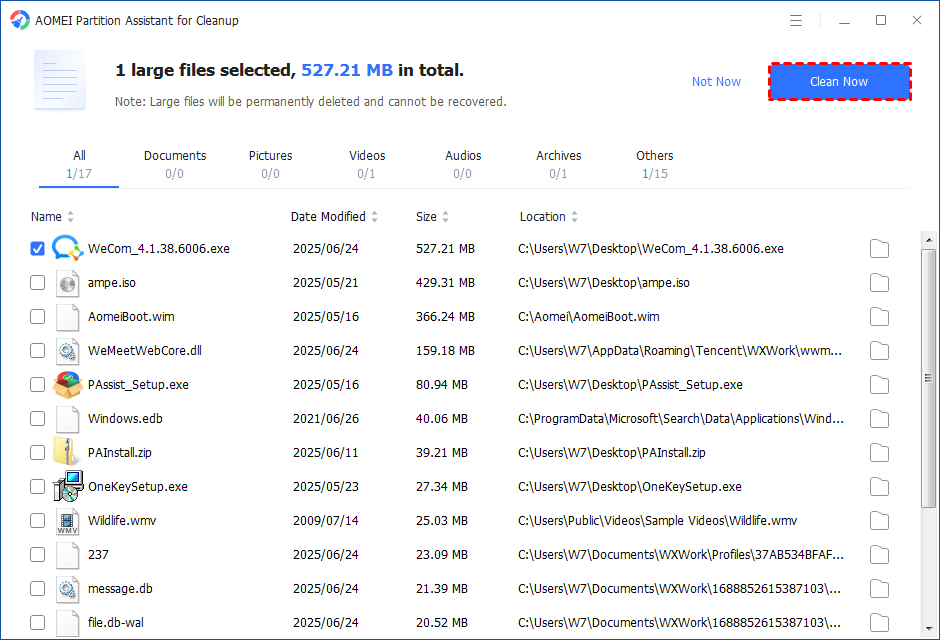
Step 4. Tick the files you want to delete, and then click the "Clean Now" button to start the deletion.
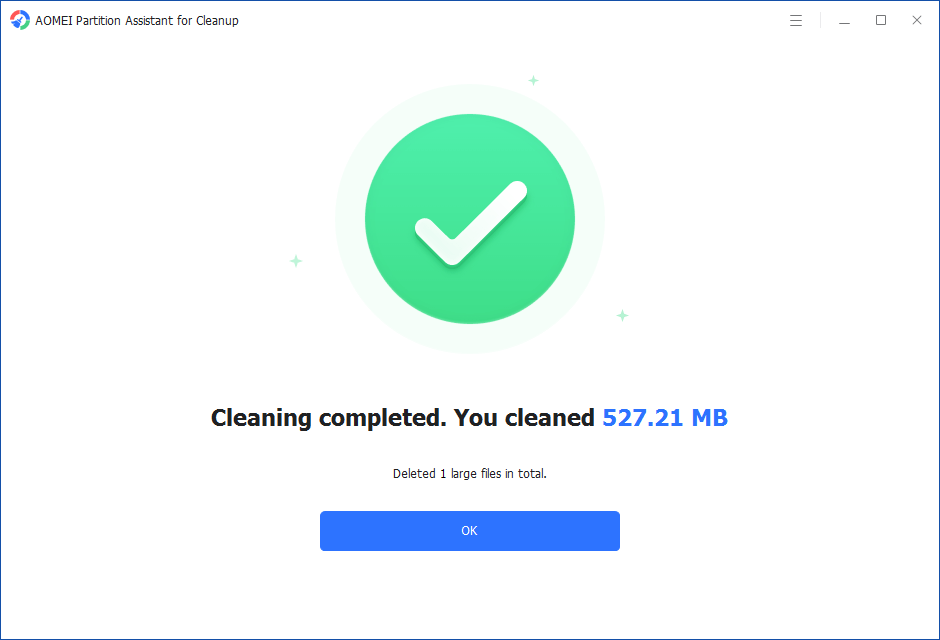
Step 5. The deletion might take time. After the process is finished, the selected files will be deleted, and you will get a cleaning completed window displaying how much data you deleted in total.
Fix 3. Find and delete files using the CMD
You can use the command line to find and delete files, you can refer to the following steps:
Step 1. Type “CMD” in the start bar, right-click the Command Prompt icon and select “Run as administrator”.
Step 2. In the CMD taskbar, type "cd C:\" and hit "Enter" to search the entire C drive.

Step 3. Then, you should type in forfiles /S /M * /C "cmd /c if @fsize size echo @path > largefiles.txt” command. But you should replace size with the size of the target file in bytes(B). For example, if the files you are searching for larger than 1GB(1,073,741,824 B), you should type in forfiles /S /M * /C "cmd /c if @fsize GEQ 1073741824 echo @path > LargeFilesList.txt" and press “Enter”.
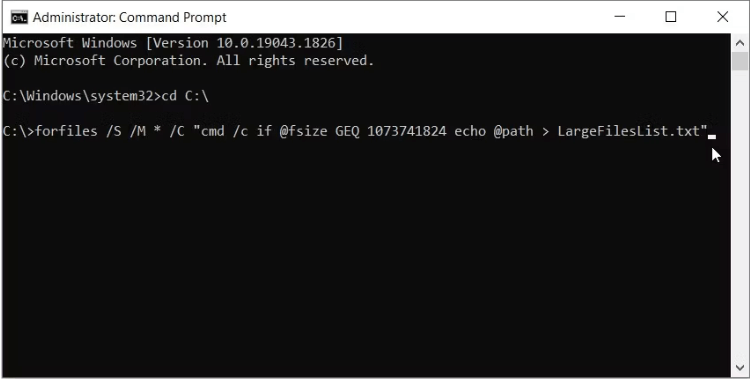
Step 4. After that, a folder named "LargeFilesList" will be created. You can delete files from the folder.
Tip: 1 KB = 1024 B, 1 MB = 1,048,576 B, 1 GB = 1,073,741,824 B
Fix 4. Run Disk Cleanup
To delete massive files, Disk Cleanup helps users remove various types of junk files such as temporary files, thumbnails, and more. This tool also shows how much space these files occupy and how much space you can free up. If you accidentally remove important files, you can recover files after Disk Cleanup by following this guide.
Step 1. Type "disk cleanup" in the search box, and hit "Enter".
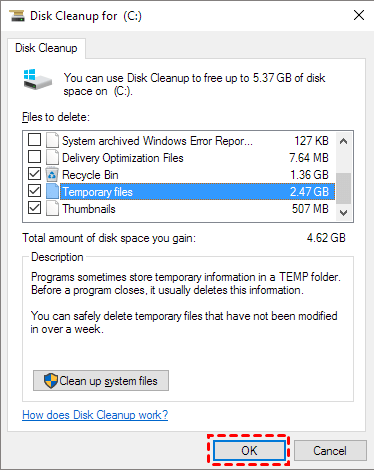
Step 2. In the Disk Cleanup, select C drive (or other drives you want to clean) and click "OK".
Step 3. Tick the files you do not need and click "OK" to confirm the operation. And you can click "Clean up system files" to get more free space.
Conclusion
How to delete massive files in Windows 10 at once to free up space? Freeing up space on your Windows 10 PC doesn’t have to be complicated. By using tools like PartitionAssistant Cleanup or built-in options like Disk Cleanup and CMD, you can quickly find and delete large, junk, or unnecessary files. These methods help you clean up your system efficiently, improve performance, and keep your computer running smoothly.
PartitionAssistant CleanupThe Best Windows Disk Partition Manager and PC Optimizer
