
 AOMEI Partition Assistant
Fixed in 5 Ways: Steam Allocating Disk Space
Encountering the Steam “Allocating Disk Space” problem on your computer? Stay calm—there are several dependable methods to resolve the error and get your games installing smoothly again.

By Hedy / Updated on August 27, 2025


Why Steam stuck on allocating disk space?
When Steam gets stuck on “allocating disk space”, it usually means the client is having trouble preparing your drive for the installation of a game. This step happens right before the actual download begins, and several factors can slow it down or cause it to freeze. Here are the most common reasons:
1. Insufficient disk space
If your drive doesn’t have enough free storage, Steam may get stuck while trying to allocate the required space. Even if the game size seems smaller, Steam often needs extra space for temporary files during installation.
2. Slow or fragmented hard drive
Traditional HDDs can take much longer to allocate space compared to SSDs. If your drive is fragmented or running slow, the process can stall.
3. Background programs interfering
Antivirus software, Windows Defender, or other disk-intensive applications can interfere with Steam’s installation process.
4. Corrupted Steam cache or download data
Damaged cached files in Steam’s downloading folder can cause the client to hang during allocation.
How to fix Steam allocating disk space
Here’s a step-by-step guide to fix the Steam stuck on "Allocating Disk Space" issue:
Solution 1. Restart the computer
Many users have found that simply restarting their computer resolves the issue when Steam gets stuck on allocating disk space. The exact reason why this works isn’t entirely clear, but the solution is effective. If you face this problem, start with this straightforward step: reboot your PC, open Steam again, and attempt to install the game.
Solution 2. Clear download cache
A common reason Steam gets stuck on allocating disk space is a clogged download cache. This cache can interfere with the game installation, preventing it from completing. The most effective solution is to clear the download cache before attempting to install the game again. Follow these steps to do so:
Step 1. Open the Steam client from your Desktop.
Step 2. Click the Steam menu in the top-left corner, then select Settings.
Step 3. Navigate to the Downloads tab and click the Clear Download Cache button.
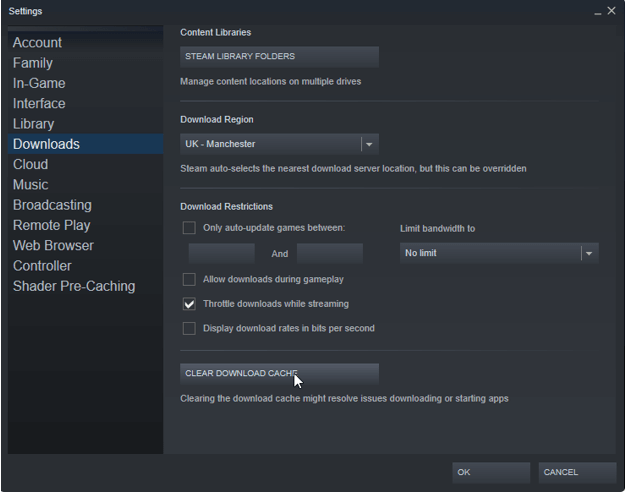
Step 4. Confirm by clicking OK. Exit Steam completely, then reopen it. You can now try installing your game again.
Clearing the download cache often resolves the slow or stuck disk space allocation problem. If the issue persists, move on to the next troubleshooting method.
Solution 3. Reopen the Steam client with administrative privileges
If Steam becomes stuck while allocating disk space, one effective method is to first terminate the Steam process and then relaunch it with administrative privileges. This approach can help resolve the issue and allow the installation to proceed.
Follow these steps to end Steam properly and run it as an administrator:
Step 1. Right-click the Taskbar and select Task Manager from the menu.
Step 2. In the Task Manager window, locate Steam.exe, right-click it, and choose End task. Repeat for any other Steam-related processes.
Step 3. Right-click the Steam shortcut on your computer and select Open file location.
Step 4. In the installation folder, right-click Steam.exe and select Properties.
Step 5. Go to the Compatibility tab and check the box for Run this program as an administrator.
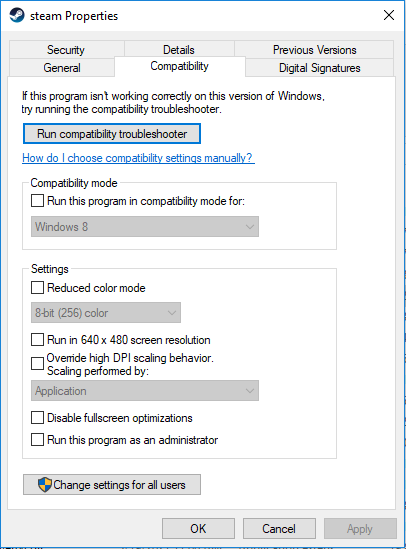
Step 6. Click Apply and then OK to save the changes.
Step 7. Finally, relaunch Steam from your Desktop and check if the disk space allocation issue is resolved.
Solution 4. Change the download server
If the download server you are using in Steam is busy or undergoing maintenance, it can cause the game installation to get stuck while allocating disk space. Many users have resolved this issue simply by switching to a different download server.
Here’s how to change your Steam download server:
Step 1. Open the Steam client, click the Steam menu in the top-left corner, and select Settings.
Step 2. Go to the Downloads tab. Under Download Region, click the drop-down menu and select a different server. Then close the Steam client.
Step 3. Reopen Steam and try downloading or installing your game again.
Step 4. After changing the server, the disk space allocation problem should be resolved.
Solution 5. Free up and optimize disk space
To better manage your Steam storage, you can use PartitionAssistant Cleanup. This professional disk cleaning tool comes with a Cleanup feature that helps you quickly reclaim valuable storage.
With just a few clicks, you can delete temporary files, remove junk data, and clear system cache that’s clogging up your drive. Unlike manual cleanup, AOMEI Partition Assistant scans deeply to locate hidden and unnecessary files, making sure your system stays optimized.
By freeing up space, you’ll not only speed up the allocation process in Steam but also improve overall PC performance.
 PartitionAssistant Cleanup
Free Up Disk Space To Keep Your PC Running Smoothly and Efficiently
Step 1. Install and launch PartitionAssistant Cleanup. Click the "Clean Junk Files" tab.

Step 2. Click the "Scan Now" button to start the process of scanning junk files.

Step 3. After the scan process is finished. All system junk files (including recycle bin files, temporary files, log files, invalid shortcuts, and so on) and registry junk files (including DLL registry, system registry, and program registry) will be displayed.

You can also click the button behind to view the junk files details.

Step 4. And, you can click the button behind to locate the file.

By default, the program will select some junk files to clean up, for example, temporary files, log files, and so on. You can also manually check to select more or uncheck to deselect fewer listed junk files. Or, click "Select All" to select all junk files to clean up if you need to clean up all.
Step 5. After selecting junk files that are not needed anymore, you can click the "Clean Now"button to start the cleanup.

The process of the cleanup might take time, and the selected files will be cleaned up. After the process is finished, you will get a cleanup completed window displaying how many files you have cleaned and not yet cleaned.

Conclusion
Getting stuck on “Steam Allocating Disk Space” can be frustrating, but it’s rarely permanent. With the fixes above, you can quickly get back to gaming without long delays. Most of the time, it’s just a matter of clearing cache, freeing space, or restarting the client. Keep your system optimized, and you’ll likely never run into this problem again.
