
 AOMEI Partition Assistant
MS Account Login: Access Your Microsoft Services
This article provides a simple guide to accessing your Microsoft account and troubleshooting potential login issues.

By Irene / Updated on May 17, 2024


Microsoft Account is a comprehensive service from Microsoft that not only allows users to access a wide range of Microsoft products and services such as Windows, Office, Outlook, Skype, and Xbox with a single credential, but also provides a highly personalized and secure digital experience. Users can enjoy personalized settings syncing across devices, OneDrive cloud storage services, family group content sharing, and rich online services and entertainment options.

In addition, Microsoft accounts offer strong security measures such as two-step verification and privacy controls to ensure the safety of user information. For those gaming enthusiasts, the Xbox Live service provides a platform for online gaming and social interaction. Business users can also manage their enterprise-level accounts through Azure Active Directory. Creating a Microsoft account is a simple process, but not all of users need it. If you want to install Windows 11 without MS account login, you can find answers here.
Can You Install Windows 11 Without MS Account Login?
With Windows 10's support ending on October 14, 2025, many users are opting to upgrade to Windows 11 for its superior security features and ongoing technical assistance, even though Windows 10 has the biggest market share globally.
However, in Windows 11 Pro. If you want to install or upgrade to Windows 11 22H2 or Windows 12H2 and later, the system will ask if you want your computer to be used for business or personal purposes. Besides, you still have to comply with the requirements of Windows 11. If you choose a personal one, you must log in with a Microsoft account.
In this case, you may have the following questions: "A Microsoft account is required to install Windows 11" or "Can use Windows 11 without a Microsoft account login "or "How to forget Microsoft account when installing Windows 10".
Although a Microsoft account is usually required to install Windows 11, there are ways around this requirement, most notably with Windows 11 Home, which allows you to install Windows 11 without a Microsoft Account. Actually, a Microsoft account is not required to install Windows 10.
While creating a Microsoft account won't cost you a dime, there are a number of good arguments against doing so. In the section that follows, you'll find out how to avoid creating a Microsoft account when installing Windows 11. Now, kindly please keep reading.
How to Install Windows 11 Withoutout MS Account Login
In the past, when prompted to create a Microsoft account, users could bypass this requirement by disconnecting from the Internet before proceeding with the setup process. But these days, there are a plethora of options for getting around Windows 11's Microsoft Account settings. Next, we will go into the specifics.
Way 1. Using Windows Installation Program
Most people woluld like to use a bootable USB drive to install Windows. This type of drive can help you set up many computers and install an operating system. You can use a professional bootable USB creator, such as AOMEI Partition Assistant to make a bootable USB.
 AOMEI Partition Assistant
The Best Windows Disk Partition Manager and PC Optimizer
Preparation work:
① Prepare an empty USB drive. To speed up the process, a USB 3.0 drive and computer with a USB3.0 port are recommended.
② Download the Windows 11 ISO files from the Microsoft official site.
③ Download the AOMEI Partition Assistant first.
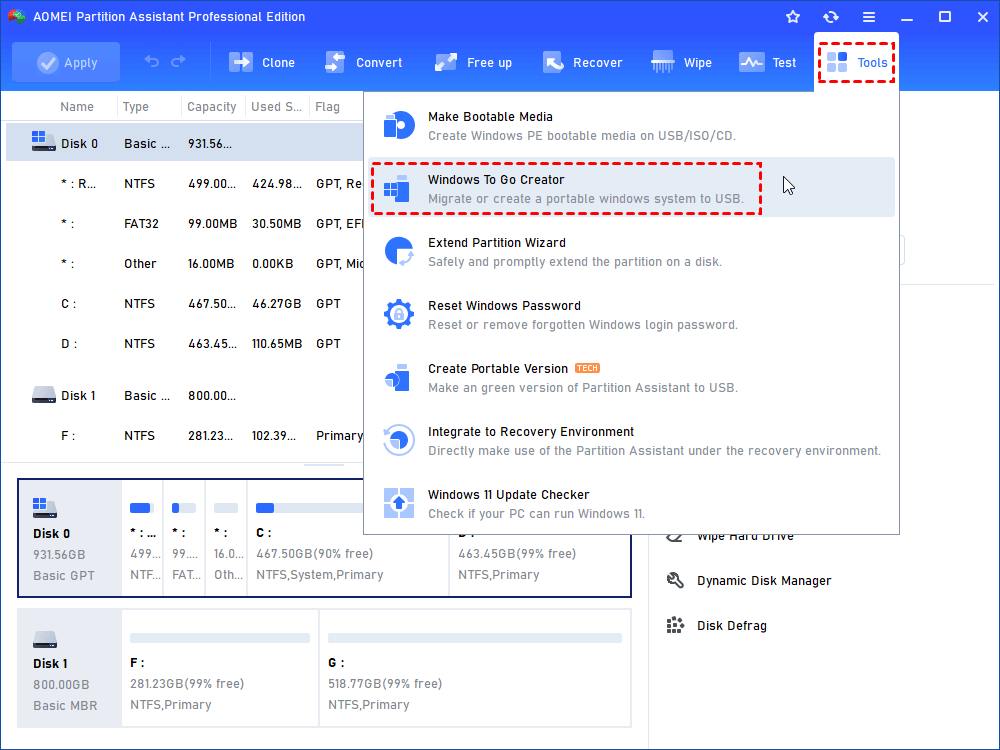
Step 1. Plug the prepared USB drive in your Windows 11 computer and verify it is detected successfully. Run AOMEI Partition Assistant Professional. Click “Tools” in the top toolbar, and choose “Windows To Go Creator”.
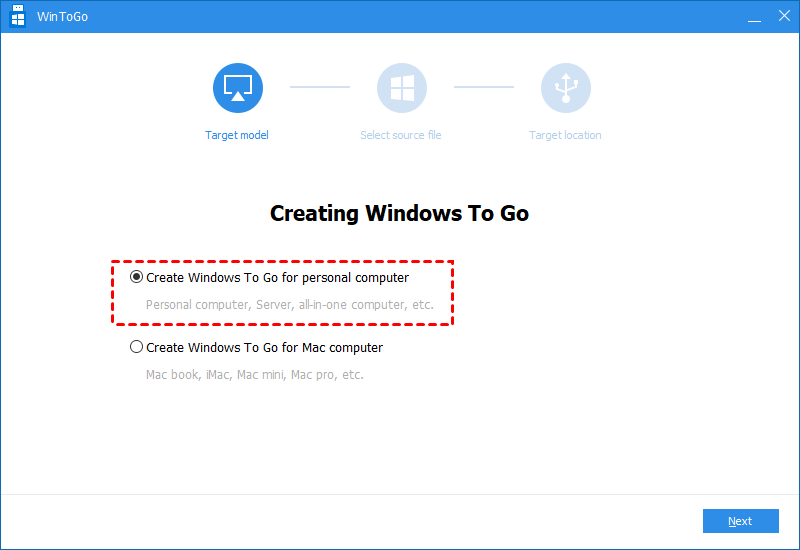
Step 2. Here we choose the first option "Create Windows ToGo for personal computer".
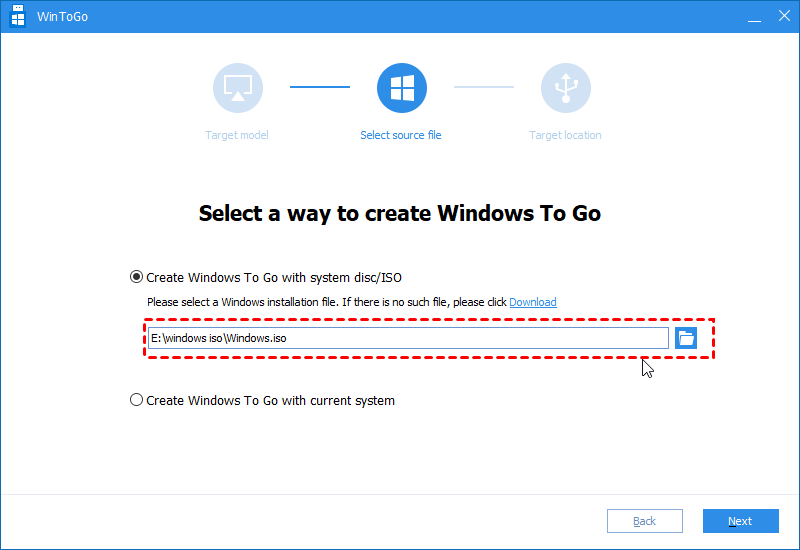
Step 3. Choose "Create Windows ToGo with system disc/ISO" and select the prepared ISO files, then hit on "Next".
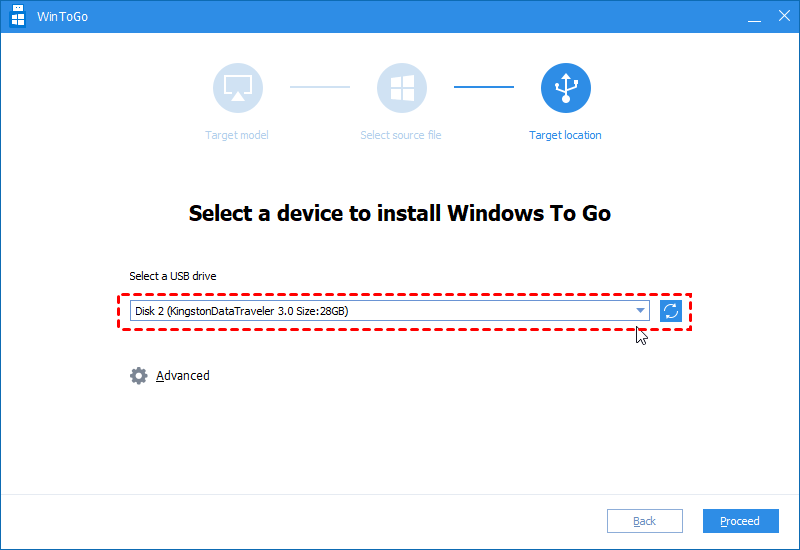
Step 4. In the subsequent window, choose the USB you plan to use. Then click the "Proceed" option to start making a bootable USB from ISO.
If you have don’t have prepared Windows ISO files, you can choose the second method in "Step 3" to create Windows bootable USB with current system.
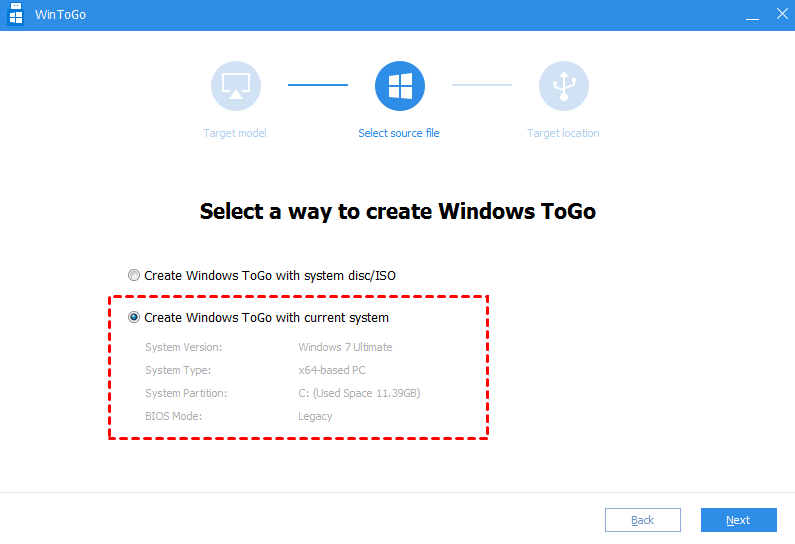
If your OS won't start up normally, you can use "Make Bootable Media" function to make a bootable USB drive on a computer that is already up and running.
Way 2. Using Task Manager
The Windows Task Manager is a great programme that can help you fix problems on your computer. Task Manager can also be used to stop the Network collection flow process and get around the need for a Microsoft account to install Windows 11 Home edition. Follow these steps to get it.
Related article: Fixed: 100% Disk Usage on Windows 10 Task Manager (Update)
Step 1. Proceed with the standard installation of Windows 11. Then, when Let us connect you to a network appears on your screen, click Shift + F10 to open the Command Prompt.
Step 2. To open the Task Manager, type taskmgr and hit Enter.
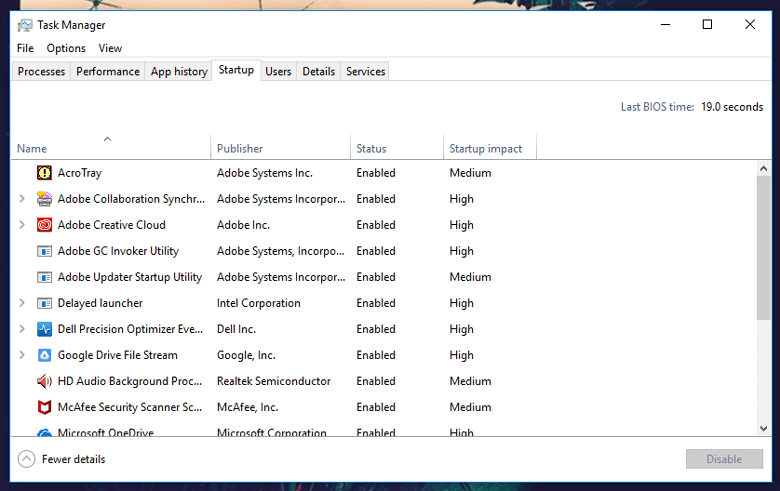
Step 3. Find Network Connection Flow under the Processes tab, click it, and then select End job.
Step 4. Close the Command Prompt and Task Manager. You can then go back to the Windows 11 setup page. To log in to this computer, it will prompt you for a local account. Following that, you can install Windows 11 using a local account by following the setup process.
Way 3. Using Local Account
You have the option to customize the offline account login process during the installation of Windows 11 Pro or later. Doing so will allow you to install Windows 11 without being prompted to enter your Microsoft account credentials. If you don't have a Microsoft account, you can still install Windows 11 Pro by following these steps.
Related article: Windows 11 Pro vs Home for Gaming: Which One Is Better?
Step 1. Proceed with the Windows 11 install process until it asks you to add a Microsoft account. Click the Sign-in option while you are on the window "Let's add your Microsoft account".
Step 2. Select Offline account.
Step 3. Tap Skip for now.
Step 4. Then, install Windows 11 with a local account by following the on-screen wizard.
Way 4. Running OOBE\BYPASSNRO Command
OOBE\BYPASSNRO is a registry key that can help make OOBE (Out-of-box experience) not require a network connection. By executing this command, you can avoid the Windows 11 setup requirement for the Microsoft account. At this time, you can stop it and use this method. The detailed steps are as follows:
Step 1. Continue Windows 11 installation process until you see Let's connect you to a Network on your screen. Press the Shift + F10 keys to launch the Command Prompt at the same time.
Step 2. Type OOBE\BYPASSNRO and press Enter.
Step 3. You'll then return to the same OOBE page after your computer has been rebooted. Click I don't have internet.
Step 4. Click Continue with limited setup, and then you can use a local account to install Windows 11 by skipping the network connection and without a Microsoft account.
Conclusion
Installing Windows 11 without a Microsoft account login is possible through several methods. Whether using a bootable USB drive, Task Manager, a local account, or the OOBE\BYPASSNRO command, users can bypass the requirement for a Microsoft account and still enjoy the features of Windows 11. By following the steps outlined, you can set up Windows 11 tailored to your preferences, ensuring a smooth and customized installation process.
FAQs
-
Can I install Windows 11 without a Microsoft account? Yes, you can install Windows 11 without a Microsoft account using methods like a bootable USB, Task Manager, or local account setup.
-
What is the OOBE\BYPASSNRO command? The OOBE\BYPASSNRO command is used to bypass the network connection requirement during the Windows 11 setup, allowing you to use a local account.
-
Do I need an internet connection to install Windows 11? No, you can install Windows 11 without an internet connection by using specific methods like creating a bootable USB or running certain commands during setup.
-
Is it possible to upgrade to Windows 11 without a Microsoft account? Yes, upgrading to Windows 11 without a Microsoft account is possible by following steps to bypass the account requirement during the installation process.
-
Can I use Windows 11 features without a Microsoft account? While some features may require a Microsoft account, many core functionalities and local account options are still available without one.
